Need to translate text accurately from one language to another? RightBlogger’s free AI Translation Tool is just what the doctor ordered. Simply paste your text in its original language, select the tone and writing style, then choose the language to translate your text into. Our AI will automatically create a fluent translation.
How to Use Our Free AI Translate Text Tool
The translation generator is very easy to use, but we’ll run through each option step by step, so you know exactly what to do.
Step 1. Paste in the Original Text
First, you’ll need to give the AI the text that you want to translate into a different language. Copy and paste this into the first box. Here, we’ve used the introduction from Andy’s post How to Measure Content Performance in 2026: Beyond Pageviews:
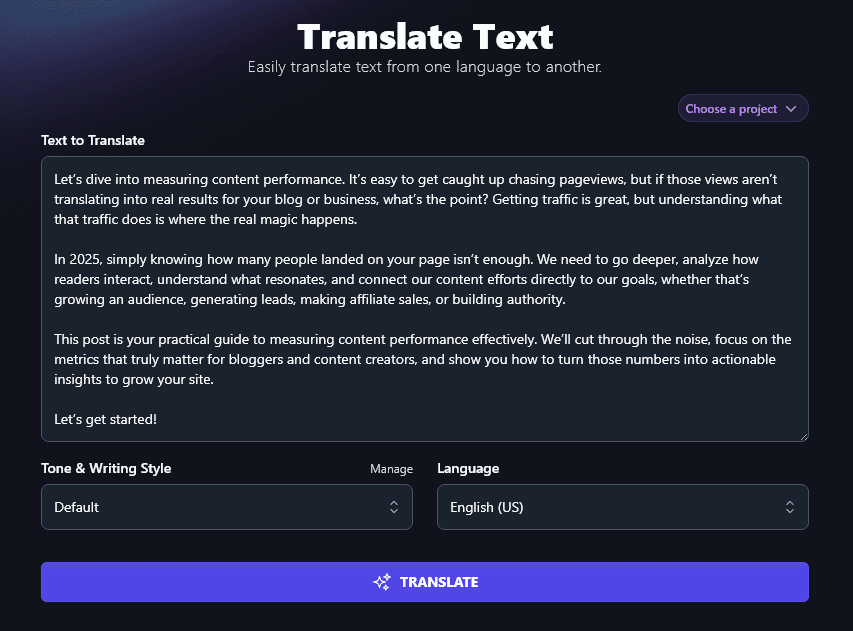
Step 2. Leave the Tone & Writing Style as Default (in Most Cases)
You can optionally select a Tone & Writing Style for your translation. We recommend leaving this set as Default, that way, the AI will aim to stay close to the same tone and style of the original text.
However, you want to adjust the style that the AI uses during the translation process, just pick from the dropdown list.
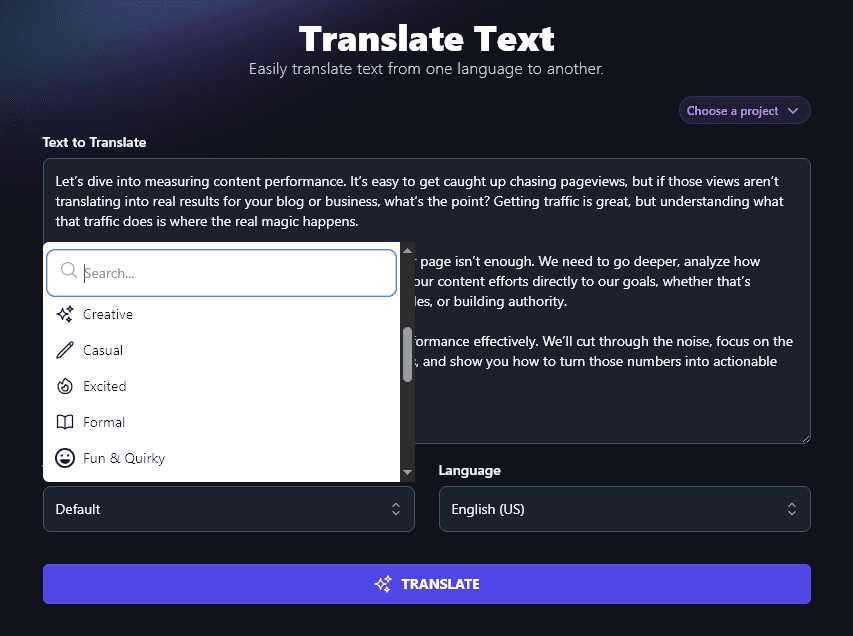
Step 3. Select the Language You Want to Translate Your Text Into
RightBlogger can translate into more than 100 different languages, just choose the one you want from the dropdown list. There’s a search bar at the top of the dropdown, so you can quickly find the language you want without having to scroll.
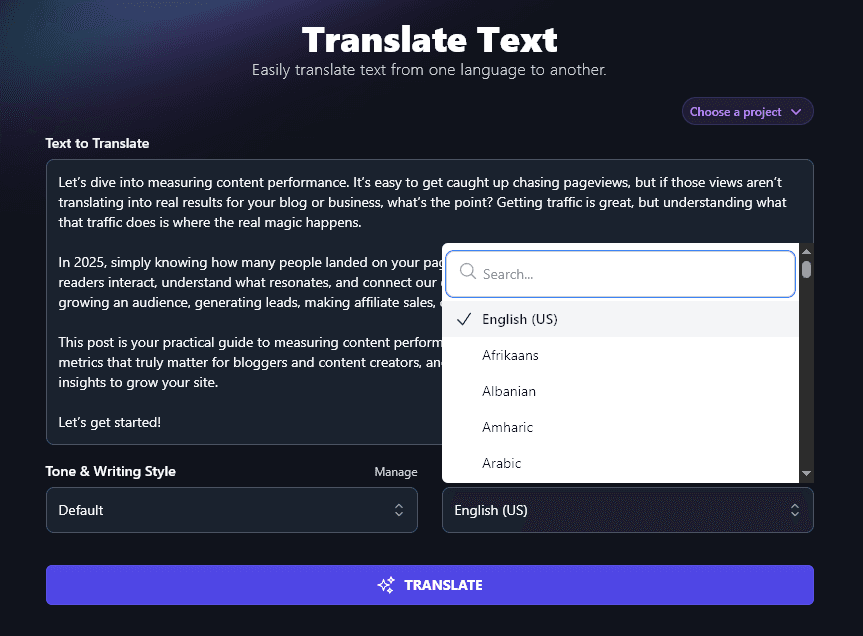
Note:RightBlogger automatically detects the language of your original text.
When you’re ready, press “Translate” and the AI will translate your text into your chosen language in real-time. Here, we’ve translated the blog post introduction into Spanish:
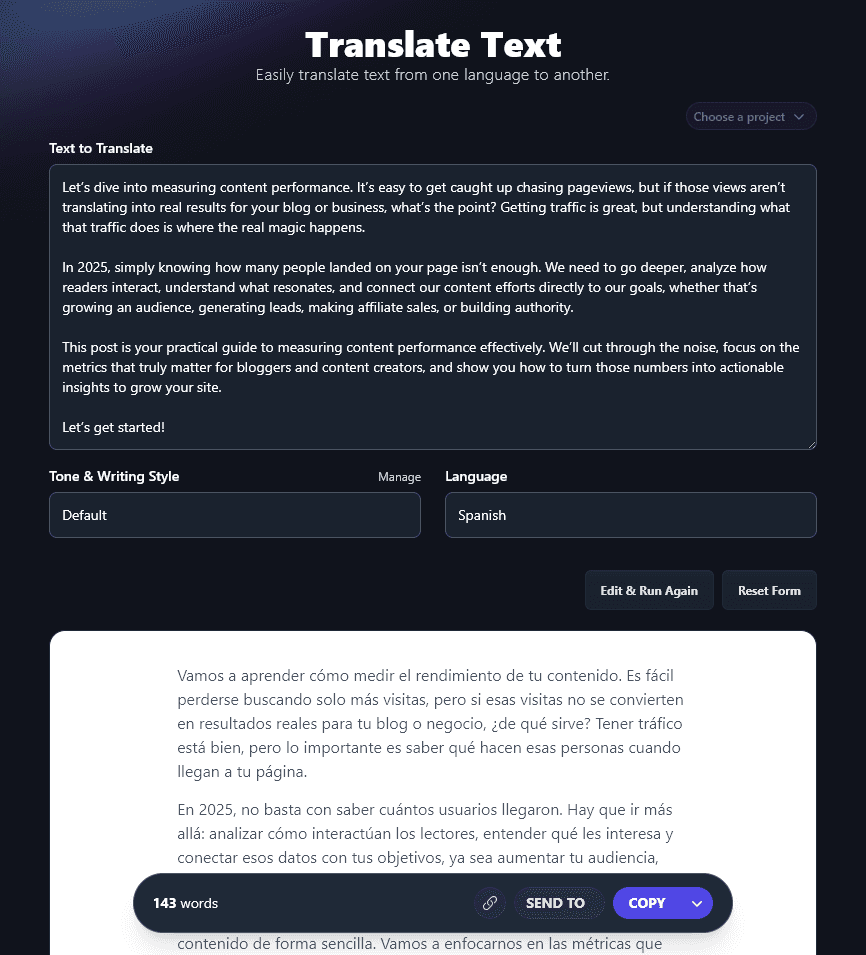
You can use the “Copy” button to copy the text of the generated translation to your clipboard. The downward arrow next to Copy gives you the options to copy the translation as Markdown, HTML, or plain text, and also to download it as a .docx (Word document format).
Bonus: Use My Translation Checklist Alongside This Free AI Tool
If you’ve already translated some parts of your text yourself, you’re creating a translation from scratch, or you’ve paid a translator, it’s helpful to carefully review and edit your transcript to make sure it’s accurate and easy to read.
Here’s my translation checklist to help you:
- Read through the whole of your translation and make sure that everything fits together well, with a consistent tone and style. It should read fluently, as if written by a native speaker.
- Make sure key details have been accurately conveyed, especially numbers and statistics.
- Think about the audience of the translation: will humor land correctly, for instance? (Remember that common idioms often won’t make sense when translated literally.)
- Keep in mind standard terms in the translated language: e.g. Europe uses the metric system, whereas the US uses the imperial system for measurements.
- Make sure that any brand names, trademarks, etc didn’t get translated, these should stay the same as in the original (e.g. don’t translate the German car brand “Volkswagen” as “The People’s Car”).
- Check that diacritical marks, such as accents, have been used correctly.
How Does the AI Translation Tool Work? (Getting the Most from the Translation Generator)
You can get an instant AI-powered translation from this tool just by following the steps above, but if you want to go a bit further, it’s helpful to know more about the different features. We’re going to take a closer look at each of them.
Step 1. Text to Translate (Paste Up to 20,000 Characters)
The first box is for the text you want to translate. This should ideally be your final draft, though note that the Translate tool can automatically adjust the style, if needed.
You can paste in up to 20,000 characters, which is around 3,000-5,000 words. If you’ve got a longer text to translate, that’s no problem: just split it up into chunks of 3,000 or so words each. Of course, you can translate a much shorter text, too: a phrase, sentence, or even a single word.
Tip: You’ll notice that the translate tool doesn’t have an option to specify your source language. That’s because the AI automatically detects this.
Step 2. Tone & Writing Style (Useful if You Want to Adjust the Style of the Original)
In most cases, you’ll want to preserve the author’s style when translating a text from one language to another. But in some contexts, it might make sense to adjust the tone & style. For instance, perhaps you’re repurposing the text for a very different audience, and they’ll expect a more formal (or more laid-back) style.
Whatever style you use, the AI will still preserve the meaning of each sentence when translating your text.
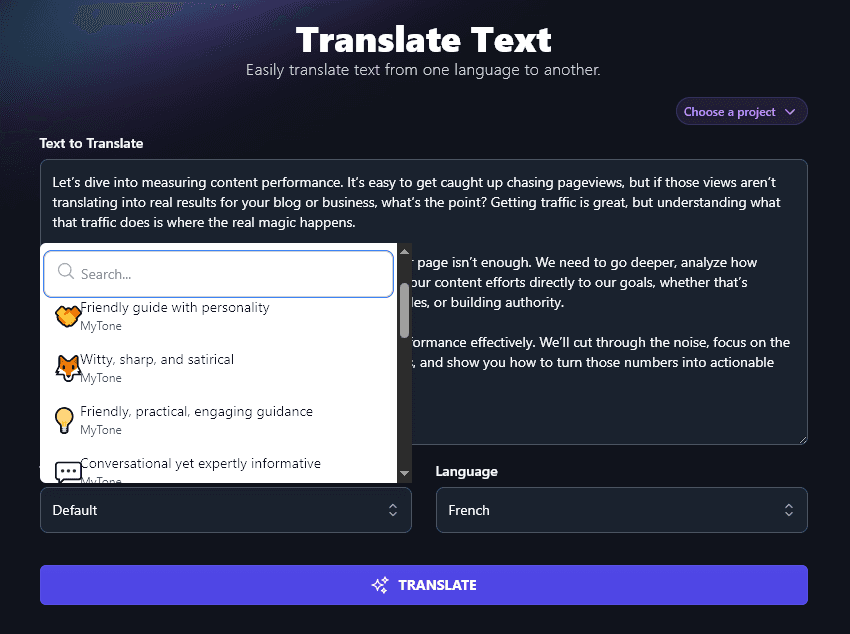
If you’d like to use a custom style for your translations, you can do that using RightBlogger’s MyTone feature. Every plan includes it, and paid plans save 5 (Solo), 15 (Pro), or 50 (Agency) MyTones. MyTone lets you create a tone based on a sample of your writing, in any language. The AI will automatically detect the tone of voice, saving it as a new MyTone.
You can then select your MyTone from the Tone & Writing Style dropdown, just like any other style.
Step 3. Language (Choose the Target Language for Your Translated Content)
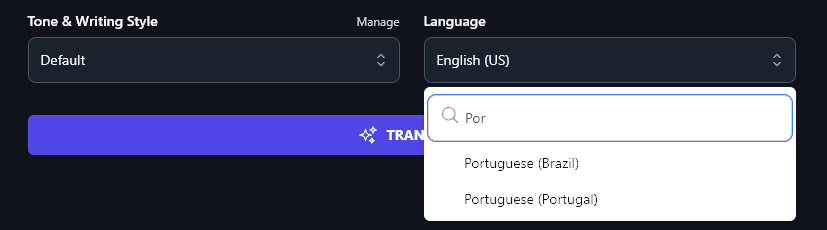
You need to tell the AI what language to translate your content into, and we have a huge list to choose from. The options include Arabic, Spanish, French, German, Russian, Chinese, Indonesian, Japanese, Portuguese (with options for both Brazil and Portugal), and many more.
You can only translate content into one language at a time, but you can run the Translation Generator multiple times to create more translations.
Use the search bar to find the language you want instantly. You’ll usually only need to type in the first few letters, like this:
You can translate between any language pair using RightBlogger … even if you don’t speak either of the languages yourself.
AI Translation Tool FAQs (Frequently Asked Questions)
Got questions about the AI translation tool, or about translation in general? Whether you’re using artificial intelligence for a machine translation or a translation service for a fully human translation, here are all the answers you need.
Why Would I Translate a Text Using AI?
There are all kinds of use cases for the translation tool. You might be using translation technology because:
- You want a free translation of a text that you can’t read in its original language.
- You’re creating content in more than one language to grow your business online.
- You want to translate product descriptions on an e-commerce website for a global audience.
- You’d like to communicate with someone who doesn’t speak your language, using AI to beat the language barrier.
- You’re building up your own knowledge of a language, e.g. creating a personal glossary of specific words/phrases.
- You’ve recorded a webinar and you’d like to translate the transcript, so you can add captions in different languages.
The big advantage of using translation software is that it provides fast, accurate translations. You don’t have to wait around for days or weeks for a translation service to get your translation back to you.
Of course, you could pay for a professional translation instead if that suits you. Another option is to create an initial translation using a generative AI tool, like this Translation Generator, then ask a professional translator or native speaker to review and edit the translation.
What is Localization in Language Translation?
“Localization” means going beyond just translating text from one language to another. It’s seen as a mark of very high-quality translations, where the final text is adapted to the translated content (e.g. visuals might be changed or examples might be switched for more resonant ones).
How Does AI Translate Text?
Large language models (LLMs) are trained on multilingual text data as part of their machine learning, essentially, LLMs can understand words and their meanings across multiple different areas, in part because of the use of neural networks. That means you don’t need a specialist AI translation engine to translate text: tools like RightBlogger and ChatGPT (both based on OpenAI’s AI model) can easily create accurate translations for you.
What’s the Difference Between the Translate Tool and Google Translate? (Online Translation Platforms Compared)
Google Translate is useful for short, quick translations, but it can only handle up to 3,900 characters, much less than RightBlogger’s AI, which has a powerful translation memory to handle up to 20,000 characters of text.
Another limitation of Google Translate is that it can’t adjust the tone/style of the text in the way RightBlogger can.
What Other AI Tools Can I Use to Grow My Global Business?
Doing business online often means doing business across the whole world. RightBlogger is packed with AI tools to help you automate different aspects of your business. Monthly plans start at Solo $59 (annual billing, charged monthly, is $49) with a 7-day free trial and a 30-day money-back guarantee.
Some great ones to get started with are:
- Article Writer: craft full-length articles in any language of your choice, based on just a topic or keyword (includes search engine optimization features like meta description and meta title)
- Paraphrase Generator: simplify any piece of text, either in the original text’s language or in conjunction with translating it into a different language
- Product Description Generator: craft compelling descriptions for your products, again in any language of your choice
- Expand Tool: add to your original text (without fluff) to extend a short piece of writing
- AI Image Generator: create unique images in a wide range of styles and sizes to use on your website
- Grammar Fixer: if you’ve created a translation yourself, run it through the Grammar Fixer to correct any typos, spelling mistakes, and/or grammatical errors
How Do I Sign Up for RightBlogger and How Much Does it Cost?
Getting started with RightBlogger is easy. Sign up and choose the plan that fits your needs. Every paid plan includes unlimited words and full access to all tools.
Monthly Solo starts at $59 (annual $49), monthly Pro is $89 (annual $69) (most popular, with 3 sites, 3 team seats, and 90 SEO reports/mo), and monthly Agency is $299 (annual $199) for larger operations. All plans come with a 7-day free trial and a 30-day money-back guarantee.