Paste an article, post, or transcript above and RightBlogger’s Key Takeaways Generator pulls out the main points in a single click. It is free to use right now, with no login standing in the way.
Looking to give your audience some key takeaways at the end of a blog post, video, or other piece of content?
Key takeaways can be a great way to sum up and give people real value, hopefully nudging them closer to becoming a customer.
You can also use key takeaways as a short, concise summary of your piece (ideal for targeting Google’s featured snippets). And if you want to promote your article or video to your email newsletter, having a list of key points is a great way to do that. But it can be tricky to come up with strong takeaways … and to know how to phrase them. That’s why our Key Takeaway Generator does all the work for you, with the help of AI (artificial intelligence).
How to Use the AI-Powered Key Takeaway Generator (Summarize an Article/Video)
Ready to create some key takeaways for your latest article or video? Here’s how to use the tool.
Step 1. Paste in Your Article or Video URL
If you’ve already published your blog post or a YouTube video, go ahead and paste the URL into the first box.
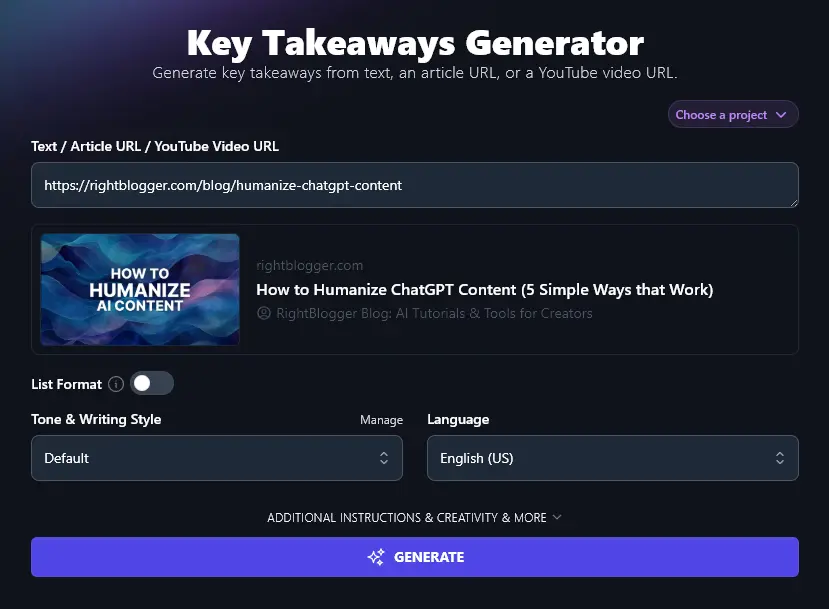
Tip: Got a draft article? Paste the full text into the box instead.
Step 2. Decide Whether You Want Your Key Takeaways Formatted as a List
The AI can create a summary paragraph of key takeaways for you … or it can give your points as a list. Just toggle this option on if you’d like the key takeaways as a list (this is ideal for adding at the end of a blog post or even a book chapter).
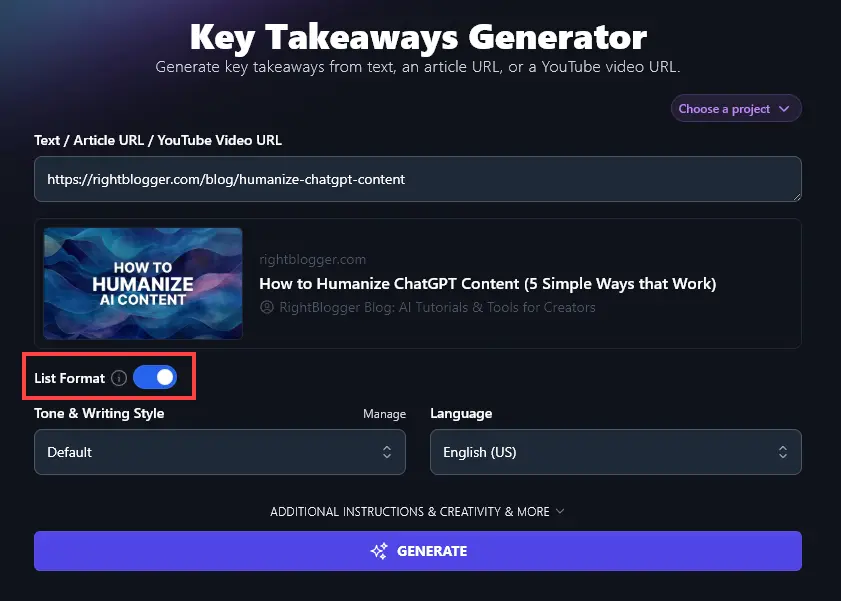
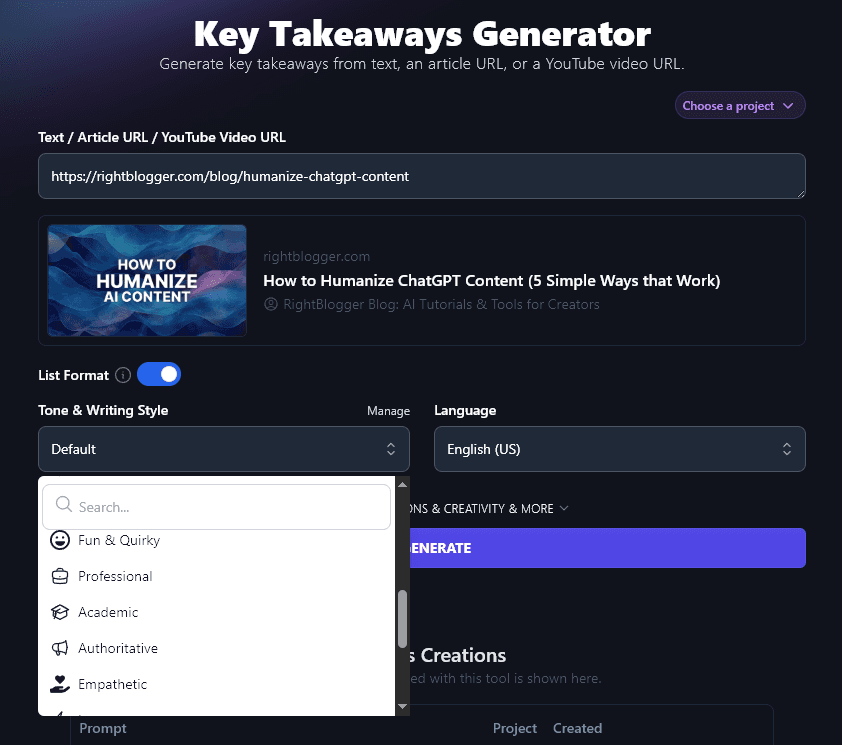
Step 3. Choose the Tone & Writing Style for Your List
If your key takeaways are just for your own purposes (e.g. to understand a long piece or get a quick overview of a video), then go ahead and stick with the default style.
If you’ll be using the key takeaways in something you’re writing, you may want to tailor the style for your audience and purpose.
For instance, if you want to quickly summarize an academic paper to include information about it in an essay you’re writing, then the “Academic” style makes the most sense.
But if you’re writing a LinkedIn post to promote your latest video, then an “Authoritative” or “Direct” style might be best.
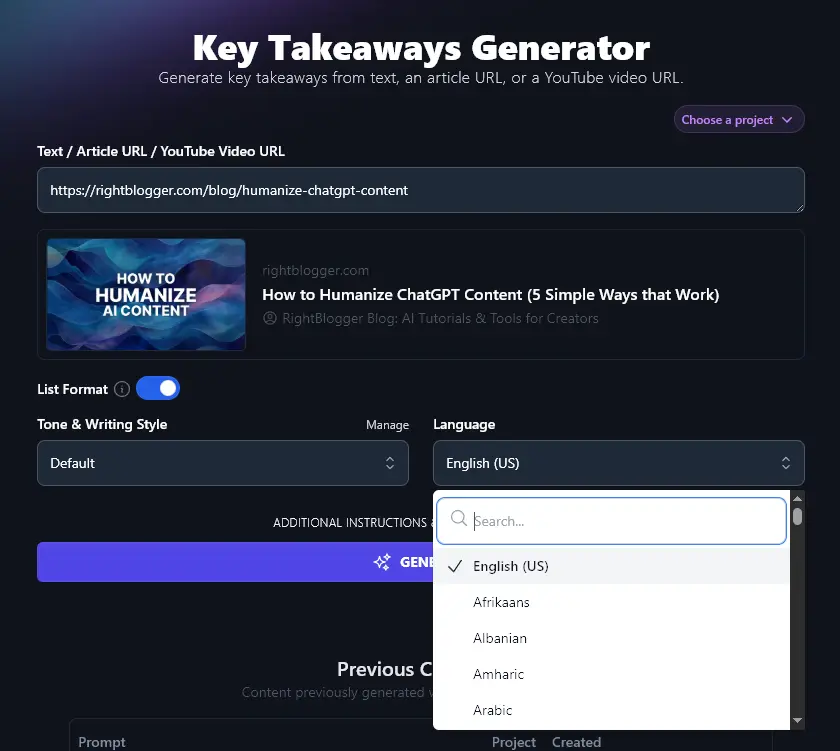
Step 4. Select the Language for Your Key Takeaways
Are you writing for a non-English-speaking audience? Or perhaps you want to summarize an article in your own language, for easy reference.
By default, RightBlogger produces content in US English … but you can change this to any of 100+ different languages. Simply click on the Language dropdown and scroll down (or use the search bar) to find the language of your choice.
When you’re ready, go ahead and run the Key Takeaways Generator to get your summary of the article or video:
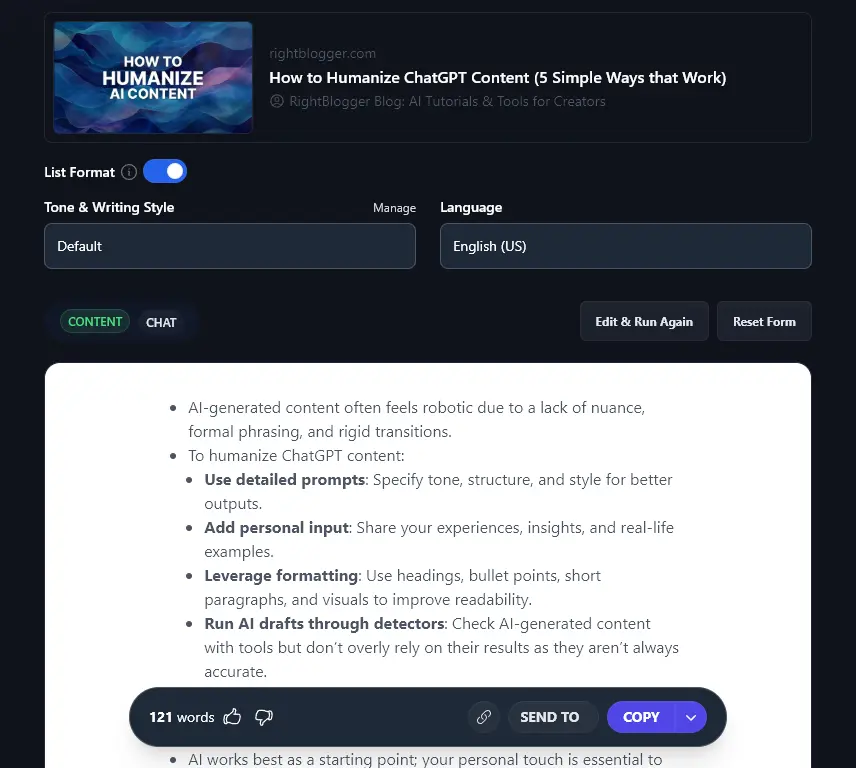
Bonus: Use My Free Editing Checklist Alongside This Tool
If you’re including your key takeaways as part of a longer piece, or in an email or social media post, you want them to fit with your usual style and structure.
Here’s my editing checklist for you:
- Read through the whole piece and check whether you need to add or change anything in the light of the key takeaways
- Make sure your introduction has a clear hook that will get readers to read on (the Hook Generator can help)
- Be clear what your piece is going to offer to readers, from the very start
- If it’s a longer piece (e.g. an article), use subheadings as “signposts” in your text to guide the reader through
- Use quotes, facts, and statistics to back up the points you’re making
- Watch out for times when you’ve repeated the same word/phrase unintentionally
- Check that your tone and style is consistent throughout your whole piece
- Make sure the readability of your piece works for your audience
- Use an AI grammar fixer (or spell checker) to catch any mistakes you might have missed
- Proofread one last time, fixing any last errors before sending or publishing your piece
How the Key Takeaway Generator Works (Tips for Using This Text Summarizer Tool)
The Key Takeaway Generator “reads” your article or video transcript and automatically picks out the main points, creating a brief summary of these. To get the most from it, it’s helpful to know more about each of its features … plus some advanced options.
1. Text / Article URL / YouTube Video URL (Paste Your URL or Your Text)
The Key Takeaway tool can create accurate summaries of multiple types of content, including:
- Online articles and blog posts
- YouTube videos
- Video or audio transcripts
- Research papers
- Any text you can paste into the tool
If you want to pull out key information from an online piece (or YouTube video), you can simply pop the URL into the tool.
Otherwise, copy-and-paste your text into the input box. (It can hold up to 10,000 characters, which is around 1,500-2,500 words).
For this example, we copied in the text of our update 5 Cool Things You Can Do with RightBlogger’s All New Editor.
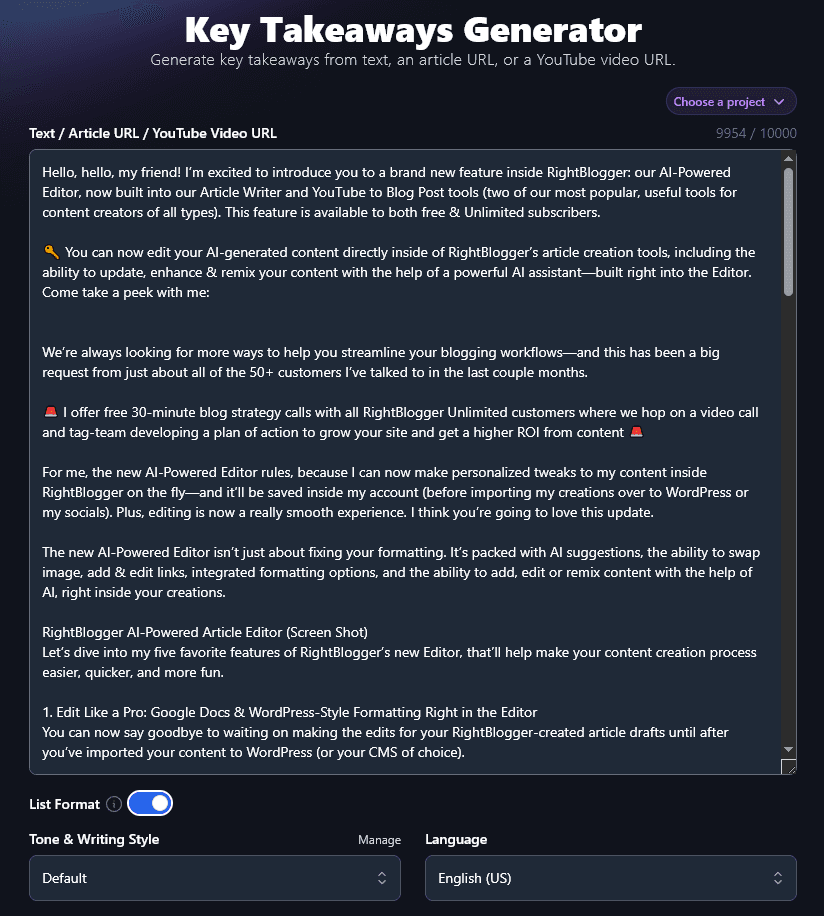
When we ran the generator, it was able to understand all the text just fine, and it created a short summary that would be ideal for anyone reviewing RightBlogger’s newest features:
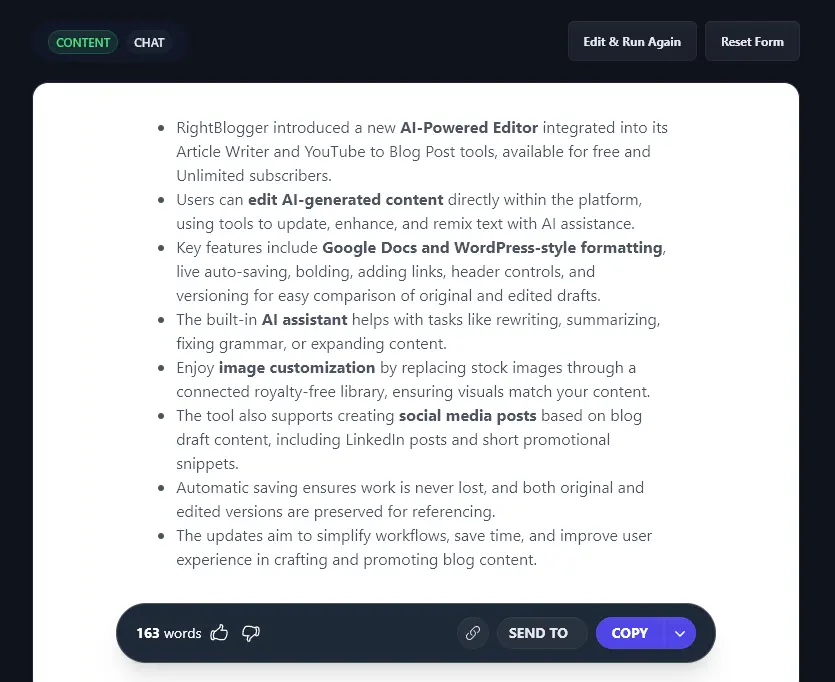
2. List Format (Toggle On for a List, Off for a Paragraph Summary)
With the Key Takeaways Generator, you can choose whether to format your takeaways as bullet points (which makes for easily digestible summaries) or as a paragraph (a more formal summary, e.g. for a report or academic research paper).
Here’s a quick look at the difference between these, using our article 8 Ways to Grow an Audience: Real Strategies That Work.
With list format off:
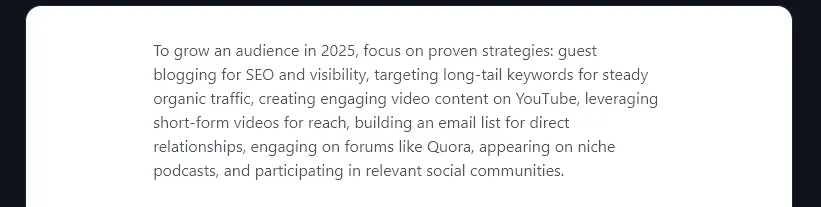
With list format on:
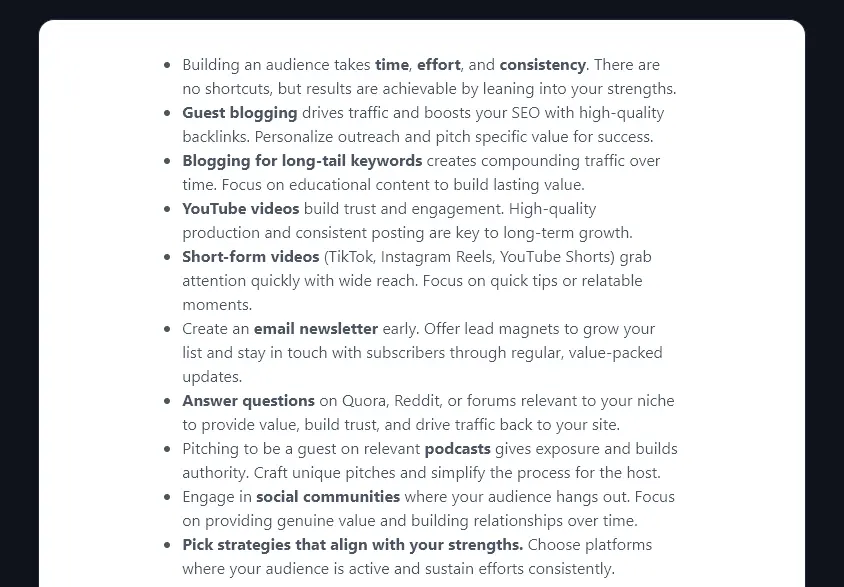
Tip: The generated summary will usually be more detailed if you opt to use bullet points. Otherwise, the AI will aim to keep your summary to around a paragraph long.
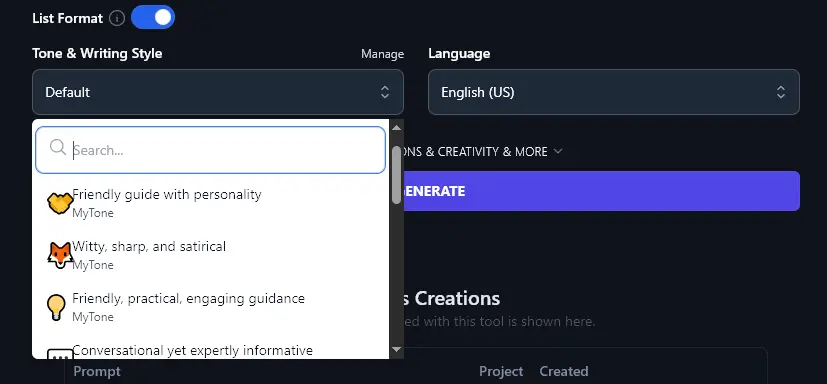
3. Tone & Writing Style (Choose from the Dropdown or Create Your Own)
If you’re using the Key Takeaways Generator to pull out important points from a long text for your own purposes (e.g. for research), then the Default style will likely be fine to you.
Otherwise, you’ll want to match the AI’s style to your own writing tone and style. You can pick a close match from 16 preset styles in the dropdown list (“Casual” suits many bloggers, “Academic” works for most students).
Want to go further in matching the AI’s style to your own? Create a MyTone (available on paid plans). Paid plans include multiple custom MyTones, each built from a sample of your writing or even a video.
Once you’ve created a MyTone, you can select it from the dropdown, like any other style.
4. Language (Choose From 100+ Different Options)
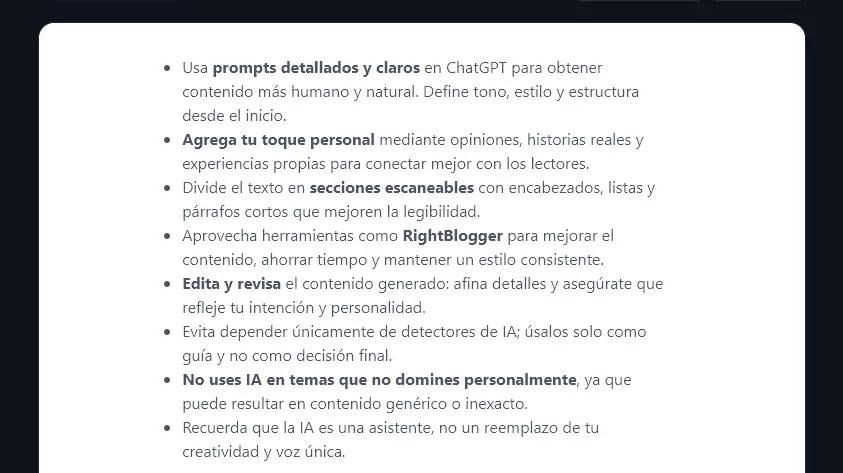
The Key Takeaways tool can extract the important details from a piece of text or a video and present them in any language of your choice. Pick from 100+ different options in the dropdown, the AI will write your key takeaways accordingly.
Here’s an example, with the takeaways written in Spanish:
5. Additional Instructions (Give the AI Any Special Requests)
To open up the advanced options for the Key Takeaways Generator, just click on the “Additional Instructions & Creativity & More” link:
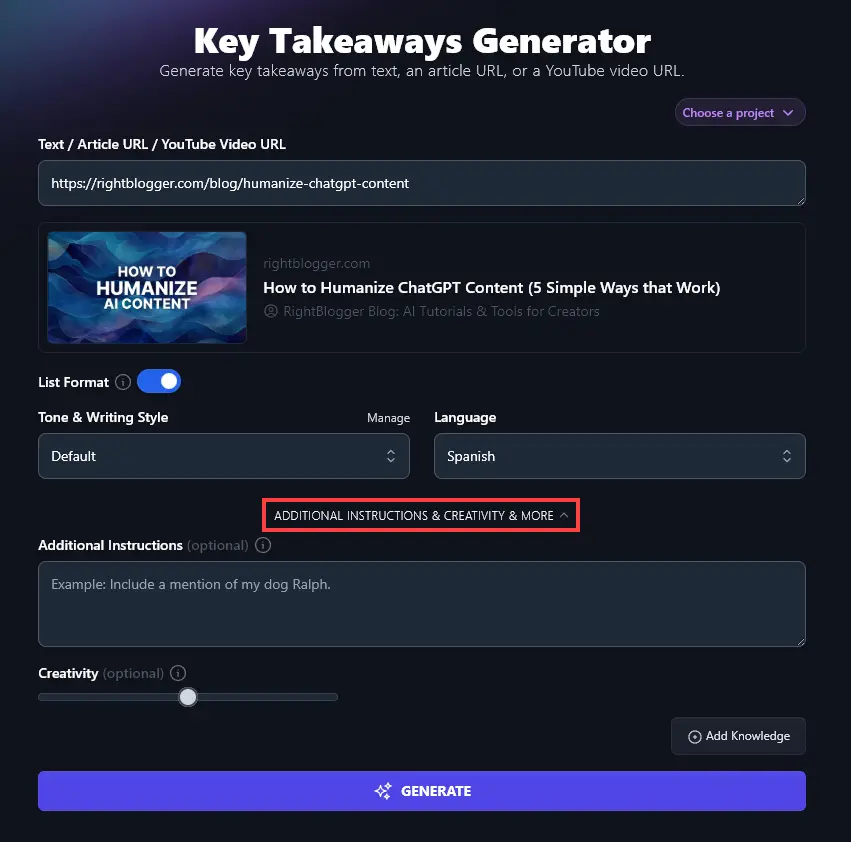
You can enter any extra instructions, requests, or constraints for the AI in the “Additional Instructions” box.
For instance, perhaps you want your list of key takeaways formatted as “do” and “don’t” items, using checkmarks and X emojis. Just tell the AI that and it will do what you ask:
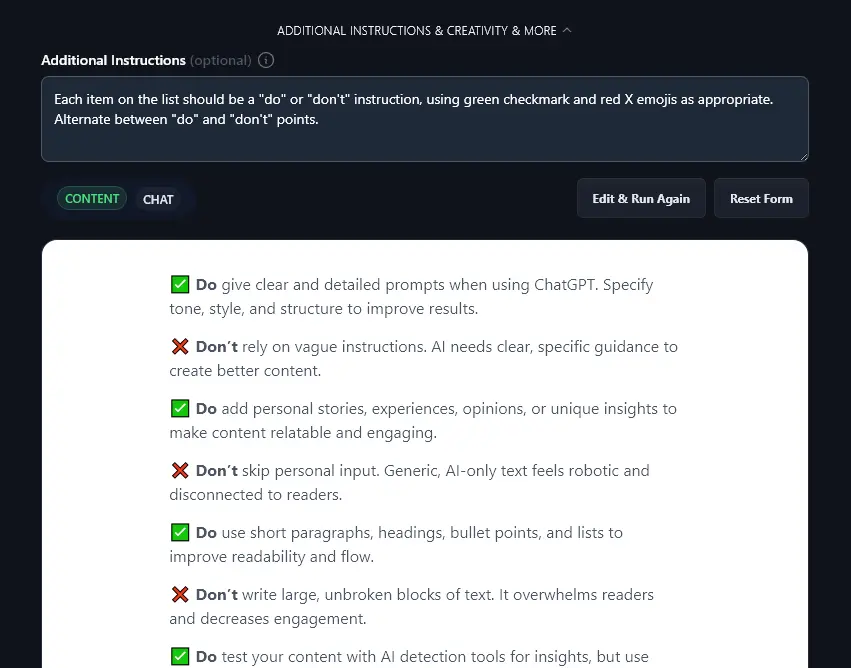
Note: You can use everyday language here, just like we did. AI technology incorporates natural language processing, so it can understand you, just like a human assistant would.
6. Creativity (Make the AI More or Less Predictable)
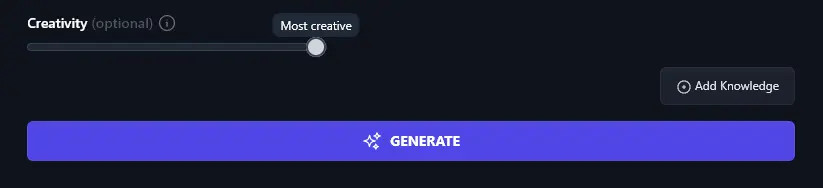
The RightBlogger AI’s algorithm is set to a midpoint of creativity, which ensures content is not too blandly predictable or too weird! If you want to adjust the creativity, just move the slider left (less creative) or right (more creative).
AI Key Takeaway Generator FAQs (Frequently Asked Questions)
Do you have questions about using the AI Key Takeaways Generator … or about creating summaries in general? Here’s everything you need to know.
Can I Use the Key Takeaways Generator as an AI Summary Generator?
Yes, you can use the Key Takeaways Generator as an AI summarizing tool … though we recommend our dedicated Summarizer Tool for the best results, as this will give a more detailed summary. (The Key Takeaways tool sticks with a fairly short summary length.)
Does the Key Takeaways Generator Work for Lengthy Documents?
Yes! The AI can read a huge amount of content almost instantly and draw out the key insights. If you’re pasting in the content (rather than linking to a URL), keep in mind you can only paste up to 10,000 characters at a time.
What Other Free AI Tools Can I Use to Create Content and Grow My Business?
We have a full suite of tools for you to try. These are just a few of our best AI tools to check out:
- Article Writer: instantly write high-quality long-form content from just a keyword or topic idea
- Paraphrasing Tool: create a straightforward, plagiarism-free paraphrase of any piece of text (useful for putting text into your own words)
- Keyword Research Tool: find relevant, achievable keywords, the perfect starting point for SEO (search engine optimization)
- Expand Tool: create additional original content to expand on any piece of text that you’re writing (uses advanced algorithms, rather than adding “fluff”)
- FAQ Generator: come up with a list of frequently asked questions (and answers) to fit with any topic
- List Generator: instantly write a list on any topic or keyword of your choice
As well as content creation and writing tools, our advanced AI tools cover blogging, SEO, social media, sales, and more. All of these are designed to speed up your work, helping you create better content, faster.
How Do I Sign Up for RightBlogger and How Much Does it Cost?
RightBlogger plans are $49/mo (Solo), $69/mo (Pro), and $199/mo (Agency) billed annually, and the Key Takeaways Generator is included in every one, with no per-word limits or credit caps. The tool above is free to run without an account. Pick your plan here.
All plans include MyTone, AI images, blog automation, and brand voices. Monthly Solo is $59 (annual $49) for one site, monthly Pro is $89 (annual $69) for up to 3 sites with team seats, and monthly Agency is $299 (annual $199) for larger operations.