Looking for a free LinkedIn Headline Generator to help you come up with the perfect headline for your LinkedIn profile? This AI-powered tool will craft a compelling headline for you, helping you make a great first impression on clients, employers, or recruiters.
A good LinkedIn headline is an important part of your LinkedIn presence. It should give a clear statement about what you do, so that potential employers (and others) can see if you might be the right fit for them.
Your LinkedIn headline appears immediately below your name on your profile. Here’s the headline from Ryan’s LinkedIn account:
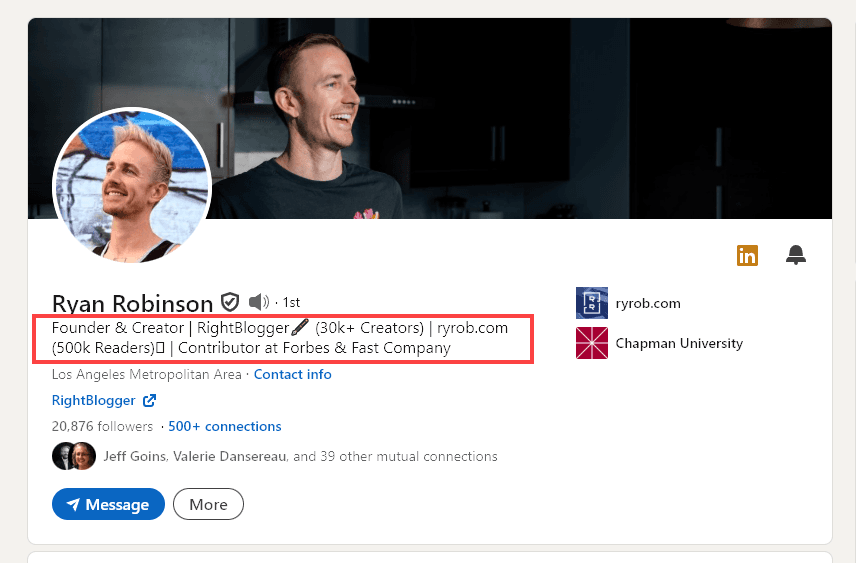
And here’s the headline from Andy’s LinkedIn account:
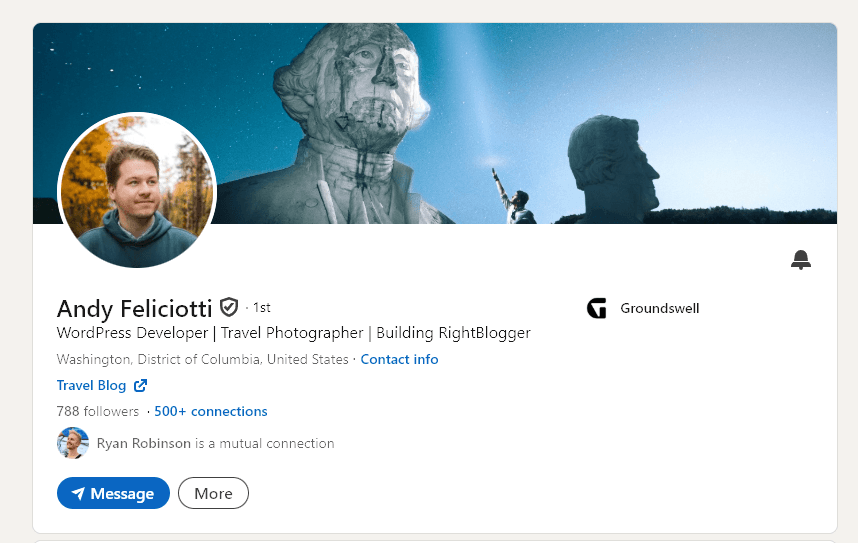
Because your headline is so visible, it needs to be attention-grabbing. Most of us find it hard to talk about ourselves, though … so you might have spent ages trying and failing to come up with a headline that feels like a good fit.
That’s why you need this LinkedIn headline generator.
How to Use the AI LinkedIn Headline Generator
This free tool is easy to use, let’s walk through it, step by step.
Step 1. Tell the AI About Your Professional Experience
For the AI to come up with a compelling LinkedIn headline for you, it needs to know about your professional experience. The more details you can give, the better, but remember, this isn’t a resume. You only need to include what’s relevant to the type of role you want now.
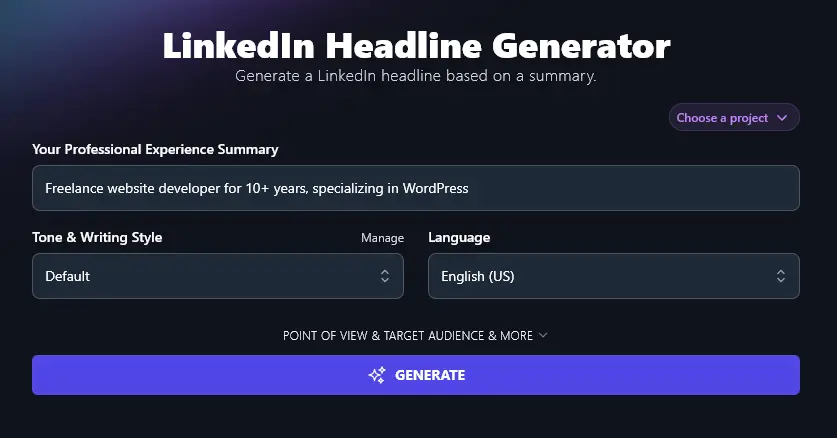
Step 2. Choose Your Tone & Writing Style
Think about your target audience and your personal brand. What sort of tone works for you?
If you’re a marketing consultant working with large businesses to help them grow, you’re probably going to use a very different tone from a sleep coach working with exhausted new parents to help them get their babies sleeping better.
The Tone & Writing Style dropdown has 16 different preset tones for you to choose from. Just select whichever one you want to use.
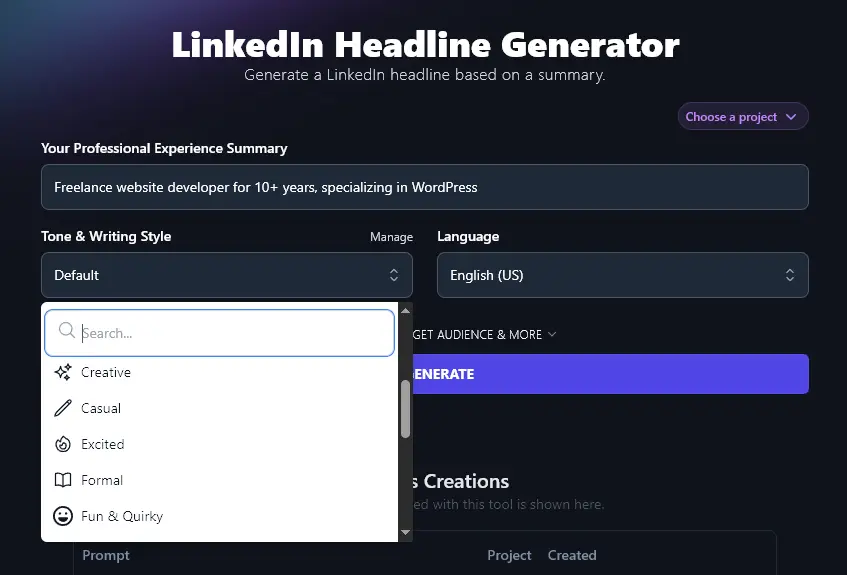
Step 3. Select Your Language (Optional)
If your LinkedIn profile is aimed at a non-English speaking audience, go ahead and choose your preferred language here. There are 100+ options to pick from. You can scroll down the list or use the search box at the top of the dropdown.
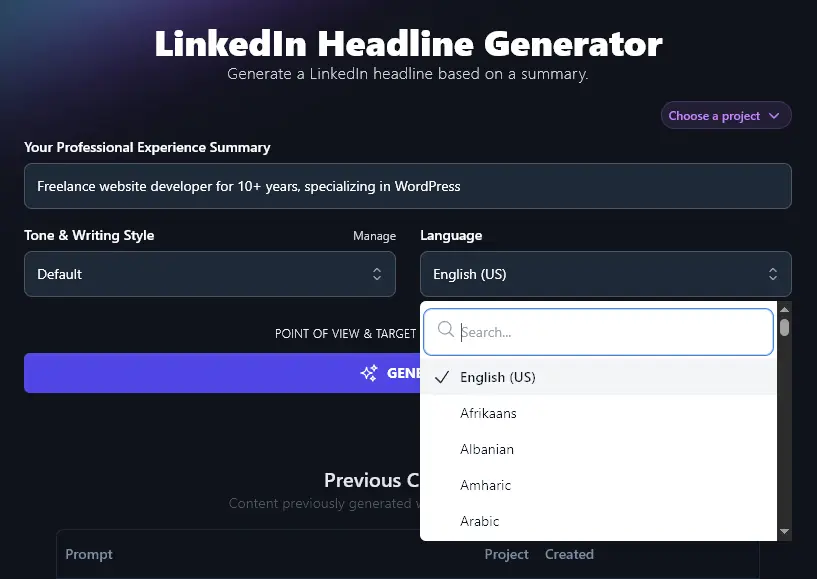
When you’re happy with the options you’ve selected, go ahead and click the “Generate” button. You’ll get 5 unique headline options.
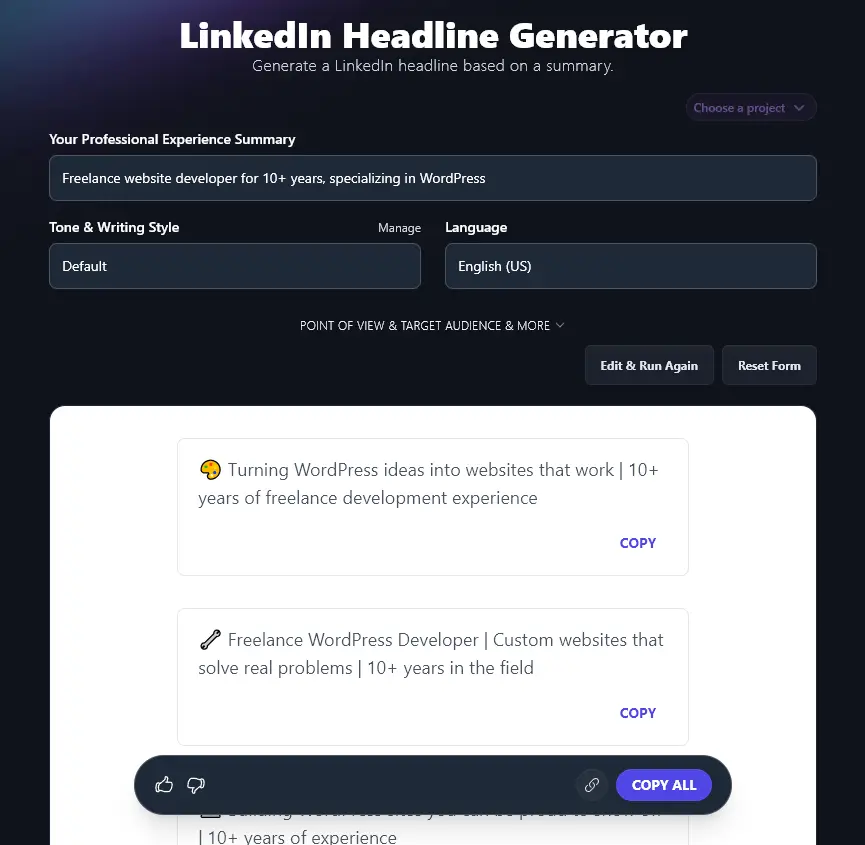
See a headline you love? Click the “Copy” button just below it to copy it to your clipboard. If you need more time to decide, use the “Copy All” Button to copy all the headlines. You can then paste these into a document for later use.
Bonus: Use My LinkedIn Profile Checklist Alongside This Tool
Setting up your LinkedIn profile for the first time … or revamping it? It can be tough to know exactly what to include, and perhaps you’re worried you’ve missed something important.
Follow my checklist to make sure you’ve got all the basics firmly in place:
- Use a current, professional-looking photo for your profile pic
- Add a cover image that matches your personal brand and vibe, make the most of this very visible area of your profile
- Make sure both images look good on mobile and desktop (which means having a high enough resolution)
- Set up a custom URL for your LinkedIn profile: this looks more professional & it’s easy to add to business cards etc
- Write an About section that’s engaging, speaks to your target audience, and doesn’t go on too long
- Put your best content in your Featured section, e.g. a fantastic blog post, video, etc, and if you’re including links, check that the thumbnail looks good
- Fill out your past Experience (previous jobs/roles). You don’t need to include everything(e.g. your high school summer job), but avoid leaving gaps in your job history
- Include your education, fellow alumni may feel an extra bond with you, and you might even reconnect with old classmates
- Don’t worry too much about getting endorsements for your skills, it doesn’t mean much!
- But do ask for recommendations, which are like testimonials (you could even use them on your website)
How Does the AI LinkedIn Headline Generator Work?
Want to get the most from this tool, so you can get great results every time you generate LinkedIn headlines? Let’s take a closer look at every feature, plus all the advanced options.
1. Your Professional Experience Summary (Get Specific)
The more details you can give the AI tool about your experience, the better, otherwise, it won’t be able to show off your strengths.
You can include up to 10,000 characters (around 2,000-3,000 words) in this box, so you’re definitely not going to run out of space.
Here’s a quick look at the difference it makes to be specific here.
First, we put in a very high-level summary: freelance writer.
The AI came up with these headlines:
- ✍️ Freelance Writer | Turning Ideas into Words That Connect, Engage, and Inspire
- 🚀 Storyteller for Hire | Clear Copy, Compelling Stories, Real Results
- 📝 Freelance Writer | Helping Brands Find Their Voice One Word at a Time
- 💡 Writer & Content Creator | Simple Words, Big Impact
- 🎯 Freelance Writer | Content That Speaks to Your Audience, Not Over Them
Next, we put in a much more detailed description: Freelance copywriter specializing in copy for fintech companies. Highly experienced with A/B testing, SEO, and writing Google ads.
This time, the headlines were far more specific and eye-catching:
- ✍️ Fintech Copywriter | A/B Testing Wizard + SEO Expert | Helping Brands Write Ads That Actually Convert
- 🚀 Freelance Copywriter for Fintech | Google Ads + SEO Pro | Data-Driven Words That Drive Results
- 💡 Fintech Copy + A/B Testing = High-Performing Campaigns | SEO Strategist | Freelance Ads Specialist
- ✨ I Write SEO-Friendly Fintech Copy That Sells | A/B Testing Fanatic | Google Ads Focused
- 🔑 Expert Freelance Copywriting for Fintech | Google Ads + Data-Led A/B Results | SEO Strategies that Work
2. Tone & Writing Style (Pick One or Create Your Own)
While your tone & writing style won’t make a dramatic difference to such a short piece of text, you may still want to experiment with the options here.
As well as picking from the dropdown list, you can create your own custom style to use with the LinkedIn Headline Generator (and with all RightBlogger’s tools). The MyTone feature lets you create your own custom styles, based on a sample of your writing, or even a video you’ve recorded. Paid plans save 5 (Solo), 15 (Pro), or 50 (Agency) of them.
Once you’ve set up your MyTone, you can select it from the dropdown list, just like any other tone & style.
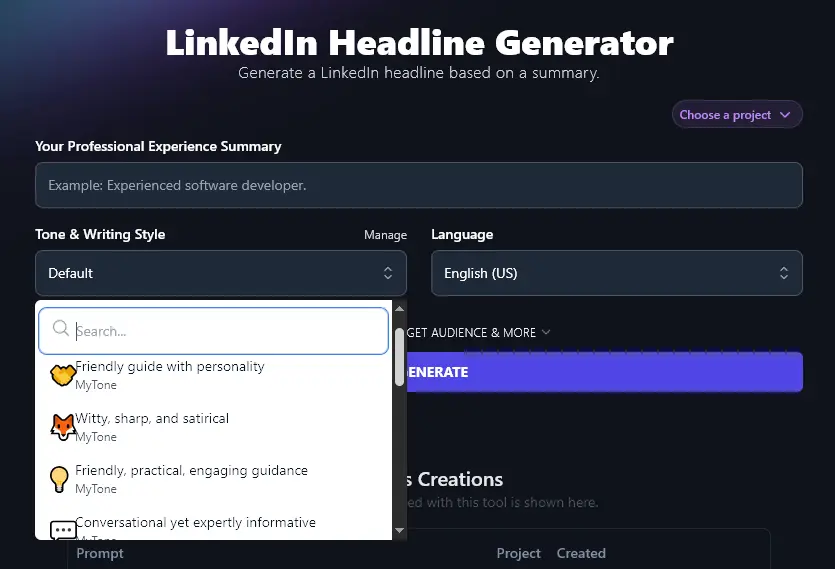
Tip: Every plan includes MyTone, and a paid plan saves more MyTones and unlocks RightBlogger’s other advanced features.
3. Language (Choose the Most Appropriate Language for Your LinkedIn Profile)
RightBlogger defaults to creating headlines in US English … but what if you don’t live in the USA? It makes sense to use your local language, unless you’re seeking global employers/clients.
The AI can create headlines in over 100 different languages, so go ahead and pick yours from the dropdown. There are even 4 separate varieties of English (US, UK, Canada, and Australia), so you can make sure terms and spellings work for you.
Here’s an example of RightBlogger generating headlines in Spanish:
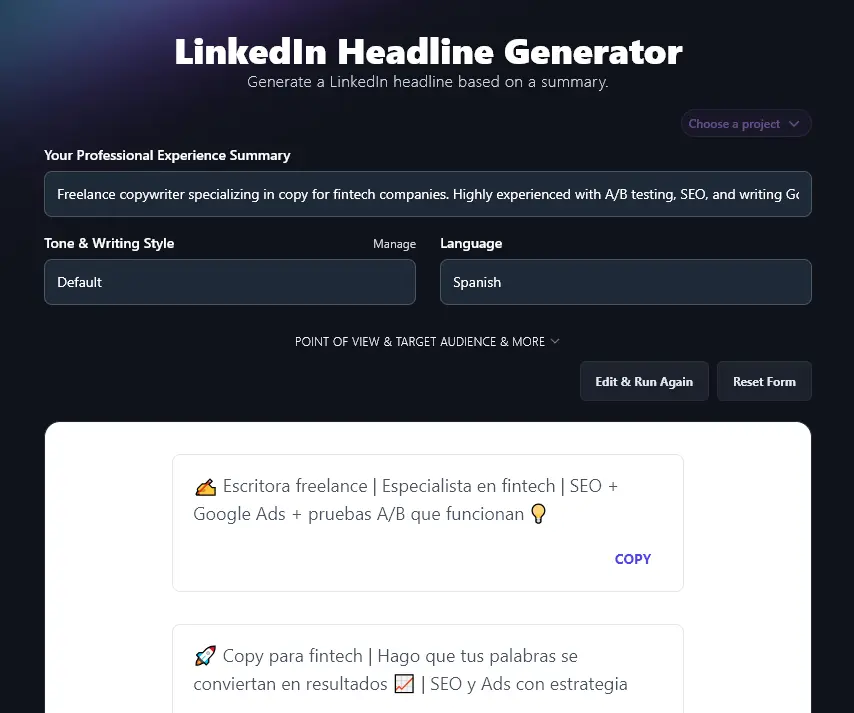
Tip:As you can see here, the language you use in your summary doesn’t need to match the output language.
4. Point of View (Tweak Your Headline if You Want a Specific Focus)
The LinkedIn Headline Generator has some advanced options that you can access by clicking the Point of View & Target Audience & More link.
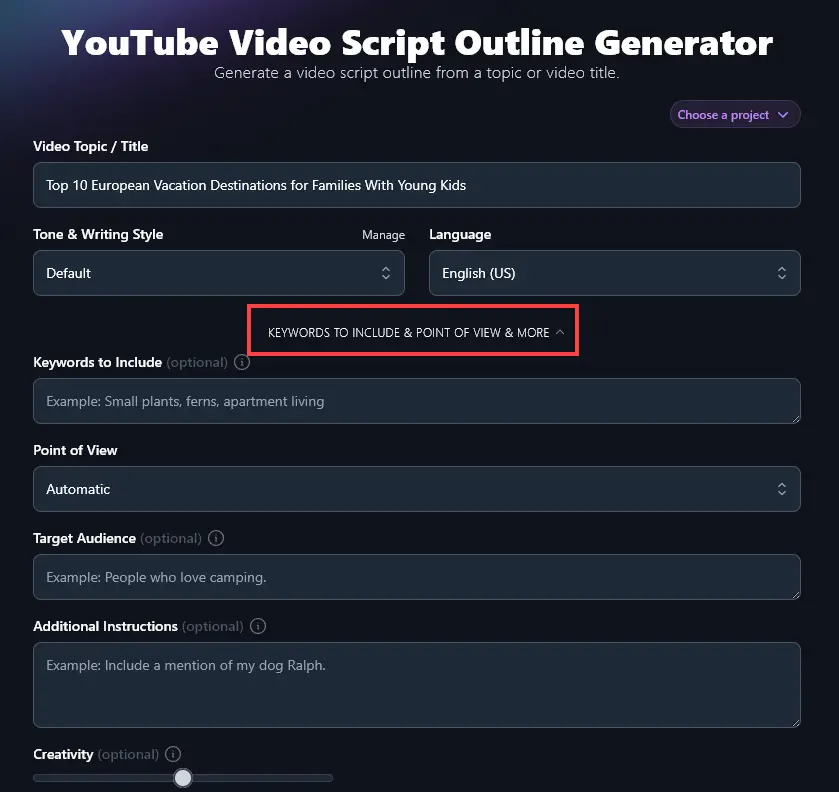
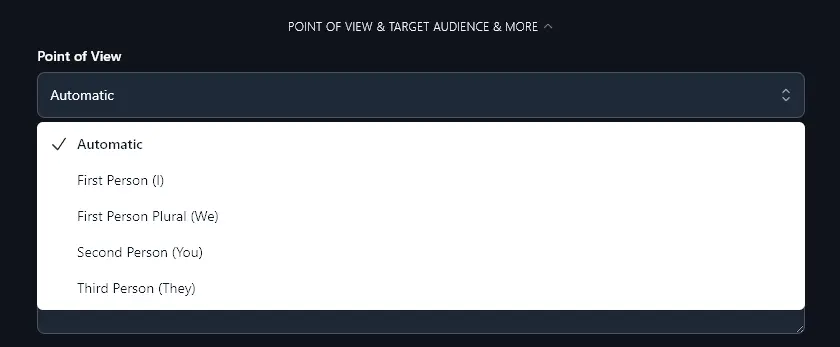
Once you’ve opened up these options, you’ll see the “Point of View” dropdown. We recommend leaving this set to Automatic, but if you do want your headline to be written differently, go ahead and select an option. The AI will aim, where possible, to tailor your headlines accordingly.
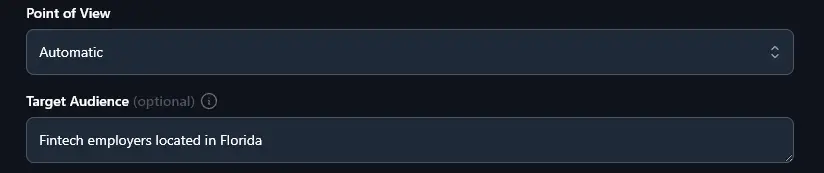
5. Target Audience (Optimize Your Headline for the Employers or Clients You Want to Attract)
It’s helpful to let the AI know who you’re aiming to draw in with your headline. Are you looking for clients earning six figures and looking to grow to seven? Do you want employers in a specific geographical area? Tell the AI and it’ll take this into account when writing your headline.
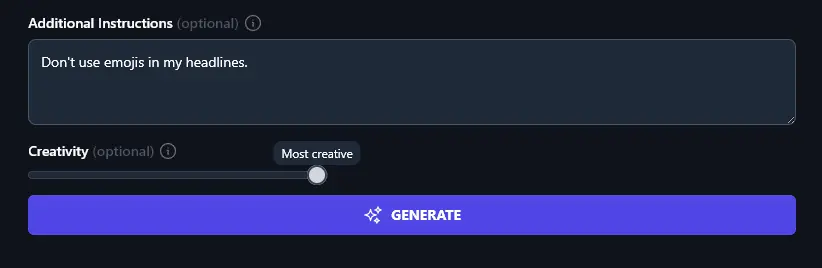
6. Additional Instructions (Give the AI Any Extra Requests or Constraints)
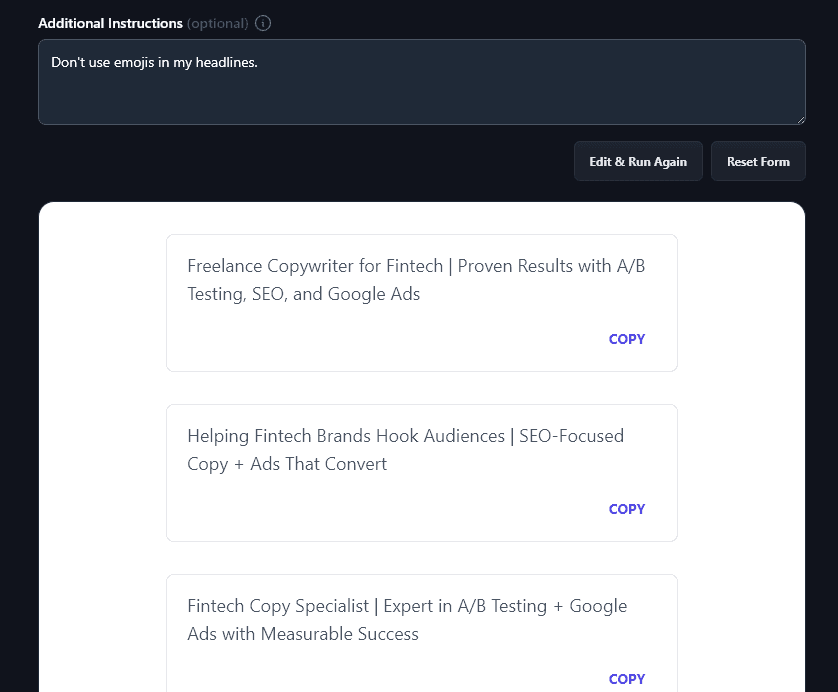
Is there anything else you’d like for your LinkedIn headline? Perhaps you’ve already run the tool and you didn’t quite get the results you wanted, so tell the AI what you want it to do differently.
Here, we’ve told the AI “Don’t use emojis in my headlines” and it’s done exactly what we asked:
7. Creativity (Make Your Headlines More Conventional … or More Unusual)
RightBlogger’s AI is automatically set to a balanced level of creativity for you. This is what we recommend using … but if you do want to experiment with adjusting it, just move the Creativity slider to the left (less creative) or the right (more creative).
AI LinkedIn Headline Generator FAQs (Frequently Asked Questions)
Not sure how best to approach writing your LinkedIn headline or how to use this AI tool to help? Here are the answers to some questions you might have.
Does my LinkedIn headline really matter?
If you don’t enter a headline for LinkedIn, then LinkedIn will just use your current job title here. And that might work okay … but remember, your headline is one of the first things people see. You likely want to use this space to promote yourself as more than just your existing job role.
What makes a good, professional LinkedIn headline?
One formula you can use is to give your current job title, mention key skills, and add the value you can bring. But there’s no one “right” way to craft a LinkedIn headline.
What matters is that your headline connects with your target audience. For job seekers, that’s employers. For entrepreneurs and business owners, it’s likely clients/customers.
As you craft a great LinkedIn headline, or select from AI-generated headlines, think about:
- Your professional brand or professional identity: how do you want to come across to employers/clients?
- What types of LinkedIn searches might people use to find someone like you? (Include relevant keywords for an optimized headline … and you’ll get more profile views.)
- Whether you can fit a call to action into your headline to prompt potential clients to contact you.
- What value proposition you can make, e.g. what skills and experience you bring to the table.
What Other Free AI Tools Can I Use to Grow My Online Presence?
Ready to move beyond the LinkedIn summary generator? RightBlogger is packed with 85+ different tools so you can use the power of AI to grow your online brand or your business.
Here are some great ones to get you started:
- LinkedIn Post: This powerful post generator creates high-quality content for you to post on LinkedIn … in just seconds
- Article Writer: Want something longer? The Article Writer is designed for full-length content creation, e.g. for blog posts.
- Rewriter: Need to rephrase something for LinkedIn or rework a LinkedIn post for a different marketing tool? The Rewriter can help, or try the Shortenand Expandtools.
- Post Ideas: Stuck for what to write about on your blog or on LinkedIn? Try our Post Ideas tool for instant brainstorming.
- Hook: Need to grab attention fast? The Hook generator will give you a fantastic first line for your next LinkedIn post.
- Call-To-Action: Use AI to generate a powerful call-to-action that’s designed to move potential clients or customers closer to buying.
We’ve also got lots of other social media tools (including YouTube, X, Facebook, Instagram, TikTok, and more).
Who is the LinkedIn Headline Generator For?
If you’ve got a LinkedIn account (or want to create one) then this headline generator tool is for you! Whether you’re a job seeker, online business owner, coach, consultant, digital marketer, or anyone looking to make connections on LinkedIn, it’ll help you reach your goals.
How Do I Sign Up For RightBlogger and How Much Does it Cost?
The LinkedIn Headline Generator is included with every RightBlogger plan. Just pick Solo, Pro, or Agency and you’re in.
For client work, monthly Agency $299 (annual $199) gives you 10+ connected sites and onboarding support. Working solo? The Solo plan (monthly $59 (annual $49)) has everything you need, with unlimited words on every paid plan and a 7-day free trial and a 30-day money-back guarantee.