A strong call to action is the single sentence (or 2-4 words) that turns reading into clicking. Whether you’re driving newsletter signups, free trial activations, or product purchases, your CTA does the actual conversion work.
This free AI Call-to-Action Generator writes 10 high-converting CTA variations from any starting phrase (“Get Started”, “Buy Now”, “Learn More”, or a longer prompt) in seconds, tuned for tone, audience, and platform. Built on the copywriting patterns that actually drive clicks: specificity, urgency where it fits, and clarity about what happens next.
How to Use the Call to Action Generator
Three quick steps:
Step 1. Enter Your Current Call to Action Text
First, put in whatever text you’re currently using for your call to action. If you don’t have a current CTA (e.g. you’re creating a new landing page or email), then just enter the basic action you want people to take, like “Download Now” or “Find Out More”.
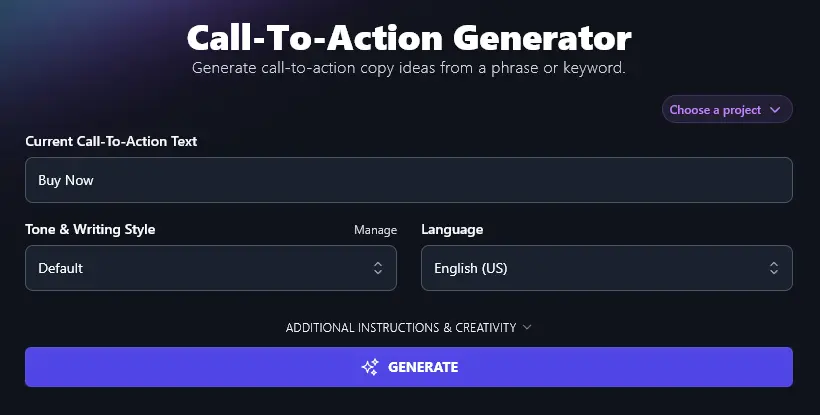
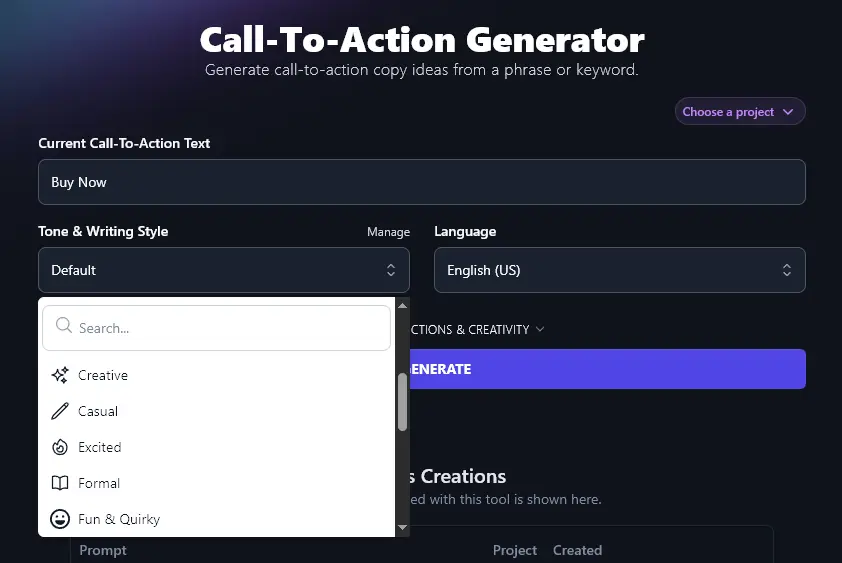
Step 2. Choose Your Tone & Writing Style for Your CTA
RightBlogger’s AI can craft copy in a huge range of different styles. Looking for something to suit a “Professional” audience? Or maybe your brand has a “Fun & Quirky” vibe? Just select any of 16 preset styles from the dropdown list.
Step 3. Choose the Language for Your CTA
Writing for a non-English-speaking audience or creating CTAs for multilingual content? RightBlogger can write your CTA in any of 100+ different languages. Just pick yours from the dropdown.
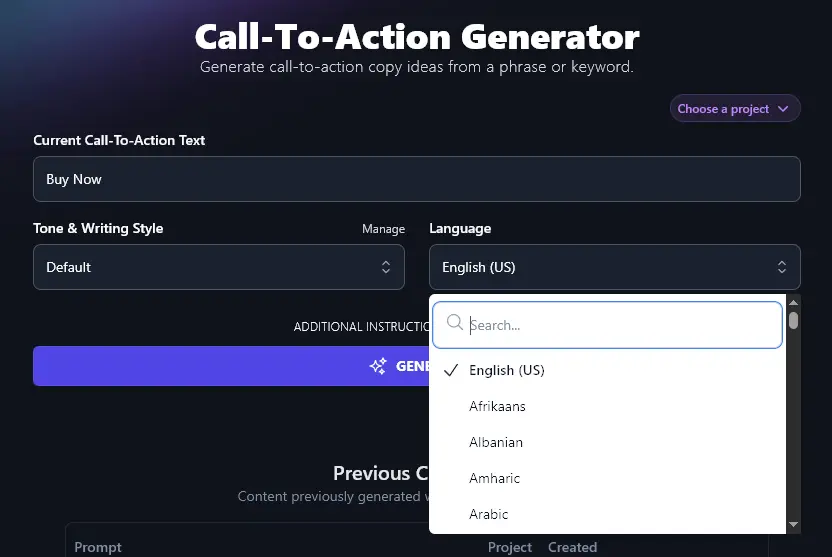
Tip:There’s a search bar at the top of the dropdown so you don’t have to scroll.
When you’re ready, click the Generate button and the AI will instantly come up with a list of 10 different CTAs.
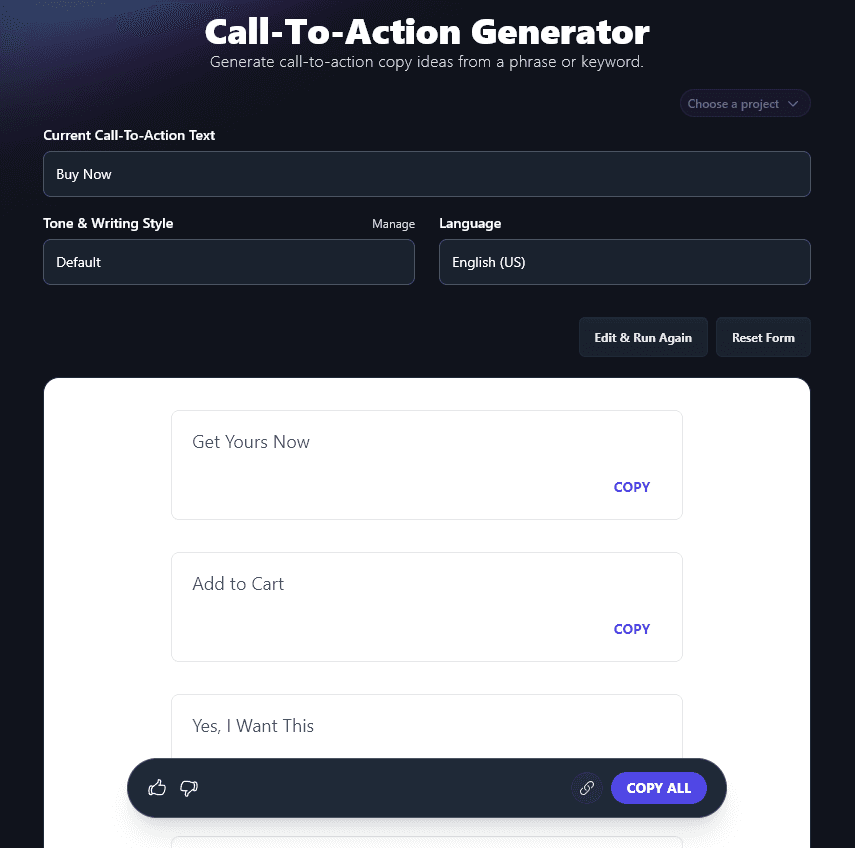
You can copy the text of any CTA using the Copy button alongside it, or you can use the Copy All option to copy all your CTAs to a separate document/spreadsheet.
Bonus: My Sales Page Checklist
Your CTA isn’t going to be on a webpage (or in an email) all on its own. Instead, you’ll need a range of other elements too. You’ll want to make the most of these so you can increase conversions as much as possible.
This is my personal checklist for improving any sales page. Most of it also applies to sales emails, social media posts, and ads:
- Have an attention-grabbing headline on your page (or subject line on your email)
- Make sure you have a clear product description: customers need to know what your product is and does!
- Include high-quality images of your product (or even a video)
- Have plenty of white space on the page: make it easy to read (and skim)
- Make sure your CTA button or link is very visible and easy to click
- In your sales copy, use the type of language your customers would use
- If it makes sense to do so, include a sense of urgency, e.g. for a live class (you could even add a countdown timer)
- Add testimonials from happy customers, especially from those who are typical of your target audience
- Check that your page (or email) looks good on mobile as well as on a computer screen
- Add an FAQ section to deal with common questions and objections
Each Feature, Explained (Plus Advanced Options)
The basics get you 10 CTAs in seconds. The advanced fields let you steer the AI more precisely:
1. Current Call-to-Action Text (What Type of CTA Do You Want?)
The first input box is for your current call-to-action text. It’s fine if you don’t have a current CTA: just use text that explains what you want the user to do.
Some common CTAs that you can use here include:
- Buy Now
- Learn More
- Sign Up
- Join Now
- Download Now
- Get My Results
- Discover More
- Start Now
- Upgrade Now
- Activate Your Account
- Reserve Your Spot
- Get On the Waitlist
2. Tone & Writing Style (Choose a Preset Tone … or Create a Custom One)
As your CTA will be very short (typically 2-4 words), you may simply want to stick with the Default tone.
If your brand has a strong voice, it makes sense to have a CTA that fits the rest of your sales page or email. The dropdown’s worth experimenting with. An example of how tone shifts the same CTA set:
“Professional” tone:
- Add to Cart and Save
- Get Yours Now
- Claim This Deal
- Secure Checkout
- Shop and Enjoy
- Order Today
- Unlock Your Offer
- Grab It Before It’s Gone
- Start Your Order
- Complete Purchase
“Excited” tone:
- Grab Yours Now, Stock Won’t Last!
- Get It Today and Feel the Difference!
- Snag Yours Before It’s Gone!
- Add to Cart, Treat Yourself!
- Don’t Wait, Make It Yours!
- Yes, I Want This!
- Start Your Order, Buy Now!
- Seal the Deal, Shop Now!
- Claim It Before It Sells Out!
- Let’s Go, Buy Now!
What if none of the preset tones quite fit your brand? You can create your own completely custom tone using RightBlogger’s MyTone feature, which is included on every RightBlogger plan. You craft each tone simply by giving the AI a sample of your writing, or even a video, and paid plans save 5 (Solo), 15 (Pro), or 50 (Agency) of them.
3. Language (Choose from 100+ Languages and 4 Varieties of English)
The RightBlogger AI can write fluently in over 100 different languages, generating CTAs that work for audiences across the world. The generator creating Spanish CTAs:
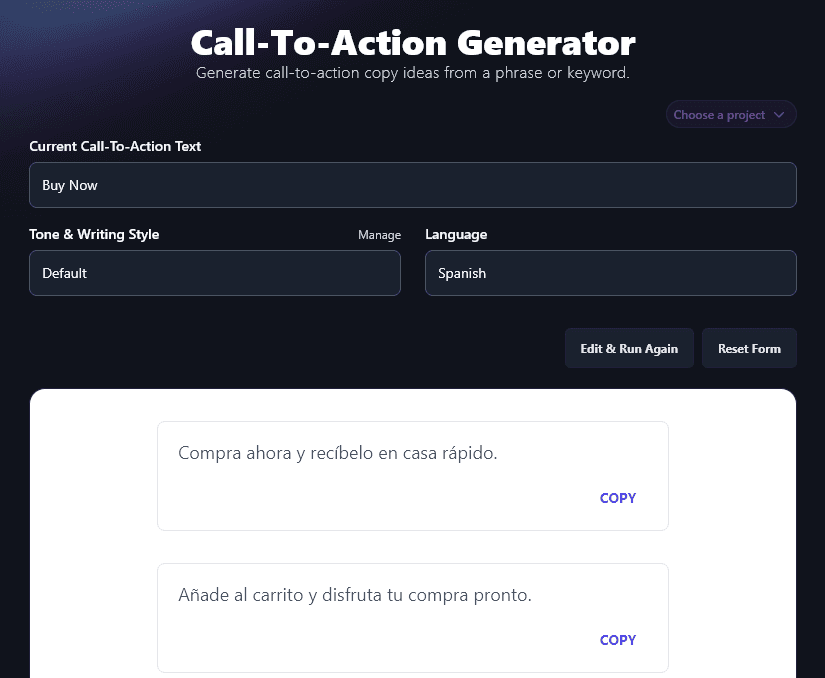
The language picker also lets you choose from 4 different versions of English. The AI defaults to US English, but if you’re in the UK, Canada, or Australia, you can pick your local version of English instead.
4. Additional Instructions
The CTA Generator has 2 advanced options you can open by clicking the “Additional Instructions & Creativity” link:
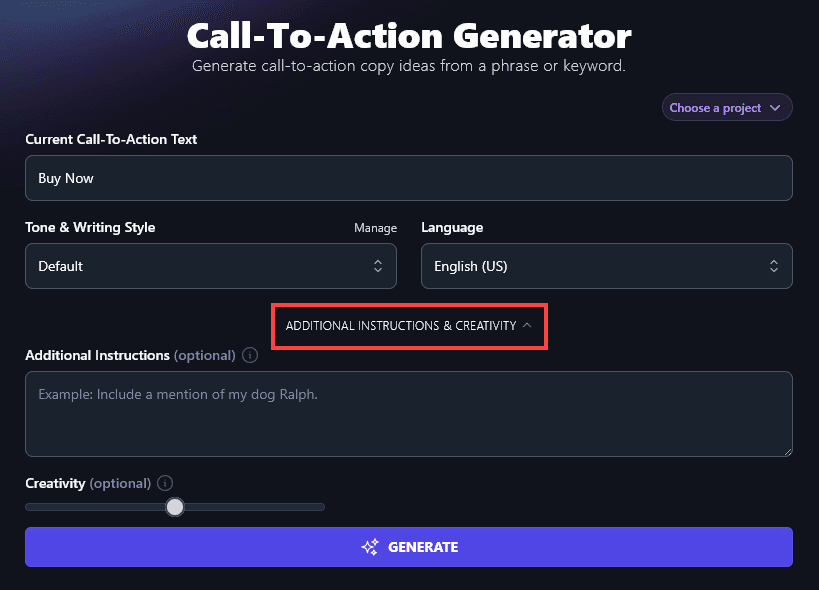
Sometimes, you may have specific requirements for your CTA copy. Perhaps you want CTAs that alliterate, or you know that your potential customers respond well to a particular structure or wording. You might even want to include emojis within your CTA.
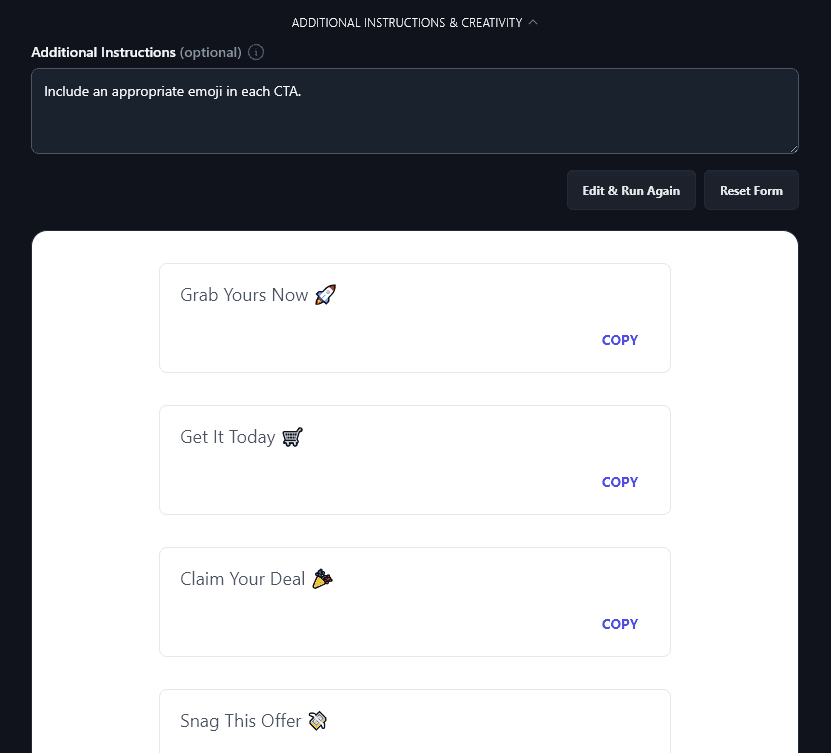
Whatever it is you need, just tell the AI in the “Additional Instructions” box. Here, we asked the AI to include emojis.
5. Creativity
By default, the RightBlogger CTA generator tool is set to a balanced level of creativity. Your CTAs will be unique and engaging … without being too offbeat.
If you want to experiment with the creativity level, just move the slider left (less creative) or right (more creative).

Call to Action Generator FAQs
Where Are CTAs Used?
CTAs are used in every sales and marketing campaign. They prompt people to take the desired action. This might mean clicking through to read more information, entering their email address, or buying a service/product.
You’ll find CTAs in places like:
- Email campaigns, especially for a launch or promotion of a product
- Social media posts (tools like our Instagram image caption generator can help you create these)
- Newsletter sign-up forms
- Ads, on Google, social media, and more
- Video content, especially at the end of a video (e.g. “like and subscribe” is a CTA)
How Can I Write More Effective CTAs?
One of the best ways to check that you have the most compelling call to action possible is to A/B test your CTAs. This means having 2 versions of your sales page (or email) with different CTAs, to see which gets the better conversion rate. For prompt examples that pair well with CTAs (intros, hooks, value props), see our roundup of 75+ ChatGPT prompts for marketing.
As well as experimenting with the wording of your CTA, you could also try varying the color, size, and location of the CTA button. (Remember to only change one variable at a time, however.)
Tip: An effective call to action will prompt the reader to take one specific action. Don’t dilute your CTAs by trying to get readers to do multiple things from the same page, article, or email.
What Other Free AI Tools Can I Use to Make More Sales and Improve My Business?
RightBlogger is packed with AI tools to help you with all areas of your digital marketing and your business as a whole. Every tool is included in every plan. Get started here.
Some great ones to get started with are:
- Article Writer: craft high-quality articles (and optimize for SEO) in seconds, you just need a starting topic or keyword
- Outline Generator: perfect for bloggers, this outlining tool lets you instantly come up with the structure and key points for any post/article
- Ad Copy: create effective ad copy for a whole range of platforms, e.g. Google, Facebook, LinkedIn
- Product Description Generator: use this tool for fast, effective product descriptions or even whole product pages (includes options for different ecommerce platforms)
- Feature/Benefit/Outcome: use this writing tool to turn features into benefits and outcomes, so you can boost conversions
- Webinar Topic: come up with great webinar ideas to use as part of your marketing strategy
Along with all these, we have many other AI content creation tools, covering blogging, SEO, sales, social media, and more.
How Do I Sign Up for RightBlogger and How Much Does it Cost?
Sign up for RightBlogger and get unlimited access to all our tools with any plan. Every paid plan includes unlimited words.
Every paid plan lets you create as much content as you want, with more MyTone styles and our advanced features like Chat, Knowledge, and Projects. We’ve kept the pricing as affordable as possible, at monthly Solo $59, Pro $89, or Agency $299 (annual billing, charged monthly, is $49 / $69 / $199).