Paste a sentence, a paragraph, or a whole article above (or drop in a URL) and the Rewriter gives you back the same content in new wording. You choose whether it comes out about the same length, shorter, or longer. Your first few runs don’t need an account.
It keeps your meaning and your points. What changes is the phrasing and sentence structure, plus anything you ask for with the options: a different tone, another language, a point of view, or keywords worked in. If you only want simpler wording with no restyling, the Paraphrase tool is the closer fit.
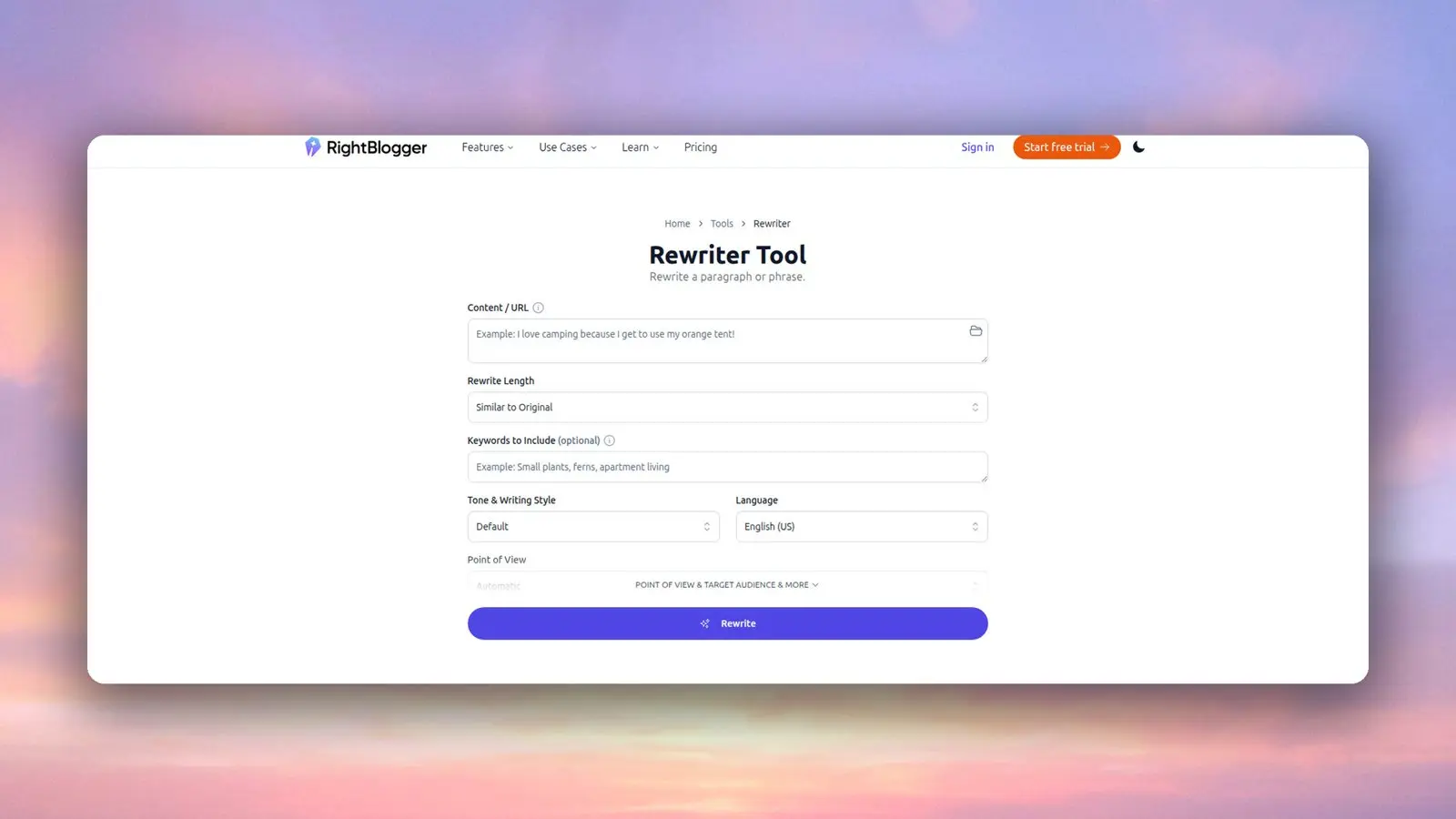
How to Use the Rewriter
- Paste your text into the Content / URL box, or paste the URL of a published article. With a URL, the tool pulls the article text, drops the images, and can leave out page clutter like author boxes and related-post lists.
- Pick a Rewrite Length: Similar to Original (the default), Much Shorter, Shorter, Longer, or Much Longer.
- Optionally add keywords to include, separated by commas.
- Choose a tone and the output language.
- Click Rewrite, then read the result against your original before you use it.
The box takes up to 40,000 characters, which is roughly 6,000 words of English. So one sentence works, and so does a full blog post. If you paste Markdown, the rewrite comes back in Markdown, headings and lists included.
The Options That Change the Result
Rewrite Length does more than you might expect. “Much Shorter” tells the AI to cut hard and keep only the key points, so it works as a quick way to tighten a bloated section. “Longer” and “Much Longer” add detail and explanation, which means new sentences you didn’t write. Check those for accuracy.
Keywords to Include works the keywords in where they read naturally, about one mention each. If a keyword doesn’t fit the text, it may get a looser variation or be left out rather than forced in. List the one or two that matter most, and only ones that relate to what the paragraph says.
Tone & Writing Style has 16 presets, including Casual, Professional, Academic, Persuasive, and Technical. Leave it on Default and the rewrite keeps the tone of your original. Every plan also includes MyTone, which learns your own writing style from samples; paid plans save 5 (Solo), 15 (Pro), or 50 (Agency) custom styles.
Language sets the output language, with more than 100 to pick from, including UK, Canadian, and Australian English. Your source text can be in any language. Pick the language you want back, since that setting controls the output.
Under “Point of View & Target Audience & More” you’ll find:
- Point of View, to switch the text to I, we, you, or they.
- Target Audience, a short description of who the text is for, like “first-time homebuyers in their 20s.”
- Additional Instructions, for anything specific: “keep the product names exactly as written,” “use short sentences,” “end with a one-line summary.”
- Creativity, a slider from more predictable to more varied word choices. The midpoint is the default.
What to Use It For
- Refreshing an old blog post section that reads stiff or dated.
- Writing a second version of a product description or landing page paragraph, so two pages on your site don’t say the same thing word for word.
- Changing who a passage speaks to: a beginner guide rewritten for managers, or “we” copy turned into “you” copy.
- Rewriting into a different language or English variant in one step.
- Cutting a long draft down to size with Much Shorter.
Tips for a Better Rewrite
- Rewrite one section at a time when the piece is long. You get more control, and it’s easier to check each part against the original.
- Put must-keep details in Additional Instructions. Names, prices, quotes, and technical terms are the things a rewrite is most likely to change.
- Use the URL option for your own published posts. It saves copying the text out and strips the parts you don’t want rewritten.
- Run it twice if the first version is close but not right, or nudge the Creativity slider. Each run gives different wording.
Limits to Know
The Rewriter changes wording, not facts. It doesn’t check whether your original is accurate, and the longer settings can add claims you need to verify. It also isn’t a plagiarism checker. New wording doesn’t make someone else’s ideas or research yours, so cite the original source when you rewrite another writer’s work.
Rewriter FAQs
Is the rewriter free?
Yes. You can run it a few times without an account, and a free RightBlogger account keeps it going.
Can it rewrite a single sentence?
Yes. Paste one sentence and it rewrites just that. The same box handles anything from a sentence up to about 6,000 words.
What’s the difference between rewriting and paraphrasing?
Rewriting keeps the same information in new words and can change tone, length, and language along the way. Paraphrasing usually restates an idea more simply. RightBlogger has a separate Paraphrase tool for that, and Paraphrasing vs Rewriting explains when to use each.
Can I rewrite AI-generated text with it?
Yes. It works the same on human-written and AI-written text. A tone preset or your own MyTone style is the quickest way to make bland text sound more like you.
Will the rewritten text be plagiarism-free?
The rewrite uses new wording, but it keeps the original’s ideas and structure. If the source isn’t yours, credit it. A plagiarism checker can confirm the wording is different, not that the ideas are original.
What does RightBlogger cost beyond the free tools?
Paid plans start at $49/month billed annually ($59 month to month) for Solo, with unlimited AI words across every tool. Pro is $69/month billed annually for 3 sites, and Agency is $199/month billed annually for 10 sites. Every paid plan starts with a 7-day free trial and a 30-day money-back guarantee. See pricing for details.