Better prompts mean better AI outputs. RightBlogger’s free AI Prompt Improver takes a short or rough prompt and rewrites it into a detailed one, built on the core principles of prompt engineering.
Works with any prompt-based AI: RightBlogger’s own Chat, ChatGPT, Claude, Grok, and Gemini for text. Our AI Image Generator, Nano Banana, MidJourney, Flux, and ChatGPT image generation for visuals.
Better prompts get you better results, less back-and-forth, and outputs that match what you wanted on the first try.
How the AI Prompt Improver Works (Step-by-Step Guide to Optimize Prompts)
Step 1. Paste in Your Current Prompt (or Type One)
First, give the AI the text of the prompt you’re currently using. If you’ve not yet written a prompt, just describe what you’re trying to accomplish, in simple terms.
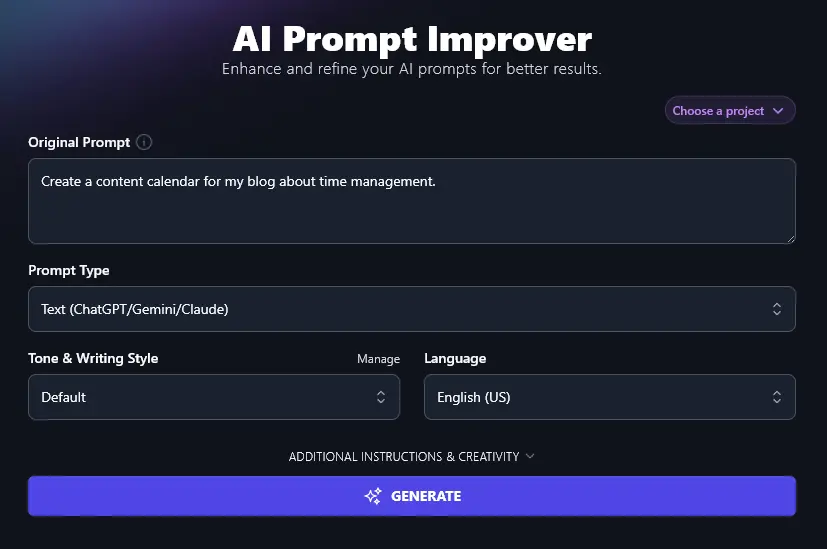
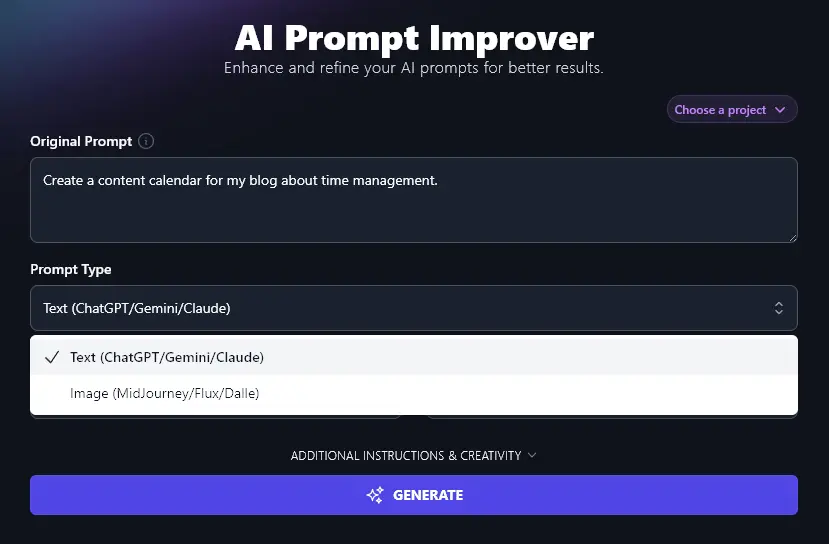
Step 2. Select Your Prompt Type (Text vs Image)
Next, you need to choose the type of prompt. Do you want to create a prompt for a text-generative AI (like ChatGPT) or an image generator (like MidJourney)?
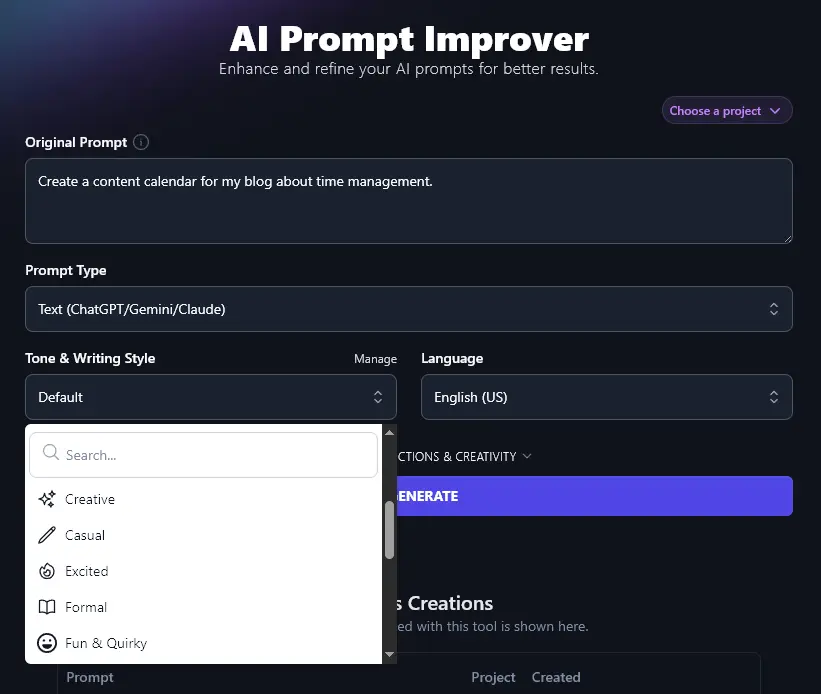
Step 3. Choose Your Tone & Writing Style (Optional)
Since you’re using the prompt for an AI, your tone and style probably isn’t going to matter too much to you … so you can leave this set to default.
However, if you do want to write your prompt in a specific tone and style (perhaps because you’ll be publishing your prompts and you want them to be on-brand), then simply select an option from the dropdown list.
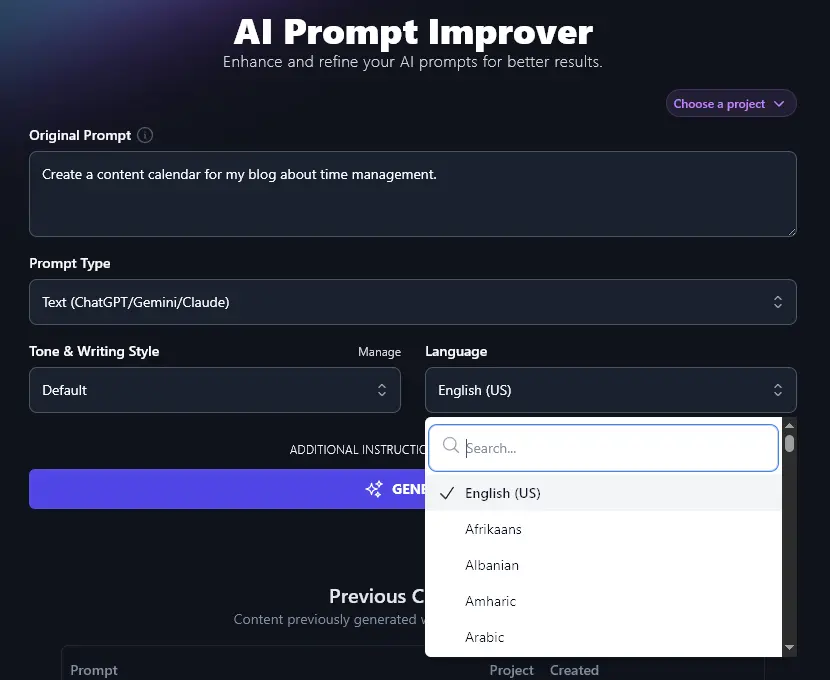
Step 4. Select the Language for Your Prompt (100+ Options)
RightBlogger lets you create content in over 100 languages, so if you want to use the Prompt Optimizer Tool to create prompts in a language other than US English, just select your preferred language from the dropdown list.
Tip:Use the search bar at the top of the list to quickly find a language (avoids having to scroll).
When you’re ready, click the “Generate” button and the AI will automatically enhance and optimize your prompt for you:
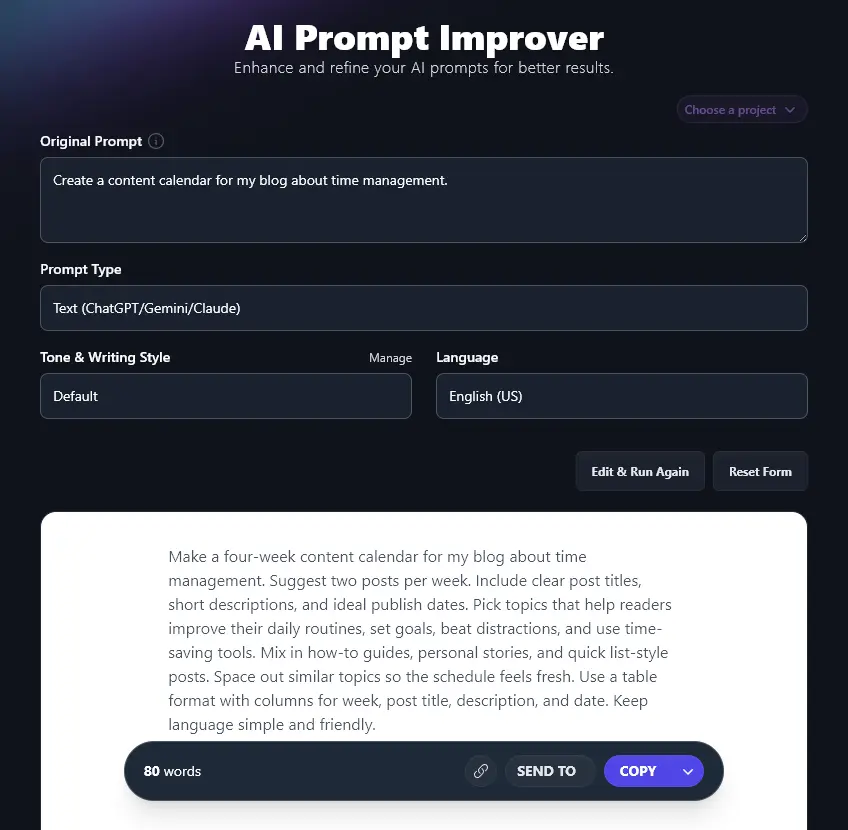
You can then use the “Copy” button to copy the text of your new prompt, or click the small downward arrow to the right of Copy if you want more options, like downloading your prompt as a .docx file.
Tip:You can edit your prompt after copying it. For instance, if you wanted a longer content calendar, you could change “four-week” to “twelve-week” or even “year-long”.
Bonus: Use My Prompt Checklist Alongside This Tool
Whether you’re handwriting prompts, using AI-generated prompts, or a mix of both, it’s helpful to know what makes for a high-quality prompt. Here’s my personal checklist to help.
- Give clear instructions: explain exactly what you want the AI to do (imagine you’re assigning the task to an intern who may not have much organizational knowledge)
- Add details and parameters for what you want, e.g. If you want 3 blog post ideas for each week, say so
- Include information about the format for your output: that might be a table or a document with subheadings for a text prompt, or a specific image ratio for an image prompt
- If possible, give the AI an example of the type of output you want, such as a sample blog post
- Guide the AI on the tone/style you want to use; you can either do this by giving it a sample of text or by describing the tone in a few words (e.g. “Professional, friendly, and reassuring.”)
- Avoid spelling and grammar mistakes: usually, AI can interpret these fine, but you might end up getting an unexpected result
- Consider asking the AI for multiple options with the output (especially for short pieces of output) so you can pick the one you like best
- If you don’t get quite what you wanted, ask the AI to make changes, e.g. “rewrite that in a more casual tone of voice”
Each Feature, Explained (Plus Advanced Options)
1. Original Prompt (Paste in the Prompt You’re Currently Using, or Write a Short One)
The first box is for your original prompt. Your prompt doesn’t need to be polished. Paste in what you have, or type a quick description of what you’re aiming to do.
Your prompt doesn’t need to be long or complex, but if there are specific requirements you know you have (e.g. you want a blog content calendar with one weekly post and one weekly newsletter), add those.
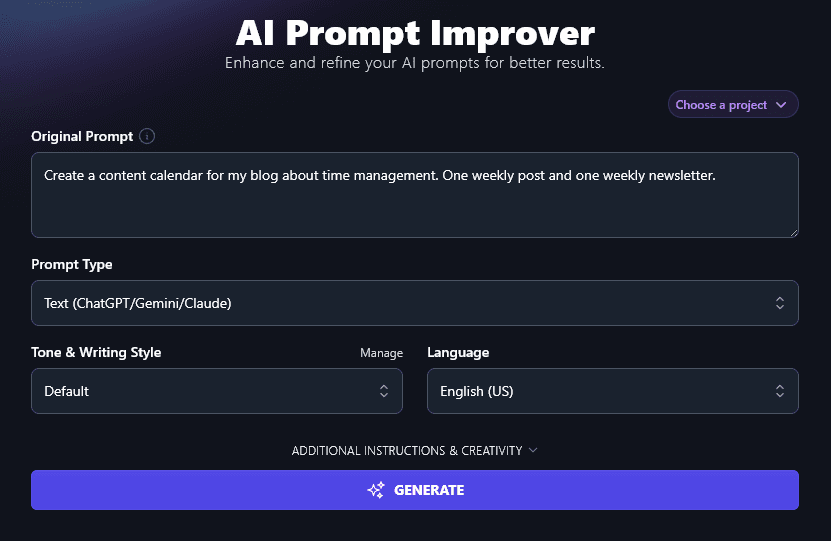
2. Prompt Type (Are You Creating a Prompt for a Text Generator or Image Generator?)
There are all kinds of different AI models out there, but one simple distinction is the type of output you’re getting. Some AI models produce text (whether that’s a blog post, haiku, code, recipe, or something else entirely). Others create images (which might be illustrations, photos, 3D-style, and more).
Tip:It doesn’t matter if the specific tool you’re using isn’t listed here. Just select the “Text” option if you’re looking for a text prompt or the “Image” option if you want an image prompt.
3. Tone & Writing Style (Feel Free to Experiment)
Like all RightBlogger’s content creation tools, the AI prompt generator lets you adjust the Tone & Writing Style of your generated prompt. You may find that the prompt itself includes some instructions on tone, especially for the more strongly voiced tones like “Fun & Quirky”.
With “Formal” style selected:
Develop a four-week content calendar for a blog focused on time management, including one blog post and one newsletter each week. Each blog post should cover a practical topic related to time management, such as planning, productivity tips, or tools. Each newsletter should highlight key points from the week’s blog post and include an extra tip or resource for readers. Format the calendar as a table with the following columns: Week, Blog Post Title and Summary, Newsletter Topic and Summary. Use clear, simple titles and summaries. Avoid repeating topics. Make sure the schedule supports readers who want to improve how they use their time.
With “Fun & Quirky” style selected:
Plan a four-week content calendar for my blog about time management. Include one blog post and one newsletter each week. Make sure each entry has a playful title and a short summary (no more than three sentences). Use a format that makes it easy to copy and paste into a table or spreadsheet. Keep the tone quirky and fun, with clever remarks or light jokes sprinkled in. Feature a mix of practical tips, personal stories, nerdy facts, and gentle encouragement. Avoid long words, business cliches, or snooze-worthy filler. Write so even a distracted goldfish would stick around.
For most use cases, it makes sense to stick with the Default style. But if you’re publishing your AI prompts (perhaps as a resource for your blog readers) then you may prefer to use a tone & style that suits your brand voice.
If you want your prompt to include instructions about tone, it’s best to add those within the original prompt itself or in “Additional Instructions” (which we’ll come onto in a moment) as then the AI Prompt Improver will incorporate them fully.
4. Language (Choose Any Language, or Variety of English)
The AI Prompt Improver can translate your initial prompt into a highly detailed prompt in any language of your choice; pick from more than 100 options. Your starting prompt doesn’t need to match the output language. Here, for instance, we created a detailed prompt in Spanish based on an initial short English prompt:
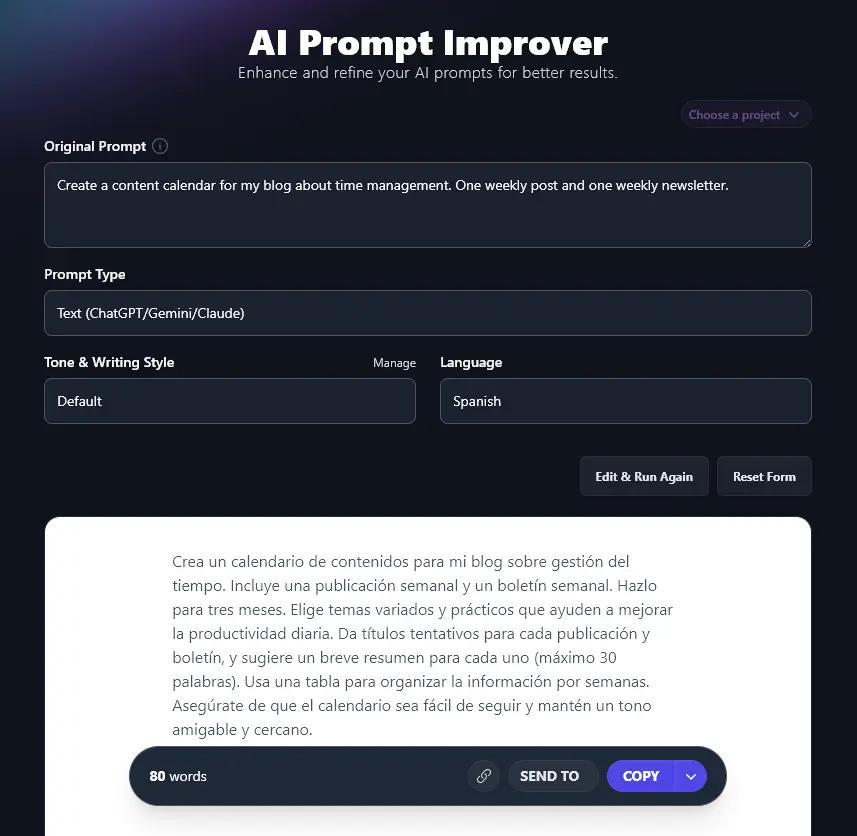
You can also pick from 4 varieties of English: US, UK, Australia, and Canada. This means your optimized prompt will use the correct spellings and terms for your chosen version of English.
5. Additional Instructions (Give the AI Any Extra Requests or Information for Your Prompt)
To open up the advanced options for the AI Prompt Improver, click on the “Additional Instructions & Creativity” link.
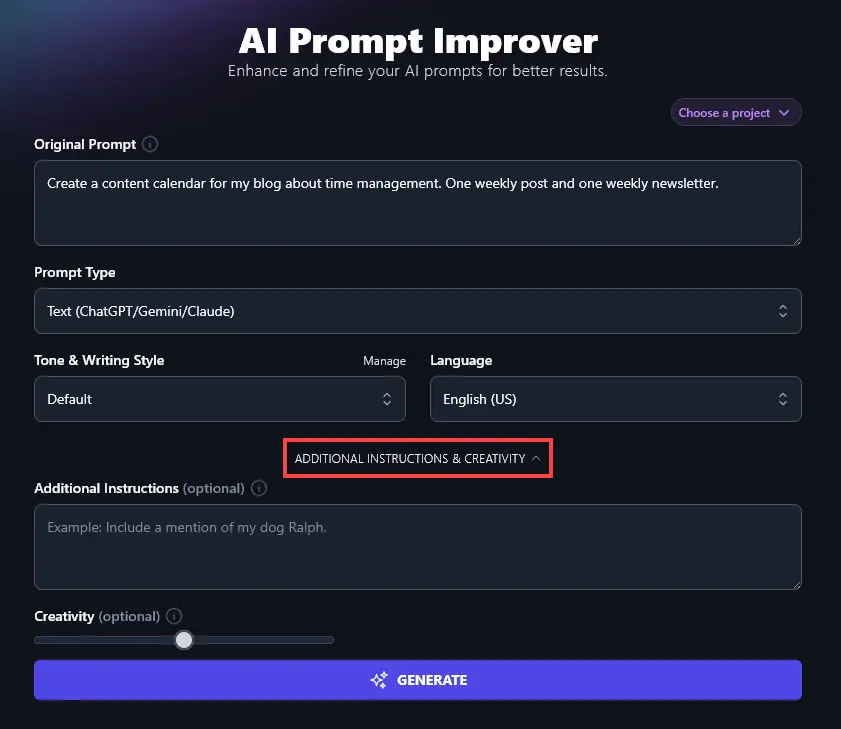
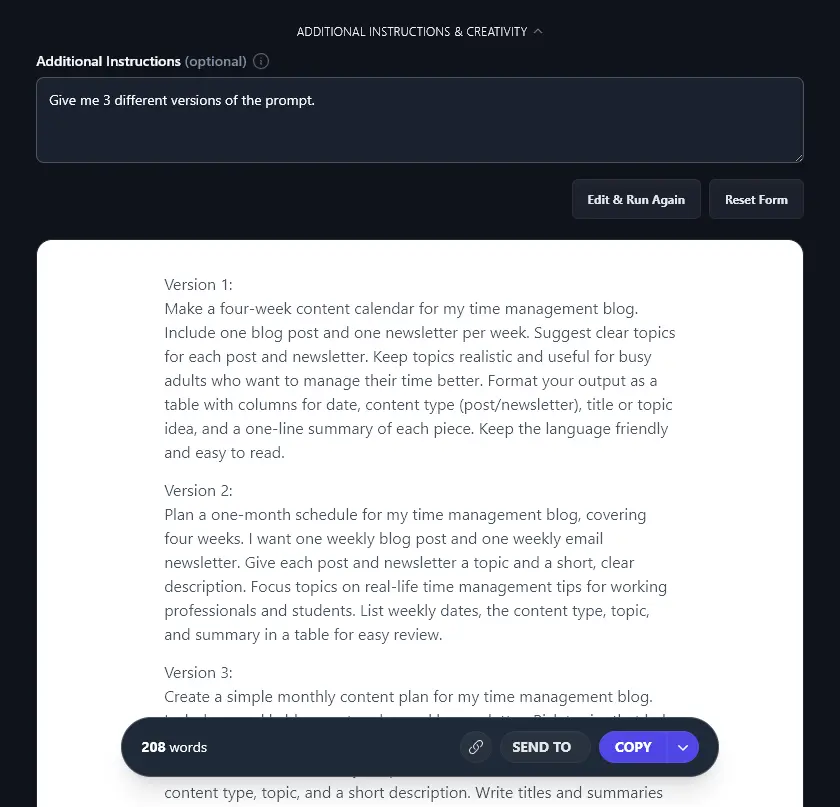
The first option you’ll see is the Additional Instructions box. This lets you give our advanced AI any extra information or requests for your improved prompt. For instance, you might ask for 3 versions of the improved prompt, or you could give extra context or instructions here if you don’t have those in the original prompt.
Here, we asked the AI for 3 versions of the prompt, and it did exactly what we wanted.
6. Creativity (Make Your Prompt More Unusual or More Predictable)
For most users, the default midpoint of Creativity will work just fine, so you don’t need to adjust this slider unless you want something different.
Moving the slider to the left will make your prompts less creative (more predictable). Moving it to the right will make them more creative (more unusual).

AI Prompt Improver FAQs (Frequently Asked Questions)
If you’ve got questions about using the AI Prompt Improver Tool (or about writing great AI prompts in general), then here’s everything you need to know.
Does the AI Prompt Improver Tool Work for All AI Systems?
Yes! If the AI generates output based on a prompt, then this will work just fine, regardless of the LLM (large language model).
The Text option is particularly well suited for chatbot-style AIs like RightBlogger’s Chat, ChatGPT (from OpenAI), Claude (from Anthropic), Grok (from xAI), and Gemini (from Google) … but you can use it with any other text-generating AI of your choice.
What Makes for a Great AI Prompt?
If you want to produce high-quality AI-generated content, it’s important to recognize that your results can only ever be as good as your prompt. AI algorithms are impressive, but they’re not magic. The AI can’t read your mind, so make sure you include specific details in your prompt about what you need from the output.
Good AI prompts tend to be quite detailed. They give clear instructions on not just the content of the output, but also the tone/style and the format. For specific examples, see our roundup of 75+ ChatGPT prompts for marketing.
It’s fine to use multiple prompts to get results, too. You might ask the AI to generate an initial piece of content, then request changes, like asking for it to be extended or requesting that the AI summarize the content.
What Other Free AI Tools Can I Use to Streamline My Workflow?
As well as using the AI prompt improver to automate the process of writing great prompts, we have a full suite of AI tools for content creators, bloggers, entrepreneurs, small businesses, and more.
Some great ones to get started with are:
- MidJourney Prompt Generator: if you’re not sure where to begin with your image-creating prompt, use this prompt generator to help refine your idea
- Article Writer: draft a high-quality blog post, optimized for SEO, from just a topic or keyword
- Keyword Research Tool: find great keywords to target, with search volumes and difficulty ratings provided
- LinkedIn Post Generator: instantly write attention-grabbing posts for LinkedIn (we have lots of other social media tools too)
- Blog Post Ideas: overcome writer’s block by brainstorming all the content ideas you need
- AI Image Generator: our image generator has the option to automatically improve your prompt, no need to run it through a separate tool
- SEO Reports: Know how to rank a piece of content by creating an SEO report to analyze what’s ranking on search and what your article needs to outperform them.
How Do I Sign Up for RightBlogger and How Much Does it Cost?
RightBlogger plans are $49/mo (Solo), $69/mo (Pro), and $199/mo (Agency) billed annually, and the Prompt Improver is included in every RightBlogger plan; the tool above is free with no account. New to AI tools? Read our full comparison of RightBlogger and ChatGPT.
Need just one site? Monthly Solo $59 (annual $49) has everything. Scaling up? monthly Pro $89 (annual $69) adds team seats and multiple connected sites. Every paid plan includes unlimited words, brand voices, AI images, and a 7-day free trial and a 30-day money-back guarantee.