Drop in any text, article, or link above and get a tight summary back fast. It is free to use, with no account standing between you and the result.
Looking to get the quick version of a lengthy text? Our free AI summarizer instantly extracts the key points, giving you a clear, coherent summary of everything you need to know.
Whether you want to give your readers a “TL;DR” version of your blog post or you’d like to save time researching, this summarizer will do all the hard work for you.
Summaries are great for:
- Turning blog posts into email newsletters or LinkedIn posts.
- Getting an accurate overview of a long article (or video) that you want to mention in your own content.
- Cutting down research time for an academic paper or essay.
- Concluding a webinar or other presentation with a recap of key points.
- Making lengthy notes into easy-to-digest study materials.
- Simplifying the language along with cutting down the length of a piece.
The AI Summarizer Tool creates summaries in just seconds, through the power of artificial intelligence.
How to Use the AI Summarizer Tool
Ready to put the AI to work? Here’s how to create a summary of any text (or video), step by step.
Step 1. Enter the Text You Want to Summarize
First, you need to give the AI the piece of text that you want to summarize. Paste this into the first box. We’ve used the first section of Andy’s article on How to Make Photos Load Faster on Your Website.
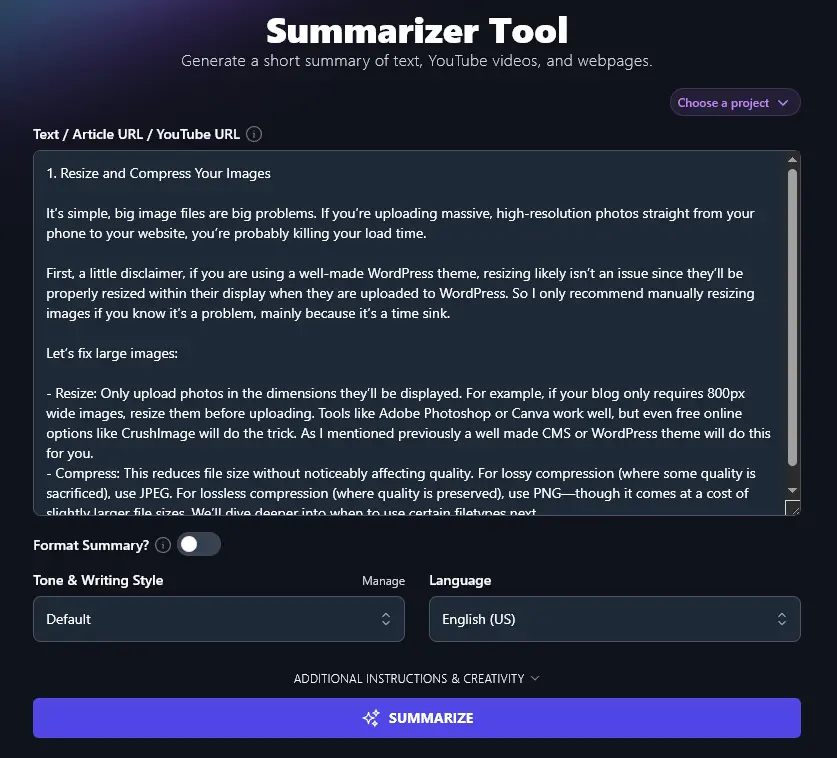
Tip: You can also link to an online article or YouTube video for summarizing.
Step 2. Decide Whether or Not to Format Your Summary
Clicking the toggle to “Format Summary” makes it easier to read, so it’s a good option in most cases. If you’re writing in an academic context (e.g. a paper or essay), leave this option switched off so that your summary is in full paragraphs.
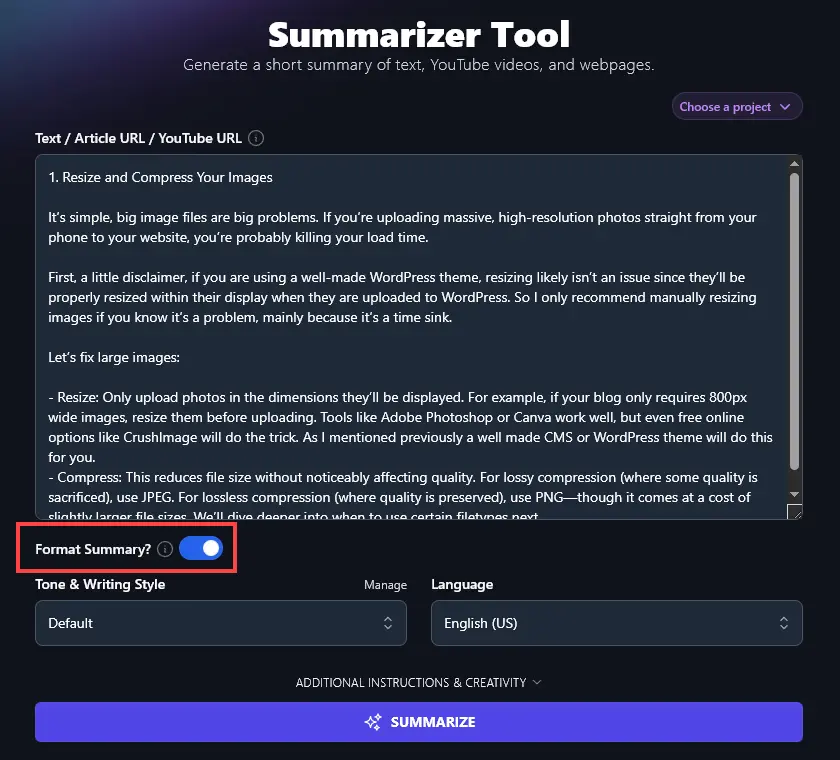
Step 3. Select Your Tone & Writing Style for the Summary
If your summary is just for your own purposes, leave the tone & style set to “Default”.
If you’re publishing the summary in some way, or using it as part of an assignment, then it’s a good idea to select a “Tone & Writing Style” that’s appropriate for your audience.
For instance, if you’re using the summary in your email newsletter, you’ll want to have it written in a tone that fits well with your brand.
Go ahead and pick any of the 16 preset tones from the dropdown list:
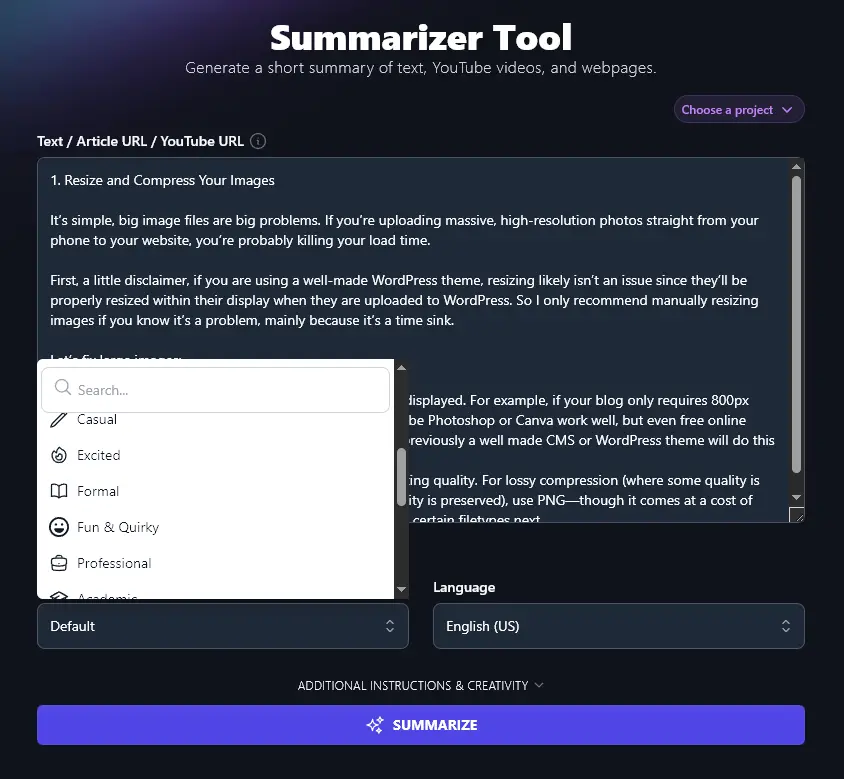
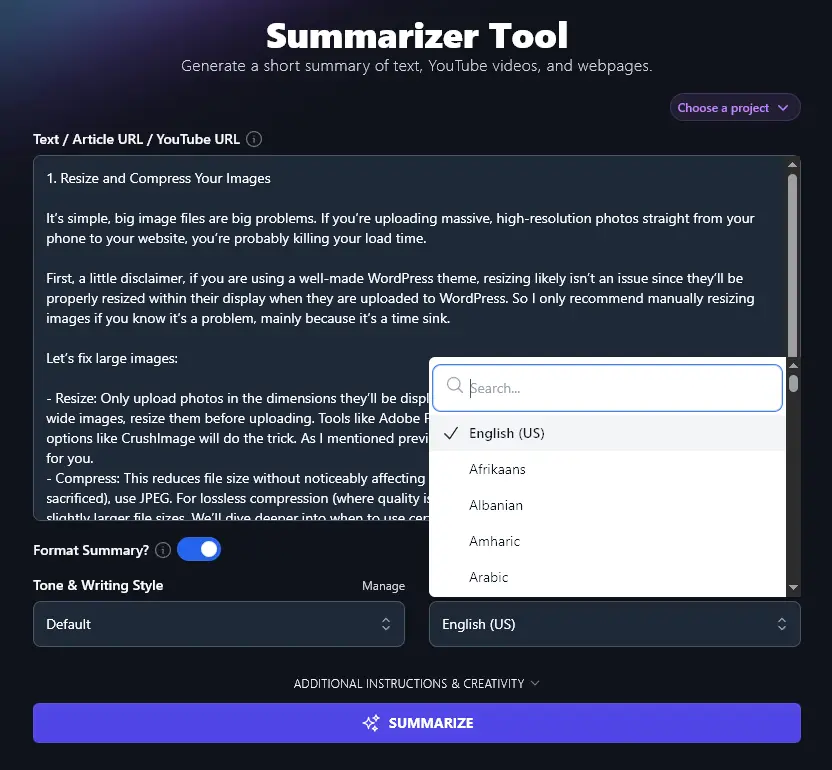
Step 4. Choose Your Preferred Language
The Language dropdown defaults to US English, but you can pick any other language you want, great for non-English speaking audiences or websites with a multinational audience.
Creating a summary just for you? If English isn’t your first language, you could select that language here, to make it easier for you to read the summary that the AI produces. (This saves you running it through the Translate Text tool.)
When you’re ready, go ahead and click the Summarize button. You’ll get an AI-generated summary of the text almost immediately:
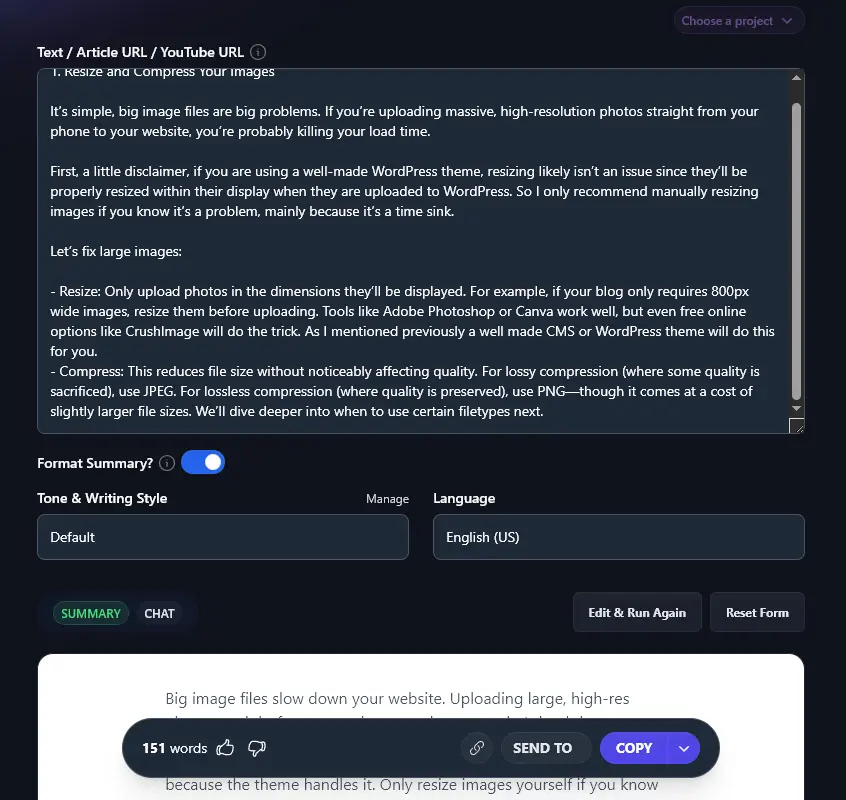
You can copy or download this summary using the Copy button. Click the downward arrow to the right of it for different options (e.g. “Download .docx”).
Bonus: Use My Free Editing Checklist Alongside This Tool
If you’ll be using the summary in a blog post, email newsletter, essay, or other piece of writing, then you’ll probably want to do some other editing, too.
Here’s my editing checklist to help you:
- Read through your full text (if it’s more than just the summary) and make sure the summary fits well with the rest of it
- Craft an introduction that hooks readers and keeps them reading, try the Hook Generator to help
- Clearly explain what your piece is about and/or what it will do for your readers, right at the start
- Use subheadings, if possible: think of these as “signposts” to help guide your reader through the text
- Add facts, statistics, and quotes to back up the points you’re making, essential in essays, but also good in blog posts, books, etc
- Check for any words or phrases that you might have overused, switching these out for alternatives as needed
- Make sure you’ve got a consistent tone throughout your piece, especially if you’ve used AI for some parts and written other sections yourself
- Run a readability check on your text, make sure it’s at a good level for your audience
- Use an AI grammar fixer (and spelling checker) to catch any mistakes you might have missed
- Proofread one last time before you send or publish your piece
How Does the AI Summarizer Tool Work? (Creating Great Summaries of Any Text/Video)
The AI Text Summarizer Tool is easy and quick to use … but it’s helpful to know how to get the most from it.
We’re going to take a closer look at each of the Summarizer’s features, including the advanced options.
1. Text / Article URL / YouTube URL (Summarize Up to 200,000 Characters)
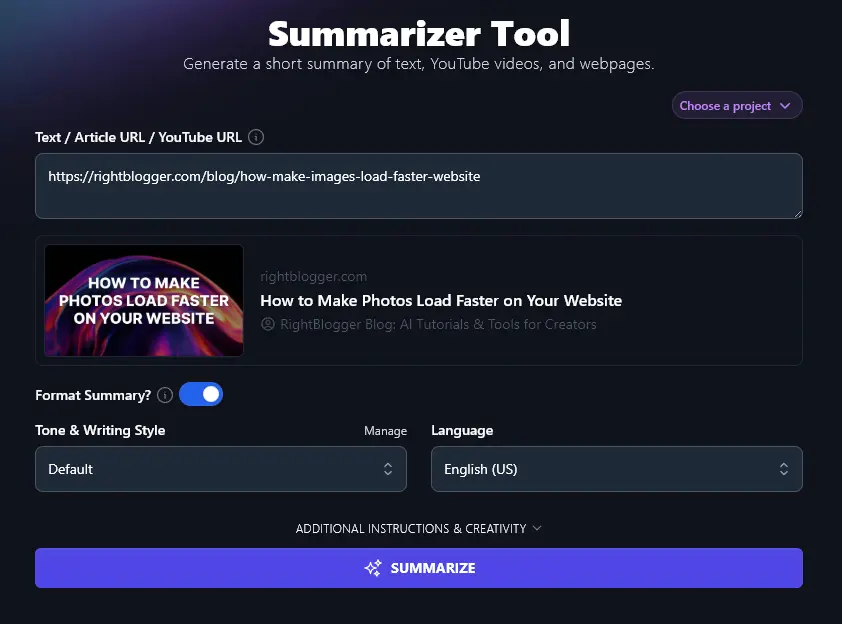
As well as pasting in text to be summarized, you can link to an article or even a YouTube video here to get a summary version. (If you have a non-YouTube video, you can paste the full transcript into the box instead.)
When you put a URL into the online summarizer, you’ll see the title and feature image for the article, like this:
Tip: Lengthy content is no problem! You can paste up to 200,000 characters (around 30,000-50,000 words) into this input box, enough to summarize a short book.
2. Format Summary?
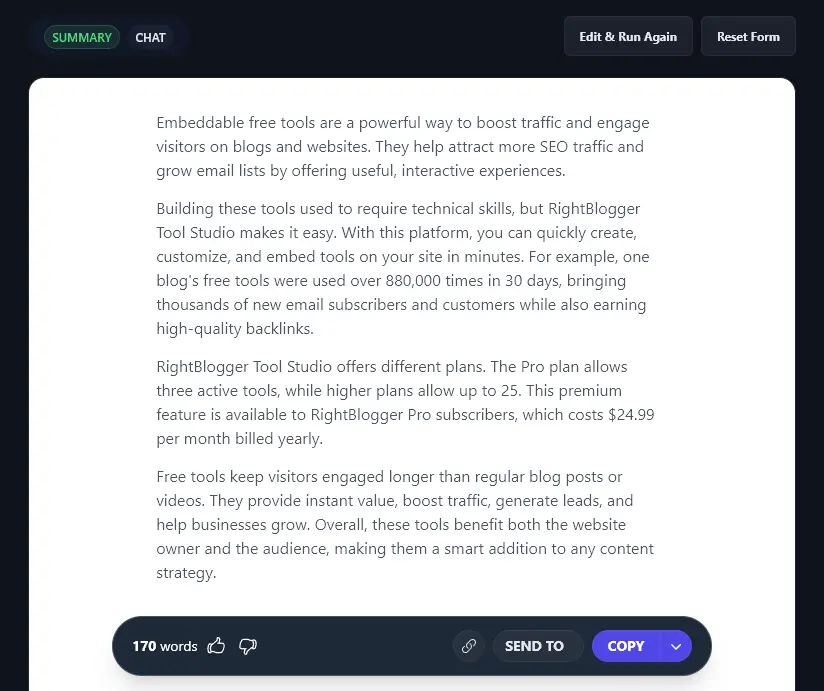
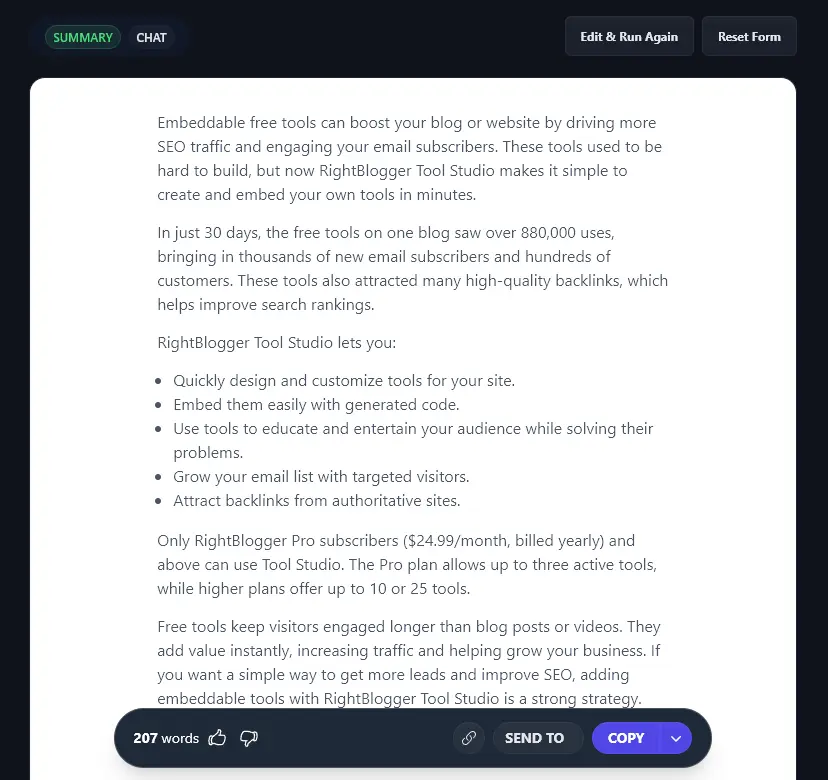
The AI can automatically format your summary, making it easier to read by adding features like shorter paragraphs, bullet points, bold text, and even subheadings.
Without formatting:
With formatting:
3. Tone & Writing Style (Summarize Text in a Tone That Matches the Rest of Your Writing)
RightBlogger’s default style is clear and easy to read … but it may not be spot-on for what you need.
Let’s say you’re writing an academic paper, and you want to include a summary of a research study. You’ll want that summary to be written in an appropriate style for your paper, so go ahead and select “Academic” from the dropdown.
If you’re writing a blog post and including a summary of that same study, you’ll probably want a much more informal style. The “Casual” or even “Fun & Quirky” options could fit your post perfectly.
We used the article Short-term exercise-induced protection of cardiovascular function and health: why and how fast does the heart benefit from exercise? for these examples. Here are the first paragraphs of each summary:
Academic style:
Regular exercise reduces the risk of cardiovascular disease (CVD) by improving traditional risk factors and enhancing heart and vessel health. However, these benefits usually take weeks or months to develop. This review highlights that even a single session of exercise can provide immediate protection against heart and vascular damage caused by prolonged lack of blood flow (ischemia) and the injury that follows when blood flow returns (reperfusion). This immediate protection, called single or short-term exercise-induced protection (SEP), is shown in animal and human studies to reduce the severity of tissue injury during ischemic events.
Fun & Quirky style:
Exercise isn’t just good for the long haul, it kicks in quickly to protect your heart and blood vessels. This review dishes on how even a single workout can shield your ticker from damage caused by things like heart attacks or surgery. Scientists call this quick shield “single or short-term exercise-induced protection” or SEP. It’s like a fast-acting suit of armor for your heart.
Tip: Match the style to wherever the summary is going. A summary that opens a blog post reads differently from one pasted into a research doc.
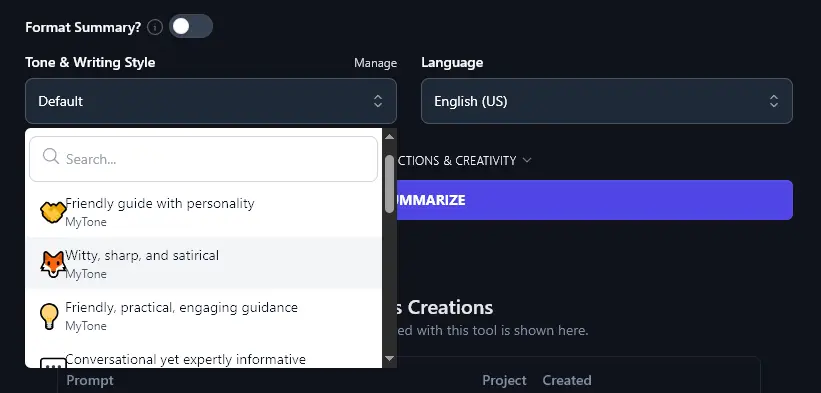
You can also create your own styles using RightBlogger’s MyTone feature. Just give the AI a sample of your writing (or even a YouTube video you’ve recorded) and it’ll automatically pick up on your tone & style, saving this for you to use across all RightBlogger’s tools.
You can then select your MyTone from the Tone & Writing Style dropdown:
4. Language (Over 100 to Pick From, Plus 4 Varieties of English)
RightBlogger can create a summary in any language of your choice, really useful if you’d like summaries of long texts in a language that you aren’t fluent in.
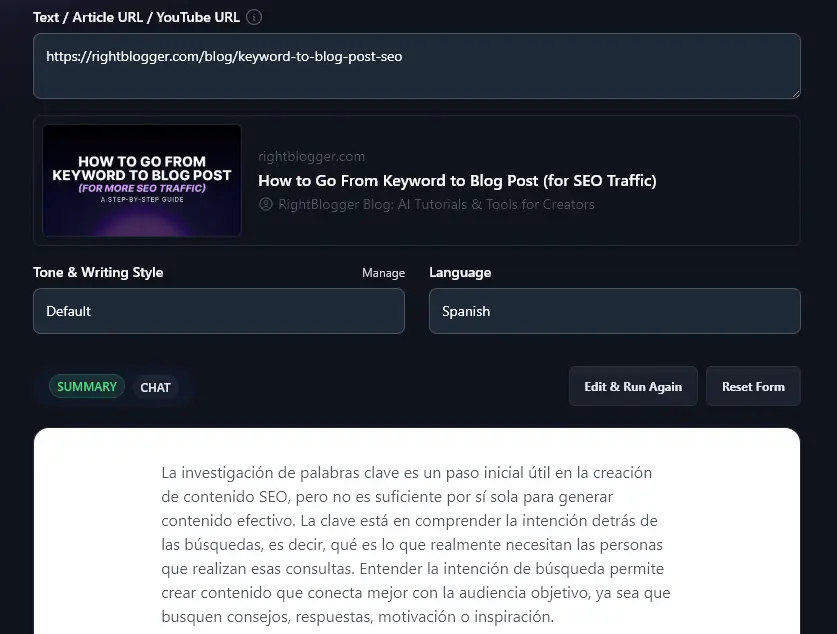
You’ve also got the option to use different versions of English: the default US English, along with UK, Canada, and Australia varieties. Picking the correct one for your location and audience means your summary will use the right spellings and terms.
Here’s an example of the AI producing a summary of an English blog post in Spanish:
5. Additional Instructions (Get Shorter Summaries, More Formatting, or Anything You Need)
The AI Summarizing Tool has two advanced options that you can open up by clicking on the “Additional Instructions & Creativity” link.
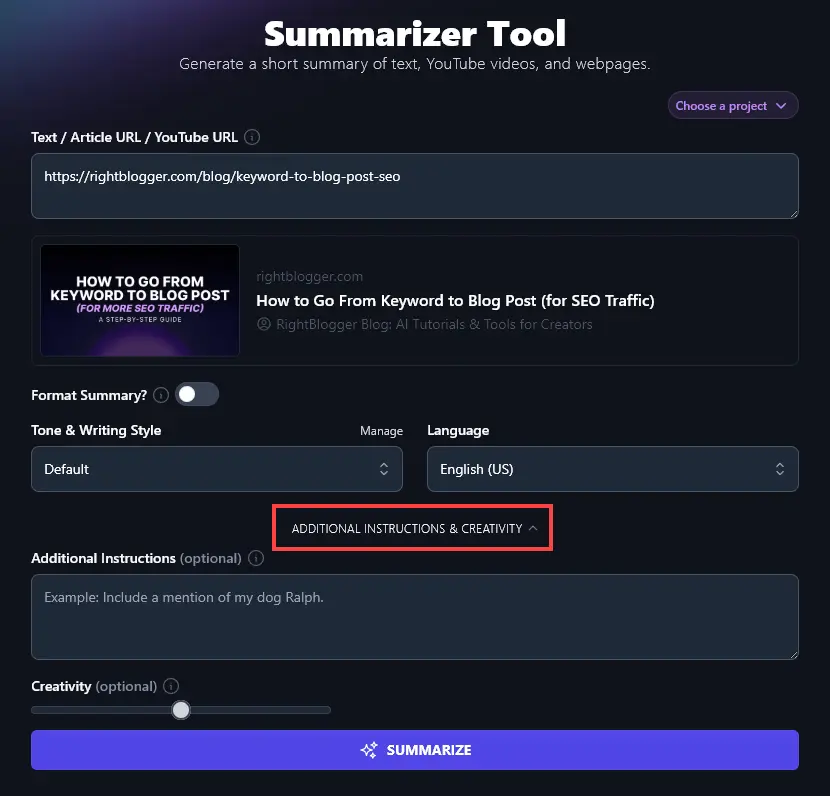
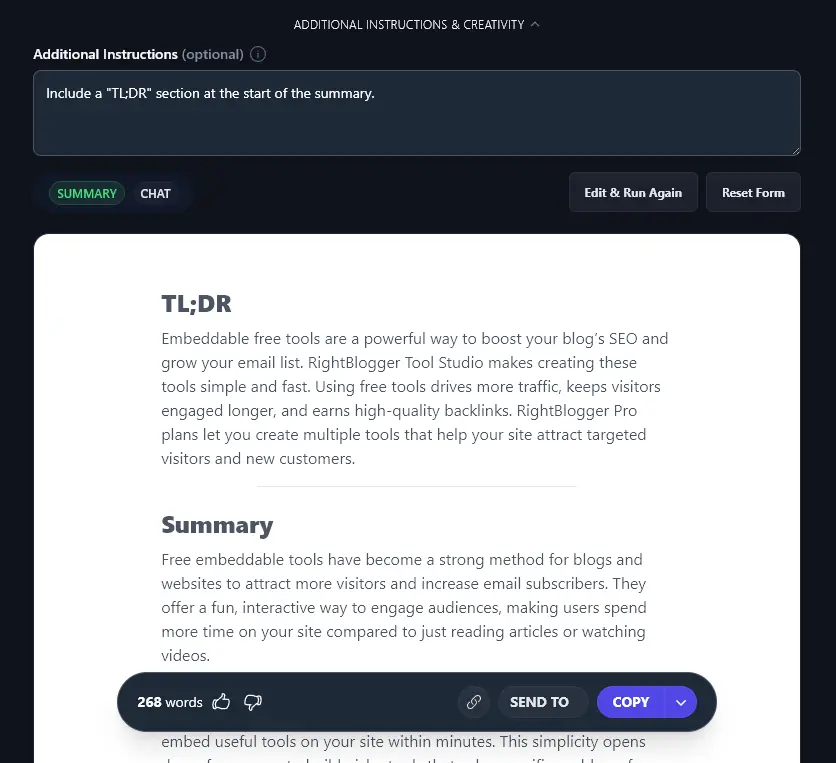
The first option is the “Additional Instructions” box. This is where you can tailor your summary to whatever you need. For instance, if you want a more concise summary, you could adjust the summary length by telling the AI, “Write a very short summary.” If you’d like the summary formatted in a specific way, e.g. with subheadings, again, just tell the AI.
Here, we asked the AI to “include a TL;DR section at the start of the summary” and it followed our instructions:
6. Creativity (Make the Summary More Predictable or More Unusual)
RightBlogger’s Summarizer is automatically set to a good midpoint of creativity, so your output shouldn’t be too bland or too strange. But if you want to experiment with the creativity level, just move the slider left (less creative) or right (more creative).

AI Summarizer FAQs (Frequently Asked Questions)
Got questions about the AI-powered summarizer … or about summaries in general? Here’s everything you need to know.
What’s the Difference Between a Summary and a Paraphrase?
Summarizing means giving a shortened version of a text that includes all the main points, but much less detail … meaning it takes less time to read.
Paraphrasing means reworking the original text but including a similar level of detail. The paraphrase will normally simplify the language used.
A summary will be significantly shorter than the original. A paraphrase may be somewhat shorter, but could also be roughly the same length.
Both summaries and paraphrases should include the key insights from the original text.
How Do I Create an Accurate Summary of a Text?
Whether you’re summarizing a news article, a research paper, a case study, or a blog post, it’s important that your summary is accurate.
It’s a good idea to:
- Read through the full text, identifying the main idea that’s being conveyed.
- Break the text down into sections, noting or highlighting key sentences in each.
- Leave out extra details if they’re not essential to understanding the author’s points.
Of course, an AI summary tool can do all this work for you, automatically writing a summary that includes all the most important information and takes into account the original context.
Will the AI Article Summarizer Pass a Plagiarism Checker?
The AI summary generator’s algorithms always writes a unique summary, so it should pass fine through a plagiarism checker. However, it’s important to accurately cite the source of your ideas (even if you’ve summarized them in your own words).
Can I Use the AI Summarizer as a PDF Summarizer?
You can’t currently upload PDF files to the Summarizer, but you could copy and paste the text of the PDF into the Text input box.
What Other RightBlogger Tools Can I Use to Create Content and Grow My Business?
Our summarizer is just the start! RightBlogger is packed with tools for content creators. Monthly plans start at Solo $59 (annual billing, charged monthly, is $49) with a 7-day free trial and a 30-day money-back guarantee.
Some of our best AI writing tools (free text generation tools) you’ll want to check out are:
- Article Writer: create full-length, SEO-friendly blog posts from a single keyword or topic
- Paraphrasing Tool: if you want to create a paraphrase rather than a summary of a piece of text, this is the tool for you
- Smart Suggest: pop in your blog’s URL and this clever tool will instantly come up with lots of relevant post ideas for you
- Key Takeaways: take any piece of text and list key takeaways, for your own studying or to help your online audience
- Improve Writing: automatically enhance your writing by getting the AI to make it more direct, grammatically correct, and engaging
- Shorten: if you’ve written a summary that’s too long, use the Shorten tool to cut it down
We’ve also got lots more user-friendly AI tools covering blogging, SEO, social media, sales, and more.
How Do I Sign Up for RightBlogger and How Much Does it Cost?
Every paid RightBlogger plan gives you access to all tools with unlimited words. Sign up to get started.
For more MyTone styles, plus Chat and Projects, check out monthly Pro at $89 (annual $69) (the most popular, with 3 sites, 3 team seats, and 90 SEO reports). Monthly Solo is $59 (annual $49), and monthly Agency is $299 (annual $199) for teams. All plans come with a 7-day free trial and a 30-day money-back guarantee.