Need to combine two passages of text? Perhaps you want to put together 2 shortish blog posts to make one longer, more comprehensive article. Maybe you’ve got 2 separate reports from 2 people that’d make a great coherent piece. RightBlogger’s free AI Text Merge tool is perfect for this task.
The Text Merge tool we built is designed to take any 2 pieces of text and smoothly merge them together, keeping all the key points and making everything flow. The advanced AI will understand the context of your 2 pieces, merging them appropriately, which might mean putting one section after the other, referring back to the first, and/or mixing the sentences in together.
How to Use Our Free AI Merge Text Tool
The Merge Text tool is easy to use: we’ll go through it step by step.
Step 1. Enter the Text You Want to Change
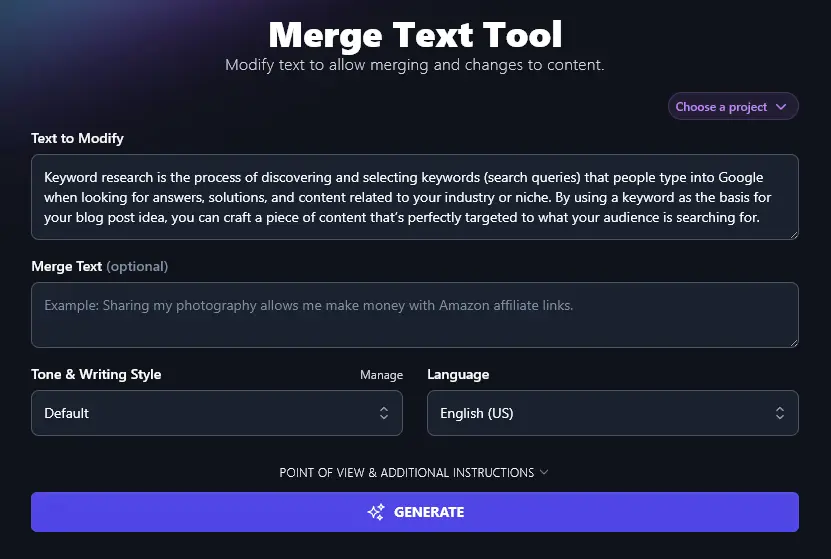
Start off by pasting in the text that you want to modify. That might be a draft email, blog post, social media post, or sales copy. We’re using our definition of keyword research from Ryan’s post 5 Best Free Keyword Research Tools for Bloggers in 2025.
Step 2. Enter the Text You Want to Merge Into Your Original
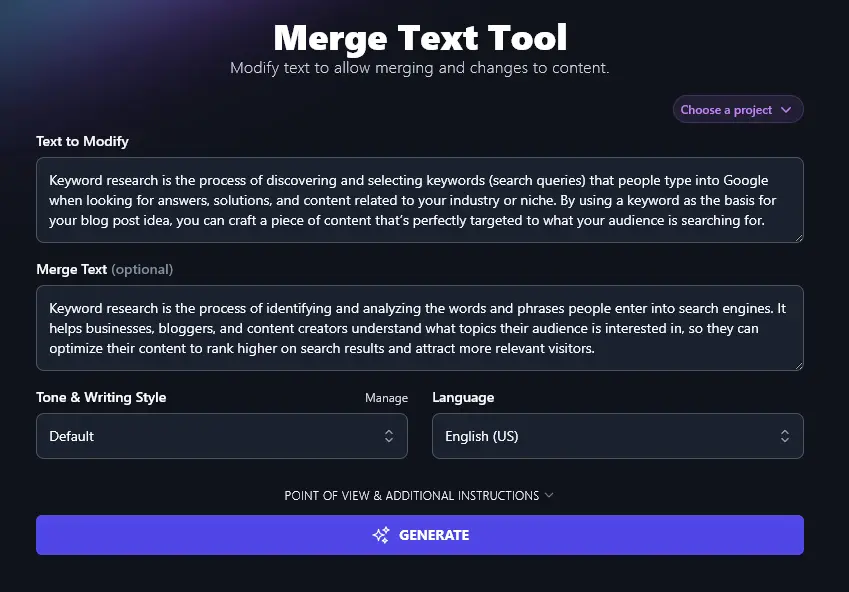
Next, paste in the extra text that you want to blend into your original text. We’ve used another definition of keyword research, this time from Ryan’s post on his blog RyRob: How to Do Keyword Research + Free Tools.
Not sure which way round your 2 passages of text should go? It doesn’t matter too much, but in most cases, it makes sense to put the passage with your first few points first, then the one with points that build on these second.
Step 3. Choose Your Tone & Writing Style
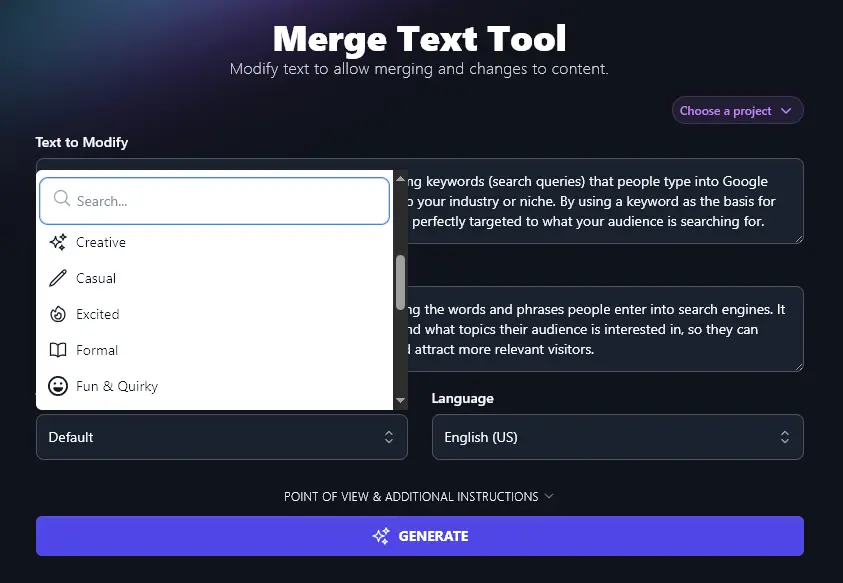
The RightBlogger AI will need to rework your text to merge both pieces together, and this dropdown lets you instruct it on what style to use. The Default works well in most cases, but you can choose from 16 options ranging from Casual, Creative, and Fun & Quirky to Academic, Professional, and Formal.
Step 4. Select Your Language (100+ to Choose From)
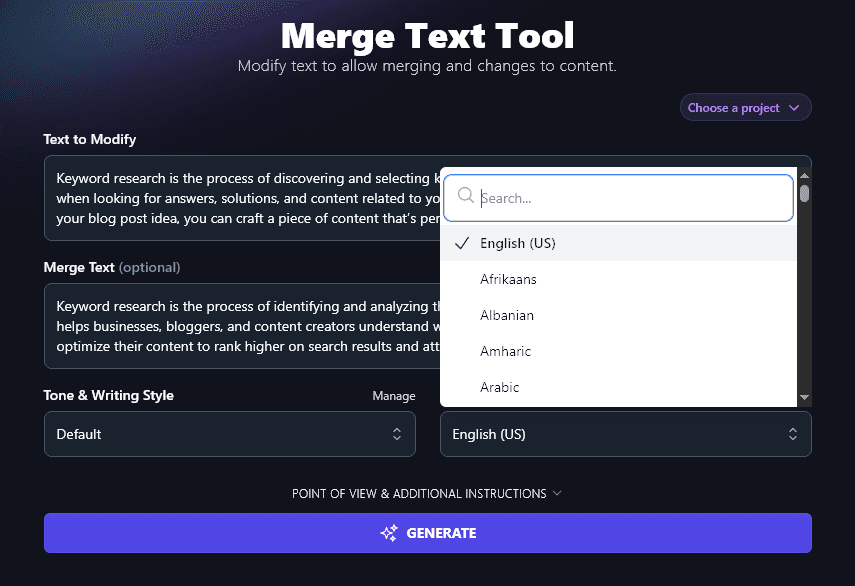
RightBlogger creates content in US English by default, but it can write in over 100 different languages. If you’re writing for a non-English speaking audience, just choose the language you want from the dropdown list.
Tip: Your language doesn’t need to match the language of your “Text to Modify” and/or “Merge Text”. If you want, you can use this tool to both merge and translate text.
When you’re ready, just click the “Generate” button and the AI text merge will take place almost instantly:
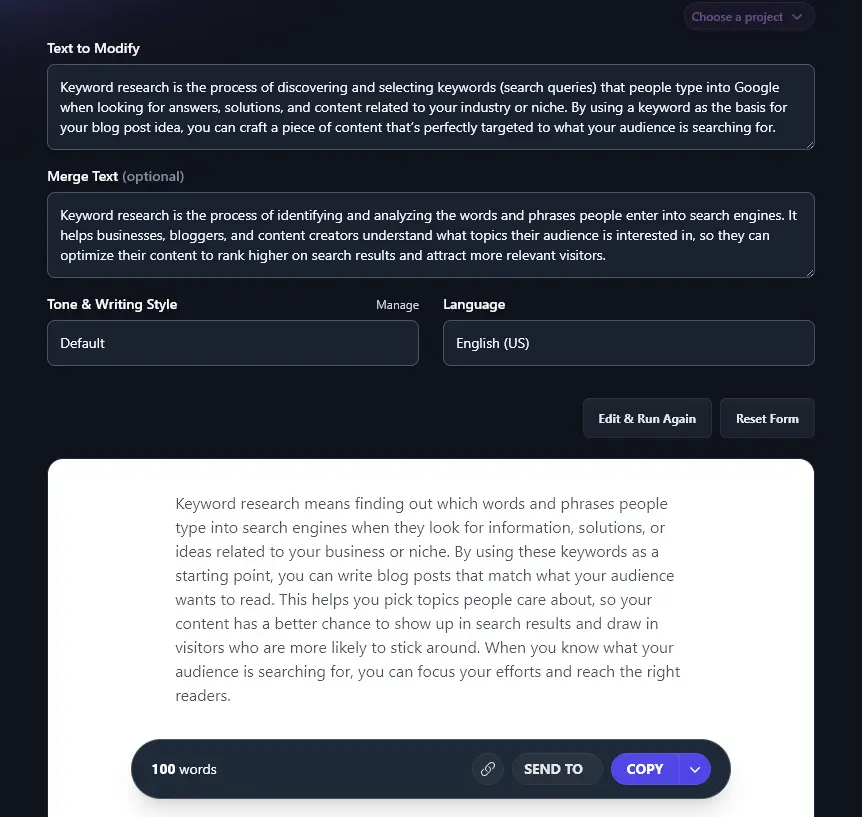
Use the “Copy” button to copy the text to your clipboard, you can then paste it into any application. You can click the downward arrow next to Copy for more options: this lets you copy as Markdown, HTML, or Plain Text, or download a .docx file.
Bonus: Use My Editing Checklist Alongside This Free AI Tool
When you’re merging together different sections of text to create a coherent piece, it’s important to carefully edit the whole thing at the end, especially if you’re adding in your own tweaks and changes too.
Here’s my personal editing checklist for you to use:
- Read through the whole piece that you’ve written (all your parts and any AI text), check that it all flows well and reads coherently
- Make sure your piece has an engaging introduction to draw readers in: the Hook Generator can help with this
- Check that it’s clear from the very start what your piece is about
- For longer texts (e.g. blog posts), use subheadings like signposts to guide the reader through to the end
- Use facts, statistics, and quotes to back up what you’re saying (and reference these accurately)
- Watch out for words/phrases that you’ve used too often, switch some for alternatives
- Make sure the tone and style of your piece is consistent, especially if parts were written by different people (or by AI)
- Run your whole piece through a readability checker to make sure it’s at the right level for your audience
- Check for any typos, spelling mistakes, or grammatical errors, the Grammar Fixer can correct these automatically for you
- Before you publish or send your piece, do a final proofread to catch any last mistakes
How Does the AI Merge Text Tool Work?
The AI Merge Text tool is simple to get started with … but getting the most from this powerful AI tool means understanding each feature. We’re going to dig into all the options in detail, covering the advanced features too.
1. Text to Modify (Your Original Text or Starting Point)
The first text box, “Text to Modify”, lets you enter the first text that you want to change. This could be anything from a sentence to a long blog post, the box lets you enter up to 20,000 characters, which is around 3,000-5,000 words.
Your “Text to Modify” could be:
- A draft blog post
- An essay introduction
- A social media post that you want to improve on
- A short definition that you want to expand
- A landing page section that needs more depth
… or any piece of text that you’re not quite happy with.
2. Merge Text (The Piece of Text You Want to Merge With Your Original)
The second text box is for your “Merge Text”, the text that you want to add into your original piece. Again, you can enter up to 20,000 characters.
This additional piece of text could be:
- A second blog post that you want to combine with a first (e.g. if you have two posts targeting the same keyword)
- A new point you want to incorporate into your essay
- An idea or example that you’d like to add to your social media post
- A detailed definition or one that takes a different angle
- More details for your landing page
… or anything where it makes sense to combine texts.
Note:You’ll see that the Merge Text box is optional. That’s because the Merge Text tool can also rewrite your “Text to Modify” for you in a different style. If that’s what you need, simply leave the Merge Text box blank and choose your Tone & Writing Style in the next step.
3. Tone & Writing Style (Choose from the Preset Options or Create Your Own)
Like all RightBlogger’s generative AI tools, the Merge Text Tool can create content in a huge range of different styles. This can make a big difference to your output.
Here, the tool has merged our keyword research paragraphs and put them into a “Fun & Quirky” style:
Keyword research is like a treasure hunt for words. It means finding out what people type into Google when they need answers, fixes, or just something interesting about your field. By picking the right keywords, you get a peek into what your audience wants. Then, you can write blog posts that match what they search for. This helps your content land right where curious minds are looking. It lets businesses, bloggers, and creators spot hot topics, shape their posts, and show up higher in search results. In the end, you attract readers who actually care about what you say, no guesswork, just smart word choices.
Here, we’ve used the exact same starting paragraphs but instead chosen a “Professional” style:
Keyword research means finding and choosing the words and phrases people type into search engines. This helps businesses, bloggers, and writers understand what their audience wants. By starting with a keyword, you can create content that matches what people are searching for. Using keywords in your topics helps your content show up higher in search results and brings in more visitors who care about what you offer.
As well as the preset tone, RightBlogger lets you create your own unique MyTone. Every plan includes MyTone, and paid plans save 5 (Solo), 15 (Pro), or 50 (Agency) MyTones. Creating one takes just seconds, through the power of artificial intelligence. All you need to do is give the AI a sample of your writing, or even a YouTube video link, and it’ll automatically detect and save your tone.
4. Language (100+ Options and 4 Varieties of English)
RightBlogger can create fluent content in over 100 different languages: just choose the one you want from the dropdown list.
This means you can use the Merge Text tool to combine text in 2 different languages, just make sure you select the output language you want. Here, we’ve combined text in Spanish and English, and asked RightBlogger to give the merged text in Spanish:
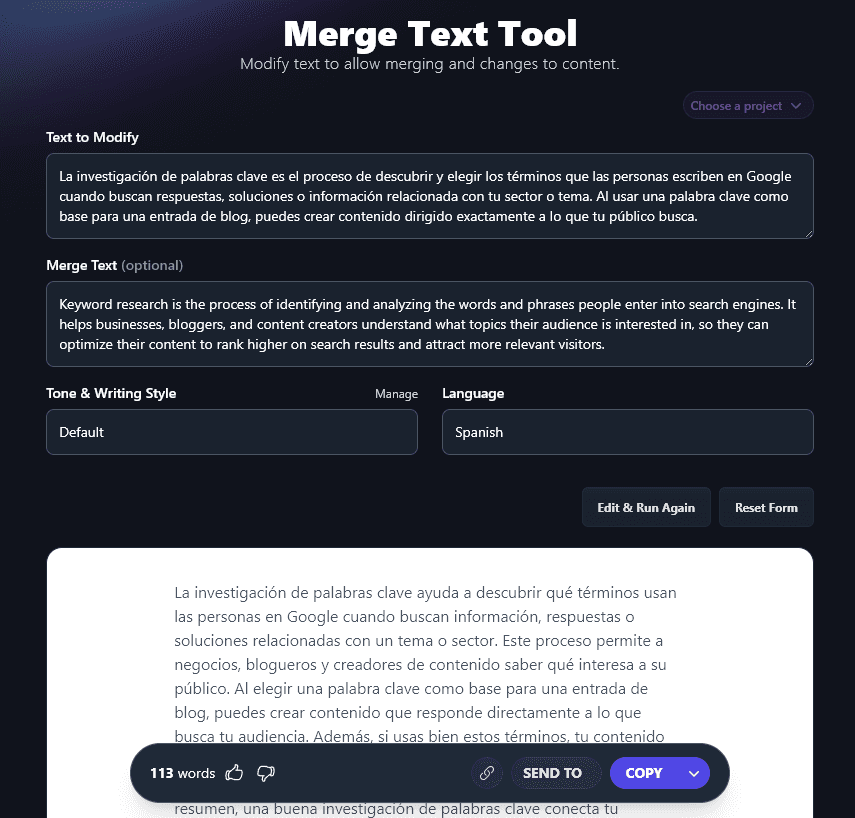
Note: The output language always defaults to US English, regardless of your input languages.
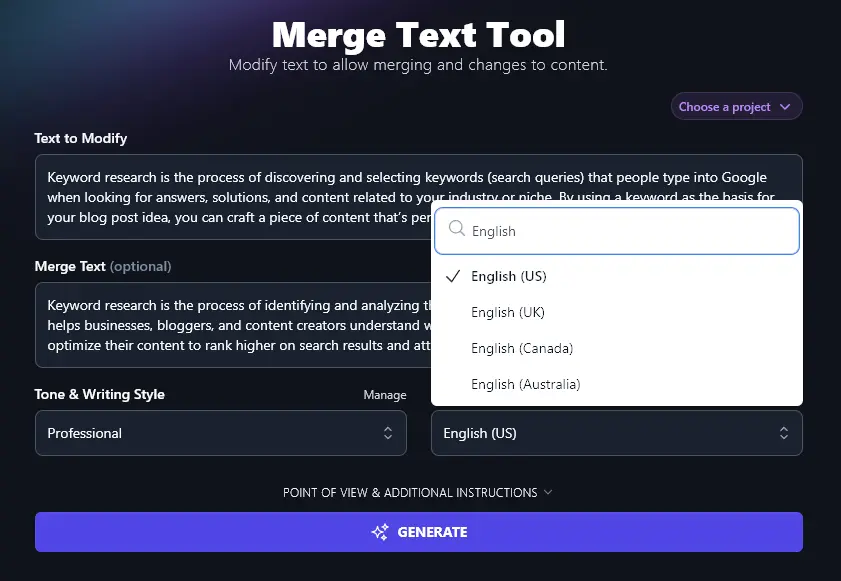
The Language dropdown also lets you choose between 4 different varieties of English: for the US, UK, Canada, and Australia. That way, your merged text will always use the correct spellings and terms for your location.
5. Point of View (What’s the Focus of Your Piece?)
To open up the 2 advanced features for the Merge Text Tool, click on the “Point of View & Additional Instructions” link.
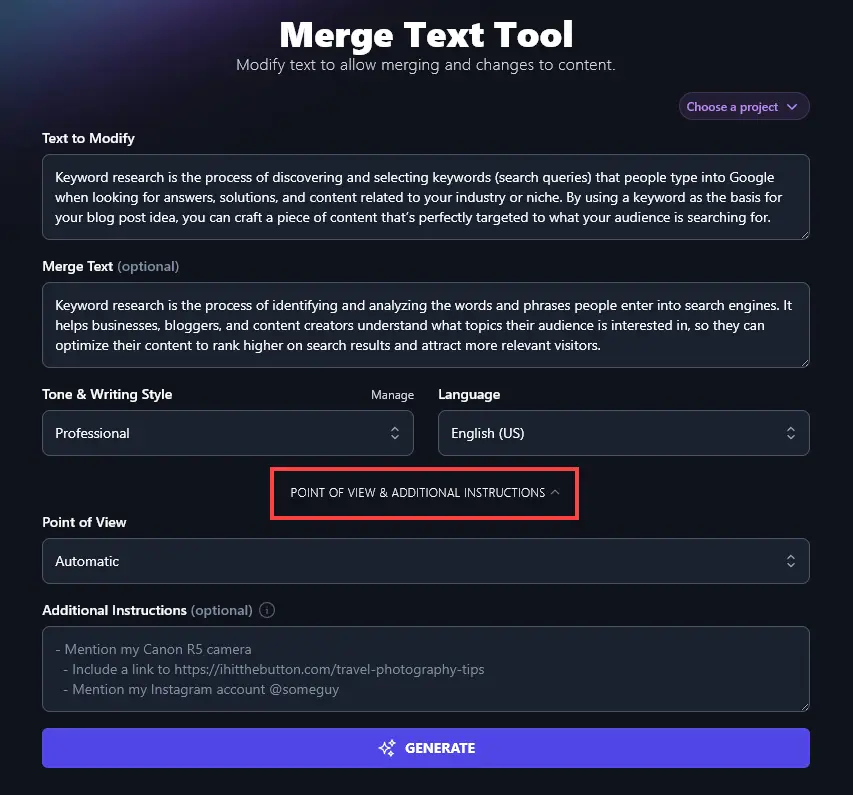
The first new option you’ll see is the Point of View dropdown. This lets you pick a perspective for your generated text. In most cases, the Automatic option works well (it’ll seek to match the original texts) … but you can set it manually if you prefer.
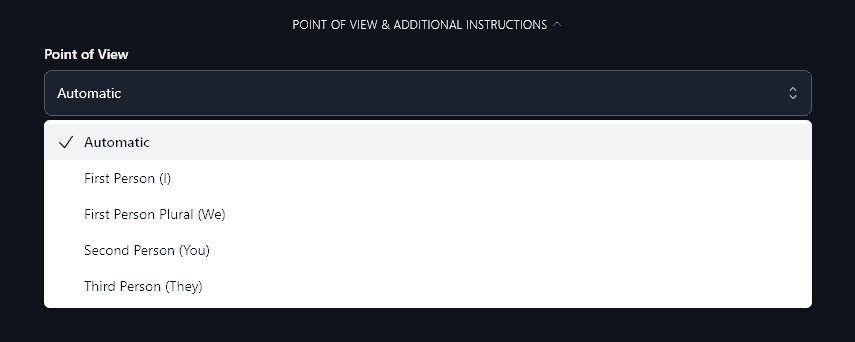
The options are:
- First Person (I): useful for social media content or emails where you want to present your own perspective or ideas
- First Person Plural (We): a good option for teams and partnerships
- Second Person (You): a very common option online, great for keeping the attention on the reader and their needs
- Third Person (They): this more formal perspective is good for some B2B companies or for academic writing
6. Additional Instructions (Add Any Extra Requests, or More Text)
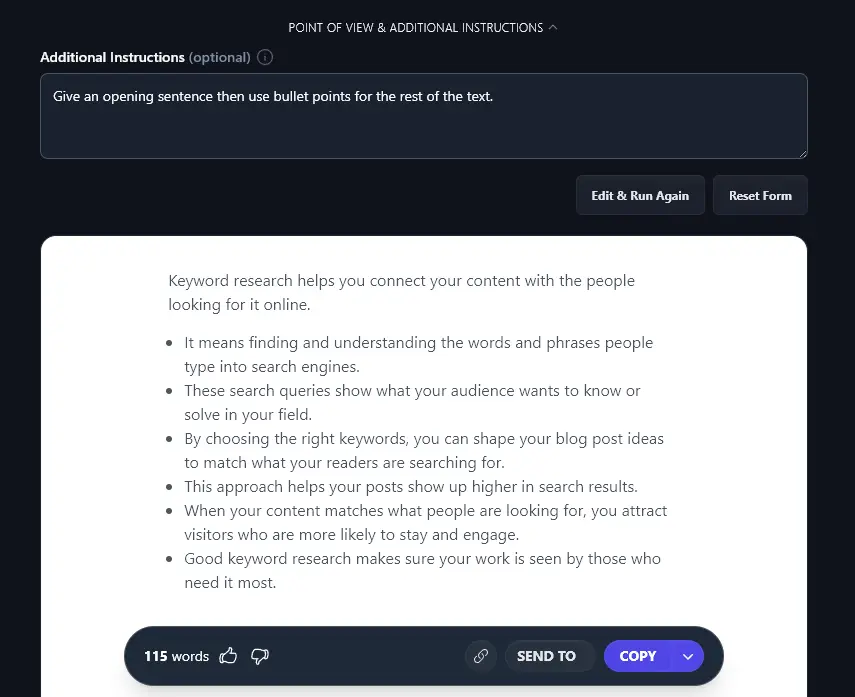
The Additional Instructions box lets you tell the AI anything else you want. You could include extra requests for your merged text (e.g. using emojis, bullet points, or other features) or you could even add in a third piece of text to merge.
If you’re adjusting your original text based on feedback, you could also use that feedback as the basis for your additional instructions.
Here, we’ve asked the AI to “Give an opening sentence then use bullet points for the rest of the text.”
AI Text Merge Tool FAQs (Frequently Asked Questions)
Got questions about using the text merge tool effectively or even about what you can use it for? Here’s everything you need to know.
Does the AI Merge Tool Let Me Merge Multiple Texts?
Yes. You can merge 2 pieces of text using the basic features of the AI Merge Tool. By opening up the advanced options, you can also use the Additional Instructions to add a third (or even fourth, etc) piece of text that you want to merge.
Just type in the Additional Instructions box, “Merge this text in too:” then put your third piece of text.
Can I Use the AI Merge Tool to Merge Spreadsheets or Datasets?
No. The AI Merge Tool only works for text. It can’t be used to merge spreadsheets or datasets.
How Does the Merge Text Tool Understand My Text?
RightBlogger’s powerful AI is built on OpenAI technology, the same organization behind ChatGPT. GPT-5, OpenAI’s latest and most capable language model, was trained on an even larger and more diverse dataset, enabling it to generate deeply informed, context-aware content across virtually any topic or writing style.
This advanced AI model means the AI can understand and preserve all the key points from both your pieces of text (in much the same way that our Summarizer keeps the key points in your summary).
What Other AI-Powered Tools Can I Use for Faster Content Creation?
RightBlogger is packed with 100+ different AI tools to help you streamline every aspect of your content creation workflow. Sign up for RightBlogger and check them all out in your dashboard.
Some of our best AI tools to get started with are:
- Article Writer: ideal for bloggers and content creators, this powerful AI writing tool creates high-quality articles from just a topic or keyword
- Keyword Research: the cornerstone of good SEO (search engine optimization) is good keyword research, and this tool makes it easy by giving you search volumes and difficulty ratings
- List Generator: perfect for writing tutorials or creating templates for your audience, the List generator is great for checklists, sets of ideas, or anything else that’s useful in list format
- LinkedIn Post Generator: automate the process of coming up with compelling content for your LinkedIn account
- Transcribe Audio or Video: this AI tool can quickly transcribe any audio or video file (includes functionality for uploading these)
- YouTube Video to Blog Post Generator: turn any of your YouTube videos into an AI-generated blog post (structured and coherent)
Along with content generation tools, we have all kinds of blogging tools, SEO tools, sales tools, social media tools, and more.
How Do I Sign Up for RightBlogger and How Much Does it Cost?
You can get started with our tools right away. Just pick a plan (monthly plans start at Solo $59 (annual billing, charged monthly, is $49)). Every paid plan includes unlimited words and a 7-day free trial and a 30-day money-back guarantee.
Check out our RightBlogger plans to get the most from every tool. Monthly Solo $59 covers one site, Pro $89 adds team seats and 90 SEO reports/mo, and monthly Agency $299 (annual $199) is built for larger teams. Every paid plan includes unlimited words plus features like SEO Reports, Auto-Optimize, MyTone, Chat, Projects, and Knowledge.