
Shorten Text Generator
Shorten text, sentences, paragraphs, and phrases.
Are you looking for an AI tool to shorten an over-long piece of text? Perhaps you need to cut down a lengthy paragraph for your email newsletter or your essay is over the word limit. Editing your own work down to a shorter length can be really time-consuming … so we created the AI Shorten Text tool.
Using powerful AI technology, this tool automatically understands the key points in your text and keeps these in the shortened version, cutting words while preserving as much of the original meaning as possible.
How to Use the AI Shorten Text Tool
Once you’ve got your too-long piece of text to hand, go ahead and shorten it with the help of AI. Here’s what to do, step by step.
Step 1. Paste Your Text Into the Summarizer Tool
Copy and paste your piece of text into the first input box. This could be a paragraph from a blog post, an overlong sentence from an essay introduction, or a section of a freelance piece that you need to cut to fit a word count.
For this example, we used the opening paragraph of AI Bulk Publishing: Worth it or Waste of Time for Bloggers?
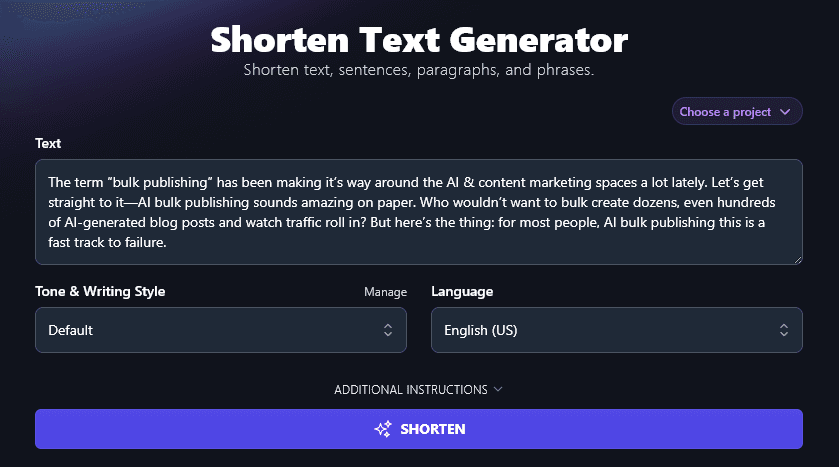
Step 2. Choose a Tone & Writing Style for the Shortened Version
What style should the AI use for your shortened piece of text?
In many cases, the Default style will work just fine. The AI will aim to preserve the style of the original piece.
But if you want something a bit different, go ahead and select from the dropdown list. Perhaps you want to rework a long, clunky paragraph into a “Casual” style for your latest blog post … or maybe you’d like a more “Professional” style for a sentence that’s complicated and rambling.
Just click on the Tone & Writing Style dropdown and select any of the 16 preset styles:
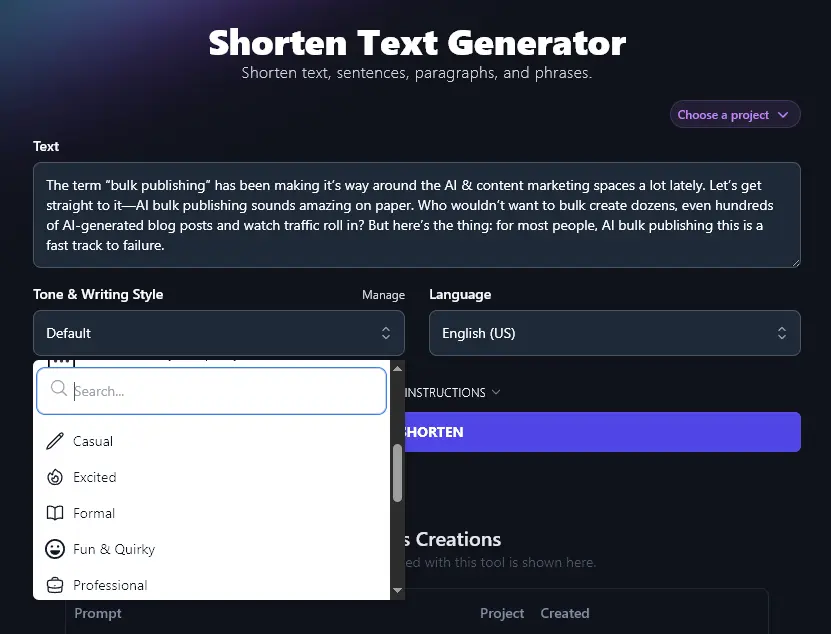
Step 3. Select a Language for the Shortened Piece of Text
RightBlogger defaults to creating content in US English … but what if you want to use a different language for your shortened version of the text?
The AI can write in 100+ different languages, including 4 varieties of English. Go ahead and select whichever language you want from the dropdown (you can use the search bar at the top to find a language quickly).
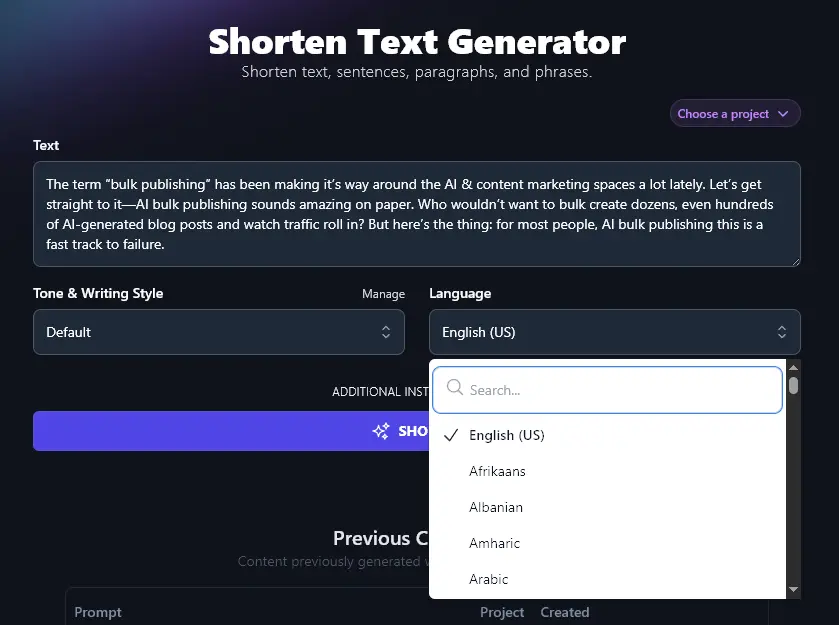
Note: Even if your original text is in a different language, you’ll still need to select the language here, or your shortened version will come out in US English.
When you’re ready, go ahead and click the “Shorten” button. The AI will give you a shorter version of your text almost instantly:
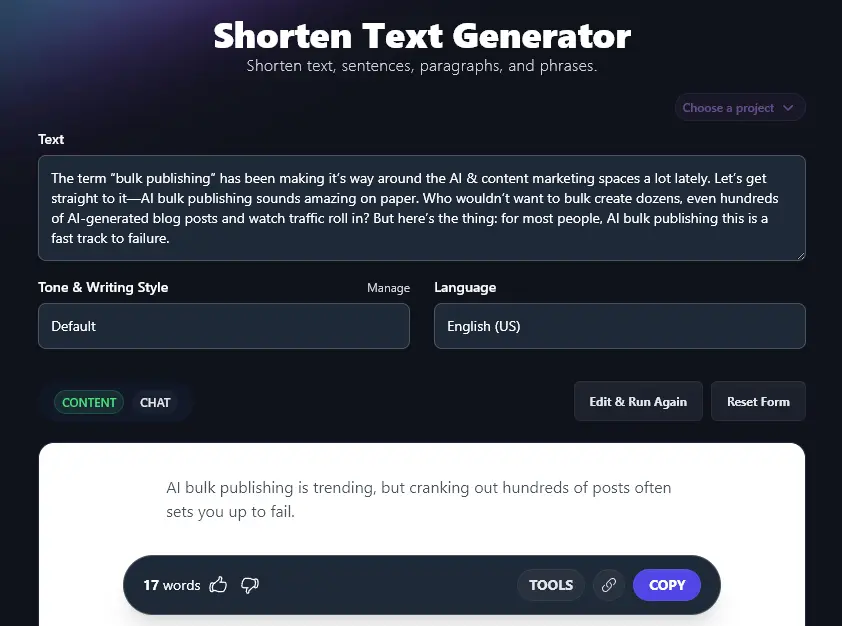
Bonus: Use My Free Editing Checklist Alongside This Tool
If you’re shortening a piece of text to use in a blog post, book chapter, webpage, email, or essay, then there’s a good chance you’re doing some other editing as well.
You want your whole piece to be as well-written as possible, so here’s my editing checklist for you:
- Go through all your text and make sure it reads smoothly with the shortened piece in place
- Check that your introduction does a good job of hooking readers so they’ll read on (try the Hook Generator to help)
- Make it clear what your piece is about or what it offers to readers, right from the start
- If it’s appropriate, use subheadings in your piece like “signposts” that guide the reader through it
- Include facts, statistics, and quotes to back up the points you make (particularly important for essays, but also useful in blog posts)
- See if you’ve overused any words or phrases, and if necessary, switch some for alternatives
- Make sure the tone and style is the same through the whole text (especially if you’ve used AI for some parts and written other bits yourself)
- Check the readability of your text and make sure it’s a good fit for your audience
- Run your whole piece through an AI grammar fixer and spelling checker just in case you missed any mistakes
- Do a final proofread of the whole thing before sending it or publishing it
How the Shorten Text Tool Works (Using the Text Summarizer)
The Shorten Text Tool is incredibly straightforward to get started with … but what if you’re not quite getting the results you wanted? Perhaps the tool has shortened your text too much, or you’d rather have a bullet-point list instead of a paragraph summary.
Here’s how to get the most from all the Shorten Text Tool’s features (including the advanced options).
1. Text (Paste in as Much Text As You Like)
While the Shorten Text tool was designed with paragraphs and short chunks of text in mind, it can handle much longer pieces, up to a long blog post or a whole essay. You can enter up to 20,000 characters (around 3,500, 6,500 words).
This is really handy if you want a short version of, say, a blog post so you can repurpose it for use on LinkedIn or in an email.
Here’s the Shorten Text Tool’s quick version of our whole blog post on AI bulk publishing:
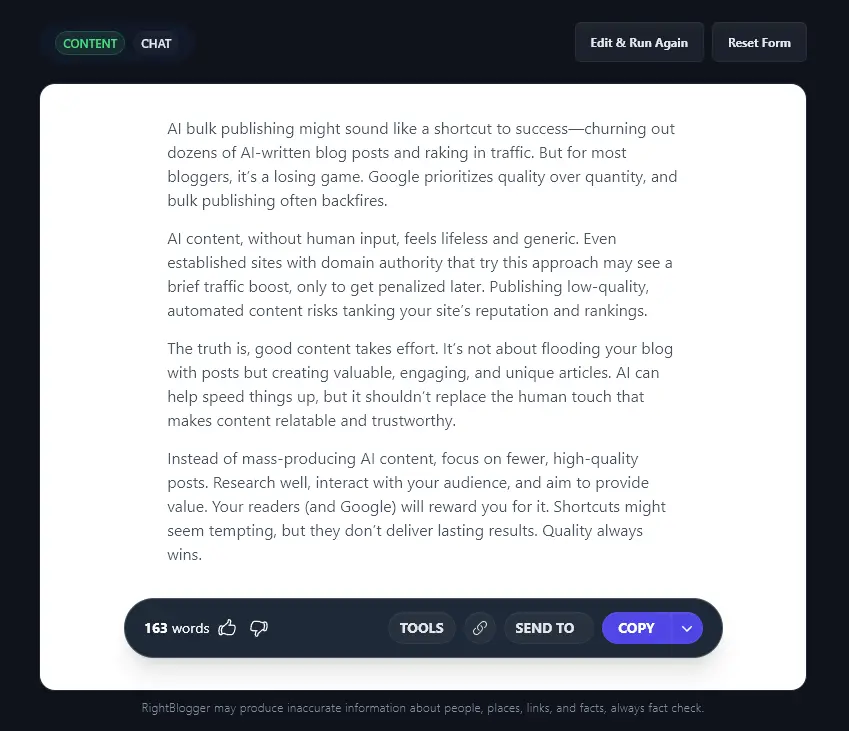
Note:You need to paste text into the tool, or type it in, you can’t give the tool the URL to the post.
2. Tone & Writing Style (Choose a Preset Option … or Create Your Own)
The Shorten Text tool will aim to preserve your writing tone in the shortened version, but what if you want to switch to a different tone of voice?
As well as the preset tones, you can create your own custom MyTone on any plan. All you need to do is provide a URL to a piece of content, which can be a written article or a YouTube video. The AI will automatically detect the writing style.
Once you’ve created a MyTone, you can select it from the Tone & Writing Style dropdown in all of RightBlogger’s generative AI tools. Paid plans save 5 (Solo), 15 (Pro), or 50 (Agency) separate MyTones.
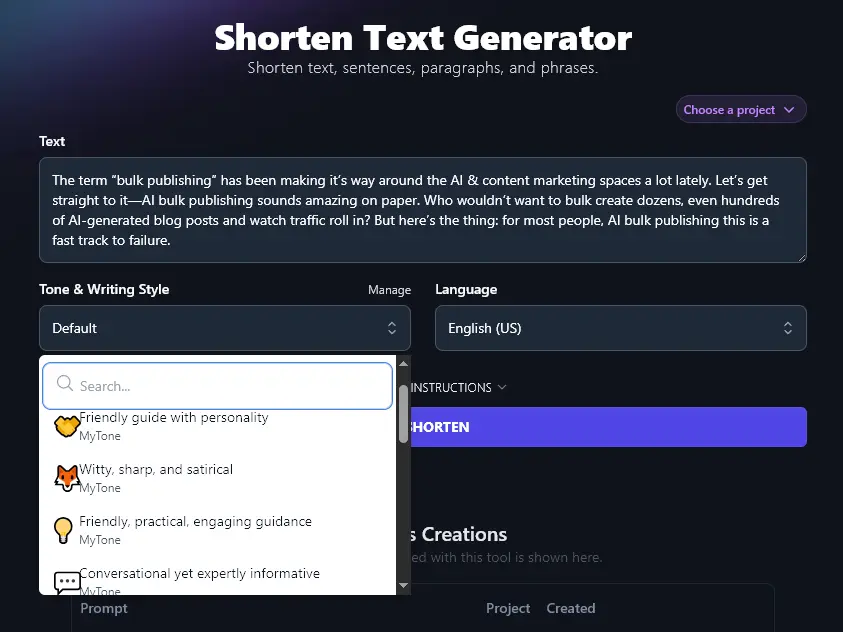
3. Language (Generate a Short Version in Any Language of Your Choice)
You can create the short version of your text in any language you want: the output language for the AI summarizer tool doesn’t need to match the input language.
Here, we’ve created a short version of our initial paragraph in Spanish, instead of English:
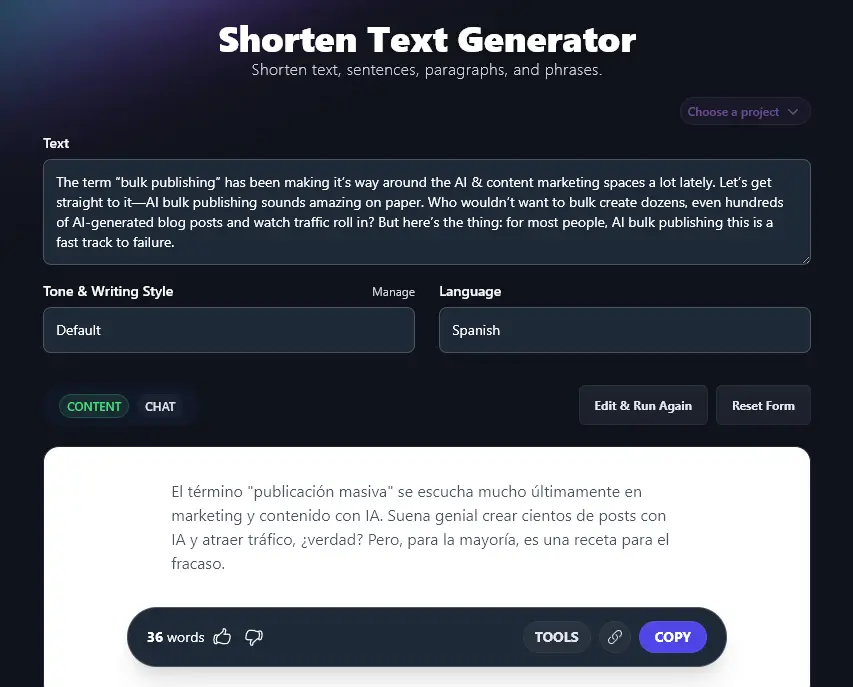
4. Additional Instructions (Give the AI Any Special Requests for Your Summary)
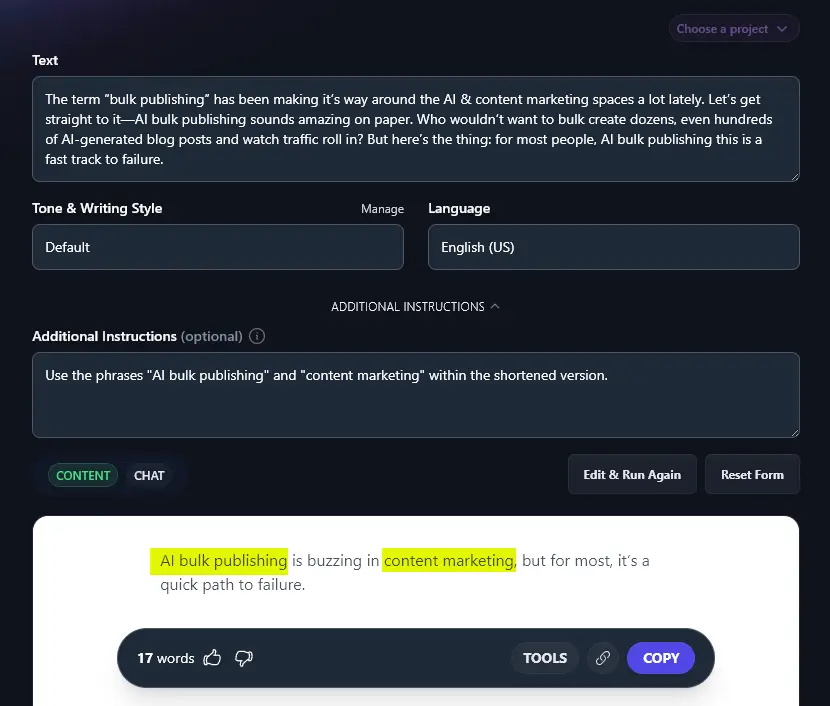
Click on the “Additional Instructions” link and you’ll see the advanced option to enter extra requests for the AI.
For instance, you might want to keep a specific keyword or phrase in the shortened version of your text. Just let the AI know, and it’ll do this. Here, we’ve highlighted the phrases that the AI correctly included as requested:
AI Shorten Text Tool FAQs (Frequently Asked Questions)
Do you have questions about the Shorten Text tool, or about creating concise summaries of your original content in general? Here are all the answers you need.
Should I Use the AI Shorten Text Tool vs an AI Summary Generator to Summarize Text?
In RightBlogger, we have the Shorten Text Tool as well as a Summary Generator and a Paraphrase Generator.
So which one should you use if you need a short version of a long text?
Each of these advanced AI tools is designed for a slightly different use case.
- Shorten Text Tool: ideal if you have an overly-wordy paragraph to cut down, or if you want a short version of a blog post for an email newsletter or social media
- Summarizer: the AI text summarizer can give you a short version of an article, webpage, or YouTube video, with this tool, the summary length will be longer than with the shorten text tool
- Paraphrase Generator: when paraphrasing, the algorithm will simplify the main points from the original text or article
Does the AI-Powered Shorten Tool Help Me Avoid Plagiarism?
The Shorten tool won’t plagiarize: it creates the shortened version from scratch, so the words are unique, and should pass a plagiarism checker with no problems.
However, if you’re writing a research paper or essay, it’s important to remember to cite your sources, even if you’re using a summary tool to put text from those sources into your own words.
What Other AI Writing Tools Can I Use to Create High-Quality Original Content?
RightBlogger has over 85 AI-based free tools for you, and many of these are designed to help you produce great content.
Some of the best ones to check out are:
- Article Writer: instantly write a full article, based around a keyword or topic and designed to rank well in search engines
- Newsletter Generator: write a newsletter based on a topic idea, your existing content, or a product/service you want to promote (perfect for entrepreneurs and marketers)
- Article Summarizer: this free text summarizer tool can take all kinds of content (academic papers, news articles, etc) and instantly give you an accurate summary
- Paraphrasing Tool: simplify any text and put it in your own words, through the power of artificial intelligence
- Key Takeaways: instantly get a list of key points from any article, blog post, or YouTube video
- Expand Tool: if you need to write more rather than less, this is the tool for you, it’ll expand on your original text without adding any fluff or filler
Along with all these AI writing tools, we have SEO (search engine optimization) tools, social media tools, sales tools, and more.
How Do I Sign Up for RightBlogger and How Much Does it Cost?
One subscription unlocks every RightBlogger tool, including the Content Shortener. Monthly plans start at Solo $59 (annual billing, charged monthly, is $49) with a 7-day free trial and a 30-day money-back guarantee.
Every paid plan gives you unlimited AI words, MyTone, Chat, and access to the full tool suite. Most users pick Pro at $69/mo for multi-site support and team seats. Go annual on any plan and save.