
Blog Post to YouTube Video Script Generator
Turn a blog post into a YouTube video script.
Do you want to turn a blog post into a video script? If you’ve got a great piece of content that’s gone down well with readers, it makes sense to repurpose it into an engaging video for your YouTube channel. With AI tools, it’s quick and easy to turn that blog post into a script, ready for you to hit “record”.
While this tool won’t produce an AI video for you, it’ll give you a well-structured, easy-to-use script. Ready to give it a try?
How to Use the Blog Post to Video Script Generator to Create a Compelling Video Script
Ready to turn a post into a script? Here’s what to do.
Step 1. Enter Your Blog Post’s URL
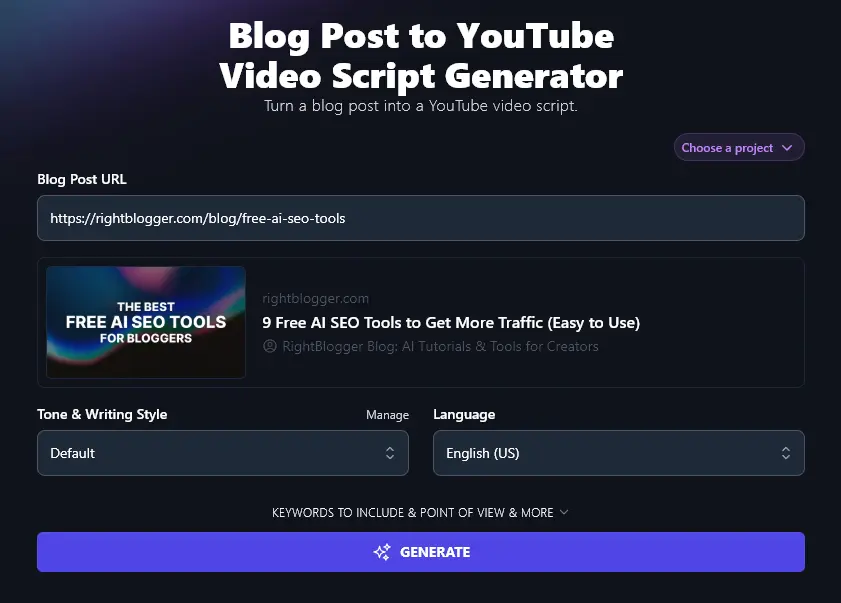
Choose any published post on your blog, then copy and paste the URL into the “Blog Post URL” field.
You’ll see a preview of the post, with its featured image and title, plus the URL and title of your blog itself.
Step 2. Select Your Preferred Tone & Style for the Script
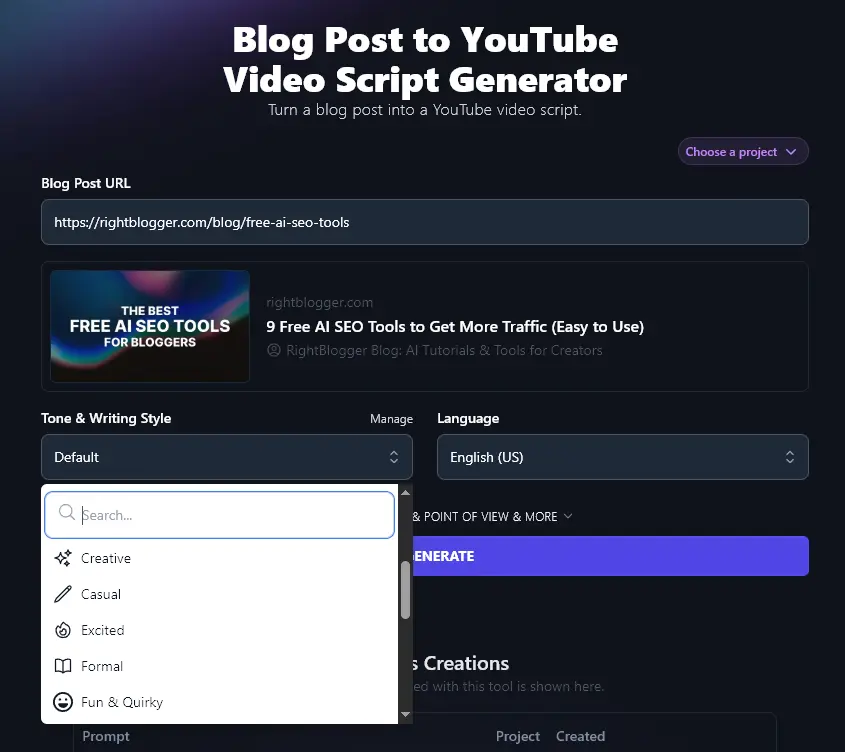
By default, the RightBlogger AI will aim to write in an engaging style that engages your audience well. You can adjust the style here, though, choosing from lots of preset options like “Casual”, “Fun & Quirky”, “Professional”, and “Direct”.
Step 3. Choose Your Language (if You Don’t Want US English)
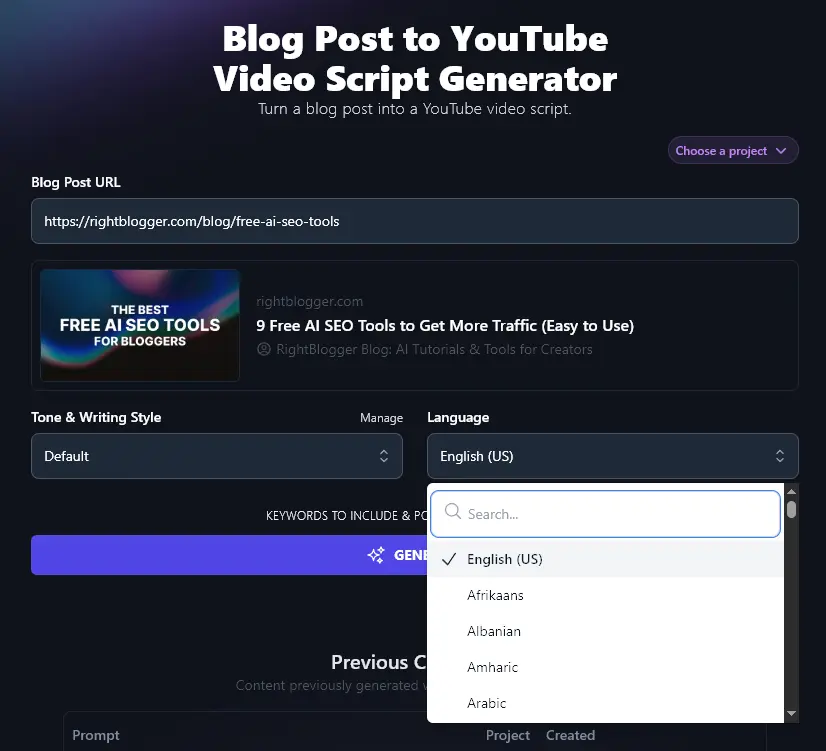
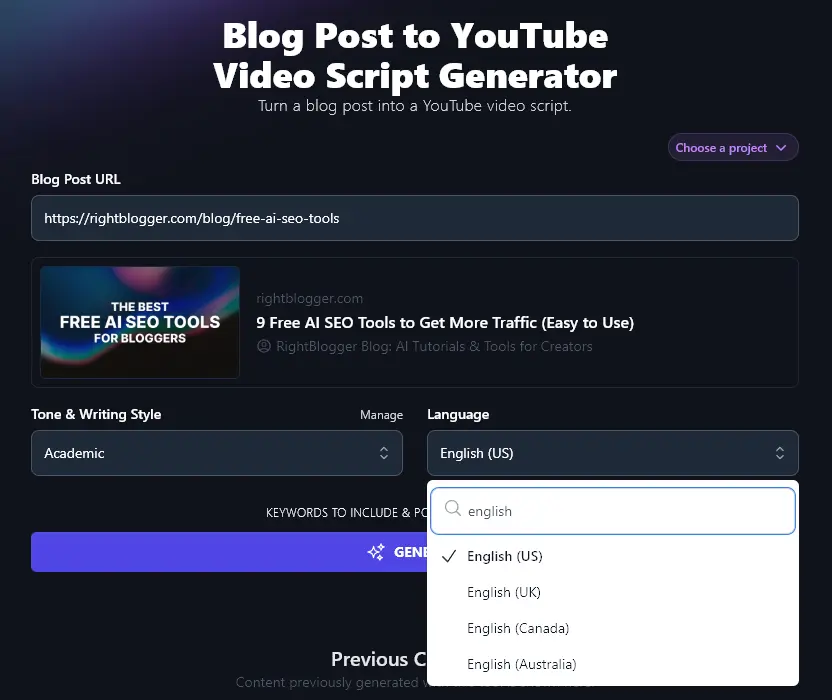
RightBlogger produces content in US English by default … but the AI supports over 100 different languages. If you’re recording videos for a non-English speaking or multilingual audience, go ahead and select your preferred language from the dropdown.
Once you’re ready, go ahead and click the “Generate” button. The AI will instantly create a high-quality script that incorporates all the key points from your blog post, along with an intro, conclusion, plus suggestions for visuals and background music.
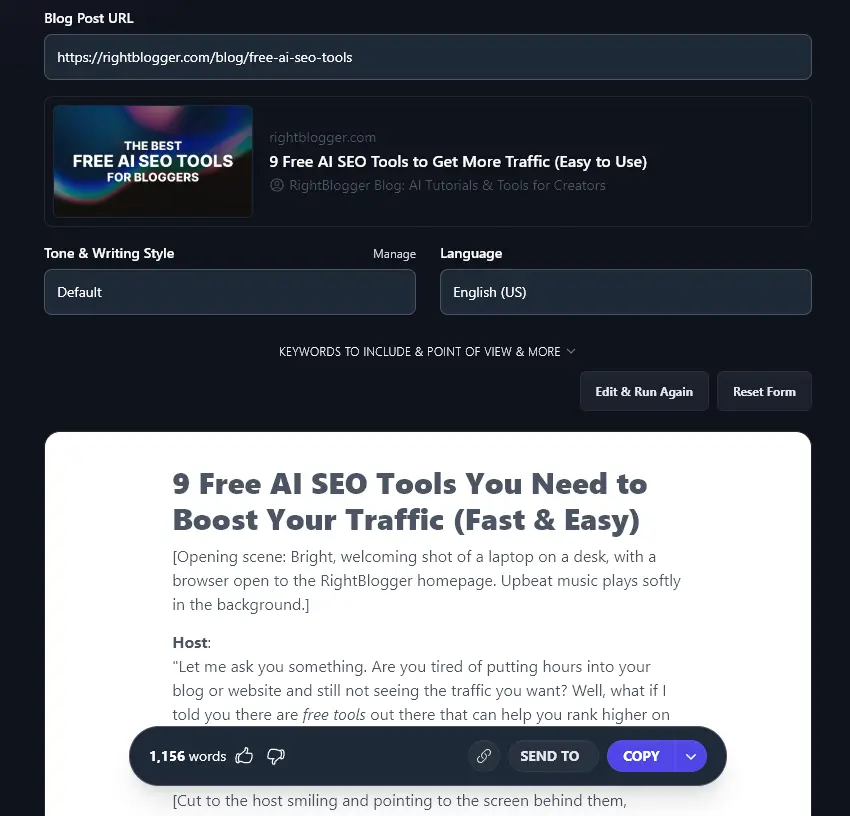
You can save your AI script using the “Copy” button or get a share link to send it to others (e.g. if you’re producing a script for a voiceover artist to record).
Bonus: Use My Free YouTube Video Recording Checklist Along With This Tool
With your script to hand, you might be eager to go ahead and hit “record” … but make sure you’ve got everything ready first.
Here’s my personal checklist you can use for an easy and effective recording workflow:
- Tell anyone in your home that you’ll be recording, and ask them not to interrupt you
- Shut the doors and windows of your room, and consider using soft furnishings for further soundproofing
- Close any open tabs or software on your computer that you don’t need for your video
- Check what your camera can see … do you need to remove any clutter from the background (or change the camera angle)?
- Adjust your lighting if you need to, e.g. turning on a ring light
- Make sure your mic is working well, checking the volume level
- Have your slideshow, plus any props, ready to use during the video
- Run through some simple vocal exercises to warm up your voice
- Silence your phone and turn off anything that might make a noise (e.g. Alexa)
- Make sure your recording software is working: record a quick test video
- When you begin your video for real, wait for a few seconds before speaking, you can use this period of silence to help you edit out ambient noise
- Just before you begin reading your script, double-check that you definitely pressed the record button!
How Does the Blog Post to YouTube Video Script Generator Work?
There are plenty of ways to tweak and refine how the AI produces your script. Let’s run through some tips for all the options in the Blog Post to Video Script Generator tool, including the advanced ones.
1. Blog Post URL (Choose a Post That You Think Will Make a Great Video)
Entering your blog post URL is easy … but you might want to spend a few minutes figuring out which blog posts you want to turn into videos.
It’s a good idea to look for posts that have already done well on your blog (e.g. had a lot of SEO traffic). These are likely on topics that will appeal to a wider audience.
You might also want to think about the types of videos you usually publish on YouTube. Are you publishing step-by-step tutorials? Long-form discussions of industry news? Or short explainers of key concepts in your niche?
Tip: Not yet published your post because you want to create the video at the same time? You could upload your post into Google Docs then publish it as a webpage. Give the tool the URL and it’ll do the rest. You can then unpublish your Google Doc before putting your content on your blog.
2. Tone & Writing Style (Choose One … or Create a Custom MyTone)
You want a script that aligns with your brand and sounds like you.If the AI isn’t quite hitting the mark, try adjusting the tone & writing style. This can make a big difference to your finished script.
Here’s a quick example of part of our script written in a couple of different styles.
“Excited” style:
Host (energetic tone):
“What’s up, everyone! Today, I’m here to show you how to boost your SEO without spending a dime, or pulling your hair out over technical stuff. Yep, we’re talking about 9 FREE AI-powered SEO tools that can help you get more traffic to your website fast. Let’s level up your search rankings the easy way!”
“Academic” style:
Presenter:
“SEO doesn’t have to be scary. You don’t need to be a technical wizard or spend hours optimizing every blog post by hand. Today, I’m sharing 9 FREE AI-powered SEO tools that’ll make your content work harder for you.”
What if none of the standard styles and tones are quite working for you? RightBlogger also lets you create completely custom tones, using the MyTone feature, which is included on every plan. Paid plans save 5 (Solo), 15 (Pro), or 50 (Agency) of them.
Simply give the AI a sample of your writing or even the link to a video you’ve created, and it will automatically detect your tone, saving it for use across all our tools.
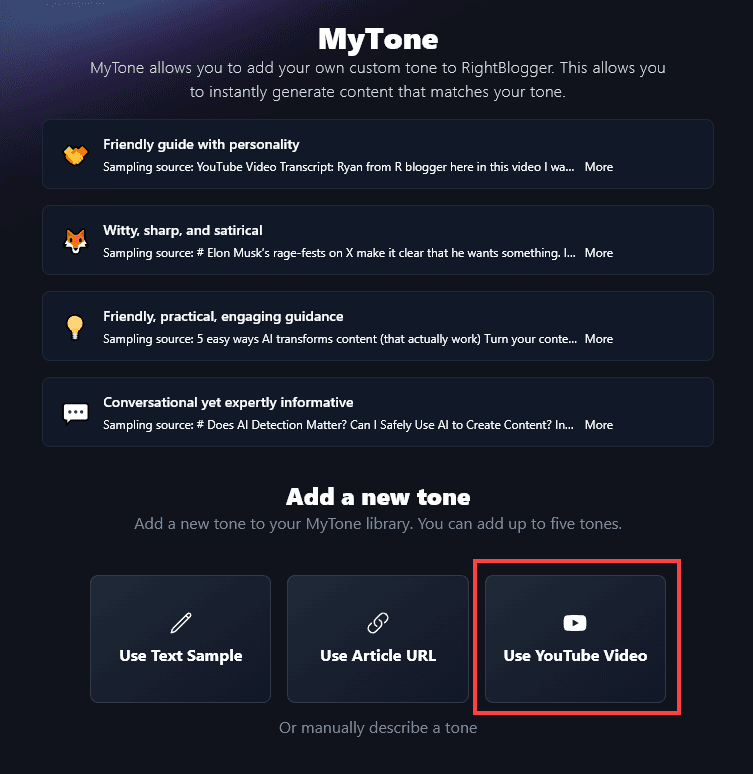
Once you’ve created a MyTone, you can select it from the dropdown list in any of RightBlogger’s generative AI tools.
3. Language (Including Different Varieties of English)
RightBlogger’s AI can give you a script in more than 100 different languages. Our language options include 4 varieties of English: for the US, UK, Canada, and Australia. So if you’re in one of those countries and you want to make sure your script uses the correct spellings and terms for your audience, go ahead and select one of these from the dropdown.
4. Keywords to Include (Enter Your Primary Keyword to Make Sure It Appears in Your Video Content)
The Blog Post to Video Script AI tool has some advanced options that you can open up by clicking the “Keywords to Include & Point of View & More” link.
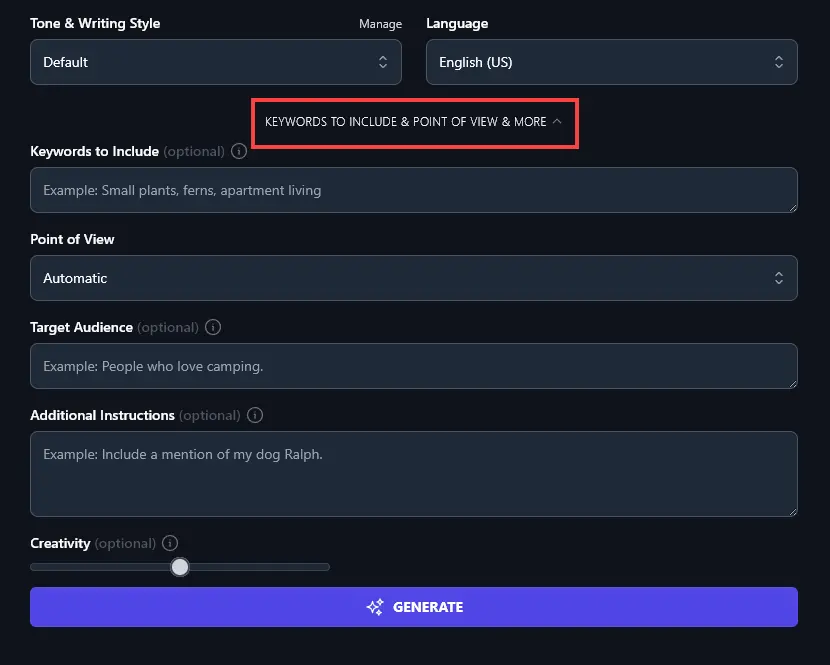
The first of these options is Keywords to Include. This is where you can enter the primary keyword that you want to optimize your video for. If you’re not sure, use the Keyword Research Tool to help.
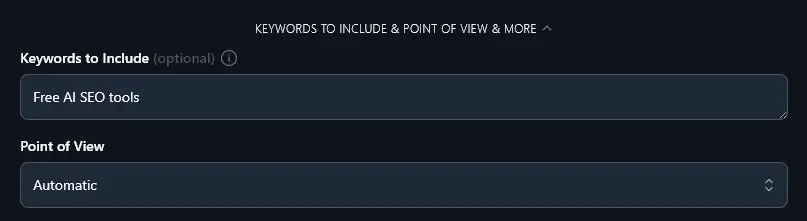
Tip: YouTube SEO is very similar to regular SEO. You want your primary keyword to appear in your title, description, and in your content itself. By including your keyword at least once in your script, you ensure that it appears in the transcript YouTube creates.
5. Point of View (Focusing on “I”, “You” or “They”?)
Usually, the generative AI will write based on the point of view you used in your blog post. If you want to change this, though, you can manually select a point of view from the dropdown list.
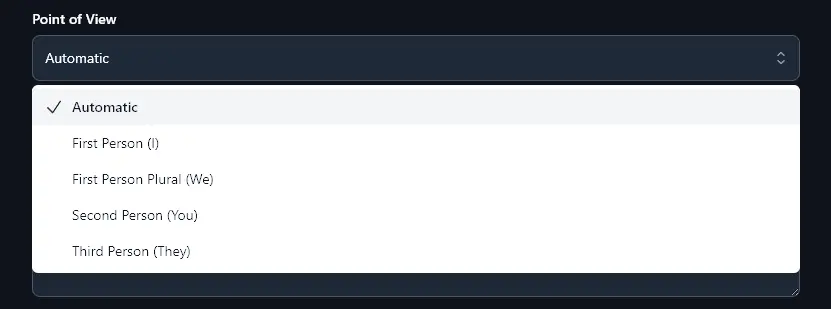
The options are:
- First Person (I)– useful if you’re telling a story from your own life or sharing your own experience
- First Person Plural (We)– great if you’re presenting content with a co-host or on behalf of your team or company
- Second Person (You) – helpful for focusing on the viewer and their problems or pain points
- Third Person (They) – a more neutral tone that can be helpful if you’re talking about mistakes
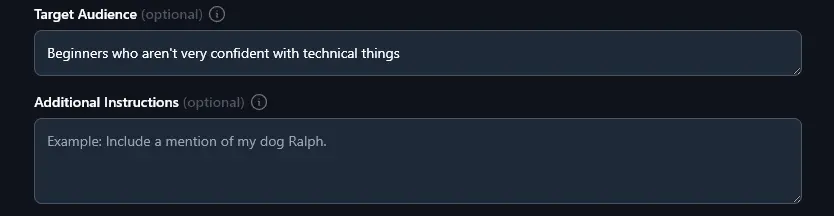
6. Target Audience (Tell the AI Who Your Video is Aimed At)
What target audience do you have in mind for your video? Let the AI know and it’ll take your audience into account during the content creation process, so that your script speaks directly to their needs and concerns.
You can simply tell the AI about your audience in natural language, e.g. “beginners who aren’t very confident with technical things”or “busy mompreneurs”.
7. Additional Instructions (Give the AI Any Extra Requests)
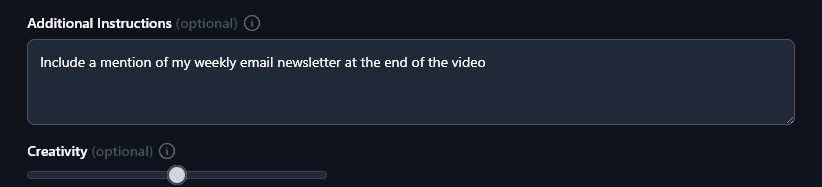
Do you want to generate video scripts that follow a specific template, so that they fit with your other videos? Whatever your exact content marketing strategy, you can get the AI to write a script that fits with it.
Let’s say that when you turn blog posts into videos, you’d like to always encourage people to sign up for your newsletter at the end of each video. Just add that instruction here in the blog to video tool.
8. Creativity (Make the AI More Predictable or More Unconventional)
For engaging, professional videos, we recommend sticking with the default middle point of creativity. But if you want your script to be more predictable, or more unusual, then just adjust the creativity slider accordingly.

AI Blog Post to Video Script Tool FAQs (Frequently Asked Questions)
Got questions about turning your blog posts into video scripts? Here are all the answers you need to help you with your video marketing.
What Other Video Content Creation Tools Can I Use to Create My Videos?
After you convert blog posts into video scripts, you might be wondering how to record and produce your videos.
The easiest way is with the power of AI! Whether you want to use AI voices and images in your videos, or you’re looking for tools to help with video production, there are so many great options out there.
Here in RightBlogger, we have an AI Image Generator you can use to generate visuals for your video. The 16:9 landscape aspect ratio is great for regular (landscape-oriented) videos, and the 9:16 aspect ratio is perfect for reels, shorts, and other vertical video content.
For video editing or even video generation, there are lots of additional tools you can use: we interviewed 13 successful YouTubers and rounded up their top recommendations.
Can I Insert a YouTube Video Into a Blog Post?
Yes! WordPress makes this incredibly easy. Just copy the URL of your YouTube video onto its own line within your blog content and WordPress will automatically convert it to an embedded video.
What Other Free AI Tools Can I Use to Grow My YouTube Channel?
RightBlogger is packed with 90 tools aimed at YouTubers, bloggers, and small business owners. We’ve got lots of tools to help you create great videos, and get them found on YouTube.
Here are a few to get you started:
- YouTube Video Ideas: if you’re struggling for an idea, this tool will give you loads of great suggestions for your next video
- YouTube Video Description: use this tool for an engaging description that includes your primary keywords (important for YouTube SEO)
- YouTube Video Outline: instantly create an outline script for any topic, giving you all the talking points you need
- YouTube Video Script: automate the whole process of writing your YouTube script, just by giving the AI a topic/title (you could record this yourself or use a text-to-speech tool)
- YouTube Video to Blog Post: turn any video into an engaging, SEO-optimized blog post
- YouTube Tag Generator: instantly create a list of tags for your video to improve visibility in YouTube search
There are lots more tools to explore, too. We’ve got blogging tools, social media tools, sales, and copywriting tools. On any paid plan, you also get advanced features like Chat and Tool Studio, where you can create your very own AI tools.
Who is the Blog Post to Video Script Generator For?
We designed this blog post to video script tool with a whole range of content creators in mind. Whether you’re primarily a blogger, YouTuber, influencer, digital marketer, SEO professional, or small business owner, it’s for you!
How Do I Sign Up for RightBlogger and How Much Does it Cost?
The Blog Post to YouTube tool is included in every RightBlogger plan, starting at monthly Solo $59 (annual billing, charged monthly, is $49) with a 7-day free trial and a 30-day money-back guarantee.
Every paid plan includes unlimited words, brand voices, and full automation. See RightBlogger pricing.