
Pinterest Pins Generator
Generate list of Pinterest title/descriptions based on a topic.
Want to quickly generate a title and description for a link, image, or video that you’re pinning on Pinterest? RightBlogger’s free AI Pinterest Pin Generator comes up with the text you need in seconds, saving you a ton of time.
Whether you’re using Pinterest for personal inspiration or as part of your digital marketing, this AI tool is fast, simple, and free to use.
How the Free Pinterest Pin Generator Tool Works
Ready to get pinning? Here’s how the pin generator works, step by step.
Step 1. Enter the URL to the Content You’re Pinning (or Your Pin Topic)
If you’ve got a blog post, product page, YouTube video, online article etc that you’re pinning, just copy-and-paste the URL into the Pin Topic / Post URL box.
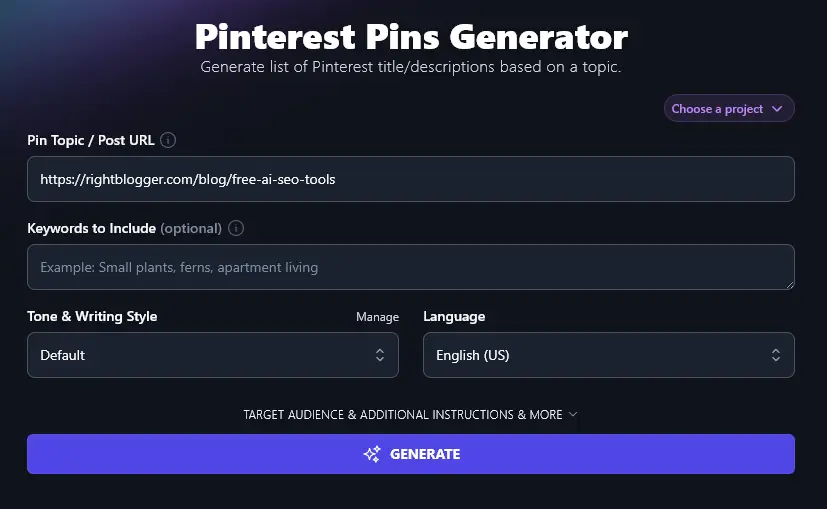
Tip:Not sure what you’re pinning yet but want to generate your text ahead of time? Just put in your topic (e.g. “5 minute craft ideas”) and the AI will come up with a title and description for you.
Step 2. Add Any Keywords You Want to Include in Your Title & Description
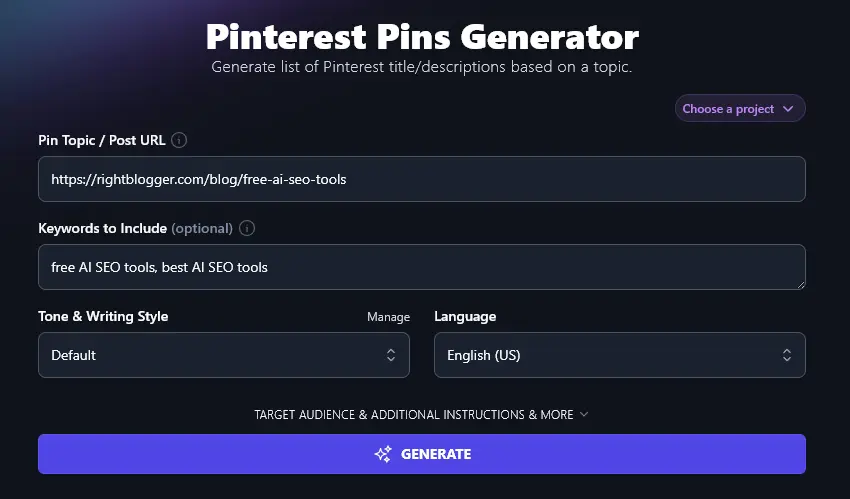
Using keywords (relevant search terms) in your Pin’s title and description can help make it more visible, both on Pinterest itself and in Google’s search results.
If you’ve got a specific keyword you want to optimize for, enter it here. You can add more than one keyword: just separate them with commas.
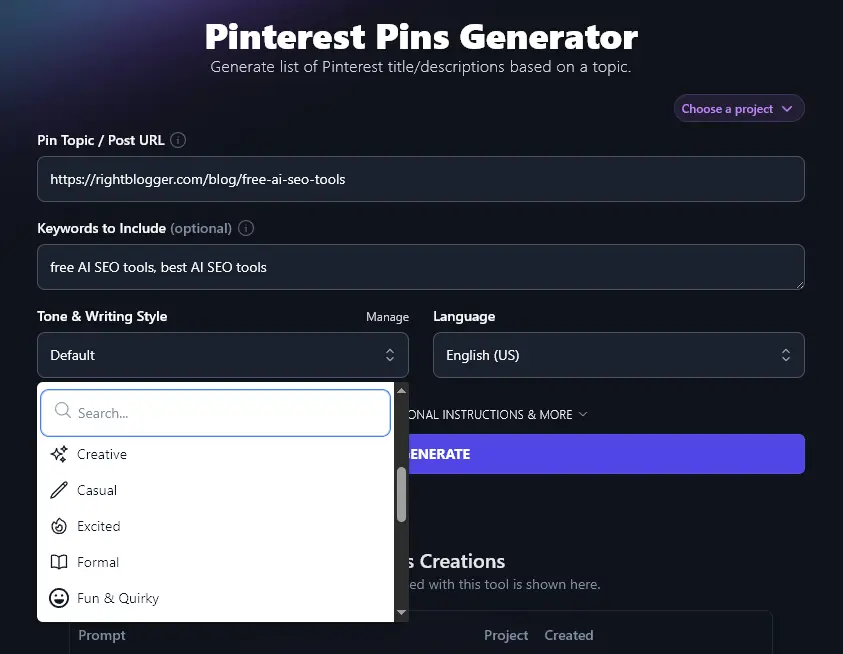
Step 3. Choose a Tone & Writing Style for Your Pin
You want your Pinterest content to sound like you (or, if you’re posting on a company page, to be in keeping with your company’s brand voice).
While RightBlogger’s “Default” style is designed to work in most contexts, you can get content that’s even more geared up to your tone of voice by selecting one of the 16 options from the Tone & Writing Style dropdown. Whether your brand is “Passionate”, “Casual”, “Fun & Quirky” or “Professional”, there’s sure to be a style to suit you here.
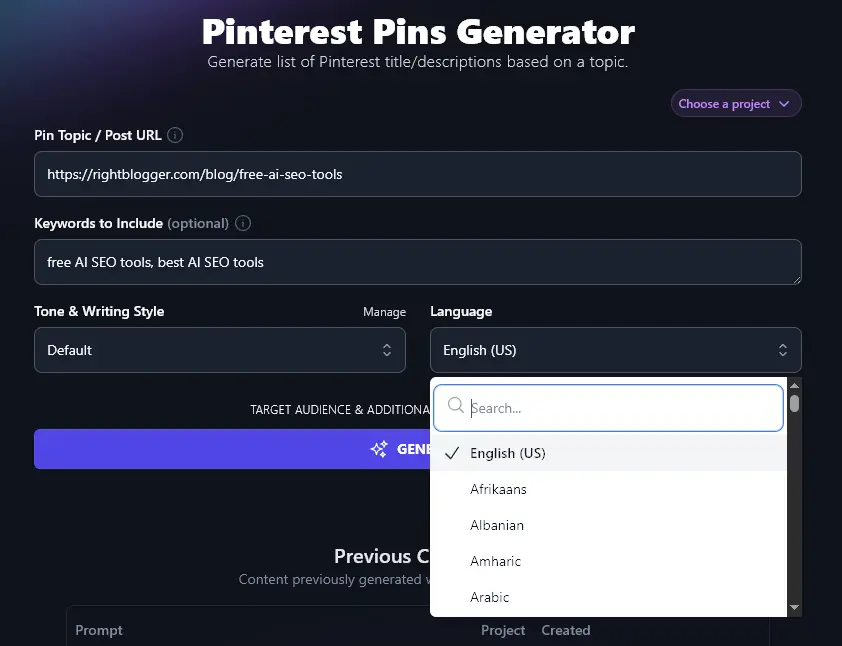
Step 4. Select a Language to Use for Your Copy (Defaults to US English)
RightBlogger defaults to creating content in US English, but the AI can write fluently in over 100 different languages. So if you’re creating Pins aimed at a non-English speaking audience, or if you have a multilingual online presence, then go ahead and select any language you want from the dropdown.
Ready to create your Pins? Just click the “Generate” button and the AI will come up with a whole list of Pins (titles plus descriptions) for you:
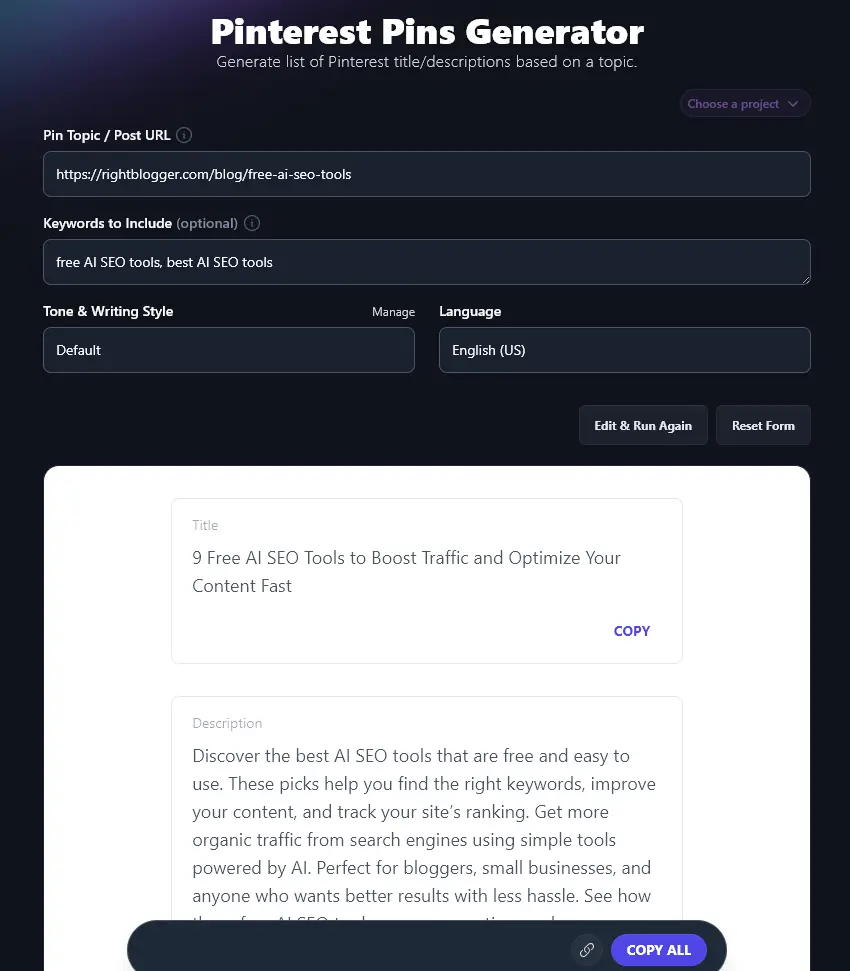
You can copy an individual title or description by clicking the “Copy” link just below it, or you can copy all the ideas using the “Copy All” button at the bottom. You can then paste these into a spreadsheet or Google Doc to go through at a later stage.
Bonus: Use My Pinterest Checklist Alongside This Free Tool
Whether you’re coming up with the text for your Pins yourself or using our AI-powered tool to write it for you, here’s my personal Pinterest checklist to help you get the most from your Pinterest marketing.
- Write a catchy and descriptive title that makes people curious to click
- Include keywords but don’t go over the top, write in a natural, engaging way
- Make sure your first 50 characters pull their weight, as this may be all someone sees before deciding whether or not to click
- Include a call to action (CTA) at the end of your description, e.g. “Read our detailed SEO tool reviews on our blog”
- Add hashtags, Pinterest recommends using no more than 5
- Where appropriate, include the brand name / company name in the description
- Make sure your Pin is on a well-optimized, relevant Pinterest board (users may not click through to see the board, but it helps give the Pinterest algorithm more context)
- Fill out your profile, including your bio (use keywords and a CTA), profile picture, cover image, and your website URL
How Does the Free Pinterest Pin Maker Work? (Tips for High-Quality Pins)
Our Pinterest post generator is really easy to get started with, but there’s lots more you can do with it to create an eye-catching title and description. We’re going to take a deeper look at each feature, including the advanced options.
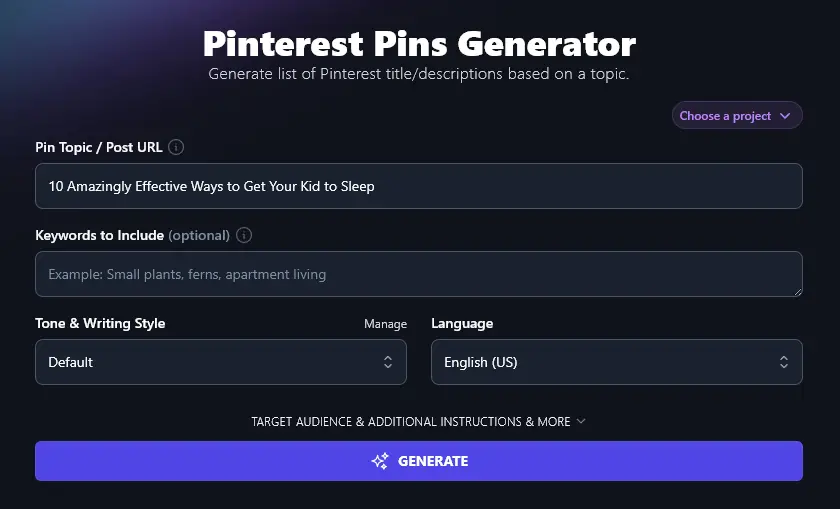
1. Pin Topic / Post URL (Link to or Description of the Content You Want to Pin)
First, you’ll need to enter a link to the content that you want to Pin on Pinterest, whether that’s your own content or someone else’s. Just copy and paste the URL here. This works both with written content and with YouTube videos.
If you don’t yet have the link available (e.g. you’re still drafting the content), you can enter a description of the Pin’s topic instead. This could be the title of your blog post/video or an outline of it.
2. Keywords to Include (Use Keywords to Boost Your Pinterest SEO)
In the second box, you can optionally add keywords for the AI to include in your Pin’s title and description. We recommend putting in at least one keyword. The AI will incorporate your keywords into both the title and the description, we’ve highlighted the keywords here so you can see how it works:
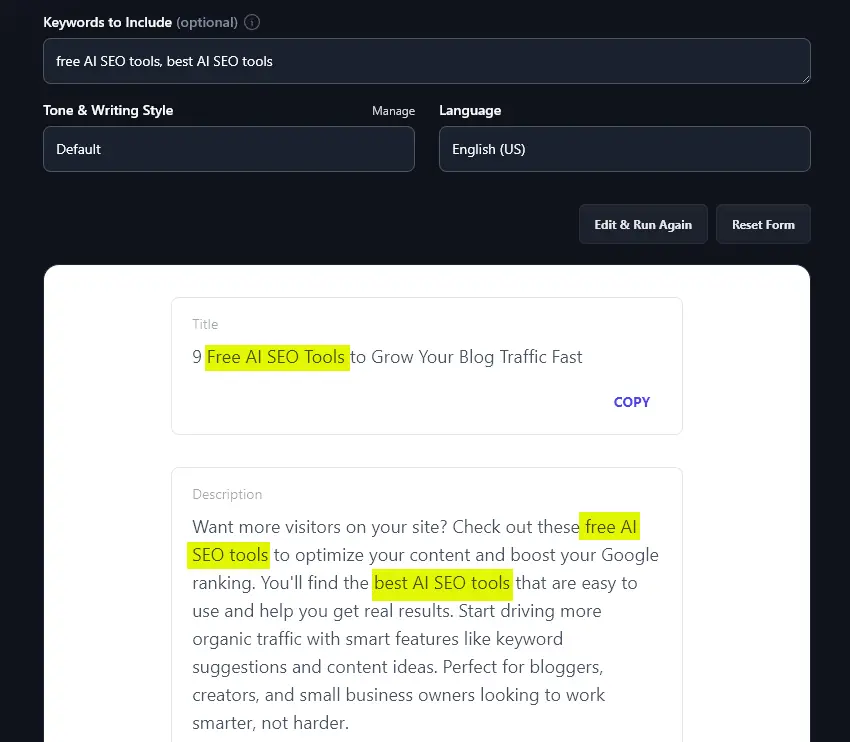
You can enter as many keywords as you want, but keep in mind that the AI won’t be able to incorporate them all in every Pin option it creates, so it’s better to be selective and just give your most important keywords.
Tip:Linking to your own blog post? You can simply use the same keyword that you used for the post.
3. Tone & Writing Style (Choose From the Dropdown … or Create Your Own)
RightBlogger comes with 16 preset tones and writing styles for you to choose from. These can make a huge difference to your Pinterest Pins.
Here’s a Pin title and description written in a “Fun & Quirky” style:
Title: 9 Free AI SEO Tools That’ll Make Your Content Shine (No Tech Degree Needed)
Description: Tired of complicated SEO tricks? Check out these free AI SEO tools that even your grandma could use. From smarter keywords to headline magic, these best AI SEO tools do the heavy lifting. Perfect for bloggers, small businesses, or anyone who wants more organic traffic with less guesswork. Grab the list and start optimizing today. Don’t let snoozy content hold you back, level up with these handy helpers and watch your search rankings rise!
And here’s a Pin (for the same URL) with the title and description written in an “Professional” style:
Title:9 Free AI SEO Tools to Boost Your Website Traffic Fast
Description:Discover the best AI SEO tools that don’t cost a thing. These 9 options make it easy to improve your content and drive more visitors from search engines. Get step-by-step tips for each tool and learn how to use free AI SEO tools to get better results. Perfect for bloggers, small business owners, or anyone wanting better traffic without a big budget. Start growing your site’s reach with these trusted and easy-to-use resources today.
You can even create your own custom style using RightBlogger’s MyTone feature. Every plan includes it, and paid plans save 5 (Solo), 15 (Pro), or 50 (Agency) MyTones. Just enter a URL for a blog post or video you’ve created, and the AI will automatically detect the tone and save it as a MyTone. You can then select this from any Tone & Writing Style dropdown across all RightBlogger’s tools:
4. Language (Over 100 Languages Plus 4 Varieties of English)
RightBlogger’s powerful AI can create fluent content in any language you want, saving you the hassle of translating your Pinterest captions. (Though we do have a Translate tool if you need that, too.)
Here’s the Pinterest Pin Generator writing Pins in Spanish:
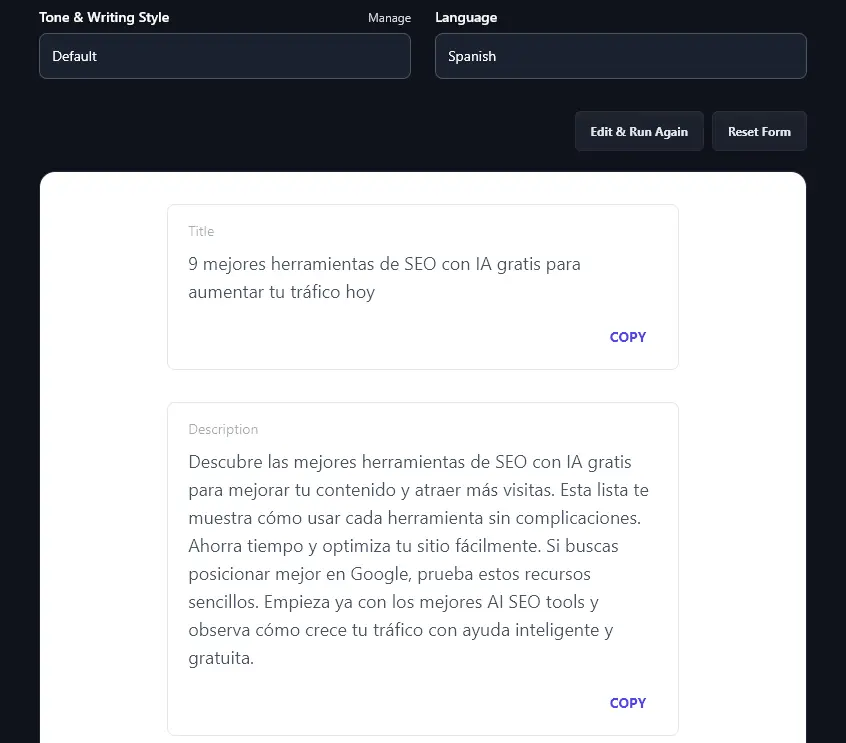
The Language dropdown also lets you pick from 4 different versions of English. The default is US English, but we also have options for the UK, Canada, and Australia. This lets you easily create Pins that use the correct spellings and terms for your location.
5. Target Audience (Tell the AI Who’ll be Reading Your Pins)
The Pinterest Pin Generator includes some advanced options. To view these, just, click the “Target Audience & Additional Instructions & More” link.
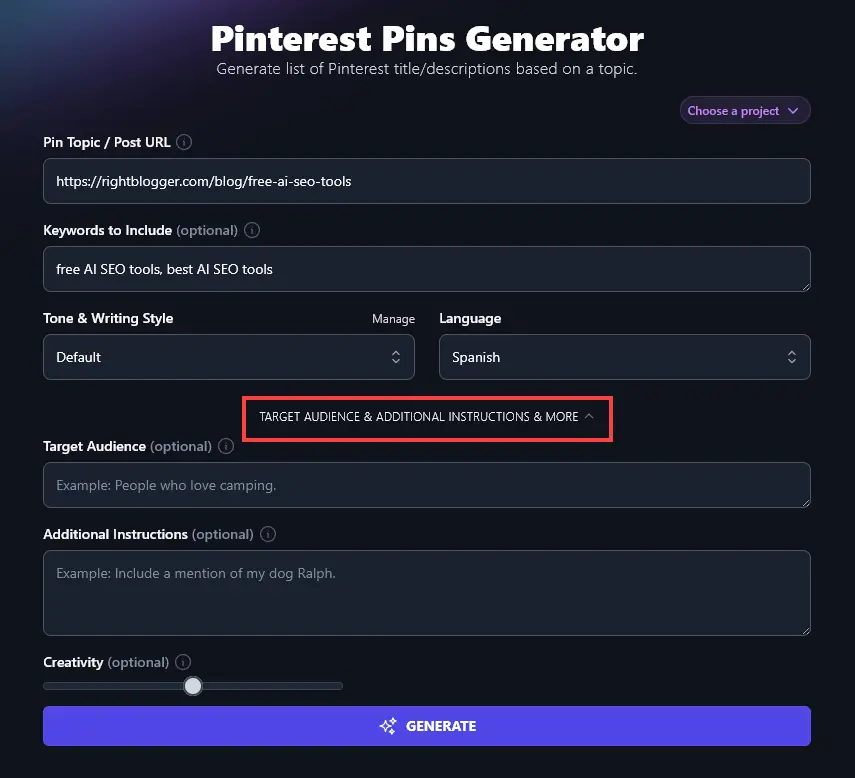
The first box you’ll see is for your “Target Audience”. This lets you tell the AI about the people who will be reading your Pins, or the ideal customers you want to attract to your business.
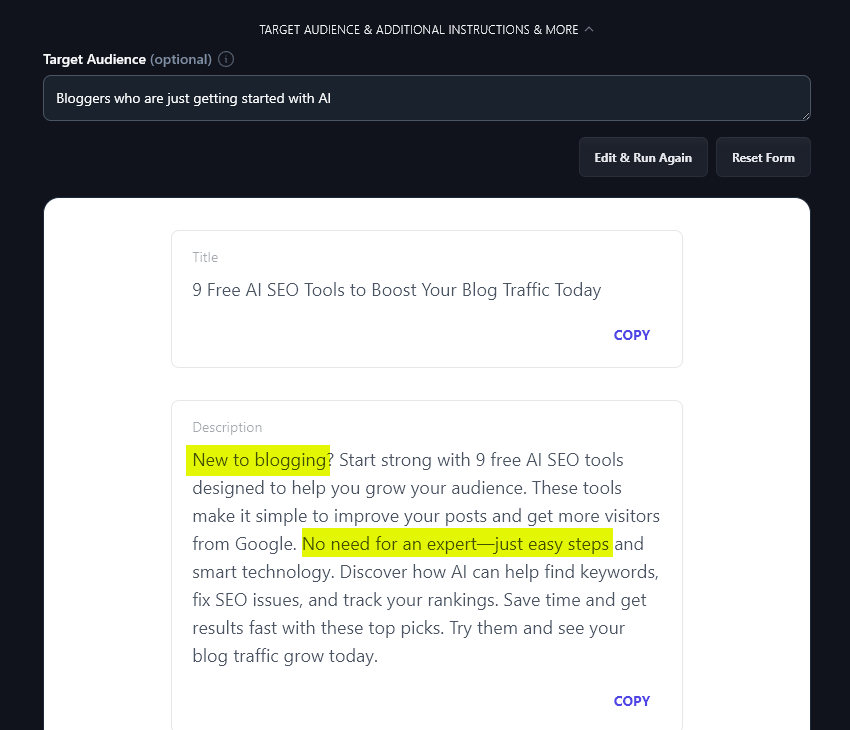
You can describe your audience’s demographics (e.g. “women over 50”) or you can indicate the types of personality, struggles, and goals they have (e.g. “anxious first-time parents who are struggling to establish a good sleep routine”). You could also explain their knowledge or experience level, we’ve gone with “bloggers who are just getting started with AI” for our Target Audience and the AI has taken this into account when writing the Pins:
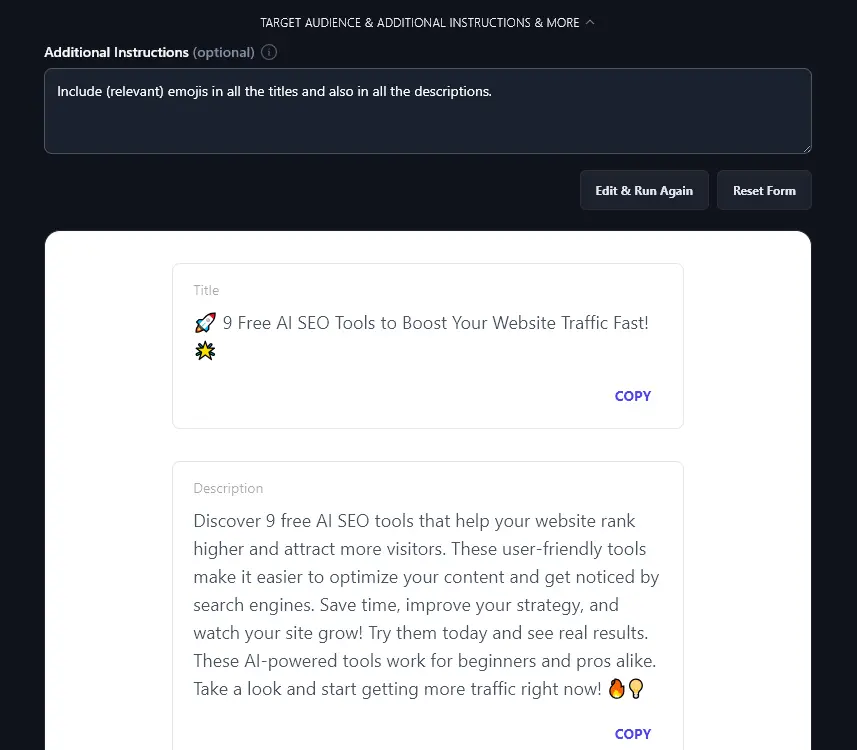
6. Additional Instructions (Give the AI Any Special Requests)
The Additional Instructions box lets you add any extra requirements for your Pins. For instance, perhaps you want to use emojis or hashtags (or both!) in your Pin descriptions. Just say so here. You could also ask for “very short” Pin descriptions, for bullet points, or for your brand name to be included.
7. Creativity (Make Your Pins More Unusual or More Predictable)
RightBlogger’s AI is automatically set to a balanced level of creativity for you, but if you want, you can experiment with changing the creativity level. Move the slider left for less creative (more predictable) Pins and right for more creative (more unusual) ones.

Pinterest Pin Generator FAQs (Frequently Asked Questions)
Got questions about using the Pinterest Pin generator, or about using Pinterest in general? Here’s what you need to know.
What Types of Content Should I Pin On My Pinterest Account?
You always want to pin content that’s relevant to your target audience. That could be:
- Useful resources, like checklists, tutorials, or infographics, that serve their needs (these could be created by you or someone else, curating great content from your niche can help build your brand).
- Inspiring photos, quotes, or articles that encourage your audience.
- Videos as well as photos and images.
Keep in mind that all Pinterest pins are built around an image or video. You can upload this to Pinterest or create a Pin with the link to the image or video (e.g. on YouTube).
Tip:You can schedule pins up to 2 weeks ahead of time on Pinterest, so you can upload lots of content at once, but spread out when it’s posted.
How Can I Optimize My Content for Pinning on Pinterest? (Pinterest Templates and More)
You want to drive traffic from your own Pinterest account to your website … but your Pinterest strategy should also involve encouraging other users to Pin your content (thus directing people to your site).
That means optimizing the content you post on your blog/website, ideally by producing a 1000px x 1500px (portrait) image to go with each post. You could add your brand logo to this image, maybe using a tool like Canva to create consistent Pinterest pin templates. Some bloggers put the Pinterest image right at the start of their post (like a featured image) but you can also set the image as an OpenGraph image.
What Other Free AI Tools Can I Use to Grow My Online Business?
Looking to use AI tools to improve your online presence, grow your business, and make more sales? We have a full suite of AI tools to help you grow. Sign up for RightBlogger with monthly plans start at Solo $59 (annual billing, charged monthly, is $49) and a 7-day free trial and a 30-day money-back guarantee. See RightBlogger pricing.
Some great ones to get started with are:
- Article Writer: this fantastic content creation tool can write a full article draft from just a topic or keyword, and it’ll give you vital SEO components like a meta title and meta description too
- Keyword Research Tool: find the perfect keywords for your blog posts, videos, or social media posts, this tool gives you monthly search volumes plus difficulty ratings
- AI Image Generator: if you’re tired of hunting for stock images that never quite fit what you want, use this tool to create completely custom images for your blog posts and Pin designs
- Product Description Generator: when you’re running an ecommerce store (e.g. on Shopify or Etsy), writing product descriptions can take a ton of time, so let AI do the work for you!
- YouTube Video to Blog Post Generator: if you’re a content creator using a video-first process, streamline it with this fantastic tool: just plug in your YouTube video’s URL and it’ll write a full, structured blog post based on it
- Social Bio: get a hand filling out any social media bio with this useful AI tool (multiple platforms to pick from, including Pinterest)
How Do I Sign Up for RightBlogger and How Much Does it Cost?
The Pinterest Pin Generator is included in every RightBlogger plan. Sign up here to get started.
Want unlimited AI words, more MyTone styles, and features like Projects, Knowledge, and Chat? RightBlogger Pro is the most popular plan at monthly $89 (annual $69) (3 sites, 3 team seats, 90 SEO reports). Monthly Solo starts at $59 (annual $49), and monthly Agency is $299 (annual $199) for larger teams.