Give it a topic above and get a run of tweet ideas you can post or remix. No account and no paywall to get started.
Need a tweet generator to quickly come up with tweet ideas & posts for X (formerly Twitter)? Our free AI Tweet Generator lets you instantly create engaging tweets on any topic, or based on a blog post. These short, focused posts are great for building your audience on X.
How to Use the Free AI Tweet Generator
The Tweet Generator is a very straightforward online tool. Let’s run through it step by step.
Step 1. Enter Your Topic, Keyword, or URL
First, you need to tell the AI what you want to tweet about! Type in any topic or keyword here. You can be as broad or detailed as you like.
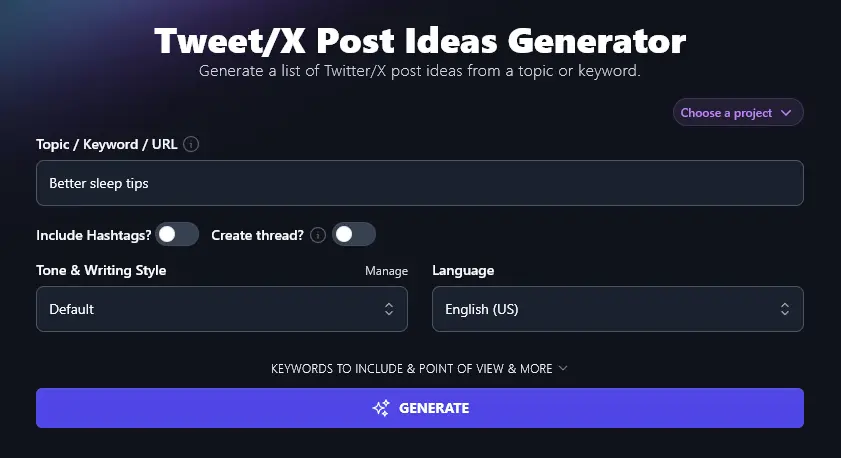
Tip:If you want to create tweets based on a blog post or even a YouTube video, just enter the URL here.
Step 2. Choose Whether or Not to Include Hashtags
Do you want to include hashtags in your X/Twitter post? If so, toggle this option on. Hashtags are great for discoverability, and the AI will aim to only include relevant hashtags, avoiding making your post look spammy.
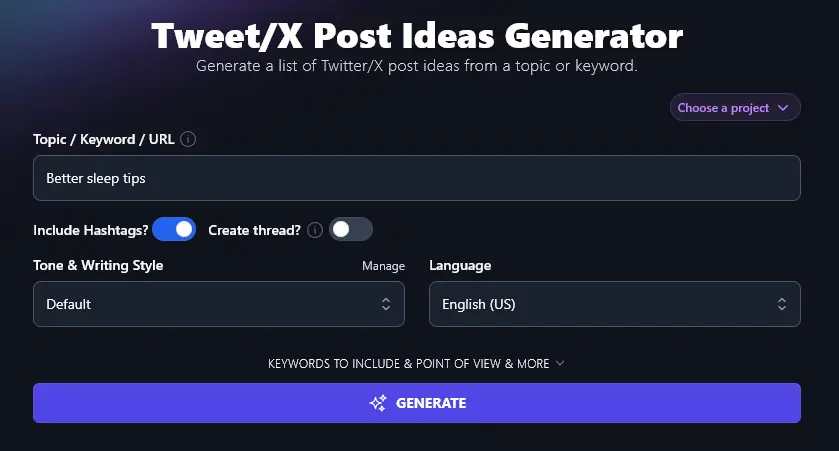
Tip:While hashtags may seem a little informal, they’re used by large brands and organizations that you might imagine to be fairly formal (like the US and UK governments). Unless your target audience dislikes hashtags, we recommend using them in your posts.
Step 3. Decide Whether You Want Individual Posts or a Thread
On X, you can post standalone content or you can create a “thread” of related posts to share a longer piece of content. The AI Tweet Generator can handle either type. Just toggle on the “Create thread?” option if you want a thread of linked posts.
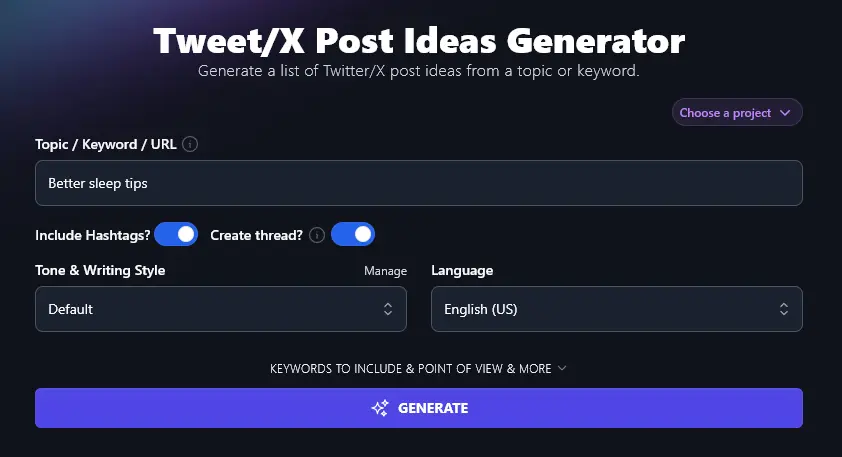
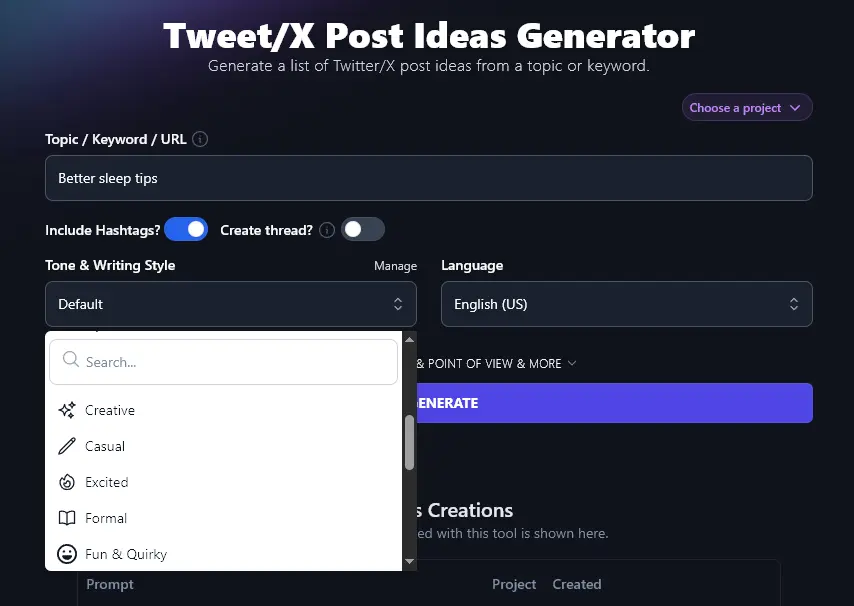
Step 4. Select Your Tone & Writing Style
You want to generate tweets that sound like you. Think about the usual tone and style you use for your Twitter account (and your brand as a whole). How would you describe it? Pick the closest option from the Tone & Writing Style dropdown list, there are 16 options to choose from, ranging from “Fun & Quirky” to “Academic”.
Step 5. Choose Your Preferred Language (100+ Options!)
By default, RightBlogger creates your tweet content in US English, but you can switch to any of over 100 different languages using this dropdown. Whether you’ve got a non-English-speaking audience or you’re creating multilingual content on X, the language dropdown makes it easy for you.
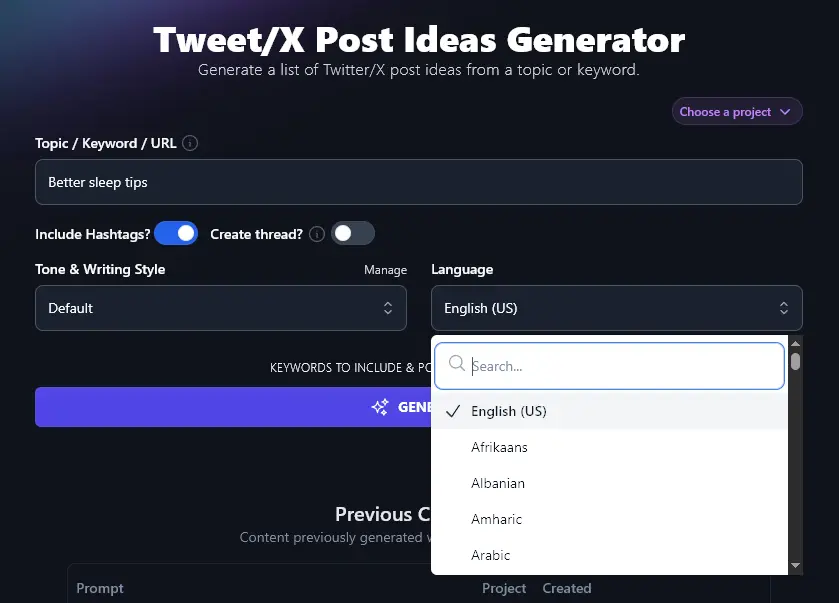
When you’re ready, click the “Generate” button to produce your list of tweet ideas. The Tweet Generator Tool will give you 7 options to choose from.
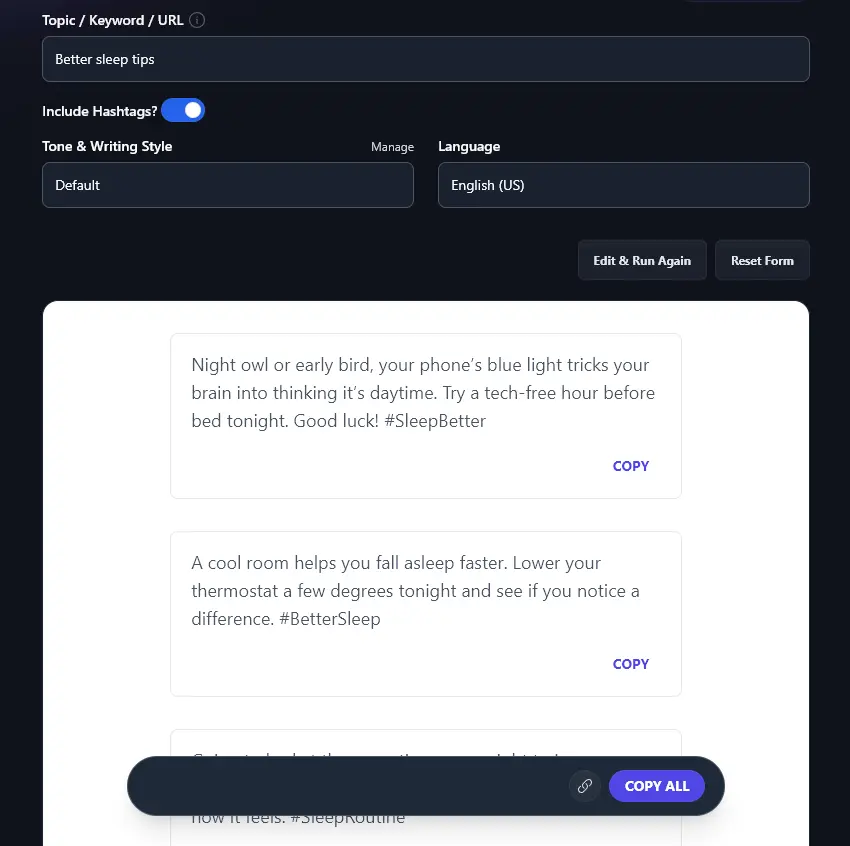
Use the individual “Copy” buttons to copy any specific tweet, then paste it straight into X or your social media management tool (e.g. Buffer, Hootsuite).
Not sure which tweet(s) you like best? Click the “Copy All” button and then paste the whole list into a document or spreadsheet so you can come back to it later.
Bonus: Use My X/Twitter Checklist Alongside This Tool
Whether you’re using an AI X/Twitter tool for your content creation or you’re coming up with tweets yourself, here’s my personal checklist to help you put out high-quality content every single time.
- Make sure your profile looks good, with a profile picture, cover photo, bio, and link to your blog/website (if someone sees your post as a retweet, they’ll likely check out your profile)
- Where possible, use (relevant) images in your tweets, this helps drive engagement
- Add 1-2 hashtags to each tweet, make sure these are relevant and useful
- Keep your tweets short and focused, 140 characters is the max, but 100-120 characters may get you better engagement
- Proofread your tweets (or use a Grammar & Spelling Fixer) to make sure you don’t have any typos or spelling mistakes
- Avoid posting anything inflammatory or hasty, remember, even if you delete a tweet, people may have screenshotted it
- Think about your timing: when are your target audience likely to be online and looking at Twitter?
- Link back to your website/blog where possible to drive traffic, leads, and customers
How Does the Free AI Tweet Generator Work? (AI Tool’s Advanced Features)
The tweet generator is very straightforward to use, but to get the most out of it, it’s helpful to know how to make best use of each option (including the advanced features). We’ll walk through every option (and how it works), with screenshots.
1. Topic/Keyword/URL (Enter Text or Link to an Article/Video)
The Tweet/X Post Generator works in 2 different ways. You can:
- Enter a topic or keyword and get tweets on that topic
- Link to an article, video, or landing page and get tweets closely relating to it.
This means it’s a great tool for repurposing content, as well as for coming up with content from scratch.
To use a URL with the tool, simply paste it into the box. You’ll see a preview of your page or video (featured image/thumbnail, domain name, title, and tagline).
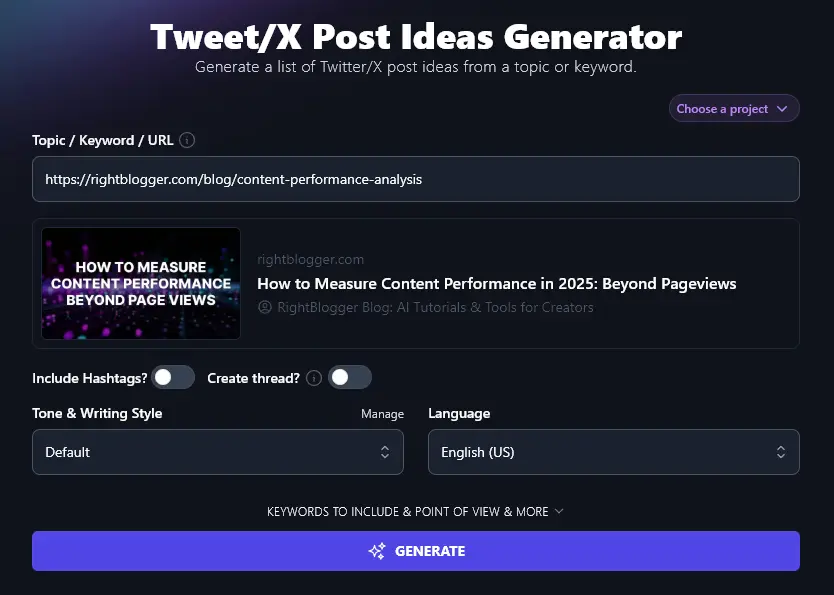
Tip: If you use a URL, the AI will automatically link to your video or blog post from each tweet.
2. Include Hashtags? (Recommended in Most Cases)
We recommend turning on the “Include Hashtags?” option in most cases, unless this doesn’t suit your brand or audience. Hashtags improve your visibility on X: users may find your post by clicking on the same hashtag in someone else’s post, plus if someone searches for a keyword you’re using in your hashtag, your post may show up more prominently.
The AI won’t go crazy adding hashtags, it’ll just include 1-2 relevant ones. Here’s what you can expect:
No hashtags:
Ditch the late-night scrolling and pick up a book instead. Blue light messes with your sleep more than you think.
With hashtags:
Block blue light before bed by putting your phone away an hour early. Your brain will thank you in the morning. How do you unplug? #BetterSleep
3. Create Thread? (Toggle Between Individual Tweet Ideas or a Linked Thread)
By default, the AI comes up with separate, standalone tweet text for each post. But if you prefer, you can create a thread of linked posts: this is great for exploring a longer idea and potentially boosting engagement (as people need to click through to read the full thread).
Here, we created a thread of tweets for AI prompting tips. This gave us a coherent series of tweets that follow on from one another, beginning by telling readers what to “start with” and ending with a CTA (call to action) that encourages readers to share their own tips.
- Start with a clear goal for your AI prompt. Tell it what you want. Simple requests usually get better results.
- Break big tasks into smaller steps. Give your AI one thing to do at a time for sharper answers.
- Use plain words. Skip fancy language, even an advanced AI does best with simple, direct instructions.
- Try a “role” prompt. Ask, “Act as a teacher,” or “Pretend you’re a travel expert.” You’ll get more tailored results.
- If you don’t like the first answer, rephrase your prompt. Small changes can make a huge difference.
- Give examples in your prompt. This helps AI match your style and format.
- Use follow-up prompts to dig deeper. Clarify or ask for more details if the first answer missed something.
- Tap into the AI’s ability to brainstorm. Ask for lists, new ideas, or clever twists, it usually has many.
- Share your own preferences. Tell the AI if you want a short answer, bold language, or a certain tone.
- Keep track of prompts that work well. Save your best so you don’t have to start from scratch each time.
- Which tip are you trying next? Drop your favorite below or share your top AI prompting trick!
Note:The length of your thread will depend on the scope of your starting topic/idea.
4. Tone & Writing Style (Choose from the Dropdown List … or Create Your Own)
If you want your social media posts to stand out in a sea of content, it helps to have a strong brand voice. In RightBlogger, we have 16 preset styles that you can use, and these can make a big difference even for a short piece of content like a tweet.
Here are some tweets generated using the “Fun & Quirky” style:
- Ditch your phone 30 minutes before bed. Let your brain chill out and watch your pillow become your new BFF. Who’s giving this a try tonight?
- Turn your bedroom into a fridge, not a sauna. Cool rooms make for better zzz’s. What’s your perfect sleep temp?
- Got a noisy neighbor? Try white noise! It’s like a bedtime concert for your brain, minus the ticket fees. Do you already use one?
And here are tweets using the “Formal” style:
- Turn off screens at least 30 minutes before bed. Blue light confuses your brain and disrupts your rest.
- Keep your bedroom cool, quiet, and dark. Small changes in your environment can change your sleep.
- Turn on white noise to drown out distractions. A steady sound like a fan or soft hum can help you fall asleep faster.
Both sets of tweets give the same advice, but in very different ways.
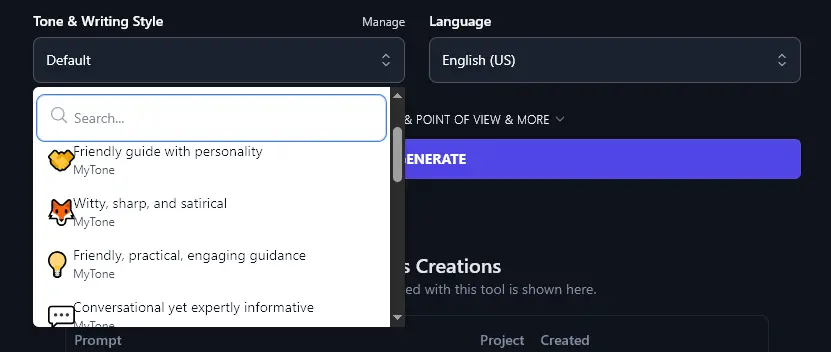
As well as choosing from the preset tones and styles, you can create a completely custom style using RightBlogger’s MyTone feature. It’s included on every plan, letting you come up with a style based on a sample of your writing or even a video.
Once you’ve created a MyTone, you can select it from the dropdown list, just like any other Tone & Writing Style:
5. Language (Choose Any Language, or a Different Variety of English)
RightBlogger’s powerful AI can write fluently in over 100 different languages, so if you’re trying to reach a non-English audience, go ahead and select your preferred language here.
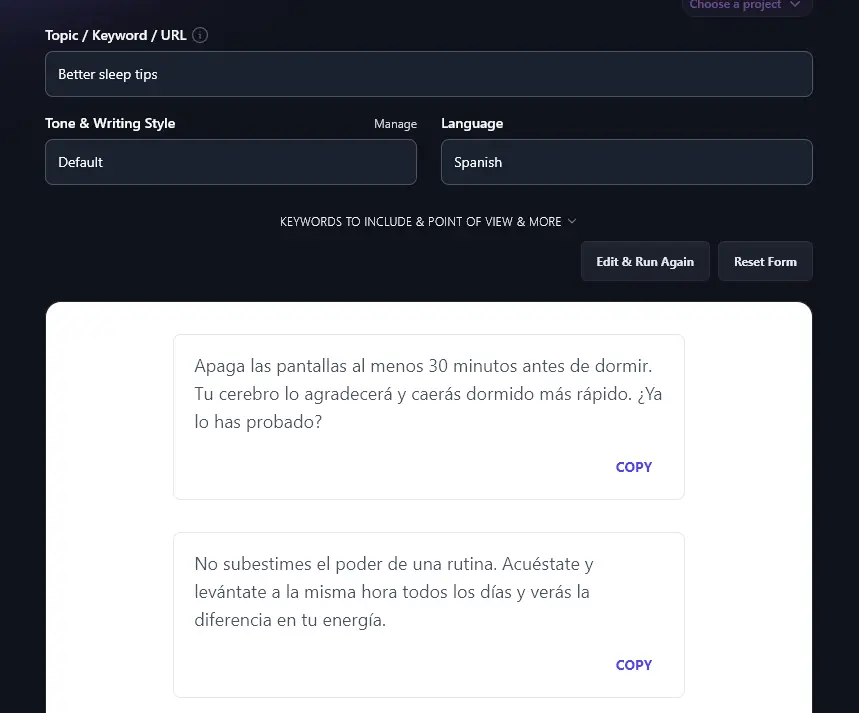
Here’s an example of the AI writing tweets in Spanish:
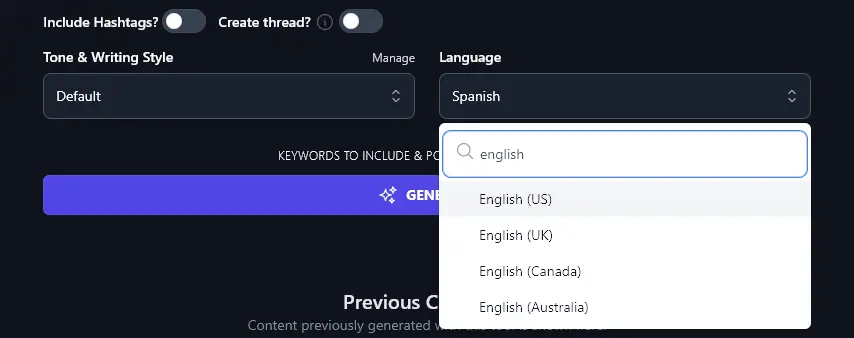
RightBlogger also lets you pick from 4 varieties of English. The default is US English, but RightBlogger also supports UK, Canadian, and Australian English. Choose any of those and the AI will use the correct spellings and terms for that location.
6. Keywords to Include (Incorporate a Keyword for Improved SEO)
The Tweet Generator includes several advanced options. To open these up, just click the “Keywords to Include & Point of View & More” link.
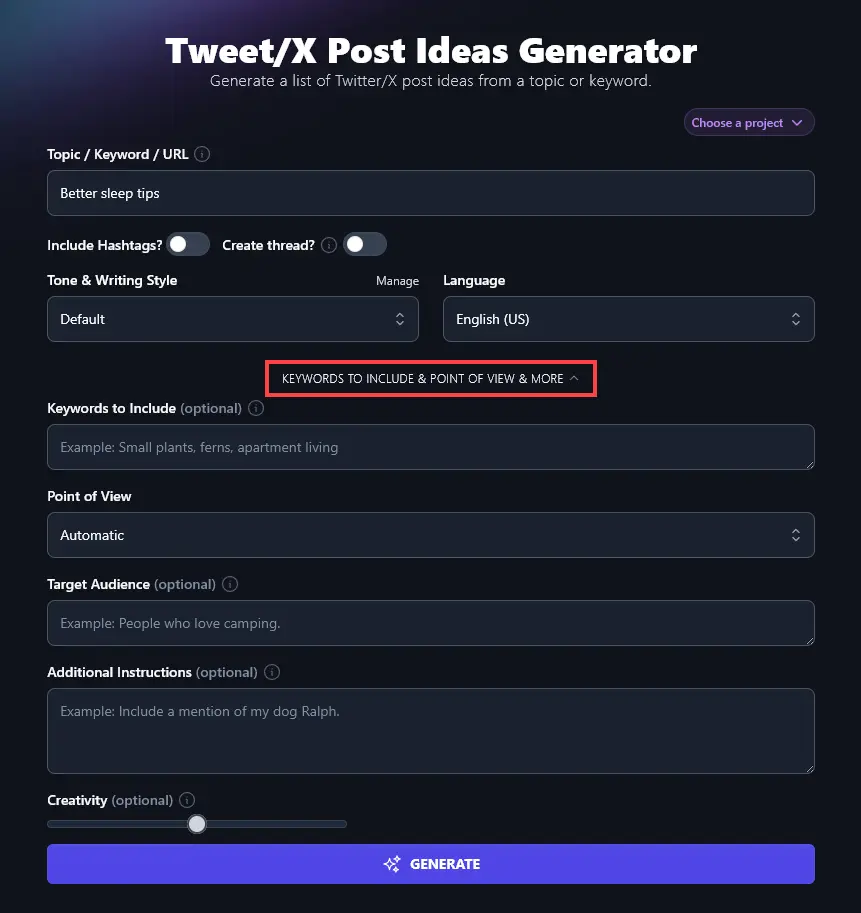
The first option you’ll see is the “Keywords to Include” box. This lets you add a specific keyword that you want to include in your tweets. This can help your tweet rank in Google if they’re very relevant to the search query … but it can also make your tweets more visible within Twitter itself, if someone searches for that keyword.
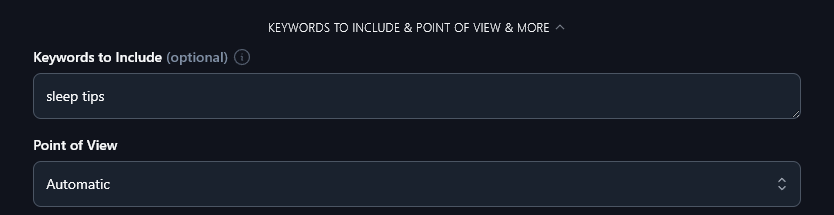
Tip:You can add multiple keywords, separated by commas, but this means the AI may not be able to incorporate all your keywords into all your tweet ideas.
7. Point of View (What Perspective Are You Writing From?)
In most cases, the AI will automatically pick a suitable point of view for your tweets. If you want to specify this yourself, however, just select from the dropdown list.
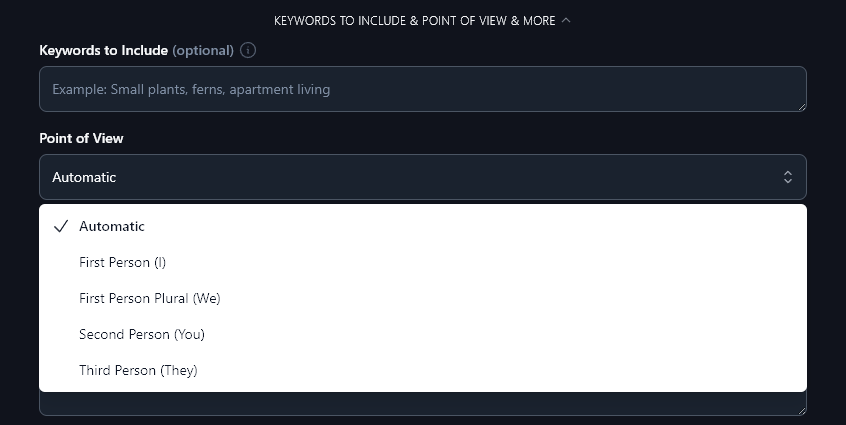
The options are:
- First Person (I): write from your own perspective, sharing your experiences and ideas
- First Person Plural (We): write as a partnership or company, using “we”, “us”, and “our”
- Second Person (You): keep your focus on your audience by addressing them as “you”
- Third Person (They): write in a more formal, neutral way
Here are some tweets the tool generated about RightBlogger using the first person plural perspective:
- We saved hours on our last article using RightBlogger’s outline builder. Feels good to have more time for coffee breaks!
- We used RightBlogger’s SEO tools and jumped in the rankings last week. Anyone else tracking their progress?
- We challenged RightBlogger to create a blog post from scratch. The results surprised us. Want a sneak peek?
8. Target Audience (Who is Your Post Aimed At?)
Letting the AI know about your target audience helps it to tailor your tweet ideas precisely to the needs of that group. You can share demographic information (e.g. “men in their 20s”) or details about your audience’s pain points or goals (e.g. “people who struggle to fall asleep at night”).
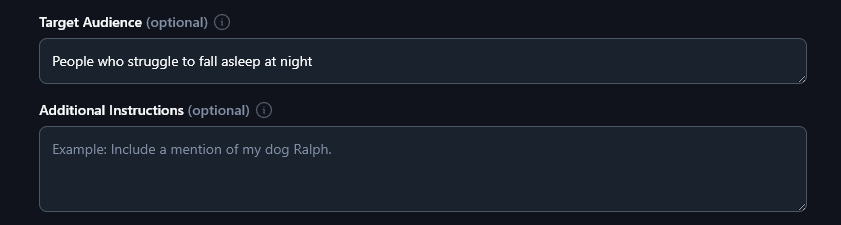
The AI will then come up with ideas that specifically relate to that audience, like:
- Create a short bedtime routine, like reading a few pages or writing down tomorrow’s tasks. Simple habits train your brain to slow down.
- Sip herbal tea instead of coffee in the evening. Chamomile or peppermint can calm your nerves and help you drift off quicker.
9. Additional Instructions (Give the AI Any Special Requests or Constraints)
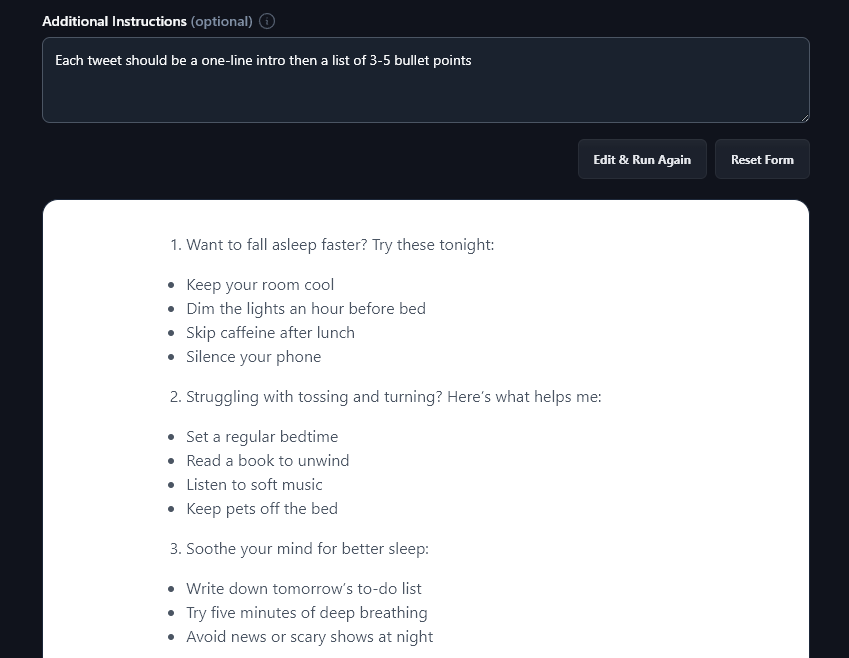
The “Additional Instructions” box is one of the Tweet Generator’s most powerful features, letting you customize your tweets however you want.
For instance, you could ask the AI to give you 20 ideas instead of 7, tell it to give a list of bullet points in each tweet, or ask it to include emojis within your content. It will then follow your instructions when creating your content:
10. Creativity (Make Your Tweets More Unusual or More Predictable)
RightBlogger’s AI is automatically set to a balanced level of creativity. Your generated tweets won’t be too bland or too strange!
If you want to experiment with the creativity level, though, just move the slider, left for less creative (more predictable) and right for more creative (more unusual).

Tweet Generator FAQs (Frequently Asked Questions)
Got questions about using the Tweet Generator or about writing great tweets in general? Here’s everything you need to know.
Can I Use This Tool as a Fake Tweet Generator?
Our Tweet/X Generator isn’t designed as a fake tweet generator (like tools such as Tweetgen). It doesn’t create mockups or tweet images, instead, it creates the text for you to use in real tweets from your account.
What Metrics Should I Track for My X Account?
Whether you’re an influencer, content creator, or small business owner, you’ll want to think about metrics for your account as a whole, and also for individual tweets.
For your account:
- Followers:How many people are following your account (and is this number going up or down)?
- Mentions: How often is your Twitter profile getting mentioned by other people?
For individual tweets:
- Impressions: how often has your tweet been displayed in users’ feeds?
- Engagement: How many total interactions does the tweet have? (Likes, retweets, replies, clicks.)
- Retweets:How often has your tweet been shared? (Lots of shares = a viral tweet!)
- Mentions:How often is your X (Twitter) account getting tagged by other users?
None of these metrics mean a lot, though, if your X account isn’t helping you reach your goals. If you want to get more leads, for instance, you’ll also want to look at how many people are visiting your email signup page from X … and how many of those are converting into leads.
What Other AI-Powered Free Tools Can I Use to Grow My Business?
Along with our Tweet Maker, we have 90+ AI tools for you to use to grow your business and your social media presence. All of these tools are included in every RightBlogger plan. Sign up here to get started.
Some great tools to get started with are:
- Article Writer: create full-length online articles from just a keyword or topic, including SEO optimization
- Keyword Research Tool: find the perfect keywords to use for your content with our powerful tool (gives monthly search volumes and difficulty ratings)
- YouTube Video to Tweets: turn any YouTube video into tweets, repurposing content fast
- LinkedIn Post Generator: come up with insightful and engaging posts for LinkedIn
- TikTok Idea Generator: get all the ideas you need to create fun, viral-worthy TikToks
- Blog Post Ideas: fill out your whole content calendar fast with a list of blog ideas on any topic
We’ve also got blogging tools, SEO tools, sales tools, social media tools, and more!
How Do I Sign Up for RightBlogger and How Much Does it Cost?
You can use all our AI tools for free, though there are some limits in place. Sign up to give them a try.
Every RightBlogger plan gives you unlimited access to the Tweet Generator and all our tools, plus advanced features like MyTone, Knowledge, Projects, and Chat. It starts at monthly Solo $59, Pro $89, or Agency $299 (annual billing, charged monthly, is $49 / $69 / $199). See RightBlogger pricing.