Sending cold emails can be daunting, you might not be sure what to write or how to introduce yourself to someone who doesn’t know about you and your business yet. Using RightBlogger’s free AI-powered Cold Email Generator will help you easily craft a professional email that hits all the right notes.
Whether you’re just getting started with cold emailing as a marketing strategy or you’ve been sending out hundreds of emails without getting any response, our AI Cold Email Generator is the tool you need to boost your lead generation efforts.
How to Use Our Free AI Cold Email Generator (Email Outreach Tool)
We’ve designed the Cold Email Generator Tool to guide you through everything you need for your email. It’s as simple as filling in the boxes, the power of artificial intelligence will automatically turn all the details from you into an engaging email.
Ready to give it a try? We’ll go through it step by step.
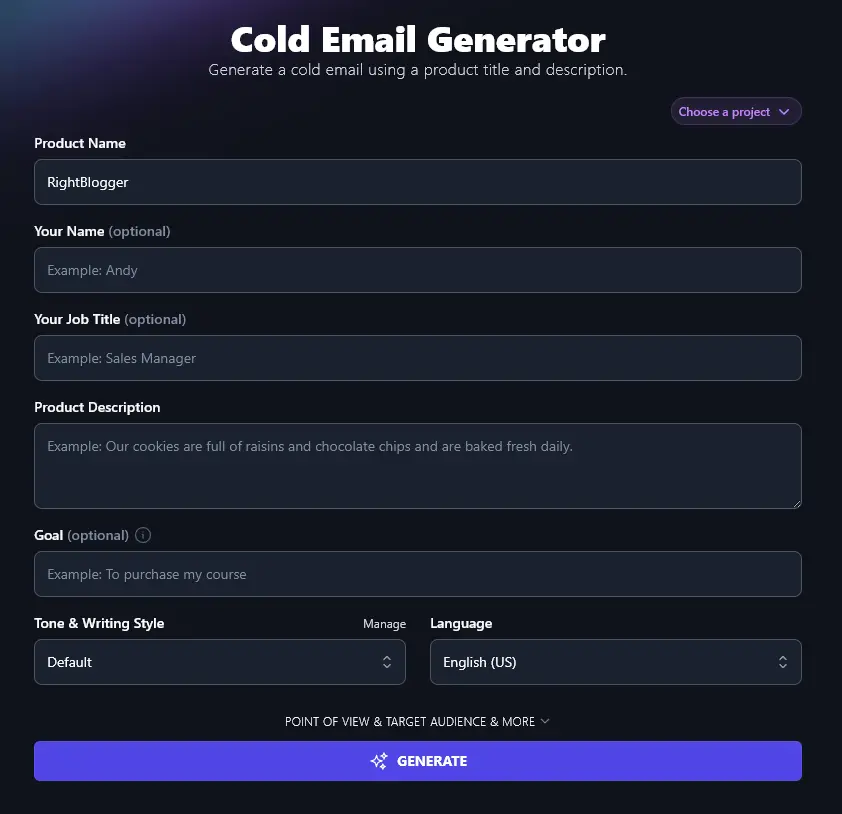
Step 1. Enter the Name of Your Product or Service
When you’re sending a cold email, it’s a sure bet that you’ve got something you want to sell! Enter the name of that product (or the service you offer) in the first box.
Step 2. Enter Your Own Name
Next, put in your own name (as you want it to appear in the email).
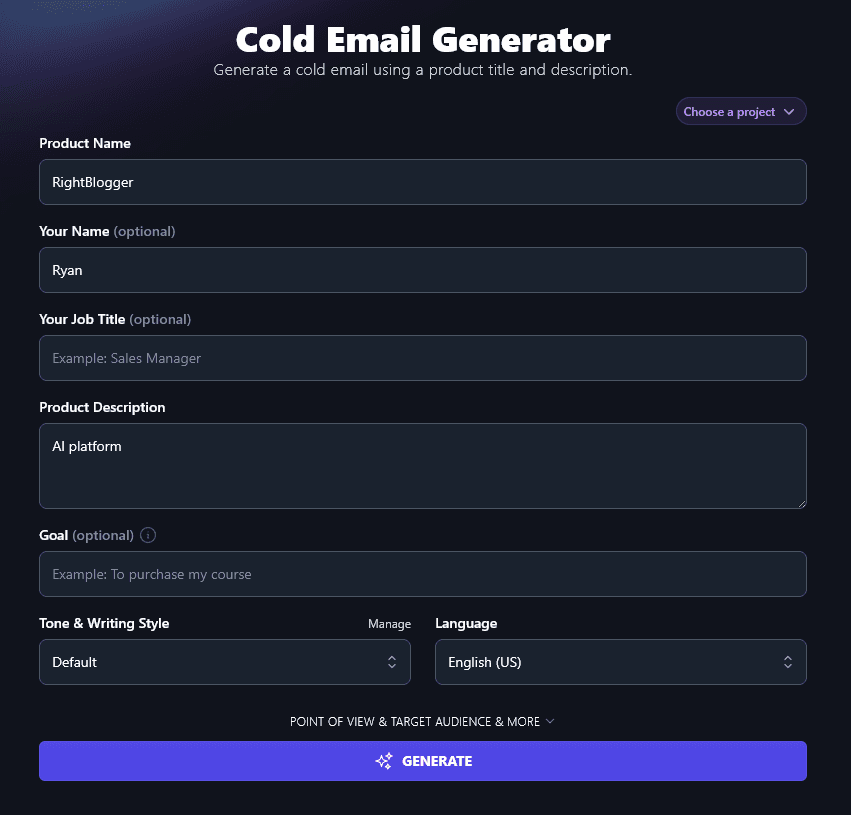
Tip:Drafting a cold email on behalf of your company and not sure whose name will go on it? You can leave the name field blank. The AI will put [Your Name] at the end of the email and you can edit this at a later stage.
Step 3. Enter Your Job Title
If it’s appropriate, include your job title (e.g. “Founder”, “CEO”, “HR Manager”). Like with your name, you should enter this exactly as you want it to appear in your email.
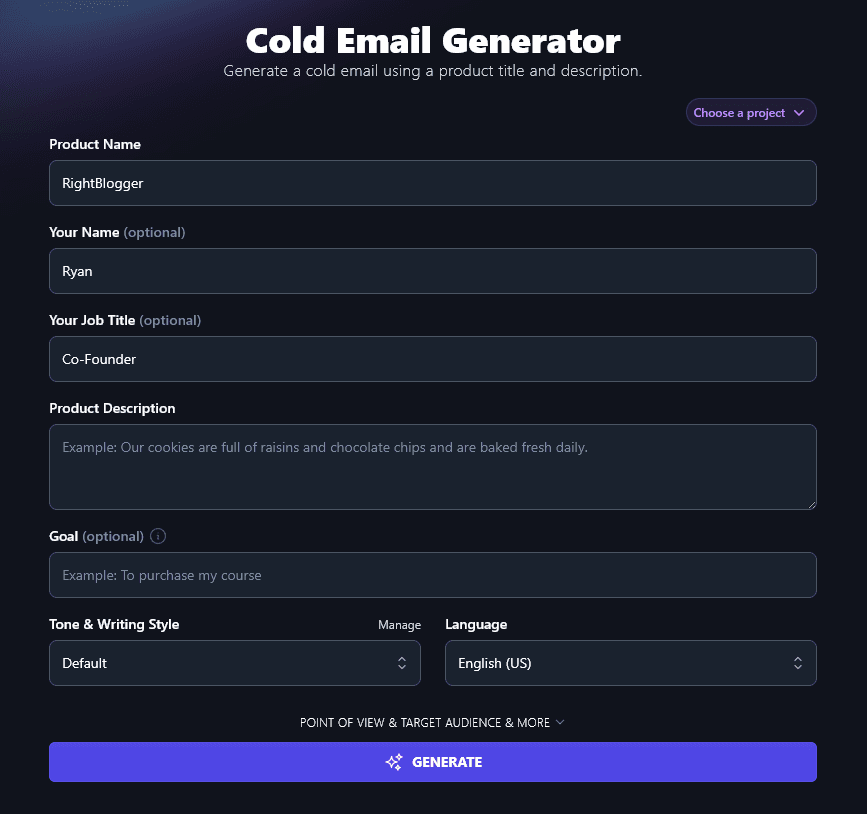
You can leave your job title off, if you prefer: the AI simply won’t make any reference to your role in the email.
Step 4. Describe the Product or Service That You’re Offering
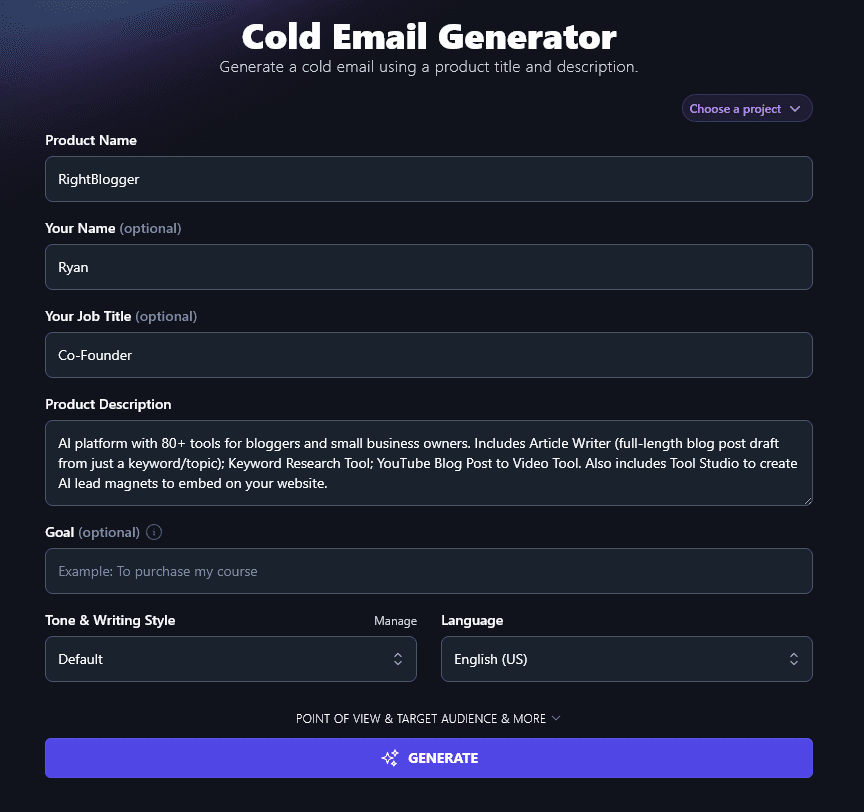
Your Product Description should detail the product (or service) that you’re offering to this prospective client. The AI will rewrite this in your email, so you don’t need to use salesy language here: just clearly describe your product.
Step 5. Explain the Goal of Your Email
What is it you want your prospect to do, after reading your email? That might simply be “buy my product” … but if you’re selling a high-ticket product or service, it might be a step like “book a free 30-minute consultation call”. Whatever the action is, add it in here.
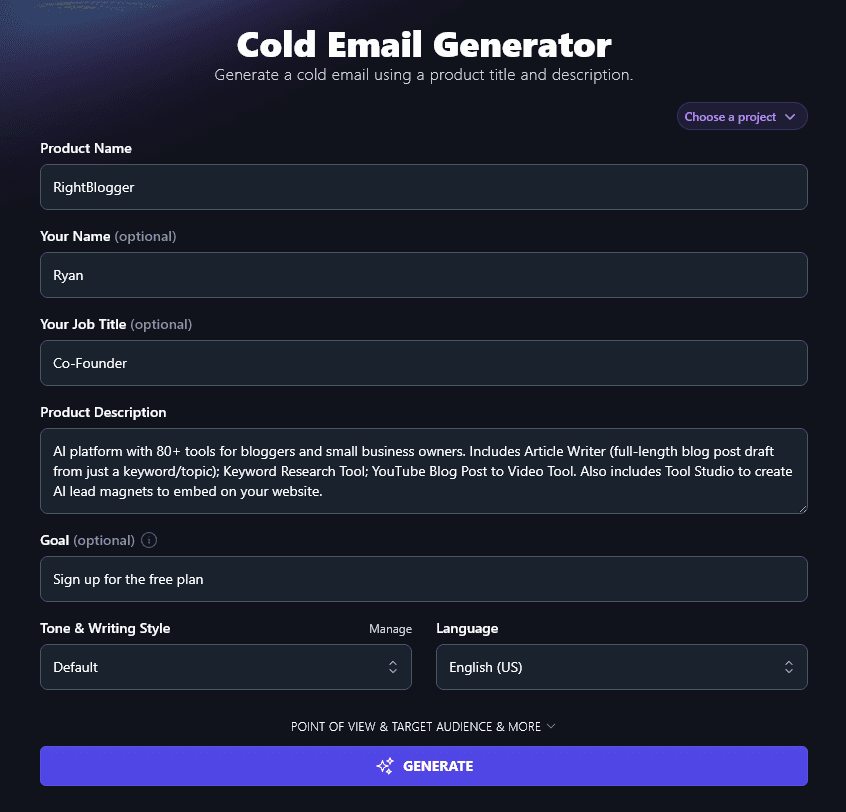
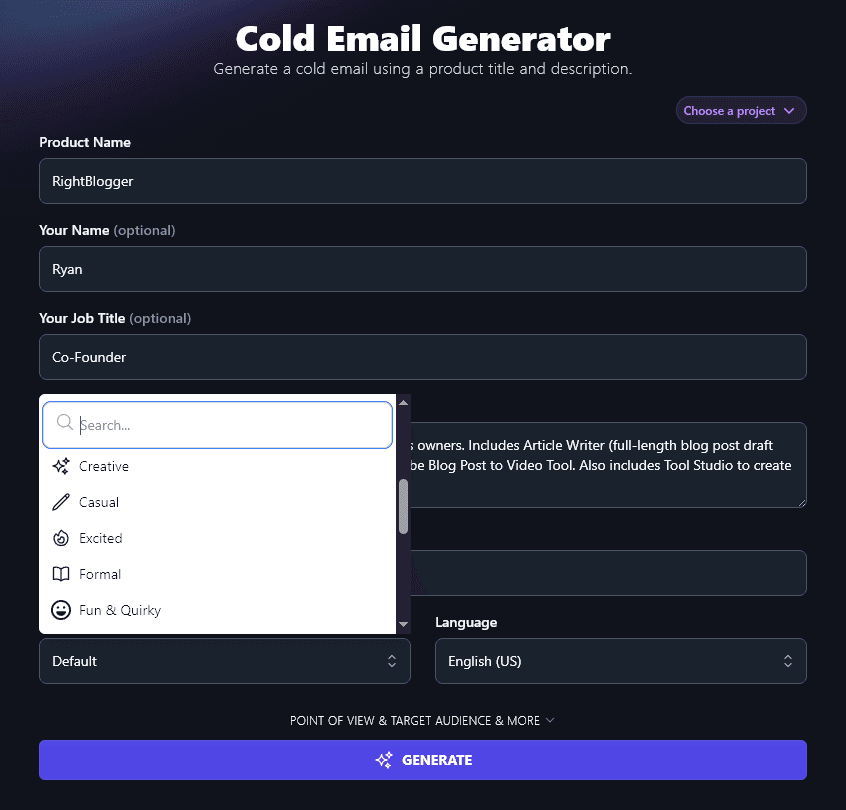
Step 6. Choose Your Tone & Writing Style
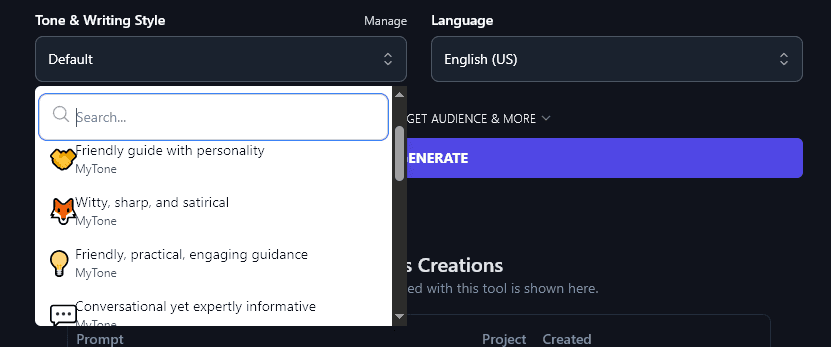
While the Default RightBlogger style might work just fine for you, you may also want to experiment with different options, especially if you have a strong brand voice. We have 16 preset styles to choose from, from laidback options like “Casual” or even “Fun & Quirky” to strictly business styles like “Professional”, “Formal”, and “Academic”.
Just click on the dropdown list to choose any style for your cold email:
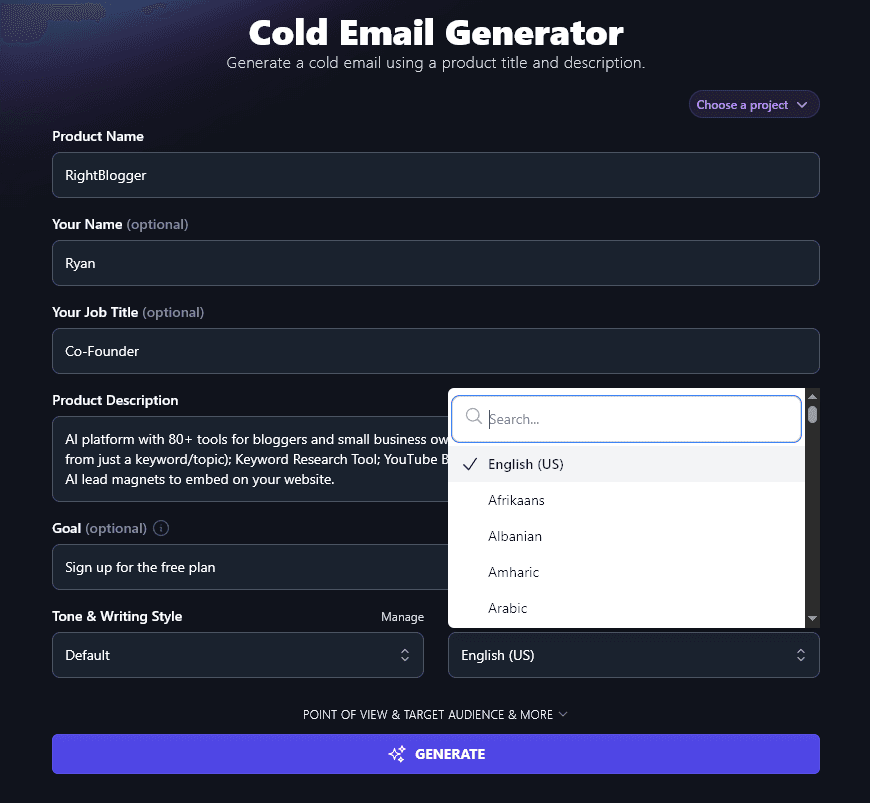
Step 7. Select Your Language
RightBlogger defaults to writing in US English, but the AI can produce fluent emails in over 100 different languages. If you’re emailing clients who don’t have English as a first language, go ahead and select their language here for easier communication.
Once you’ve filled in all the details, click the Generate button and the AI will instantly write an email for you:
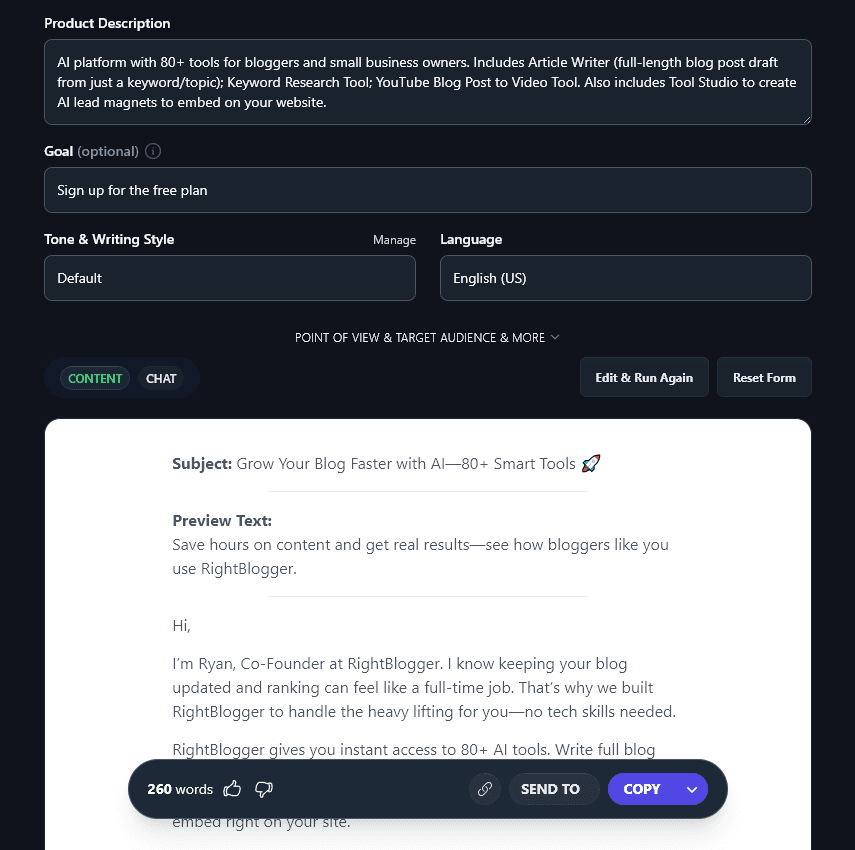
Your email includes a subject line and preview text, as well as the body of the email itself. You can use the “Copy” button to copy the text and paste it into your email app of choice. If you want to save the email to edit later, use the downward arrow next to Copy, you’ll get the option to download a .docx, plus options to download the text as Markdown, HTML, or plain text.
Bonus: Use My Cold Email Checklist Alongside This Free Tool
Whether you’re using AI to help or writing a cold email yourself, you’ve only got one chance to make a first impression. This checklist is designed to make sure that impression is a good one.
- Don’t waffle in your email, get to the point, quickly explaining who you are and what you’re offering
- Focus on how your product/service can help the recipient (think benefits, not just features, and your value proposition)
- If possible, personalize your email: look up the recipient online and adjust the content of your email accordingly
- Avoid industry jargon, unless that’s appropriate for your recipient
- Make sure you spell the recipient’s name correctly, this is such an important thing to get right!
- Proofread the rest of your email, too, and use a spelling and grammar checker (like our Grammar Fixer) to catch any remaining mistakes
- Give your email a clear subject line, avoiding gimmicks
- Include an email signature at the end with your contact details, this helps make your email look more professional
How Does the Cold Email Generator Work? (Including Advanced Features)
The Cold Email Generator tool is easy to get started with, but for better conversion rates and response rates, it’s helpful to know how to get the most from each of its features.
Let’s take a closer look at all the options, including the advanced ones.
1. Product Name, Your Name, and Job Title (Easy!)
The first 3 fields for the Email Generator are fairly straightforward: you need to enter the name of your product (or service), your own name, and optionally your job title.
What if you want to promote 2 products in your email? We recommend sticking to just a single product for each email campaign. If it does make sense to include 2 products, just put both names under Product Name then include details of each product separately in the Product Description box.
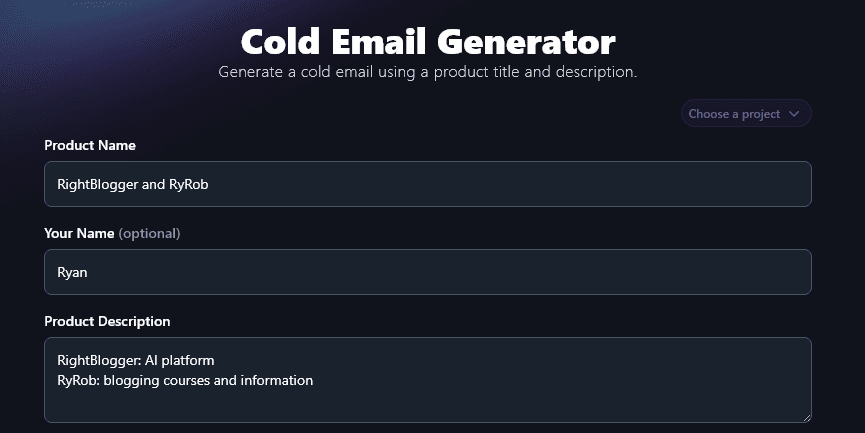
2. Product Description (Be as Detailed as You Want)
The Product Description field is the most important one on the form! This is where you can tell the AI all about your product, along with its key features and benefits.
You could also add information here about specific results that users have achieved, or you could put those details in the “Additional Instructions” box, which we’ll come to later.
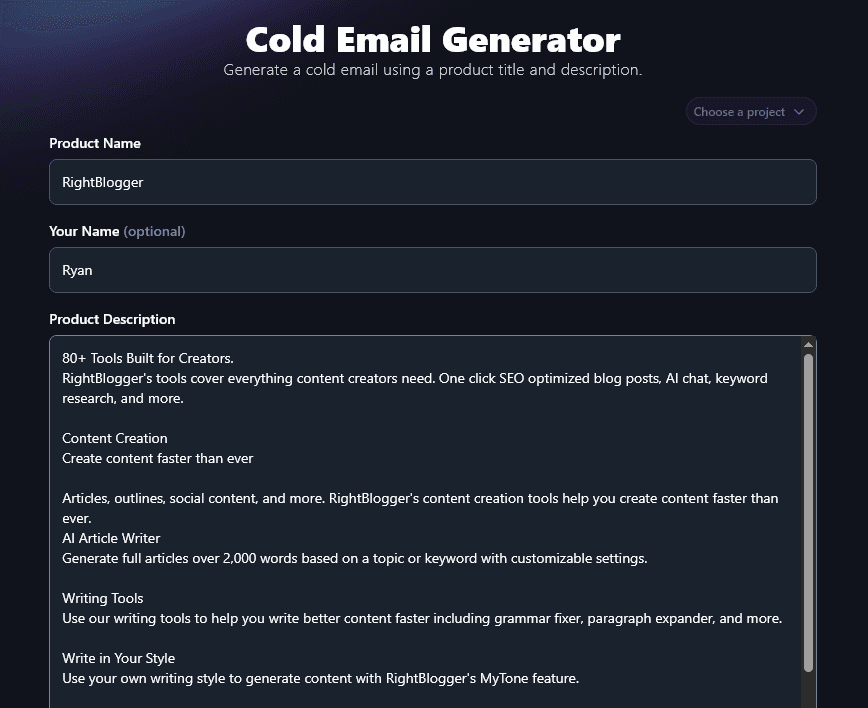
The Product Description box lets you enter up to 10,000 characters (around 1,500-2,000 words), so you could even paste in your sales page or any marketing material you’ve already written about the product.
Here’s an example, using the copy from RightBlogger’s Features page:
3. Goal (Optional But Recommended)
Whenever you’re sending a cold email, there’s clearly a point to it. You want to achieve some kind of outcome, probably to get more clients or customers.
With lower-priced products, the email itself or the follow-up may be enough to get people to buy, without any more interaction from you. But if you’re selling a more expensive product or something people will want to try out (e.g. a SaaS product) then your goal for the email probably isn’t “make a sale right away”. Instead, you might want your prospect to:
- Reply to your email
- Book a call with you
- Sign up for a free trial
- Click a link to read more information (eg.. sales page)
Get clear about what the goal is, and put that in the “Goal” field. That way, the AI can tailor the whole of your email toward that goal and a clear call to action, instead of you adding it at the end as an afterthought.
4. Tone & Writing Style (Choose from the List or Pick a MyTone)
When you’re carrying out cold email outreach, you want to sound like yourself, especially if you’re hoping for an ongoing relationship with the person you’re contacting.
RightBlogger has 16 different styles built in for you to choose from. These can make a big difference to how your email comes across.
Here are a couple of extracts from emails produced by the Cold Email Generator: we used all the same details (product name, product description, etc) and just varied the tone.
Fun & Quirky Tone:
Ever felt like you spend more time staring at a blank page than writing? You’re not alone. I’m Ryan, one of the founders at RightBlogger, where we help bloggers and small business owners swap content chaos for clarity (and yes, some much-needed free time).
We packed over 90 tools into one platform, so you don’t have to mess around with 10 browser tabs. Write a blog post from just a keyword? Check. Find low-competition keywords without guesswork? Done. Turn blog posts into YouTube videos that don’t make you cringe? Absolutely. We even let you whip up custom AI lead magnets to reel in more subscribers.
Formal Tone:
I’m Ryan, Co-Founder at RightBlogger.
We help bloggers and small businesses like yours work smarter and grow faster. RightBlogger offers over 80 AI-powered tools, built for anyone who wants to grow their audience and save time.
Here’s how our platform can help you:
- Create full-length blog posts in minutes from just a topic or keyword.
- Uncover new content ideas and traffic sources with our Keyword Research Tool.
- Turn your blog posts into YouTube videos using our AI video tool.
- Make high-converting lead magnets and embed them on your site with one click.
As well as using the built-in tones and styles, you can create your own custom tone of voice using RightBlogger’s MyTone feature. Every plan includes it, and paid plans save 5 (Solo), 15 (Pro), or 50 (Agency) MyTones. MyTone lets you teach the AI your unique writing style, using a sample of your writing or even a YouTube video.
The AI will then save this as a detailed custom style, which you can select from the Tone & Writing Style dropdown.
5. Language (Choose from 100 Different Languages, and 4 Varieties of English)
The RightBlogger AI can craft your cold email in any language from the dropdown list: there are more than 100 to choose from.
Here’s the AI writing an email in Spanish:
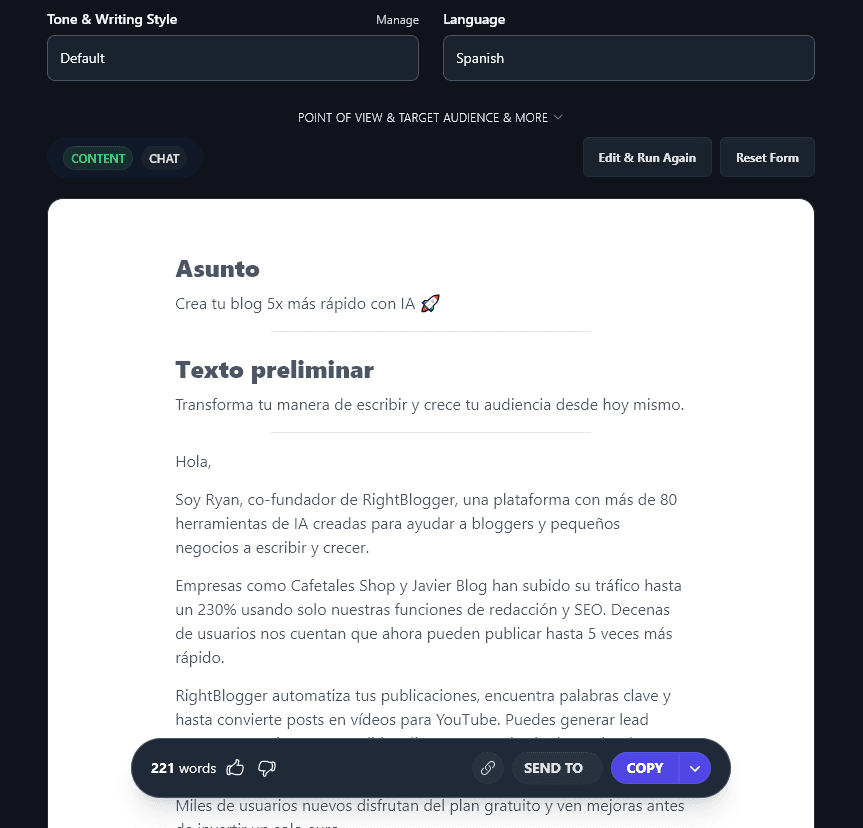
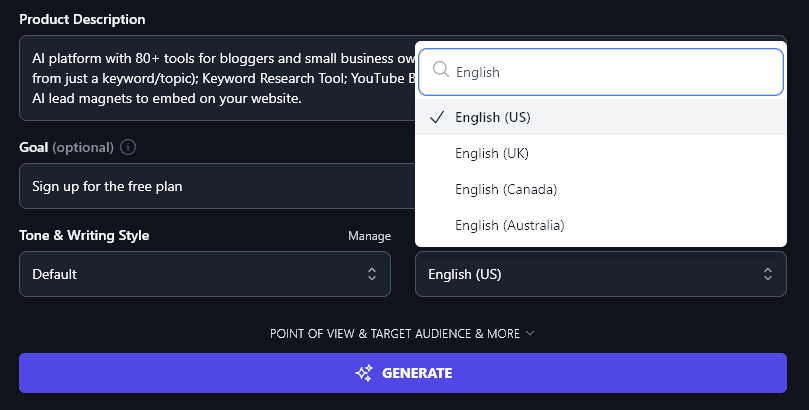
You can also choose from 4 different versions of English. The default is US English, but RightBlogger also supports versions for the UK, Canada, and Australia. If you live in one of those countries, just select your variety of English and the AI will automatically use the correct spellings and terms.
6. Point of View (Focusing on “I”, “We”, “You”, or “They”?)
The Cold Email Generator includes several advanced options. To view these, click the “Point of View & Target Audience & More” link.
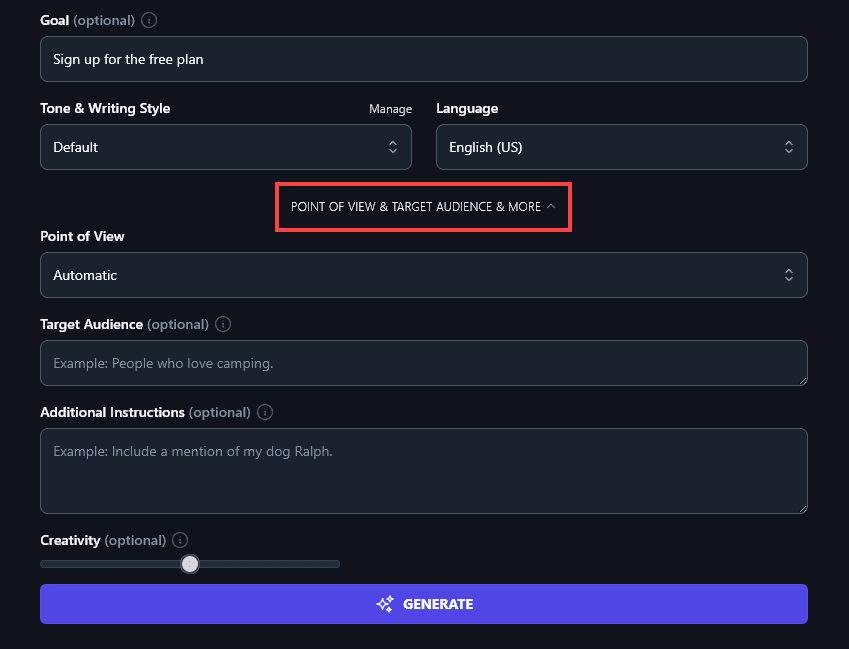
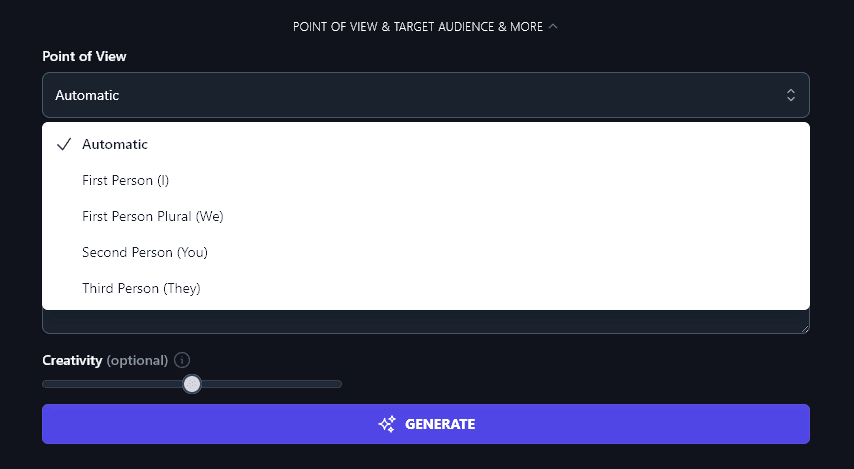
The first of these options is Point of View. While the AI will automatically pick a suitable point of view for your email, you can adjust this by selecting a specific option from the list.
You can choose from:
- First Person (I): good for cold emails where you’re introducing yourself, perhaps as a coach, consultant, or CEO
- First Person Plural (We): a great option if you’re writing a cold email on behalf of your company (or a partnership)
- Second Person (You): keeping the focus on the person you’re writing to helps show that you care about their needs
- Third Person (They): this slightly more formal perspective can work well for B2B cold emails
7. Target Audience (Tell the AI About Your Potential Customer)
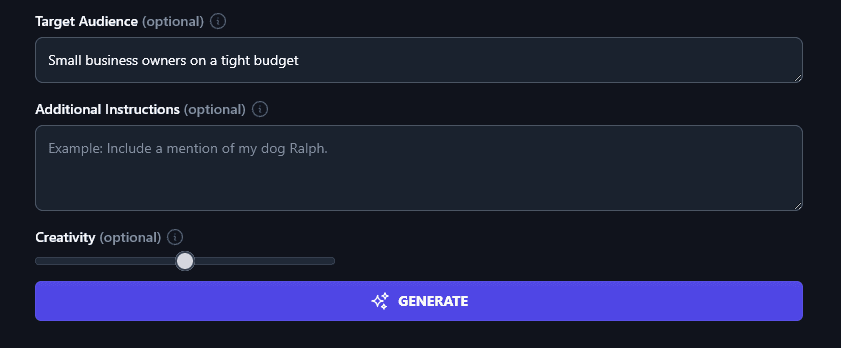
Who are you targeting with these cold emails? You’ve probably created a list of recipients based on the customers you want, e.g. perhaps you’re approaching digital marketing managers because you have a product aimed at them, or your service is specifically targeted at small business owners.
Tell the AI about your target audience for a more personalized cold email. If you can, add a pain point that they’re facing or a goal they’re trying to achieve.
8. Additional Instructions (Give Any Extra Requests or Information)
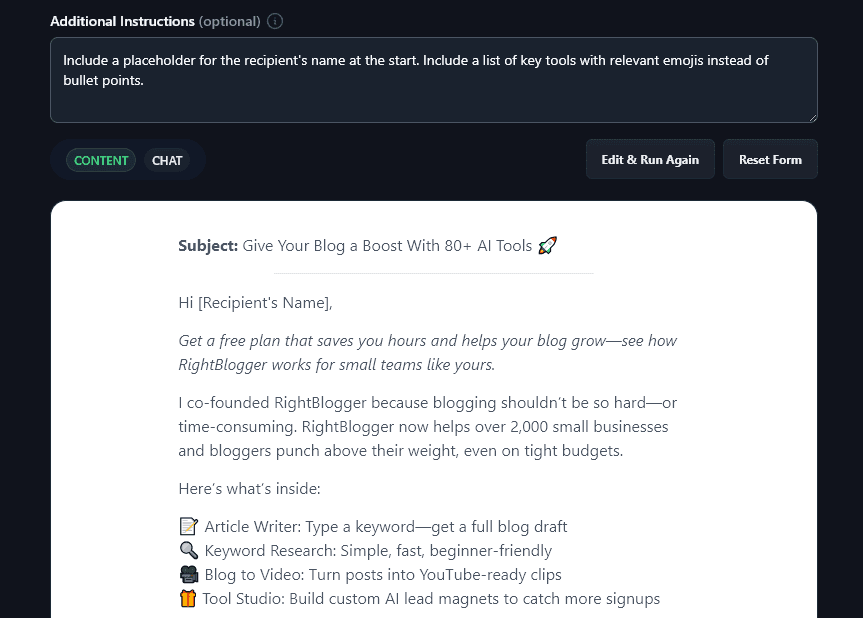
The Additional Instructions box lets you go even further in tailoring your outreach campaigns to exactly what you need. For instance, you might ask the AI to also include the text of a follow-up email, or you could request that it includes emojis in your email, if that’s part of your brand.
You can also include extra details here that didn’t appear in your product description. Perhaps you’re running a limited-time sale, for example, or you want the email to include your company name as well as the product/service name.
Here, we’ve asked the AI to include a placeholder for the recipient’s name at the start and to use emojis as bullet points in the email. As you can see, it’s followed our instructions perfectly:
9. Creativity (Make Your Cold Email More Unusual or More Predictable)
The final advanced option is the Creativity slider. We recommend leaving this set at the midpoint: this will produce emails that aren’t too predictable or too strange. If you want to adjust the creativity level, though, just move the slider. Left makes the AI’s output less creative (more predictable) and right makes it more creative (more unusual).

10. Chat (Refine Your Email to Suit Your Needs)
On any paid plan, you can use the Chat tab (above your generated email) to tailor your cold email however you want.
This Chat tool lets you interact with a ChatGPT-like interface: simply ask for adjustments and the email writer will make these for you.
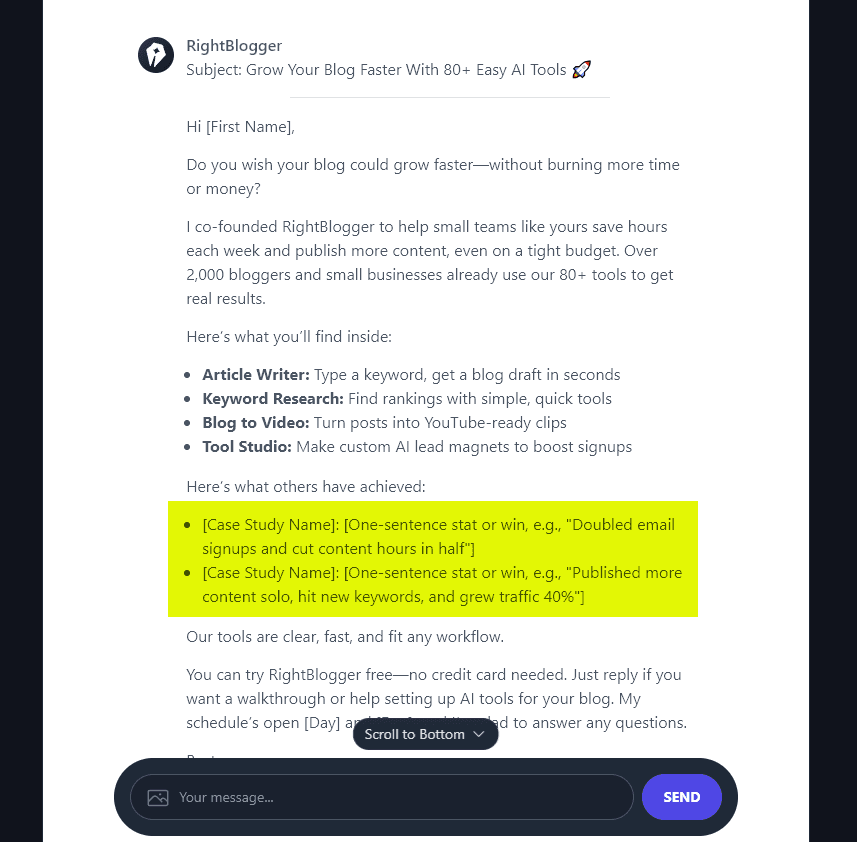
Let’s say that, after reviewing your email, you want to use different case studies for different prospects during your cold email campaigns. Ask RightBlogger to “Rewrite this into a cold email template with placeholders for different case studies” and the AI will rework your email accordingly:
Cold Email Generator FAQs (Frequently Asked Questions)
Got questions about writing cold emails, and winning new customers and clients? Here’s everything you need to know.
How Do I Send Out My Cold Emails?
While you could send out cold emails one by one using your regular email account, most businesses automate the process with a CRM (customer relationship management tool) such as Close. Depending on the size of your business, you may have a sales team that sends out the cold emails, you just need to give them the text as a template to use.
What Metrics Should I Measure for My Cold Emails?
Your CRM or email marketing tool will normally collect data for you that includes key metrics like:
- Open rate: how many of your emails are getting opened?
- Click-through rate: how many recipients are clicking a link?
- Response rate: how many recipients are replying to your email?
Do I Need a Template for Writing Cold Emails?
If you’re using our free Cold Email Generator, you don’t need any other template: the AI automatically structures your email in a way that’s designed to communicate value and boost reply rates. The AI will also give you your email subject line and preview text.
Should I Personalize My Cold Emails?
Yes! Personalized messages will get a better response from the prospects you’ve identified. With some AI tools, you can even use hyper-personalization to adjust your emails automatically based on things like the webpages your customer has viewed, their location, and upcoming events in their area.
With any sales email, tailoring your message to your prospect is important. That doesn’t just mean putting their name in it. You can aim to address specific problems they’re facing. For instance, if they’ve posted on LinkedIn about struggling with delegation, you might mention how your software makes delegation easy.
What Other AI Tools Can I Use to Grow My Business?
Here in RightBlogger, we have more than 100 different AI tools designed to help you grow a business online. Every RightBlogger plan includes unlimited AI words and access to all tools.
Some of the best ones to get started with are:
- Article Writer: beat writer’s block with this powerful writing tool and craft full-length articles from just a topic or keyword, watch your AI-generated content appear before your eyes in real-time!
- Keyword Research Tool: figure out the best keywords to use (the cornerstone of good SEO), with monthly search volumes and difficulty ratings provided
- LinkedIn Post Generator: craft high-quality content to publish on your LinkedIn profile page, growing your brand online while streamlining your workflow
- Newsletter Idea Generator: come up with all the ideas you need for a powerful email sequence or for one-off newsletters
- Ad Copy: take your outreach efforts further through paid ads on Google, Facebook, and more, with done-for-you copy
- Make Text Punchier: beef up your existing copy and make it stronger, great for closing deals
That’s just a small selection: we also have AI tools for blogs, podcasts, sales, search engine optimization, copywriting, social media, and more.
How Do I Sign Up for RightBlogger and How Much Does it Cost?
Getting started with RightBlogger is easy: just sign up for an account. Every paid plan includes unlimited words and a 7-day free trial and a 30-day money-back guarantee.
All paid plans include advanced features like MyTone, Chat, Projects, and Knowledge. We’ve kept pricing affordable for bloggers, small businesses, and startups. Monthly plans are Solo $59, Pro $89, and Agency $299 (annual billing, charged monthly, is $49 / $69 / $199).