Webinars are a fantastic marketing tool, but how do you come up with webinar topics that will connect with your audience and draw a big crowd? It can be tricky to decide on the perfect webinar title or topic, but with a little help from AI, you can have a whole list of great ideas at your fingertips. Meet RightBlogger’s free Webinar Topic Generator tool.
Whether you’re running a webinar as a lead magnet or as an opportunity to promote your product or service, this tool is here to help you come up with lots of ideas.
How to Use the Webinar Topic Generator (Webinar Title Generator)
Ready to brainstorm your list of webinar topics? Here’s what to do, step by step.
Step 1. Enter an Initial Topic (Broad or Narrow)
First, you’ll need to give the webinar topic generator a general topic. That could be the topic/niche for your whole blog, if you have no idea at all what type of webinar you want to run … or you could give a topic that relates to a product/service you’re going to promote at the end of the webinar.
Just type your chosen topic into the top box.
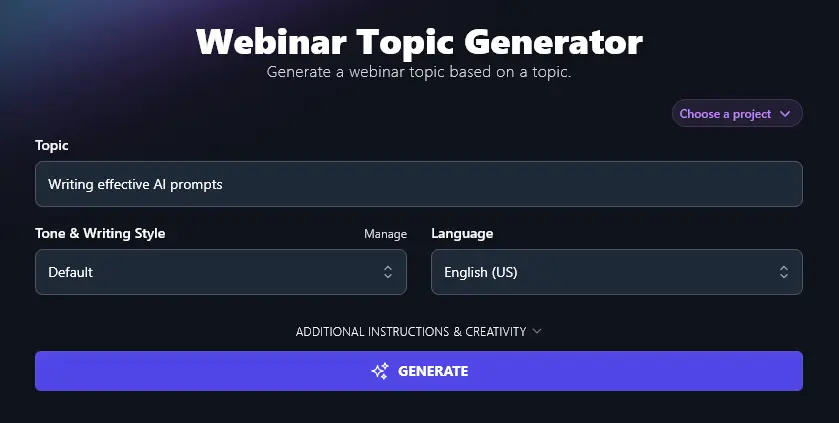
Step 2. Choose Your Tone & Writing Style
Even though your webinar topic/title ideas will be quite short, you can still get the AI to add a distinctive stylistic spin to them.
Perhaps you want “Fun & Quirky” titles that suit your zany brand. Or maybe you’re after “Professional” titles suitable for a B2B audience. Go ahead and choose any of the 16 preset tone of voice options:
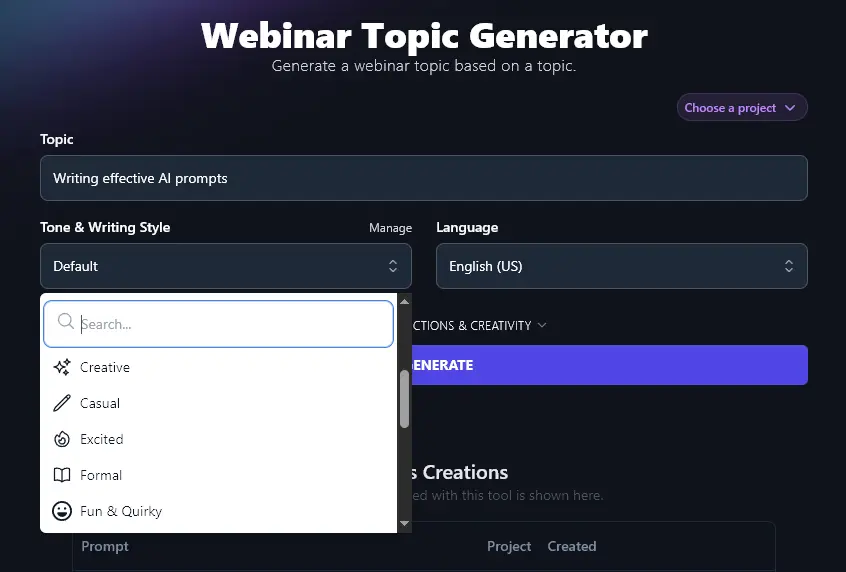
Step 3. Choose Your Language (if You Want Something Different From US English)
The RightBlogger AI defaults to writing in US English … but you can pick from over 100 different languages, including other varieties of English. Simply click on the Language dropdown and scroll to the language you want, or use the built-in search bar to save time.
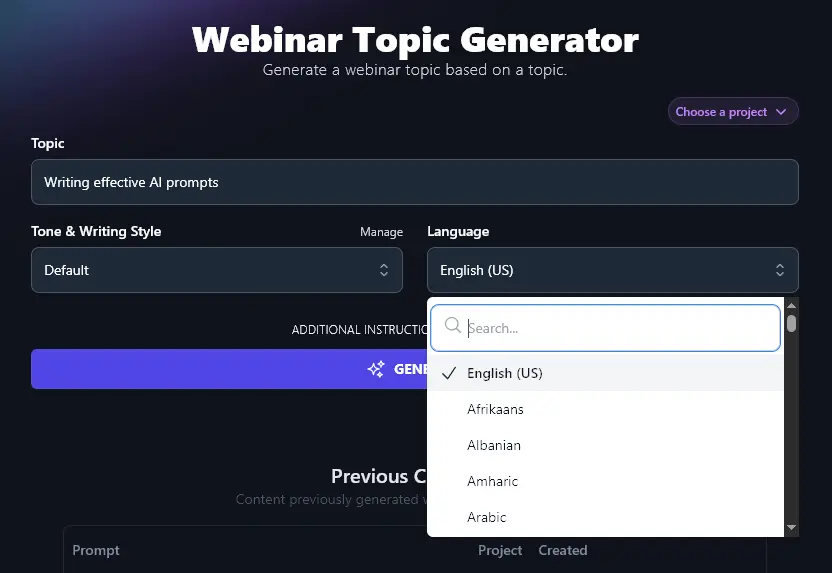
When you’re ready, click the Generate button to get your list of webinar topic ideas:
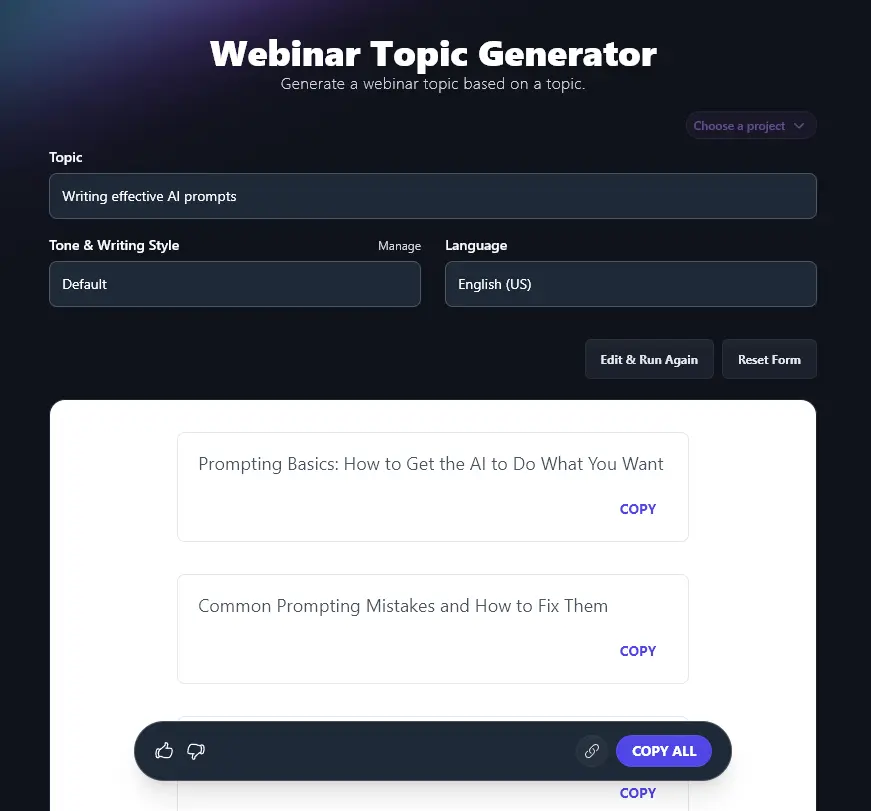
You can copy any of the individual ideas by clicking the “Copy” link just below them. Or, if you want some more time to decide, use the “Copy All” button to copy the whole list to your clipboard. You can then paste it into a document or spreadsheet.
Bonus: Webinar Preparation Checklist
Running a webinar can be daunting. Whether you’re worried about tech issues (“what if my mic doesn’t work?”) or audience ones (“what if no one shows up?”), it’s easy to feel anxious about the whole process.
Here’s my webinar preparation checklist for you: use this to make sure you’ve got everything in place that you need.
- Pick one thing you want your webinar to achieve (e.g. more paying customers for your SaaS product)
- Choose a topic that’s relevant to your potential customers, make it clear and engaging
- Decide on the format for your webinar, e.g. a presentation where you run through slides vs a product demo
- Think about whether you want to run the webinar live (great for interaction) or as a pre-recorded webinar (great if your audience is split across multiple timezones)
- Try out different webinar platforms and choose one that you like
- Figure out the best time to run your webinar: lunchtimes or evenings can work well
- Create the landing page for your webinar, make it easy and obvious how to register
- Write the copy for your email campaign for your webinar and schedule your emails
- Get any other marketing in place, e.g. social media posts or paid ads
- Make sure you’re set up with a quiet, well-lit space to record/host the webinar
- Login well ahead of time to check for any tech issues
- If possible, set up interactive features (e.g. polls, chat) to use during the webinar to keep your audience engaged
How Does the Webinar Topic Generator Work?
If you want to get the most from the Webinar Topic Generator, it’s useful to dig a bit deeper into how it works. We’re going to take a closer look at all the options, including the advanced features.
1. Topic (Be Broad or Narrow … and Run the Generator Twice if it Helps)
You might already have a rough topic idea in mind, but if you’re really not sure what you want your webinar to be about, it’s fine to run the generator for a very broad topic.
Let’s take “AI” as an example. Putting that in as the main topic lets us generate a list of webinar titles like:
- “AI 101: Breaking Down the Basics Without the Buzzwords”
- “How AI is Changing Everyday Business Tasks (and What It Means for You)”
- “ChatGPT and Beyond: The Role of AI in Communication Today”
- “AI Myths Busted: What’s Real and What’s Not?”
- “Small Business, Big AI: Affordable Tools You Can Start Using Now”
- “The Ethics of AI: How Do We Keep It Fair and Responsible?”
- “From Emails to Art: Surprising Ways AI Is Showing Up in Daily Life”
- “AI in Hiring: What Job Seekers and Employers Should Know”
- “The Future of Work with AI: Will It Replace or Assist Us?”
- “Behind the Tech: How AI Actually Works (Without the Overload)”
Now, it’s easy to copy one of those creative titles and paste it back into the tool. Run it again, and you’ll get 10 much more specific ideas.
We chose the topic “Small Business, Big AI: Affordable Tools You Can Start Using Now” and added to that title “(include RightBlogger)” before running it through the tool again.
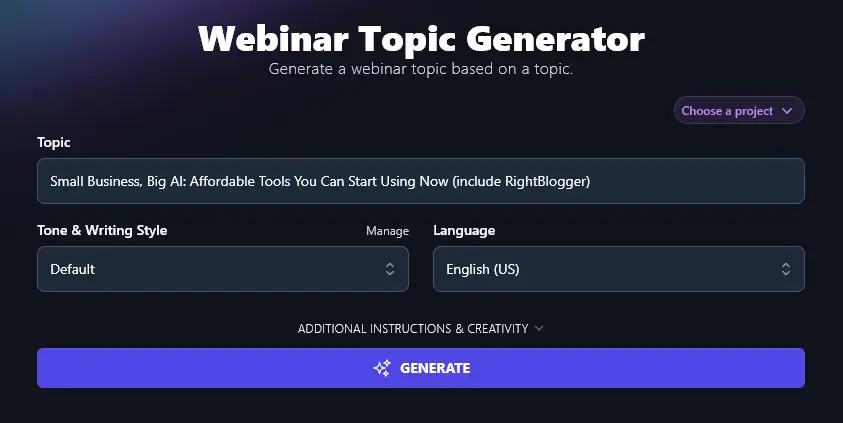
This time, we got much more specific, tools-focused ideas … many of them focused around RightBlogger.
- “The Power of AI on a Budget: Success Stories from Small Businesses”
- “RightBlogger 101: Use AI to Write Better, Faster, Cheaper”
- “Affordable AI Tools Every Small Business Owner Should Know”
- “How to Save Time with AI: Tips for Busy Entrepreneurs”
- “AI on a Shoestring: Free and Low-Cost Tools to Try Today”
- “Boost Sales with AI: Simple Strategies for Small Shops”
- “RightBlogger Hacks: Create Blog Content in Minutes, Not Hours”
- “AI Myths Debunked: What Small Business Owners Need to Know”
- “Smart Scheduling and Marketing with AI: Easy Steps for Beginners”
- “RightBlogger and Beyond: AI Tools That Can Help You Grow Fast”
2. Tone & Writing Style (Use a Preset Option or Create Your Own)
If the Default style suits you and your brand, feel free to stick with that: it’s designed to be conversational and engaging. But if you want something a little different, go ahead and experiment with the other style options. You’ll get webinar ideas that sound like you.
Here’s a quick example of the difference tone can make.
“Fun & Quirky” title suggestions:
- “Stop Talking to AI Like It’s Your Ex: Writing Prompts That Actually Work”
- “Why Saying ‘Do This’ Won’t Cut It: Getting Specific with AI Prompts”
- “AI Prompting: The Art of Bossing Around Robots (Without Being a Jerk)”
- “Words Matter, Even to Machines: Tips for Nailing AI Instructions”
- “Say What You Mean (and Mean What You Say) to AI”
- “The Lazy Genius Approach to Writing Prompts AI Won’t Ignore”
- “Think Like a Robot Whisperer: Simple Tricks for Better AI Results”
- “Help Me Help You: Making AI Understand What You Really Want”
- “Less Poetry, More Precision: How to Stop Confusing Your AI Tools”
- “Avoid the Prompt Potholes: Common Mistakes and How to Fix Them”
“Professional” title options:
- “Building Clear and Specific Prompts: The Key to Better Results from AI”
- “What Makes a Good AI Prompt? Common Mistakes and How to Fix Them”
- “The Science of AI Prompts: Breaking Down What Works and Why”
- “Prompt Writing Strategies for Beginners: A Step-by-Step Approach”
- “How to Write Prompts that Save Time and Maximize AI Output Quality”
- “Creative Prompt Ideas to Get Unique Results from AI Tools”
- “Structuring Prompts for Different AI Tasks: Writing, Summarizing, and More”
- “Testing and Refining AI Prompts: A Guide to Continuous Improvement”
- “Using Questions, Commands, and Context: Effective Techniques for AI Prompts”
- “Avoiding Common Pitfalls in Prompt Writing: Practical Tips and Examples”
You’re not limited to the preset styles, either. On any plan, you can use RightBlogger’s MyTone feature to create your own custom tone. Give the AI a sample of your writing, or even a video!, and it’ll do the rest.
Once you’ve created a MyTone, you can select it from the Tone & Writing Style dropdown, just like all the other tones.
3. Language (Choose From Over 100 Options)
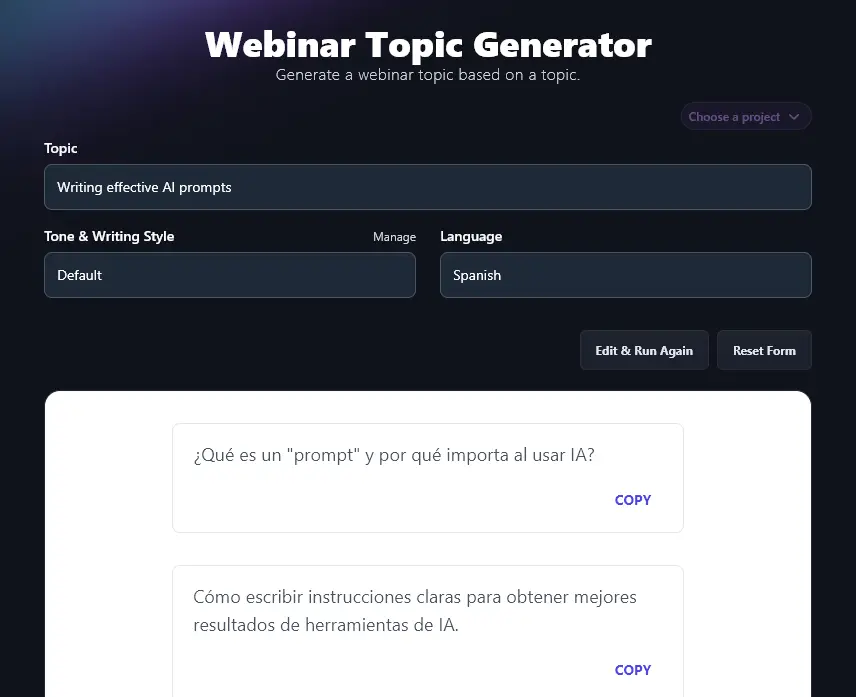
Creating a webinar for a non-English-speaking or multilingual audience? Go ahead and generate ideas in the language of your choice. Along with over 100 different languages, you can also choose from 4 versions of English (US, UK, Canada, and Australia) so that your webinar titles will always use the right spellings and terms for your audience.
Here’s an example of the Webinar Topic Generator creating ideas in Spanish:
4. Additional Instructions (Give the AI Any Extra Requests or Constraints)
The Webinar Topic Generator has 2 advanced options, which you can open up by clicking on the “Additional Instructions & Creativity” link.
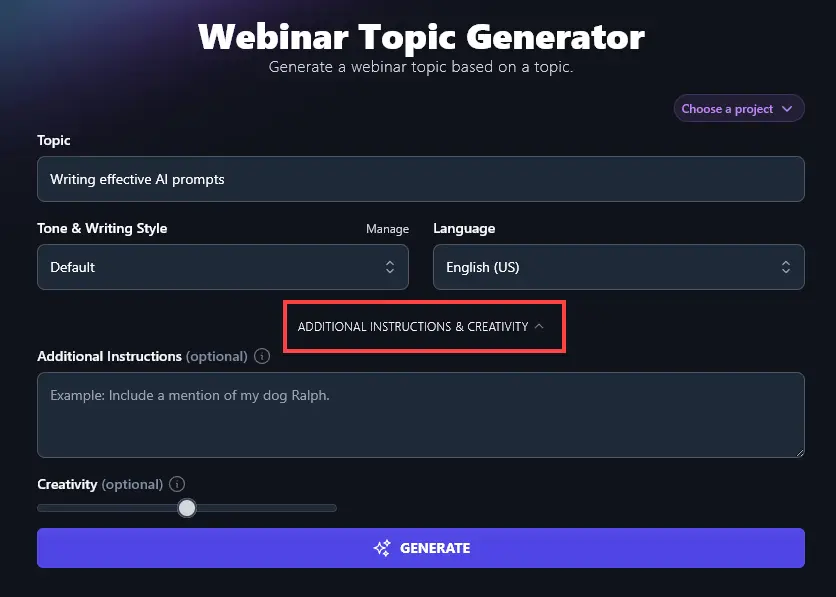
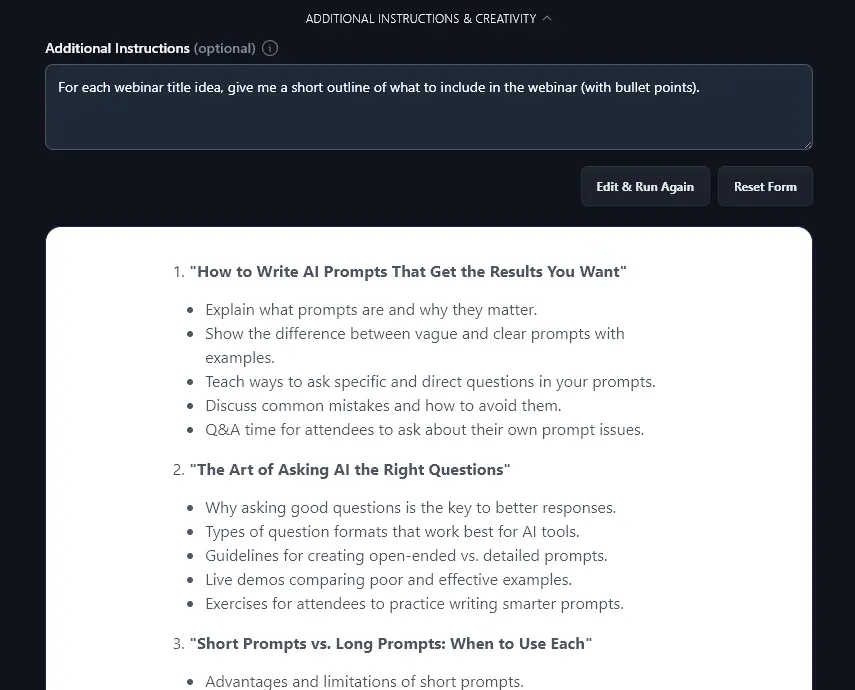
The first option is the Additional Instructions. This lets you ask the AI to add or adjust its output in any way you want. For instance, you could ask for a short outline of what to include for each webinar idea.
5. Creativity (Make Your Webinar Ideas More Unusual or More Conventional)
The second advanced option is for Creativity. RightBlogger’s AI is already preset to a balanced level of creativity, so that the ideas you get aren’t too weird or too bland. But if you want to generate titles that are more or less creative, just move the slider left (less creative) or right (more creative).

Webinar Topic Generator FAQs (Frequently Asked Questions)
If you’ve still got some questions about using the AI-powered Webinar Topic Generator Tool, or if you’re a bit unsure about webinar topics in general, here’s everything you need to know.
How Do I Choose a Good Topic for My Webinar?
It can be tough to come up with a catchy, attention-grabbing topic for your webinar. Depending on your niche, you might want to think about trending topics: what’s currently popular with your target audience?
You could also consider what questions your audience is asking you (e.g. in emails, blog comments, on LinkedIn). If something is coming up again and again, that could make for a fantastic and engaging webinar.
How Can I Come Up With a Catchy Title for My Webinar?
Our topic generator is also an AI Webinar Title Generator: it aims to come up with engaging titles, not just topics. You can use these titles as-is for your webinar.
If you want to do some brainstorming on your own, compelling webinar titles will usually:
- Be clear and fairly concise
- Make a promise (explicit or implicit) about what potential attendees will learn
- Use the brand’s voice and style, avoiding sounding bland or boring
What Makes for a Successful Webinar?
Before you start planning your webinar, think about what you want to achieve through running it. Do you want more signups for your email list, more customers for a product, or is the webinar itself something that people pay for? If you’re in education, your webinar might be part of a course, so it’ll need to fit in with the course as a whole.
When creating your webinar, think about:
- What your audience will learn or accomplish as a result of the webinar, have a clear and tangible outcome.
- How long your webinar should be, most webinars are around an hour long (this can include Q&A time, or you can tag it on at the end).
- What you’ll include on your slides: you can use AI content here to speed up the process, e.g. our AI Image Generator.
- Any integrations you’ll need to set up (e.g. between the webinar software and your email list).
What Other Free AI Tools Can I Use to Grow My Business?
RightBlogger is packed with 85+ fantastic AI tools to help you grow your business online … and they’re all free to try (just sign up).
Some great ones to try out are:
- Article Writer: speed up the whole content creation process by drafting a high-quality article from just a keyword or topic (automatically SEO-optimized)
- Keyword Research Tool: find relevant keywords for your webinar title or a blog post using our easy keyword tool (includes accurate search volumes and competition ratings)
- Email Subject Line Generator: create subject lines that grab your audience’s attention for your webinar promos (and other marketing campaigns)
- Feature/Benefit/Outcome: create powerful copy to use on any product/service landing page by generating compelling benefits and outcomes
- Product Description Generator: ideal for ecommerce sites, this tool lets you instantly create descriptions for a whole range of products
- Caption Generator: come up with social media (and alt text) style captions, all you need to do is upload your image
You can use RightBlogger’s powerful automation tools in many other areas of your business too, from marketing strategy to content creation to search engine optimization.
How Do I Sign Up for RightBlogger and How Much Does it Cost?
It’s completely free to sign up for a basic RightBlogger account. Eevery paid plan includes unlimited words.
If you want to go further, then a paid plan is for you. It lets you create unlimited content, save more MyTones, and use all our advanced features, like Projects, Knowledge, and Chat. We’ve kept our pricing as affordable as we can, at monthly Solo $59, Pro $89, or Agency $299 (annual billing, charged monthly, is $49 / $69 / $199).