
YouTube Tag Generator: SEO Video Tags for More Views
Use this YouTube tag generator to create relevant SEO tags from a video topic, keyword, or URL so your videos can rank better and get discovered faster.
No account and no paywall, just YouTube tags on demand. Enter a video title or topic above and RightBlogger’s YouTube Tag Generator returns a ready-to-paste list of relevant tags in seconds.
This free, AI-powered YouTube tag generator creates a full list of relevant tags for any YouTube video in seconds. Enter your topic, keyword, or paste a video URL, then copy the results straight into YouTube Studio. No signup required.
YouTube tags are metadata that tell YouTube what topics your video covers. While tags play a smaller role than your title or description, they still help with discoverability for niche topics and commonly misspelled search terms.
Tags are different from hashtags. Both are useful! Video hashtags can be included in your description and are used in YouTube search; video tags aren’t seen by viewers (unless you copy them into your description too).
Tags can be several separate words (e.g. “starting a blog“) whereas hashtags need to be a single word (e.g. “#startingablog”).
While tags aren’t considered a significant SEO factor within YouTube’s algorithm, using tags may improve your video’s visibility. It’s important to also optimize for other ranking factors like your video’s title and description.
How to Use the AI YouTube Tag Generator
Ready to create YouTube video tags? Here’s how to use our AI tag generator.
Step 1. Enter a Starting Topic, Keyword, or Video URL
You can use the tag generator for a new or existing video. Either enter your video’s topic, title, or keyword in the box, or simply paste in the URL of a published video.
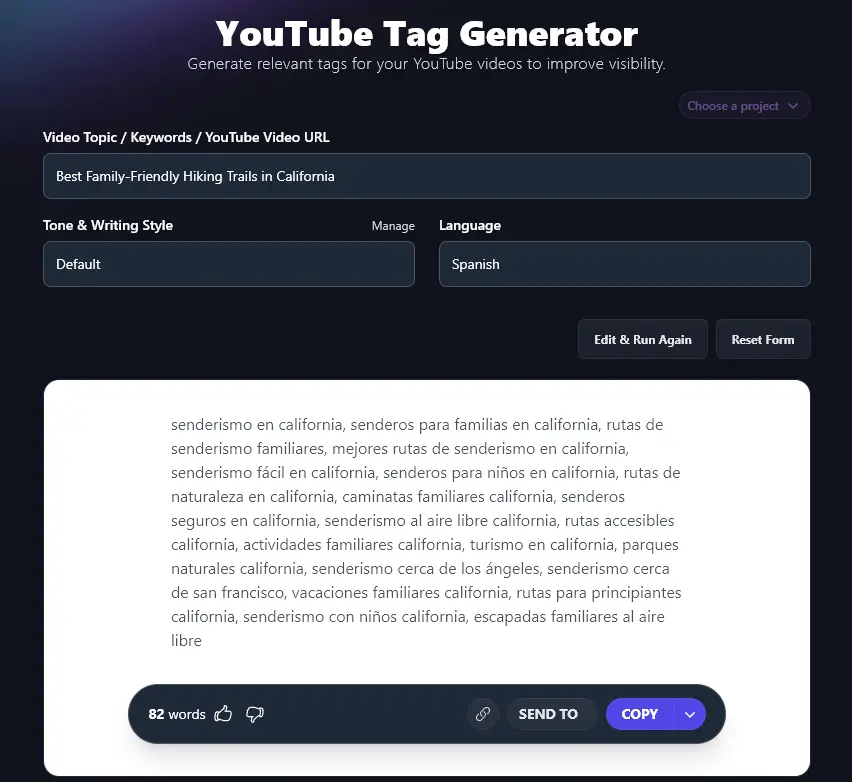
We’re using the topic “Best Family-Friendly Hiking Trails in California”.
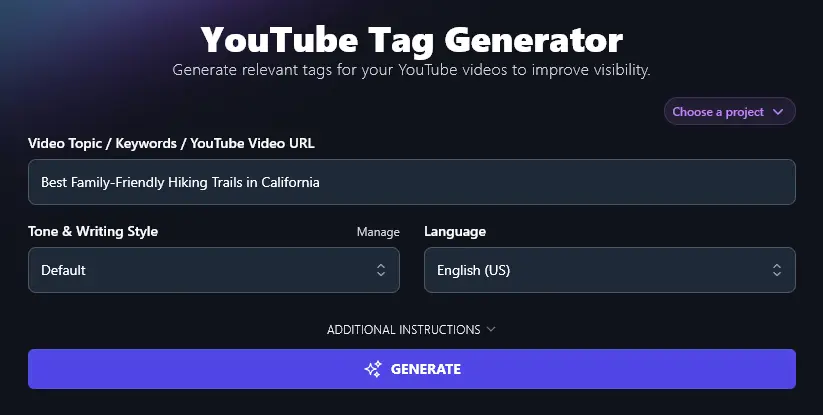
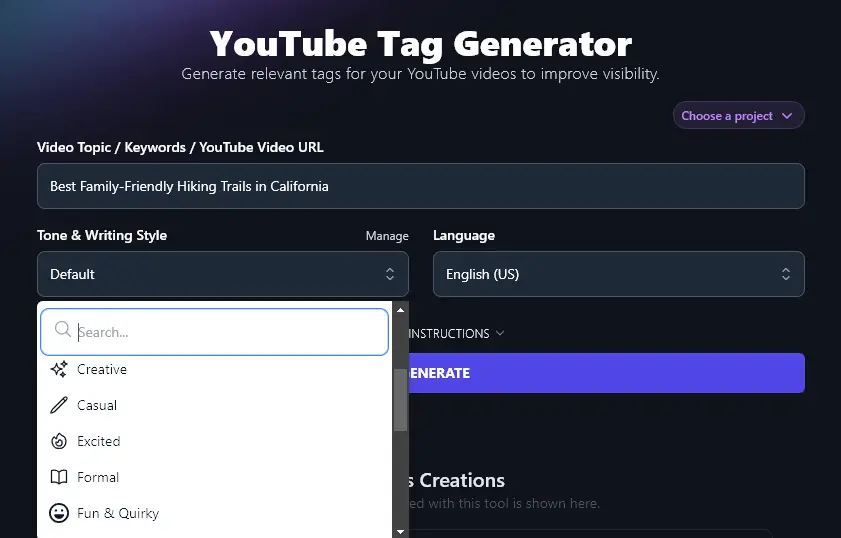
Step 2. (Optional) Select Your Tone & Writing Style for the Tags
While tone & style won’t make a significant difference to your suggested tags, you can set a different tone from the default if you want.
Otherwise, just leave this set to Default.
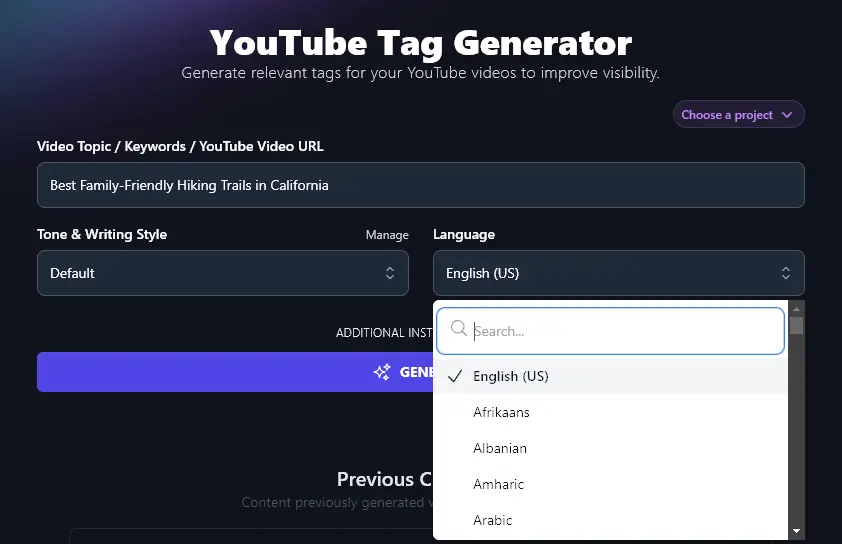
Step 3. (Optional) Pick a Language for Your Tags
If you’re creating content for a non-English speaking audience, then it’s a good idea to use tags in that language.
Tip: For maximum visibility, you could also generate your tags in English, as many non-native speakers will still search in English.
To change the language, simply click on the Language dropdown and use the search box (or scroll) to find your preferred language. RightBlogger has 100+ options to choose from!
Once you’re happy with the options you’ve selected, generate your tags. RightBlogger will come up with a list of optimized tags in seconds.
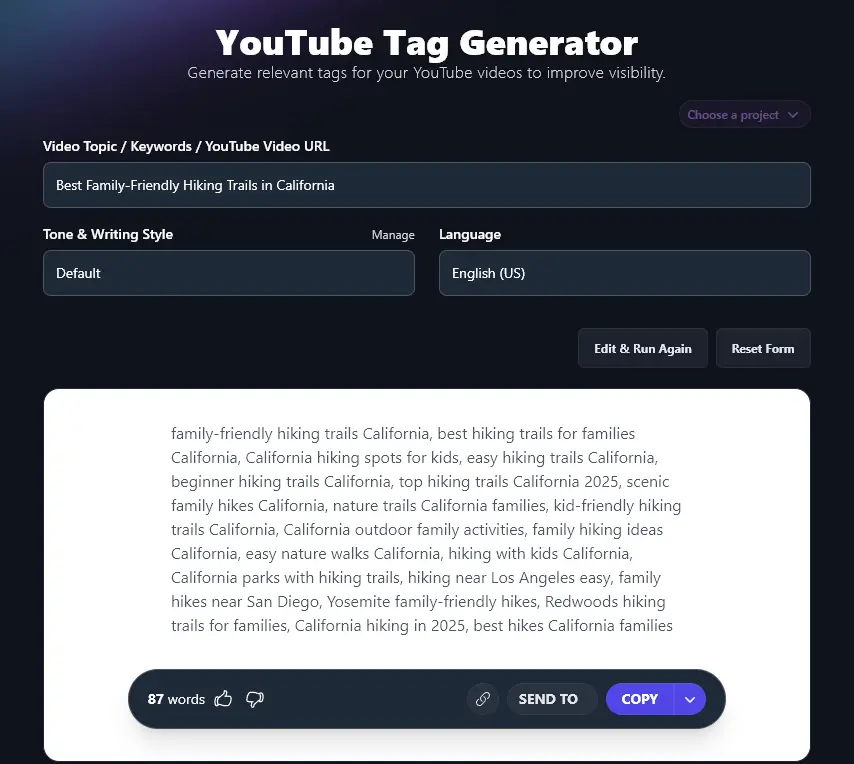
Step 4. Paste Your Tags Into Your YouTube Video (YouTube Studio)
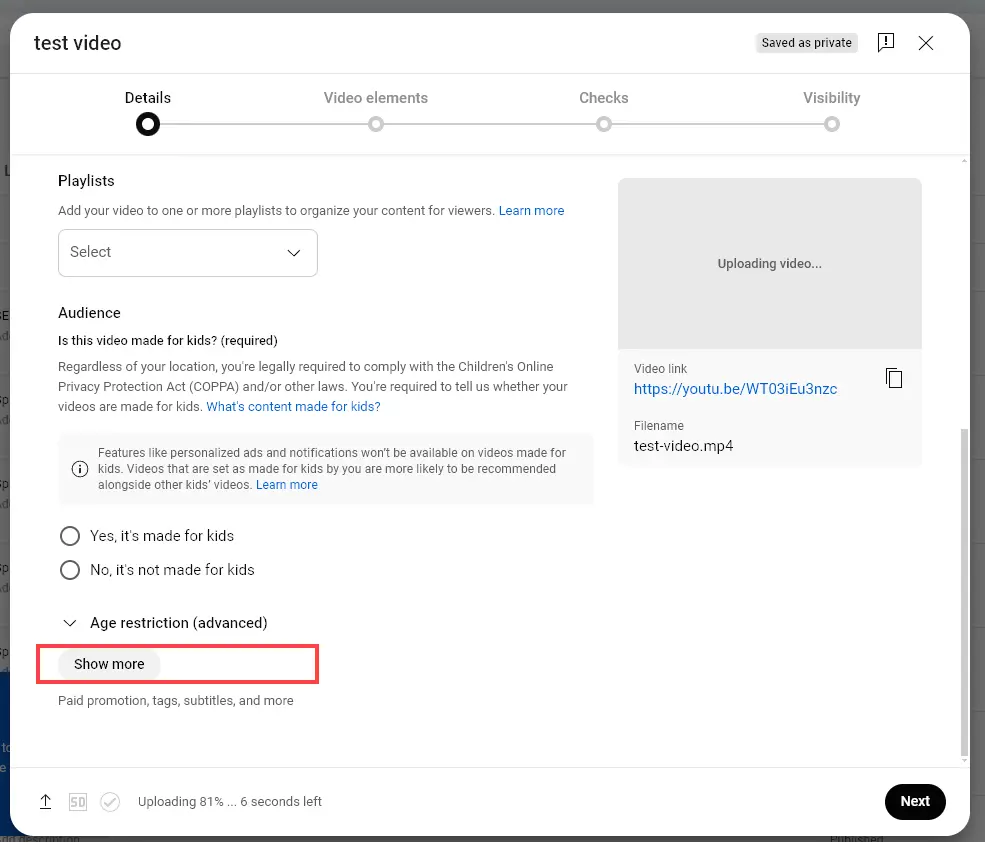
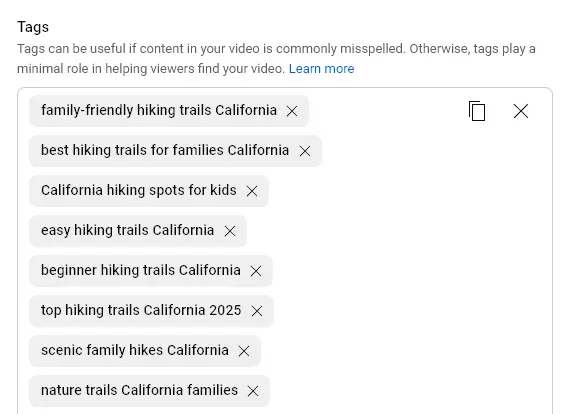
After creating your tags, use the “Copy” button to copy them. Then, when uploading or editing your video in YouTube studio, you can paste in your tags. Just head to the “Details” section then click “Show More”.
You can then paste all your tags into the Tags box, like this:
Bonus: Use My Free YouTube SEO Checklist Along With This Tool
You might think that SEO (search engine optimization) is for written content … but video SEO is really important too. A well SEO-optimized video is much more likely to be found through relevant search queries, helping you reach more people in your target audience.
Here’s my personal checklist that you can use to improve your YouTube video’s SEO:
- Carry out keyword research to find out what people are searching for in your niche: use the keyword research tool or get ideas from the “search suggest” feature in YouTube
- Choose a suitable YouTube keyword to use in your video’s title
- Make sure you include that keyword (plus related keywords) in your video description too
- Look at popular and trending videos in your niche: consider using specific tags and hashtags that they use
- Keep in mind that the tag section limits you to 500 characters, make sure you get your most important tags in first
- Encourage viewers to like, subscribe, and/or share your video, which signals to YouTube that it’s popular
- Make sure your title and thumbnail stand out and encourage clicks (YouTube considers your clickthrough rate when deciding where to rank your video)
- Say your keyword at least once during your video, so it can appear in your transcript
How Does the YouTube Tag Generator Work?
The YouTube tag generator gives you lots of descriptive keywords to add to the “tags” section of your video. Let’s take a look at each feature so you can get the most from it.
1. Video Topic / Keywords / YouTube Video URL (Highly Flexible)
This tool lets you enter a topic, title, keywords, or a URL. If you’ve got an existing video that isn’t doing quite as well as you hoped, pop the URL in here then paste the generated tags into your video details page.
Along with using your keyword in your video’s title and description, this could make a big difference to your discoverability.
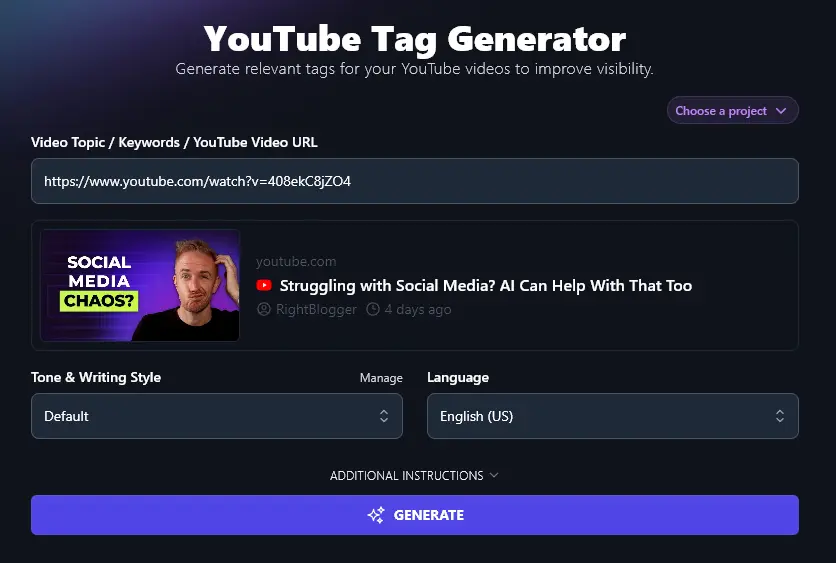
Here’s how the generator looks when you add a URL: it’ll bring in a preview of your video, showing the thumbnail and title:
2. Tone & Writing Style (Tweak the Style of Your Tags)
The YouTube tag generator aims to use common search queries for your tags, so adjusting the tone & writing style won’t make as much difference here as (say) with the YouTube script generator.
If you do want to experiment with different styles, though, just select one from the dropdown.
3. Language (More Than 100 Languages to Choose From)
Looking for tags in a language other than English? RightBlogger can produce tags in over 100 different languages, from Afrikaans to Zulu.
Simply pick your language from the dropdown menu and generate your tags.
YouTube Tag Generator FAQs (Frequently Asked Questions)
Got questions about using the YouTube tag generator or about tags in general? Here’s everything you need to know.
Are YouTube Tags Still Relevant for SEO on YouTube?
YouTube’s own documentation says tags play a “minimal role” in video discovery. Your title, description, thumbnail, and watch time matter far more. That said, tags still help in specific situations: commonly misspelled search terms, niche topics where YouTube’s AI needs extra context, and alternate spellings of your keywords. Since adding tags takes seconds with this free tool, the effort-to-benefit ratio makes them worth including every time.
What Are YouTube Tags vs Hashtags?
YouTube tags are metadata that YouTube’s algorithm can see. YouTube hashtags can be seen both by the algorithm and by viewers, as you paste them into your video description. Hashtags are clickable links that you can use to hopefully reach a wider audience (e.g. if someone clicks on that same hashtag in another person’s video, they may see your video in their YouTube search results).
It’s a good idea to include both tags and hashtags for your video. You can use a hashtag generator to come up with hashtags, or you can look at what hashtags popular videos in your niche are using.
How Do I Choose the Right Tags for YouTube?
Using our tag generator is a simple way to come up with relevant tag suggestions for your video. If you want to come up with tags on your own, think of tags as long-tail keywords that people might type in when searching for videos on your topic.
You can also use a tag extractor / tag inspector to see what tags other (related) videos are using.
Can I Add Tags to YouTube Shorts?
Yes. YouTube Shorts support tags just like regular videos. When uploading or editing a Short in YouTube Studio, click “Show More” to find the tags field. Since Shorts compete in both the Shorts feed and regular search results, adding relevant tags gives your Short a small extra signal for discoverability.
What Other AI Tools Can I Use to Improve My YouTube Channel?
RightBlogger is packed with 100+ tools that you can try out for free. This includes a whole set of YouTube tools, such as:
- YouTube Video Ideas: get instant ideas if you’re stuck for what to create next
- YouTube Video Title: create an engaging title that will encourage clicks (and support good SEO)
- YouTube Video Description: use YouTube keywords in your description, automatically
- YouTube Video Outline: come up with an outline for a video on any topic in seconds
- YouTube Video Script: craft a full script for your next YouTube video
- YouTube Video to Blog Post: automatically generate a nicely formatted blog post based on any YouTube video
Along with these, we have blogging tools, SEO tools, social media tools, and more.
Who is the YouTube Tag Generator Tool For?
We created the YouTube tag generator for YouTubers, influencers, bloggers, content creators, content marketers, SEO professionals, small business owners, and anyone looking to grow their YouTube channel.
How Do I Sign Up for RightBlogger and How Much Does it Cost?
The YouTube Tag Generator is free to use above with no account, and it comes included in every RightBlogger plan: Solo at $49/mo, Pro at $69/mo, and Agency at $199/mo billed annually, each with a 7-day free trial and a 30-day money-back guarantee.
Every paid plan includes unlimited access to all tools plus advanced features like autoblogging. Monthly Pro is $89 (annual $69) and includes 3 sites and 3 seats. See RightBlogger pricing.