
YouTube Title Generator: Create Click-Worthy Video Titles
Generate SEO-friendly YouTube video titles from a topic, keyword, or URL to improve discoverability and drive more clicks from search and suggested videos.
The title of your YouTube video can make a huge difference to its success, and RightBlogger’s YouTube video title generator makes it easy to come up with a powerful title. You want a title that’ll grab attention and perform well in YouTube search.
It can be tricky to come up with the perfect title, but that’s where our AI-powered tool comes in. You want a title that will connect with your target audience, increasing click-through rates … while also incorporating keywords so that your video ranks well in YouTube and Google search results.
How to Use the AI YouTube Video Title Generator
Our free AI title generator is easy to get started with. Here’s how to use it, step by step.
Step 1. Enter a Starting Topic, Title, or Video URL
To come up with good YouTube title suggestions, the AI needs to know what your video is all about. Type in your topic or working title, or, if your video is already published, simply paste in the URL.
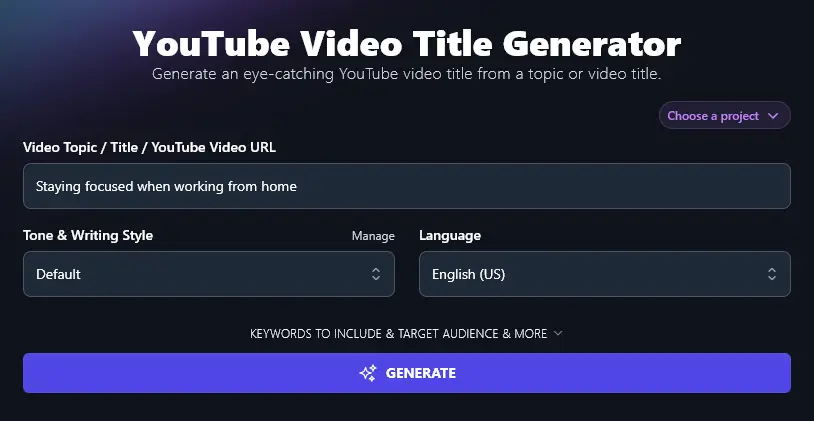
Step 2. Select Your Tone & Writing Style for the Video Title
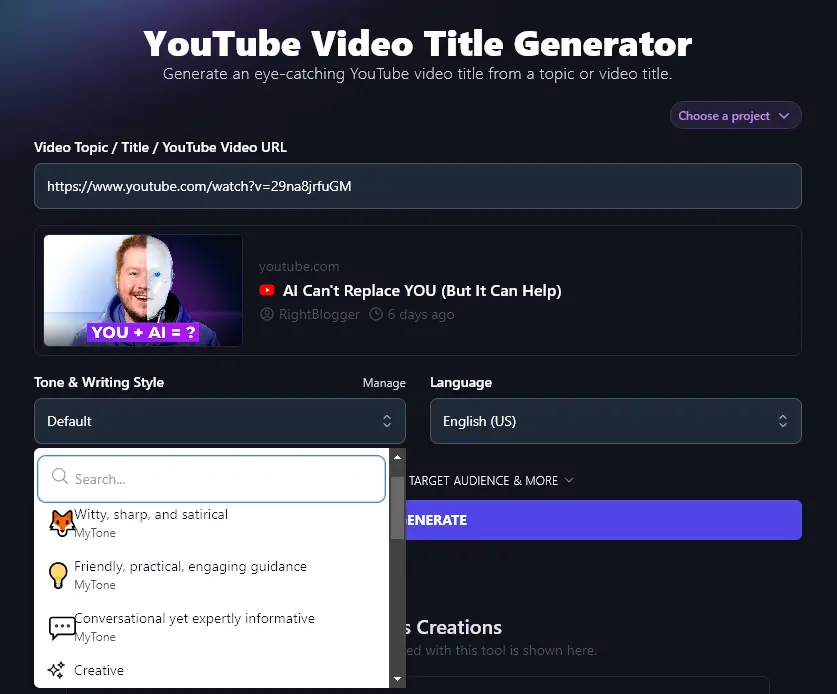
Like all RightBlogger’s generative AI tools, you can adjust the tone & writing style within the YouTube Title Generator. Want a “Fun & Quirky” title or an “Academic” title? Simply select any of the styles from the dropdown list:
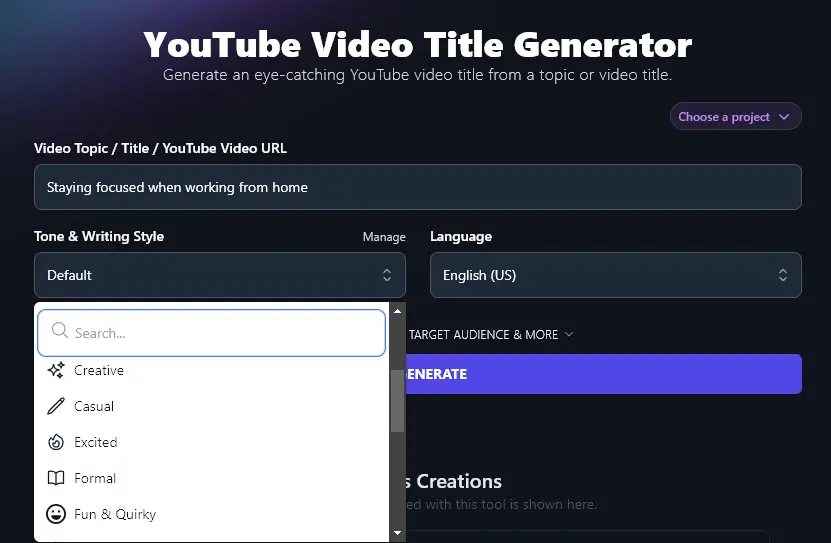
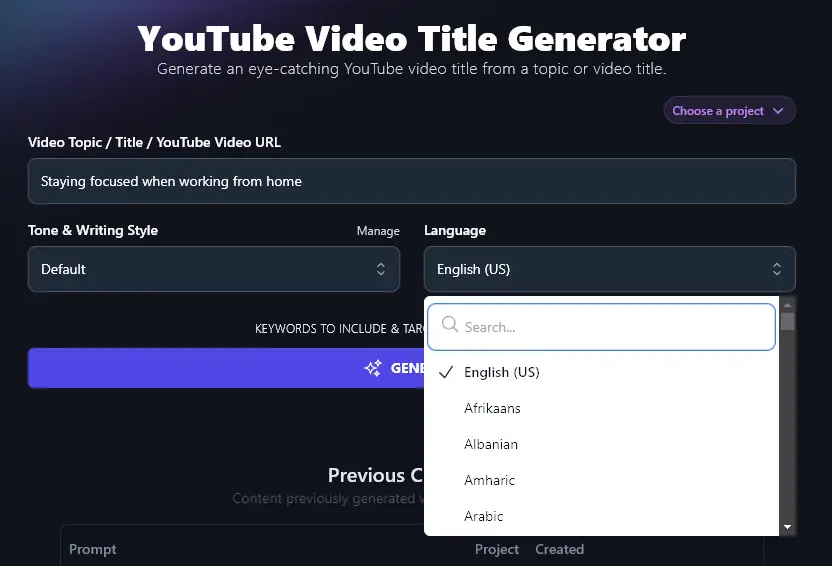
Step 3. (Optional) Pick a Language for Your Title
If you’re creating videos in a language other than English, the AI title generator can handle that for you, with over 100 languages to choose from. Simply click on the dropdown list and scroll or search for the language of your choice.
Once you’re happy with the options you’ve selected, go ahead and run the title generator. The AI will come up with 10 different attention-grabbing titles for you:
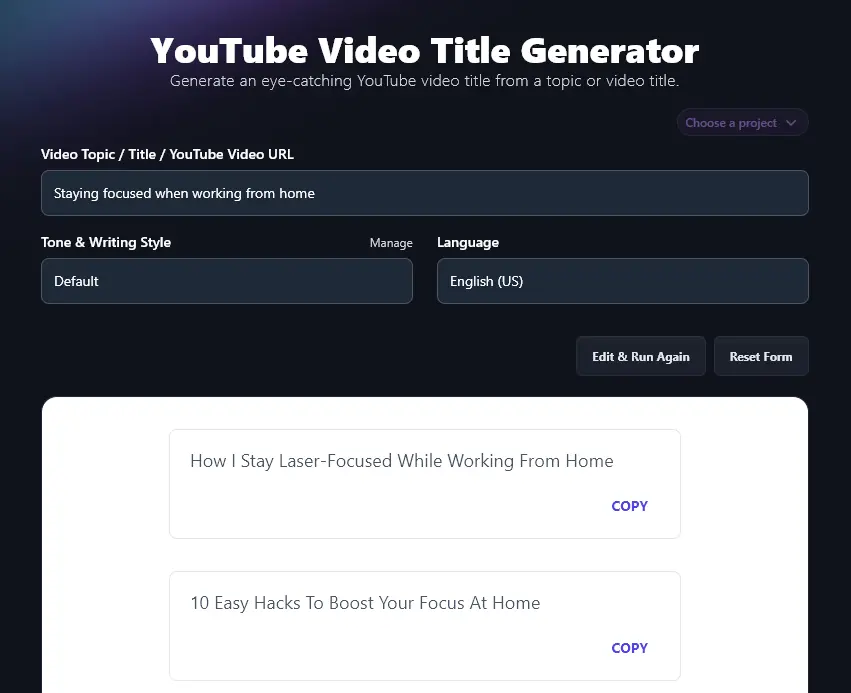
Tip: Not quite ready to decide on a title? You can copy all your generated titles by scrolling to the bottom of the list and clicking the “Copy All” button.
Bonus: Use My Free YouTube SEO Checklist Along With This Tool
Your title is an important ranking factor for your YouTube video … but for an SEO-optimized piece of content, there’s more you need to do.
Here’s my personal YouTube SEO (search engine optimization) checklist that you can use:
- Carry out keyword research to find out what topics are popular in your niche (use the keyword research tool or YouTube’s “search suggest” feature)
- Based on your research, select a suitable keyword and use it in your video’s title
- Also include your keyword (and any other relevant keywords) in your video’s description
- Examine popular/trending videos in your niche: try using the tags and hashtags that they use
- Add your most important tags first, as the Tags box limits you to 500 characters
- Prompt viewers to like, subscribe, or share your video, as all of these actions help signal to YouTube that your video is popular
- Create a thumbnail image that stands out and encourages clicks (a good clickthrough rate can help boost your ranking)
- When recording, say your keyword at least once, so that it appears in your transcript
How Does the YouTube Title Generator Work?
To get the most from the YouTube title generator, you’ll want to dig a little deeper into how it works. Let’s take a look at how to get the most from all the standard and advanced features of the tool.
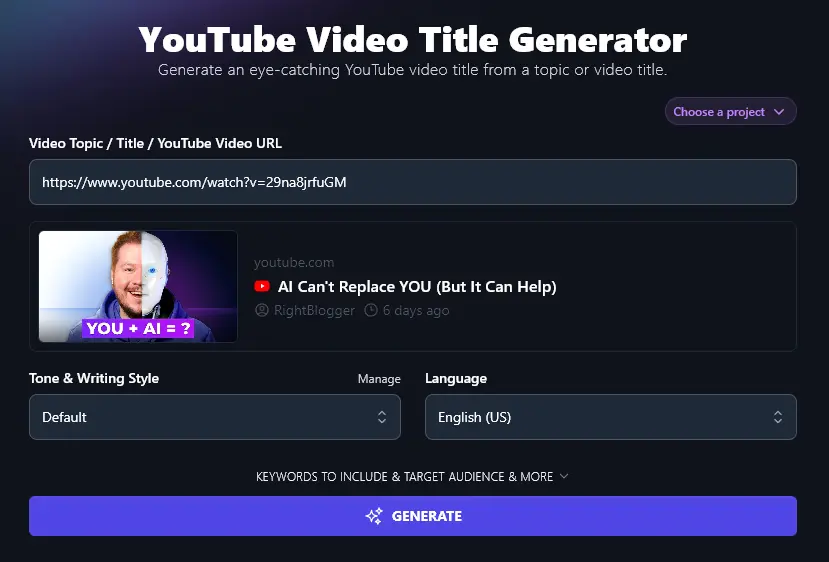
1. Video Topic / Title / YouTube Video URL (Use at Any Stage of Content Creation Process)
As well as using the YouTube title generator to come up with catchy titles for your new video ideas, you can use it to re-title existing videos.
If you’ve got a video that’s underperforming, simply paste the URL into the tool. The AI will instantly come up with brand new title ideas for you.
You’ll see a preview of your video, including the thumbnail, after entering your URL:
2. Tone & Writing Style (Get Titles That Fit With Your Brand)
In some cases, you may just want a clear, straightforward title that gets attention. But what if you’d like something a little more eye-catching or a title that’s a strong fit for your brand?
That’s where the “Tone & Writing Style” dropdown comes in. There are 16 different pre-set options to choose from. Here’s a quick look at the difference these can make to your titles.
Our first set of titles uses the “Fun & Quirky” tone. They’re great engaging titles that will pique a potential viewer’s interest (and they hint at the style of your video content).
- “How to Focus When Your Couch Won’t Stop Flirting with You”
- “Stop Scrolling! These Tips Will Save Your Workday”
- “Working From Home? Here’s How to Stop Getting Distracted by Your Plants”
- “Why Your To-Do List is Just a Fancy Scribble Without Focus”
- “How to Crush Deadlines While Wearing Pajamas”
- “Zoom Calls, Snacks, and the Secret to Actually Getting Stuff Done”
- “Your Phone is Sabotaging You, and Here’s How to Fight Back”
- “The 5-Minute Fix to Stop You from Staring at the Fridge”
- “Why Your Productivity Tanked (and How to Fix It Today!)”
- “Focus Like a Pro: Tricks That Even Your Cat Can’t Distract You From”
Our second set uses the “Professional” tone. They’re much more straightforward in style and would suit a business-focused audience:
- “10 Simple Hacks To Stay Focused While Working From Home”
- “How To Set Boundaries at Home and Boost Your Productivity”
- “The Secret To Staying On Task When You’re Surrounded by Distractions”
- “Why Your Home Office Setup Might Be Hurting Your Focus”
- “7 Daily Habits To Stay Productive When Working From Home”
- “How To Beat Procrastination and Get More Done at Home”
- “The Biggest Mistakes That Kill Focus When You Work From Home”
- “How I Avoid Burnout and Stay Focused Working From Home”
- “5 Quick Tips To Stay Sharp and Focused All Day at Home”
- “The Best Way To Balance Home Life and Work Without Losing Focus”
On any plan, you can also create your own with our MyTone feature. Once you’ve added a custom MyTone (from a URL, text sample, or even a video!) then you can simply pick it from the Tone & Writing Style dropdown list.
3. Language (Pick from 100+ Different Languages)
If you’re creating content for a non-English speaking or multilingual audience, you can select your chosen language from the language dropdown.
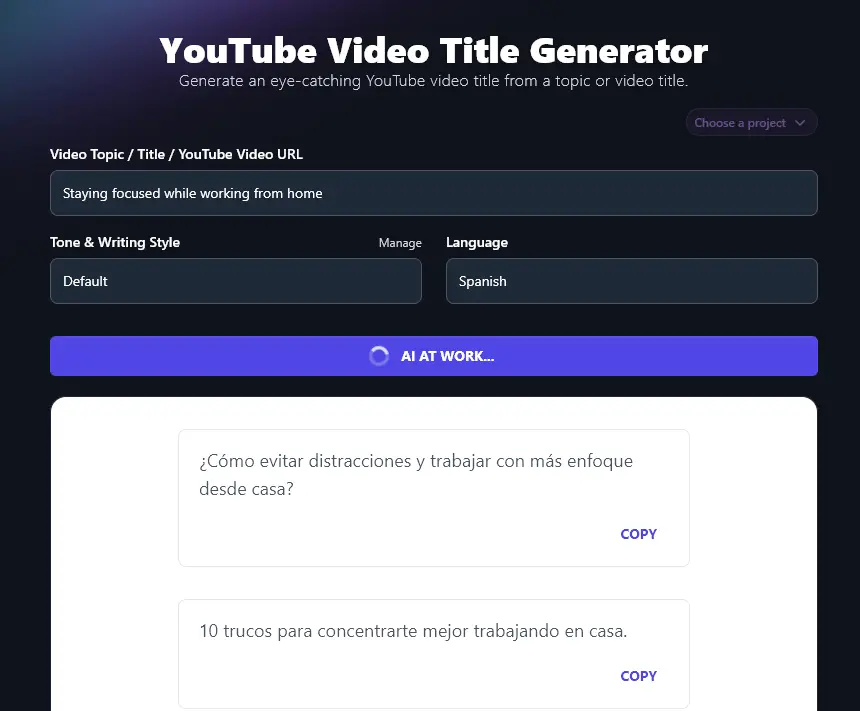
Tip: As well as writing in all these different languages, RightBlogger can handle 4 different varieties of English: US, UK, Canada, and Australia.
4. Keywords to Include (Add Your Primary Keyword for Best SEO)
The YouTube video title generator also has some advanced options that you can open up by clicking the “Keywords to Include & Target Audience & More” link.
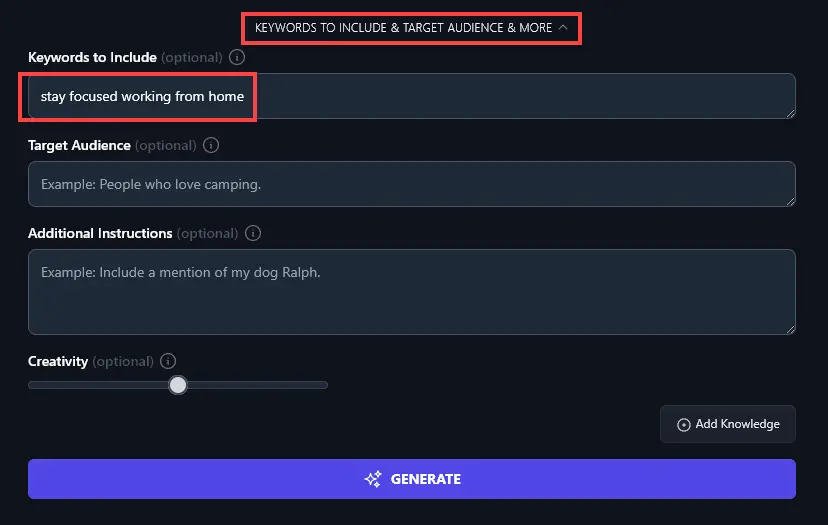
For good video SEO, we recommend adding your primary keyword in the “Keywords to Include” box. (You can include additional keywords by separating them with commas.)
The AI will try to include your keyword(s) within the title suggestions. Note that if you add multiple keywords, it may only be able to include one, as each title needs to be fairly short.
5. Target Audience (Who’s Your Video Aimed At?)
The AI can come up with titles precisely tailored to your target audience or ideal customers. Just enter details in the “Target Audience” box.
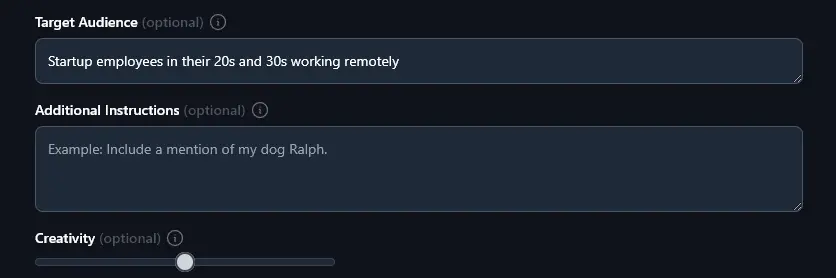
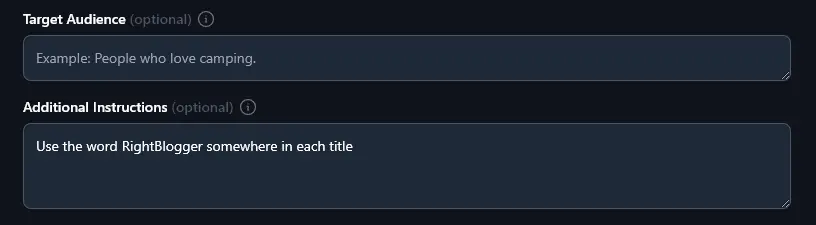
6. Additional Instructions (Any Other Requests for the AI)
If you have any other requests for your titles, enter them here. For instance, you might want the AI to mention your business or product name in the video title.
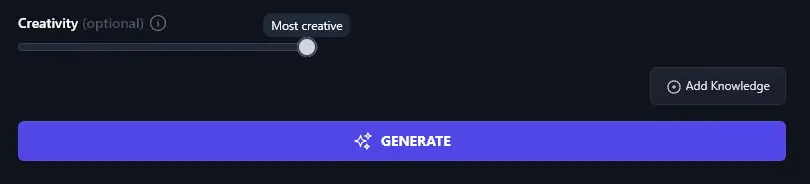
7. Creativity (Make Your Titles More or Less Unusual)
RightBlogger’s AI defaults to a medium level of creativity, which works in most cases. This offers a balance between conventional titles and unpredictable ones.
If you want more unusual (or more obvious) titles, just adjust the creativity level.
YouTube Video Title Generator FAQs (Frequently Asked Questions)
Got questions about using the YouTube video title generator, or about YouTube titles in general? We’ve got the answers you need.
How Long Should My YouTube Video Title Be?
YouTube lets you enter up to 100 characters for your video title. However, when your title appears in Google, it’ll only show up to 70 characters. We recommend aiming for a max of around 65 characters.
How Many Times Can I Change My YouTube Video Title?
You can change your video’s title as often as you want. If you choose a title then decide on a more captivating option later, just switch it!
What Makes a Great YouTube Video Title?
There’s no one perfect way to title your YouTube videos. But for the best title, you’ll usually want to aim for:
- Using your primary keyword in your title (good for SEO).
- Writing a title that clearly explains what your video is about (good for viewers, and your click-throughs).
- Including a power word, like “easy”, “fast”, “best”, “instantly”, “exciting”, “powerful”, “clever”, and so on.
- Avoiding clickbait titles that make vague or outlandish promises, this can annoy viewers and could get your video reported to YouTube.
Can I Use the YouTube Video Title Generator for Shorts or TikTok?
While we designed the YouTube video title generator for full-length YouTube videos, you could also use it to come up with titles for YouTube Shorts or TikTok. Just add “Short video about” at the start of the title and the tool will come up with suitable titles.
What Other AI Tools Can I Use to Improve My YouTube Channel?
We have lots of other YouTube tools in RightBlogger, plus a full suite of content creation tools. Here are some you’ll definitely want to check out:
- YouTube Video Ideas: use this tool if you’re stuck for an idea (or you need a little extra inspiration)
- YouTube Tag Generator: come up with relevant tags you can copy and paste into YouTube studio
- YouTube Video Description: create a video description that incorporates your keywords
- YouTube Video Outline: plan and outline a video on any topic in seconds
- YouTube Video Script: write a full script for a YouTube video (whatever the format, e.g. tutorial vs top 10)
- YouTube Video to Blog Post: instantly turn a YouTube video into an engaging, SEO-friendly blog post
Along with these, we have social media tools, SEO tools, blogging tools, and more.
Who is the YouTube Video Title Generator Tool For?
We designed the YouTube video title maker for YouTubers, influencers, bloggers, content creators, content marketers, SEO professionals, small business owners, and anyone creating and publishing content on YouTube.
How Do I Sign Up for RightBlogger and How Much Does it Cost?
The YouTube title generator is available with any RightBlogger account.
Three paid plans with unlimited words. Monthly from Solo $59 (annual billing, charged monthly, is $49). The Pro plan (monthly $89 (annual $69)) adds team seats and 3 sites, while monthly Agency $299 (annual $199) scales to 10+ sites. All include MyTone, Projects, and the Knowledge Library. See pricing.