Looking for a high-quality Facebook Post Generator that just gets you, to help keep a steady stream of social posts flowing on your Facebook? RightBlogger’s free AI Facebook Generator can quickly write valuable Facebook posts in your voice, on any topic.
Whether you’re looking to make sales, capture leads, or simply get more engagement, our AI-powered tool is here for you. It’s suitable for all industries, or you could even use it to grow your personal brand online.
How to Use the Facebook Post Generator
The Facebook Post Tool is super quick to get started with. Here’s what to do, one step at a time.
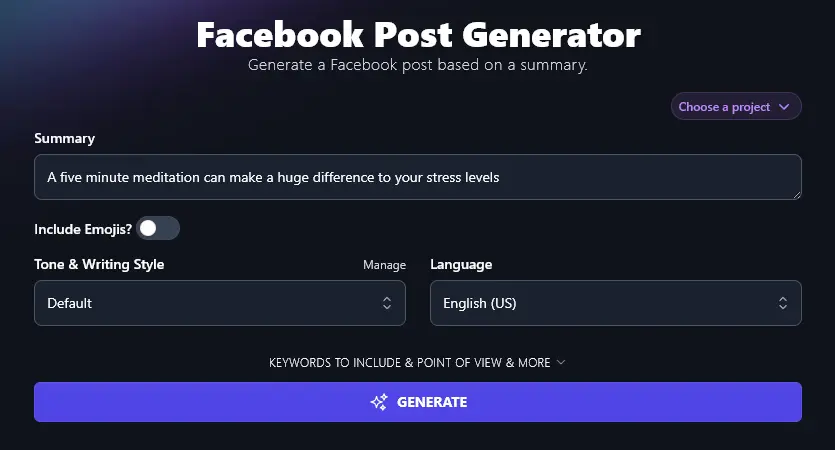
Step 1. Enter a Summary of Your Post (Topic or Brief Explanation)
What do you want to post about? Type a summary of your idea or topic into the first box. You don’t need to write a lot, a few words or a sentence is enough for the AI to work with.
Step 2. Decide Whether or Not to Include Emojis in Your Facebook Post
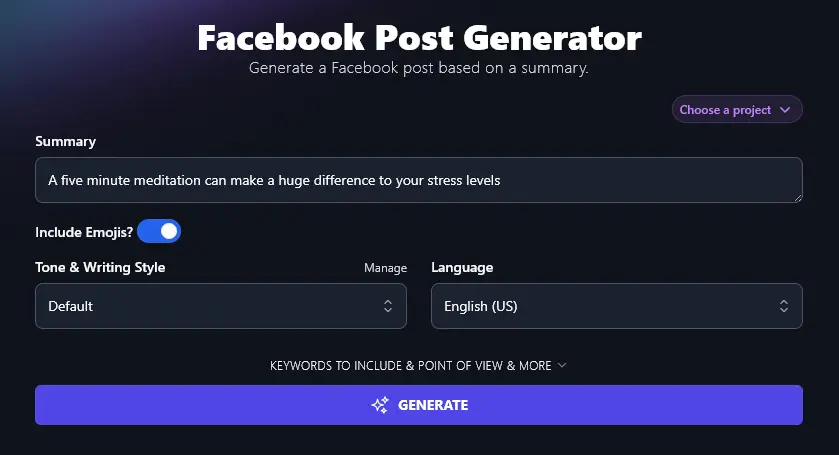
Emojis can be great on social media, if they suit your brand. The Facebook Post Generator gives you the option to include emojis, but the AI will leave them out if you don’t want them.
To turn on emojis, just toggle the “Include Emojis?” switch.
Step 3. Select a Tone and Writing Style for Your Facebook Post
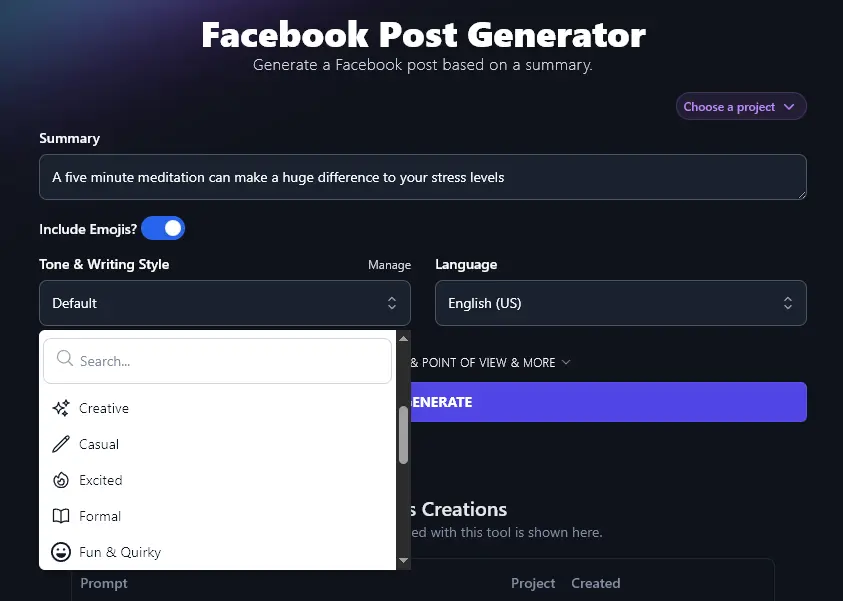
The Default writing style might suit you just fine, but you might want to experiment with one or more of our 16 preset styles to see if they’re an even better fit for your brand voice.
Simply click on the dropdown and choose any style you want. We’ve got a whole range of options, like Casual, Excited, Fun & Quirky, Formal, Academic, and Passionate.
Step 4. Choose from 100+ Languages (Optional)
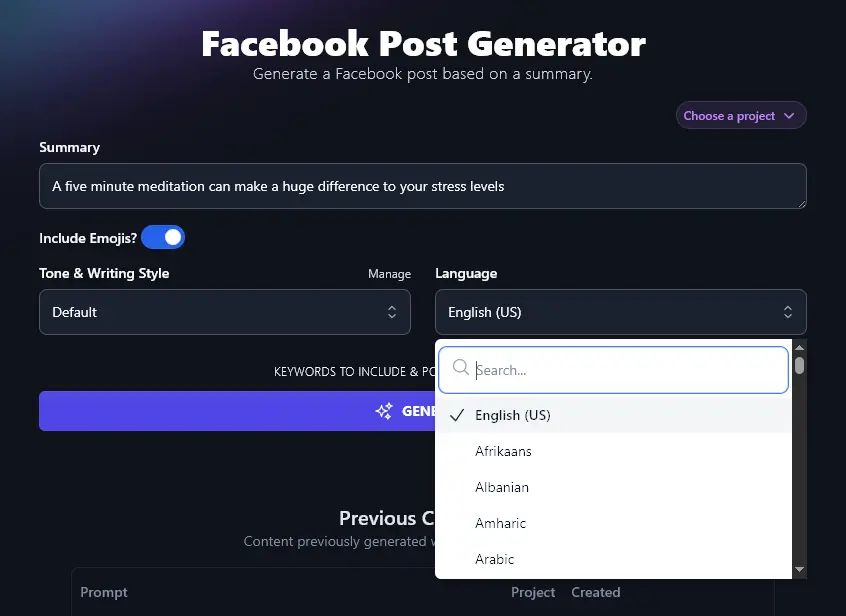
RightBlogger defaults to US English for your content, but you can change this to any of 100+ languages using the Language dropdown. So if your audience aren’t English speakers, or if you’re creating content for a multilingual Facebook page, go ahead and choose your preferred language here.
Tip:There’s a search bar at the top of the dropdown list, to save you scrolling.
Once you’re ready, press the “Generate” button to create your Facebook post.
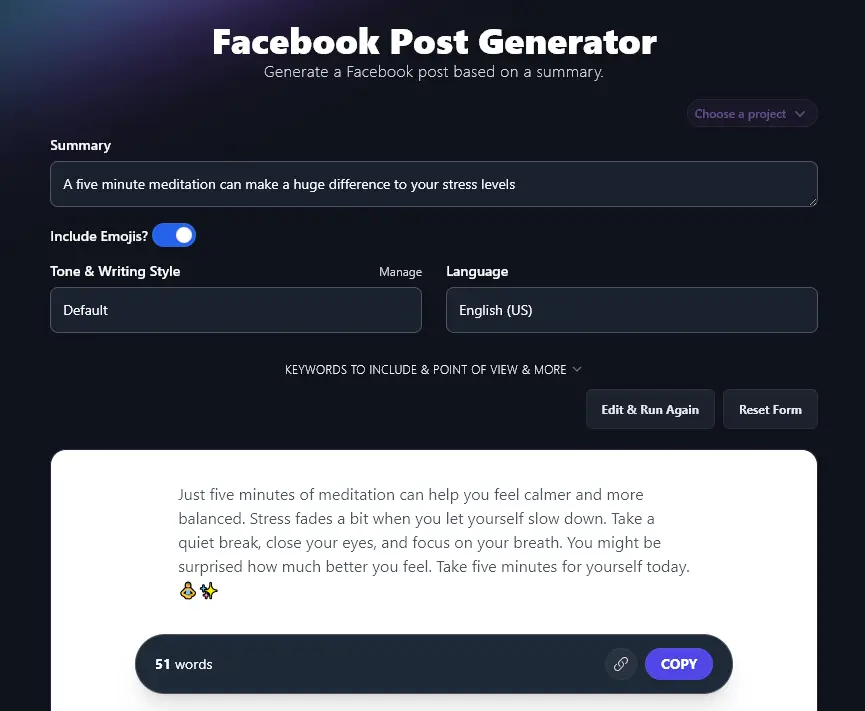
You can use the “Copy” button to copy the text, including the emojis, for easy pasting into Facebook.
Bonus: Use My Facebook Post Checklist Alongside This Tool
Ready to publish a new post on Facebook? Here’s my quick personal checklist that you can use to make sure you’re always putting out quality content and making a great first impression.
- Is your post useful to your audience, and does it use the type of language that will connect with them?
- Are you offering genuinely valuable content that benefits the person reading it in some way? (E.g. offering a helpful tip, making them feel supported and encouraged).
- Is your tone of voice consistent with your brand as a whole?
- Have you checked your post for any grammar and spelling errors? (Try the Grammar and Spelling Fixer for instant help.)
- Do you feel proud of the post, and happy for it to represent your brand in a wider context? Remember, it’s easy for users to make a screenshot of your post, so it could get shared even if you delete it.
- Is your post a good length for Facebook? Hubspot recommends sticking to 80 characters or less if you’re looking for higher engagement.
How Does the Free Facebook Post Generator Work? (Deep Dive and Advanced Features)
It’s very straightforward to generate a Facebook post using this tool … but how do you get the most from it?
Let’s take an in-depth look at each feature, including all the advanced options.
1. Summary (Write Whatever You Want Your Post to Be About)
The first input box is for a summary of your post. You can write anything from a short phrase up to several paragraphs here, though you’re unlikely to need more than a sentence or two.
If you just want a content-focused post on a topic, feel free to be fairly general. If you want a post that includes specific details (e.g. for a product launch) then include those.
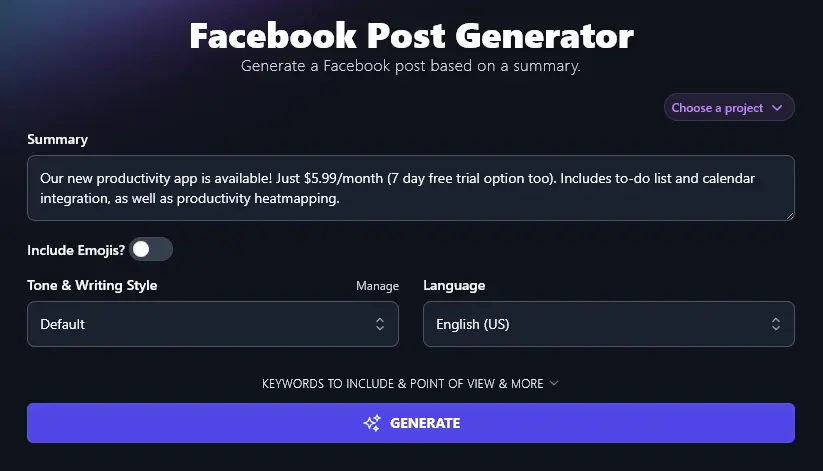
2. Include Emojis? (Toggle On or Off Depending On Your Preferences)
The “Include Emojis?” switch is set to “Off” by default, so your Facebook posts won’t include emojis unless you want them to.
When the AI does include emojis, it’ll do so sparingly and with regard for the context, it won’t use random or nonsensical emojis.
Without Emojis
Our new productivity app is ready for you. Sign up for just $5.99 a month. You can try it free for seven days and see how it fits your routine.
Keep track of your to-do list, meetings, and reminders all in one place. The app connects with your calendar, so nothing gets missed. Check your productivity heatmap to see when you get the most done.
Give it a go and see how your days can run a little smoother. Your time is important. Make each day count.
With Emojis
Our new productivity app is here! Get organized with a simple to-do list and calendar integration, both in one spot. See your busiest and best hours with our easy heatmap feature. Try it free for 7 days, then keep going for just $5.99 a month. Give it a go and enjoy a smoother workday. 📅✅🔥
3. Tone & Writing Style (Select from the List … or Create a Custom Tone)
You want your Facebook posts to sound like you, and that’s why our AI Facebook Post Generator includes a Tone & Writing Style dropdown, with a wide variety of preset tones for you to use.
These make a big difference to your posts and how your brand identity comes across. For instance, here’s a quick example of the same post written in two different styles.
Fun & Quirky Style:
Some apps track steps. Ours tracks your day. Meet your new productivity sidekick: now live. Add tasks, map your week, and watch your focus bloom. The to-do list rolls out of bed with you. The calendar keeps up, never missing a beat. Heatmaps light up like a neon sign, showing when you get things done (and when you’re just scrolling dreary memes). Smash through tasks for the price of a fancy latte, just $5.99 a month. Try it free for a week. Your calendar and your peace of mind will thank you, even if your snooze button doesn’t.
Professional Style:
Our new productivity app is now available for $5.99 a month. Start with a 7-day free trial to explore its features. The app combines a clear to-do list with easy calendar integration. Track your progress at a glance and spot trends in your work through productivity heatmapping. Stay focused and organized in your daily tasks. Try it today and see how it fits your workflow.
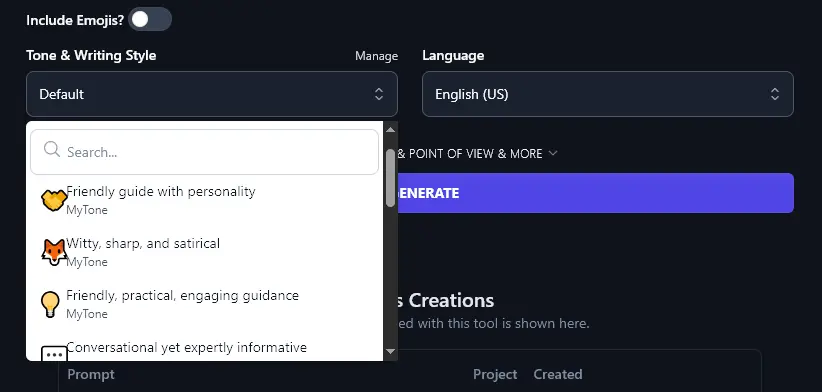
As well as choosing from our styles, you can create a completely custom style of your own using RightBlogger’s MyTone feature. Every plan includes it, and paid plans save 5 (Solo), 15 (Pro), or 50 (Agency) MyTones. Simply give the AI a sample of your voice, which can be a text piece or even a video, and it’ll automatically learn your style, saving this as a new MyTone.
Once you’ve created a MyTone, you can use it across all RightBlogger’s text generative tools. Just select it from the Tone & Writing Style dropdown list:
4. Language (100+ to Pick From, Including 4 Varieties of English)
RightBlogger can create Facebook posts in more than 100 languages. Note that the language you pick here doesn’t need to match your input: for instance, you could enter your Summary in English then choose a different language.
Here, we created a Facebook post in Spanish:
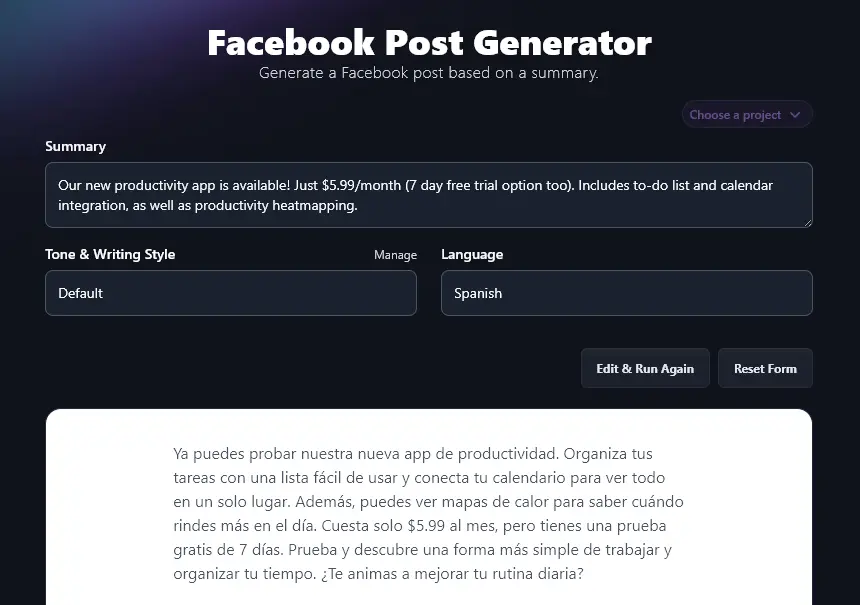
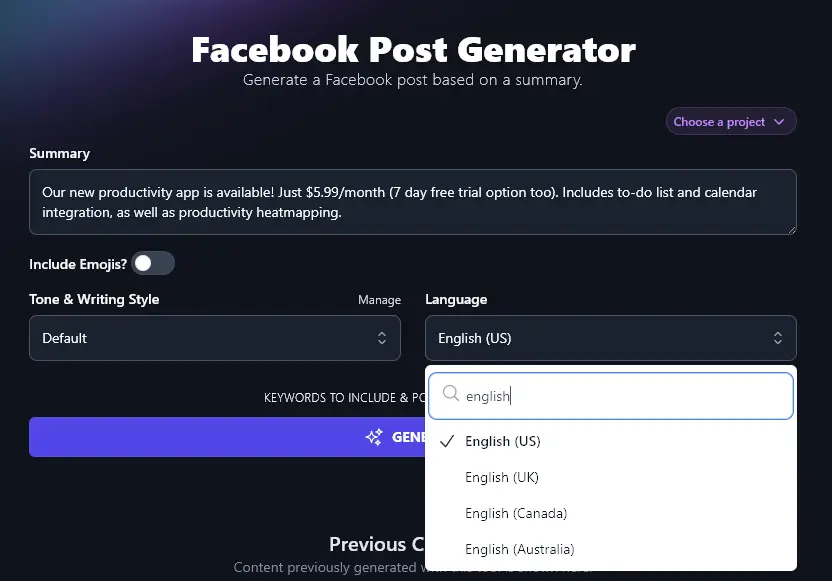
The Language dropdown also gives you access to 4 versions of English. Whether you’re in the US, UK, Canada, or Australia, you can choose the right variety of English, and your Facebook post will use the correct spellings and terms.
5. Keywords to Include (Helps Improve Visibility and Reach)
The Facebook Post Generator has several advanced features, which you can view by clicking the “Keywords to Include & Point of View & More” link.
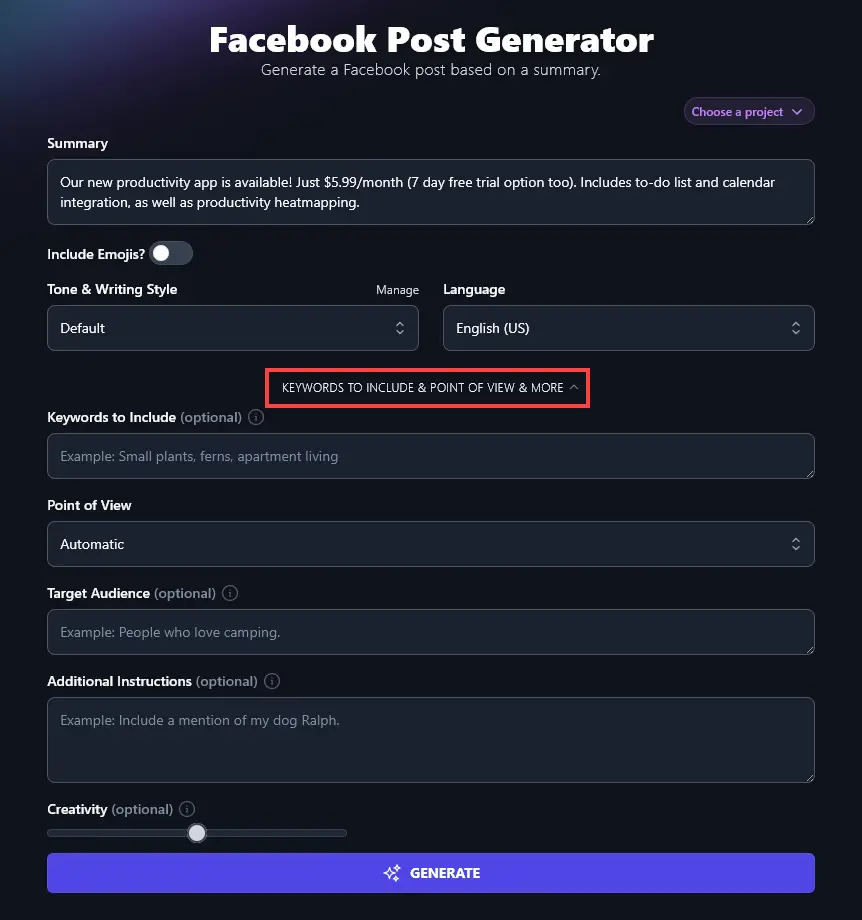
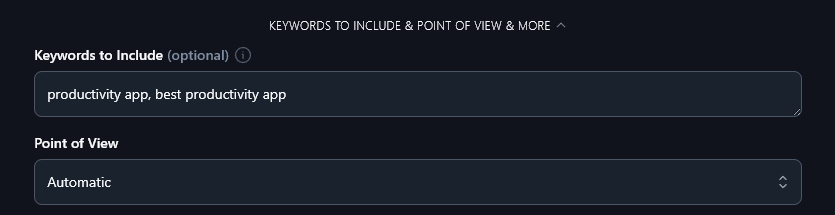
The first option you’ll see is the “Keywords to Include” box. It might seem odd to think about keywords in the context of a Facebook post, but keywords are important in your Facebook content, just like they are on your blog.
Using keywords helps people find your post in Facebook search and can even help your Facebook posts to rank in search engines like Google. You can use our free Keyword Research Tool to help you find the types of keywords that your audience is likely searching for.
6. Point of View (Pick a Perspective for Your Post)
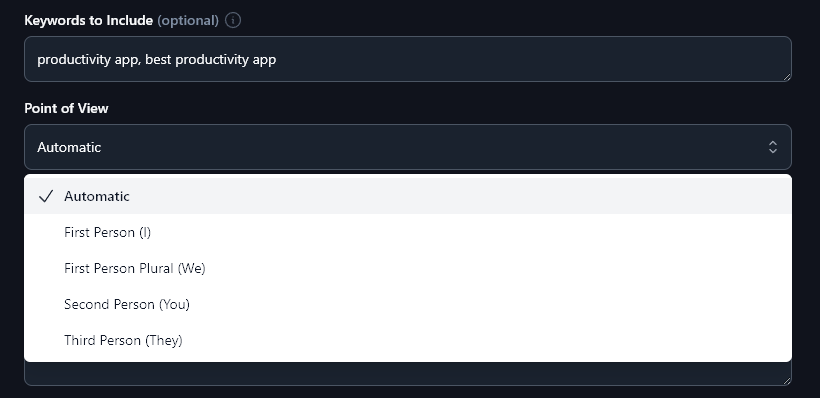
The AI will aim to automatically choose an appropriate point of view for your post, but you can adjust this by selecting one from the dropdown list.
The options are:
- First Person (I), the post will use the “I” perspective, ideal if you’re talking about your own experiences
- First Person Plural (We), useful for partnerships and companies, this will use “we” instead of “I” for your post
- Second Person (You), ideal for focusing on your reader, “you” works well for many posts
- Third Person (They), a more neutral tone, this perspective can be useful for more formal, B2B-style content
7. Target Audience (Who is Your Facebook Post Aimed At?)
Who are you trying to reach through your Facebook posts? What’s your target audience for your products or services? It can be helpful to let the AI know this so it can tailor your content to that audience.
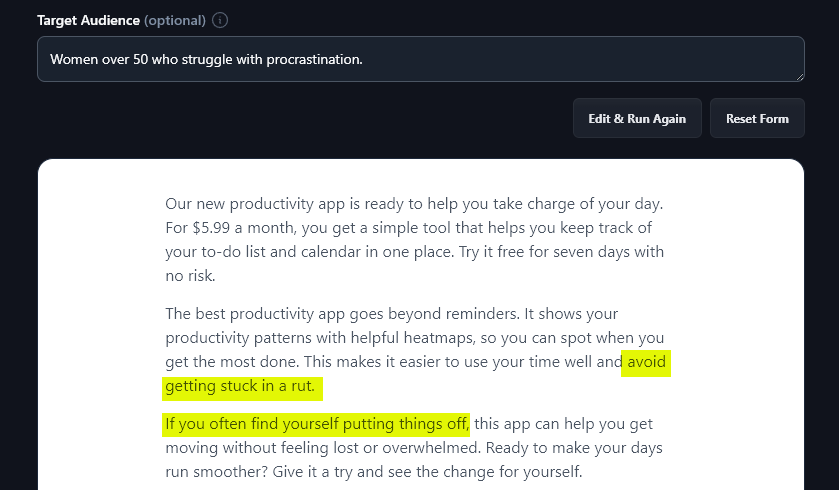
You can give information about demographics (e.g. “women over 50”) or about psychographics (e.g. “people who struggle with procrastination”) … or both.
Here, the AI has added phrases that are specific to our target audience’s struggle with procrastination. We’ve highlighted those phrases in yellow so you can see how the Facebook post is tailored to our audience.
8. Additional Instructions (Give the AI Any Extra Requests for Your Facebook Post)
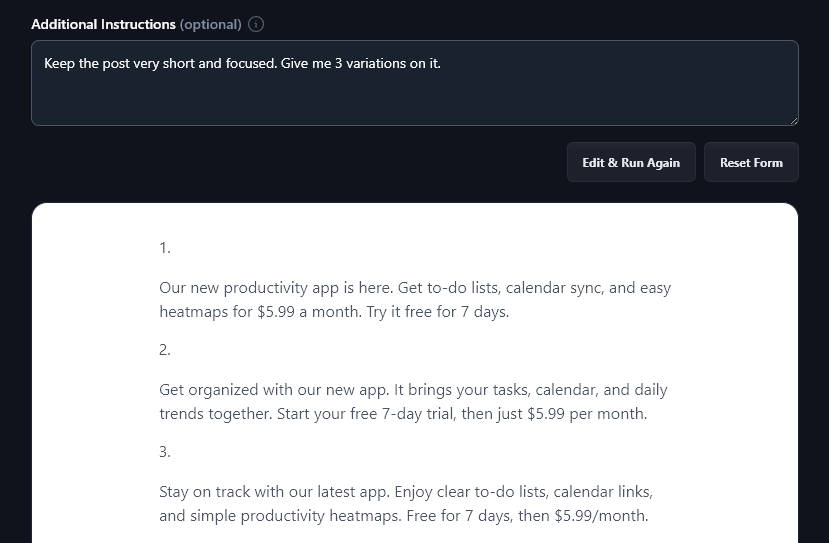
The Additional Instructions box puts you in charge. Want emojis at the start of your post? Need a list of bullet points instead of paragraphs? Want your post to be really short? Looking for several variations on your post, so you can pick the one you like best? Just tell the AI, and it’ll deliver!
9. Creativity (Make Your Facebook Post More Unusual or More Predictable)
Finally, you can adjust the Creativity level of the AI. It’s automatically set to a balanced level for you, which is what we recommend, but you’re welcome to experiment with making your post more creative (more unusual) or less creative (more predictable). Just move the slider!

Facebook Post Generator FAQs (Frequently Asked Questions)
Do you have questions about the Facebook Post Generator Tool … or about writing engaging Facebook posts in general? Here are all the answers you need.
What’s the Best Posting Schedule for Facebook?
There’s no “perfect” schedule for posting on Facebook, but it’s worth keeping in mind that your audience will likely only see a fraction of your posts in their main feed.
Hubspot recommend posting between 12 noon and 3pm for best engagement, and ideally multiple times per day. Fridays and Saturdays tend to be particularly good days to post.
Should I Include Hashtags When I Generate Facebook Posts?
While experts do tend to recommend using hashtags on Facebook, overdoing it will look spammy. You could include 1-3 hashtags at the end of your post. (If you want the Facebook Post Tool to add these for you, give it an Additional Instruction to do so.)
Can I Use This Tool as a Facebook Caption Generator?
You could use the Facebook Post Generator to produce content that goes alongside an image, but for attention-grabbing social media captions, we recommend using the Image Caption Generator (for any social media platform) or the Instagram Caption Tool.
What Other Free AI Tools Can I Use for Faster Content Creation?
RightBlogger is packed with powerful free tools that you can use at every stage of the content creation process. Whether you’re brainstorming content ideas or proofreading your social media posts, there’s a tool here for you! Best of all, every tool is included in all RightBlogger plans, starting at monthly Solo $59 (annual billing, charged monthly, is $49) with a 7-day free trial and a 30-day money-back guarantee.
Some great tools to get started with are:
- Article Writer: this powerful AI post generator writes full-length articles from just a keyword or topic, with SEO optimization built in
- Blog Post Ideas: if you’re not sure what to write about, this tool will give you dozens of ideas in seconds
- Blog Outline Generator: it’s much easier to write content (yourself or with AI) when you have a good plan, so create an outline template with this tool
- LinkedIn Post Generator: craft engaging content for LinkedIn and boost your social media marketing across different platforms
- YouTube Video to Blog Post Generator: take any of your videos on YouTube and run them through this content generator, it automates the whole process of creating a blog post from a video
- TikTok Content Ideas: come up with short-form video ideas designed to work well with TikTok’s algorithms
We also have SEO tools, copywriting tools, sales tools and more! Whether you’re a content creator, a blogger, a small business owner, or a social media manager, you’ll find what you need in RightBlogger.
How Do I Sign Up for RightBlogger and How Much Does it Cost?
The Facebook Post Generator and all our other AI tools are included in every RightBlogger plan.
For unlimited AI words, more MyTone styles, and features like Knowledge, Projects, and Chat, the monthly Pro plan at $89 (annual $69) is the most popular choice (3 sites, 3 team seats, 90 SEO reports/mo). Monthly Solo starts at $59 (annual $49), and monthly Agency is $299 (annual $199) for larger teams. All plans include a 7-day free trial and a 30-day money-back guarantee.