
Freelance Contract Generator
Generate a freelance contract using details about a project.
As a freelancer, it’s important to get your clients to sign a contract, this is a legally binding agreement that helps to protect both you and your client. Your contract should outline the scope of the work, payment terms, and any other vital details. It helps to make sure you and your client are clear about what exactly’s been agreed.
Writing even a simple contract can be daunting, especially if you’ve never done it before. You might be worried about missing out something important, or getting it wrong and looking like an amateur. Using a template contract can help, but it can still take a lot of time to fill in all the details carefully. Plus, you might be offering slightly different packages or deliverables for different clients.
An even better solution is to use an AI Freelance Contract Generator: that way, you can quickly tailor the entire agreement to exactly what you want, every single time.
Important: The Freelance Contract Generator isn’t a replacement for legal advice. If you’ve got any concerns about your contract, a qualified lawyer can give you expert support.
How to Use the Freelance Contract Generator
The Freelance Contract Generator is super easy to use: it guides you through everything you need. It’s designed for all kinds of freelancers and independent contractors (you enter the details of your work, so it doesn’t matter what industry you’re in).
1. Enter Your Name
Type in your name here, exactly how you want it to appear in your contract.
Tip:If you write under a pseudonym or go by a shortened form of your legal name, it’s usually recommended to use your legal name on contracts. You could add your pseudonym/nickname in parentheses.
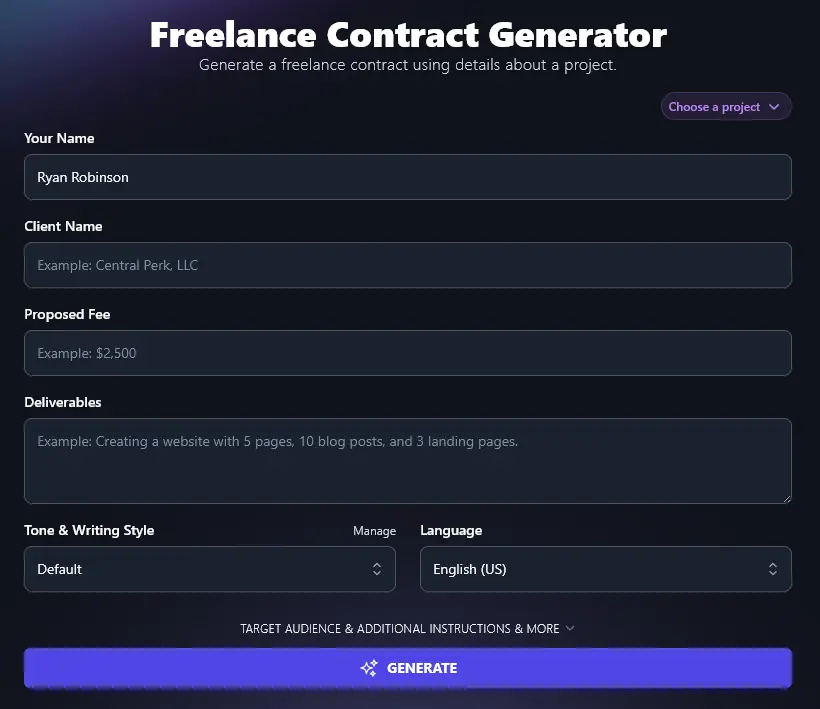
2. Enter Your Client’s Name (or Their Business Name)
Next, enter the name of the client (individual or business) that you’ll be working with. Check that the spelling is correct, and if you’re not sure exactly what name to use, contact them to check how the name should appear on the contract.
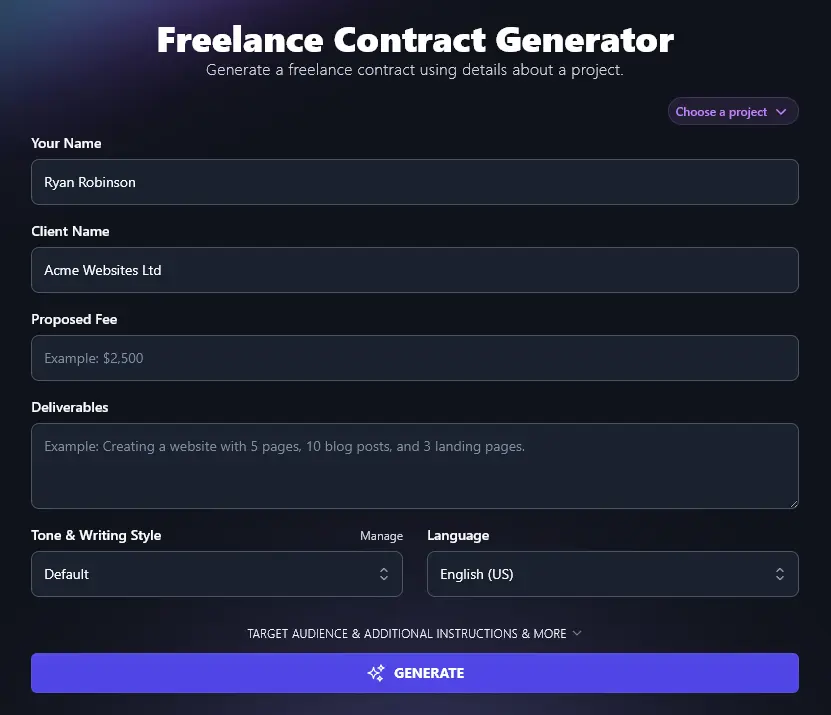
3. Give Your Fee for the Work You’ll Be Doing
Next, enter the totalfee for the work you’ll be doing. (If you want to break this down into separate line items, you can do that in the next box.)
You can enter the fee in any currency of your choice. It’ll appear in your contract exactly as you enter it.
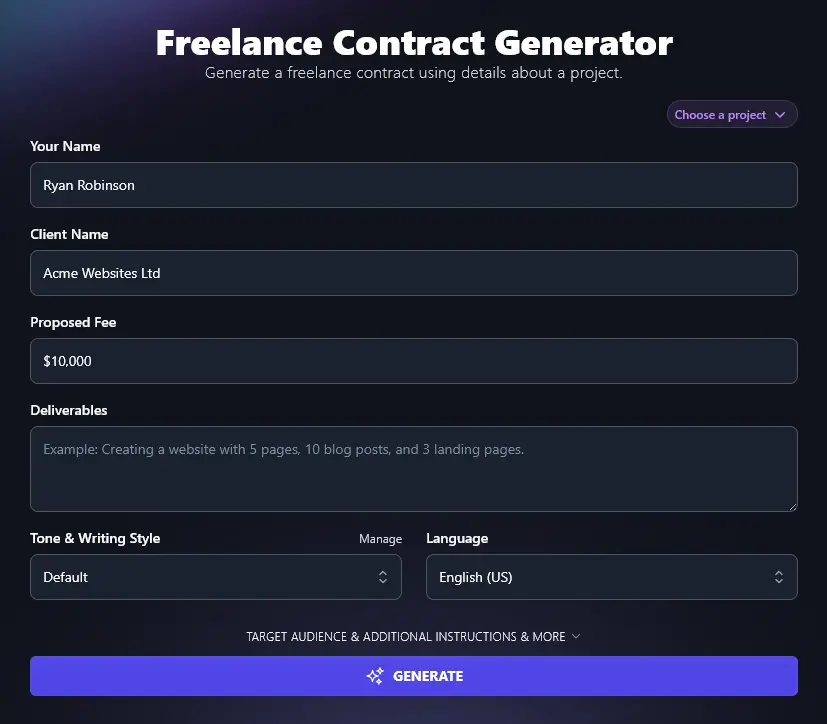
4. List All Your Deliverables
This is the heart of your contract: the deliverables. You need to spell out exactly what the client will get for their money.
The easiest way to do this is to put each deliverable on a separate line, but you could separate them with commas, if you prefer.
Tip: To break down the cost of your services, then add the price for each on the same line
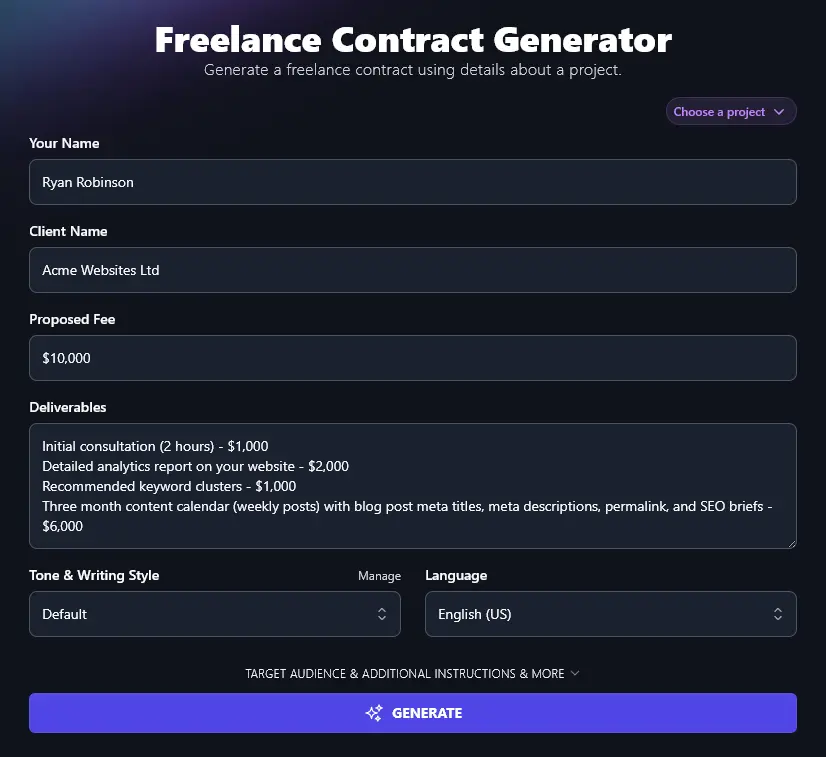
5. Choose Your Tone & Writing Style
Your contract is a legal document, but you don’t necessarily have to write it in a highly formal style. If a different tone suits your brand and personality better, go ahead and select it here. There are 16 preset options to choose from, like “Professional”, “Casual”, and “Sales-oriented”.
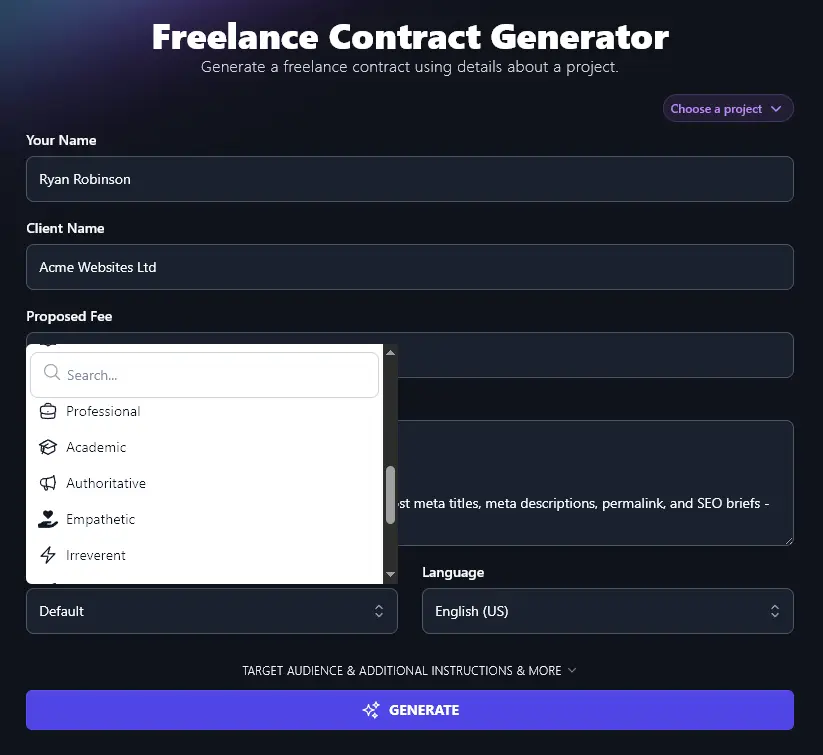
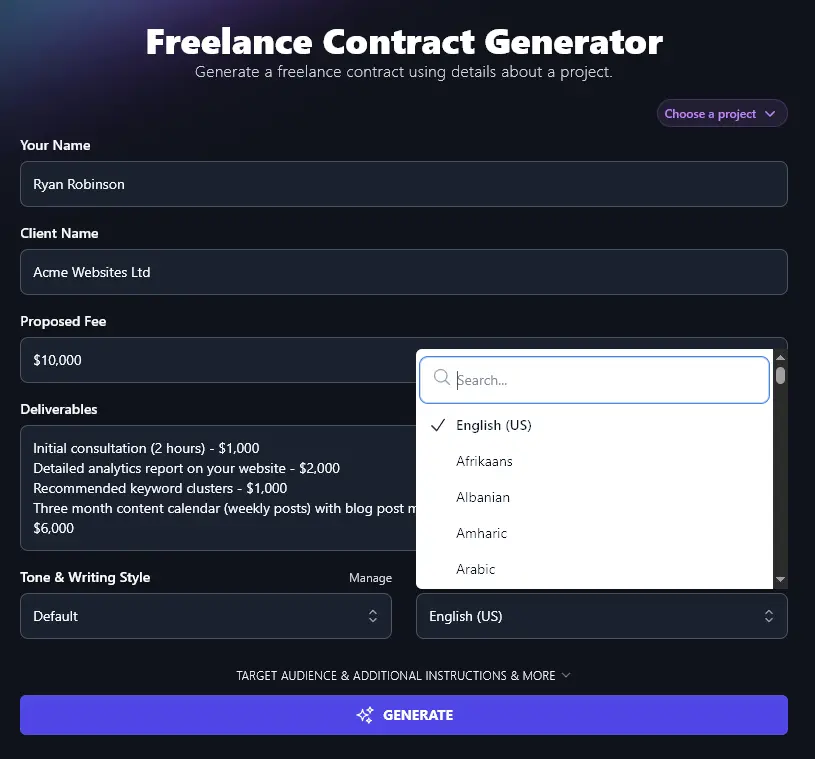
6. Select Your Preferred Language
If you’re working with a non-English speaking client, or if you run a multilingual business, you might want to create your content in a language other than English. No problem! RightBlogger’s AI can write in over 100 different languages. Just choose the one you want from the Language dropdown.
Once you’re happy with all the details you’ve entered, click the “Generate” button to create your contract.
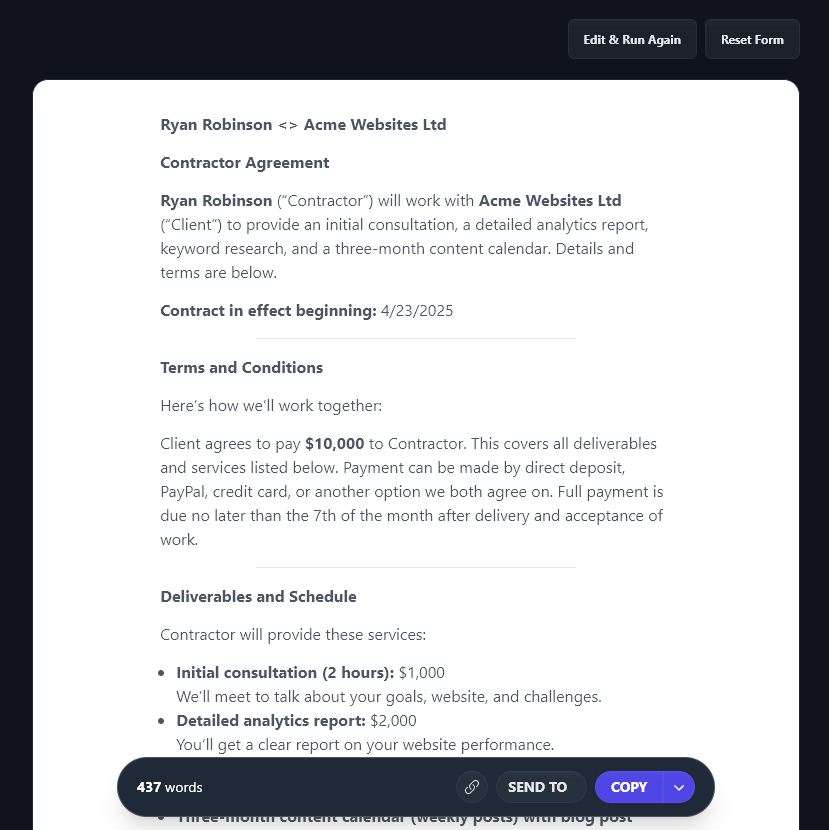
Use the “Copy” button to copy the text of your contract, or click on the downward arrow to its right to get other options (e.g. you can download your contract as a .docx).
Bonus: Use My Contract Checklist to Make Sure Your Contract Includes Everything You Need
Whether you’re using AI to help or writing your whole contract from scratch yourself, it’s important to know what should be included. Here’s my personal checklist for you:
- Make sure your contract is clear about who’s entering into the contract (you and your client)
- Explain exactly what’s being offered: the deliverables from you, in exchange for the payment from your client
- Make it clear how and when payment should be made (there might be a choice of payment methods) – e.g. is payment in installments or as a lump sum upfront?
- Be clear how long the contract lasts: until the end of the project or is it a set length of time?
- Explain who will have the IP (intellectual property rights) and/or copyright for the deliverables, usually, as the freelancer, you’ll be handing this over to your client
- If you’ll be identified as the author (or illustrator, etc), make this clear in the contract
- Where appropriate, include confidentiality and non-disclosure clauses in the contract (it may be simpler to have this as a separate agreement)
- Make sure your contract is clear about what revisions/edits are included in the scope of the agreed deliverables, and what will cost extra
- Include a termination clause: how can the contract be terminated (e.g. with X days notice) and what payments will be due?
- Add a liability and indemnity clause to protect you from damages arising from the contract (e.g. if the client misuses your work)
How Does the Freelance Contract Generator Work? (Including the Advanced Options)
The Freelance Contract Tool will create a high-quality contract for you straight away … but if you want to get the best possible results, it’s helpful to dig a bit deeper into the different options.
1. Your Name (Use Your Legal Name if Possible)
It’s hard to get your own name wrong … but you’ll want to think about how your name should appear on your contract. While you don’t necessarily have to use your legal name, doing so could help protect you if problems arise.
2. Client Name (Individual Contact or the Company Name)
Enter your client’s name as you want it to appear in the contract. If you’re working with a company, you can enter the company name.
Check in advance with your client if you’re not sure what name should appear on the contract, they might be doing business under one company name but have a different legal name that they need on contracts.
3. Proposed Fee (Add the Correct Currency)
Your proposed fee needs to be your final, total fee, covering everything included in the contract.
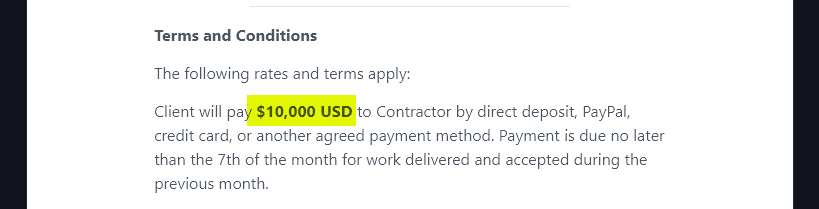
You can enter it in any currency you want, and the AI will add it to the contract as it appears in this field.
For instance, you could enter:
- $10,000
- $10,000 USD
- 10,000 USD
- £10,000
- €10,000
… or anything similar. The fee will appear in your contract exactly as you write it here.
4. Deliverables (List Each Deliverable, Including Fee Breakdown if Required)
The Deliverables box is for you to list every separate aspect of your project. You don’t need to go into huge detail, e.g. If you’ll be writing 10 blog posts, you don’t need to list the title of each.
It’s important to be clear about the scope of each item, however. “10 blog posts” might cause issues if you’re expecting to write 1,500 word posts and your client is expecting 4,000 word posts. Something like “10 blog posts of 1,400-1,600 words each” makes it crystal clear.
Even if you think you only have one deliverable, consider whether it makes sense to break this down for the contract. For instance, are you just writing blog posts, or are you uploading them into the client’s CMS too? What if the client wants revisions?
Here, we’ve broken down the blog posts into 3 different items, separated by semi-colons:

5. Tone & Writing Style (Choose from the Preset Options or Develop Your Own)
If you’re already using a template contract for your freelance work, then you can base your tone & style on that. Use RightBlogger’s MyTone feature, which is included on every RightBlogger plan, and create a tone based on that contract. You can then select your MyTone from any dropdown list.
6. Language (Over 100 Options … Including 4 Varieties of English)
Working with a client who doesn’t speak your native language? No problem! You can create contracts in over 100 different languages with RightBlogger. Here’s an example contract created in Spanish:
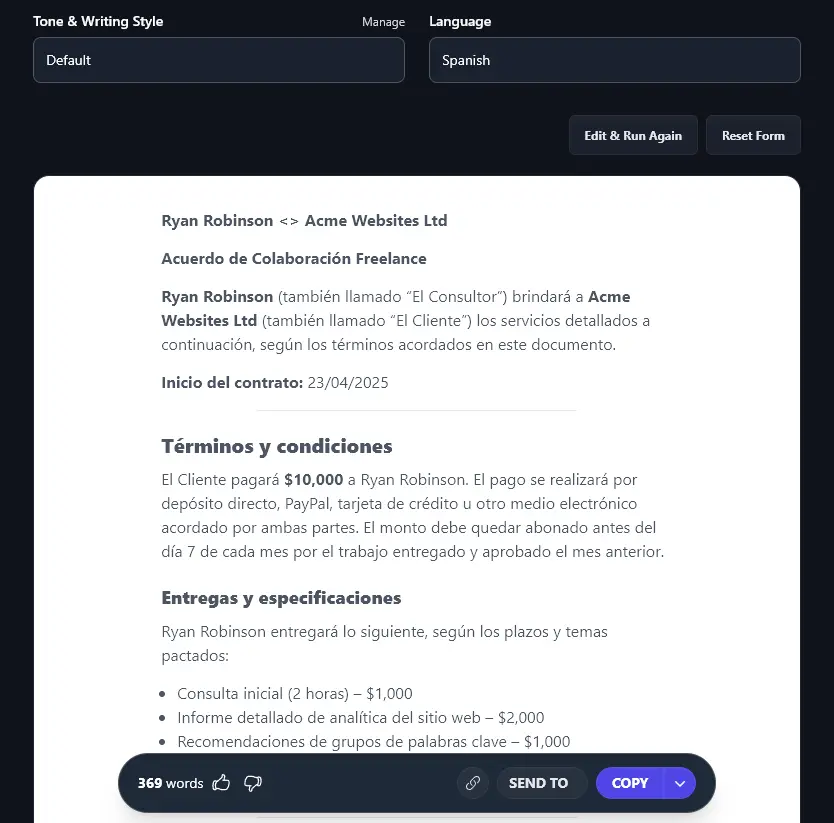
As well as lots of different languages, the RightBlogger AI supports 4 varieties of English: the default US English, as well as UK, Canada, and Australia versions. This means you can easily generate a contract that uses the right spellings and terms for your country.
7. Target Audience (Tell the AI Who Your Contract is For)
To open up the advanced options in the Freelance Contract Generator, click the “Target Audience & Additional Instructions & More” link.
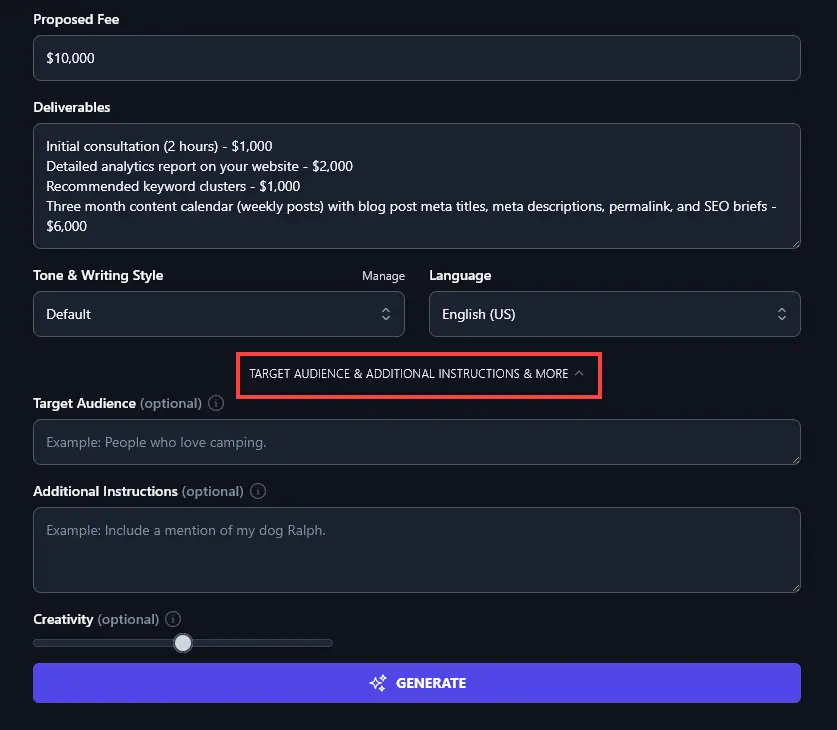
If you want, you can set a target audience for your contract. This is where you can tell the AI anything about your client that could be relevant when drawing up the contract, or anything about your target audience in general, if you’ll be using this as a template contract.
For instance, you might describe your target audience as “Clients who are new to creating websites and aren’t confident with techy things.”

The AI will address this as appropriate in the contract, here’s what it wrote as part of the contract for that target audience:
Scope of Project
I’ll help you understand your website and how people find it. I’ll give you advice, clear reports, and a plan to help you grow. I’ll keep things simple and explain each step.
8. Additional Instructions (Tell the AI Anything Else You Want in Your Contract)
Do you need a special section in your contract or want it structured a particular way? Perhaps you’d like to tell the AI your payment terms and termination arrangements, so this can be included accurately in your contract.
Go ahead and put any extra information or special requests in the “Additional Instructions” box. The AI will then take all this into account when creating your contract.
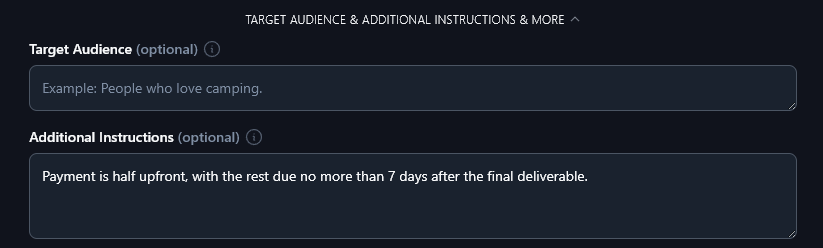
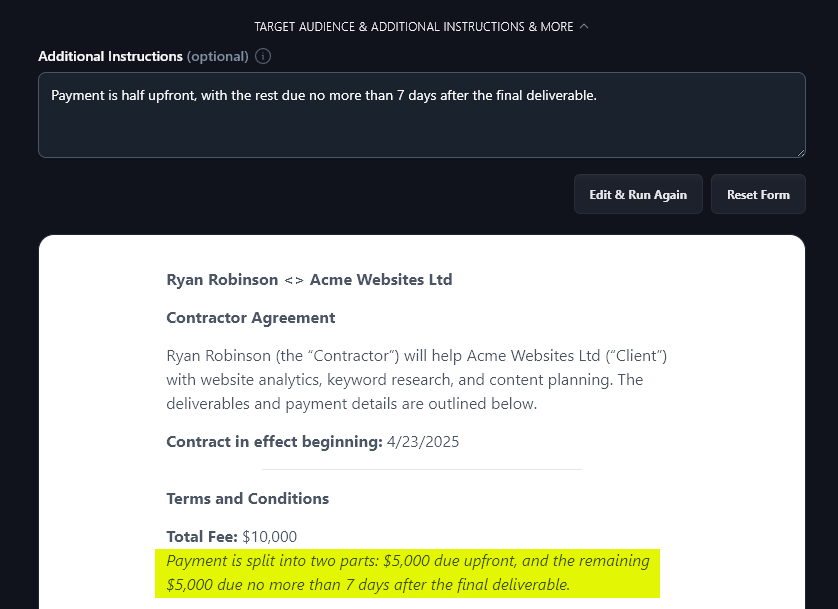
We gave the AI specific details about payment, and it incorporated this into the contract:
9. Creativity (We Recommend Leaving This as Default)
RightBlogger is automatically set to a balanced midpoint of creativity for a high-quality contract. You can change the creativity level if you want, but we recommend leaving it set to the midpoint: your contract probably isn’t the place to experiment with making the AI algorithm wilder and wackier!

Freelance Contract Generator FAQs
Got questions about the Freelance Contract Generator … or about freelancing contracts in general? Here’s what you need to know.
How Do I Customize My Freelance Contract?
Use the Copy button to copy the full text of your freelance contract, or click the down arrow next to Copy for options to download the contract as a .docx file (or to copy it as Markdown, HTML, or plain text).
Unless you’ve already given them to the AI in your Additional Instructions, you’ll need to change/add things like:
- Your contact information (e.g. your email address, phone number, and mailing address)
- The start date of the contract, due date of the deliverables (or multiple due dates for specific milestones), and arrangements for terminating the contract.
- The payment schedule, which may be tied to specific milestones/deliverables.
- Your payment details (e.g. bank account information or PayPal email address).
You may also want to include information about things like late fees (usually an extra percentage charge that’s incurred by your client for late payments), as well as details about how you’ll handle confidential information.
Should My Contract Include an NDA (Non-Disclosure Agreement)?
While you can include non-disclosure clauses as part of your contract, these are usually covered in a separate written agreement. You can check with your client what they’d prefer: they may well have a standard NDA for you to sign, so that they know their proprietary information will be safe.
Can I Use This Tool to Create a Free Freelance Contract Template?
If you want a template you can use again and again in your freelance business, you can create a contract with a placeholder for the client name. You can then edit this to change deliverables, dates, etc, as needed.
You could also use this as a less formal freelance agreement template (not legally binding, but still useful to make sure you and your client have a common understanding of the scope of work).
How Should I Get My Freelance Contract Signed?
There are lots of online services like Docusign that make it easy for you and your client to “e-sign” documents. Alternatively, you can send your contract as a Microsoft Word document or a Google Doc and ask your client to mail you the signed contract (or they could paste in a photo of their signature).
What Other Free AI Tools Can I Use to Grow My Freelance Business?
RightBlogger is packed with AI-powered tools for freelancers and creators. Every tool is included in all plans, starting at monthly Solo $59 (annual billing, charged monthly, is $49) with a 7-day free trial and a 30-day money-back guarantee. See RightBlogger pricing.
Some great tools to get started with are:
- Freelance Proposal: get your working relationship off to a great start with a clear proposal that sets out the scope of the project and the cost (suitable for any freelance worker, e.g. writer, graphic designer, web developer)
- Article Writer: generate a high-quality article from just a keyword or topic
- Cold Email: if you’re prospecting for more clients or looking to win more gigs, this tool helps you generate an engaging email
- Transcribe Audio or Video: if you have a lot of client meetings, you can instantly transcribe them using this powerful AI tool, making it easy to refer back to what was agreed
- Keyword Research Tool: if you’re using content marketing to grow your business, keyword research is essential, and this tool makes it easy
- Improve Writing: whatever kind of freelancing you do, you’ll likely be writing emails (and perhaps reports too), so use this tool to make your writing stronger and easy to read
Along with these, we have a huge range of tools covering blogging, SEO (search engine optimization), sales, social media, and more.
How Do I Sign Up for RightBlogger and How Much Does it Cost?
The Freelance Contract Generator and all of RightBlogger’s tools are included in every plan. Sign up to get started.
Want unlimited contracts, more MyTone styles, and features like Chat, Projects, and Knowledge? Monthly Pro at $89 (annual $69) is the most popular plan, with 3 sites, 3 team seats, and 90 SEO reports/mo. Monthly Solo is $59 (annual $49), and monthly Agency is $299 (annual $199) for teams managing multiple clients. Every paid plan includes unlimited words.