How to Fix Google-Selected Canonical Errors (Step by Step)
Compare Google’s chosen URL with your preferred version, then align canonicals, redirects, internal links, and sitemaps.

A warning in Google Search Console can feel like a red flag, especially when an important blog post disappears from the index or hurts your organic performance. When you see a duplicate without user-selected canonical status, it does not always mean your SEO is broken.
Google-selected canonical errors simply mean Google found two or more similar URLs and picked the version it believes should represent the content. Your job is to confirm that Google’s choice makes sense, then give it clearer signals when it doesn’t.
Start with the affected URL, not the whole report. One quick inspection can save you from changing pages that were never a problem.
Key Takeaways for Google-Selected Canonical Errors
- Google may select its own canonical URL when duplicate or near-duplicate pages send mixed signals, sometimes flagging them as a duplicate without user-selected canonical status.
- Use URL Inspection to compare the user-declared canonical with the Google-selected canonical.
- A proper canonical tag should point to one preferred, indexable URL that returns a 200 status code.
- Internal links, XML sitemaps, redirects, and canonical tags must all agree on the same URL.
- Don’t try to force unrelated posts together with canonical tags. Redirect, noindex, consolidate, or rewrite them instead.
- Requesting indexing can prompt a recrawl, but it doesn’t guarantee immediate indexation.
What This Search Console Status Actually Means
A canonical tag tells Google which URL you want treated as the main copy of a page. For example, your preferred post might be:
https://example.com/how-to-start-a-blog
But Google may also find URL variations such as pages with tracking parameters, a trailing slash difference, an /amp/ version, category paths, or an old URL that still loads. These variations often create duplicate content across your site.
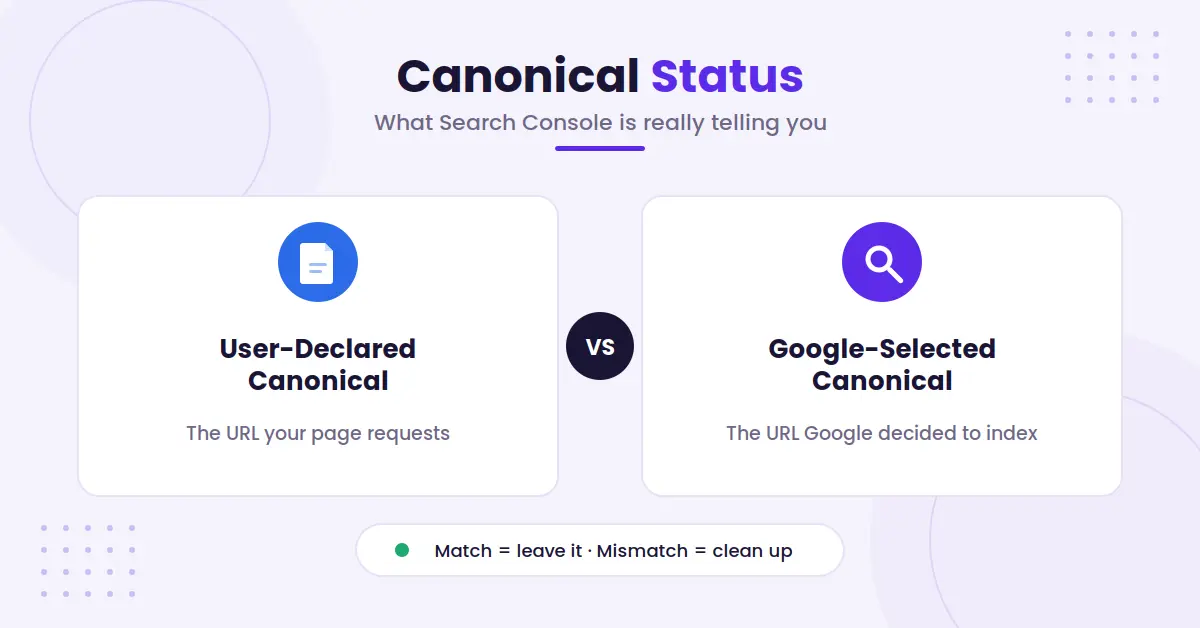
When those pages look alike, Google groups them. It then selects one as the canonical. Google’s Page indexing report documentation defines the status directly: the page is a duplicate of another, it does not indicate a preferred canonical, and Google has chosen the other page instead, so this one will not be served in Search.
That isn’t automatically bad news. A duplicate URL shouldn’t usually rank separately. The issue starts when Google chooses the wrong page, or when it skips the blog post you want indexed due to canonicalization issues.
Google looks beyond the tag itself. A canonical tag is a strong hint, not a command. If your sitemap lists one URL, your internal links point to another, and the page tag points somewhere else again, Google has every reason to make its own call.
If Google’s selected canonical matches your preferred URL, the excluded duplicate is often working exactly as it should.
Open Google Search Console, go to Indexing > Pages, and select the affected status. Then use the URL Inspection tool to inspect a sample URL. Under Page Indexing, compare these fields:
- User-declared canonical, the URL your page requests.
- Google-selected canonical, the URL Google decided to index.
If they match, and you are dealing with a standard duplicate without user-selected canonical situation, you can often leave the duplicate alone. If they don’t, you have a real cleanup job.
How to Fix Google-Selected Canonical Errors Step by Step
Fixing Google-selected canonical errors starts with one question: should both URLs exist?
Don’t add a canonical tag before you answer that. Canonicals are for pages that are substantially the same. They aren’t a shortcut for hiding thin content, outdated posts, or competing articles.
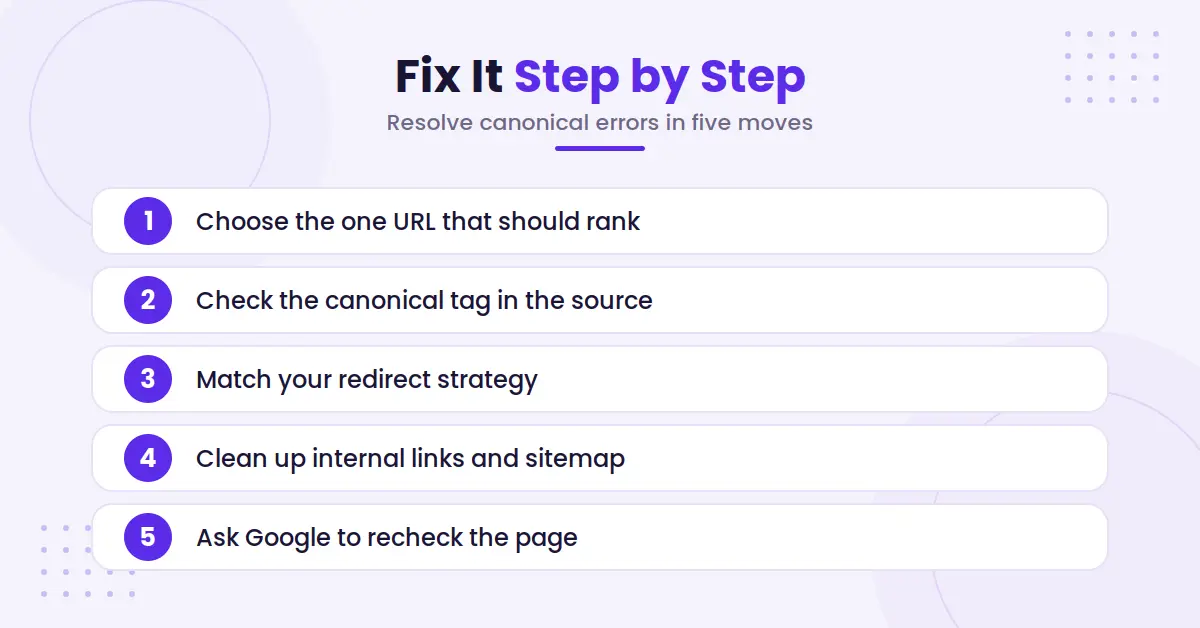
1. Choose the One URL That Should Rank
Pick the cleanest, most useful version of the post. It should use HTTPS, return a 200 status code, and be available to Googlebot.
For most blogs, the preferred URL is the self-contained post URL. It shouldn’t include tracking parameters, session IDs, filter options, print paths, or temporary campaign data. Managing parameterized URLs properly is essential for this step.
If you have both:
- example.com/blog/canonical-tags
- example.com/blog/canonical-tags?utm_source=newsletter
The first URL should usually be canonical. The campaign URL can still track newsletter traffic, but it shouldn’t become a separate search result.
2. Check the Canonical Tag in the Page Source
View the source of the affected page and search for canonical. You should find one tag in the <head> section pointing to the preferred full URL.
Implementing proper self-referencing canonical tags helps search engines understand your preferred content. A basic example looks like this in principle:
rel="canonical" href="https://example.com/blog/canonical-tags/"There should be only one canonical tag. It must use the full absolute URL, not a relative path. It also needs to point to a live, indexable page.
If WordPress handles this through Yoast, Rank Math, or another SEO plugin, check your WordPress dashboard for conflicts. A theme, custom code snippet, page builder, or second SEO plugin can inject a competing canonical tag.
For a quick refresher before changing anything, see RightBlogger’s guide to understanding canonical tags.
3. Match Your Redirect Strategy to the Situation
Use a 301 redirect when the duplicate URL no longer needs to exist. This is common after changing post slugs, moving a post into a new folder, or retiring an old URL format. For site migrations, an HTTP to HTTPS redirect ensures secure routing, and standard redirects give visitors and search engines one clear destination.
Use a canonical tag when duplicate versions need to remain accessible. A tracked URL, printer-friendly page, or syndicated version may need to load for users. In that case, canonicalizing it to the main post makes sense.
Use a noindex meta tag for low-value pages that shouldn’t appear in search, such as internal search results or thin filtered archives. Don’t noindex a page and also expect its canonical tag to pass a clear indexing signal. Pick the right action based on the page’s purpose.
4. Clean Up Internal Links and Sitemap Entries
This is where many fixes fall apart. You add the right canonical tag, then your navigation, related-post widgets, and old articles keep linking to a different version. Updating internal links ensures that visitors and crawlers land on the correct page without unnecessary detours.
Search your site for links to the non-canonical URL. Update them to point directly to the preferred post. Avoid making Google follow an internal redirect every time it discovers the page.
Your XML sitemap should also list only the preferred URL. Reviewing your sitemap ensures it doesn’t include redirected URLs, noindexed pages, tracking URLs, or duplicate versions. Use this XML sitemap setup guide to check the common sitemap mistakes that create mixed signals.
5. Ask Google to Recheck the Page
After you make the change, inspect the preferred URL in Search Console. Run a live test to confirm Google can access the page, then request indexing.
Next, return to the Pages report and click to revalidate fixed canonical issues if it applies. Don’t hammer the button or submit the same URL over and over. Google still needs to crawl the page and assess its signals.
A healthy, well-linked page can update within days. Other pages take weeks. What matters is that the site now sends one consistent answer.
Signals That Can Override Your Canonical Tag
Canonical tags matter, but they don’t work in isolation. Google weighs them against the other canonicalization signals on your site. These decide which URL gets indexed, which is a separate question from how well it ranks.
Internal links are a big one. If hundreds of blog posts point to http://, while your canonical uses https://, you have a mismatch. When those signals contradict each other, Google has less reason to trust your tag and more reason to pick its own canonical. The same problem appears when internal links use both trailing-slash and non-trailing-slash versions.
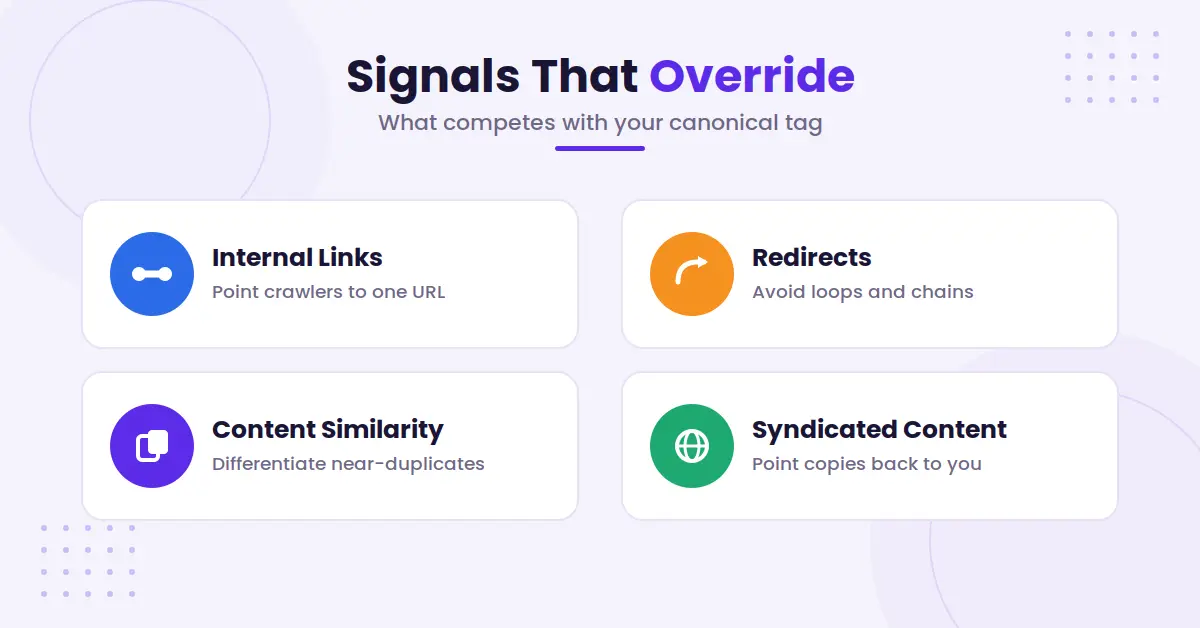
Redirects also matter. Never set a canonical from Page A to Page B while Page B redirects back to Page A. Avoid canonical chains too. If A canonicals to B, and B canonicals to C, point A straight to C.
Content similarity can affect Google’s decision. If two posts share almost the same title, headings, and body copy, Google may choose one to handle the duplicate content. Rewrite and differentiate pages that target different search intent. One should not be a pale copy of the other.
Syndicated content needs extra care. Managing syndicated content properly helps you avoid creating unwanted duplicate content or triggering a duplicate without user-selected canonical error in your reports. If you republish a full post on Medium, use Medium’s import tool or its original-publication setting so the copy points back to your site. Plain copy and paste creates another competing version of your article.
When you need to work through a stubborn case, Google’s guide to fixing canonicalization issues walks through the checks in order.
Common Canonical Mistakes That Keep Coming Back
The most common mistake is canonicalizing every weak post to a stronger one. Google doesn’t treat that as a content upgrade, and if the pages aren’t near-duplicates, your canonicalization issues will only multiply as the tag gets ignored.
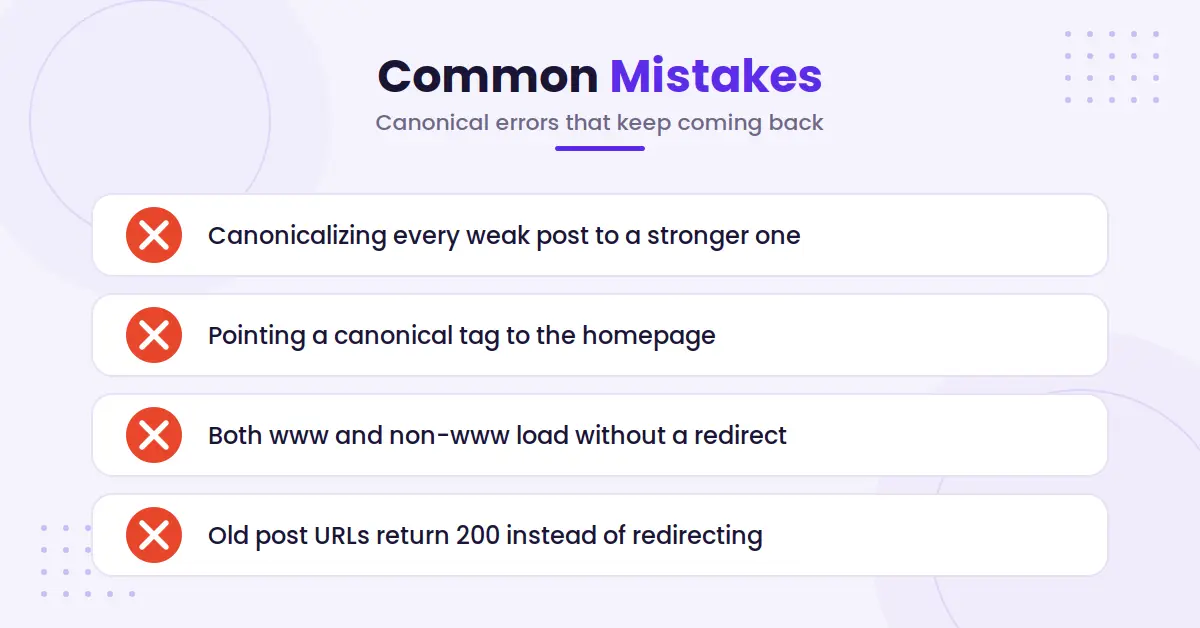
Another bad move is pointing a canonical tag to the homepage. A blog post about email marketing should point to its own preferred URL, not your root domain. Otherwise, you tell Google the post is a duplicate of a page it clearly isn’t, which often worsens existing duplicate content.
Watch for these recurring issues:
- A staging site is crawlable and uses the same canonicals as production.
- Both www and non-www versions load without a sitewide redirect.
- Category archives, pagination, and tag pages create thin near-duplicates.
- An old post URL returns 200 instead of redirecting to the replacement.
- A plugin update adds a second canonical tag without warning.
- Blocking pages via robots.txt while leaving parameterized URLs and other variations fully crawlable, which creates duplicates Google can reach but cannot read your directives on. Crawl budget only becomes a real constraint on very large sites, so treat this as a signals problem rather than a budget one.
Run periodic checks after a theme change, migration, plugin swap, or URL restructure. Fixing these stubborn canonicalization issues early keeps your site healthy before they eat your traffic.
FAQs About Google-Selected Canonical Errors
Here are a few additional questions you might have.
Should I Fix Every Duplicate Without a User-Selected Canonical Warning?
No. Inspect the URL first. If Google selected the correct main version and you are reviewing a duplicate without user-selected canonical status where the page shouldn’t rank, no change is needed. Focus on cases where Google selected an unintended URL or where an important post isn’t indexed.
Can I Use a Canonical Tag Instead of a 301 Redirect?
Sometimes. Use a canonical when duplicate pages must stay available. Use a 301 when the old URL has permanently moved and visitors should land on the replacement page.
Why Does Google Ignore My Canonical Tag?
Google may ignore your chosen canonical tag when the target is blocked by robots.txt, contains conflicting redirects, returns an error, includes a conflicting noindex meta tag, or isn’t similar enough to the source page. Mixed internal links and sitemap URLs can also weaken your signal.
How Long Do Google-Selected Canonical Errors Take to Clear?
There isn’t a fixed timeline. Google has to recrawl the affected URLs. A good fix often takes a few weeks to show in Search Console, though some sites see changes sooner.
Final Thoughts on Google-Selected Canonical Errors
Google-selected canonical errors usually come down to mixed signals, not mysterious penalties. Resolving these canonicalization issues reported in Google Search Console helps strengthen your overall site architecture by removing guesswork for web crawlers. Pick the version that deserves to rank, then align the canonical tag, redirects, internal links, and sitemap around it.
A clean canonical setup gives Google less to guess about. More importantly, consistent URL handling and clean URL canonicalization protect your blog’s long term organic performance, keeping your best content visible in search results where readers can find it.

RightBlogger Co-Founder, Andy Feliciotti shares practical SEO and website tips, with a passion for photography and travel.

Automated SEO Blog Posts for Your Site
Research, write, publish, and share from one account.
7-day free trial. Cancel anytime.





Leave a comment