How to Use the URL Inspection API for Blog Audits
Inspect Google’s indexed view for canonicals, crawl errors, and exclusions, then prioritize fixes within the 2,000-request daily quota.

A blog can have hundreds of published URLs and still leave important pages out of Google’s index. Checking each URL by hand in Google Search Console works for a small site, but it falls apart once your content library grows.
The URL Inspection API lets you pull indexing data into your own audit system. You can check canonical URLs, crawl status, robots directives, indexing decisions, and rich result data without opening the Google Search Console interface for every page.
Key Takeaways for URL Inspection API Blog Audits
- The URL Inspection API provides data based on Google’s indexed view of a page, rather than performing a live URL test.
- Every request inspects one specific URL and requires verified access to the matching Google Search Console property.
- Use the results to find blocked, unindexed, duplicate, and outdated blog pages.
- The daily quota makes prioritization essential for large content libraries.
- A failed inspection is not always an SEO emergency. Focus first on pages that should rank and support business goals.
What the URL Inspection API Actually Checks
The URL Inspection API reports how Google currently sees a page in its index. It returns the current index status and any detected structured data, so you can see whether Google crawled your content, if indexing is permitted, which canonical version Google selected, and whether the page has any rich result issues.
The main response includes an inspectionResult object containing several valuable data groups. The indexStatusResult is typically the starting point for any comprehensive blog audit.
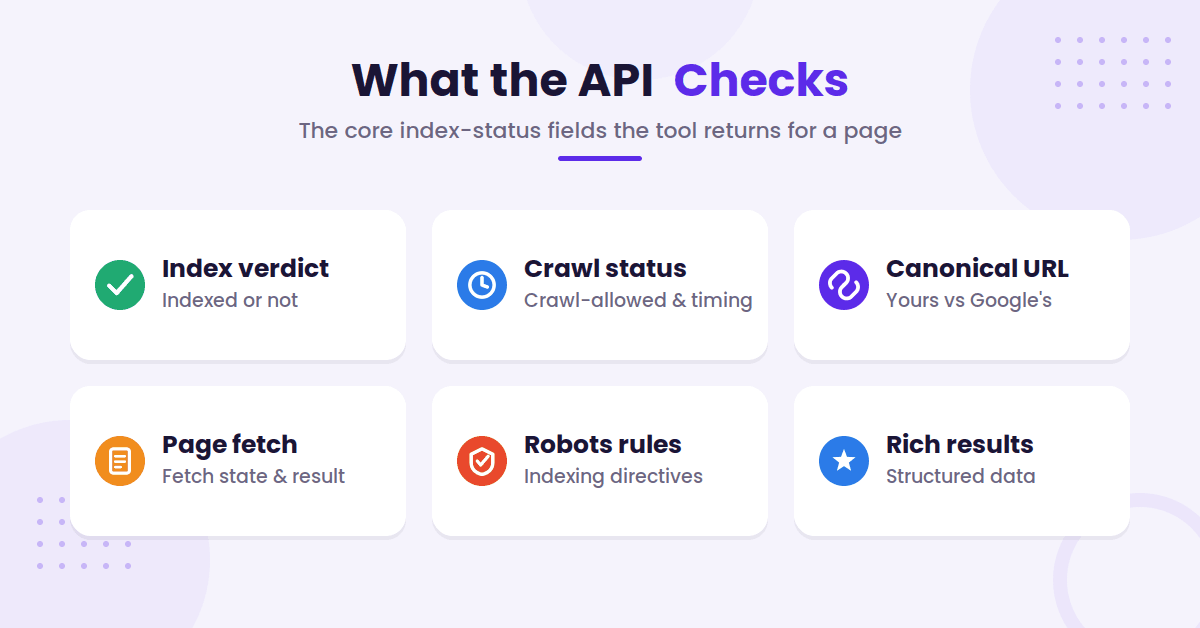
You can review specific fields such as:
- The indexing verdict and coverage state
- The last crawl time
- Crawl allowed status
- Indexing allowed status
- The page fetch result
- User-declared canonical
- Google-selected canonical
- The crawler type, such as mobile or desktop
- Referring URLs known to Google
Beyond basic indexing data, the API returns diagnostic information about rich results (via the richResultsResult field) whenever Google has sufficient data available.
This functionality makes the API useful for more than just a simple indexed or not indexed report. You can compare the URL you published with the version Google chose to store, allowing you to track changes during future audits.
The API reports the indexed version of a page. It does not replace a live crawl of your current HTML.
This distinction is important after a site migration, template change, or large content update. Your website may be fully corrected today, while Google’s stored result still reflects a previous crawl.
The API also does not provide keyword rankings, clicks, impressions, or backlinks. You should use Search Console Search Analytics data for performance metrics. Then combine that information with your inspection results to understand why specific pages receive limited visibility.
Set Up Search Console API Access
To gain programmatic access to your data, you must first create a Google Cloud project and enable the Search Console API. Once enabled, you send POST requests to the inspection endpoint at https://searchconsole.googleapis.com/v1/urlInspection/index:inspect (documented in the urlInspection.index.inspect reference) to pull inspection data. If you’d rather query Search Console from an AI assistant than write the requests yourself, a Google Search Console MCP handles the API calls for you.
You will also need to configure OAuth authentication, as the system requires verified credentials to access private property information within Google Search Console.
Your Google account, or the specific account used by your application, must have appropriate permissions for the Google Search Console property you intend to audit.
While a service account is ideal for automated workflows, you must remember to add its unique email address as a user on the relevant property to ensure the connection is authorized.
Use the read-only webmasters scope when your audit is designed solely to collect data. There is no reason to request broader access than necessary for a standard reporting workflow.
The siteUrl parameter in each request must match the property format exactly as it appears in the platform. A URL-prefix property may use a full site URL, while a Domain property requires the sc-domain: format. These small differences matter significantly, so ensure you copy the property value exactly.
The request also includes the specific URL you want to inspect. This URL must belong to the verified property. Keep in mind that each request checks only one URL at a time.
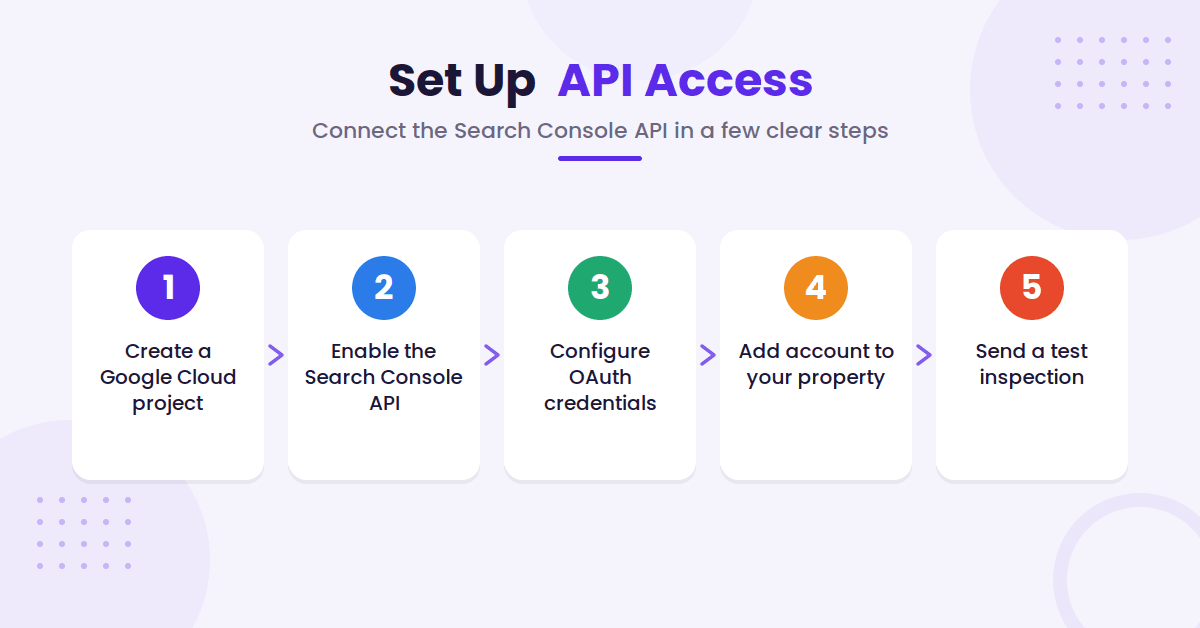
A basic setup process looks like this:
- Create or select a Google Cloud project.
- Enable the Search Console API.
- Configure OAuth credentials for your application.
- Add the authenticated account or service account to your property.
- Send a test inspection for one known, indexed blog post.
Start with a page you know appears in Google. That gives you a clean response to study before you build rules for potential failures or exclusions.
POST https://searchconsole.googleapis.com/v1/urlInspection/index:inspect
Authorization: Bearer ACCESS_TOKEN
Content-Type: application/json

{
  "inspectionUrl": "https://example.com/my-blog-post/",
  "siteUrl": "https://example.com/",
  "languageCode": "en-US"
}

// Example response for an indexed page
{
  "inspectionResult": {
    "indexStatusResult": {
      "verdict": "PASS",
      "coverageState": "Submitted and indexed",
      "robotsTxtState": "ALLOWED",
      "indexingState": "INDEXING_ALLOWED",
      "lastCrawlTime": "2026-07-01T08:39:51Z",
      "pageFetchState": "SUCCESSFUL",
      "googleCanonical": "https://example.com/my-blog-post/",
      "userCanonical": "https://example.com/my-blog-post/",
      "crawledAs": "MOBILE",
      "referringUrls": ["https://example.com/related-post/"]
    }
  }
}
Do not treat a successful API response as proof that the page is indexed. The API request itself can return a success status while the underlying inspection result clearly indicates that Google has not indexed the URL.
Build a Blog Audit Workflow Around the API
The API works best as one part of a broader audit process. It serves as a powerful way to obtain the bulk index status for your pages. It should not be your only source of URLs or your only source of SEO data.
Begin with a URL inventory. Pull published URLs from your content management system, XML Sitemaps, and Search Console performance data.
Use a tool like Screaming Frog to perform an internal link crawl to capture all relevant pages. Remove tracking parameters, duplicate URL versions, and pages that are not intended for search.
Next, assign a reason for inspecting each URL. A new post may need an early check. An updated article may need a check after its next crawl.
A page with falling impressions deserves attention so you can troubleshoot why it is losing search performance, even if its previous inspection passed.
A useful priority order is:
- New or recently updated posts
- High-conversion pages
- URLs with strong impressions but low clicks
- Pages with internal links but no search traffic
- URLs recently affected by a migration or template change
- Sitemap URLs with no recent crawl data
Send those URLs through a queue rather than firing requests all at once. Store the request date, inspected URL, property, response fields, and any classification your system assigns.
For example, your audit database might mark each URL as:
- Indexed and canonical
- Indexed with a different Google canonical
- Crawled but not indexed
- Discovered but not indexed
- Blocked by robots.txt
- Blocked by a noindex directive
- Fetch error or server error
- Soft 404
- Inspection unavailable
Keep the raw response as well as the simplified label. A label helps with dashboards, but the original fields help you investigate changes later.
Run a second process that compares the latest inspection with the previous one. A page that changed from Submitted and indexed to Crawled, currently not indexed deserves more attention than a page that has stayed in the same state for six months.
Your audit can also connect inspection data with editorial details. Join each URL to its author, category, publication date, last update date, target topic, and conversion value. That turns an indexing report into a content decision tool.
A blocked low-value tag archive and a blocked product guide should not receive the same response. The first may be intentional. The second may be costing you search traffic.
How to Read Inspection Results and Choose Fixes
Start with the indexing verdict, but do not stop there. The verdict provides a broad overview, while the supporting fields tell you exactly what to investigate.
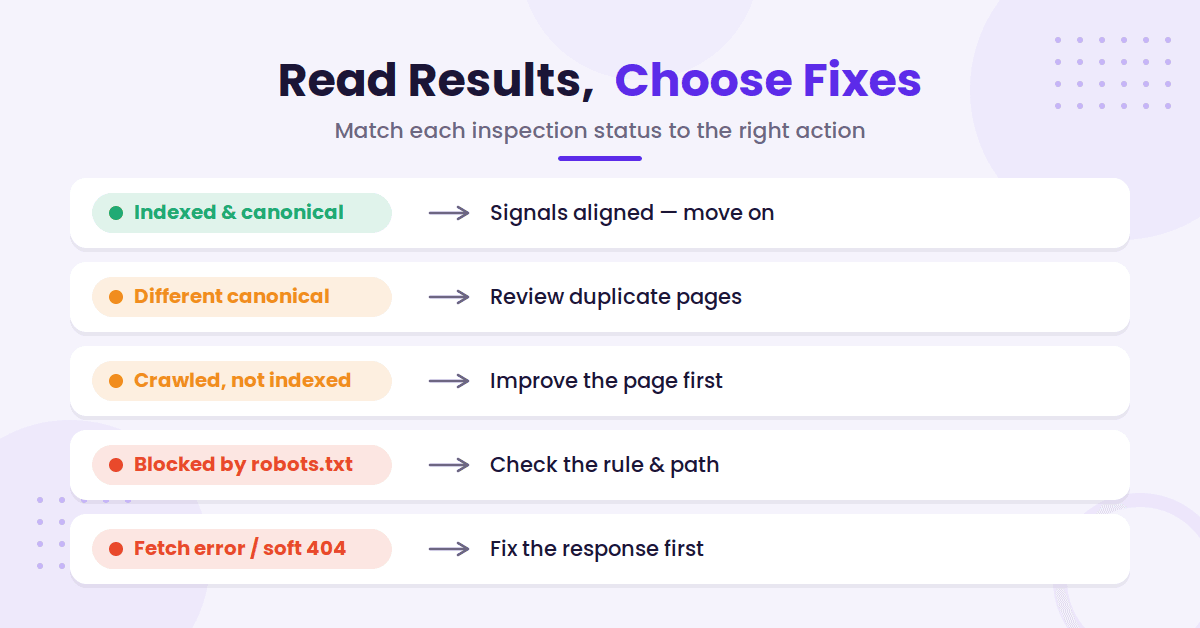
Beyond basic indexing status, review the richResultsResult field to spot opportunities to improve your rich results, such as fixing structured data issues Google detected for articles, products, videos, breadcrumbs, or FAQs on the page.
If a page is indexed and Google’s selected canonical matches your preferred canonical, the basic signals are aligned. You can then move on to content quality, internal links, search performance, or conversion issues.
A different Google-selected canonical requires closer review. Check whether the page is a near duplicate, whether canonical tags point to another URL, and whether internal links consistently use the preferred version.
Consolidate duplicate pages when they do not deserve separate search results.
A noindex result is often intentional. Confirm the directive in the page’s meta robots tag or HTTP header. If the page should rank, remove the directive and inspect the URL again after Google has had time to recrawl it.
Robots.txt creates a different problem. A disallowed URL may prevent Google from crawling the page. However, the robots.txt file does not remove an already indexed URL in every situation. Review the rule, the URL path, and any CDN or firewall settings that may block requests.
“Crawled, currently not indexed” means Google visited the page but did not add it to the index. It is not a penalty. Many thin pages, duplicate pages, old archives, and low-value URLs belong in this state.
For a blog post you want to rank, review the page’s purpose, originality, internal links, and search intent. Improve the page before requesting another inspection. Repeatedly checking the same weak URL will not make Google choose it.
“Discovered, currently not indexed” means Google knows about the URL but has not crawled it. Check internal links, sitemap inclusion, server health, and the page’s value. New sites and pages with few inbound links may wait longer for a crawl.
Pay attention to pageFetchState, too. A server error, soft 404, timeout, or blocked fetch points to a technical issue. Fix the response before spending time rewriting the article.
Treat inspection data as a triage system. Fix the pages that matter, not every URL that produces a non-ideal status.
Run URL Inspections at Scale Without Wasting Quota
The URL Inspection API has strict usage limits of 2,000 inspections per day and 600 requests per minute for a property. Because there is no bulk request feature that lets you inspect an entire site in one call, your architectural strategy must account for these constraints.
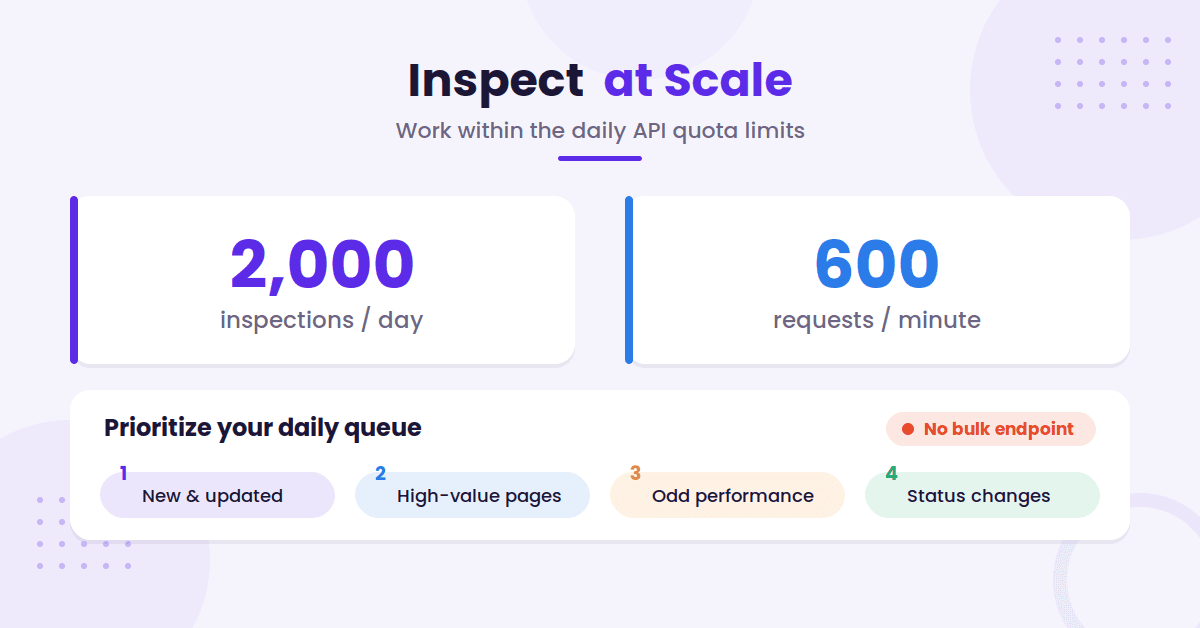
That reality changes how you design the audit. A 400-page blog can inspect its full library each day, but a 10,000-page site needs a rotation system.
To manage this effectively, use your Sitemaps to help prioritize the crawl rotation for larger content libraries. Build a daily queue with clear priorities. Inspect new pages first, followed by recently updated pages, high-value URLs, pages with unusual Search Console performance, and URLs that recently changed status.
Avoid sending the same request repeatedly when nothing has changed. Store the last inspection time and schedule a new check based on the page type.
A new post may deserve an early follow-up, while a stable evergreen article can use a longer interval. Furthermore, be mindful of your usage limits by staying well below the per-minute ceilings to prevent application errors and leave room for other Search Console API activity.
Add retry rules for temporary errors, but do not retry a permanent result endlessly. A server timeout may deserve another request, but a confirmed noindex directive needs a content or template fix.
You should also compare API results with your own crawl data. A crawler can confirm the current canonical tag, HTTP status, internal links, and robots directives, while the URL Inspection API shows Google’s stored interpretation.
To track changes over time, export these combined findings into Data Studio. These two views answer different questions.
FAQs About the URL Inspection API
Here are a few additional questions you might have about the URL Inspection API.
Does the URL Inspection API request indexing?
No. The URL Inspection API reports the current inspection data Google has for a specific page. It does not submit the page for indexing or force Googlebot to recrawl it.
Use the result to identify problems, then fix the page, improve its internal links, update the sitemap when needed, and let Google discover the change through normal crawling.
Can I inspect any URL?
No. The URL must belong to a Google Search Console property where the authenticated account has access. The property identifier and the URL being inspected must also use the correct version, including the proper protocol, subdomain, or Domain property format.
Does a successful API response mean the page is indexed?
No. A successful response simply means the URL Inspection API processed your request successfully. You must check the specific inspection result, particularly the indexing verdict and the coverage state, to understand if the page is currently indexed.
How often should I inspect blog posts?
Inspect new and updated pages soon after publication or major changes. Give stable pages a longer interval. Prioritize pages with high business value, strong impressions, technical changes, or unexpected drops in organic visibility.
Can the API explain why Google didn’t index a page?
It provides useful status fields, but it will not always identify the complete reason for an indexing issue. A “Crawled, currently not indexed” result requires human review of content quality, potential duplication, internal links, technical access, and user search intent.
Final Thoughts on the URL Inspection API
The URL Inspection API provides a reliable and repeatable way to monitor how Google treats your most important pages. Use it to find indexing gaps, canonical conflicts, blocked crawls, fetch errors, and pages that need a content review.
The most effective strategy involves building an SEO audit framework that combines your URL Inspection API data with Google Search Console performance metrics and results from a site crawl. Spend your daily quota on the high-priority pages that deserve search visibility, then act on what each inspection tells you.

RightBlogger Co-Founder Ryan Robinson teaches 500,000 monthly readers how to grow an online business and is a recovering side project addict.

Automated SEO Blog Posts for Your Site
Research, write, publish, and share from one account.
7-day free trial. Cancel anytime.





Leave a comment
You must be logged in to comment.
Loading comments...