How to Use Search Console Bulk Exports for Content Planning
Use 90-day query trends to find near-wins, declining pages, and new topics, then choose what to update, publish, or consolidate.


Your next content idea may already be in Search Console, buried beneath the report’s 1,000-row ceiling.
That cap hides the long-tail searches, declining pages, and near-wins that should guide your next quarter of content. Search Console bulk exports send daily performance data into Google BigQuery, where you can sort, group, and keep it beyond the standard 16-month window.
Set it up once, then let your audience’s real searches shape the plan.
Key Takeaways
- Bulk exports provide a daily BigQuery record of Search Console performance data, beyond the interface’s 1,000-row export limit.
- Setup requires a Google Cloud project with billing, the BigQuery and BigQuery Storage APIs, and two IAM roles granted to Google’s export service account.
- Use the site-level table to spot query demand, then compare URL-level data to decide whether to update, consolidate, or publish.
- Most BigQuery cost surprises come from wasteful queries, not from storing Search Console data.
Why Bulk Exports Change Content Planning
Search Console’s Performance report is great for quick checks. It is less useful when you need to answer bigger questions.
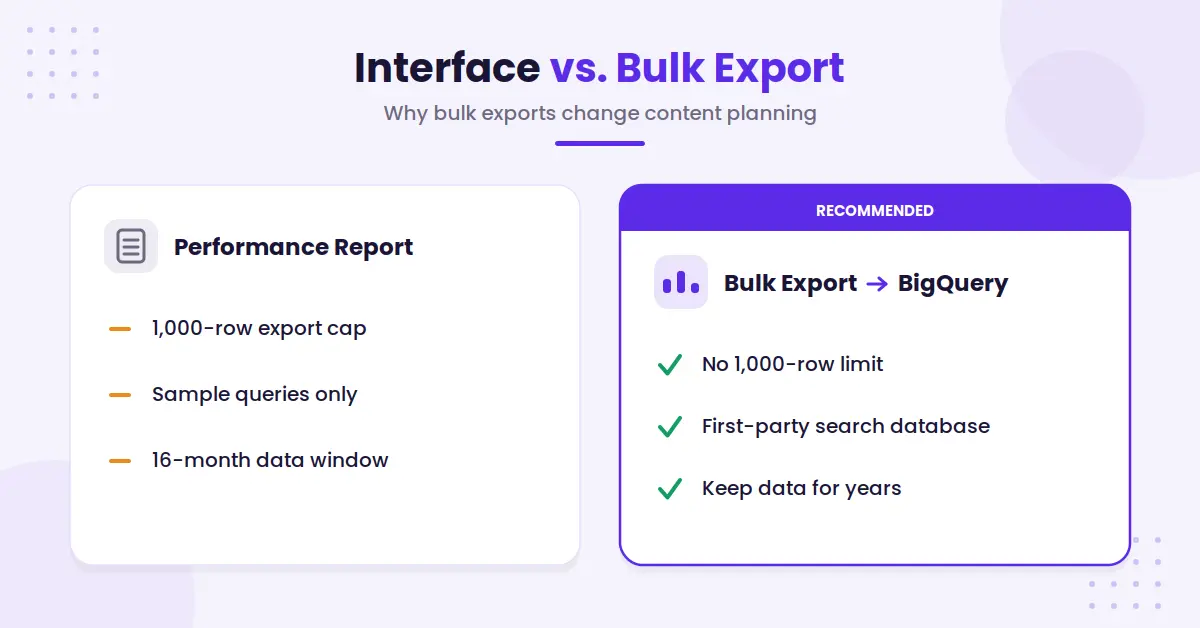
Which question variations brought impressions but never earned a click? Which old posts are losing visibility? Which three URLs are competing for the same query?
The standard interface gives you useful sample queries. A bulk export gives you a growing first-party search database. Data retention lets you keep organic search data for years, monitor seasonal trends, and see more of the language your readers use before they land on your site.
The export complements the Search Console API and Google Analytics rather than replacing them. The API and analytics platform serve different reporting purposes, while the export provides a durable, query-level view of organic search behavior.
That matters for enterprise SEO, but it also matters for any site with hundreds of pages. Planning from a handful of high-volume keywords is like reading only the headlines of customer feedback. The useful detail is usually in long tail queries.
A bulk data export begins collecting data after setup. It does not build a retroactive archive, so connect your property before you need the history.
Google still protects searcher privacy. Rare queries may appear as anonymized records without a readable query value. Even with that limitation, the dataset gives you a much better view of actual organic search demand.
How to Set Up a Daily Bulk Export (Without IAM Mistakes)
You need access in two places: Search Console and Google Cloud. The person configuring the connection should be a verified owner of the Search Console property and have permission to manage IAM roles in the Cloud project.
- Create or choose a Google Cloud project and make sure billing is enabled on it. The export will not start without it.
- Enable two APIs in that project: the BigQuery API and the BigQuery Storage API.
- In IAM and Admin, grant access to Google’s export service account,
search-console-data-export@system.gserviceaccount.com, with two roles: BigQuery Job User and BigQuery Data Editor. Job User lets it run the daily load, Data Editor lets it write the tables. One role without the other fails silently. - In Search Console, open Settings, then Bulk data export, and paste your Cloud project ID. Choose the dataset location at this point too.
- Wait. The first export arrives up to 48 hours after a successful configuration, then runs daily.
Four Mistakes That Break the Export
Search Console asks for the project ID, not the project number. They look similar in the Cloud console and pasting the wrong one is the most common setup failure.
Pick the dataset location carefully, because you cannot easily change it once exports begin. Moving it later means creating a new dataset and reconfiguring the export from scratch.
If you set a table or partition expiration, Google asks you to keep it at 14 days or longer. Anything shorter risks deleting data before it lands.
Do not change the table schema, including adding a column. A neat-looking edit can break the daily export.
Bulk export is the right tool when you want a permanent archive and full row counts. If that is more infrastructure than you need right now, you can also query Search Console conversationally through an AI connector, which skips the Cloud setup but reads live data instead of building a history you own.
Read the Three BigQuery Tables Like an SEO
Three primary tables power these exports. Each has a different job, and content planning gets easier when you stop treating them as one giant report.
searchdata_site_impressionis your demand table. It aggregates performance by Search Console property and includes signals such as queries, country, device, search type, clicks, impressions, and position components.searchdata_url_impressionadds the page-level view. Use it to see which landing pages received impressions for a query, how search appearance, such as rich results, affects performance, and whether several pages are splitting visibility.ExportLogrecords successful daily exports. It confirms that data arrived, but it doesn’t log failed exports. An empty or stale daily log means you should check your Search Console status and Cloud permissions.
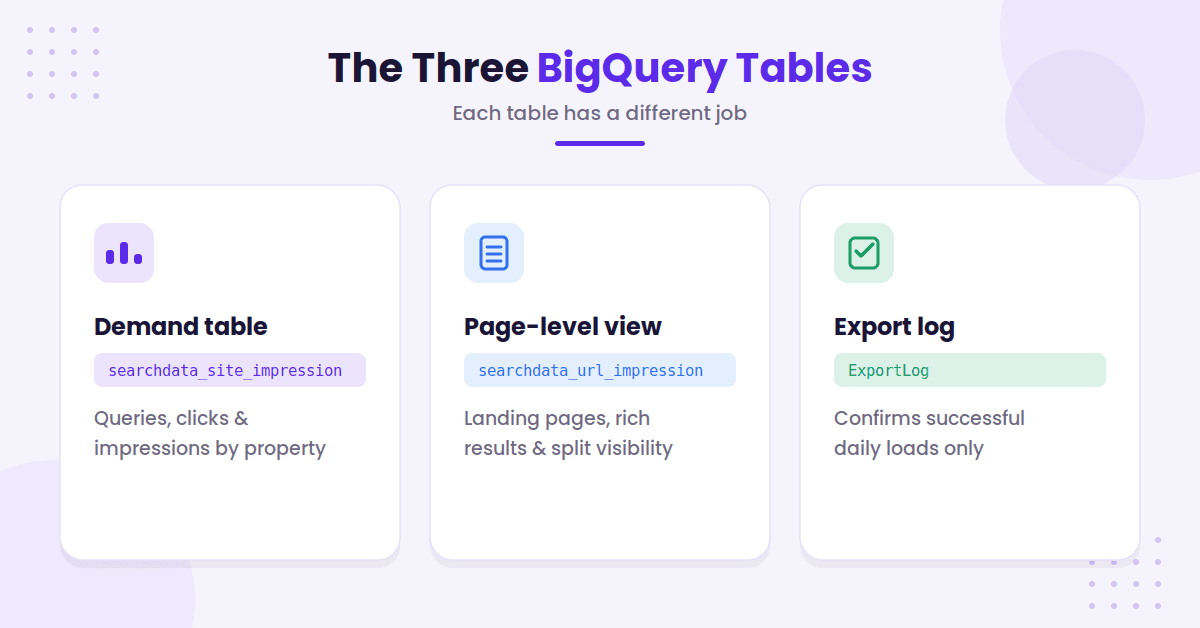
Google’s overview of the bulk export tables is worth bookmarking before you write queries. Three details catch people out. data_date follows Pacific Time. Anonymized queries do not include readable query text. And there is no average position column, so you calculate it yourself with SUM(sum_top_position)/SUM(impressions) + 1, since the stored value is zero-based.
Don’t rename columns, remove fields, or change the schema. A neat-looking edit can break the daily export.
Turn Daily Search Data Into a Content Plan
Start with the last 90 days in searchdata_site_impression. Filter to web search and exclude anonymized queries. Then group by query and add clicks and impressions.
This first pass shows what people already associate with your site. It is stronger than a brainstorm because Google has already shown your content for those searches.
Build Four Decision Queues
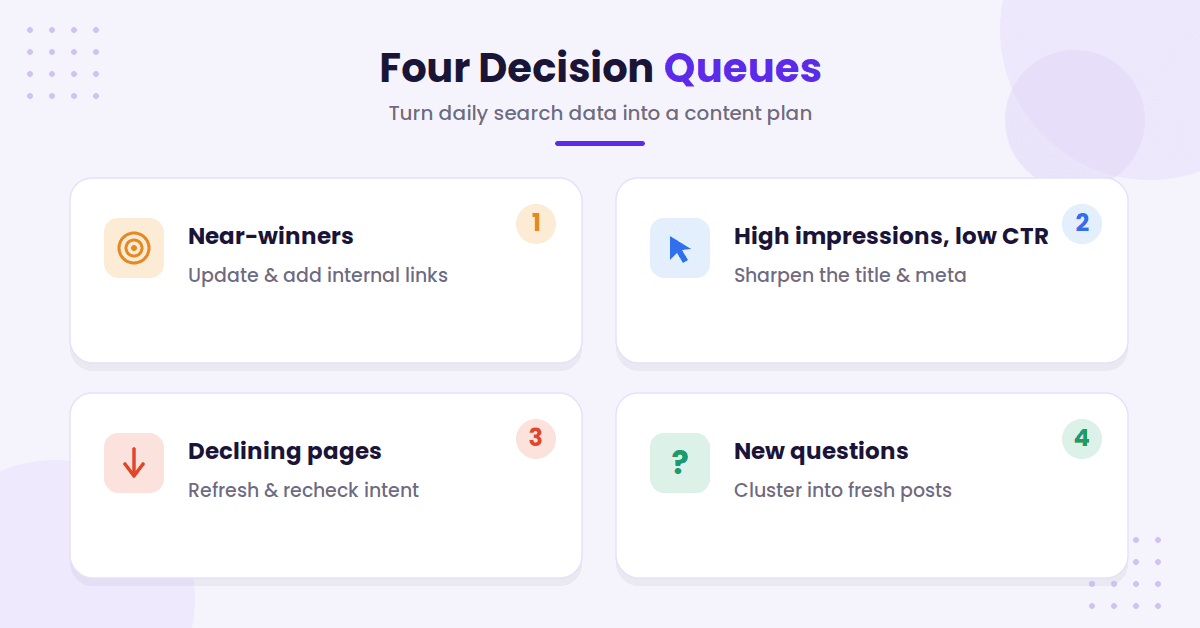
Look first for near-winner queries. These have solid impressions, a page ranking around the bottom of page one or top of page two, and a clear intent match. Often, the right move is a focused update, better internal links, or a direct answer section.
Next, find pages with high impressions and weak click-through rates. If rankings are decent, the landing pages may need a stronger title, meta description, format, or content update.
A comparison query needs a comparison page. A question needs a fast, direct answer.
Then check for declining pages. Compare the latest 90 days with the prior period. If clicks and impressions both fall, review freshness, search intent, competing pages, and whether the topic has changed.
Finally, look for repeated new questions with no matching page. Merge spelling variants and close wording before treating them as separate topics. Then group related terms into keyword clusters so one strong article can answer the full intent instead of creating five thin posts.
Make a Publishing Call, Not a Spreadsheet
Every query group needs one action: update an existing URL, publish a new page, merge overlapping content, or leave it alone.
Use searchdata_url_impression to check whether Google already favors a page for the topic. If it does, build that page out. If three weak URLs share the same impressions, consolidate them into one clearer destination.
Search Console shows how your site performs today. Use a practical SEO content strategy to connect those findings to pillars, supporting posts, and internal links.
Control Costs and Protect the Export
BigQuery needs billing enabled, but storage costs are rarely the problem for a typical content team. Query-scanning costs from wasteful queries are.
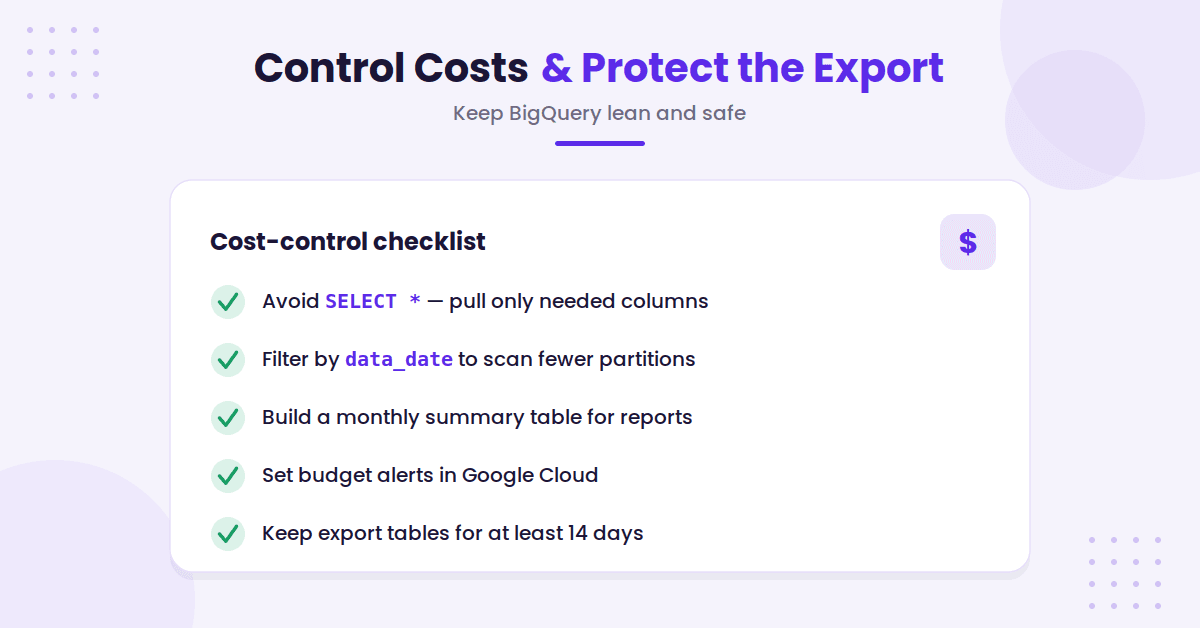
Avoid SELECT *. Pull only the columns you need, and always filter by data_date so BigQuery scans only relevant partitions. A 90-day content review should not scan your full history. Google’s own BigQuery efficiency tips for bulk data exports cover the same habits with example queries.
Create a small monthly summary table for dashboards and custom reports. Your reporting tool can read that summary instead of scanning the raw export tables each time. Set budget alerts against the relevant billing account in Google Cloud before you hand access to a larger team.
If you use table or partition expiration rules, keep export tables available for at least 14 days. Also, never treat ExportLog as a full error report. It confirms successful loads, not failures.
Frequently Asked Questions About GSC Bulk Exports
Here are a few more questions that tend to come up.
How Long Does the First Export Take?
Allow up to 48 hours after a successful connection. Exports then run daily. Check ExportLog to confirm successful deliveries.
Can You Change the Dataset Location Later?
No. BigQuery does not let you edit a dataset’s location after creation. Moving locations means planning a new dataset and configuring a new export.
What Performance Data Is Included?
The daily data dump includes clicks, impressions, queries when available, country, device, search type, URLs, search appearance detail, and position-related fields. It does not replace URL Inspection data for indexing or canonical checks.
Why Are Some Queries Missing?
Google anonymizes some rare searches to protect user privacy. Those records may still count toward totals, but the query field is blank.
Final Thoughts on Search Console Bulk Exports
The strongest content plans do not begin with a blank spreadsheet. They begin with real queries and pages Google is already testing for your site.
Set up Search Console bulk exports, protect the data pipeline, and review focused query groups each month. Your best next update may be hiding in a search term that has already earned thousands of impressions.

RightBlogger Co-Founder Andy Feliciotti focuses on website development and shares his expertise in travel, photography, and SEO.




Automated SEO Blog Posts for Your Site
Research, write, publish, and share from one account.
7-day free trial. Cancel anytime.





Leave a comment