Google Search Console MCP: How to Connect GSC to Claude (4 Ways)
Compare four connection options, their setup and access tradeoffs, then use eight prompts to find SEO opportunities in your data.


Google Search Console holds the answers to most of your SEO questions. The problem is the interface buries them. Finding striking-distance keywords, spotting pages that lose clicks every month, or checking CTR by device usually means exporting a CSV, deleting the summary rows, and building a pivot table you will not look at twice.

The fix is a Google Search Console MCP server, which connects Search Console to Claude so you can ask questions in plain language. Google doesn’t publish an official one, so you pick from four routes: the RightBlogger connector, a free open-source server, a paid data connector, or a CSV upload.
This guide compares all four, shows the setup for each, and includes eight prompts to run once your data is connected.
Key Takeaways
- Google doesn’t publish an official Search Console MCP server (as of October 2026). Every option is built by the community or a vendor on top of the same public API.
- The free open-source server, mcp-gsc, costs nothing but needs Google Cloud credentials, a config file, and the Claude Desktop app.
- Hosted connectors skip that setup. The RightBlogger MCP is one URL plus a sign-in, and it’s included on every RightBlogger plan, including the free one.
- The data underneath is the same everywhere: up to 25,000 rows per request, usually two to three days behind, with anonymized queries left out.
What You Can Do Once Search Console Is Connected
Once the connector is live, you stop navigating reports and start asking questions. A few examples you can run in one prompt:
- Pull every keyword sitting in positions 4 to 15 with real impressions, your fastest path to page one.
- Find pages that rank well but get a weak click-through rate, the ones that need better titles, not better rankings.
- Spot keyword cannibalization, where two of your pages compete for the same query.
- Compare the last 28 days against the previous 28 to catch content decay early.
The prompts that do all of this are near the end. First, the options.
Is There an Official Google Search Console MCP?
No. As of October 2026, Google doesn’t publish a Search Console MCP server. Its list of supported Google MCP products covers services like BigQuery, Google Maps, and Workspace apps such as Drive and Gmail, and Search Console isn’t on it.
Google does ship an official Google Analytics MCP server, an experimental, read-only server you run on your own computer. For Search Console, every MCP you’ll find comes from the community or a vendor building on Google’s public Search Console API.
That makes comparing them simpler. The data and its limits are the same everywhere, so the real differences are setup time, cost, and how much access each one asks for.
Every Way to Connect Google Search Console to Claude
Here are the four routes side by side. Disclosure: RightBlogger is our tool, so weigh the first row accordingly. Prices are each vendor’s published entry price as of October 2026.
| Method | Setup | Cost | Search Console access | Best for |
|---|---|---|---|---|
| RightBlogger MCP | Paste one URL into Claude and sign in | Included on every RightBlogger plan, including Free | Read-only | Daily SEO work, with your published posts in the same chat |
| Free community server (mcp-gsc) | Create Google Cloud credentials, install it, edit a config file | Free (MIT license) | Full Search Console permission | Developers comfortable with Google Cloud and Claude Desktop |
| Hosted data connectors | Create an account, connect Search Console, add the connector in Claude | Entry plans run $15 to $55 a month; some have free plans | Varies by vendor | Teams already pulling marketing data from several sources |
| CSV export | Export from Search Console, upload the file | Free | None (you hand over a file) | A one-time question |
The hosted connectors differ more than their landing pages suggest. On monthly billing, the four that show up for this search compare like this:
| Connector | Entry price | Free option | How it gets into Claude | Worth knowing |
|---|---|---|---|---|
| Supermetrics | $55/month ($44 billed yearly) | 14-day trial | Claude connector directory | Queries Search Console live; Starter covers 3 data sources |
| Windsor.ai | $23/month ($19 billed yearly) | Free plan with 1 data source and 30 days of history | Claude connector directory | Paid plans reach back up to 16 months |
| Porter Metrics | $15/month per account ($12.50 billed yearly) | Free plan with 30 days of history | Custom connector URL | Read-only tools |
| Coupler.io | $32/month ($24 billed yearly) | Free plan with manual refreshes | Claude connector directory | Reads a synced copy of your data, refreshed daily on Starter |
The short version: if you write code and want to own the setup, the free server does the job. If your marketing data already flows through one of these pipeline tools, use the connector you pay for. If you want Search Console and your own posts in one conversation without installing anything, that’s what the RightBlogger connector is built for. And if you need one answer today, export a CSV.
What the RightBlogger MCP Is
MCP stands for Model Context Protocol, an open standard that lets AI clients talk to outside tools and data. The RightBlogger MCP is a remote MCP server that connects your RightBlogger account to those clients.
Once you connect it, your AI can pull your Search Console performance, research keywords from RightBlogger’s database, and read the posts on your connected CMS, all by asking in plain language. It reuses the same Search Console and CMS connections you set up for the Site Agent, so if you already use that, there is nothing new to wire up.
How to Connect Google Search Console to Claude
You need three things: a RightBlogger account, a project with Google Search Console connected, and a Claude account. Free plans work on both sides: Claude’s Free plan allows one custom connector, and a free RightBlogger account can connect and use the read tools. On a Claude Team or Enterprise plan, an owner adds custom connectors in the organization settings, then each person signs in.
Step 1: Open the connector settings in Claude
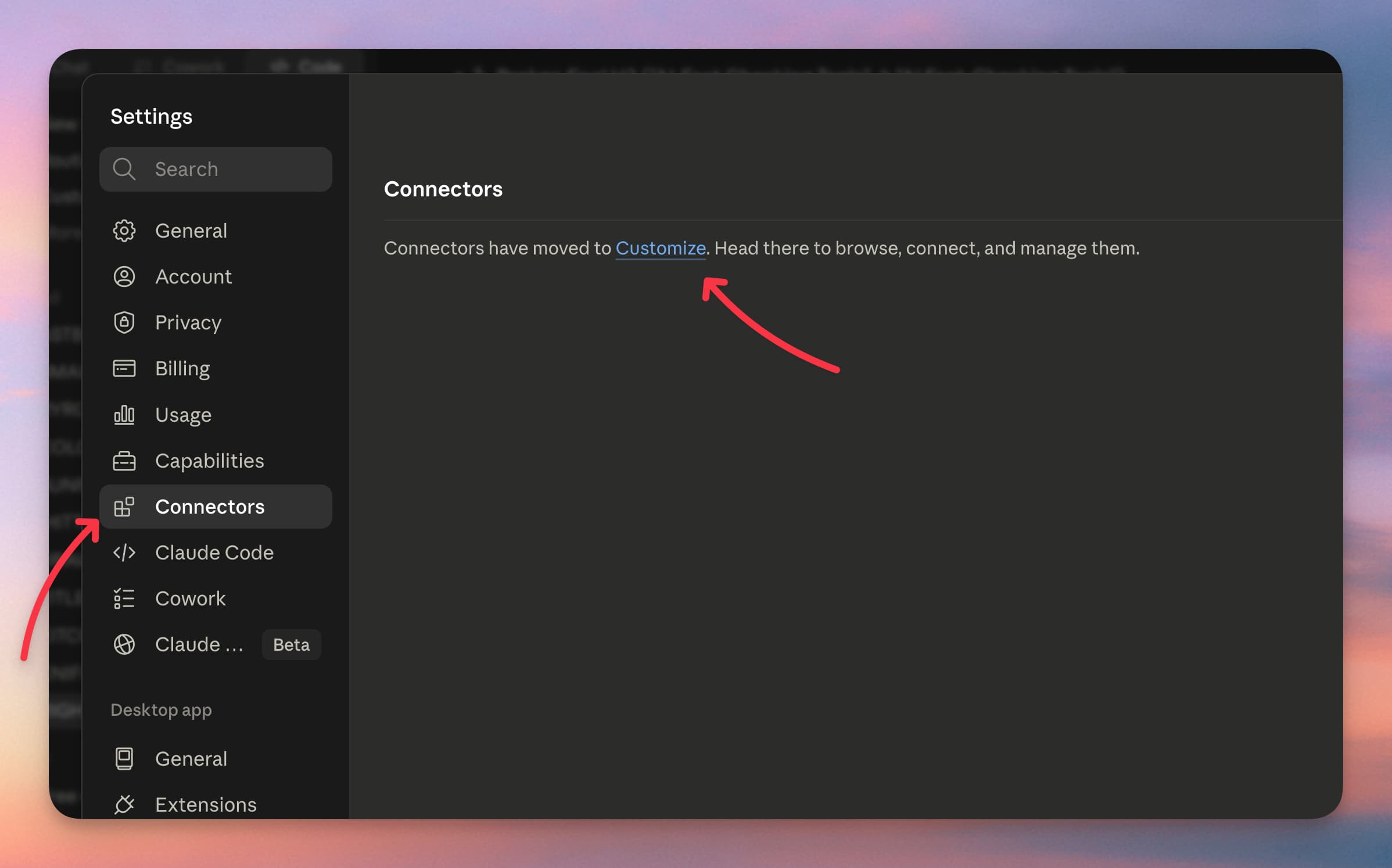
In Claude, open Customize, then Connectors. If you look under Settings first, Claude links you straight there.
Step 2: Add a custom connector
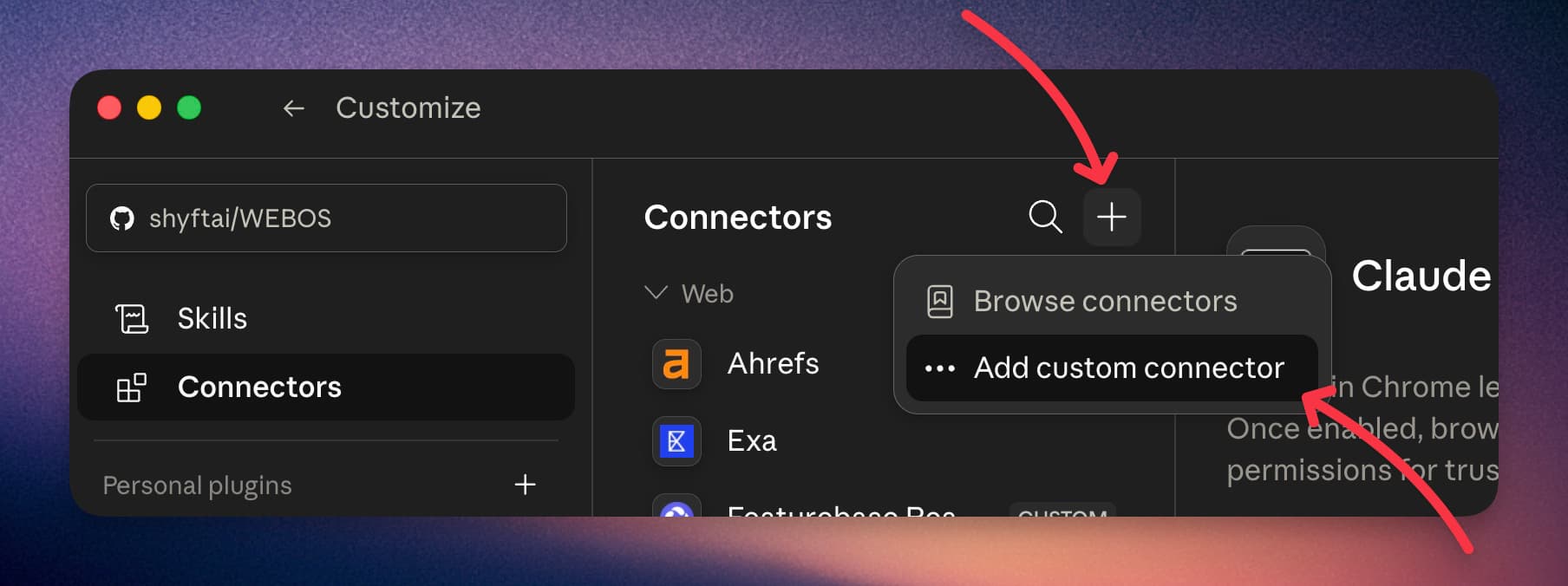
On the Connectors screen, click the plus icon and choose Add custom connector.
Step 3: Paste the RightBlogger URL
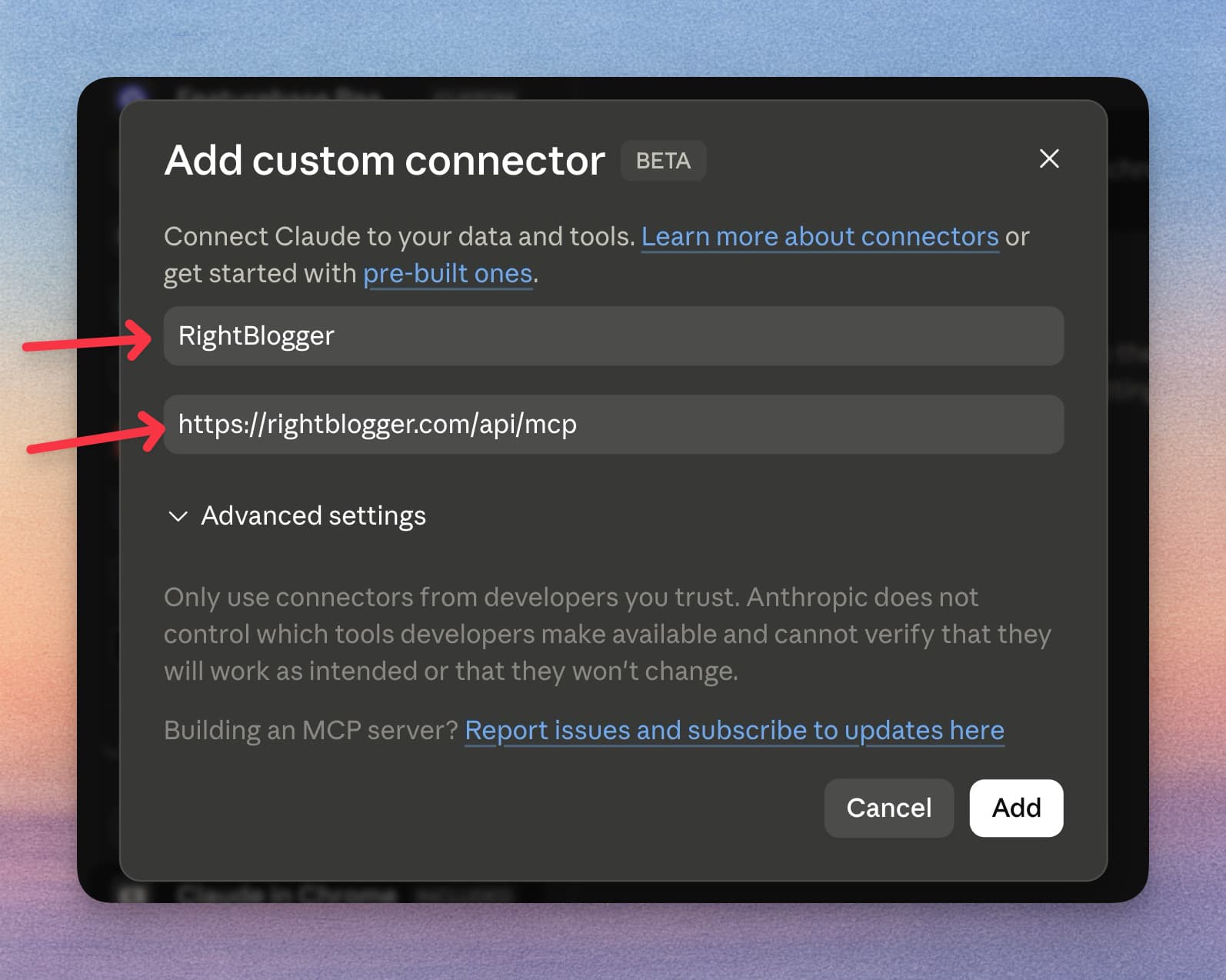
Name it RightBlogger, paste the connector address below, then click Add.
Step 4: Connect your account
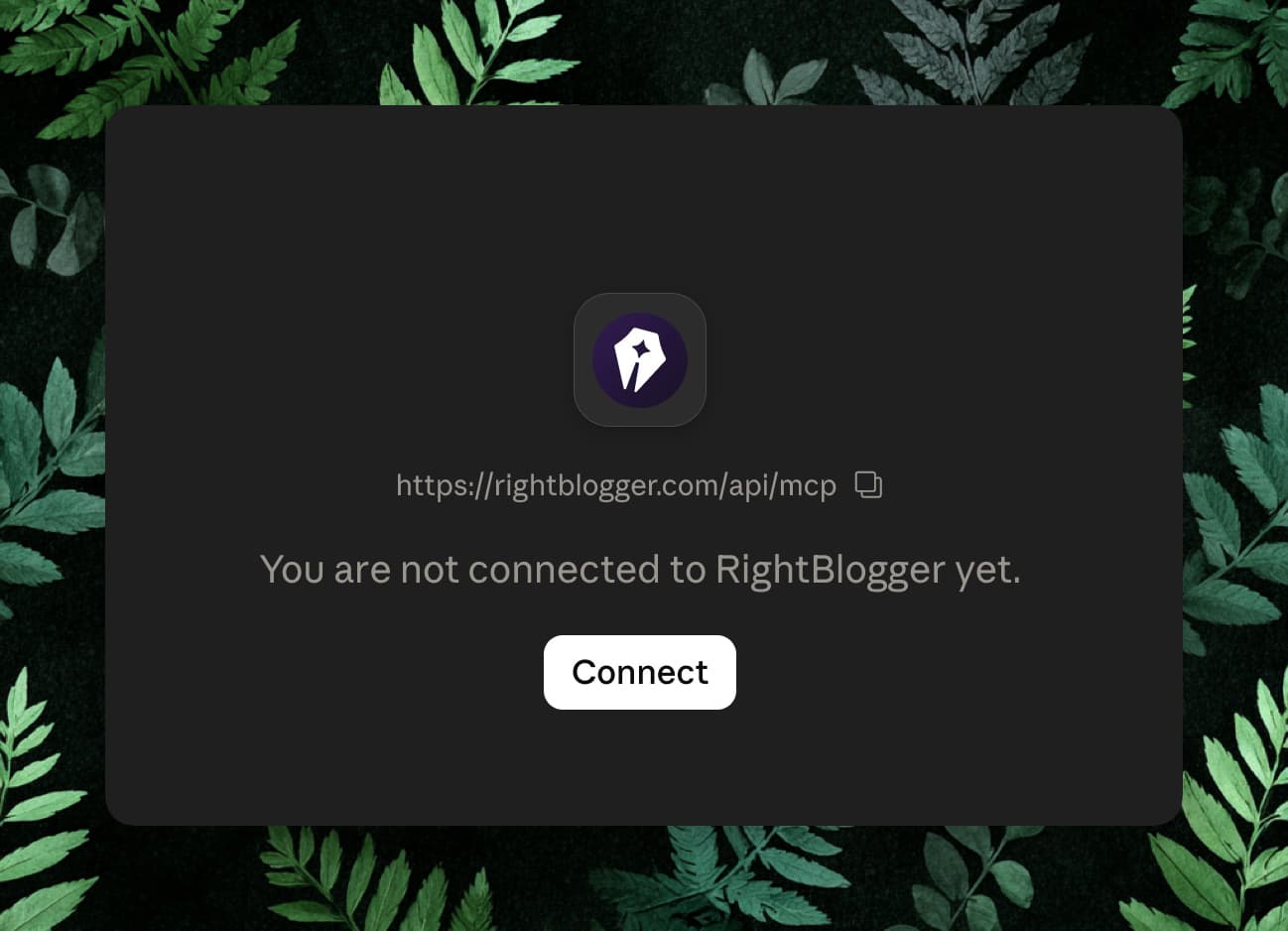
The connector shows up but is not linked yet. Click Connect to start the sign-in.
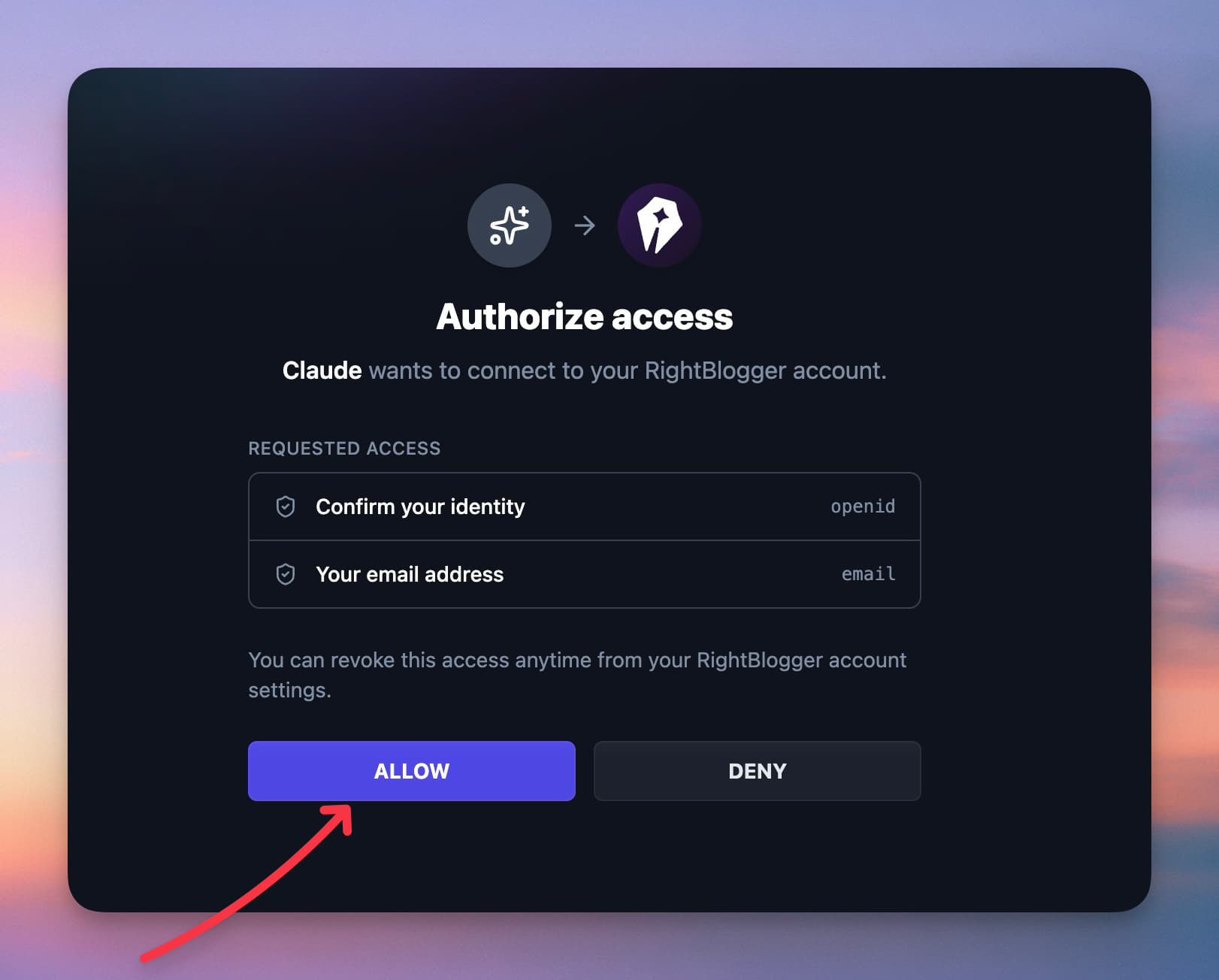
Step 5: Authorize access
RightBlogger asks you to approve the connection. It only requests your identity and email address, nothing that can change your site. Click Allow.
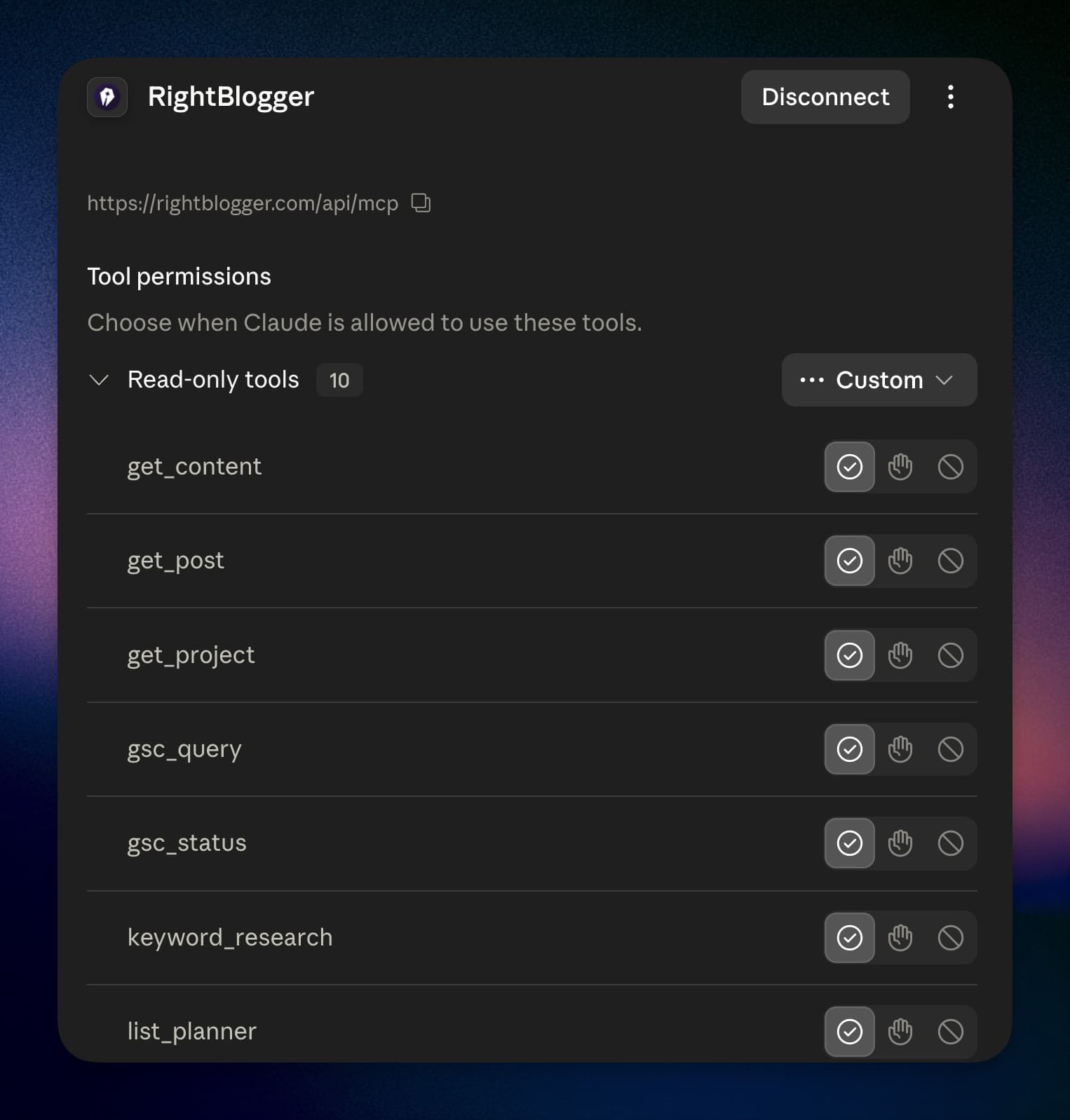
Step 6: Set tool permissions
Your projects connect and the tools appear, including gsc_query, gsc_compare, gsc_insights, gsc_status, and keyword_research. Let the read tools run without approval so Claude can pull data without stopping to ask each time. Write tools still ask before anything publishes.
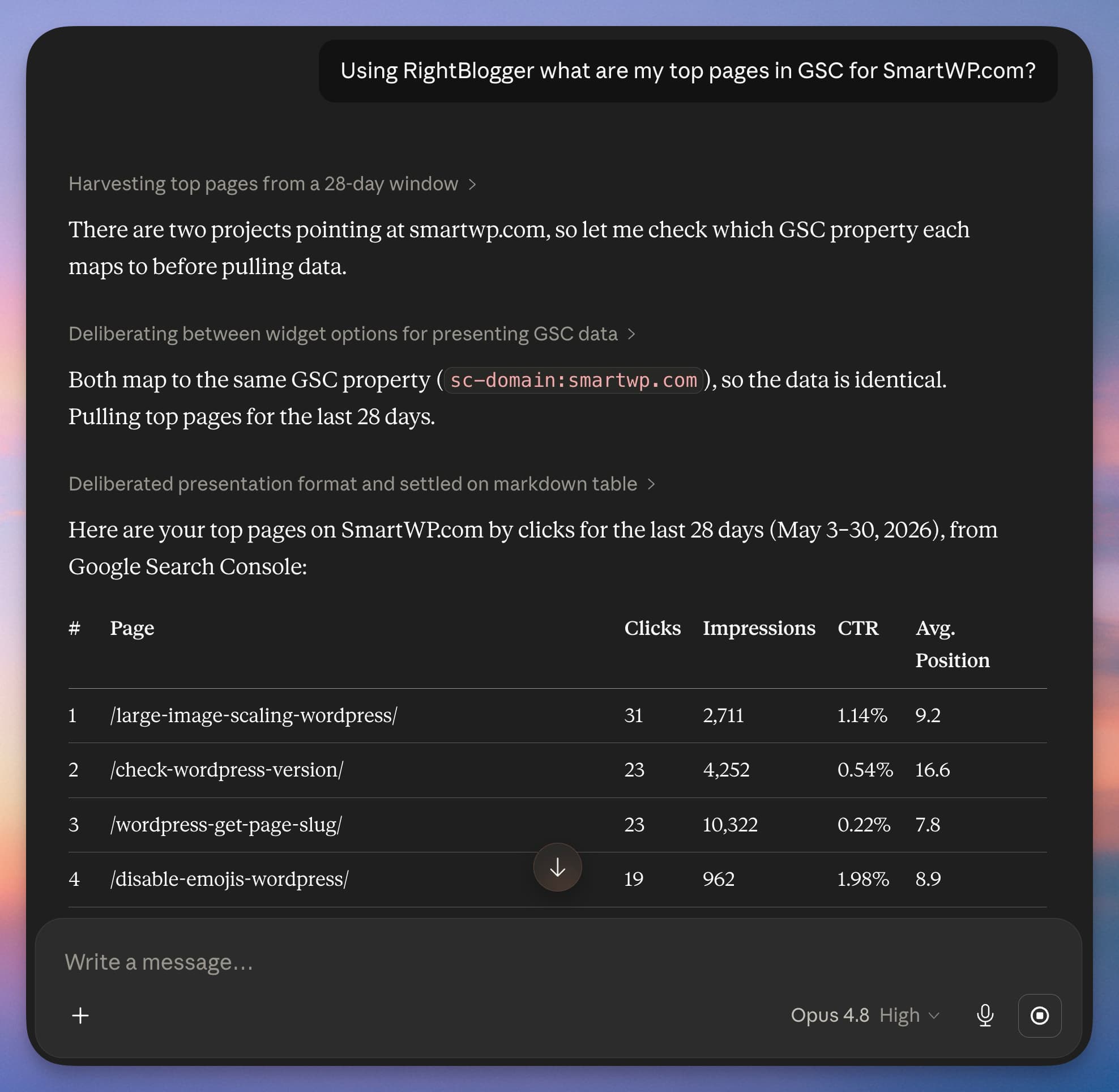
That is the whole setup. Open a new chat and ask a question about your search performance. Something as simple as “Using RightBlogger, what are my top pages in Search Console?” returns a clean table of clicks, impressions, CTR, and position.
Connect Google Search Console to Claude Code
Claude Code uses the same server URL. Add it from your terminal:
claude mcp add --transport http rightblogger https://rightblogger.com/api/mcpThen start Claude Code, run /mcp, and sign in with your RightBlogger account. The prompts later in this guide work the same way in the terminal. That’s handy when you want Claude to pull Search Console data and edit files in one session.
Cursor, ChatGPT, and other clients
In Cursor, add the same URL as a remote server in .cursor/mcp.json for one project, or ~/.cursor/mcp.json for all of them. ChatGPT accepts custom MCP servers only on some paid plans as of October 2026: developer mode on Pro (read access only) and on Business and Enterprise. OpenAI has also been moving the setting between its Apps and Plugins menus. Our MCP connector setup guide covers each client.
Set Up a Free Google Search Console MCP
If you’d rather run your own server, mcp-gsc is a widely used open-source option, with an MIT license and roughly 1,900 GitHub stars. It runs on your computer, so it works in the Claude Desktop app but not in Claude on the web. Most of the setup happens in Google Cloud.
- In the Google Cloud console, create a project and enable the Google Search Console API.
- Configure the OAuth consent screen, create an OAuth client ID with the type set to Desktop app, and download its JSON file.
- Install uv, the Python tool the project recommends. The server runs with uvx mcp-search-console and needs Python 3.11 or newer.
- In Claude Desktop, open Settings, then Developer, then Edit Config, and add the server with the full paths to uvx and your client secrets file (example below).
- Restart Claude Desktop. The first time you ask about Search Console, a browser window opens so you can sign in with the Google account that can see your properties.
{
  "mcpServers": {
    "gscServer": {
      "command": "/FULL/PATH/TO/uvx",
      "args": ["mcp-search-console"],
      "env": {
        "GSC_OAUTH_CLIENT_SECRETS_FILE": "/full/path/to/client_secrets.json"
      }
    }
  }
}
Prefer a service account, for a server or a shared machine? Create one in the same Google Cloud project, download its JSON key, and add the service account’s email address as a user in Search Console under Settings, then Users and permissions. In the config, swap the OAuth variable for GSC_CREDENTIALS_PATH pointing at the key, and set GSC_SKIP_OAUTH to true.
Two things to weigh before you choose this route. It asks Google for full Search Console permission rather than read-only access, so guard the credentials file like a password. And because it runs locally, you maintain it: updates, Python versions, and the occasional dependency that breaks a fresh install are yours to handle.
Other open-source servers work the same way, including Suganthan’s GSC MCP and search-console-mcp, which also covers Bing Webmaster Tools and Google Analytics.
The Data Limits Every Search Console MCP Shares
Every route here, paid or free, reads the same Search Console data, so they share its limits. Knowing them saves you from blaming the tool:
- Each request returns up to 25,000 rows, and a server can page through anything bigger. Google also exposes at most 50,000 rows a day for each search type, sorted by clicks, so very large sites only see their top rows.
- Data usually lands two to three days late. Some servers can ask for Google’s fresher numbers that haven’t been finalized yet.
- Anonymized queries never show up. Google holds back rare queries to protect searchers’ privacy, so a query report won’t account for every click.
- History goes back 16 months, the same window as the Performance report.
- URL inspection is capped at 2,000 checks per property per day.
If you outgrow those limits, Search Console’s bulk data export sends your raw data to BigQuery every day, and our URL Inspection API guide covers checking indexing at scale.
The Tools You Get
The RightBlogger connector’s read tools cover Search Console, keyword research, your published posts, and your content calendar, each scoped to the projects you can access. These are the ones you’ll use most. Your client lists the full set after you connect.
| Tool | What it does |
|---|---|
list_projects | Lists the sites you can access, with CMS and Search Console status. Claude calls this first. |
get_project | Details for one site: its name, URL, connected CMS, and whether Search Console is linked. |
gsc_query | Clicks, impressions, CTR, and position, grouped by page, query, country, device, date, or search appearance, with filters. |
gsc_status | Confirms Search Console is connected and which property it points to. |
gsc_compare | Compares two Search Console periods and returns totals plus the biggest gainers and decliners by page or query, and pages or queries that appeared or disappeared. The default baseline is an equal window before the selected range. Chat caps lists at 10; MCP can return 20 to 100. |
keyword_research | RightBlogger’s keyword engine: volume, CPC, and difficulty for any seed term. |
search_posts / get_post | Search and read the posts on your connected CMS (WordPress, Ghost, or Webflow), including the raw body and SEO meta. |
search_content / get_content | Search and read your RightBlogger drafts and generated articles. |
list_planner | Your content calendar: planned and scheduled posts with dates and destinations. |
It also has write tools. update_post and update_post_meta change a post’s body, title, or SEO meta, and undo_edit rolls any of those edits back. Separate tools handle automations, your content and social calendars, the Site Agent, and AI brand monitoring, one action per tool (create_automation, schedule_content, approve_agent_suggestion, and so on). Anything that publishes or spends quota asks you first, and write tools follow your project role.
8 Prompts to Run Once Search Console Is Connected
These move past basic reporting. Each one uses your live data, so the output is specific to your site. Swap in your own domain where it says [your site], and mention RightBlogger in the prompt so Claude picks the right connector.
Prompt 1: Striking-distance keywords
What it surfaces: keywords one edit away from page one or the top three, the highest-ROI work on the site.
Prompt 2: CTR and cannibalization audit
What it surfaces: easy title and meta rewrites, plus internal competition that is splitting your traffic. The CTR side pairs well with the workflow in finding blog posts with high impressions and low CTR.
Prompt 3: Content decay
What it surfaces: the posts losing traction, your highest-value refresh targets, with seasonality controlled for. It is the live version of a full content decay audit.
Prompt 4: Rewrite a weak title using the live post
What it surfaces: a ready-to-paste title and meta rewrite grounded in your real content, not a guess. Reading the actual post is the step a tool that only pipes numbers cannot do.
Prompt 5: Spot rising queries before competitors
What it surfaces: the searches trending up for your site, so you can ride the momentum instead of finding out months later.
Prompt 6: Find device and country gaps
What it surfaces: the segment problems a single sitewide number hides, like a mobile CTR gap or a country where you are leaving clicks on the table.
Prompt 7: Spot AI-style and conversational queries
What it surfaces: the natural-language and AI-search queries your audience is starting to use, so you can publish direct answers before competitors catch on.
Prompt 8: Topic-level growth and decline
What it surfaces: whether a slump is one page or a whole topic, and where the next post should go. This is the portfolio view: instead of fixing URLs one at a time, you decide which topics deserve more investment and which have stopped paying. Reading your actual posts before the update-or-write-new call is the step a raw data export cannot do.
The same connection reaches beyond Search Console. Keyword research and your content calendar are tools too, so you can ask Claude to pull related keywords from RightBlogger’s database for a topic, or to check whether anything on your planner targets a query you already rank for.
The Manual Alternative: CSV Exports (and Why a Connector Beats It)
You can still get Search Console data into an AI by hand. Export the CSV, delete the summary rows so the headers do not confuse the model, and upload the file with a long prompt explaining what it is. That works for a one-time check, but it falls apart as a habit for three reasons.
- The export is a snapshot. A CSV is yesterday’s data frozen in a file, while a connector reads current numbers so you can ask a follow-up.
- The file has no context. A spreadsheet of queries doesn’t know what your pages say, but the RightBlogger connector can also read your posts and tie a weak query to the paragraph that needs work.
- It doesn’t scale. Nobody exports and cleans a CSV every morning, and a saved connector turns that chore into a one-line question.
Exports come from the same Search Console data, so the reporting delay and the missing anonymized queries apply there too.
How Secure It Is
The connector uses the same identity and access rules as the RightBlogger app. You sign in through standard OAuth 2.1, so your AI client gets a scoped token and never your credentials. The consent screen only requests your identity and email, and every call checks your access to a project first, which means you only ever see your own sites and data.
On the Google side, RightBlogger asks for read-only Search Console access when you connect a property. Check what any other server requests before you install it; mcp-gsc, for example, asks for full Search Console permission.
Read tools work for any teammate; write tools follow their project role, and anything that publishes or spends quota asks for confirmation first, so nothing changes on your site without you seeing it. Every post edit made through the connector can be rolled back with undo_edit. Teammates connect with their own login and see only the projects they belong to. If you want a version that acts on its own and improves your site automatically on a schedule, that is what the Site Agent does, and it runs through the same connections.
Start With One Question
Search Console is the source of truth for how you show up in Google. The hard part has always been turning that data into a decision. Connecting it to Claude removes the export step and lets you ask the question directly, with your own numbers and your own posts in the room.
Pick the route that fits your setup, connect it once, and start with the striking-distance prompt above. If you want the option with nothing to install, you can set up the RightBlogger MCP here, and it’s included with every plan.
FAQs
Is a Google Search Console MCP free?
It can be. The open-source mcp-gsc server is free, and the RightBlogger MCP is included on every RightBlogger plan, including the free one, which pairs with Claude’s free plan (one custom connector). Hosted data connectors like Supermetrics and Coupler.io charge monthly, though several offer limited free plans. See what each RightBlogger plan includes on the pricing page.
Can I connect Google Search Console to Claude Code?
Yes. Add the RightBlogger server with the claude mcp add command shown above and sign in with /mcp, or add a local server like mcp-gsc as a command-based server. Either way, you can query Search Console from the terminal.
Which AI clients can connect?
Any client that supports remote MCP servers over Streamable HTTP can use the RightBlogger URL. That includes Claude (web, desktop, mobile, and Claude Code), Cursor, VS Code, Codex CLI, Gemini CLI, and ChatGPT on plans that allow custom MCP servers. The connector URL is the same everywhere.
Does it see my Google password?
No. You connect Search Console to RightBlogger once through Google’s official read-only permissions, and your AI client signs in to RightBlogger through OAuth. The client receives a scoped token, never a password or an API key.
Can it edit my posts?
Yes. Ask Claude to change a post, its title, or its SEO meta and it applies through the same connection the app uses. Every post edit is reversible with undo_edit, and anything that publishes or spends your quota asks for confirmation first. Beyond posts, it can set up and change your automations, the content and social calendars, the Site Agent, and AI brand monitoring.

RightBlogger Co-Founder Andy Feliciotti focuses on website development and shares his photography and travel adventures on YouTube and his blog.



Automated SEO Blog Posts for Your Site
Research, write, publish, and share from one account.
7-day free trial. Cancel anytime.





Leave a comment
You must be logged in to comment.
Loading comments...