How to Use CMS Integrations in RightBlogger
Connect a site to publish drafts or live posts, schedule content, and automate publishing from its project.
To get the most out of RightBlogger, you’ll want to connect your blog or website so you can publish content directly from your account. Once your CMS is connected, you can send posts from the AI Article Writer, schedule content with the content planner, and turn on auto blogging for fully automated publishing.
This guide walks you through how CMS connections work in RightBlogger and links out to step-by-step instructions for each supported platform.
Why Connect Your CMS to RightBlogger
When your CMS is connected, you can:
- Publish posts directly from RightBlogger to your site
- Save articles as drafts for review before they go live
- Use the content planner and auto blogging to schedule posts in advance
- Turn YouTube videos into blog posts and send them straight to your CMS
- Keep all your content creation and publishing inside one workflow
If you’re planning to use auto blogging or calendar-based scheduling, connecting your CMS is the first step.
Where to Manage Your CMS Connections
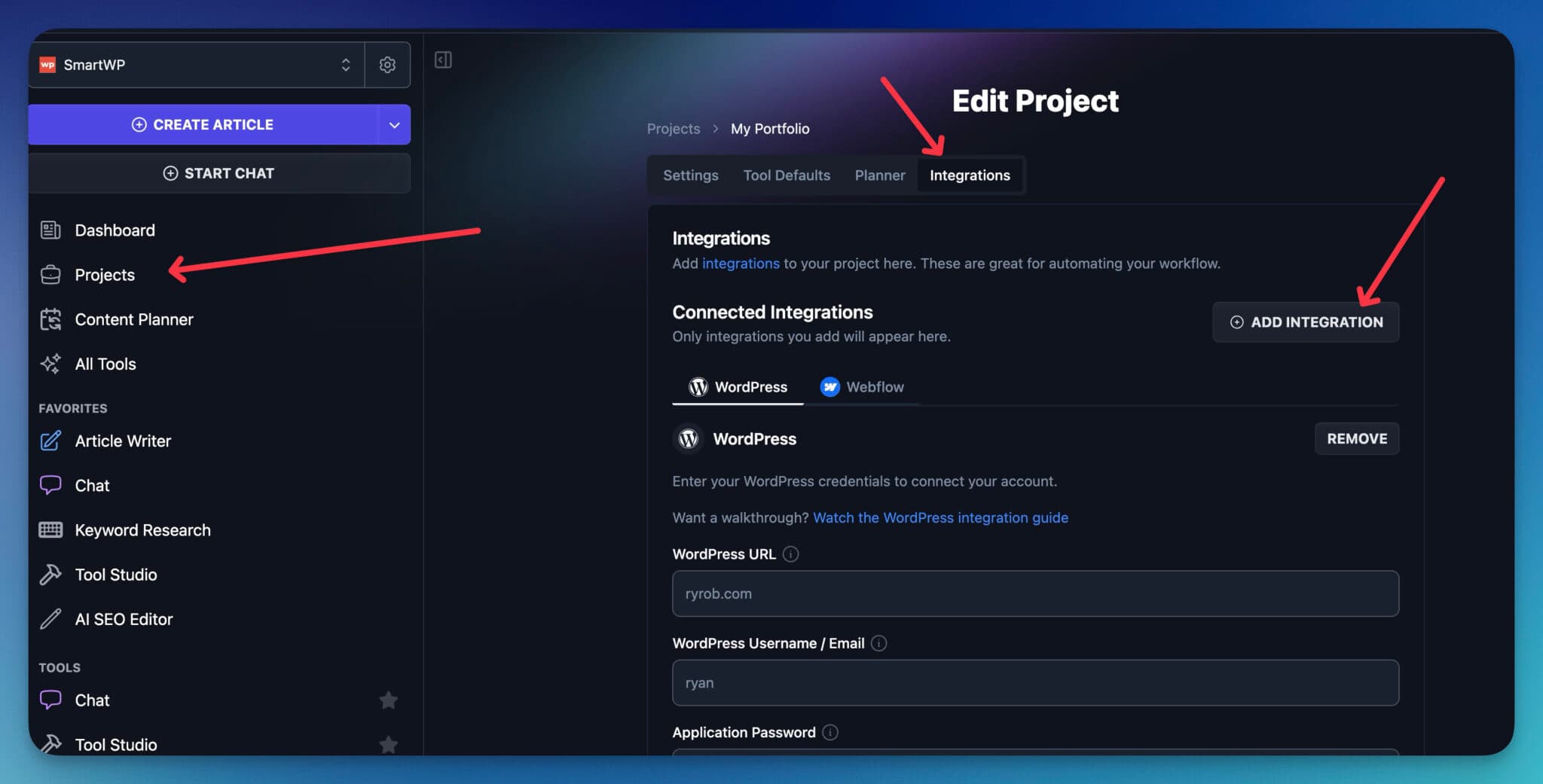
All CMS connections are managed at the Project level inside RightBlogger.
Each project can have its own set of integrations, making it easy to run multiple sites from a single account.
- Open your Project
Use the site picker at the top of the left sidebar (in the top bar on mobile) to select the project that matches the site you want to connect. - Go to Integrations
Inside your project, look for the Integrations section. This is where you’ll see all available CMS options and any connections you’ve already added.
From here, you’ll be able to add, edit, or remove connections for your site.
Supported CMS Platforms
RightBlogger integrates with several popular platforms, plus a flexible webhooks option for custom setups (developers will love this).
Choose your CMS below to follow the detailed setup instructions:
- WordPress
Perfect for most bloggers and content creators running WordPress sites. Includes automatic IndexNow pings for faster search engine indexing.
Follow the full guide: WordPress Integration Guide
Learn more: RightBlogger + WordPress - Webflow
Great for designers and creators using Webflow’s visual builder.
Follow the full guide: Webflow Integration Guide
Learn more: RightBlogger + Webflow - Framer
Publish articles to a Framer CMS collection, with featured images and SEO fields mapped for you.
Learn more: RightBlogger + Framer - Shopify
One of the most popular eCommerce platforms.
Learn more: RightBlogger + Shopify - Wix
Ideal for users who want a simple Wix-powered website with AI-driven content.
Follow the full guide: Wix Integration Guide
Learn more: RightBlogger + Wix - Duda
Built for agencies and site builders serving multiple client sites.
Follow the full guide: Duda Integration Guide
Learn more: RightBlogger + Duda - Ghost
For users who use Ghost as their blogging platform.
Follow the full guide: Ghost Integration Guide
Learn more: RightBlogger + Ghost - Git (GitHub and Cloudflare Artifacts)
For sites built from a repository, including sites made with AI coding tools, Astro, Next.js, and Hugo. Posts are committed in your site’s own format, as pull requests or straight to your live branch.
Follow the full guide: Git Integration Guide
Learn more: RightBlogger + Git - Blogmaker
Connect with one API token and send posts as drafts or publish them immediately.
Learn more: RightBlogger + Blogmaker - Notion
Send finished posts straight into a Notion database, with each post saved as a new page.
Learn more: RightBlogger + Notion - HighLevel
Publish to HighLevel (GoHighLevel) blogs for agency and client sites.
Learn more: RightBlogger + HighLevel - Custom Sites and Other Platforms (via Webhooks)
If you’re using another CMS that isn’t directly listed, you can still send content from RightBlogger using webhooks or a custom integration.
Follow the full guide: Webhooks in RightBlogger
Learn more: RightBlogger Webhooks
If you don’t see your exact platform listed, reach out to our help section and we’re always open to supporting more CMS.
CMS Connections, Site Scan, and MCP
These features solve different problems:
- A CMS connection lets RightBlogger send new posts to your site. Supported connections can also let the Site Agent or MCP read and update posts that are already live.
- Site Scan crawls public pages and adds the first 500 discoverable pages to Project Knowledge. You do not need a CMS connection to run a scan.
- The MCP Connector gives a compatible AI client access to RightBlogger tools and the connections you already set up. Connecting MCP does not connect a CMS or start a Site Scan by itself.
How to Connect Your CMS
While each platform has its own specific instructions (and screenshots) in the guides above, the general flow is similar:
- Choose the Correct Project
Make sure you’ve selected the project that matches the site you’re connecting. - Open the Integrations Page
Go to Integrations from your project settings or sidebar. - Select Your CMS
Choose the platform you want from the integrations shown for your project. This includes WordPress, Shopify, Ghost, Webflow, Framer, Wix, Duda, Blogmaker, Notion, HighLevel, Git, and Webhooks. - Authorize or Add Your Credentials
- For Shopify, HighLevel, and Notion, you sign in and approve access. For Git, you pick a repository through the RightBlogger GitHub app or paste an access token. For WordPress, you install the RightBlogger plugin. For Ghost, Webflow, Framer, Wix, Duda, and Blogmaker, you paste an API key or login credentials from that platform.
- For webhooks or custom sites, paste the HTTPS endpoint that should receive each post. RightBlogger does not currently send custom authentication headers, so include a private token in the URL and validate it in your endpoint.
- Note that the settings for each CMS are different so we recommend using one of the detailed guides above.
- Save and Test
Save your integration and, if recommended in the platform-specific guide, send a test post or draft to make sure everything is connected correctly.
Using Your CMS Connection in RightBlogger
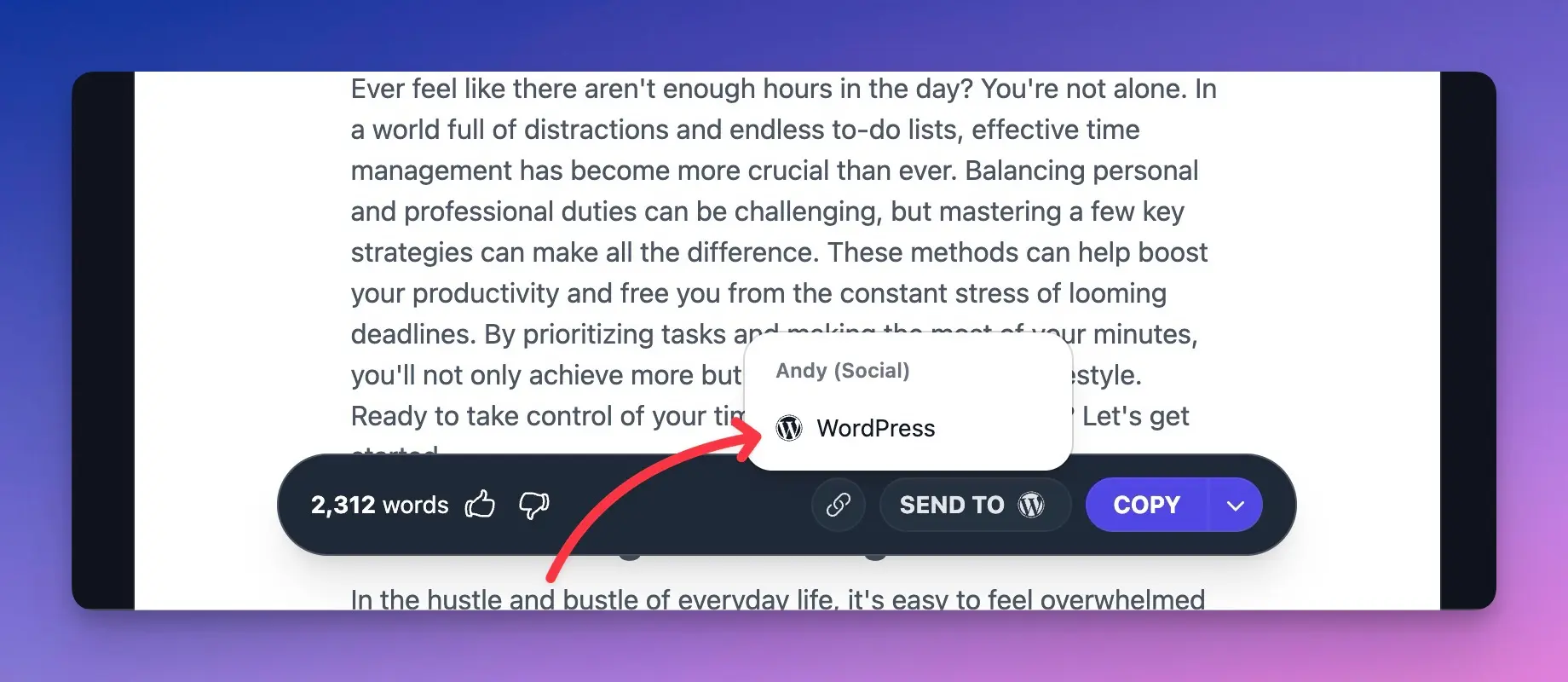
Once your CMS is connected for a project, you’ll be able to:
- Click Send To after you generate content in tools like the Article Writer or Video to Blog Post, then pick your site.
- Check each integration’s publish setting. Posts arrive as drafts or go live based on it, such as Default Post Status for WordPress or Publish instantly for Ghost and Webflow.
- Use the content planner and auto blogging to schedule posts on a daily, weekly, or monthly basis.
- Create automations that take care of publishing for you (see: How to Create My First Automation).
Your connected CMS acts as the destination for everything you create and schedule inside that project.
Troubleshooting and Next Steps
If you’ve followed the integration guide for your CMS and something isn’t working as expected:
- Check the platform-specific help article again for common issues.
- For WordPress, review: WordPress Errors & Fixes
- Make sure you’re using the correct project and integration when publishing.
- Confirm that your CMS credentials, URLs, and permissions are still valid.
If you’re still stuck, you can always reach out to support from inside your RightBlogger account.
Connecting your CMS is the foundation of publishing with RightBlogger. Once your site is linked, you’re ready to turn on auto blogging, build a content calendar, and let AI help you stay consistent with your publishing schedule.
Still need help?
Ask the AI assistant for an instant answer, or reach us directly and we will get back to you as soon as we can.
Automated SEO Blog Posts for Your Site
Research, write, publish, and share from one account.
7-day free trial. Cancel anytime.