Troubleshooting Errors when using WordPress with RightBlogger
For 403 publishing failures, allow RightBlogger’s specific REST API path through Cloudflare or your firewall without exposing the wider API.
Having trouble connecting your WordPress site to RightBlogger? Don’t worry, we’ve got you covered! This guide covers the most common connection problems and how to fix them when using the WordPress integration.
Important Note: RightBlogger works with self-hosted WordPress sites (WordPress.org) and may work with WordPress.com sites on a plugin-enabled paid plan. Free WordPress.com sites cannot install the RightBlogger plugin.
If you’re seeing an error that’s not listed below, please contact us any time, we’re happy to help!
Two ways to connect: You can connect WordPress to RightBlogger using either the RightBlogger WordPress plugin (get it on WordPress.org) or your WordPress username and an application password. Most of the errors below apply to application-password connections. If you are using the plugin and publishing fails with a 403 error, skip ahead to Cloudflare or a firewall is blocking RightBlogger, which is the most common cause.
Common Errors and Solutions
Here are some of the most frequent errors you might encounter with the WordPress integration, along with their causes and solutions:
Incorrect Username or Application Password
Sorry, you are not allowed to create posts as this user. - This is likely due to an incorrect username or application password.What it usually means: There’s a problem with your username, email, or application password.
Possible Solutions:
- Double-Check Your Credentials: Make absolutely sure you’ve entered your WordPress URL, username/email, and application password correctly. Typos happen!
- Try Your Email Address: Instead of your username, try using the email address associated with your WordPress account.
- Flush Permalinks: Go to your WordPress dashboard, navigate to
Settings > Permalinks, and click “Save Changes” (you don’t need to actually change anything). This “flushes” the permalinks and can resolve some connection issues. - Check for Conflicting Plugins: Some plugins can interfere with WordPress’s built-in API. Temporarily deactivate any security or API-related plugins to see if that resolves the issue. (See “Known Plugin Conflicts” section below). We talk about this later in the guide.
You’ll also want to make sure your domain name matches your integration’s URL exactly. For example, if your site is “www.sitename.com”, it needs to include the “www.”
Could Not Resolve Your Site (Fetch Failed)
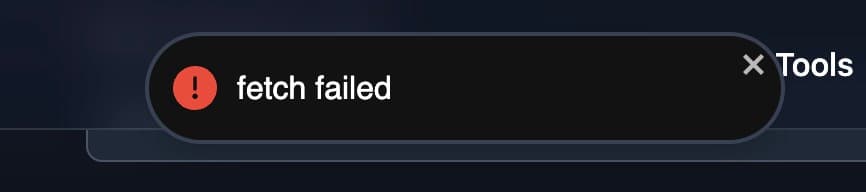
What it usually means: You’ve likely entered your WordPress site URL incorrectly.
Solutions:
- Verify Your Homepage URL: Double-check the site URL saved on your project’s WordPress integration (Settings, then Integrations). It should be your site’s homepage URL. For example, if your site is
example.com, enterexample.com. Don’t enter your WordPress login page URL. - Subdirectory Installs: If WordPress is installed in a subdirectory (e.g.,
example.com/blog), make sure to include the subdirectory in the URL (example.com/blog). - HTTPS vs. HTTP: Ensure you’re using the correct protocol (
https://if your site has an SSL certificate,http://if it doesn’t, but most sites should be using HTTPS these days).
Incorrect Password
"Error: The password you entered for the username example is incorrect. Lost your password?"If you’re seeing an error saying your password is wrong but you know your username and application password are correct, it could be one of two things.
- EasyWP Hosting: EasyWP disables the built-in WordPress API authentication that application passwords rely on. Connect with the RightBlogger plugin instead, since it does not use application passwords. The old Application Passwords plugin was closed on WordPress.org in December 2025, so don’t install it.
- Conflicting Plugins: Certain plugins that modify API authentication can cause conflicts. Deactivate any plugins that might be interfering with the WordPress API. Try reconnecting after deactivating each plugin to identify the culprit (You might have a plugin called something like “JSON API”.)
Application Passwords Disabled by Wordfence
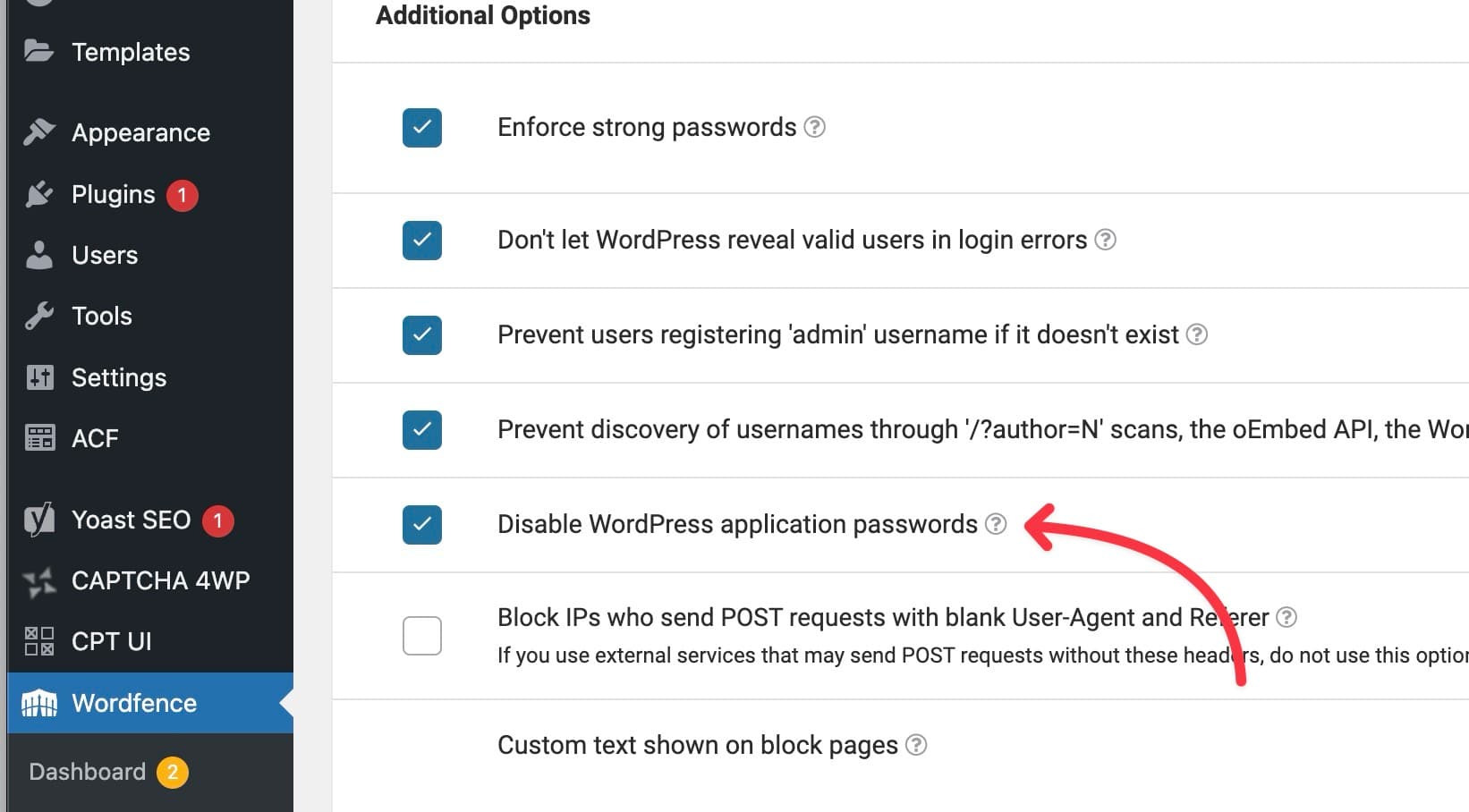
The Wordfence security plugin, if installed, often disables WordPress Application Passwords by default.
Solution:
- Go to Wordfence Settings: In your WordPress dashboard, navigate to
Wordfence > All Options. - Find the Setting: Look for an option like “Disable WordPress application passwords” (the exact wording may vary slightly depending on the Wordfence version).
- Disable the Setting: Make sure this option is unchecked (disabled) to allow Application Passwords to function.
- Try to connect again.
The REST API has been restricted to authenticated users.
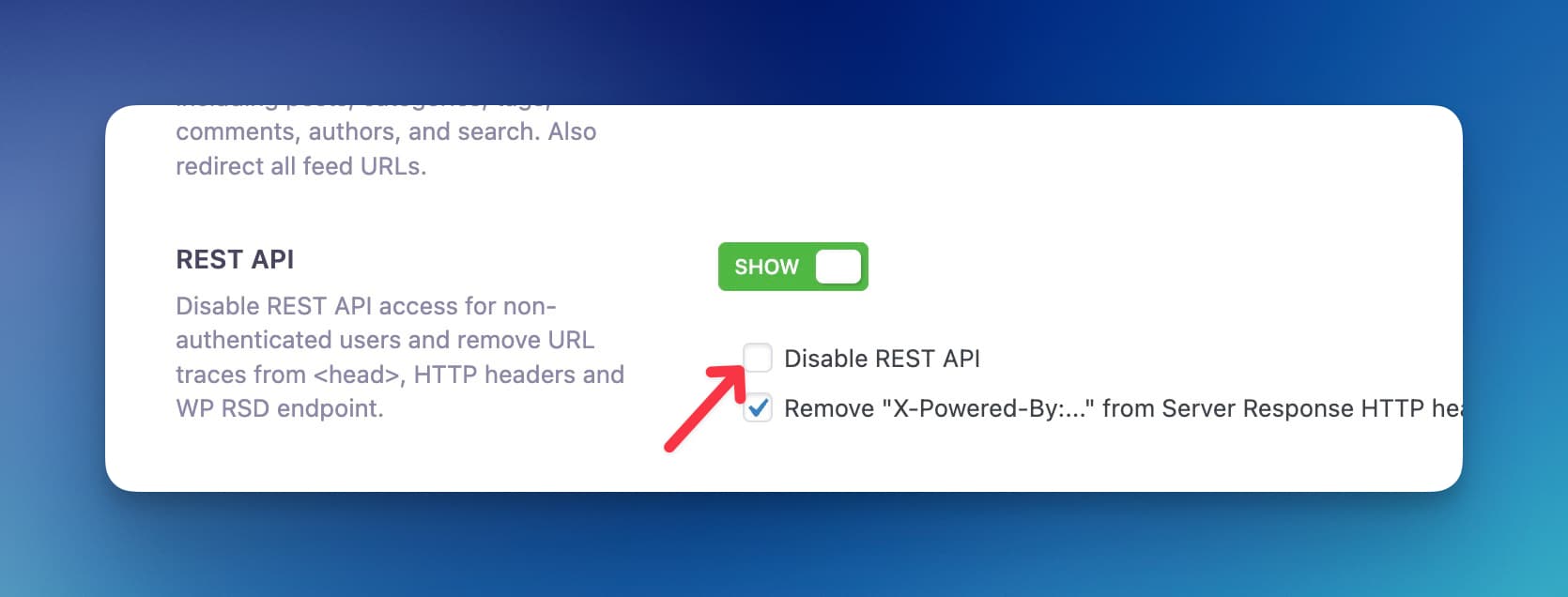
You have a plugin like Adminify that is preventing the JSON API on your WordPress site from functioning. This prevents RightBlogger from updating and sending content to your site. Uncheck “Disable REST API” in the security tab of Adminify. It also may be under “Admin and Site Enhancements ASE” plugin.
Sorry, you do not have permission to make REST API requests.
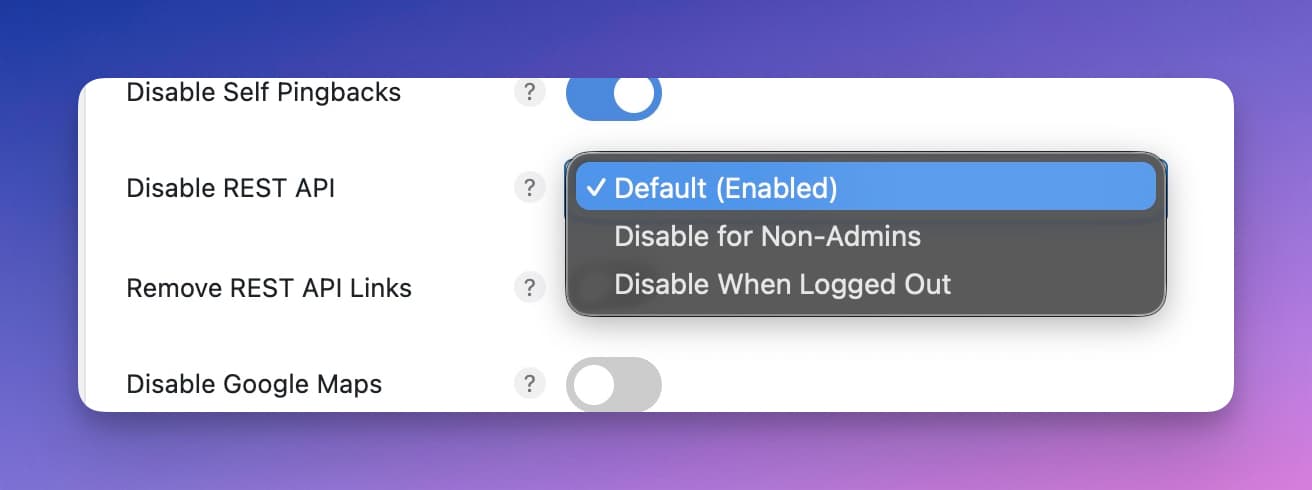
If you see an error saying you don’t have permission to make REST requests, a plugin like Perfmatters is likely blocking access to the WordPress API and preventing our plugin from working. Make sure any plugin that restricts the REST API has the option disabled.
Also in the Solid Security plugin this is under “API Access” in the “REST API” setting.
Cloudflare or a Firewall Is Blocking RightBlogger (403 Errors)
If publishing fails with a 403 error, or you see a message like “Sorry, there was an error. Please be sure JavaScript and Cookies are enabled in your browser and try again,” your site is most likely running a firewall such as Cloudflare or WP-SpamShield that blocks RightBlogger’s requests to your WordPress REST API before they reach your site.
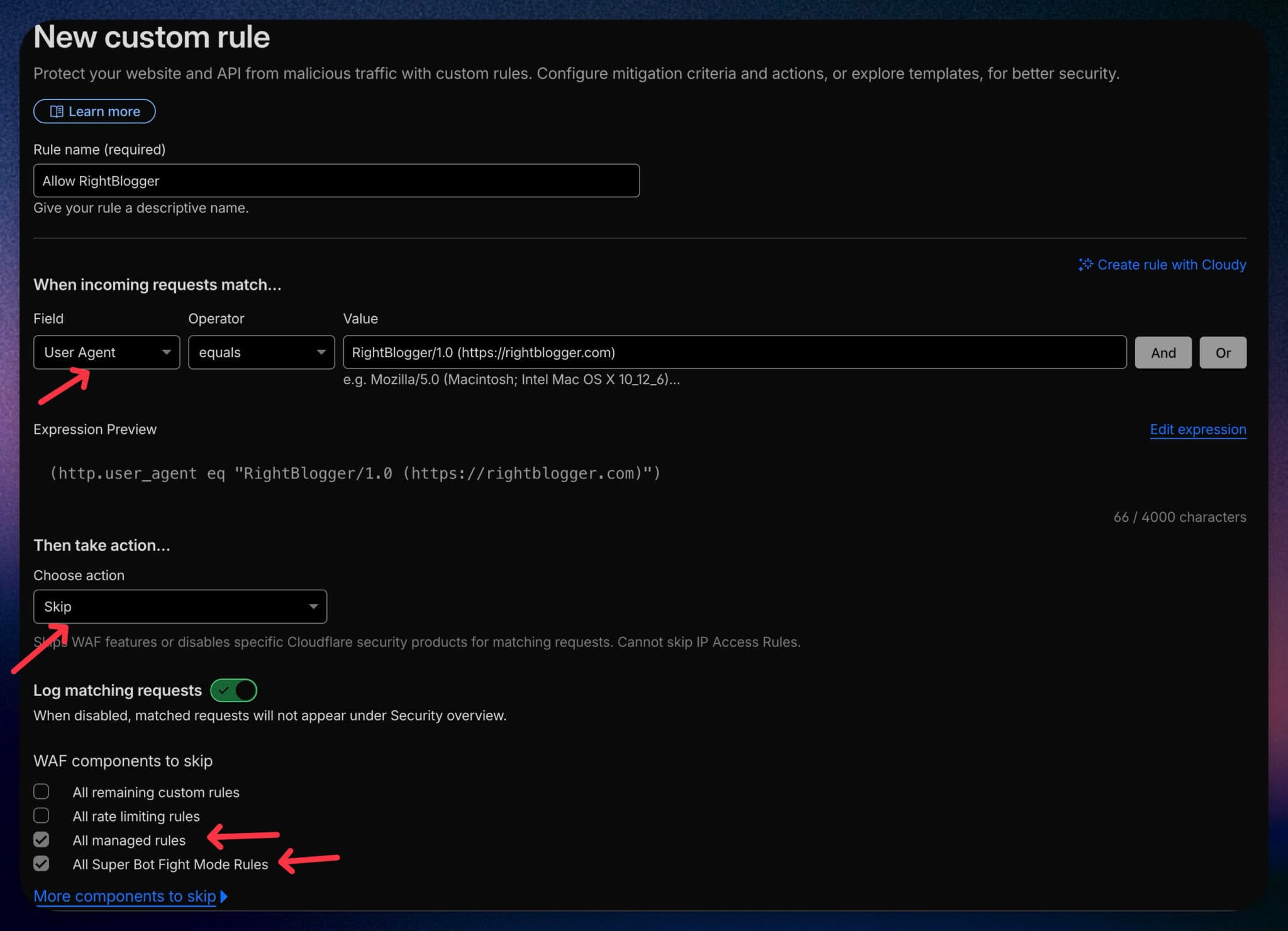
RightBlogger’s requests identify themselves with:
- User agent:
RightBlogger/1.0 (https://rightblogger.com) - Plugin path:
/wp-json/rightblogger/v1/
To fix this in Cloudflare:
- In the Cloudflare dashboard, select your domain and create a new Custom rule. In the current dashboard this is under
Security > Security rules. - Add two conditions joined with AND: User Agent contains
RightBlogger/1.0, and URI Path starts with/wp-json/rightblogger/v1/. If you still use the legacy application-password connection, use the specific/wp-json/wp/v2/endpoint it calls instead of opening the entire REST API. - Set the action to Skip, then turn on the components to skip, at minimum All managed rules, plus All Super Bot Fight Mode rules if your plan has it.
- Save and deploy, then try publishing again.
On Cloudflare’s Free plan? The basic Bot Fight Mode cannot be skipped with a custom rule. If publishing is still blocked, turn it off while you publish: open your Cloudflare Security settings (older dashboards: Security > Bots) and switch Bot Fight Mode off. Paid plans use Super Bot Fight Mode, which the skip rule above can bypass.
If you use a different firewall or security plugin (Wordfence, WP-SpamShield, or a host-level firewall), allow the same user agent and specific path together there instead.
Because RightBlogger requests can come from rotating cloud IP addresses, use the user-agent and path conditions together rather than a fixed IP. A user-agent alone can be copied, and a path-only rule would expose more of your WordPress REST API than necessary.
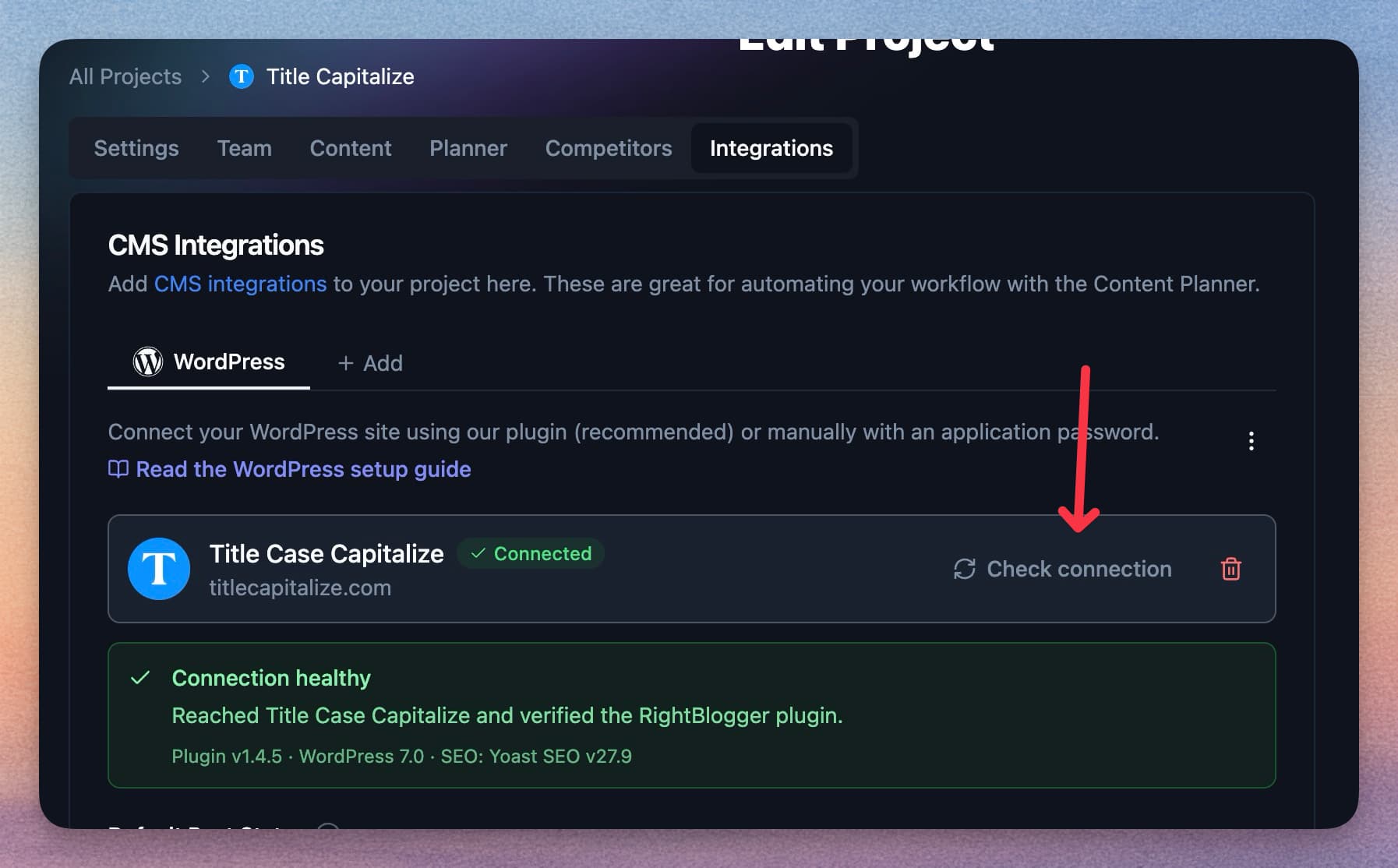
After changing rules you can use the “Check connection” button in the integrations tab of your project to verify if RightBlogger can talk to the plugin.
Known Plugin Conflicts
These plugins are known to sometimes cause issues with WordPress API authentication. We have seen WordPress say that an application password is incorrect even though it’s not when they are active. If you have them installed, try temporarily deactivating them to see if it resolves the connection problem:
- Basic API Authentication plugin (This is an outdated plugin and generally shouldn’t be used.)
- JSON Basic Authentication plugin (Also outdated in most cases.)
Important Note: Always back up your website before making any significant changes, including deactivating plugins.
If you’ve tried all these steps and are still having trouble connecting, please don’t hesitate to contact us at contact@rightblogger.com. We’re here to help!
Automated SEO Blog Posts That Work
Try RightBlogger for free, we know you'll love it.
7-day free trial. Cancel anytime.