How to Connect Your Duda Website with RightBlogger
After setup, custom-plan users send generated articles to Duda as drafts or live posts.
If your website runs on Duda, you can now connect it directly to RightBlogger. This lets you send AI-generated articles straight to your Duda site, no copy-paste needed.
Keep in mind: the Duda API is only available for custom Duda plans, so you’ll need to be on one of those to connect.
What You’ll Need
Before you start, grab a few details from your Duda account:
- API Username and Password
These come from your Duda account, but only custom plan users can access them. Unfortunately, Duda doesn’t provide API access on standard plans. - Site ID
You can find this in your Duda site settings. It’s usually a short number or code that identifies your site.
How to Set It Up in RightBlogger
- Go to the Projects section in RightBlogger.
Open a project or create a new one for your Duda site. - Click the Integrations tab at the top.
- Select Duda from the list of integrations.
- Enter your API Username, API Password, and Site ID.
- Optionally, you can set:
- A default author name
- Default categories and tags
- Whether to publish immediately or save as a draft
- Click Save Changes.
Sending Content to Duda
Once your Duda integration is connected, you can send any article you create in RightBlogger directly to your site.
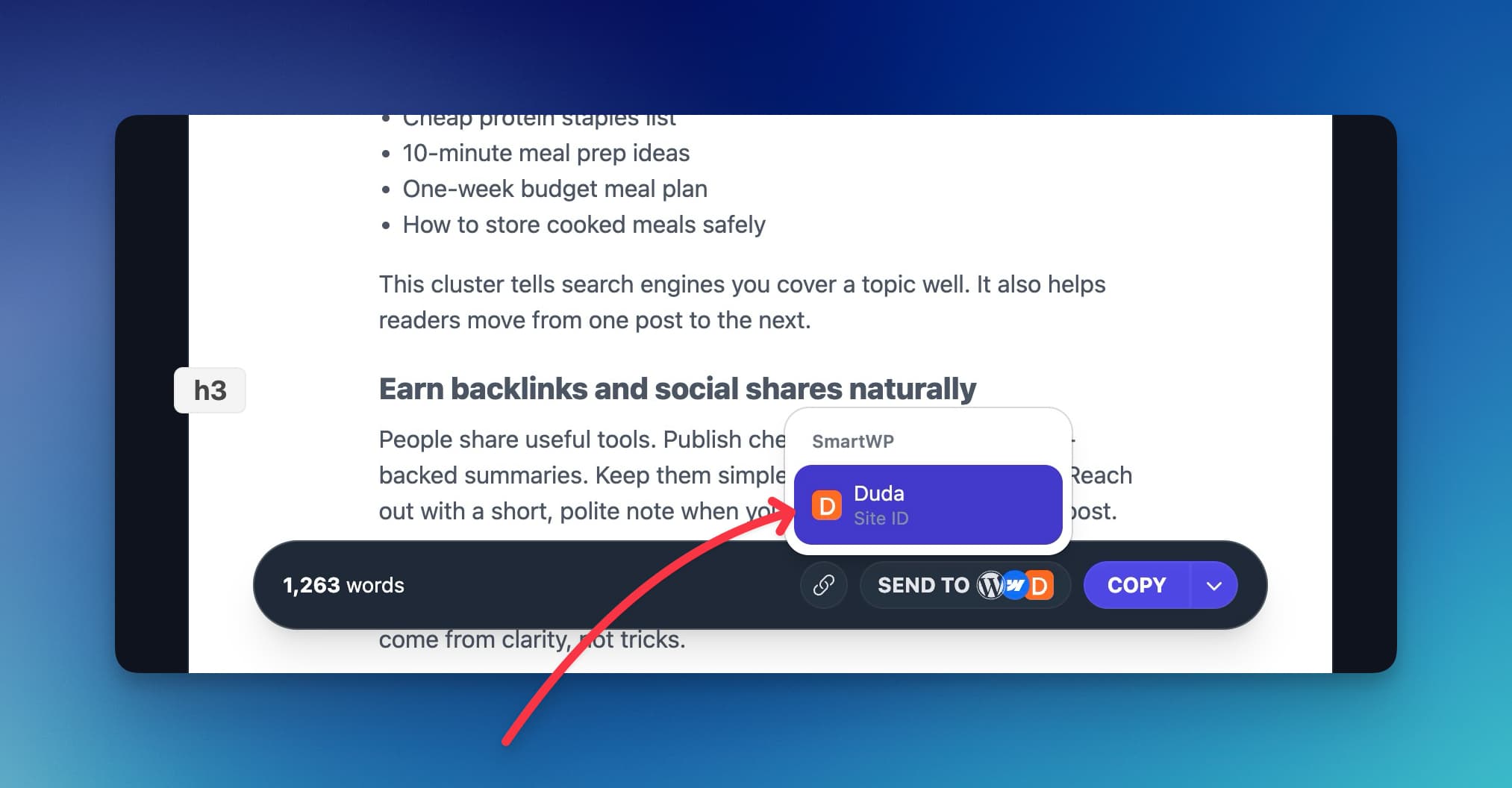
Just click the Send To button after generating your content, choose Duda, and your post will appear in your Duda dashboard, either as a draft or live, depending on your settings.
Notes
If you’re not on a custom Duda plan, the integration won’t work due to API restrictions from Duda’s side. You can contact Duda support about upgrading your plan to enable API access.
Conclusion
The Duda integration makes publishing faster and easier for creators using custom Duda plans. You can create, edit, and send content straight from RightBlogger without leaving your dashboard.
If you run into any issues or need help finding your API details, reach out to Duda support or contact us at RightBlogger. We’re happy to help you get connected.
Automated SEO Blog Posts That Work
Try RightBlogger for free, we know you'll love it.
7-day free trial. Cancel anytime.