Orphan Pages: How to Find and Fix Them on a Small Blog
Compare your sitemap with linked pages in a spreadsheet, then decide which posts to link, merge, update, or retire.


You published a good post two years ago. It’s still live, it’s still in your sitemap, and nothing on your site points to it. No older post mentions it, it fell off the homepage long ago, and the only way to reach it is to already know the URL.
That’s an orphan page. Most blogs that have been running for a few years have some. The fix is rarely technical: find them, decide which ones are worth keeping, and link to the keepers from posts that already talk about the same thing.
This guide walks through that process with tools a solo blogger already has: your sitemap, a spreadsheet, Google Search Console and the WordPress post list.
Key Takeaways
- An orphan page is a page on your site that no other page on your site links to.
- Google uses links to find pages and understand how they relate. Its guidance says every page you care about should have a link from at least one other page on your site.
- To find orphans, compare the list of posts you’ve published (your sitemap) with the list of pages that receive internal links (a crawl or Search Console’s Links report).
- Not every orphan deserves a link. Some should be merged into a stronger post, and some are fine left alone.
- The usual fix is a contextual link from a related older post, placed on words already in the sentence.
What Are Orphan Pages?
An orphan page is a URL that exists on your site but has no internal links pointing to it. Readers can’t click their way to it from your homepage, your menus, your category pages or your other posts.
On a small blog, orphans usually look like this:
- A recipe that was linked from the homepage for a week, then scrolled off and was never mentioned again.
- A trail report published in a category you later deleted.
- A tutorial you rewrote under a new URL, while the original stayed published.
- A landing page for a giveaway, an old event or a seasonal promotion.
Some of these deserve to be found. Others were never meant to be part of the site’s navigation. Part of the job is telling them apart.
Why Orphan Pages Matter
Google discovers most pages by following links. Its documentation on crawlable links describes links as a way to find new pages and to understand how relevant they are, and recommends that each page you care about “should have a link from at least one other page” on your site.
A sitemap can tell Google that a URL exists. It doesn’t tell Google, or anyone else, how that post relates to the rest of your work. And readers never see your sitemap. A post with no internal links depends entirely on someone landing on it from search or a bookmark.
None of this means linking to an orphan will lift its rankings. It means the post becomes part of your site again: readers can find it from related posts, and Google can see where it fits.
A related case: a post that is linked only from page 14 of your blog archive isn’t technically an orphan, but almost nobody will reach it that way. The same fix applies.
How Posts End Up Orphaned
Nobody orphans a post on purpose. It usually happens through ordinary site changes:
- New posts only get linked from the homepage and the latest-posts list. Once newer posts push them down, those links disappear.
- Menus, sidebars and categories change. Removing a category or a “start here” page can strip the only links a group of posts had.
- URLs change. You update a slug or move a post, and old links point to a redirect or a dead URL instead of the live page.
- Pages are built outside the blog. Landing pages, thank-you pages and lead magnet pages are often created and never linked from anywhere.
- Links that aren’t real links. Google’s guidance says it can reliably follow
<a>elements with anhrefattribute. A button that only works through a script may look like a link to readers without being one Google can follow.
How to Find Orphan Pages (Without Paid SEO Tools)
The method is a comparison. You need two lists: every post you’ve published, and every page that receives at least one internal link. Anything on the first list that’s missing from the second is an orphan candidate.
Set aside about an hour for a blog with a few hundred posts.
Step 1: List every post you’ve published
Your XML sitemap is the easiest complete list. On WordPress, it usually lives at one of these addresses:
yourblog.com/wp-sitemap.xml(built into WordPress)yourblog.com/sitemap_index.xml(common with SEO plugins)
The sitemap index links to separate sitemaps for posts, pages and categories. Open the posts sitemap (and the pages sitemap, if you want to check pages too).
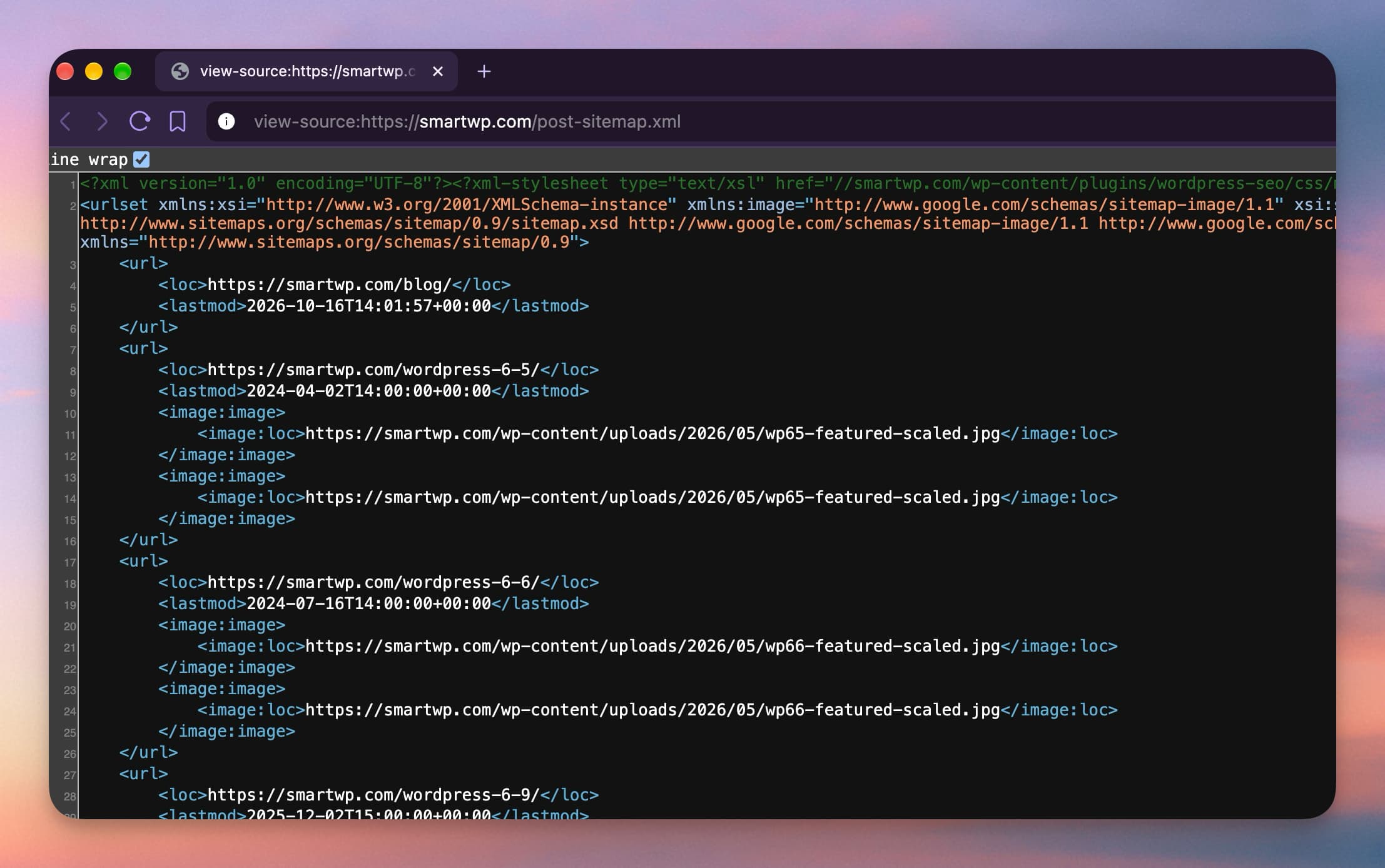
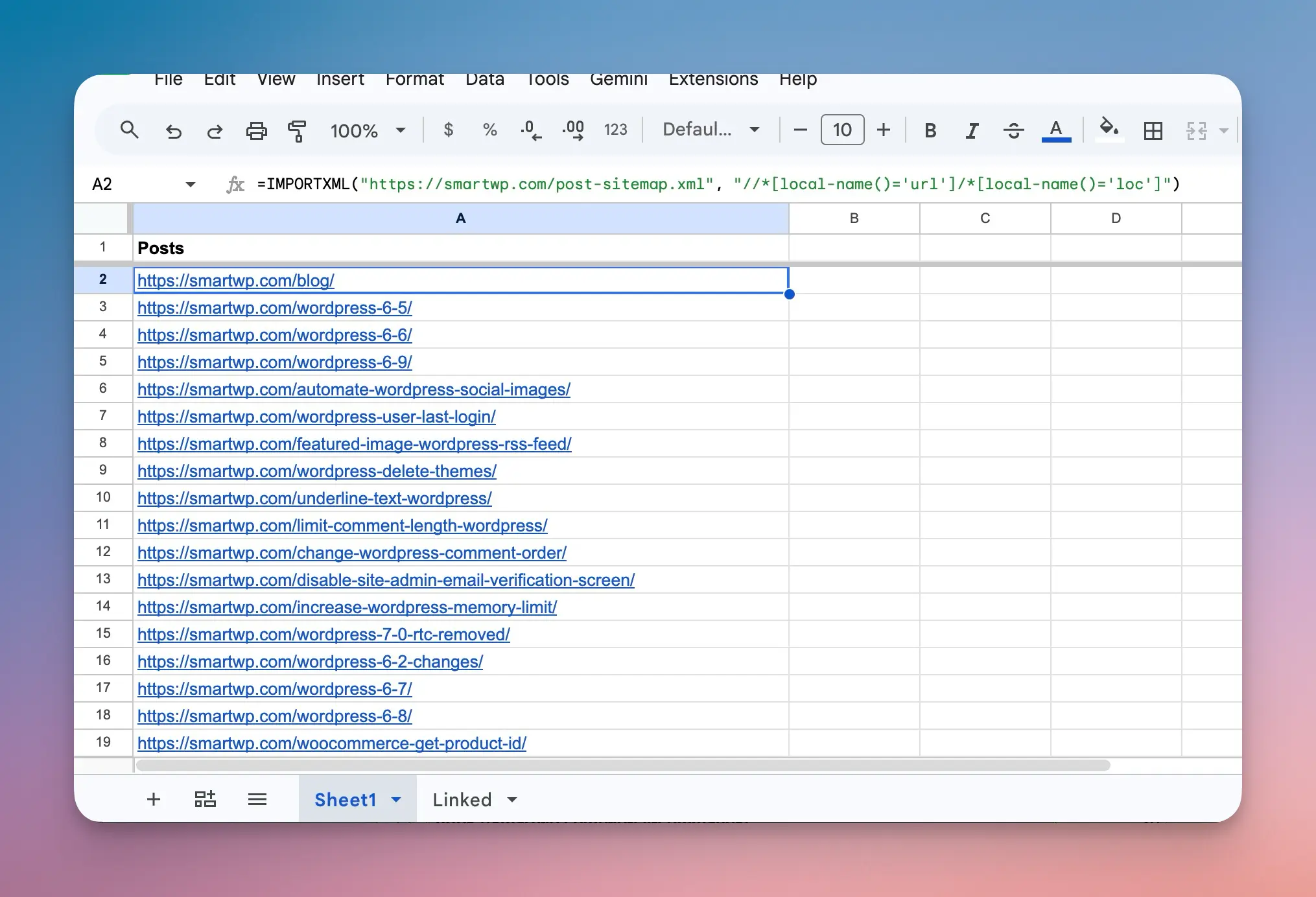
To get those URLs into a spreadsheet, open a new Google Sheet and type Posts in cell A1 as a header. Then paste this into A2, replacing the address with your posts sitemap:
=IMPORTXML("https://yourblog.com/post-sitemap.xml", "//*[local-name()='url']/*[local-name()='loc']")Column A fills with one post URL per row, starting at A2. The formula only reads each post’s own address, so image URLs listed in the sitemap stay out. If your posts sitemap is split across several files, repeat the formula below the first list for each one. If the formula returns an error, you can also copy the URLs from the sitemap page in your browser.
Step 2: List the pages that receive internal links
You have two options. Use whichever you can get to first.
Option A: crawl your site. A crawler starts at your homepage and follows every link it finds, the same way a reader clicking around would. Any page it reaches has at least one link pointing to it. The free version of Screaming Frog SEO Spider crawls up to 500 URLs, which covers many small blogs. Run a crawl and export the list of HTML pages it found.
One catch: a crawler counts every link on the page, including related-posts boxes, post grids, sidebars and menus. Those links make a post reachable, but they aren’t links in your writing, and Google’s guidance says the words around a link matter too. On one 232-post travel photography blog we checked, counting every link on the page found 18 orphans. Counting only links inside the post text found 74, because a related-posts box was linking to the rest. Screaming Frog’s Inlinks tab shows each link’s position, and you can add a custom rule so a related-posts box isn’t counted as content.
Option B: use Search Console’s Links report. In Google Search Console, open Links, then under Internal links open Top linked pages and export the table. It lists the pages on your site that Google has seen internal links to.
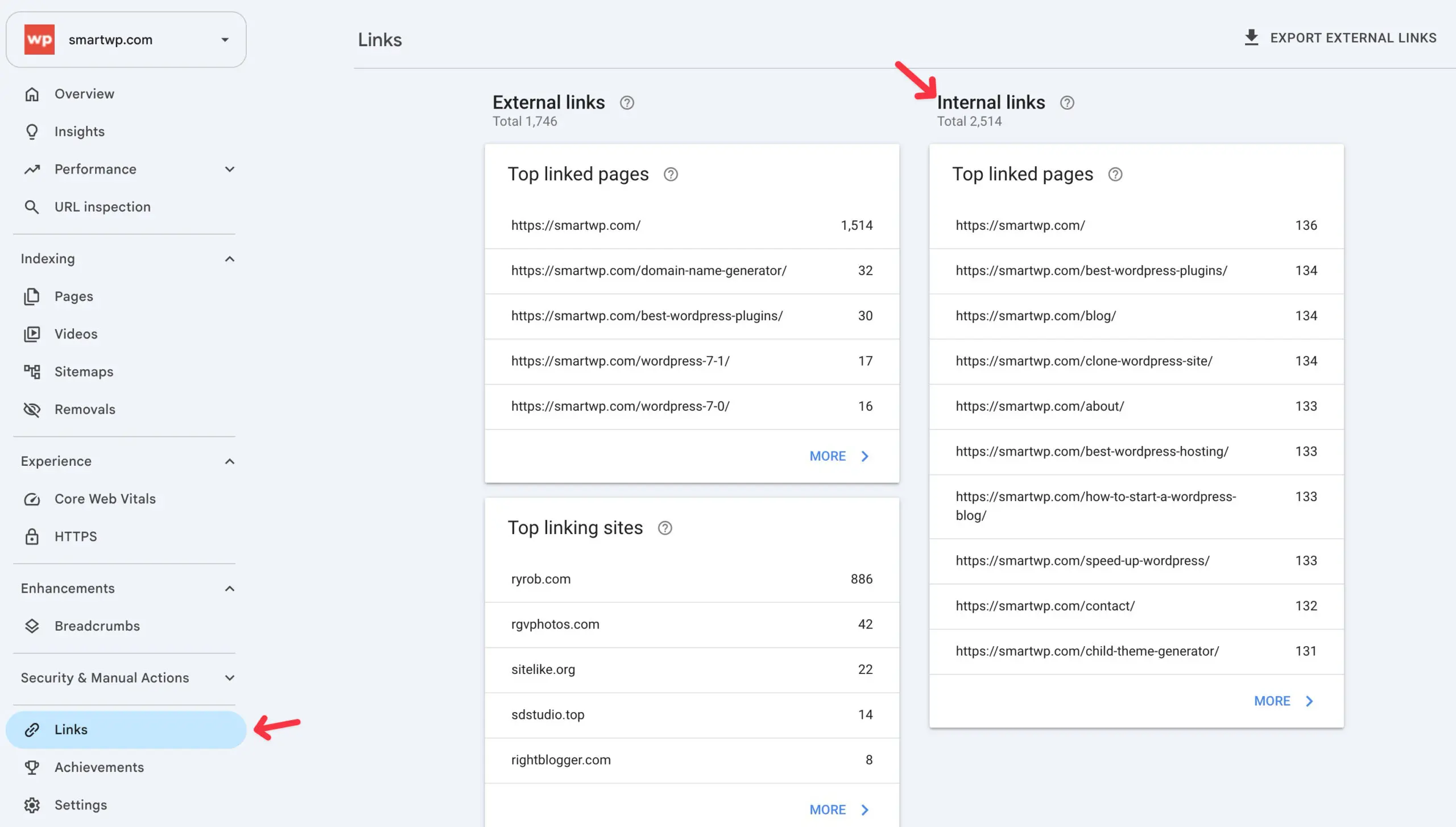
Search Console’s list comes with caveats. Google says the report shows a sample of links rather than every link on your site, it can include links that have since been removed, and it may leave out pages that aren’t indexed. Treat a missing page as “worth checking,” not as proof. On SmartWP, the export left out 45 of 122 posts, but only 2 of them were real orphans.
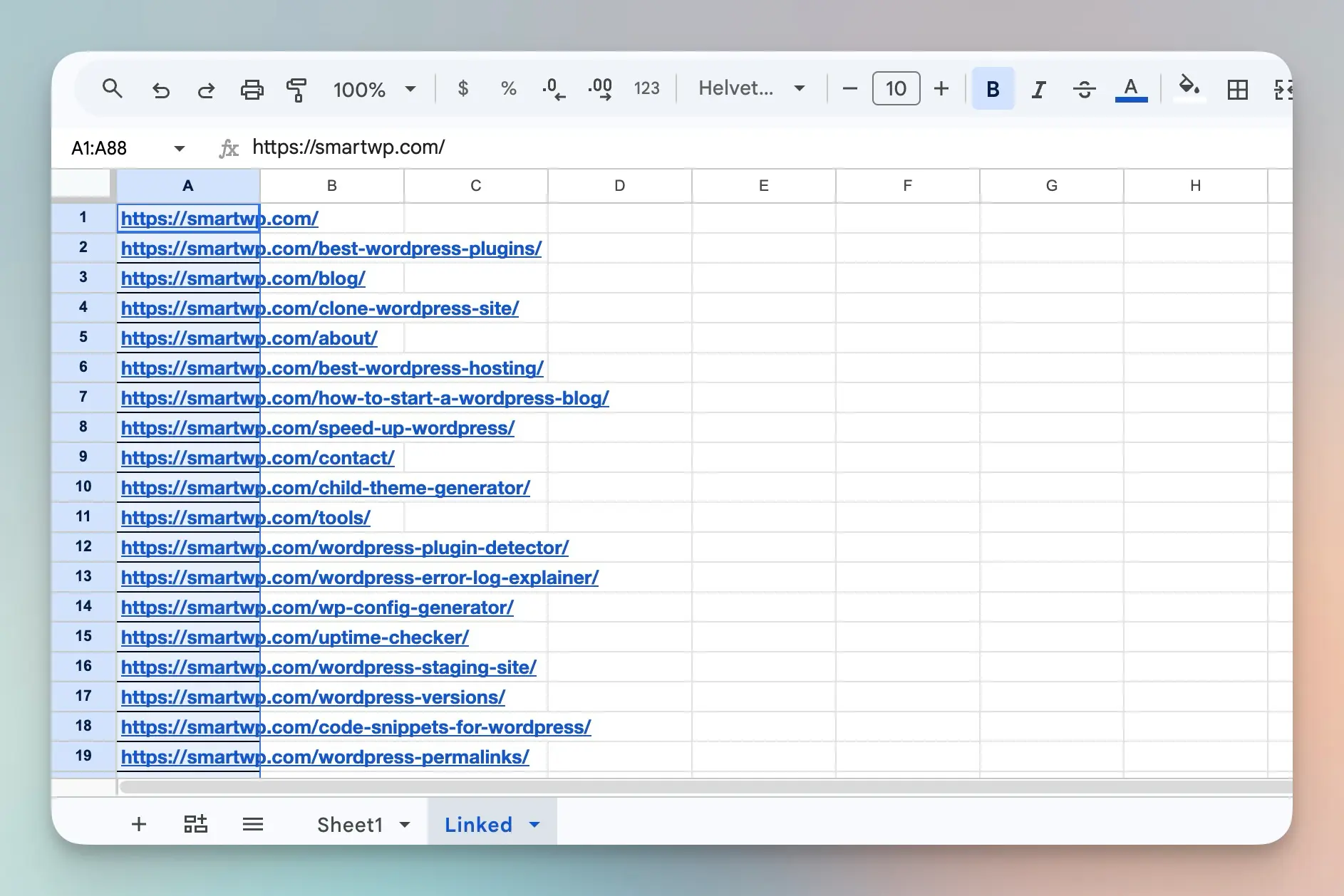
Whichever list you use, add a second tab to your sheet with the + button at the bottom left, name it Linked, and paste the page URLs into its column A. Keeping this list on its own tab avoids lining it up with the posts on the first tab, since the two lists don’t match row by row.
Step 3: Compare the two lists
Before comparing, make sure both lists use the same URL format. If one list has https://www. and the other has https://, or one uses trailing slashes and the other doesn’t, use Find and replace to match them.
Back on the first tab, type Linked? in B1. Then paste this into B2 and fill it down next to your post URLs:
=IF(COUNTIF(Linked!A:A, A2)=0, "check", "")Every row marked “check” is a published post that didn’t show up in your list of linked pages. Filter column B to see them together.
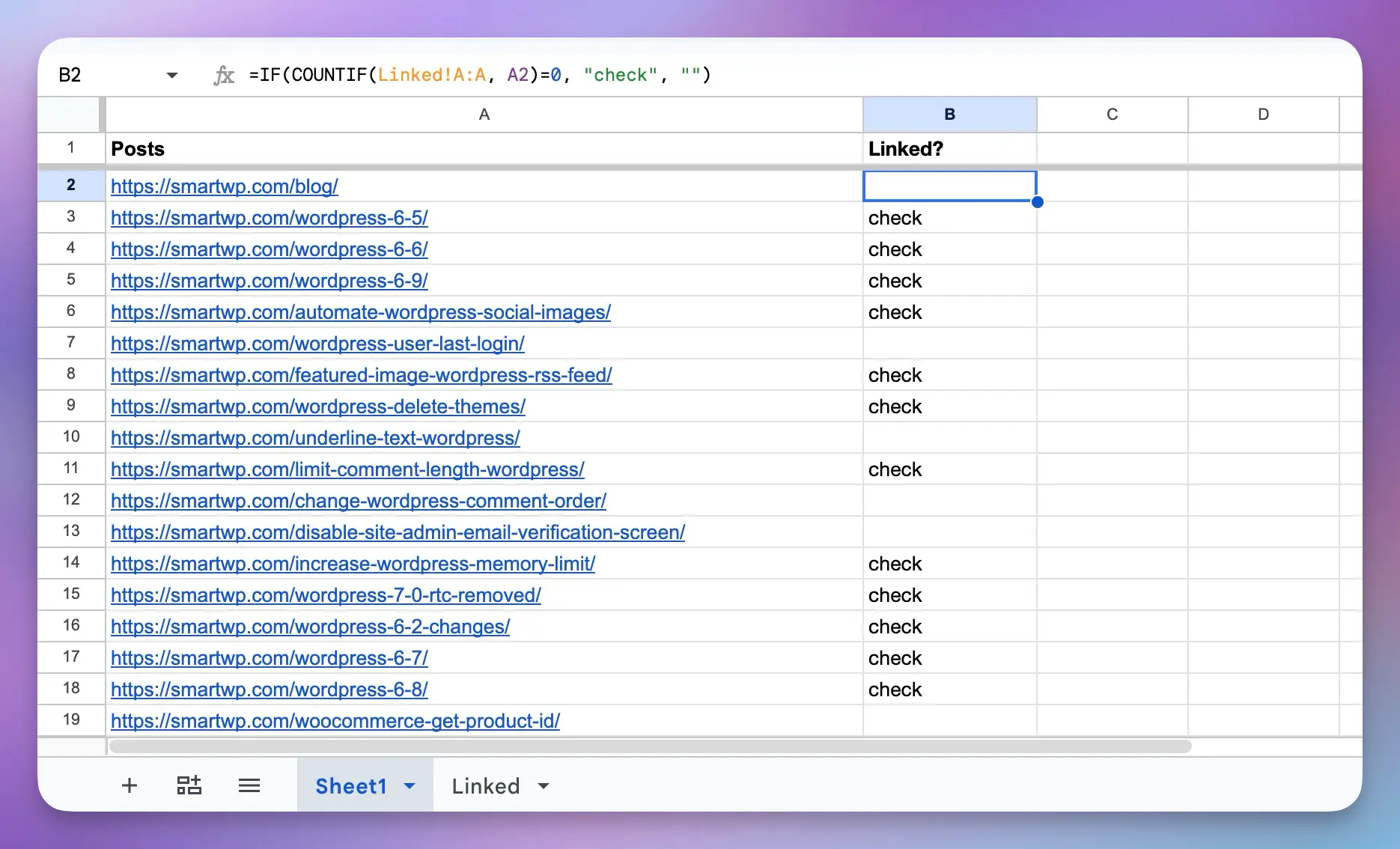
If your list came from Search Console, expect more “check” rows than real orphans. The report is a sample, so many of these posts will turn out to have links after all. Step 4 sorts them out.
Step 4: Confirm each one by hand
A spreadsheet match can miss things, so confirm before you act. In WordPress, go to Posts, type the post’s slug (the end of its URL, like skillet-cornbread) into the search box and search. WordPress searches post content, so any post that links to it with the full URL will show up in the results. This search only looks at post text, so it finds the contextual links that matter and ignores related-posts boxes.
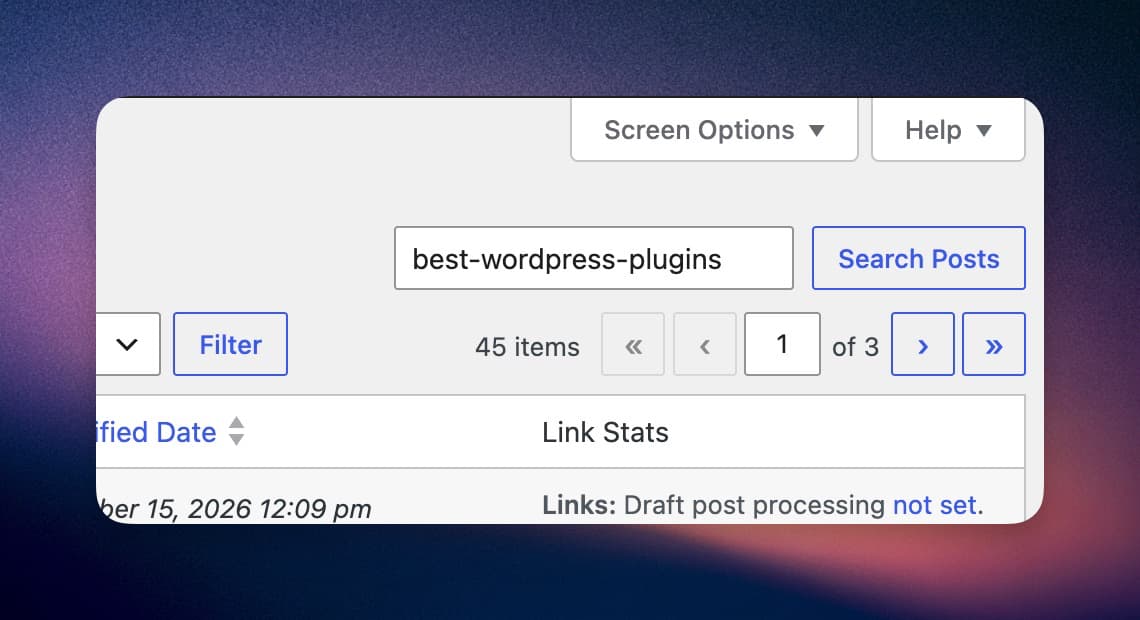
If nothing comes back, no post links to it in the body text. Check your menus and sidebar too. If it isn’t there either, you’ve confirmed an orphan.
Fix, Merge or Leave: Decide What Each Orphan Needs
Don’t link to every orphan you find. Linking to a thin, outdated post sends readers somewhere disappointing. Sort each one first.
| What you find | What to do |
|---|---|
| The post is accurate, useful and on a topic you still cover. | Fix it. Add contextual links from related posts (next section). |
| The post overlaps a stronger post on the same topic. | Merge it. Move anything useful into the stronger post, then redirect the old URL to it. |
| The post is outdated but the topic still matters. | Update it, then fix it. Refresh the content before sending readers there. |
| It’s a thank-you page, an ad landing page or a past giveaway. | Leave it. It was never meant to be in your navigation. Consider noindexing it if you don’t want it in search results. |
| It’s thin, out of date and has nothing worth saving. | Retire it. Unpublish it, or redirect it if there is a close match. |
Two quick checks help with the close calls. In Search Console, the Performance report (filtered to that page) shows whether the post still gets impressions. In the Links report, the external Top linked pages table shows whether other sites link to it. A post that other sites link to is usually worth keeping or redirecting rather than deleting.
How to Fix an Orphan Page With Contextual Links
A contextual link is a link inside your writing, on words that describe where it goes. It’s the most useful kind of internal link because it shows up exactly when a reader is thinking about the topic.
Find the older posts that already mention the topic
Search your own site for the topic of the orphan. You can search Google for site:yourblog.com cornbread, or use the search box in your WordPress posts list. You’re looking for posts where the orphan’s topic comes up naturally, not posts that are merely in the same category.
Link words that are already in the sentence
Read the passage in the older post. If a sentence already names the thing the orphan explains, link those words. You shouldn’t need to rewrite anything.
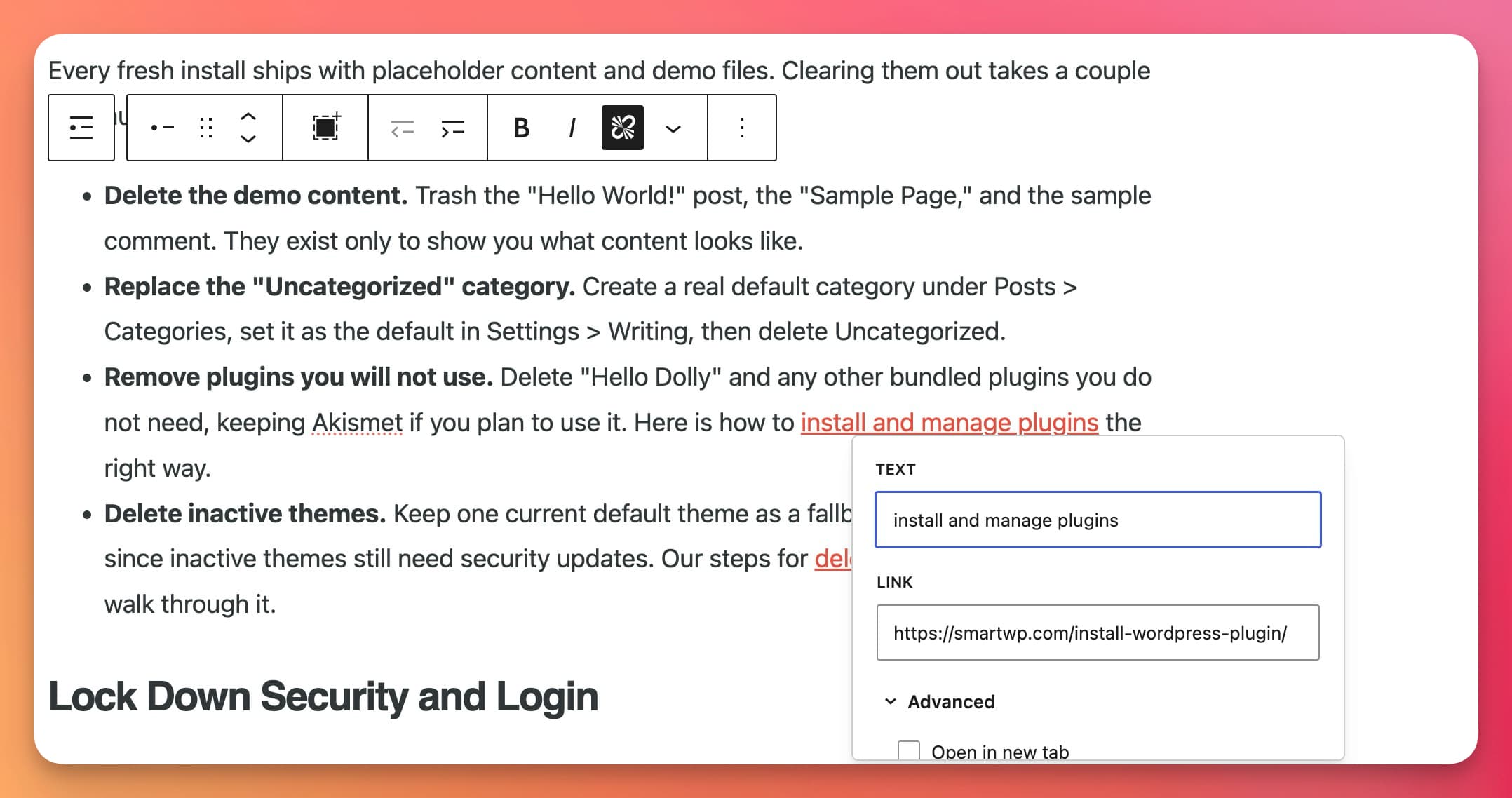
A few examples:
- Recipe blog. An older chili recipe says “serve it with a pan of skillet cornbread.” Link “skillet cornbread” to your cornbread recipe.
- Hiking blog. A trail report says “the last mile is muddy most of the spring, so wear waterproof boots.” Link “waterproof boots” to your guide to choosing hiking boots.
- Local plumber. A post about strange noises says “if your water heater is more than ten years old, it may be time to replace it.” Link “time to replace it” to your post on when to replace a water heater.
- Tutorial site. A design tutorial says “export the finished graphic as a transparent PNG.” Link “transparent PNG” to your tutorial on exporting transparent images.
In each case, the link answers a question the sentence already raises.
What to avoid
- Generic link text. Google’s guidance recommends anchor text that is descriptive and relevant, so avoid “click here” and “this post.”
- Forcing the keyword in. If you have to rewrite a sentence to fit the orphan’s target keyword, that sentence probably isn’t the right place for the link.
- Linking from unrelated posts. A link from a post about bread to a post about hiking boots doesn’t help anyone.
- Chasing a number. There is no ideal count of internal links. Google says that if a page seems to have too many links, it probably does. Add a link where a reader would want it, and stop when you’re reaching.
One or two good contextual links are enough to bring an orphan back into your site. You can add more later as you write new posts on the same topic.
Keep New Posts From Becoming Orphans
Most orphans start as new posts that only ever got homepage links. A small habit prevents most of them:
- When you publish a post, think of two or three older posts on a related topic.
- Open each one and look for a sentence that already mentions the new post’s subject.
- Add a link there if one fits. Skip any post where it doesn’t.
Then repeat the sitemap comparison every few months, or after you change your menus, categories or URLs. Our SEO maintenance checklist covers where this fits alongside your other regular upkeep.
If You Use RightBlogger Site Agent
Everything above works by hand on any blog. If you have RightBlogger’s Site Agent connected to your site, it can take on part of the linking work.
Site Agent looks for internal-link improvements as part of its regular maintenance of your existing posts. To point it at one specific post:
- Posts in Content Planner: open the published post, click Ask agent, then choose Find internal link opportunities. Site Agent looks for relevant older posts that could link to that post and skips links that already exist.
- Drafts already sent to your site: the same menu offers Add links to related posts, which suggests links from the draft to published posts while keeping it a draft.
- Older posts that aren’t in Content Planner: use Add task on the Site Agent page and name the post by its title.
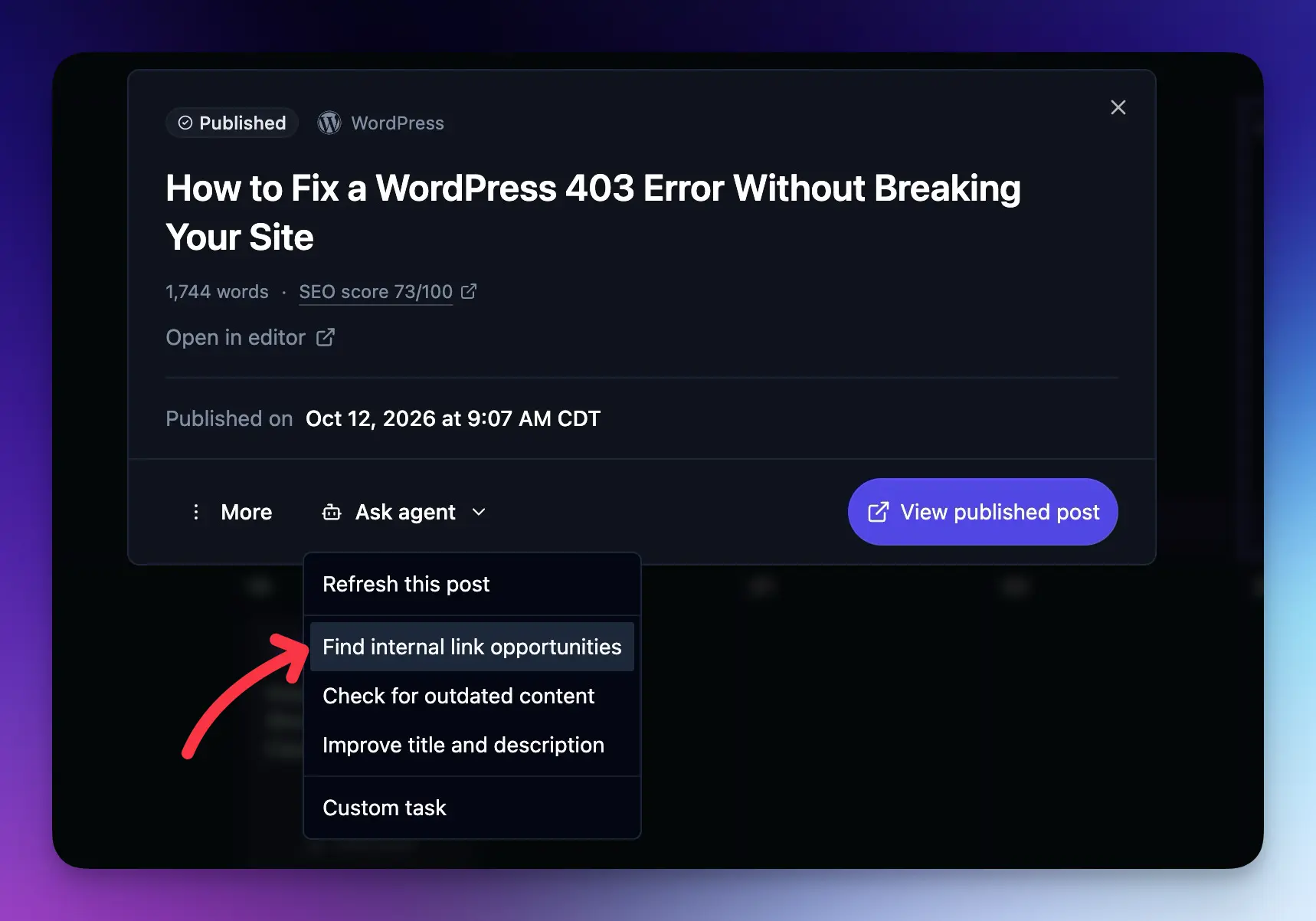
Requests join Site Agent’s scheduled work and follow the approval mode you’ve chosen, so you can review each link before it goes live. Site Agent doesn’t produce a list of orphan pages, so use the comparison above to find them, then ask Site Agent to help link the ones you decide to keep. You can read more about how it handles older posts in our guide to how an AI SEO agent maintains older blog posts.
FAQs About Orphan Pages
What are orphan pages?
Orphan pages are pages on your website that no other page on the same site links to. They can still be live and listed in your sitemap, but readers can’t reach them by clicking through your site.
Are orphan pages bad for SEO?
They are a missed opportunity more than a penalty. Google uses links to discover pages and understand how they relate to the rest of a site, and recommends linking to every page you care about from at least one other page. An orphan gets none of that context.
How do I find orphan pages in WordPress?
Export your post URLs from your sitemap (/wp-sitemap.xml or /sitemap_index.xml), then compare them with a list of pages that receive internal links, from a site crawl or Search Console’s Links report. Confirm each match by searching the post’s slug in your WordPress posts list.
Should I delete orphan pages?
Only the ones with nothing worth keeping. Link to useful orphans, merge overlapping ones into a stronger post with a redirect, and leave intentionally hidden pages like thank-you pages alone. Check whether other sites link to a page before you remove it.
Does adding a page to my sitemap fix an orphan page?
No. A sitemap helps Google learn that a URL exists, but it doesn’t link the page from your content or show how it relates to your other posts. Readers still can’t reach it.
How many internal links does an orphan page need?
There’s no set number. One relevant contextual link from a related post is enough to make it reachable. Add more where they help readers.
Final Thoughts on Orphan Pages
Orphan pages are usually good posts that got lost as your blog grew. An hour with your sitemap and a spreadsheet will show you which ones exist. Link the useful ones from posts that already talk about the same topic, merge the overlaps and retire what’s left. Then link each new post from an older one when you publish, so fewer posts end up orphaned in the first place.

RightBlogger Co-Founder, Andy Feliciotti focuses on website development and shares his photography and travel adventures on YouTube and his blog.



Automated SEO Blog Posts for Your Site
Research, write, publish, and share from one account.
7-day free trial. Cancel anytime.





Leave a comment