How to Use RightBlogger Chat and Tool Studio
Use project data to research and draft in chat, make article edits you can approve, or build custom website tools.
RightBlogger Chat is an AI assistant that knows your projects. Use it to draft and edit content, research a topic, pull keyword data, ask about your Search Console numbers, or create images, all in one conversation. Tool Studio is a separate builder for making your own AI tools and embedding them on your website.
Where to Find Chat
Chat lives in three places:
- The Chat page. Click the arrow next to New Article at the top of the sidebar and choose New Chat. This is the full chat, with your history.
- The editor. When an article is open, click Chat above the article. A panel opens beside it so you can ask for changes while you read. See Edit an Article With Chat below.
- Tool results. Many writing tools have a Chat tab on their results, so you can ask follow-up questions about what the tool wrote.
Chat uses the project picked in the site picker at the top of the sidebar. With a project selected, it can answer from that site’s data. Switch projects in the site picker to chat about another site.
What Chat Can Do
Type a request in Your message… and press Enter. Some things to try:
- Draft a blog post, outline, email, or social post, then ask for changes until it reads right.
- Ask about your site’s performance, such as “Which pages lost the most clicks this month?” With Search Console connected, Chat answers from your real data.
- Research keywords for a topic, with search volume and competition.
- Paste a link and ask Chat to read, summarize, or compare the page.
- Ask for an image for your post, or a free stock photo.
- Turn data into a chart. Charts have a Data view with the exact numbers and an Expand chart button for a closer look.
Click + and choose Add photos and files to attach up to 8 images, PDFs, spreadsheets, or text files. You can also drag files onto the chat.
On a new chat, the Create, SEO, Learn, and Research buttons suggest starting prompts if you are not sure what to ask.
The Tools Menu
Click Tools under the message box to choose what Chat is allowed to use. Everything is on by default.
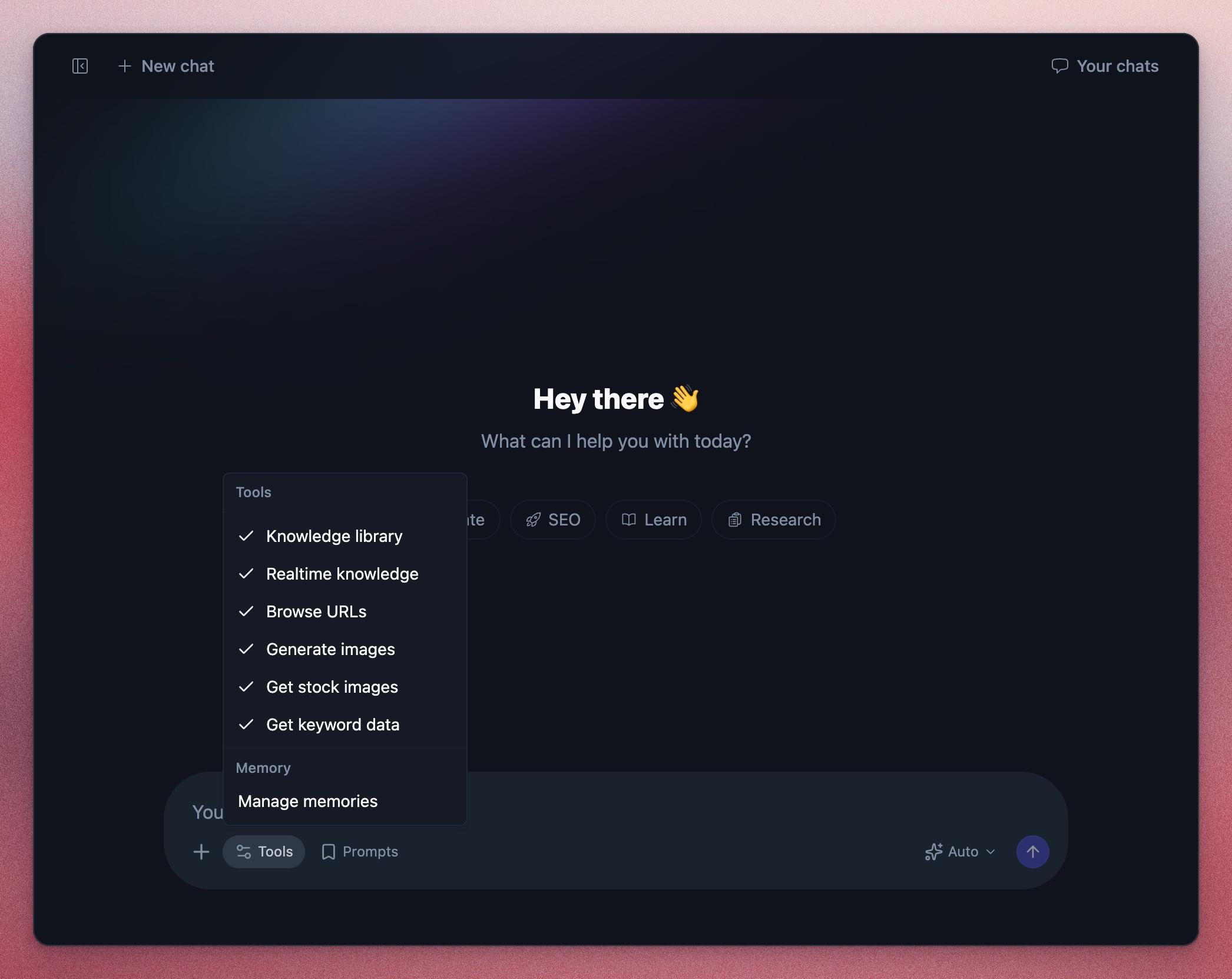
- Knowledge library: answers from the documents and site pages in your Knowledge Library.
- Realtime knowledge: searches the web for current information.
- Browse URLs: reads the pages you link to.
- Generate images: creates AI images.
- Get stock images: finds free stock photos.
- Get keyword data: looks up search volume, CPC, and competition.
- Search Console: answers from your site’s Search Console data. This one shows only when a project is selected.
Memories
Chat can remember useful facts about you and your projects between conversations, such as your audience or a style you prefer. Open Tools > Manage memories to see, delete, or turn off memories. How to Use Chat Memories explains how they work.
Choose a Model
The model picker sits next to the send button and starts on Auto, which picks a good model for each message. Fast gives quick, lightweight replies. On a paid plan you can also pick a specific model from OpenAI, Google, Anthropic, and others.
Fast everyday models are unlimited on paid plans. Models marked as premium use premium chat credits, and the picker shows how many you have left. Your plan’s credits are listed on the pricing page.
Edit an Article With Chat
Open an article in the editor, for example one from the Article Writer, and click Chat. The panel knows the article and its SEO report, and suggests prompts based on what the article is missing, such as adding an FAQ or tightening the intro.
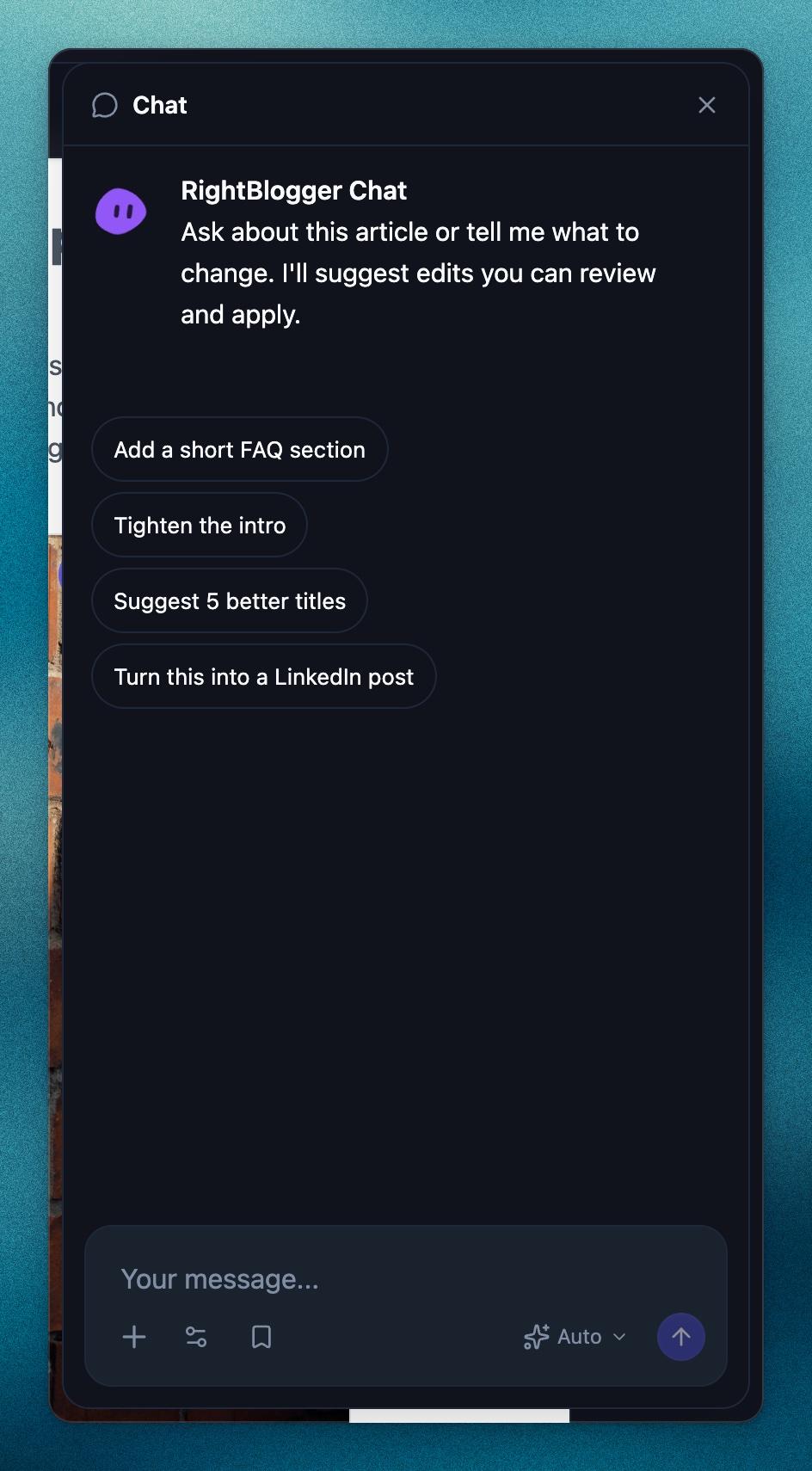
When you ask for a change, Chat replies with a suggested edit that shows exactly what will change. Nothing changes until you click Apply to article, and you can click Undo afterwards. Suggested meta titles, descriptions, and keywords work the same way with Apply. If Chat makes an image, click Set as featured image to use it.
To ask about one part of the article, select the text and click Ask AI. Chat quotes it so you can ask, for example, “make this shorter.”
The chat is saved with the article, so it is there the next time you open it.
Save Your Results
- Hover over a reply and click Copy to copy it.
- Hover over one of your own messages and click the bookmark icon to save it as a prompt. Click Prompts under the message box to reuse saved prompts.
- In the editor, applied edits go straight into the article, which saves like any other edit.
If you write in a set voice, add it with MyTone so your drafts sound like you.
Find Past Chats
Every conversation is saved. On the Chat page, click Your chats to see them grouped by date. Search by title or message text, or use the project filter to show one project’s chats. Click a chat to continue it.
To rename or delete a chat, click its title at the top of the page, or the … menu next to it in Your chats. Click New chat to start fresh.
Tool Studio
Tool Studio lets you build your own AI tools, such as a name generator, a calculator, or a content idea finder, and embed them on your website. Visitors use the tool on your site, and you can collect their email addresses before they see the result.
Open it from All Tools by searching for Tool Studio. Your tools are listed there with their last 30 days of use.
Create a Custom Tool
- Click Add New Tool.
- In Tool Details, describe what the tool should do, what visitors will enter, and what they should get back. The more detail, the better. Stuck? Open Need Inspiration? and click Use Idea.
- Click Create Tool. RightBlogger builds the form fields and prompt for you.
- Fine-tune it, then click Save changes.
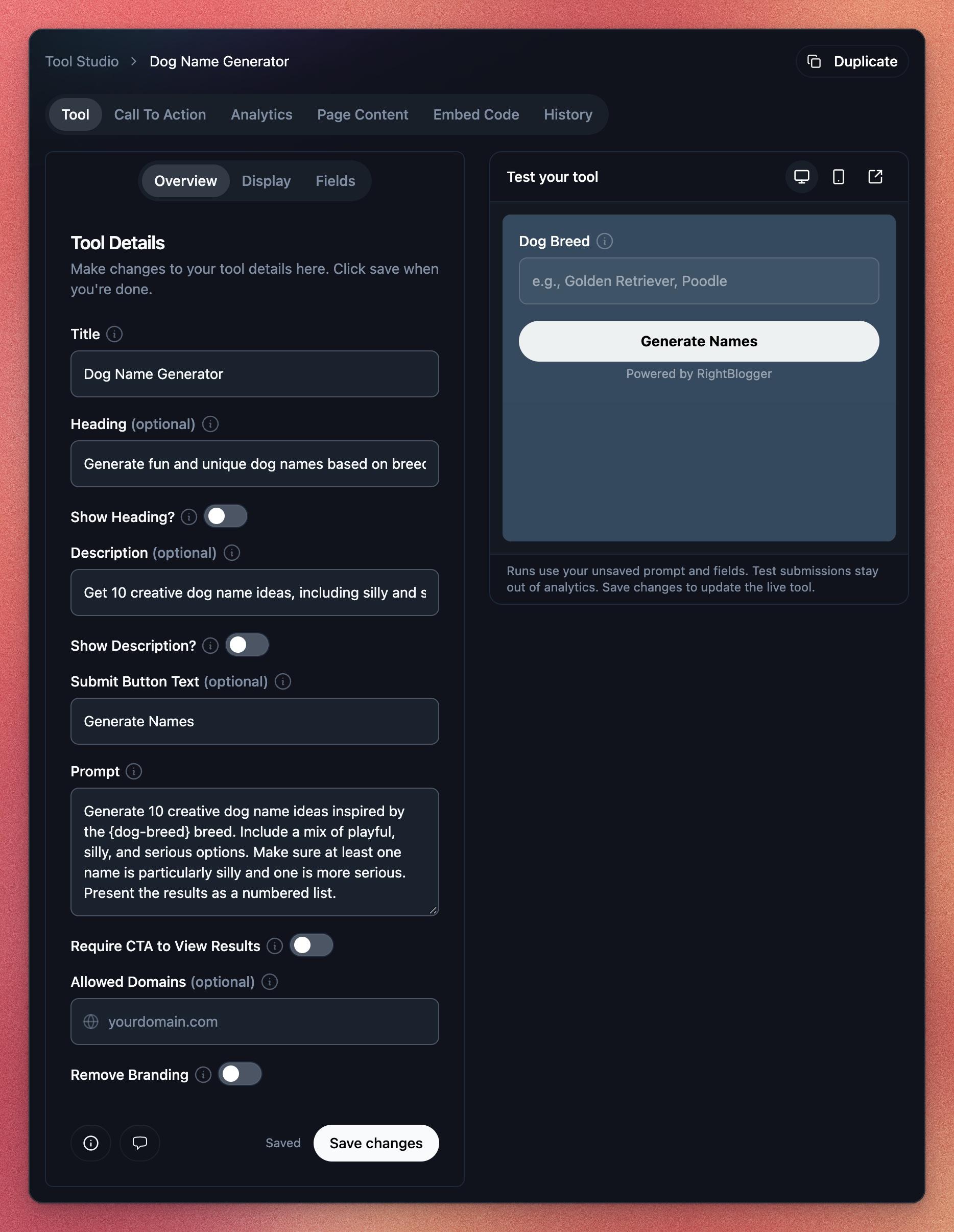
Each tool has these tabs:
- Tool: the title, heading, description, button text, and the Prompt that runs. Display sets colors and layout, and Fields edits the form. Use Test your tool on the right to try it before saving; test runs do not count in your analytics. The chat icon at the bottom lets you update the tool by changing your original request.
- Call To Action: show custom text with a link, or an email capture form. Turn on Require CTA to View Results to show results only after a visitor completes it.
- Analytics: how often the tool is used, plus any emails it collected, which you can export.
- Page Content: a meta title, meta description, and page copy for the page you put the tool on.
- Embed Code: the code to add the tool to your site.
- History: earlier versions of the tool. Click Restore to go back to one; the embed code stays the same.
Use Duplicate to copy a tool as a starting point for a new one.
Add a Tool to Your Website
Open the Embed Code tab, pick how the tool should appear, and click Copy code:
- In the page: the tool shows wherever you paste the code. On WordPress, use a Custom HTML block, or the RightBlogger Tool block if you have our plugin.
- Popup button: adds a button that opens the tool in a popup. Good for sidebars and menus.
- Your own button: add the script once, then any button or link with a
data-rightblogger-toolattribute opens the tool.
Save your changes before copying the code. On plans that include it, you can limit the tool to your own sites with Allowed Domains, remove RightBlogger branding with Remove Branding, and add Custom CSS under Display. To use a tool yourself inside RightBlogger, click Use Tool in your tool list.
How many tools you can have and which options you get depend on your plan. See the pricing page.
Use Chat From Claude or ChatGPT
Prefer to work in another AI assistant? The RightBlogger MCP connector brings your Search Console data, keyword research, and projects into Claude, ChatGPT, and Cursor.
Related Guides
Still need help?
Ask the AI assistant for an instant answer, or reach us directly and we will get back to you as soon as we can.
Automated SEO Blog Posts for Your Site
Research, write, publish, and share from one account.
7-day free trial. Cancel anytime.