How to Connect Google Search Console to RightBlogger
Connect a verified property in minutes, then use clicks, queries, and rankings across reports and site suggestions.
Connecting Google Search Console to a RightBlogger project brings your Google search data into RightBlogger: the clicks, impressions, rankings, and search queries for your site. That data powers your search reports, the weekly Blog Performance Report email, and the Site Agent’s suggestions.
Setup takes a few clicks. RightBlogger only asks for read-only access, and in most cases it finds and connects the right property for you.
Before You Start
You’ll need:
- A RightBlogger project with your website URL saved. RightBlogger uses it to find the matching Search Console property.
- A Google account with Owner, Full, or Restricted access to that site in Search Console.
- To be the project owner. Teammates can see the connection, but only the owner can connect or change it.
If your site isn’t in Search Console yet, add and verify a property first. A domain property is the best choice when you can set one up, because it covers every version of your site, including http, https, www, and other subdomains.
How to Connect
1. Open your project
Go to your Projects page, open the project you want to connect, and scroll down to the Google Search Console section of its settings.
2. Connect your Google account
Click Connect Google account and sign in with the Google account that has access to your site in Search Console.
Google then lists what RightBlogger is asking for. Leave the permission to view your Search Console data checked and continue. If it’s unchecked, the connection stops with a “Permission denied” message and you’ll need to start again.
Already connected a Google account for another project? You won’t need to sign in again. The section shows that account right away, so skip to step 4.
3. Let RightBlogger find your property
When you come back from Google, RightBlogger checks that account’s Search Console properties for one that matches your project’s website. If it finds one, it connects it for you, picking the domain property first when you have one. You’ll see a “Google Search Console connected successfully” message, and the section changes to Connected with the property name underneath.
4. Pick a property if needed
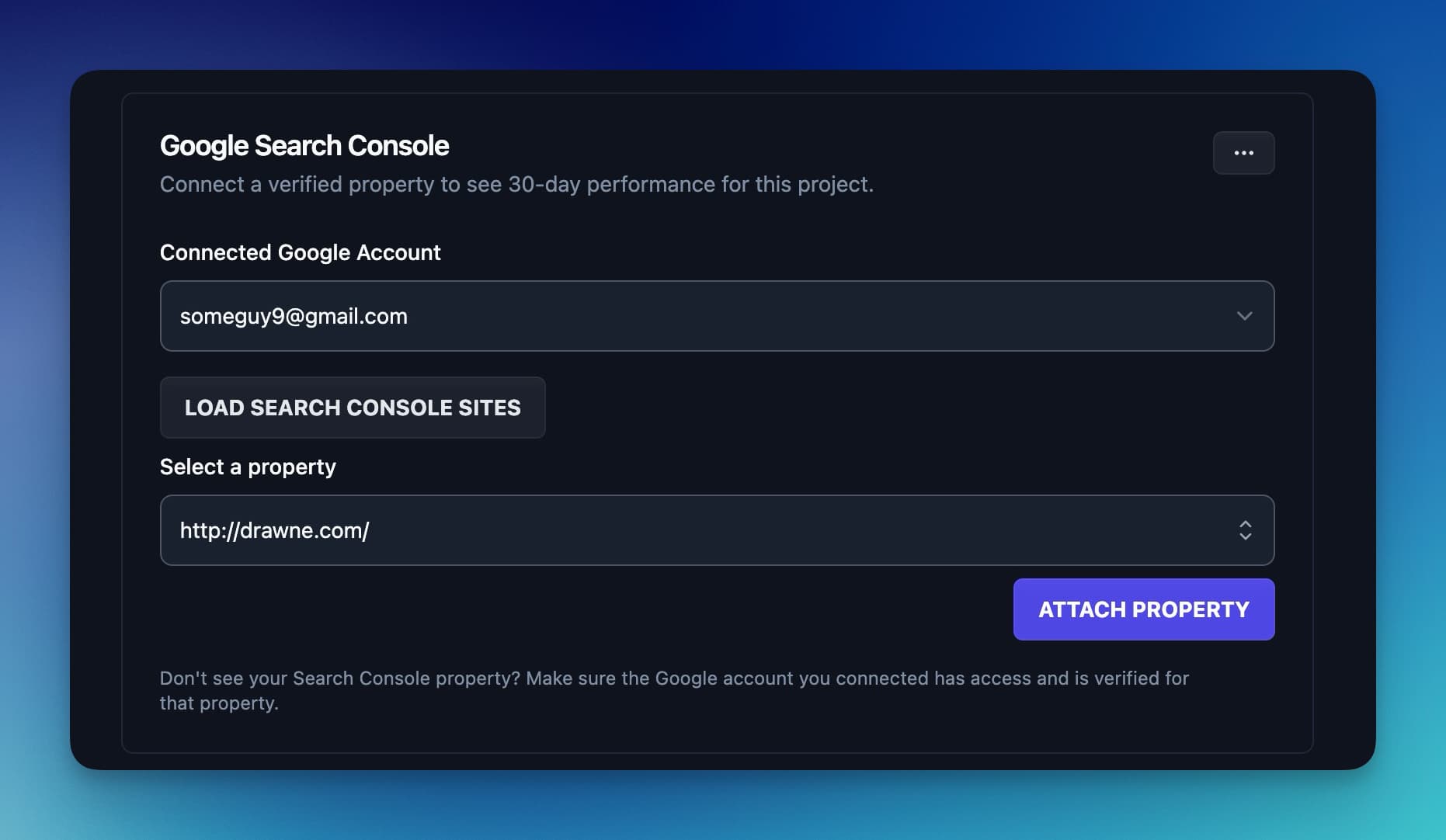
If the section shows a property picker instead of Connected, pick the property yourself. You’ll see the picker when RightBlogger can’t find a match, and when the Google account was already connected from an earlier project.
- Pick the Google account from the dropdown.
- Click Load websites.
- Choose the property for this site. RightBlogger preselects the best match when it finds one, and domain properties are listed as Full Domain.
- Click Connect website.
If the property you pick has no search data but another property for the same site does (say you chose the http:// version and your traffic is recorded under https://), RightBlogger connects the one with data.
5. Check that data is coming in
Once connected, the section shows how many clicks the property got in the last 30 days, plus a View full report link. If it says “No search data yet” for a site that gets traffic, the wrong property is probably connected. The questions at the end of this guide cover the fixes.
You can also start from the Content page. If the selected project doesn’t have Search Console yet, click Connect Search Console there and follow the same steps.
What You Get
With Search Console connected, your search data shows up across RightBlogger:
- A live search report on the Reporting page with clicks, impressions, click-through rate, average position, a daily chart, and your top pages and queries. Views for quick wins, content decay, keyword cannibalization, and URL clusters sit alongside it. Reporting is included with paid plans, and you can share it as a live link or a branded PDF. On Agency, you can also serve white label reports from your own domain.
- Your last 30 days of search clicks on the Content page, next to what you’ve published.
- The Blog Performance Report email every Monday, covering what changed and what to work on next.
- Site Agent suggestions based on real traffic. The agent uses your search data to decide which pages to improve first, then tracks how their clicks and impressions change after each edit.
- Answers about your search data in RightBlogger Chat, or in Claude, ChatGPT, and Cursor through the RightBlogger MCP Connector.
- Search history that outlasts Google’s. RightBlogger saves up to 16 months of data when you connect, adds new data every day, and keeps it after Google’s 16-month window drops it.
- Proof that you own the site. A property that matches your project’s website marks the project as verified, which the Backlink Exchange requires.
Switching or Disconnecting
Only the project owner can change the connection. Open the project and use the three-dot menu in the Google Search Console section:
- To disconnect, choose Disconnect and confirm. RightBlogger stops collecting new Search Console data for that project.
- To switch to a different property, disconnect first, then pick the account, click Load websites, and connect the property you want.
- To add a different Google account, choose Add another Google account from the same menu while no property is connected, and sign in. Every Google account you add is available to all of your projects.
Disconnecting doesn’t delete the data RightBlogger has already saved. To have it deleted, email contact@rightblogger.com. To remove RightBlogger’s access on Google’s side, open your Google account connections.
Common Questions
I don’t see my site in the property list. What do I do?
Work through these in order:
- Check the Google account. The property may live on a different Google login, so use Add another Google account and sign in with that one.
- Check your access level. The account needs Owner, Full, or Restricted access, and properties you added but haven’t verified yet won’t appear.
- Look for the right format. Domain properties are listed as Full Domain followed by your domain, and URL-prefix properties show the full address you added, such as https://www.yoursite.com/. The list is searchable, so you can type part of your domain.
If it’s still missing after all three, email us at contact@rightblogger.com.
Why did the connection fail?
The most common cause is the Search Console permission on Google’s screen. If it was unchecked, you’ll see a “Permission denied” message. Start again from step 2 and leave it checked.
A general “Failed to connect Google Search Console” message usually means the Google sign-in was interrupted or canceled, for example by pressing back or refreshing partway through. Try again from step 2.
My data isn’t showing up after connecting.
- The site is new. Google needs time to collect data, and RightBlogger uses Google’s finalized numbers, which arrive a few days after the fact.
- The wrong property is connected. If the Search Console section says “No search data yet” for a site with traffic, disconnect and pick the domain property or the version of your site that gets visits.
- Google access has lapsed. The next question explains how to fix it.
If none of these fit, email us at contact@rightblogger.com.
What does “Reconnection Required” mean?
Google stopped letting RightBlogger read your data. That happens when access expires after a long stretch without use, when it’s revoked from the Google account, or when the account loses access to the property. The project owner can click Reconnect Google account in the Search Console section to fix it.
If an account loses access to a property for more than a day, RightBlogger also emails the project owner a link to reconnect.
What permissions does RightBlogger get?
Read-only access to your Search Console data, plus the email address and account ID of the Google account you connect. RightBlogger can’t change your site, submit sitemaps, or edit any Search Console settings.
RightBlogger uses the data only for the features you use. It doesn’t sell it, use it for advertising, or train AI models on it. The privacy policy has the details.
Can I connect the same Search Console property to multiple projects?
Yes. Each project connects to one property at a time, and you can connect the same property to as many of your projects as you need.
Can I use more than one Google account?
Yes. Add as many Google accounts as you need, then choose which account and property each project uses. That helps when your sites, or your clients’ sites, live on different Google logins.
Do teammates need to connect Search Console too?
No. The project owner connects it once for the whole project. Teammates can’t connect, switch, or disconnect it, and if the connection needs attention, they’ll see a note asking them to contact the owner.
Still need help?
Ask the AI assistant for an instant answer, or reach us directly and we will get back to you as soon as we can.
Automated SEO Blog Posts for Your Site
Research, write, publish, and share from one account.
7-day free trial. Cancel anytime.