How to Use Memories in RightBlogger Chat
Save short preferences and site context across chats, then review, delete, or disable them whenever needed.
Instead of re-explaining who you are or what your site is about every time you open a new chat, memories let the AI carry forward small, helpful details automatically.
Think of it as lightweight context that makes chat feel more personal and consistent, without locking you into anything.
Best of all, memories carry over between chats. If you often prefer a certain writing style or want the chat to understand your project in depth, memories are a great way to make that happen.
This guide explains what memories in RightBlogger are for, how to manage them, and when you should turn them off.
What Memories Are Meant For
Memories are best used for stable preferences and background details that do not change often.
Things like:
- How you want to be addressed
- What your site or project is about
- Your general writing style or tone preferences
Once saved, these details can be reused in future chats so you do not need to repeat yourself.
What Memories Are Not For
Memories are not designed to replace projects or knowledge uploads.
They are not a good fit for:
- One off tasks or temporary instructions
- Long form brand guidelines
- PDFs, research files, or structured data
- Sensitive or private information
For those, you should use Projects (including each project’s Content defaults), MyTone, or the Knowledge Library instead.
Where to Manage Memories
You can review and control memories directly inside RightBlogger Chat.
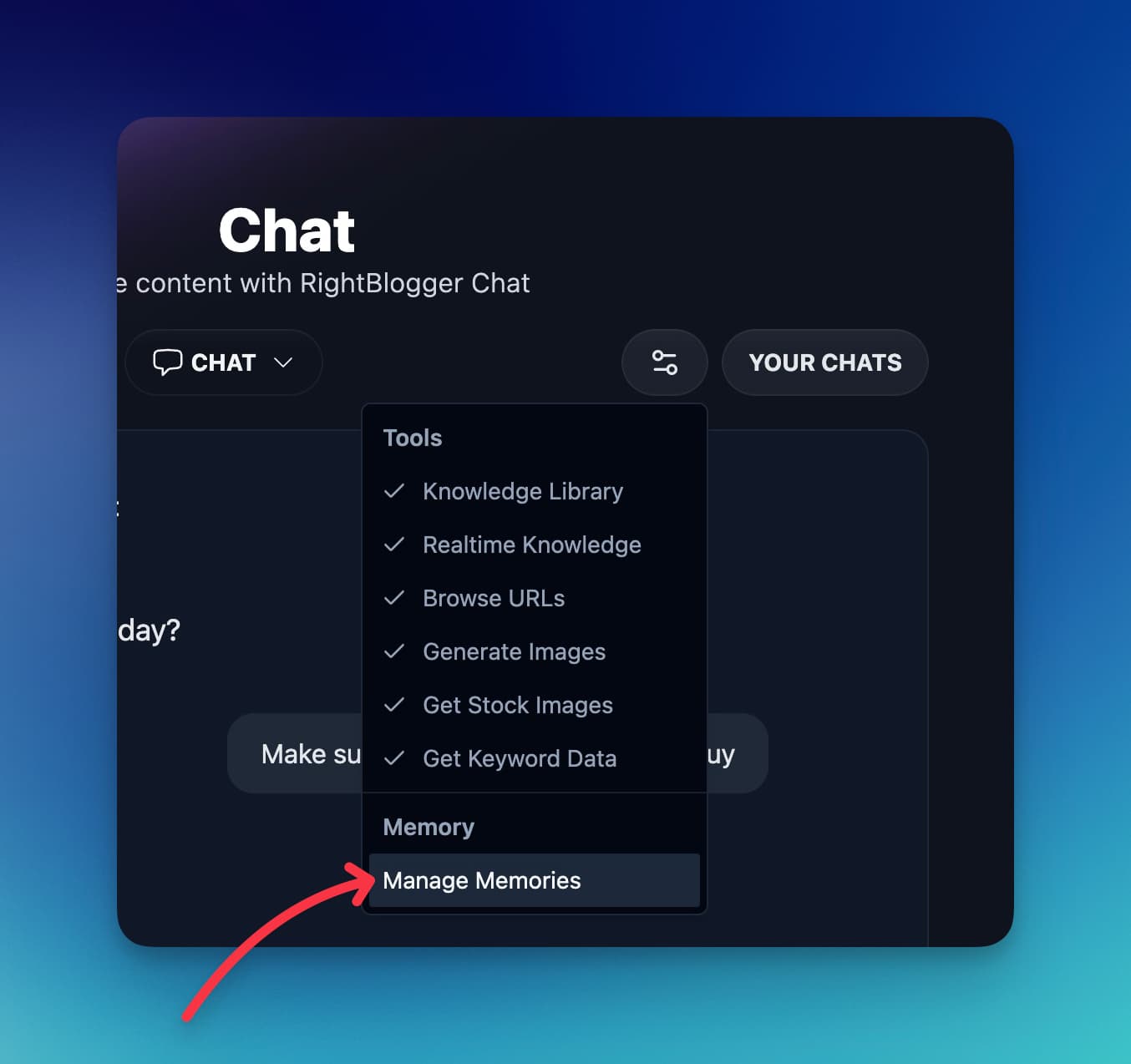
Open Chat, click Tools (the sliders icon below the message box), then choose Manage Memories under Memory.
This opens a panel showing everything the AI currently remembers about you.
Reviewing Saved Memories
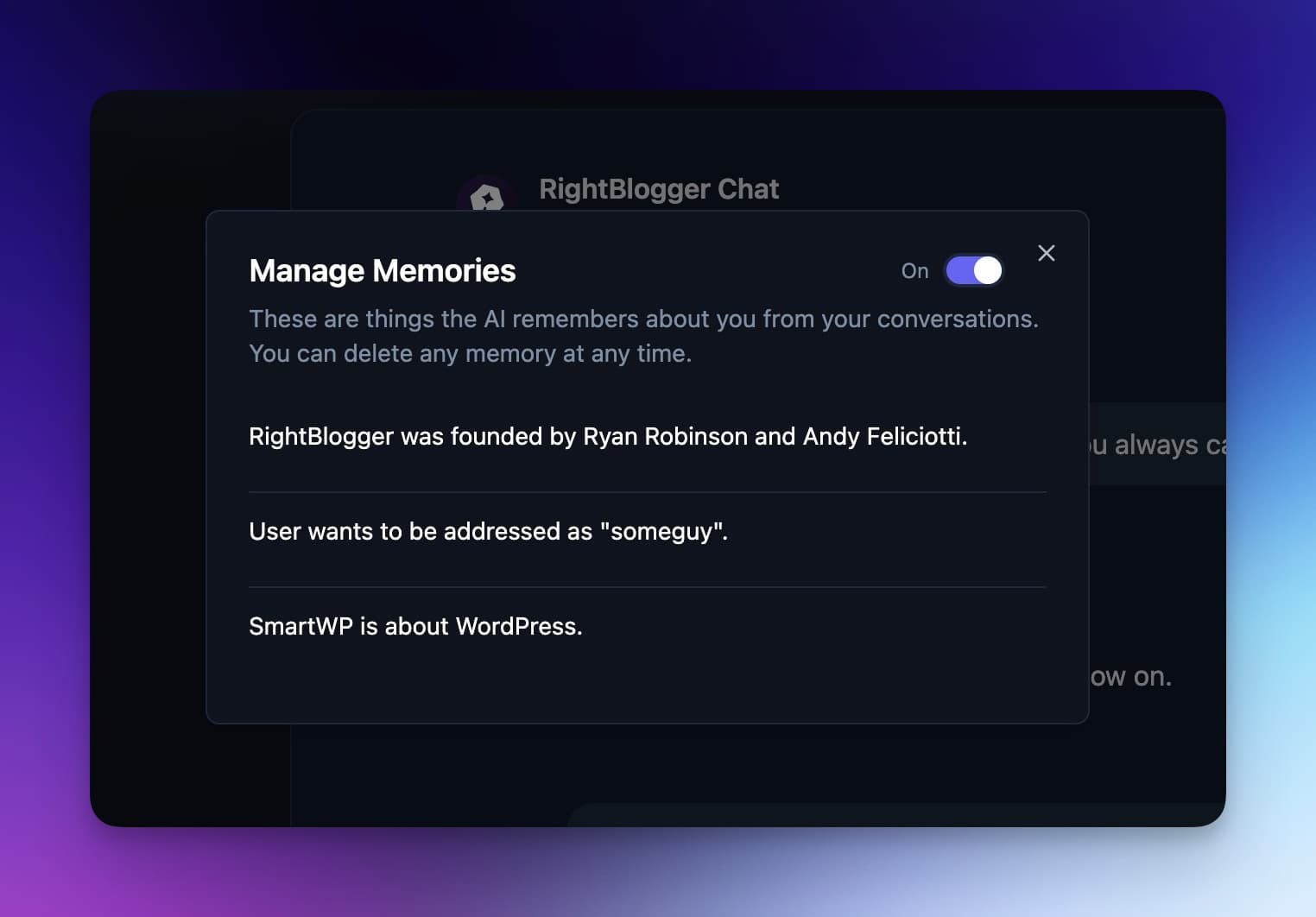
Each memory is stored as a short, plain sentence.
For example:
- “User wants to be addressed as someguy.”
- “SmartWP is about WordPress.”
These are meant to be simple and easy to scan. You can remove any memory at any time if it is no longer accurate or useful.
Nothing is permanent and it’s completely customizable by you.
Turning Memories On or Off
At the top of the Manage Memories panel, there is a toggle.
When it is on, RightBlogger Chat can save and reuse memories across conversations.
When it is off, the AI will stop using saved memories and will not create new ones.
If you prefer every chat to start with a clean slate, turning this off is completely fine.
Removing a Memory
If something feels wrong or outdated, you can easily delete it manually in the memories management we just showed.
Open Manage memories, find the item you want removed, and delete it.
Once removed, the AI should stop referencing it going forward.
Asking Chat to Forget Something
You can also handle this directly in chat.
If you say something like “forget that” or “do not remember my name,” RightBlogger Chat will remove the relevant memory for you.
This is often the fastest way to clean things up when something feels off.
How to Get Better Results from Memories
Memories work best when they are short and specific.
Clear statements like “call me Andy” or “my site focuses on guitar gear reviews” tend to work very well.
Vague instructions like “remember my brand” are harder to use and likely won’t result in the best use of memories.
If a detail feels important enough to reference often, but too complex to fit in one sentence, it probably does not belong in memories.
Chat labels each memory with a category, like style, audience, or website, and you can filter by category in Manage Memories. Details that only apply to one project are saved to that project and only used when it’s selected.
Summary
Memories help RightBlogger Chat stay consistent across conversations by remembering small, useful details about you. You can review, delete, or disable them at any time. Use memories for simple preferences and background context, and rely on Projects and Knowledge Library for anything deeper or more structured.
Automated SEO Blog Posts That Work
Try RightBlogger for free, we know you'll love it.
7-day free trial. Cancel anytime.