How to Use Tool Studio
Describe the tool you want, refine its fields and prompt, then embed it with optional email capture.
Tool Studio lets you build your own AI tools, such as a name generator, a calculator, or a content idea finder, and embed them on your website. Visitors use the tool on your site, and you can collect their email addresses before they see the result. You describe the tool in plain words, and RightBlogger builds the form and the prompt for you.
Where to Find Tool Studio
Open it from All Tools by searching for Tool Studio. Your tools are listed there with their last 30 days of use.
Create a Custom Tool
- Click Add New Tool.
- In Tool Details, describe what the tool should do, what visitors will enter, and what they should get back. The more detail, the better. Stuck? Open Need Inspiration? and click Use Idea.
- Click Create Tool. RightBlogger builds the form fields and prompt for you.
- Fine-tune it, then click Save changes.
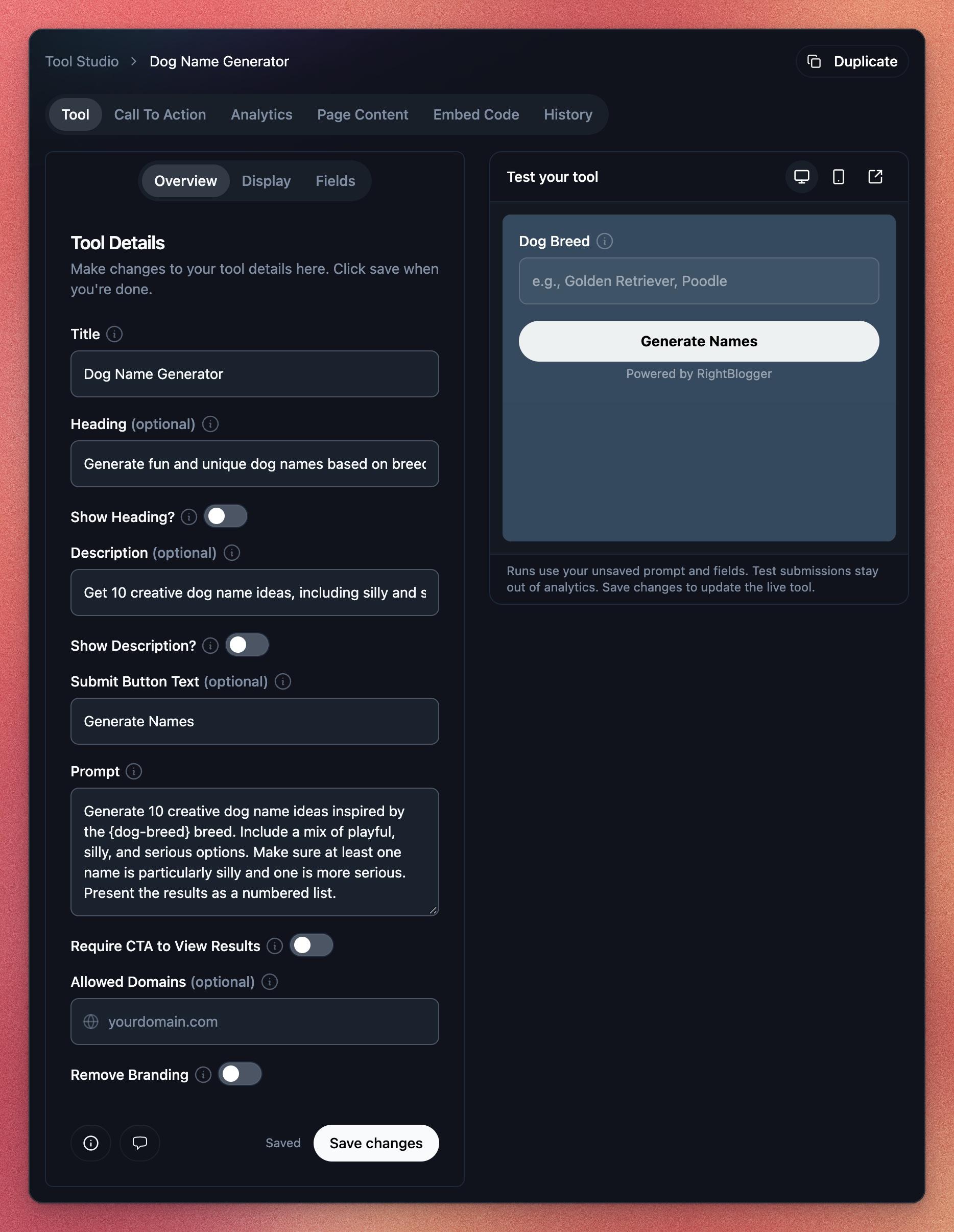
Each tool has these tabs:
- Tool: the title, heading, description, button text, and the Prompt that runs. Display sets colors and layout, and Fields edits the form. Use Test your tool on the right to try it before saving; test runs do not count in your analytics. The chat icon at the bottom lets you update the tool by changing your original request.
- Call To Action: show custom text with a link, or an email capture form. Turn on Require CTA to View Results to show results only after a visitor completes it.
- Analytics: how often the tool is used, plus any emails it collected, which you can export.
- Page Content: a meta title, meta description, and page copy for the page you put the tool on.
- Embed Code: the code to add the tool to your site.
- History: earlier versions of the tool. Click Restore to go back to one; the embed code stays the same.
Use Duplicate to copy a tool as a starting point for a new one.
Add a Tool to Your Website
Open the Embed Code tab, pick how the tool should appear, and click Copy code:
- In the page: the tool shows wherever you paste the code. On WordPress, use a Custom HTML block, or the RightBlogger Tool block if you have our plugin.
- Popup button: adds a button that opens the tool in a popup. Good for sidebars and menus.
- Your own button: add the script once, then any button or link with a
data-rightblogger-toolattribute opens the tool.
Save your changes before copying the code. On plans that include it, you can limit the tool to your own sites with Allowed Domains, remove RightBlogger branding with Remove Branding, and add Custom CSS under Display. To use a tool yourself inside RightBlogger, click Use Tool in your tool list.
Advanced: Start a Tool With Fields Filled In
Add data-field- plus a field’s name to the embed script, and that field opens already filled in. To find a field’s name, open the Tool tab and look under Available variables below the Prompt: each field is listed in curly braces, like {target-audience}. Use the name without the braces.
<script src="https://rightblogger.com/studio/v1/YOUR-TOOL-ID/embed.js"
  data-field-target-audience="home organizers in Spain"
data-field-tone="casual"></script>- Text, paragraph, email, URL, and hidden fields use the value as written. A dropdown uses it only when it matches one of its options; otherwise it keeps its usual choice.
- Visitors still click the button to run the tool, and can change what you filled in.
- It works with all three embed options. The values always go on the script tag.
- To fill a field from your page’s own address or form, have your code add the script tag with the value already set. Changing the attribute after the tool has loaded does nothing.
How Tools Count Toward Your Plan
- Each tool counts once, no matter how many pages you embed it on.
- Tools you only use inside RightBlogger count too.
- Deleting a tool frees up its spot right away.
How many tools you can have and which options you get depend on your plan. See the pricing page.
Related Guides
Still need help?
Ask the AI assistant for an instant answer, or reach us directly and we will get back to you as soon as we can.
Automated SEO Blog Posts for Your Site
Research, write, publish, and share from one account.
7-day free trial. Cancel anytime.