How Site Scan Works (and How to Use It)
Scan up to 500 public pages, then let supported tools retrieve relevant content from the project’s searchable knowledge.
Site Scan crawls up to 500 public pages from the primary website on a project, filters out low-value routes, and turns useful page content into searchable project knowledge. RightBlogger can retrieve relevant parts of that index when a supported tool or feature uses project knowledge. Site Scan does not require MCP or a CMS connection.
Before You Start
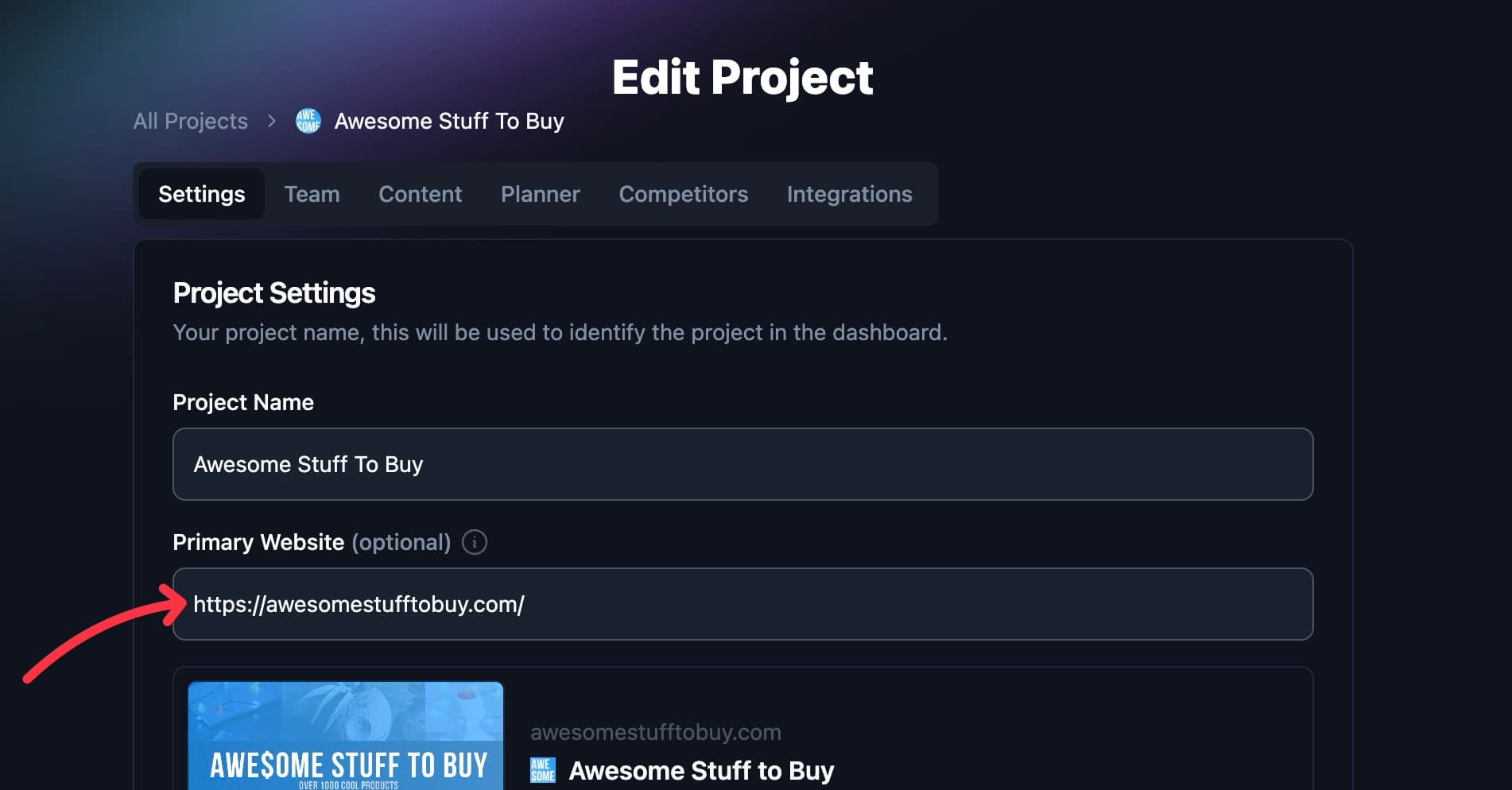
Every site scan is attached to a project, and the project needs a primary website set before you can scan. That primary website is the URL RightBlogger crawls. You can set it during project creation, or edit it later in project settings.
One project maps to one website. If you run multiple sites, create a separate project for each.
Site Scan only needs access to your public pages. You do not need the RightBlogger WordPress plugin, an MCP connection, or Google Search Console to run it. Connect the WordPress plugin separately if you want the MCP Connector or Site Agent to read or edit live WordPress posts.
How to Start a Scan
Start the scan from the project that owns the website:
- Open Project Settings for the site.
- Find the Site scan section on the Settings tab.
- Confirm the primary website, then click Scan website.
The website is locked to the project’s primary website. Change that address in project settings if it is wrong. Only the project owner can start a scan, and teammates see a note that the owner can set it up.
RightBlogger processes up to the first 500 pages returned by the crawler. It auto-indexes pages with useful body content and skips common low-value routes such as tag, category, author, search, cart, checkout, login, and paginated archive pages.
What Happens During the Scan
A scan moves through three states:
- Crawling, collecting URLs from your site.
- Indexing, extracting content from each page and embedding it.
- Ready, every page has been processed.
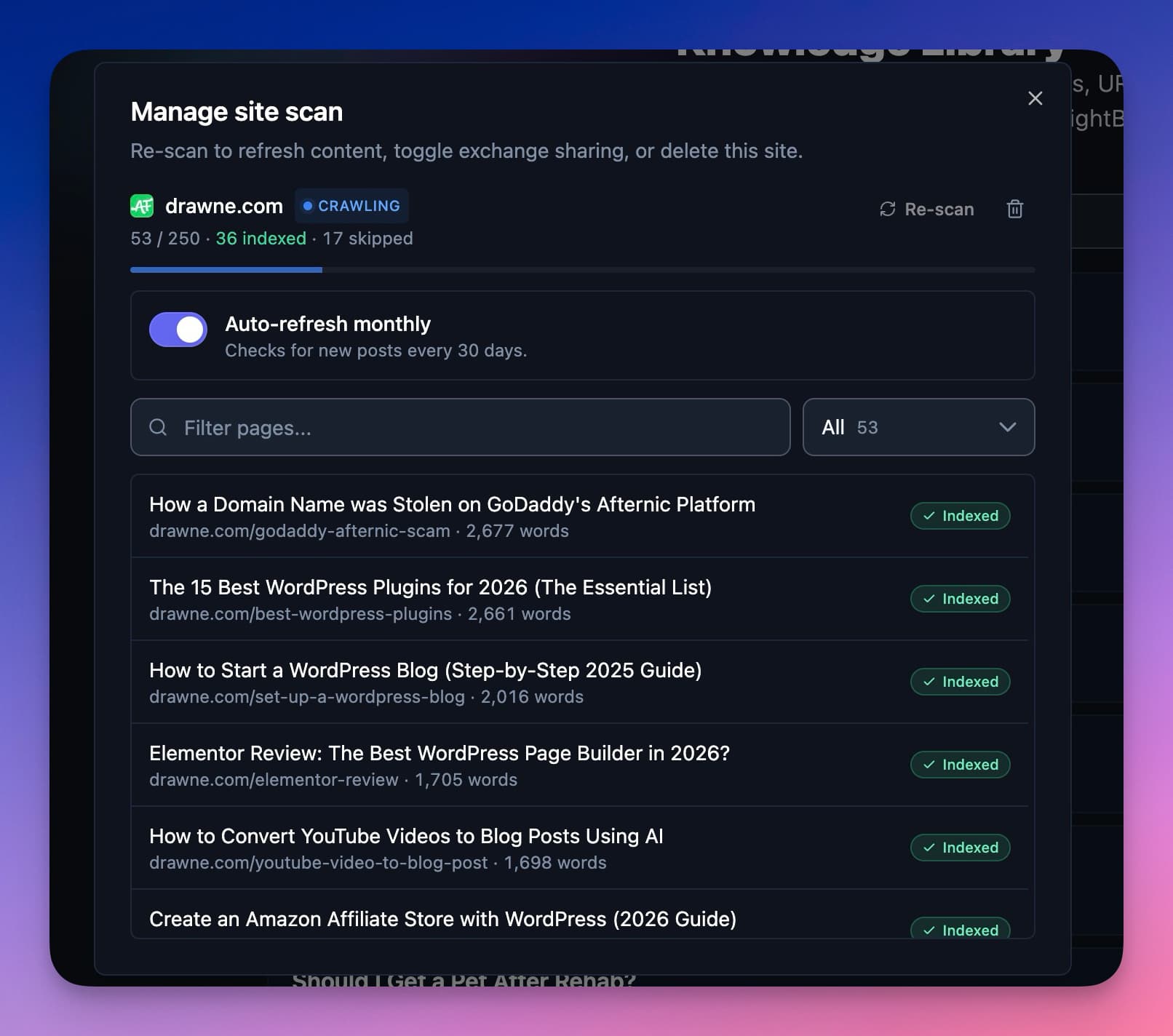
You can watch progress in the Site scan section, and Manage scan lists each page with its status as it completes. Pages that fail to load are marked failed. Pages with less than 200 words, empty templates, or low-value URL patterns are normally marked skipped.
How Scans Are Used
Once a scan is ready, its indexed pages become part of that project’s knowledge. RightBlogger features that support project knowledge can search the scan without placing all 500 pages into every prompt.
On supported tool pages, the Use project knowledge toggle controls whether the tool can use project-level sources for that run. RightBlogger searches the scan by meaning and adds only the most relevant chunks. You can also select a scan from Add Knowledge → Library when a tool supports per-run knowledge.
Site Scan is not a copy of your live CMS. MCP post tools and the Site Agent read the current post through your CMS connection when they need the full body or want to apply an edit. They can use Site Scan for related-page discovery, but the scan does not replace the CMS connection.
Managing Scans
The Site scan section on the project’s Settings tab shows the scan’s status and the Auto-refresh monthly switch.
Click Manage scan to:
- See every page in the scan with its status, and re-index individual pages.
- Re-scan the site, or delete the scan, which permanently removes its pages and indexed knowledge documents. Deleting can’t be undone.
Re-scanning the same site is rate-limited to once every 24 hours. If an existing page changed, use its re-index action in Manage scan to fetch that page again. Re-indexing an existing page does not add pages beyond the 500-page scan limit.
Auto-Refresh
New scans default to monthly auto-refresh. Every 30 days, RightBlogger checks the site’s sitemaps and reprocesses pages it finds. Older scans may have this switch turned off, so check that Auto-refresh monthly is on in the Site scan section if you want recurring updates.
Per-Tool Knowledge Picking
On a supported tool form, Add Knowledge lets you pick sources for one run. The Library tab groups scanned pages by domain, so you can select that site’s scan as a source.
The Scan Site tab may be disabled inside a tool because scans take time and belong to the project. Start or manage the scan from the Site scan section on the project’s Settings tab.
If a Firewall Blocks Site Scan
A full Site Scan can make two kinds of requests to your public pages. The discovery crawl uses CloudflareBrowserRenderingCrawler/1.0. When RightBlogger indexes selected pages, it uses Mozilla/5.0 (compatible; RightBloggerScan/1.0; +https://rightblogger.com).
If Cloudflare or another security service returns a challenge page, allow both exact User-Agent values. In Cloudflare, create a custom WAF rule for the matching User-Agent and use the Skip action only for the security feature that blocked it. Put the skip rule before any later custom rule that would block the same request.
Do not use cf.bot_management.verified_bot for this rule yet. RightBlogger has submitted for Cloudflare verified-bot status but is not listed as verified. Cloudflare also does not let a custom skip rule bypass the Free plan’s Bot Fight Mode, so check that setting separately if requests still fail.
Common Questions
Can I scan a site that isn’t my project’s primary website?
No. Each project is locked to one site to keep knowledge coherent. To scan a different site, change the project’s primary website in settings, or create a separate project for it.
Do I need MCP or the WordPress plugin for Site Scan?
No. Site Scan reads public pages from the project’s website. MCP connects an outside AI client to RightBlogger, while the WordPress plugin gives RightBlogger access to live WordPress posts. You only need the plugin when an MCP post tool or the Site Agent must read or edit those live posts.
What if my site has more than 500 pages?
The current Site Scan limit is 500 pages. Re-scanning applies the same limit and normally returns the same first set of pages; it does not continue with pages 501 through 1,000. To prioritize a page outside the scan, paste its URL into Add Knowledge → URL as a separate knowledge item. Contact support if the limit prevents you from covering the content you need.
Do team members’ tools use my site scan?
Yes. Project Knowledge is shared across everyone with access to the project.
What happens to my scan if I delete the project?
The scan, its pages, and the indexed documents are cleaned up automatically with the project.
Can I remove a scan from knowledge without deleting it?
Not currently. A scan tied to a project remains part of Project Knowledge. To exclude it, delete the scan entirely or turn off Use project knowledge on individual tool runs.
Still need help?
Ask the AI assistant for an instant answer, or reach us directly and we will get back to you as soon as we can.
Automated SEO Blog Posts for Your Site
Research, write, publish, and share from one account.
7-day free trial. Cancel anytime.