The Easiest Way to Set Up Content Grouping in GA4
Map a few durable blog categories to URL patterns, send them through GTM, and compare traffic, engagement, and conversions in GA4.


Your blog might host hundreds of posts, yet still feel disorganized within your analytics dashboard. Without GA4 content grouping, every individual article exists in its own separate data silo, making it difficult to understand the bigger picture of your performance.
That is the core problem. You might know which specific post received the most clicks, but you lack insight into whether your how-to guides outperform your news updates or if your tutorials actually keep readers engaged for longer periods.
By using GA4 content grouping, you can organize your blog pages into clear, logical categories. This allows you to analyze your traffic like a professional report rather than a disorganized list of page titles.
The setup is simpler than many people expect. Here is how to set it up without turning your analytics configuration into an overwhelming weekend project.
Key Takeaways for Content Grouping in GA4
Keep these points in mind before you build anything:
- GA4 does not group blog content automatically. You need a rule based on the Page Path, folders, or other page data.
- Google Tag Manager is the most efficient way to handle the setup, as it sends the content_group parameter to GA4.
- Simple groups work best. Think in terms of blog sections, post types, or topic clusters rather than tiny one-off labels.
- The report only helps if the labels stay clean. One post should not live in three different buckets.
- “Content group” is a built-in GA4 dimension, so it shows up in reports automatically. You only need a custom dimension if you add a second or third grouping.
Why Blog Content Needs Grouping
A blog is never just a pile of posts. It is a mix of tutorials, thought pieces, product updates, case studies, and maybe a few random posts from six months ago that never quite fit anywhere.
That is where grouping helps. Instead of asking how one specific article performed, you can view aggregate data to see how entire page categories, such as your SEO or news sections, performed this month.
That is a much better question to ask when analyzing your strategy.
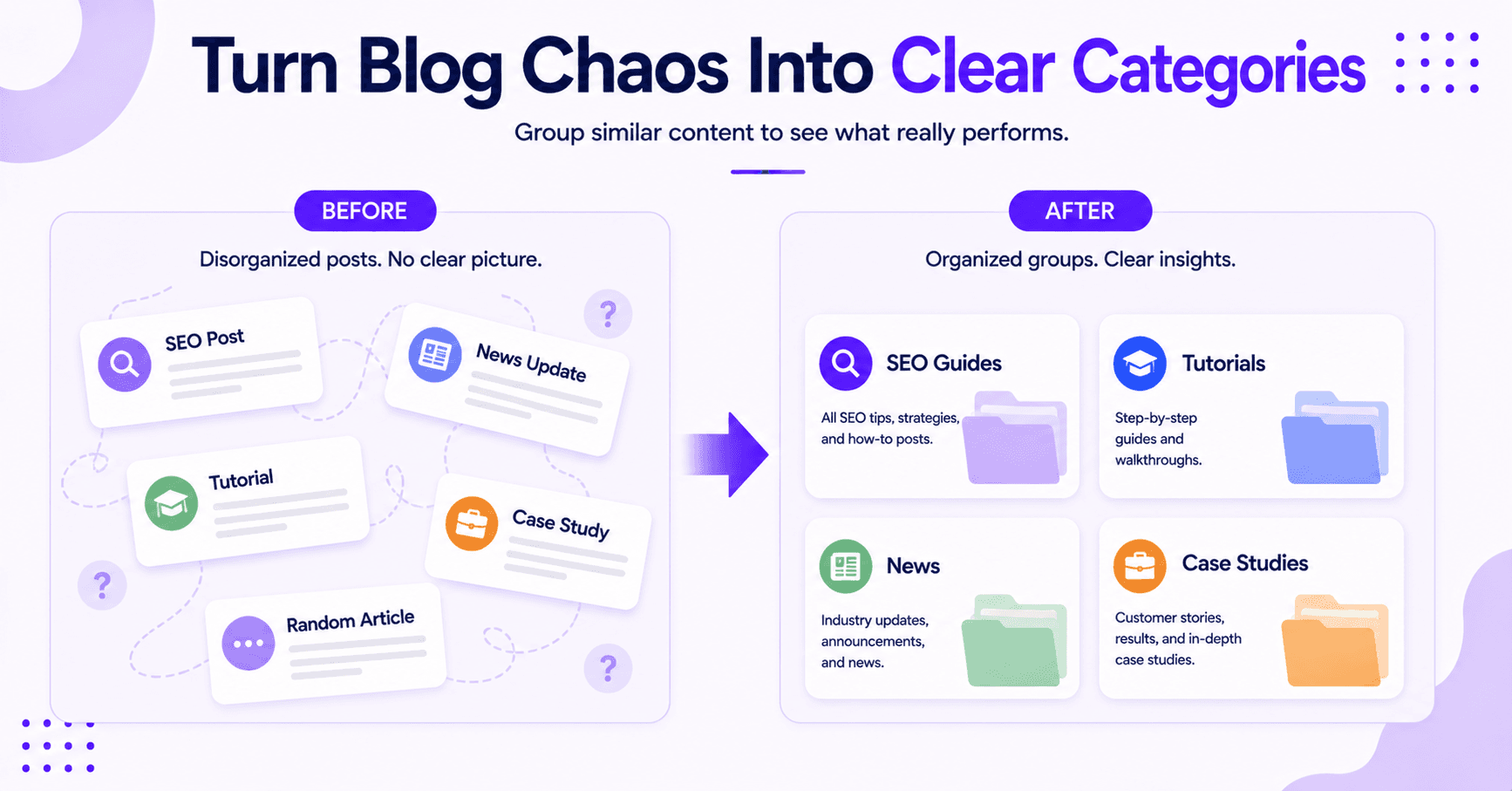
If your blog sits in clear folders like /blog/seo/ or /blog/news/, the setup becomes much simpler. If it does not, you can still organize your site effectively.
You just need a pattern that makes sense and will not break the first time you publish a new post. By implementing GA4 content grouping, you provide the necessary structure to turn chaotic URLs into a readable format.
This is also why grouping beats raw page-level reporting. Page-level data tells you which individual post got the most traffic, but group-level data adds a whole new lens to your reporting.
This helps you identify which specific topics are pulling their weight and which categories require more attention.
Map Your Blog Before You Touch GA4
Don’t open GA4 and start clicking around right away. First, decide how your blog should be organized.
Start with the structure you already use. If you write by topic, use those topics. If you publish by format, group by format.
If your site already leans on topic clusters, keyword clustering strategies can help you turn those clusters into cleaner reporting groups.
Pick labels that your team will understand at a glance.
- “SEO Guides” is better than “Bucket 1.”
- “Product Updates” is better than “Misc.”
If your blog URLs are messy, fix the URL structure first (carefully, so you do not lose rankings). GA4 cannot clean that up for you.
A good test is simple. If someone on your team sees the group name in a report, will they know what belongs there?
If the answer is no, the label is too vague.
For blogs, the cleanest setup often uses folders or patterns within the Page Path. When you build your logic in your GTM container, Google Tag Manager will look for these specific patterns to categorize your traffic.
If your site does not use folders well, you may need a tag-based rule or a data layer field instead to capture the data accurately.
The point is not perfection. The point is a structure that stays readable six months from now.
Build the Rule in Google Tag Manager
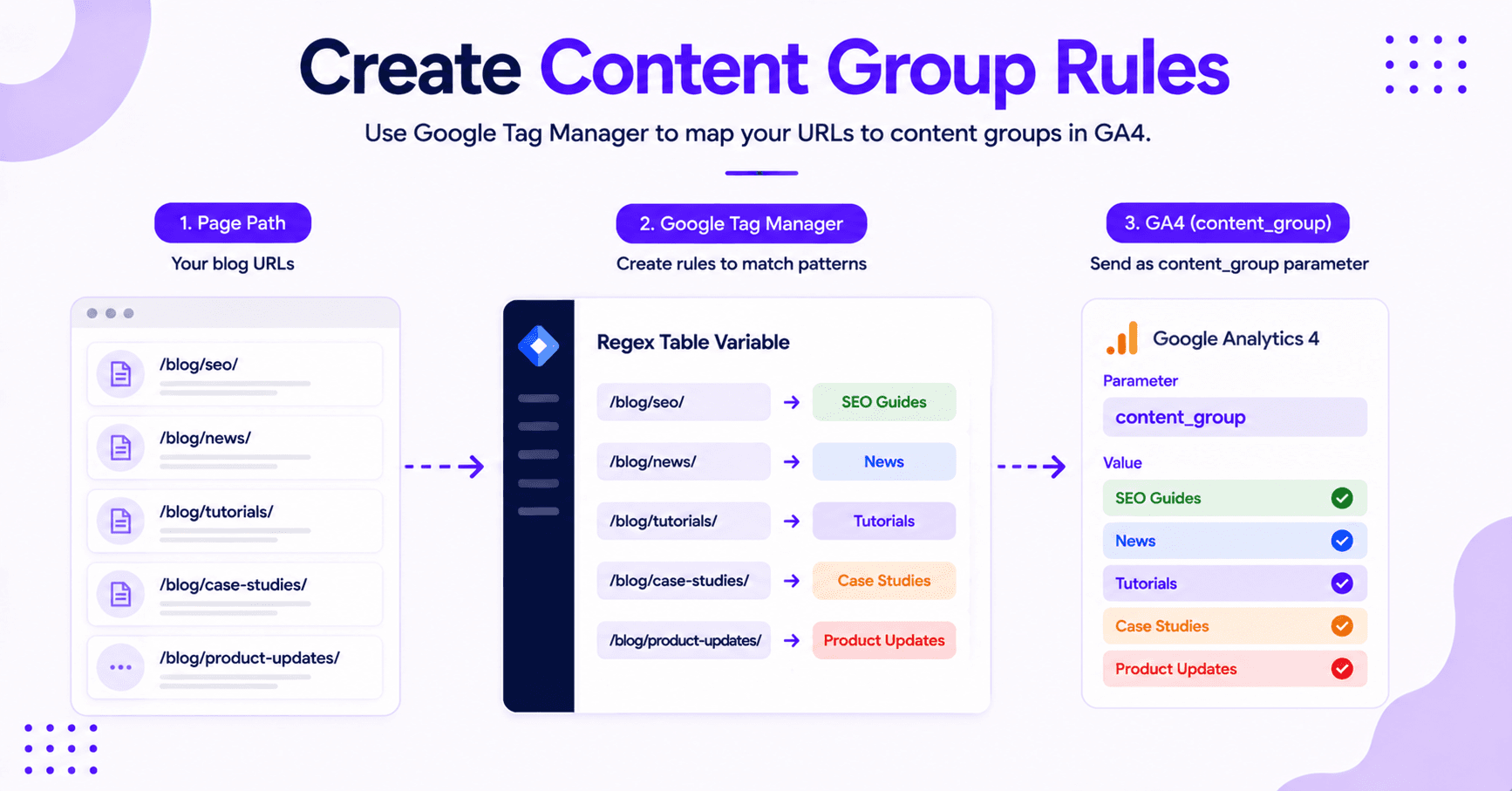
For most blogs, Google Tag Manager is the most efficient way to handle content grouping in GA4. It allows you to match specific URL patterns and send that data as a content_group parameter.
If you want a click-by-click walkthrough, keep Analytics Mania’s guide to content groups in GA4 open as you work, plus Google’s official content groups doc for the reference details.
Here is the basic implementation flow:
- Create a variable that reads the page path. Within Google Tag Manager, navigate to User-Defined Variables and select Variable Configuration. A Regex Table is the ideal choice here because it allows you to define complex logic in a single view.
- Use regular expressions within your Regex Table to match various URL patterns. For example, you might group /blog/seo/ and /resources/seo/ under the same label if your content strategy treats them as a single topic.
- Assign a clear, descriptive name to each pattern.
- Pass that value into your Google tag as the content_group parameter.
- Preview the container and test a few blog pages to ensure the data is captured correctly.
When building your Regex Table, keep the rules tight. One rule should map to one group.
If a single post can fall into three different groups, your reporting will become messy and difficult to analyze.
This is also the stage where over-complicating your naming convention can cause issues. Avoid overly clever titles and stick to clear, standard names that remain easy to understand once your report grows in size and complexity.
Add the Parameter to GA4 and Test It
Once your variable is ready in Google Tag Manager, you send the value into GA4 using the content_group parameter. Add it to your Google tag (the tag formerly called the GA4 Configuration tag) under Fields to set, or, the cleaner 2026 approach, put a content_group event parameter inside a reusable Google tag: Event Settings variable so it rides along with every event.
This content_group parameter is the specific label GA4 uses to organize your blog performance data on its side.
After configuring the tag, verify it. In GTM, click Preview to launch Tag Assistant and enter your site URL, then open DebugView in GA4 (Admin > DebugView) to watch events arrive in real time.
As you visit various blog pages, check the Event Parameter values to ensure the data is flowing correctly. If the setup is working, you should see the content group dimension populate alongside your page view activity.
Once you have verified the data, you can view your results within the Pages and screens report. If you need a more granular view, create a custom Exploration to compare your content groups side by side.
This step is critical because a setup that appears perfect in your Google tag configuration can still fail if the data is not being captured properly in GA4. A missing parameter, a typo in your label, or a logic error in your rules can wreck your reports, so testing beats guessing every time.
Finally, if your blog has older posts, keep in mind that they will only reflect these groups moving forward. Plan your tracking strategy around the data you want to collect today, as retroactive changes to historical data are not possible.
Read the Report Without Fooling Yourself
Once the groups show up, do not stop at pageviews. That number tells only part of the story.
Standard reports are helpful for a high-level overview, but they are often limited when you want to understand the actual impact of your content strategy.
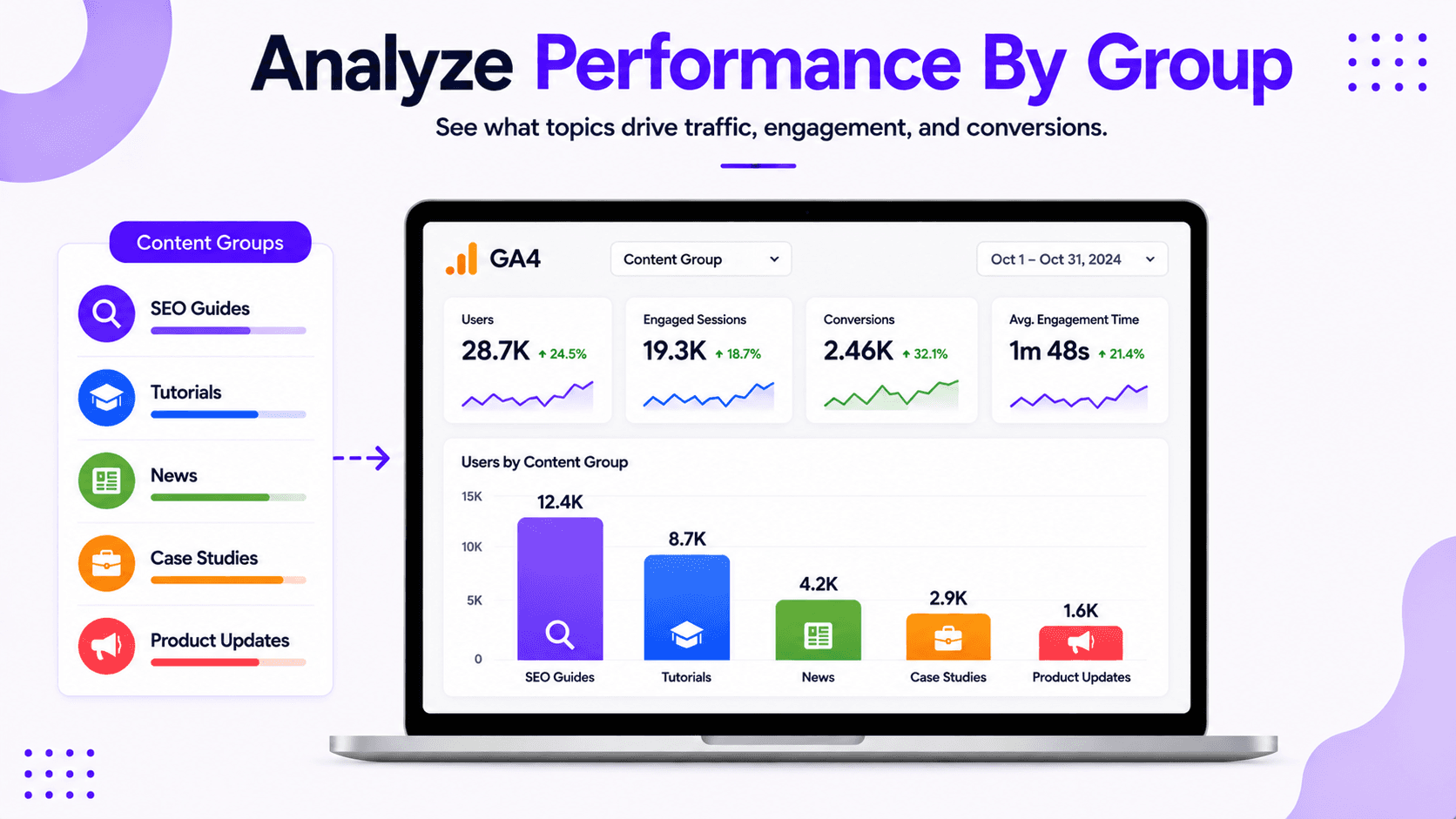
A blog category with fewer views can still be the stronger section if people stay longer, scroll more, or convert more often. That is why it helps to pair grouping with measuring content performance over time.
One thing worth clearing up: the built-in Content group dimension appears in your reports automatically once content_group is firing. You do not register a custom dimension for it. (Custom dimensions only come into play if you add a second or third grouping with your own parameter.) Used well, that one dimension lets you pair raw traffic with engagement to see what happened after the click.
Look for questions like these:
- Which content group gets the most traffic?
- Which group keeps people engaged the longest?
- Which group leads to signups, downloads, or other goals?
- Which section gets views but no real action?
Those answers help you make better calls. Maybe your how-to posts deserve more internal links. Maybe your news posts need sharper introductions.
Maybe one content section is pulling traffic but not conversions, which is a clue about where to look next.
The nice thing about grouping is that it cuts through noise. Instead of staring at one article at a time, you start seeing patterns across the whole blog.
Common Mistakes That Break Blog Grouping
The biggest mistake is creating too many groups. Beyond the clutter, there is a real GA4 limit: once a dimension passes about 500 unique values in a day, the extras get rolled into an “(other)” row and individual groups vanish from standard reports. Keep the list short and that never happens.
Remember that GA4 content grouping does not offer retroactive tracking. This means your rules will only apply to future traffic, and your historical data will remain unaffected by any changes you make today.
Another common oversight is grouping by post title. Titles change frequently, whereas URL patterns and content categories are much more stable.
If you want your report to be sustainable, build your logic around site structures that do not change every time you edit a headline.
You must also account for pages that do not fit your primary structure. If you fail to include a catch-all category for these outliers, you will likely see not set values appearing in your reports.
Deciding how to categorize these odd posts beforehand prevents data gaps and keeps your analytics clean.
Ultimately, you should keep your setup boring in the best way. Clean labels, clear logic, and a small number of logical groups will always outperform a complex setup that nobody trusts.
FAQs About Content Grouping in GA4
A few questions that come up often:
Do I need Google Tag Manager for content grouping in GA4?
No, you do not need Google Tag Manager for content grouping in GA4, but it is the preferred method because it keeps the logic in one place. If you would rather use direct gtag.js code, send content_group with your config or page_view:
gtag('config', 'G-XXXXXXX', { 'content_group': 'Blog' });For advanced setups, you can use an Event Settings variable on your Google tag to pass the content_group parameter globally across your site.
Can I group blog posts by category instead of URL?
Yes, you can group blog posts by category instead of URL if your CMS pushes that information into the Data Layer. This allows for more dynamic reporting than relying solely on URL structures.
If your site does not support this, mapping groups based on URL folders remains a reliable and simple alternative.
How many content groups should I create?
You should start with a few clear, high-level content groups. A small number of groups is much easier to analyze than a long list of fragmented buckets.
As your blog grows, you can always refine your strategy and split these groups into more granular segments later.
Final Thoughts on GA4 Content Grouping
Content grouping makes GA4 easier to read because it matches how blogs are actually built. You stop chasing single page noise and start seeing which parts of your content mix are doing the heavy lifting.
The cleanest setup is straightforward: define your blog categories, configure your Google tag settings, and send the content_group parameter through GTM before testing your report.
Once this foundation is in place, your analytics stop feeling like a cluttered pile of tabs and start looking like a clear, actionable map of your website performance.

RightBlogger Co-Founder Andy Feliciotti focuses on website development and shares his expertise on blogging and analytics.




Automated SEO Blog Posts for Your Site
Research, write, publish, and share from one account.
7-day free trial. Cancel anytime.





Leave a comment