How to Connect Google Search Console to RightBlogger Projects
Connect the correct Google account and property to get accurate search data inside each project.

Google Search Console is one of those essential tools that appears simple until you need to integrate it into your content workflow. When used correctly, it becomes the bridge between guessing what your audience wants and knowing exactly how to reach them.
By utilizing the RightBlogger Google Search Console integration, you can align your search data with the right site, the right account, and the right project. Connecting these tools is a crucial step for efficient AI-powered content creation, as it allows you to ground your writing in real search performance data.
When everything is synced, you can move faster and make informed decisions about your content strategy. The good news is that the setup is straightforward once you know how the pieces fit together.
A few careful checks during the initial connection process will save you a lot of time and troubleshooting later on.
Key Takeaways for RightBlogger Google Search Console Setup
- Match the site and the account first. Most connection problems start with the wrong Google login or the wrong site property. Always verify you are using the correct credentials to ensure a seamless integration.
- Keep the project tied to one clear URL. If your RightBlogger project points to one specific version of your site, your Search Console property should match that configuration exactly. Consistency is vital for tracking your metrics accurately.
- Check the data after setup. A working connection should provide reliable search performance data, including clicks, impressions, and index signals that you can use to optimize your content strategy right away.
Start With the Right Project and Google Account
Before you touch any settings, open the RightBlogger Project for the site you want to track. If you have not set one up yet, start with using Projects in RightBlogger, because that is where the site settings live.
That matters more than most people think. Projects are the home base for your content settings, and they keep the work tied to a single site instead of a messy pile of tabs.
By setting these up correctly, RightBlogger can better understand your existing site context, which helps the platform maintain my tone across your future content. Furthermore, linking your account is the vital first step toward generating actionable seo reports later on.
Next, make sure you are signed into the same Google account that owns, or can access, the Search Console property. RightBlogger typically requires read-only permission to view your performance data safely.
If you are not sure which account is in play, check your Google Account linked apps settings and confirm the account you use for site tools.
If you work on a team account, do not skip the admin side. A Google Workspace admin may need to review app access controls, especially if your organization keeps a tight grip on connected services.
Choose the Search Console Property That Matches the Site
This part trips people up all the time. Search Console only provides clean data when the property matches the exact site you want to measure.
A domain property covers all versions of a domain, such as www and non-www, plus both protocols. A URL-prefix property is narrower, as it tracks one specific version of the site.
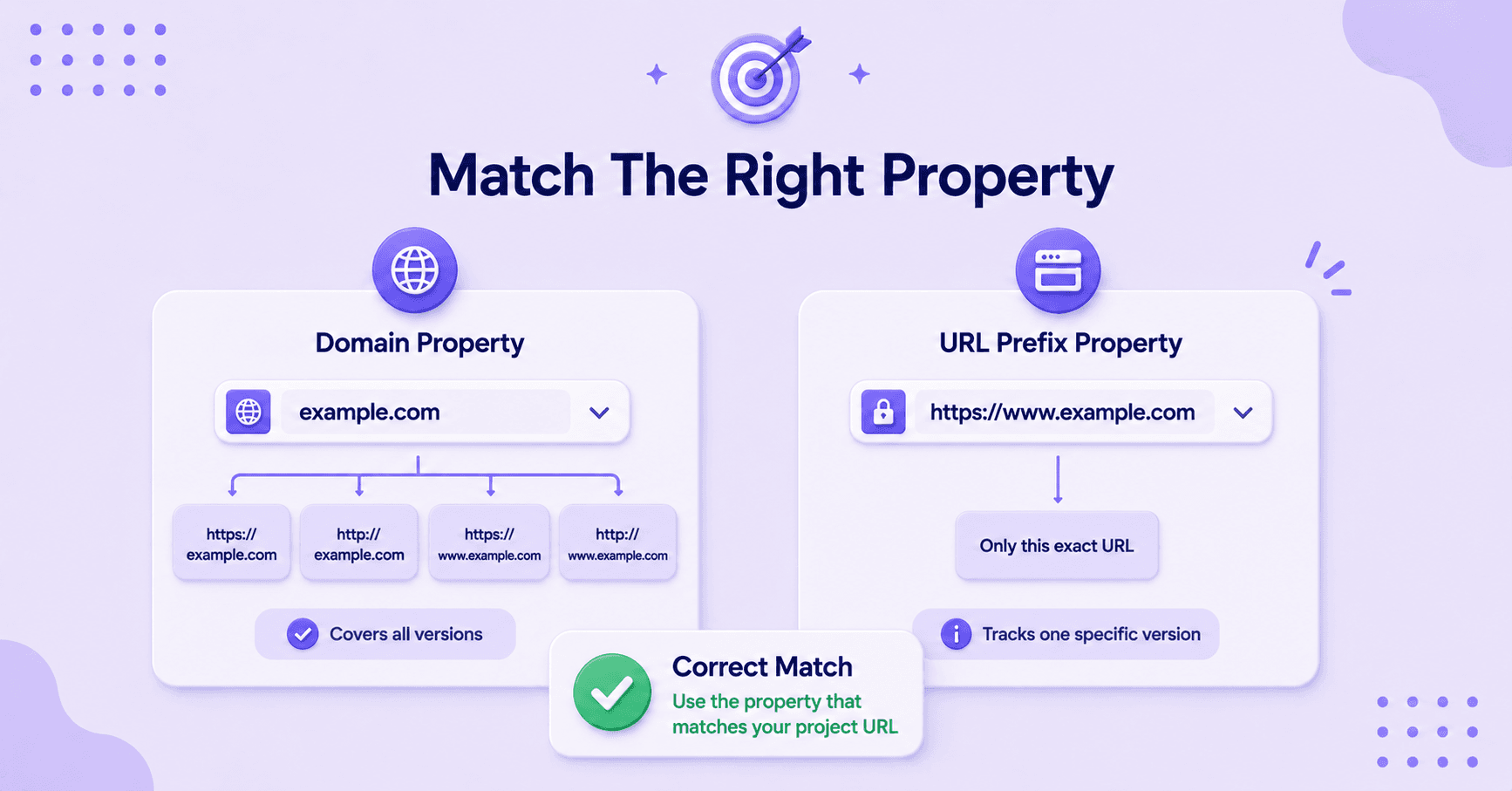
If your RightBlogger Project uses https://www.example.com, but your chosen Google Search Console property only tracks https://example.com, you can end up staring at the wrong data. Whether you are analyzing your content structure or tracking the performance of your featured images, it is essential that your data source is accurate.
Pick one version and stick with it. That means your Project URL, your sitemap, and your Google Search Console property should all point in the same direction.
If your site already has traffic, use the version that Google already sees as the main one. If you are setting things up fresh, the domain property is usually the cleaner option.
Here is the simple test. If you would not want to publish a post under the wrong category, do not connect your project to the wrong property either.
Connect the Project and Confirm Access
Once your account and property are aligned, go back to your RightBlogger project and connect the site side of the setup. RightBlogger keeps settings centralized, which is why this structure is ideal for managing project-level integrations and scaling your content automation efforts.
By establishing this link, the system can analyze your indexed pages to provide smarter suggestions for internal linking, helping you strengthen your site architecture effortlessly.
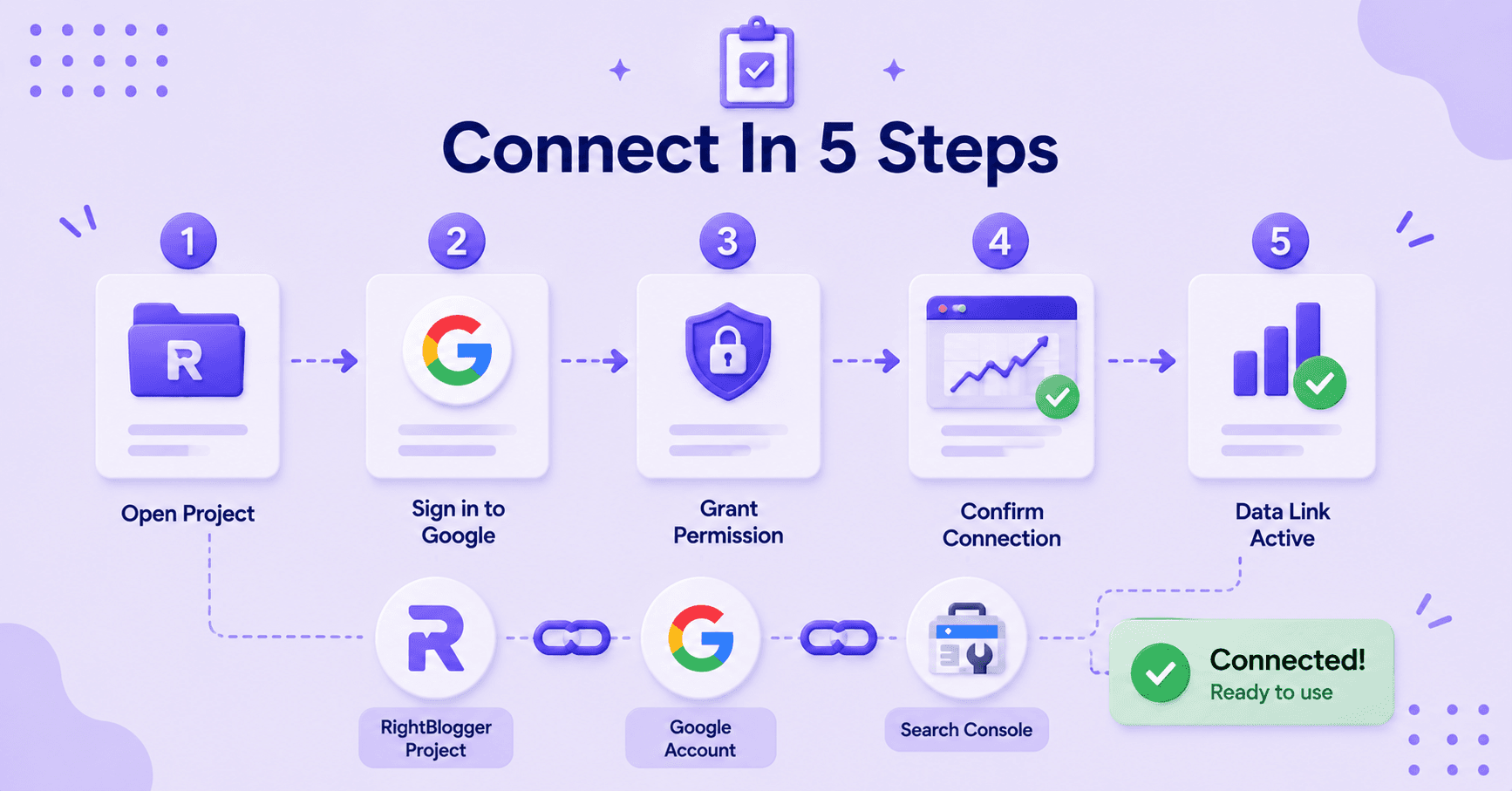
If you are setting this up for the first time, follow this order:
- Open the correct project in RightBlogger.
- Confirm the project URL matches the Search Console property.
- Sign into the Google account that has access to Search Console.
- Grant access when Google asks for permission.
- Return to the project and look for the active connection or data link.
Do not rush the permission screen. If you click through with the wrong account, you may think the setup worked when it actually did not.
A clean connection usually depends on three things: the right project, the right Google account, and the right site property. If any of these are mismatched, the data can become noisy, which may hinder your ability to utilize advanced site management features effectively.
Check That Search Data Is Flowing Into the Project
Now comes the part people often skip, and it is the part that matters most. A connection is only useful if it provides you with accurate search performance data.
Open Search Console and look for signs that Google is reading the property correctly. You want to see clicks, impressions, and indexed pages for the site you connected.
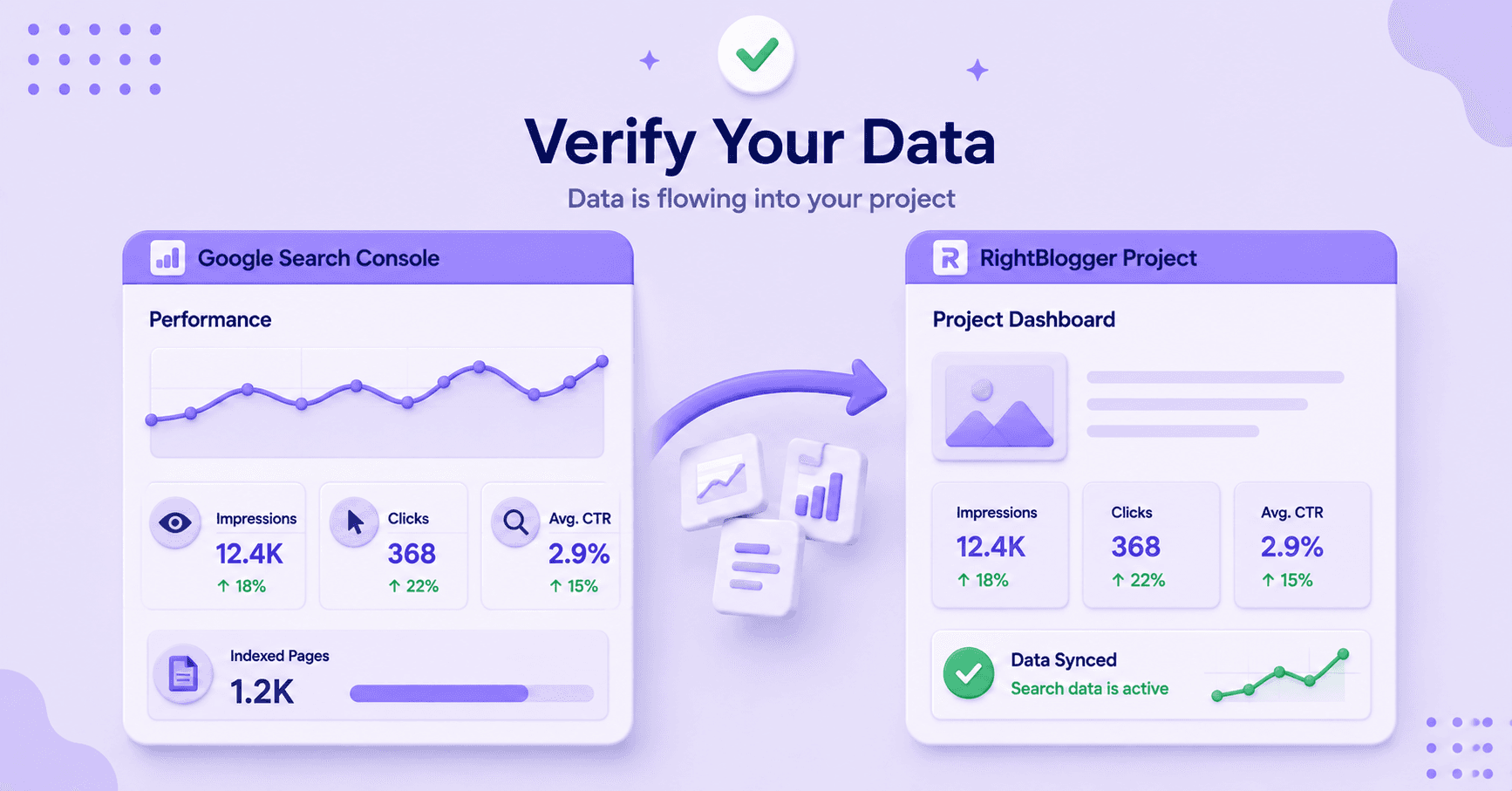
As you review this, pay attention to metrics like your click-through rate and average position to ensure the information aligns with your expectations in RightBlogger.
If the project is pulling in data correctly, the site insights should make sense at a glance. The numbers do not need to be huge, but they must match the site you intended to monitor.
If the property looks right but the data feels empty, check the Google account first, not the content.
It is also important to verify that new pages appear shortly after they are published. This is essential for improving your overall search visibility, as it helps you see exactly how Google perceives your content versus how you hoped it would.
This visibility is vital for generating accurate weekly blog performance reports that keep your content strategy on track. Real-time reporting also makes it easier to identify indexing issues early, giving you a chance to fix them before they impact performance.
One simple way to evaluate the setup is to look at your visibility. If you can clearly tell which pages are generating clicks and which ones need improvement, you’re on the right track.
Common Problems and Fast Fixes
The most common problem is a mismatch. The wrong account, the wrong property, or the wrong project URL causes most of the frustration.
If you see no data at all, refresh your permissions and confirm that the Google account still has access. Accounts get switched more often than people admit, especially when the same browser has personal and work logins saved.
If you are using a WordPress plugin to manage your site, verify that your verification tokens are still active, as outdated configurations can lead to data gaps.
If the data looks partial, check whether you picked the right property type. A URL-prefix property only tracks one version of a site, so a missing www or protocol mismatch can make the numbers look thin.
Remember that these technical errors can negatively impact your overall SEO score, so it is important to keep your data reporting accurate.
If you are on a team account, ask whether the administrator has restricted third-party app access. While this does not happen every day, it can stop a connection cold. If you run into persistent technical hurdles, reach out to your RightBlogger agent for assistance, as they can help diagnose specific configuration issues.
RightBlogger users who manage more than one site should also keep each project separate. One project per site keeps the data clean and the workflow easy to scan. It also keeps you from mixing signals from two different blogs, which is a headache nobody needs.
Why Projects Make This Easier to Manage
Managing a single site involves a lot of moving parts. Between content ideas, drafts, publishing schedules, and search data, tasks can pile up quickly.
Projects in RightBlogger act as a central hub to keep your workflow organized. By housing your site context in one location, you avoid chasing settings across different tools and can easily compare your published content with real-time performance metrics from Google Search Console.
This organizational structure significantly enhances the utility of your other tools. For instance, your content planner stays aligned with actual site data, and when you use the article writer, you have all your site assets ready at your fingertips.
Furthermore, connecting Google Search Console ensures that the keyword suggestions provided by the platform are highly relevant to your specific audience. Whether you are performing deep dives with the keyword research tool or utilizing the video to blog feature to repurpose content, having everything grouped by project ensures your strategy remains data-driven.
This approach is especially powerful when managing multiple blogs or client sites. Maintaining a dedicated project for each site keeps your search data accurately tied to the right work, which provides the clarity you need.
FAQs About RightBlogger Google Search Console
Here are additional questions you might ask.
Do I Need A Separate Google Account For Each Project?
No. You can use one Google account if it has access to each Search Console property. The key is keeping every project tied to the correct site. Once your data is integrated, you can easily export it to create professional white-label seo reports for your clients or stakeholders.
What If My Site Uses Both WWW And Non-WWW Versions?
Pick one version as the main property and stay consistent across RightBlogger and Search Console. Mixing versions is one of the fastest ways to get confusing data. If you find yourself overwhelmed by the volume of information, you can copy the exported data into a tool like ChatGPT to summarize trends or generate actionable content strategies.
How Do I Know The Connection Worked?
You should see your site data in Search Console and be able to match it to the RightBlogger Project. If the clicks, impressions, and indexed pages line up with the site you meant to connect, the setup is working. If you need to dive deeper into the technical performance of those pages, you can also feed the exported metrics into ChatGPT for a more detailed analysis of your keyword rankings.
Final Thoughts on Connecting RightBlogger to Google Search Console
Connecting Google Search Console to RightBlogger Projects is not about complicated settings. It is about matching the right account, the right property, and the right project.
Once those three pieces line up, the data becomes useful immediately. You can see how your content performs, track your LLM traffic, and identify where a post needs another pass to improve rankings.
By analyzing this data, you can also refine your meta description strategy to better align with what Google actually displays in search results.
If the RightBlogger Google Search Console setup feels messy, slow down and check the basics again. That is usually where the fix is hiding.

Article by
RightBlogger Co-Founder, Andy Feliciotti focuses on web development and shares travel and photography tips on YouTube.



New:Site Agent
Automated SEO Blog Posts That Work
Try RightBlogger for free, we know you'll love it.
- Automated Content
- Blog Posts in One Click
- Unlimited Usage





Leave a comment
You must be logged in to comment.
Loading comments...