How to Connect Google Search Console to Claude
Use RightBlogger to surface content decay, quick wins, and pages needing updates.


Google Search Console provides the raw numbers, but knowing what actions to take next can be challenging. Claude acts as a powerful AI assistant that analyzes your specific SEO data and helps turn metrics into actionable insights instead of relying on broad, generic assumptions.
That is the primary benefit of this integration. Once you connect Google Search Console to Claude through RightBlogger, you gain access to deeper Search analytics and AI-driven recommendations based on your website’s actual performance.
Claude can help identify content decay, uncover quick-win opportunities, and highlight pages that need optimization. Rather than manually sorting through reports, you can focus on the actions most likely to improve rankings and organic traffic.

Key Takeaways for Connecting Google Search Console to Claude
- Connect Google Search Console to Claude through RightBlogger to access AI-powered SEO insights based on your website’s live performance data.
- The setup process involves creating a RightBlogger project, connecting your Search Console property, and adding the MCP URL to Claude Desktop.
- Claude can identify content decay, uncover quick-win keyword opportunities, and highlight pages that need optimization.
- AI-powered analysis helps prioritize SEO tasks so you can focus on the pages and queries most likely to increase organic traffic.
Why Search Console Alone Leaves You Guessing
Search Console is excellent at showing impressions, clicks, and positions through its standard performance report. While this search analytics data provides a clear view of how your site is performing, it is not built to talk back or offer strategic advice.
That is where most people get stuck. The data is there, but the next move remains unclear.
While Google Search Console provides the raw numbers, it does not offer the strategic insights or content recommendations that a sophisticated AI assistant can provide when it has direct access to your site data. Claude gives you a way to ask direct questions about your own site and get answers grounded in the metrics that matter most to your business.
If you want another angle on search behavior, identifying AI Overview keywords in GSC pairs well with this kind of workflow.
Set Up RightBlogger and Attach Your Search Console Property
Start by creating a free account at RightBlogger and adding a project. From there, open the project settings to connect your Google Search Console account.
The most important part of this process is selecting the correct Google Search Console property. Whether you are using a Domain property or a URL-prefix property, choosing the right one allows the Google Search Console API to communicate accurate performance data with your project.
If you connect the wrong site, Claude will still provide professional-looking answers, but they will be based on irrelevant data.
To connect your property:
- Verify the property is correct before continuing, as all future prompts will rely on this data.
- Create your free RightBlogger account and add a project.
- Open the project settings and navigate to the integration section to connect Google Search Console.
- Select the exact Google Search Console property you want Claude to analyze, then click to attach it.
Add the RightBlogger MCP Connector in Claude
To get started, visit the RightBlogger MCP page and copy the connector URL. MCP stands for Model Context Protocol, which acts as the bridge allowing Claude to communicate directly with your external data.
While technical users might try to build a custom integration by setting up a Google Cloud Project, creating a Service Account, and managing a sensitive JSON key file, RightBlogger simplifies the process by handling the heavy lifting for you.
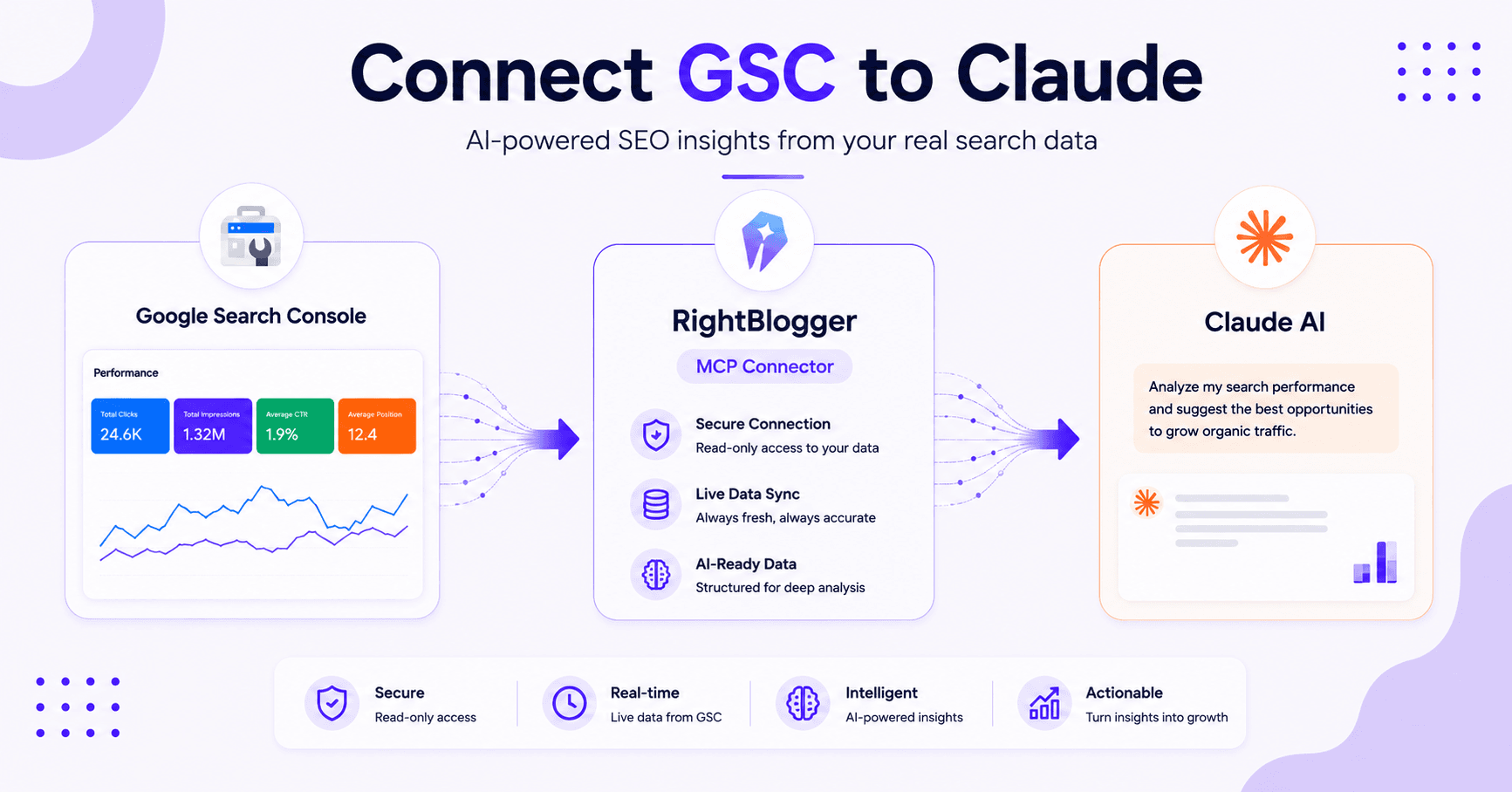
You can configure this in both the Claude web interface and the Claude Desktop app for Mac.
To link your data:
- Open the RightBlogger MCP page and copy the provided URL.
- Inside Claude, navigate to Settings, select Customize, and open the Connectors menu.
- Choose Add Custom Connector, provide a name like RightBlogger, and paste the URL.
- Click Add, then select Connect when prompted to authenticate your account.
- Authorize the connection and click Allow to complete the setup.
If you prefer to streamline your workflow, you can set the tools to Always Allow. These are read-only tools, meaning Claude can analyze your data but cannot modify your Google Search Console settings.
For those who prefer a more manual route, such as using a local npx gsc-mcp-server setup, you would typically need to use the Edit Config file option to manually define your parameters.
However, using the RightBlogger connector remains the most efficient way to bypass those complexities while keeping your GSC data accessible within your Claude workspace.xities while keeping your GSC data accessible within your Claude workspace.
What Claude Can Do With Real GSC Data
This is where things get useful. Claude is no longer guessing from a blank prompt.
It can look at real query data, real page data, and real trends from your site. That means you can ask better questions and receive recommendations based on actual performance.
Instead of asking what you should write about, you can ask which pages are losing ground and why. Instead of asking how your SEO is doing, you can identify which posts are close to ranking higher with just a few minor edits.
RightBlogger’s Search Console use cases page includes several prompts you can try, and the list keeps growing. The point is not to create more reports. It is to make better decisions using actionable data.
Find Content Decay Before It Keeps Slipping
Content decay is simple. A post used to pull traffic, then the traffic started falling.
A good Claude prompt here asks for pages that lost clicks or rankings year over year. When you notice these traffic drops, the output provides a list you can act on immediately.
These are the posts worth refreshing first because they already proved they can perform.
Once you have that list, look for common fixes:
- Strengthen internal links
- Update stale introductions
- Refresh dated examples
- Improve page titles and headings
Chase Quick Wins in Positions 4 Through 15
Pages sitting in positions 4 through 15 are close to the top. They are often the easiest opportunities to improve.
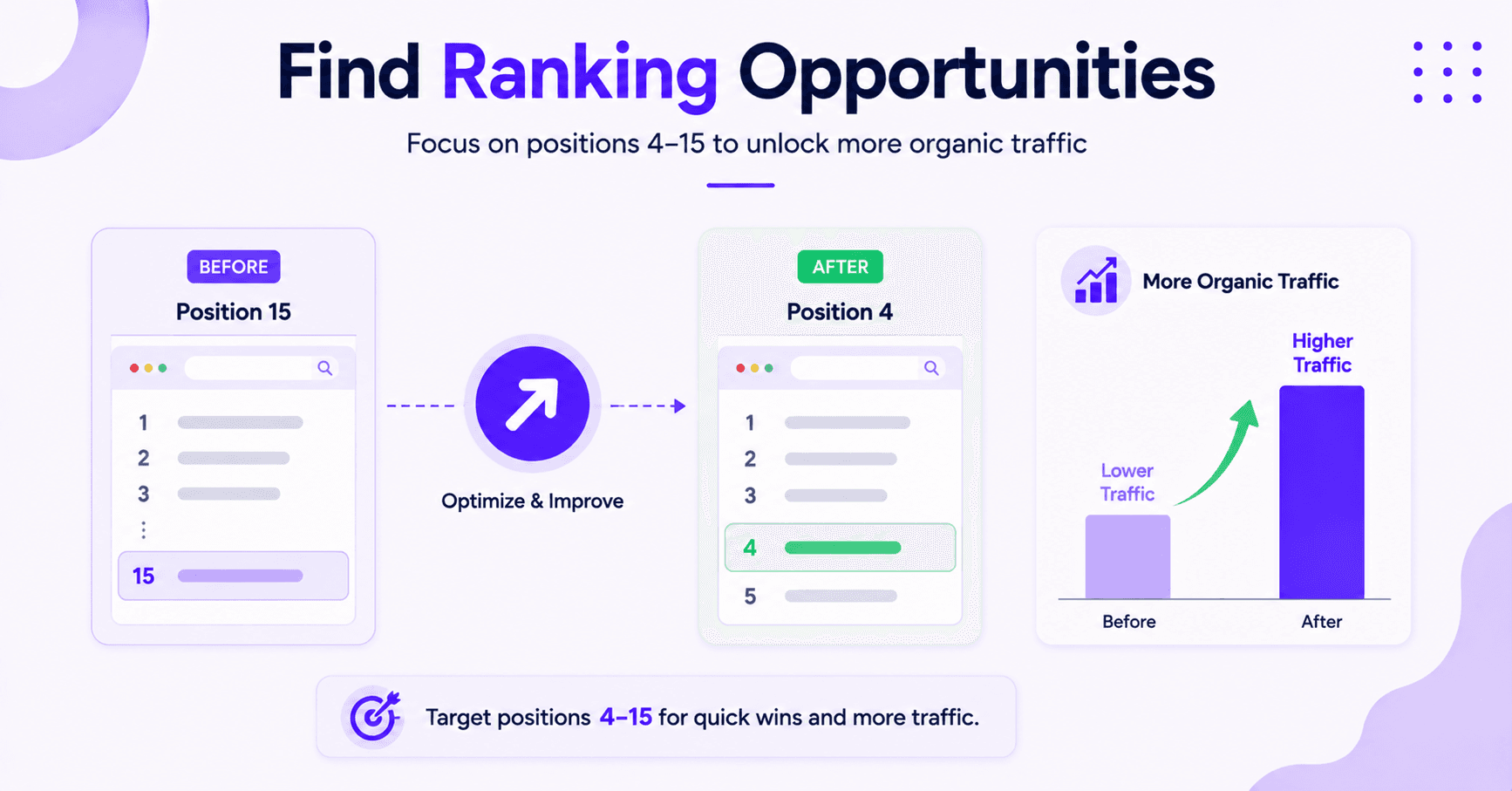
That is why this range matters so much. A small change can push a page closer to the top of the results.
Ask Claude to surface pages or quick win keywords in that band, then focus on the ones with the best chance to climb. This is the sweet spot for updates because you are not fighting from page three and are already in the race.
Identify Technical and Strategy Opportunities
Beyond performance tuning, Claude can help you maintain site health. You can use your live data to perform a content gap analysis and discover topics your competitors are covering that you are missing.
You can also ask Claude to scan for keyword cannibalization to ensure multiple pages are not competing for the same search intent.
Additionally, you can use these tools for sitemap management. By pulling real-time data, you can check your URL indexing status to ensure Google is seeing and processing your most important pages.
Ask for Feedback, Not Just Lists
Claude can do more than sort data. You can also ask it to read a page performance report and suggest what to improve.
Try a prompt like this: “This page ranks for this keyword. What should I fix to improve its chances?”
That opens the door to stronger feedback on structure, search intent, weak sections, and missing angles.
That is where newer Claude models shine. You are not just getting a report. You are getting a second set of eyes on the page backed by your own Search Console data.
Why This Works Well for Agencies and Multi-Site Owners
A full RightBlogger account allows you to connect multiple websites seamlessly. If you manage various client projects, this capability is invaluable.
By leveraging the Model Context Protocol, you gain multi-site scalability that keeps your workflow organized and efficient.
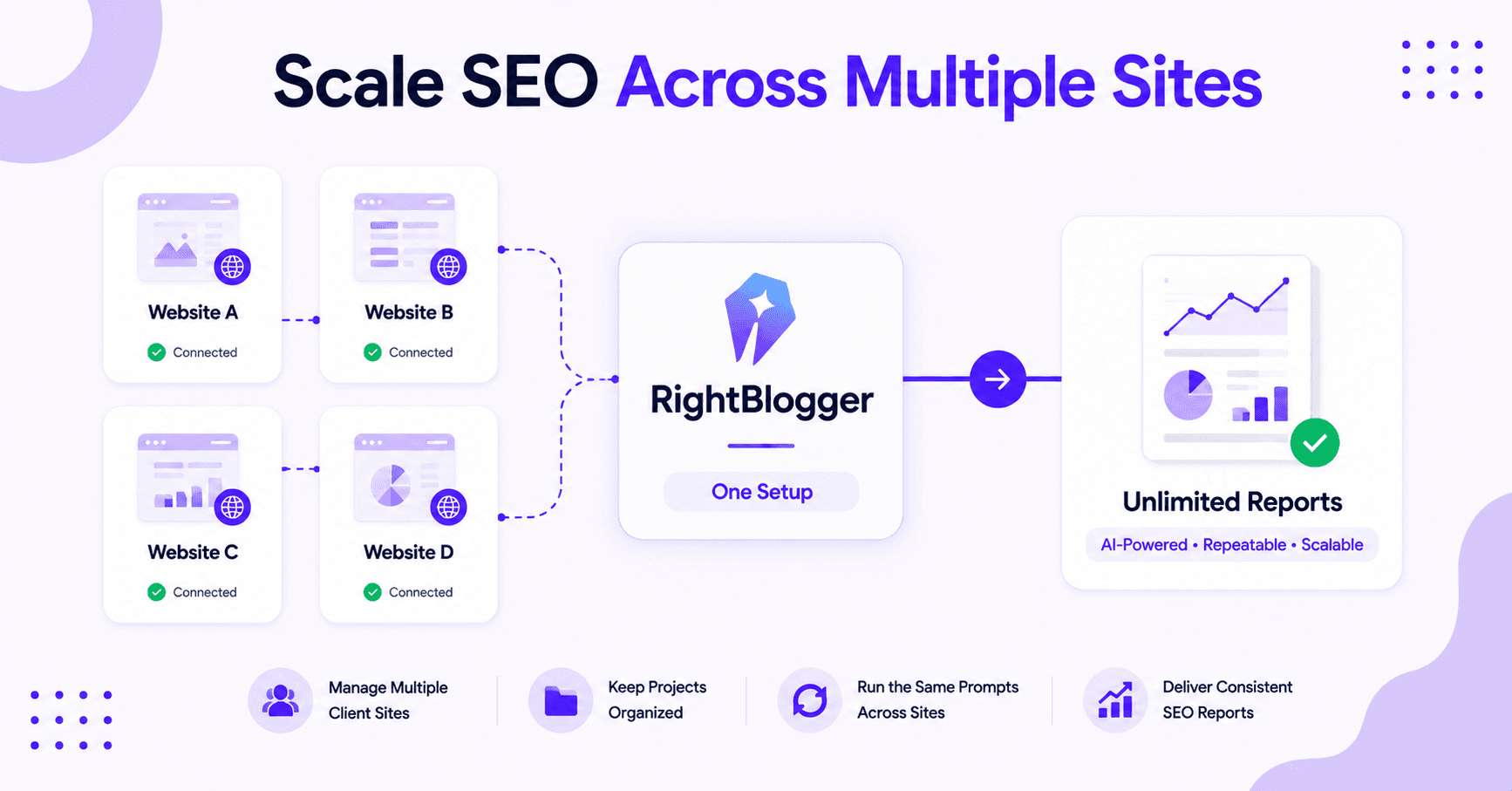
You can keep each project separate, then run the same prompts across different properties without rebuilding your setup every time. This approach is far more efficient than manual data exports or relying on external tools like Windsor.ai for every individual project.
Because you are pulling data directly into the AI environment, you can quickly generate a customized performance report tailored to each client. This saves a massive amount of repetitive work, especially when providing consistent SEO detailed monthly reports.
It also makes the process significantly easier to repeat. By saving your best prompts and rerunning them on a schedule, you create a simple, automated audit loop that keeps your sites moving in the right direction.
A Few Details That Make the Setup Smoother
The data Claude accesses is current rather than a stale export. By leveraging the Model Context Protocol, the system pulls directly from live Google Search Console API windows, ensuring your insights reflect exactly what is happening with your site right now.
API authentication is handled securely through RightBlogger, so you do not need to worry about managing complex credentials.
If no data is appearing, the first things to check are the project connection and the attached property settings. That is usually where the issue resides rather than within Claude itself.
The connector is read-only. Claude can inspect your data and provide analysis, but it cannot rewrite or alter your Google Search Console settings.
FAQs About Connecting Google Search Console to Claude
Here are a few more questions you might ask.
Can Claude Access Google Search Console Directly?
No, Claude cannot access Google Search Console directly on its own. To bridge the gap, you need a specialized connector such as RightBlogger MCP, which acts as the necessary intermediary and allows Claude to interface with your search data securely.
Do I Need a Paid RightBlogger Account?
No, you do not need a paid RightBlogger account to get started. You can establish this connection using a free RightBlogger account, although upgrading to a full account is recommended if you manage multiple sites or plan to use this workflow for professional agency or client work.
Is the Connection Safe?
Yes, the connection is entirely secure. The tools operate with read-only permissions, meaning Claude can analyze, pull, and summarize your data without the ability to edit or alter your Google Search Console settings.
RightBlogger also simplifies the integration process significantly. You do not need to manually manage a Service Account, JSON key file, or complex OAuth credentials.
While setting up manual MCP servers often requires configuring a Google Cloud Project, this connector bypasses that technical complexity to keep your setup secure and straightforward.
Can I Use This on Claude Web and Claude Desktop?
Yes, this setup is fully compatible with both Claude Web and Claude Desktop. You can use the connector across the web interface and Claude Desktop for Mac and Windows, as the connection steps remain consistent regardless of which version you are using.
Final Thoughts on Connecting GSC to Claude
This setup turns Search Console from a pile of numbers into a clear list of actionable next steps. Once RightBlogger is connected and Claude can read your site metrics, you can focus on the pages, keywords, and opportunities most likely to improve your organic traffic.
This is the real shift in modern search engine optimization. By using the Model Context Protocol to connect live search performance data with a powerful AI assistant, you can move beyond generic advice and build a workflow based on your own results.
When you connect Google Search Console to Claude, you gain a strategic partner that helps you uncover opportunities, prioritize SEO tasks, and make more informed decisions about your content.

Article by
RightBlogger Co-Founder, Andy Feliciotti builds websites and shares simple SEO tips, plus travel and photography on YouTube.




New:Site Agent
Automated SEO Blog Posts That Work
Try RightBlogger for free, we know you'll love it.
- Automated Content
- Blog Posts in One Click
- Unlimited Usage





Leave a comment
You must be logged in to comment.
Loading comments...