RightBlogger Teams: How to Collaborate with Teammates on Your Content Automations
Invite teammates with free accounts, assign project-specific access, and control who can run automations or publish content.


If you’ve ever tried to run a scaled up content system, you already know the bottleneck is rarely “ideas.” It’s coordination. Especially when it comes to growing your AI SEO-optimized content creation on autopilot with the help of powerful autoblogging tools like RightBlogger.
RightBlogger Teams fixes that by letting you bring teammates (and virtual assistants) into your existing RightBlogger subscription, so you can work together inside the same projects, integrations, your Content Planner, and even inside individual pieces of content.
Teams is perfect for marketing agencies, content teams, and small businesses with virtual assistants who handle your content workflow. Watch the full tutorial here:

Key Takeaways: RightBlogger Teams (Quick Hits)
- You can now invite teammates into your RightBlogger account from inside your Teams account area. Pro and Agency plans have access to this feature today.
- Control access by adding teammates to specific projects and limiting permissions to just the areas you want.
- Teammates can collaborate across project settings, connected data sources (like Google Search Console), Content Planner settings, competitors, and integrations once they’re added.
- Billing stays separate if a teammate has their own paid RightBlogger subscription, to keep things tidy.
What Teams Unlocks Inside RightBlogger
Teams gives you one shared workspace, without the mess of “who has the login?” or “which version is the right doc?” Everything is now accessible inside RightBlogger, and organized for scalability.
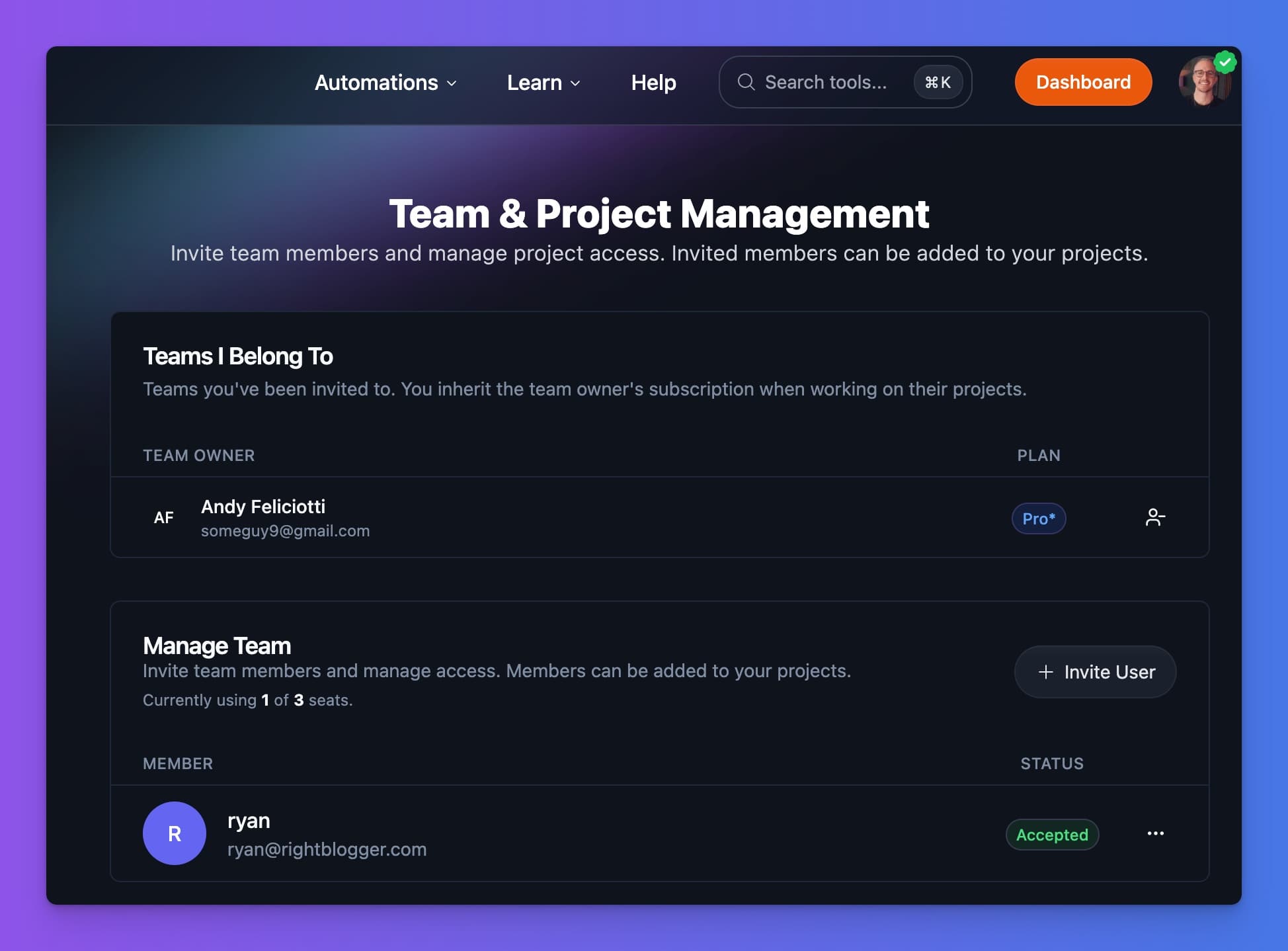
You can invite team members into your current RightBlogger subscription and share access to the things that actually matter day to day, all your plan features, your integrations, projects, and the Content Planner… where the real work of setting up your content automations really happens.
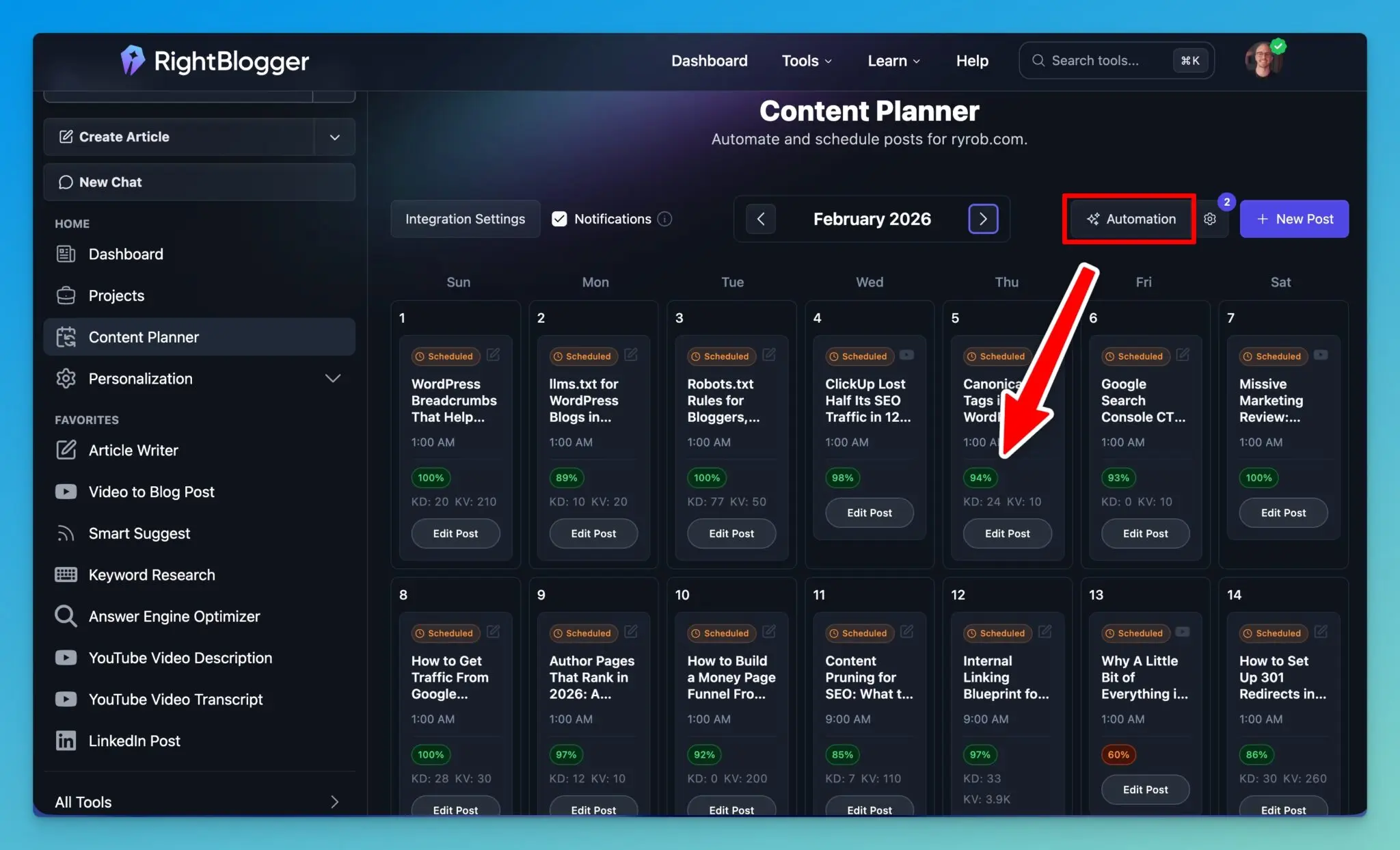
The part I like most is that collaboration isn’t limited to just the calendar view.
Editors and owners can collaborate in the Content Planner and inside individual pieces of content. That means less back-and-forth, fewer screenshots, and fewer “can you refresh and tell me what you see?” moments. Viewers stay read-only on publish, reschedule, and automation controls.
If you’re using RightBlogger for autoblogging and planning, Teams fits naturally into that workflow since the same people who help with planning can also help with the project settings that control how content gets created and published.
If you’re building a more automated workflow, pair Teams with RightBlogger Automations so the system stays consistent even when multiple people are involved in managing a project.
How to Add Teammates (and Manage Access Permissions)
Finding the Teams feature is simple. From the main menu, I open the new Team section. Right at the top, there’s a short FAQ area that explains the basics, like inviting members, adding users to projects, and what permission levels mean in practice.
Sending a Team Invitation
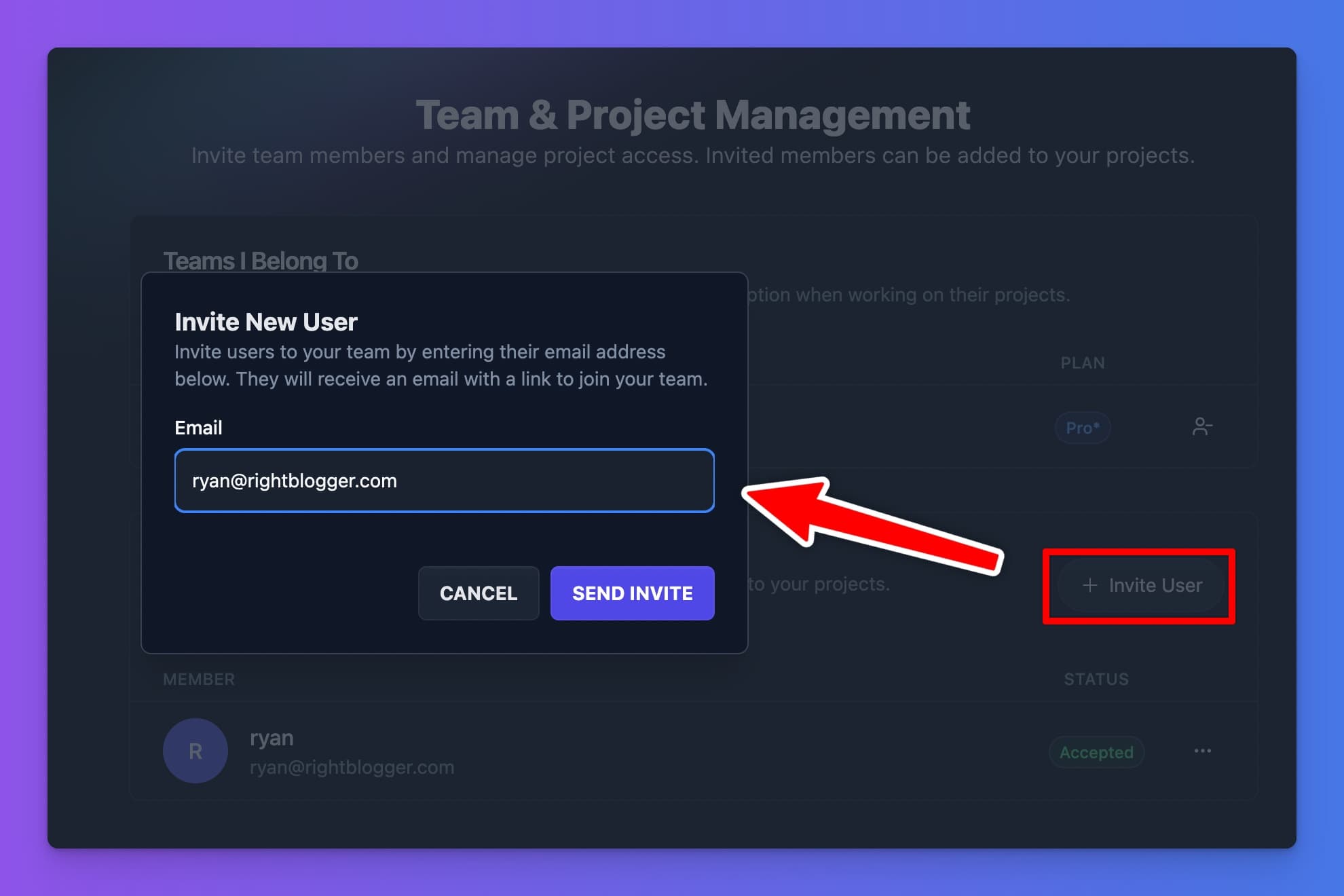
Inviting someone follows a clean, familiar flow:
- Click Invite user
- Enter their email address
- Hit Send invite
After that, the invitation shows up as pending in your team list. You can always see everyone’s current status from this same screen, which makes it easy to confirm whether someone’s actually joined yet.
Removing a Team Member (When Needed)
If someone no longer needs access, I open the three-dot menu next to their name and choose Remove from team.
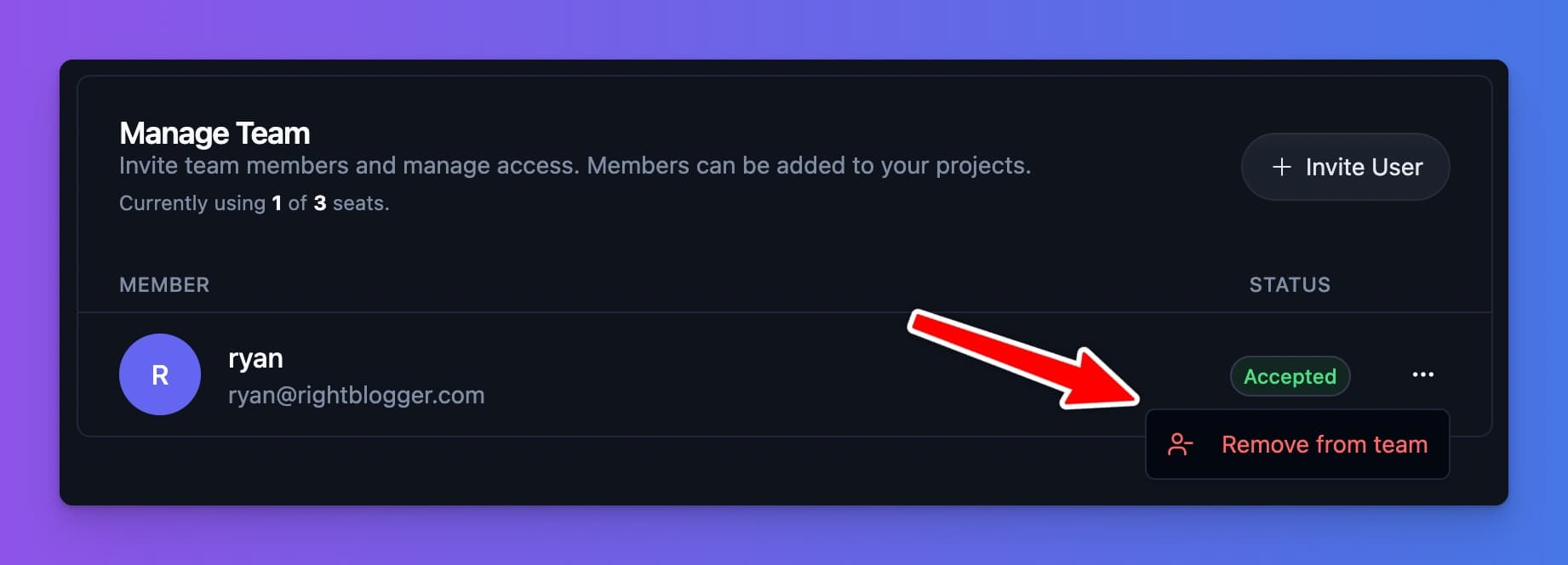
Once removed, they no longer have access to my RightBlogger account. It’s quick, and it’s clear.
Accepting Invites and Giving Access to the Right Projects
On the teammate side, the invite arrives by email with an Accept invitation button. After they click it, they’ll sign in to RightBlogger, then choose Accept or Decline.
One important detail: This works as long as the person your inviting has at least a free RightBlogger account. They don’t need to be on the same paid plan to join your team.
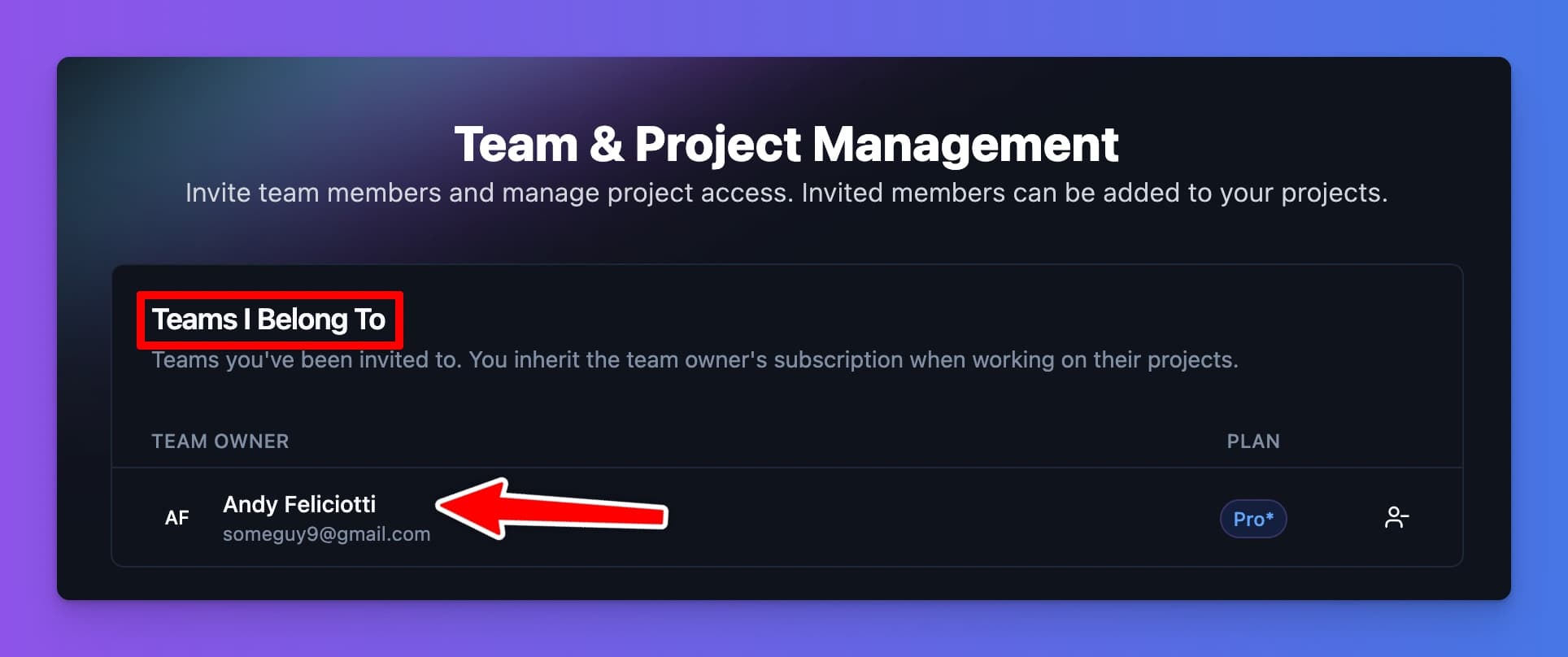
Once they accept, they’ll see the team listed inside their own Teams section. They can also choose to leave the team at any time from that same screen.
Project Access is Where the Real Control Lives
Inviting someone to your Team doesn’t automatically grant them access to everything. You decide which projects they can work in.
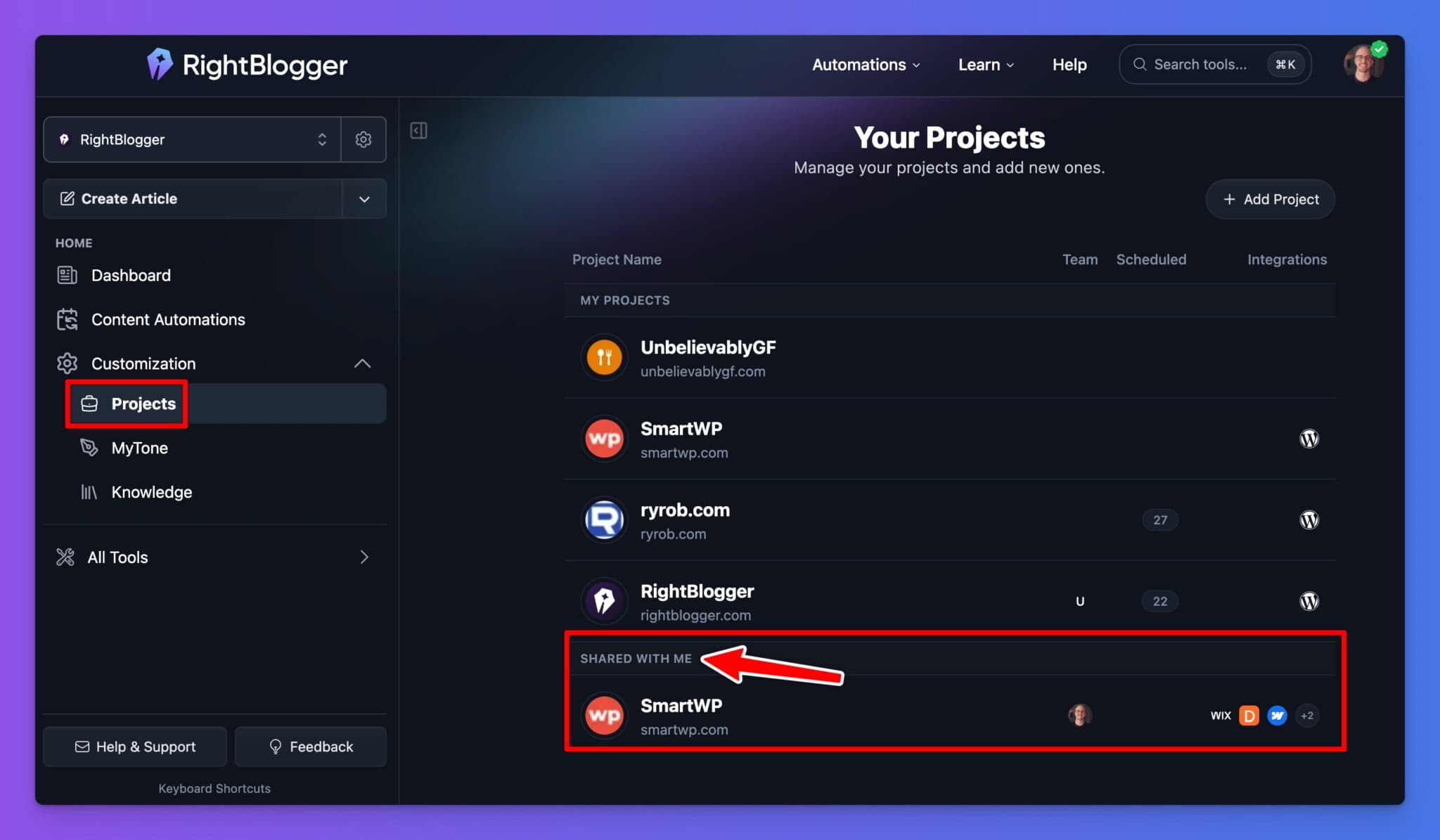
From your account, open the Projects menu, select the project you want your teammate to have access to, then use the project’s Team button to add that teammate to the project.
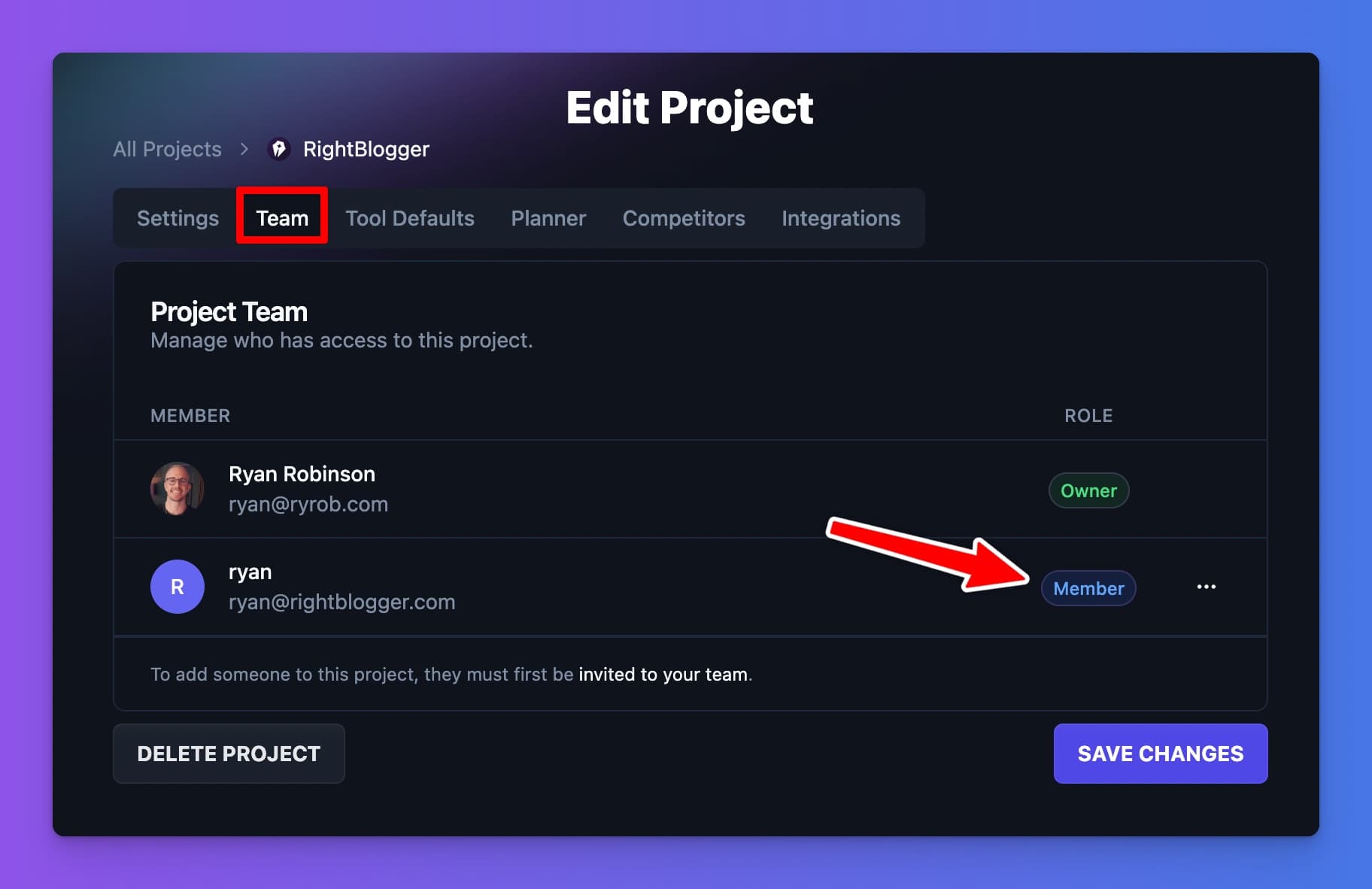
This is the same Projects system you’ll use to keep settings and workflows organized across sites and multiple clients.
If you want the deeper walkthrough, I keep it all documented in RightBlogger’s Projects feature guide.
What Teammates Can Do After They’re Added
Once you add someone to a project, they can refresh their account and they’ll immediately see the newly shared project.
Inside that project, they can access the parts that actually impact output and publishing, like:
- Project settings
- Connected Google Search Console data
- Different tool defaults (so they can generate content using my project’s rules)
- Content Planner settings
- Competitors view (if we’re tracking competitors inside the project)
- Integrations to confirm publishing connections are working
If you’re collaborating on publishing workflows, the integrations piece is a big deal in setting up your content automations to run fully on autopilot.
Permissions, Billing, and Team Plan Details
Within any project you invite someone into, teammates get a project role. Editors and owners can run the Content Planner, automations, and publishing for that project. Viewers can follow along on the calendar, but they can’t create or fire automations, or publish or reschedule planner posts.
Billing is the other big question, and the answer is clean: if a team member also has their own RightBlogger subscription, their billing stays separate. They can be on their own paid plan and still join my team without merging accounts.
Pro plans include 3 seats and Agency plans include 5 seats. If you need more, shoot us a quick email to contact@rightblogger.com and we’ll get you set up.
If you need more seats today, shoot us a quick email to contact@rightblogger.com and we’ll get set up with a custom plan.
If you want to see how Teams fits into the broader publish on autopilot workflow, start with RightBlogger’s autoblogging system for agencies, teams, and high-volume publishing bloggers.
FAQs About RightBlogger Teams
Here are a few of our most commonly asked questions about Teams collaborations inside RightBlogger. If you have a question that’s not answered here, drop us a quick email to contact@rightblogger.com and we’ll get back with you right away!
Does a teammate need a paid account to join my team?
No. As long as they have at least a free RightBlogger account, they can sign in and accept the invitation to join your team.
Can I limit what a teammate has access to?
Yes. You can control access by adding teammates to specific projects. If they’re not added to a project, they won’t see or work inside it. This means you can add teammates and assistants to specific projects, and not others.
What happens if a teammate already pays for RightBlogger?
They can still join your team, and their billing stays separate. Team membership does not merge subscriptions.
Can someone leave a team after joining?
Yes. Team members can leave a team from their own Teams account area, and they’ll be asked to confirm before exiting.
Final Takeaways on RightBlogger Teams
Teams turns RightBlogger into a shared workspace where content planning and content creation finally live in the same place. You can invite teammates, choose exactly which projects they can access, and collaborate where the real work happens, inside project settings, integrations, and the planner.
If you’ve been trying to grow output without losing control, RightBlogger Teams is the missing piece. For more updates like this, we keep the new feature walkthroughs coming over on our RightBlogger YouTube channel. See you soon!
Blog Automation That Keeps Your Posts Ranking
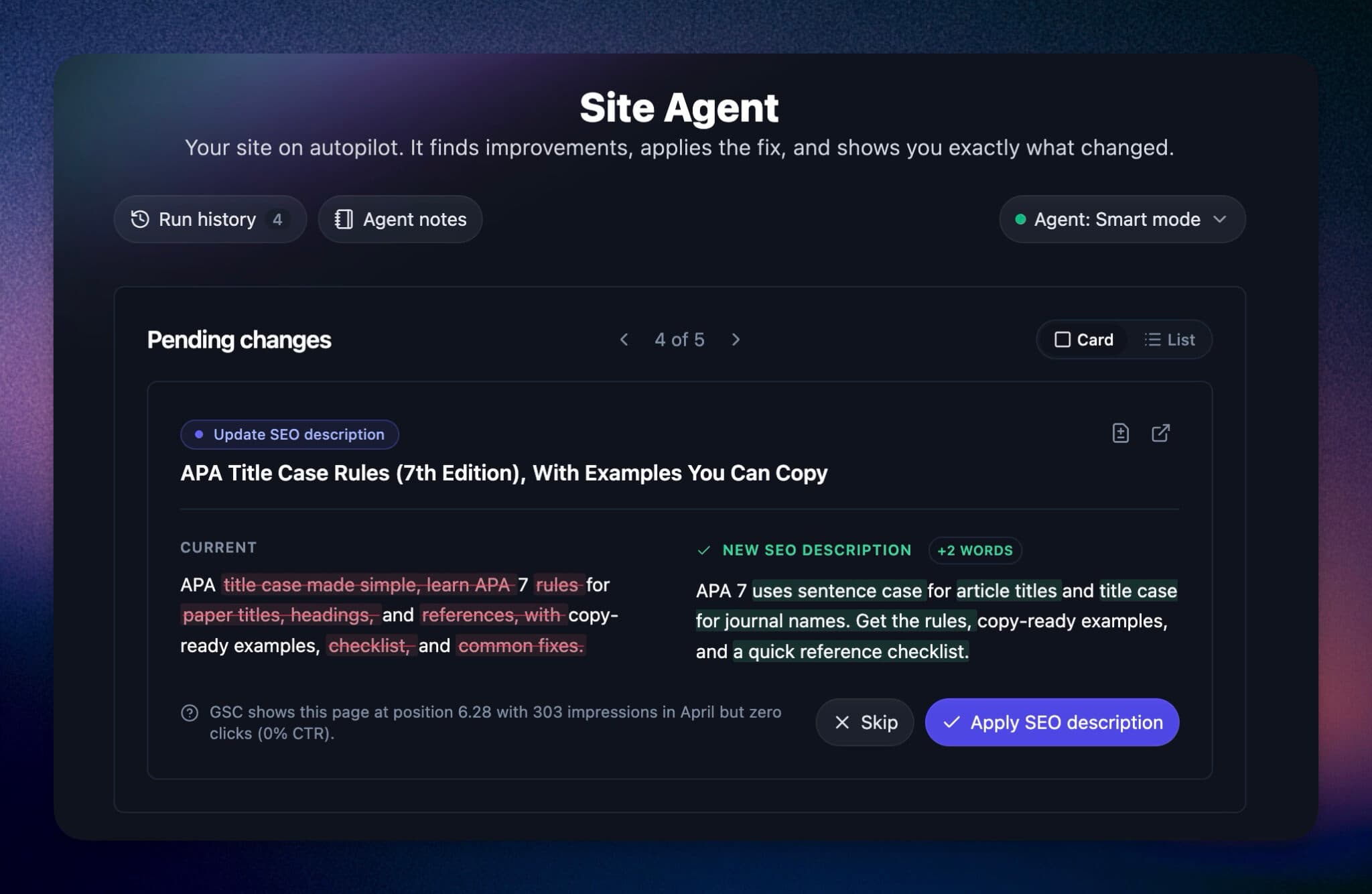
RightBlogger finds keywords, writes SEO articles, and publishes them to your blog. Then its Site Agent uses your Search Console data to keep older posts in shape, adding internal links, sharpening weak meta descriptions, and fixing stale years and broken links. Join 51,000+ bloggers using it to grow traffic from Google and ChatGPT.

Article by
RightBlogger Co-Founder Ryan Robinson teaches readers how to grow online businesses and builds tools to help content teams work smarter.

![How to Automate Blog Posts in 2026 [Step-by-Step Guide]](/_next/image?url=https%3A%2F%2Fcms.rightblogger.com%2Fwp-content%2Fuploads%2F2025%2F12%2Fautomate-blog.jpg&w=384&q=75)


Automated SEO Blog Posts That Work
Try RightBlogger for free, we know you'll love it.
7-day free trial. Cancel anytime.





Leave a comment
You must be logged in to comment.
Loading comments...