Paste a sentence or paragraph above and get a fresh, reworded version instantly. It is free to use, and no account is required to try it.
Do you want to rewrite a paragraph (or maybe several paragraphs) to improve the readability, optimize for SEO, or simply to make sure that you’ve expressed an idea in a unique and fresh way? This free AI paragraph rewriter tool is for you.
With this paragraph rewriter, you can rework any passage of text to put it into different words.
Example Use Cases for the AI Paragraph Rewriter
Here are some ways you might use the AI-powered paragraph rewriter:
- Reword information from one blog post to use in another (avoiding a duplicate content penalty).
- Put research into your own words, perhaps to clarify a point or express it in a way your audience will better understand.
- Run an A/B test of variations on your sales copy, either for an email campaign or on two versions of your landing page.
- Improve a paragraph that is ungrammatical or poorly written (by rephrasing the whole thing).
- Rewrite a paragraph that’s been flagged by an AI detector. (Keep in mind though that AI detectors are notoriously unreliable!)
- Add keywords into a paragraph or short section of a blog post, to improve your on-page search engine optimization.
- Rework sections of an article that you’ve written for one client or publication that you want to reuse for another.
- Shift a paragraph or passage of text into a different style, to match your brand or your audience’s expectations.
- Change product descriptions so you’re not just saying the same thing in multiple places on your ecommerce site.
- Rewrite a paragraph in a different language from the original version (using the rewriter as an AI translator tool).
Now you’ve got some ideas about when the AI paragraph rewriter can help, let’s take a quick look at how to use it.
How to Use the AI Paragraph Rewriter Tool
We (Andy and Ryan) designed the AI paragraph tool to be really easy to use … but here’s a quick run-through of the steps to take.
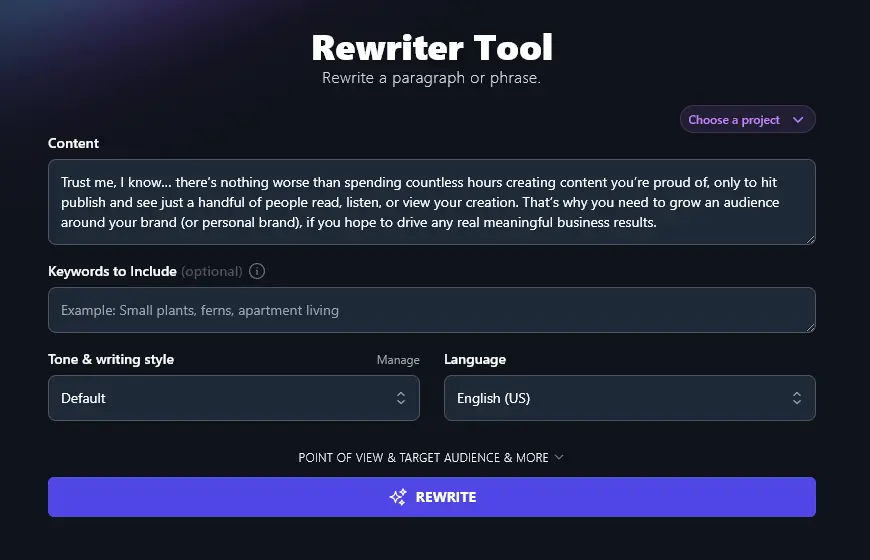
Step 1. Copy and Paste Your Paragraph into the Content Box
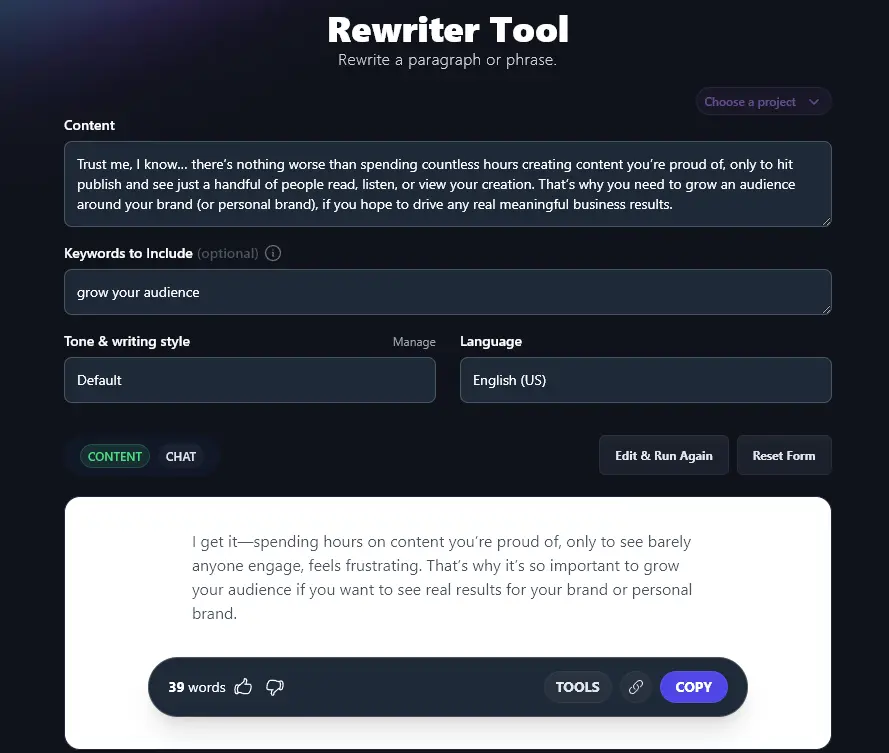
First, you’ll need the paragraph (or paragraphs) you want to rewrite. Just copy and paste this into the Content box. We used the first paragraph of 8 Ways to Grow an Audience: Real Strategies that Work.
Step 2. Include Keywords (Optional)
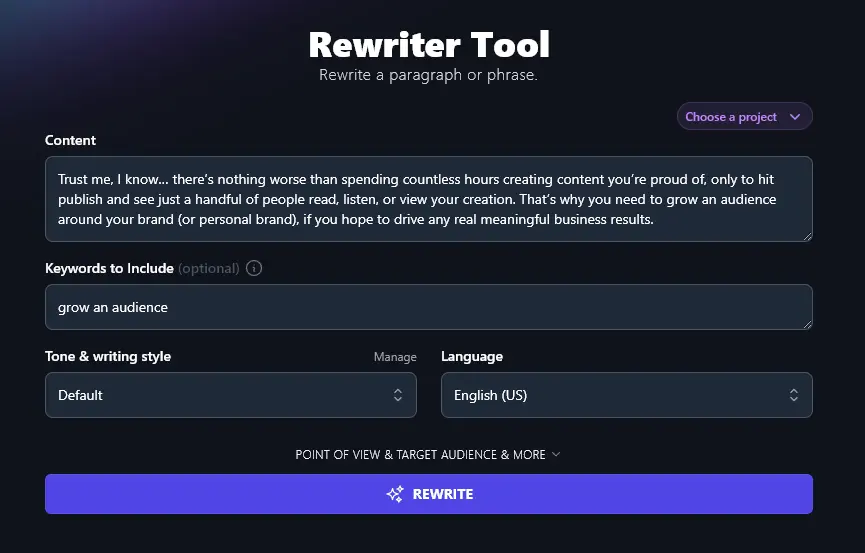
In some situations, you’ll want the AI to add (or keep) keywords in your paragraph. In this example, the keyword phrase is “grow an audience”.
You can add one or more keywords, separating them with commas.
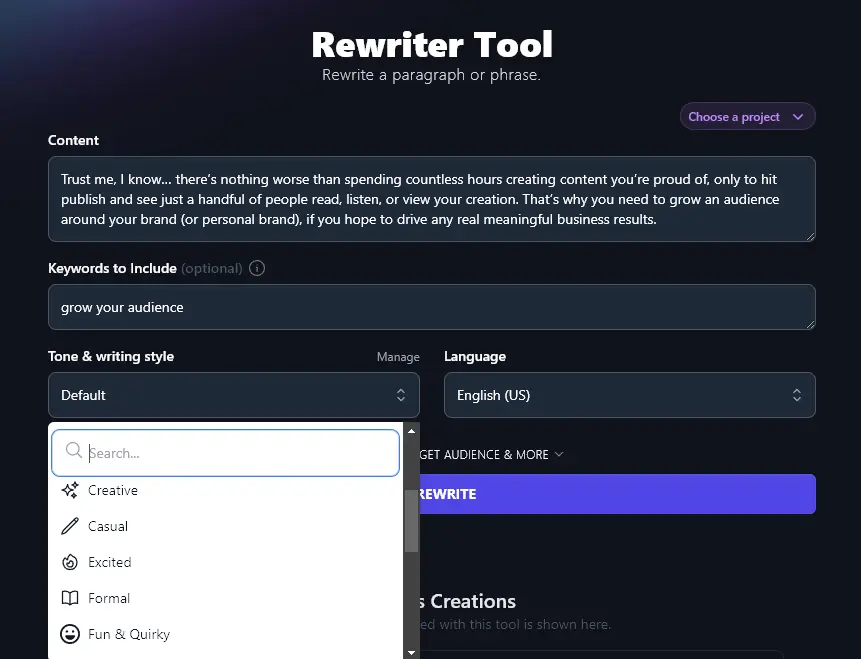
Step 3. Choose Your Tone & Writing Style
If you want a specific tone & writing style for your reworked paragraph, select it from the dropdown list here. There are 20 different options to choose from, like “Fun & Quirky”, “Professional”, “Academic”, “Technical” and “Sales-oriented”
Step 4. Select the Language for Your Rewritten Paragraph
By default, RightBlogger will rework your paragraph into English (US). If you want a different language, go ahead and select it here. We have over 100 languages to choose from.
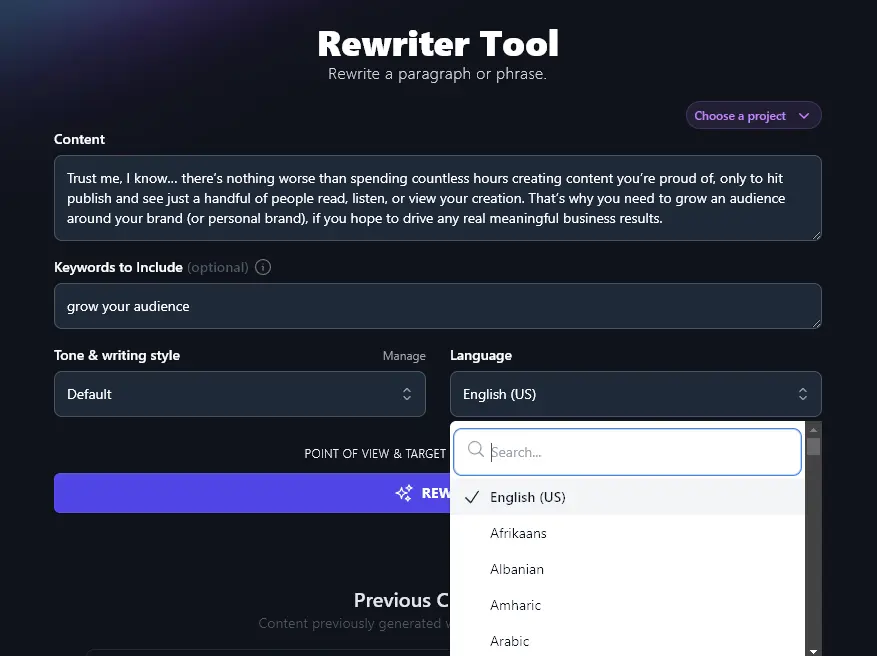
Tip: Even if your original paragraph is in a language other than English, you still need to select the correct output language here.
Once you’re happy with the options you’ve selected, go ahead and rewrite your text:
The Features of the AI Rewriter Tool
We covered the basics of the paragraph rewriter above … but what if you want to dig under the hood and do something more advanced with it?
We’ve got loads of options for you to experiment with, so let’s take a closer look at those.
1. Content (Copy and Paste the Text to Rewriter)
Although the rewriter tool is normally used for paragraph-length chunks of text, you can actually rewrite any passage of text up to the 40,000 character limit. That’s around 6,000-8,000 words.
So if you want to, you can use this tool to rewrite whole blog posts, short ebooks, essays, or anything else you’d like to rework into completely unique content.
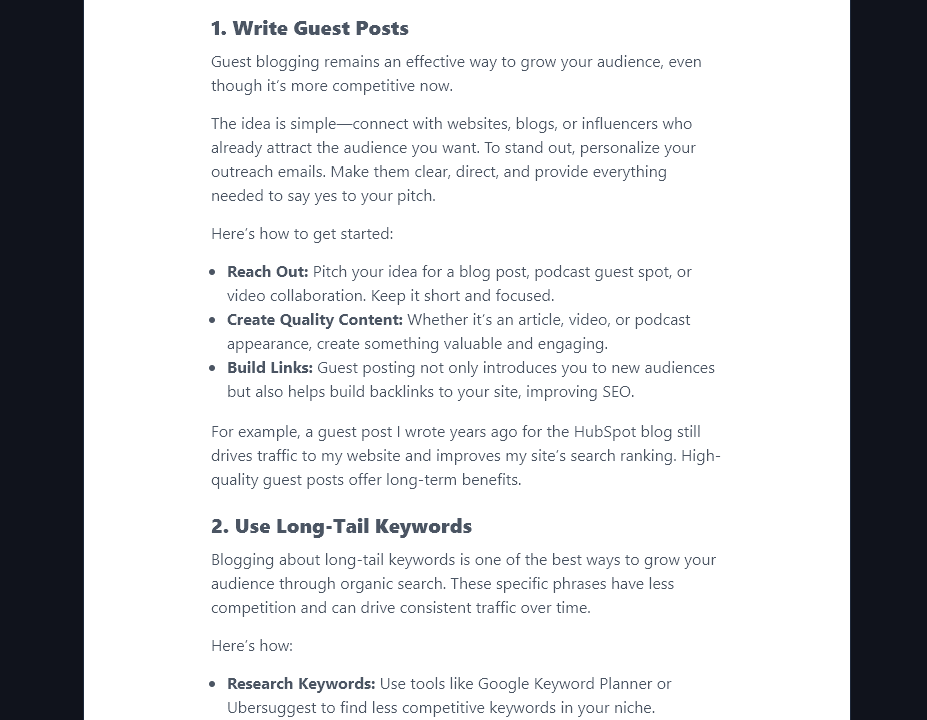
If you paste in a whole blog post to rewrite, the paragraph rewriter will automatically include subheadings, bullet points, bold text, and so on, just like our Article Writer tool does.
2. Keywords to Include (Primary and Secondary Keywords, Comma-Separated)
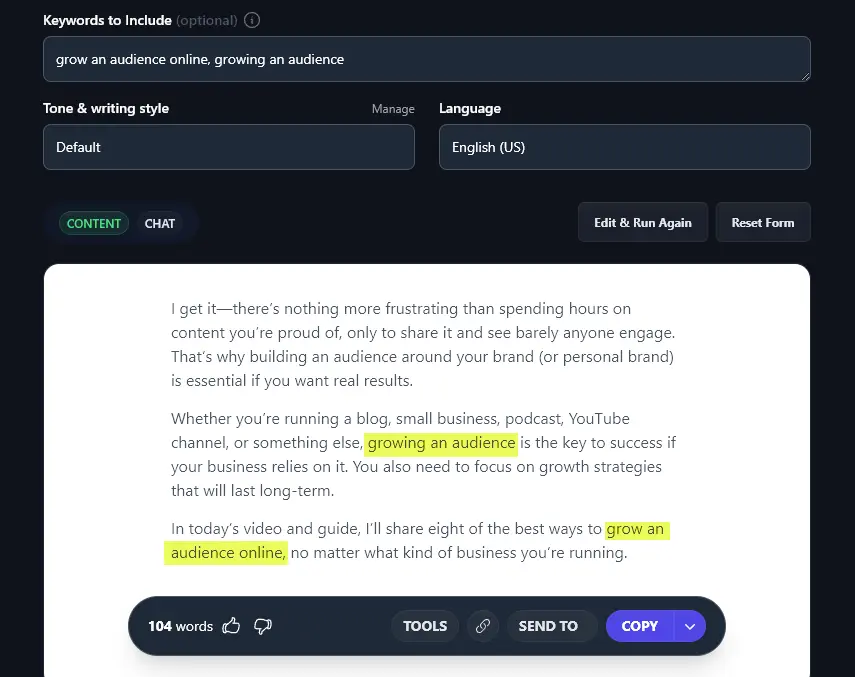
The paragraph rewriter lets you add keywords for your paragraph. If you’re writing a blog post, landing page, YouTube description, or other piece of online content, we strongly recommend giving the AI your primary keyword here, for SEO-optimized rewritten content.
If you like, you can also include your secondary keywords. Just separate all the keywords with commas, and keep in mind that if you give loads of keywords, the AI may not be able to fit them all into a paragraph.
Here, we’ve highlighted the keywords that the AI added as requested:
Tip: It sounds obvious … but make sure your keywords actually relate to the topic of your paragraph, so the AI can work them in.
3. Tone & Writing Style (Select the Right Tone for the Rewrite)
Even if you’re not rewriting specifically to adjust the tone and style of your text, it’s a good idea to think about what tone you should pick here.
The “default” tone will produce good, clear, engaging text that works well for most blog posts. But you may want something more punchy, or more formal.
RightBlogger comes with 20+ tones built-in, which are included in every plan. We recommend opting for:
- “Casual” for a laid-back blog post or chatty email
- “Creative” or “Fun & Quirky” if you have a strongly informal writing voice
- “Academic” if your paragraph is part of an essay, term paper, or similar
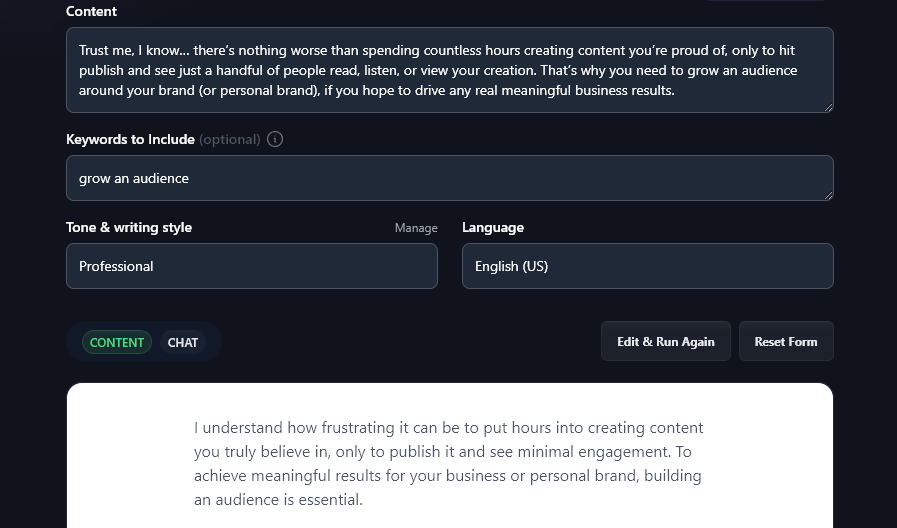
- “Professional” for a business report, memo, email, or similar
Feel free to experiment with the different styles and see what suits you best. Here’s our paragraph reworked in a “Professional” style:
Tip: The Unlimited version of RightBlogger gives you access to our advanced MyTones feature, where you can create up to 5 completely custom tones to use in the rewriter and many other tools.
4. Language (Pick from 100+ Languages)
RightBlogger lets you choose from a wide range of languages, from Afrikaans to Zulu! If you have a multilingual site, you might want to produce your paragraph in Spanish, French, German, Arabic, or any of the other languages that the AI supports.
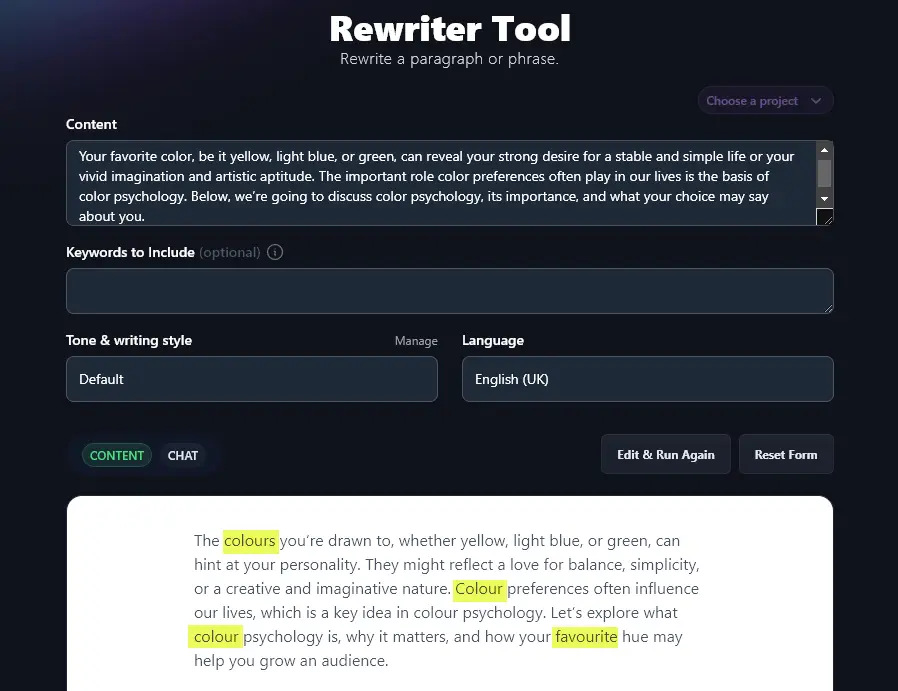
You can also use the language picker to select a different variety of English. Let’s say you’re rewriting a passage of text for a UK English blog. Go ahead and select that from the dropdown.
Here’s a paragraph from Better Help’s article on favorite colors that we reworked in UK English. Note the changed spellings of “color” and “favorite”.
5. Point of View (How Should Your Paragraph be Phrased?)
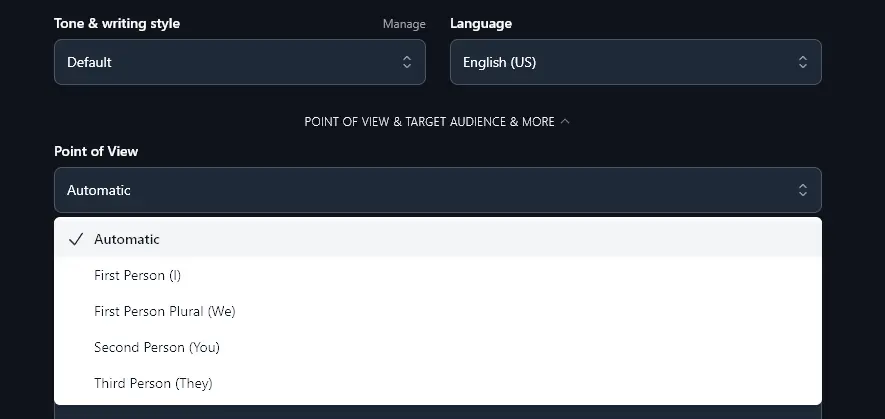
Like most of RightBlogger’s tools, the paragraph rewriter has additional options that you can access by clicking the “Point of View & Target Audience & More” link.
The Point of View lets you choose any of:
- First person (I) – e.g. “I grew my audience by…”
- First person plural (we) – e.g. “We grew our audience by…”
- Second person (you) – e.g. “You can grow your audience by…”
- Third person (they) – e.g. “Most bloggers grow their audience by…”
In most cases, the “automatic” default option will work fine, but if you want to rewrite text with a different perspective, you can adjust the point of view here.
6. Target Audience (Who is Your Paragraph For?)
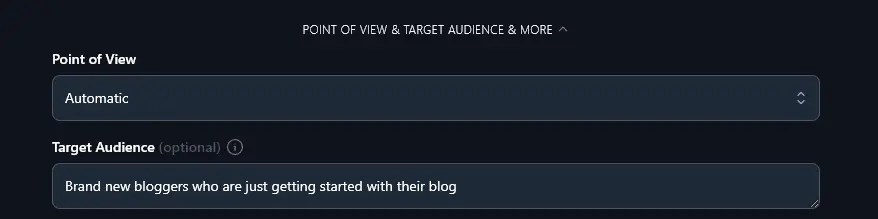
You might be reworking a paragraph to better suit a different context. For instance, perhaps you originally wrote a blog post aimed at 20-something entry-level employees, and now you’re writing for mid-level employees in their 30s and 40s.
Let the AI know about your target audience here. You can include demographic information (like age, gender, country/region, and education level), as well as psychographic information (like your audience’s interests).
7. Additional Instructions (Include Any Special Requests Here)
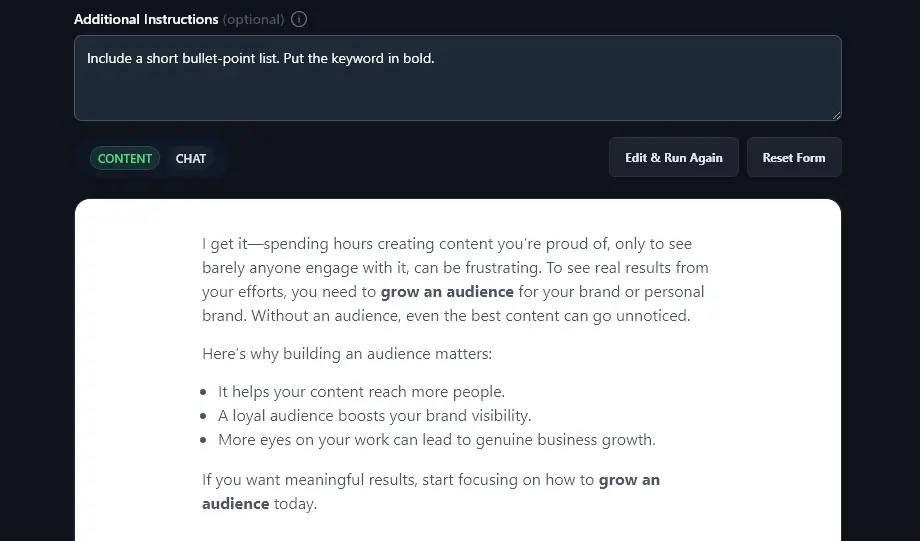
Do you have a particular way you want to rewrite content? Maybe you want bullet points, a key sentence in bold, or a summary at the start. Just add instructions here, in a straightforward, conversational way, as if you were talking to an assistant.
We asked the AI to “Include a short bullet point list. Put the keyword in bold.” It did exactly what we wanted:
Tip: If you want to rewrite several passages of text in the same way, set up a Project. Here, you can include special instructions (and pre-set the other options) that you can use time and time again in the rewriter and other RightBlogger tools.
8. Creativity (How Predictable or Unpredictable Should the Rewrite Be?)
The final option in the AI rewriter is the “Creativity” slider. This lets you decide how predictable (less creative) or unpredictable (more creative) you want your rewritten paragraph to be.
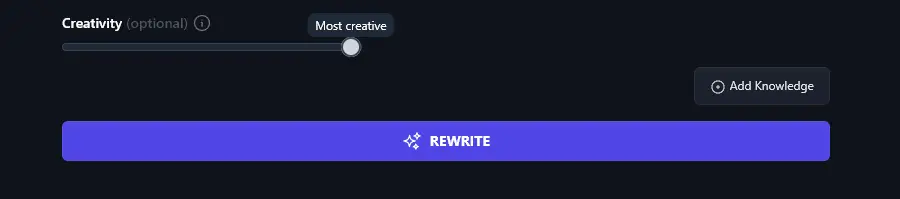
Tip: If you’re having issues with AI detectors flagging your text, then making it more creative will add greater perplexity. In most cases, though, it’s fine to leave the Creativity set to the default midpoint. Whatever you set it to, your text will maintain coherence!
AI Paragraph Rewriter FAQs
Got questions about the AI paragraph rewriter? Here’s what you need to know.
Can I Use the Rewriter for Paraphrasing?
Sort of! The rewriter will give you a reworked version of your text, and this is what some people are after when they want to “paraphrase” a text.
But true paraphrasing usually involves clarifying a message, often simplifying and removing some less important details. The rewriter algorithms aim to preserve the same information as your original, but present it in completely fresh words.
If you’re after a true paraphrase, we recommend using our Paraphrase Tool instead. And if you’re not quite sure whether you need a Rewriter or a Paraphrasing tool, check out Andy’s great explanation of Paraphrasing vs Rewriting: Which One Should You Use?
Does the Paragraph Rewriter Also Work as a Sentence Rewriter?
Yes! You can use the rewriter tool for original content of any length (up to around 6000+ words). If you just want to rewrite a single sentence, go ahead and paste that into the Content input box. It’ll work just fine.
Can I Use the Rewriter on AI Content?
Yes. You can use the text rewriter tool with a passage of human-written text or AI text. For instance, if you’ve got a passage of bland-sounding AI-generated content, you can run it through the rewriter and turn it into something with more voice and style.
Will the Rewriter Product Plagiarism-Free Content?
The rewriter itself doesn’t plagiarise in any way. It’ll also help you put a piece of text into your own words, preserving the original meaning (e.g. by using synonyms). This means the rewritten text should easily pass a plagiarism checker.
However, it’s still important that you cite the original source of any key facts or ideas, otherwise you could still be accused of plagiarism.
What Other AI Tools Can I Use to Help Me With My Writing?
RightBlogger is packed with loads of tools that can help you strengthen your writing and speed up your content creation process. Just a few of those are:
- Article Writer: The Article Writer lets you produce full blog articles from just a keyword or topic.
- Grammar Fixer: Use this automatic grammar checker tool to automatically correct grammar and spelling mistakes.
- Outline Generator: Instantly create an outline for a blog post or article.
- Shorten: Need to cut down a piece of text? The Shorten tool will tackle that for you.
- Expand: Need more words? Use the Expand tool to lengthen your text without adding “fluff”.
- Improve Writing: Create a more polished version of draft text, e.g. improving your sentence structure.
- Make Text Punchier: Create a punchier, more engaging version of your text (good for sales copy).
Along with our AI writing tools, we also have social media tools to help you grow your social presence, SEO tools to improve your search engine rankings, sales tools to boost your bottom line, and more.
Who is the AI Paragraph Rewriter Tool Designed For?
We created the AI paragraph rewriter with all kinds of people in mind. It’s particularly good for bloggers, content creators, content marketers, SEO professionals, small businesses with an online presence, and anyone who wants to create high-quality content online.
The AI rewriter is also useful for students, employees, editors, and anyone who wants to rewrite or improve passages of text. If you’re stuck, it can be a good way to overcome writer’s block, as you can use it to see the text you’ve already written in a fresh way.
How Do I Sign Up for RightBlogger and How Much Does it Cost?
You can sign up for RightBlogger to use the rewriter along with 100+ other tools. Every plan includes unlimited AI words, so you can rewrite as much content as you need.
Plans start at $49/mo with unlimited usage, brand voices, and full automation. 30-day money-back guarantee on all plans.