
Image Caption Generator
Generate an image caption or ALT text using a photo.
Using RightBlogger’s AI image caption generator makes it super-fast to add captions to your images. Whether you’re trying to write the perfect Instagram post or you need to caption an image on your website, this tool does all the work for you.
What is an AI Image Caption Generator? It’s a smart tool that uses advanced computer vision and contextual image analysis to automatically write highly accurate, engaging captions for your photos. Whether you need compelling text to boost social media engagement rates or SEO-friendly alt text for ADA compliance and screen reader optimization, this tool analyzes your image and generates the text instantly.
You might have heard the saying that “a picture is worth a thousand words.” But words matter too. In some contexts, a caption will give meaning to an image that’s otherwise ambiguous.
More importantly, if someone visiting your site or social media page is visually impaired, descriptive captions and alt text help make your content fully accessible to them. This is important for ADA compliance and screen reader optimization. Plus, these specialized captions are displayed on the screen if the image fails to load (e.g., on a very slow connection), keeping your user experience intact.
Some specialized types of captions, like alt text, are designed for better accessibility: they’re displayed on the screen if the image fails to load (e.g. on a very slow connection) and they will be read out by screen readers.
I built the RightBlogger Image Caption Generator because I know firsthand how tedious this step can be when you’re trying to hit publish on a post. I wanted a fast, reliable way to make content accessible and engaging without slowing down the creative process.
Writing captions takes time and it’s one of those tasks that’s easy to forget. The good news is that AI (artificial intelligence) has dramatically improved in its ability to interpret images accurately. This means you can upload your image to the AI image caption generator and have it instantly create accurate captions for you.
How to Use the Free AI Image Caption Generator
The image caption generator is incredibly easy to use. Here’s what to do:
Step 1. Upload the Image You Want to Caption
You’ll need to have your image downloaded on your computer so you can upload it to the tool (you can’t link to an image on the web instead). The image caption generator supports most common image filetypes.
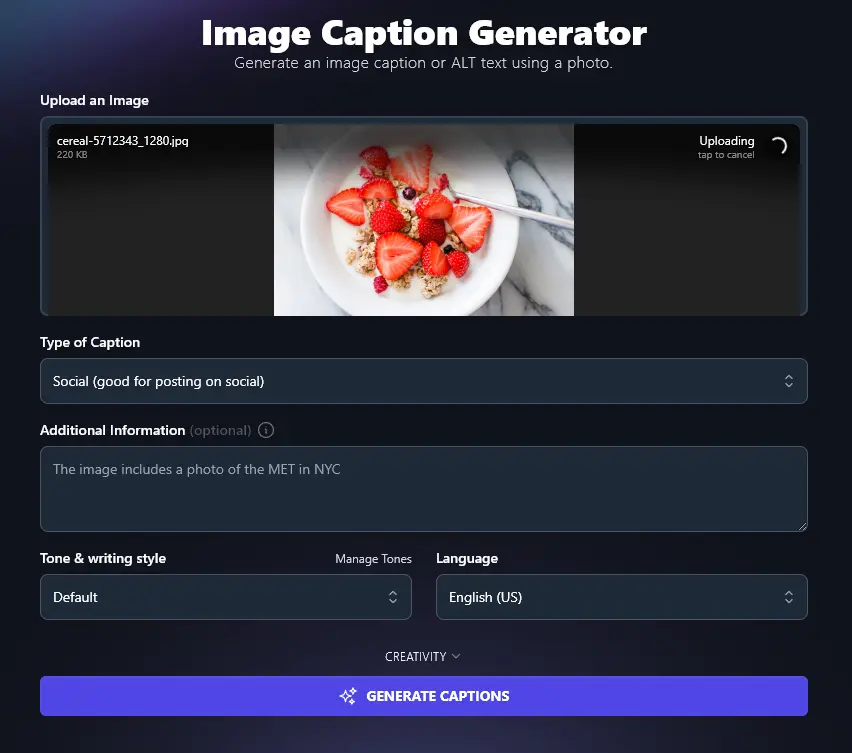
Pro Tip: The AI is incredibly good at interpreting images, but if you upload a blurry, tiny, or heavily distorted file, you may want to swap it for a clearer, higher-resolution version to get the most accurate caption.
Step 2. Select the Type of Caption to Create
The image caption generator lets you create captions for social media, for alt text, or for accurate image captions on your blog/website. Choose whichever option works best for your purposes.
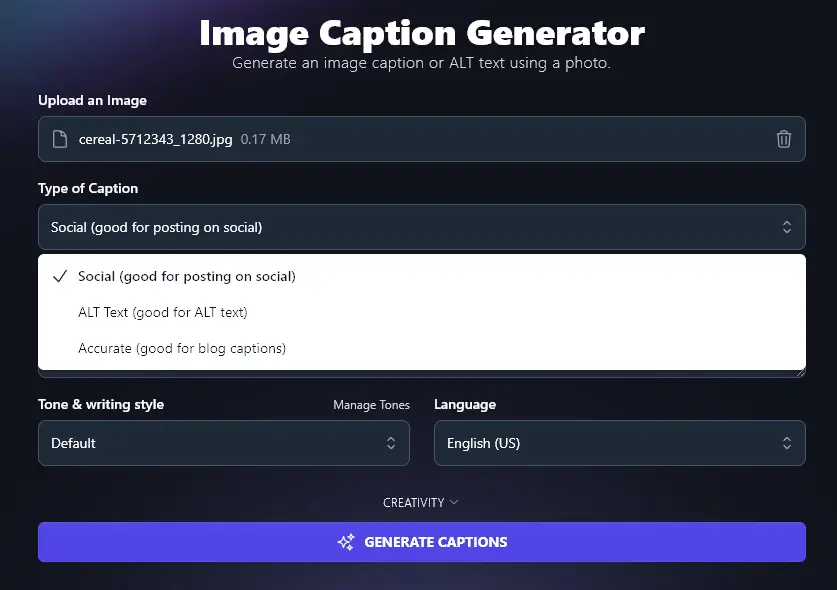
Step 3. Give the AI Any Extra Information About Your Image
If there’s a detail in the image that you’re concerned the AI might miss, or misinterpret, you can add extra details in the box here. You can also note anything you particularly want the AI to mention in the caption.
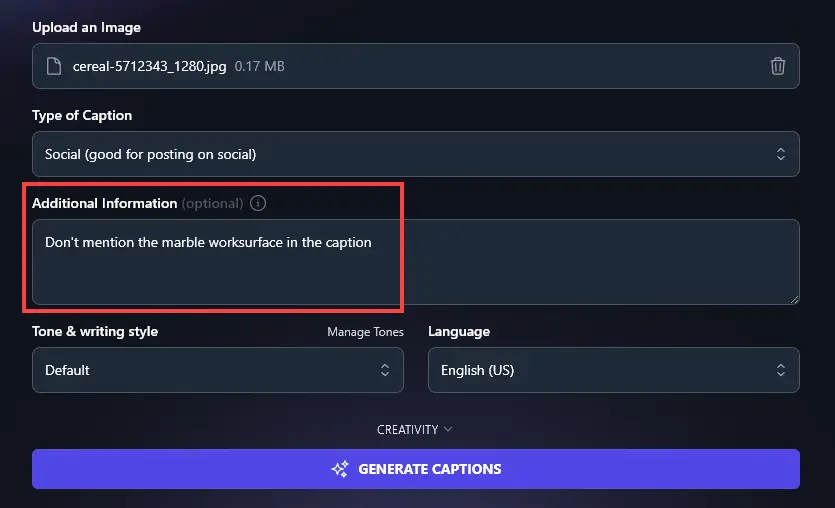
Step 4. Select the Tone & Writing Style for Your Caption
The AI will normally write suitable, high-quality captions by default that fit with most brand voices. If you want to adjust the tone/style though, you can use this dropdown to pick from 20 different pre-set options.
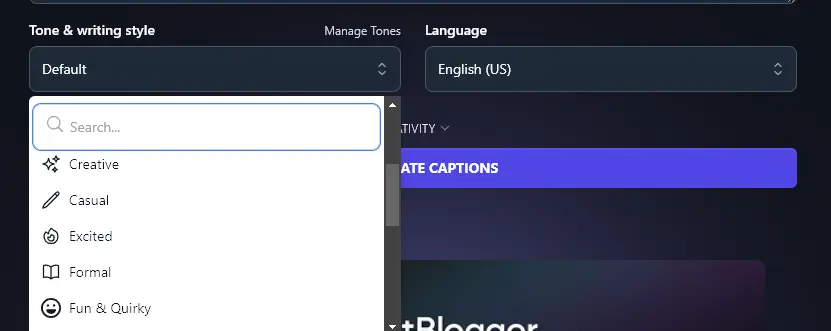
Note: Since captions are fairly short, you may not see a dramatic difference between the styles.
Step 5. (Optional) Pick a Language for the Caption
The AI automatically writes in US English: if you want a different language, just choose it from this dropdown of 100+ languages. This is great if you’re writing for a non-English speaking audience or if you have a multilingual site.
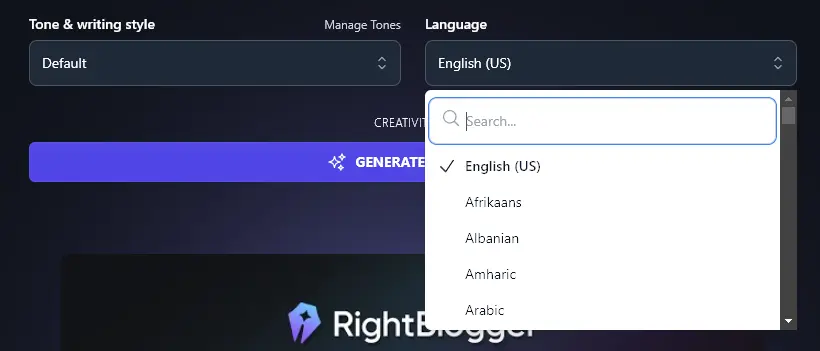
Once you’re happy with the options you’ve selected, click the “Generate” button to generate captions. You should see 10 captions to choose from.
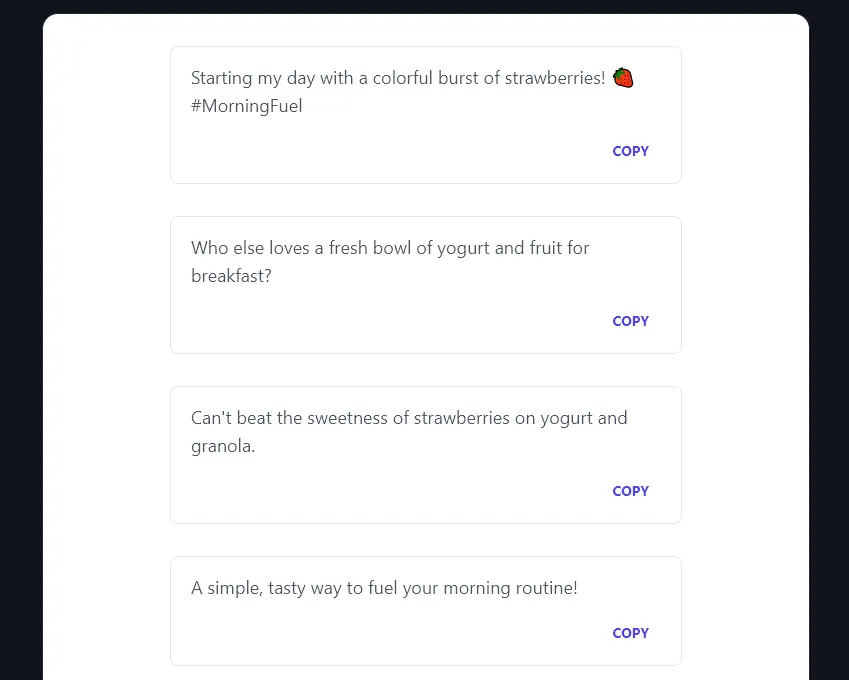
Pro Tip: Want to add some colour instead of color to your captions? The language picker also lets you choose from 4 regional varieties of English: US, UK, Canada, or Australia.
Bonus: Use This Free SEO Checklist Along With This Tool
If you’re creating alt descriptions with the image caption generator, you’re probably using them in part to boost your SEO (search engine optimization).
Alt text is just one small part of good on-page SEO. You also want to make sure you’re following other good practices. Here’s a quick SEO checklist you can use to help:
- Use a good, reputable SEO plugin: Yoast or RankMath are both great options
- Optimize your content for a suitable keyword that makes sense for your target audience
- Write subheadings that include keywords, where possible: this encourages rich snippets from Google and means your post/page may get indexed faster
- Check you’ve only got one H1 header on your page (the headline or post title at the top)
- Use proper header hierarchy, with H2 subheadings and H3 sub-subheadings
- Add your keyword within the text, but don’t go over the top, it should read naturally
- Include plenty of internal and external links (at least 3 external links, ideally more)
- Craft an engaging meta description that draws readers in, and that uses your main keywords
- Add alt text to all your images, with keywords in this where possible
- Check the length of your blog post: you normally want 1,500+ words for a good shot at ranking well
- Write a strong meta title (SEO title) that’s designed to hook readers in, make sure it has your primary keyword in, too
- Include your keyword within your post’s permalink (URL)
How Does the AI Image Caption Generator Work?
If you want to get the most from the AI caption generator, here are some extra tips plus guidance on some of its more advanced features.
1. Upload an Image (Tips on Uploading Your Image)
Before you upload your image, make sure it’s saved in a compatible format. The image caption generator can handle most standard image formats, including jpg, gif, png, and webp.
The AI is very good at interpreting images, but if you have a blurry, tiny, or ambiguous image, you may want to select a different version.
2. Type of Caption (How to Choose the Best Option)
The image caption tool can create different types of image description, based on what you need the caption for. Feel free to experiment with these options to see the different styles of caption you get.
Here’s an example of how the captions vary, these are all for the same image.
Caption Type “Social (good for posting on social)”
Starting my day with a fresh bowl of yogurt and berries! 🍓 #HealthyStart
Who else loves a colorful breakfast like this? Share your favorites below!
Just the right mix of crunch and sweetness. What’s your go-to topping?
Caption Type “ALT Text (good for ALT text)”
A vibrant bowl of yogurt topped with fresh strawberries and granola.
Delicious strawberries sit atop creamy yogurt and crunchy granola.
A healthy breakfast featuring yogurt, granola, and bright red strawberries.
Caption Type “Accurate (good for blog captions)”
Start your day right with this vibrant bowl of yogurt and berries.
Fresh strawberries and crunchy granola create a delicious breakfast combo!
Brighten your breakfast with delicious strawberries and creamy yogurt!
3. Additional Information (Give the AI More Guidance if Needed)
The AI has been trained on a huge dataset of images and captions, so it should be able to easily interpret your image. If you want the caption to focus on a particular aspect of the image, however, or if you want it written in a particular way, just add details here in the additional instructions.
We asked the AI to “Include two emojis and no hashtags in each caption” for our social captions and got these:
Brighten your morning with this tasty mix of strawberries and yogurt. Who else loves this combo? 🍓😊
A little crunch and a lot of flavor! Perfect for an energizing breakfast. What do you think? 🌟🍓
Fuel your day with a healthy and colorful bowl of goodness. What’s in your breakfast today? 🌈🥣
4. Tone & Writing Style (20+ Options, Or Create Your Own)
Want your captions to fit your brand? Whether you’ve got a straightforward, direct way of writing or you love to play around, there’ll be a tone & writing style to suit you.
Note: As your captions are only a sentence or two and need to relate to your image, adjusting the tone & style won’t have as big an effect as it does with our long-form generative AI tools.
If you want to tailor a style precisely to your brand, use the MyTone feature (available on the Pro plan). This lets you customize up to 5 separate tones, each based on samples of your writing, or even a YouTube video.
Once you’ve created a custom MyTone, you can select it from the Tone & Writing Style dropdown:
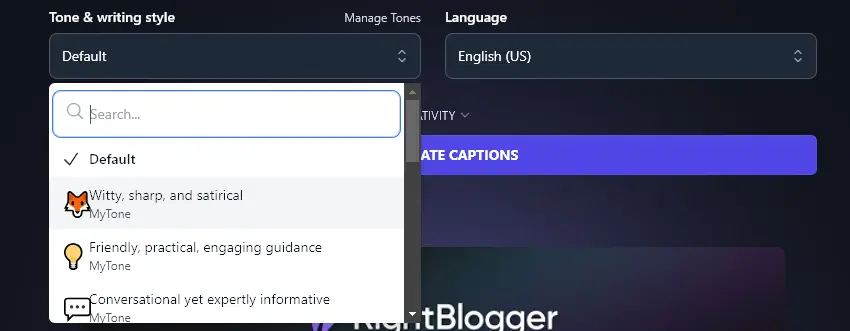
5. Language (100+ Languages to Choose From)
The image caption generator can create content in any language you want from a choice of over 100+ languages. Whether it’s Afrikaans, Zulu, or something in between, you can simply type in the language you want and select it from the list.
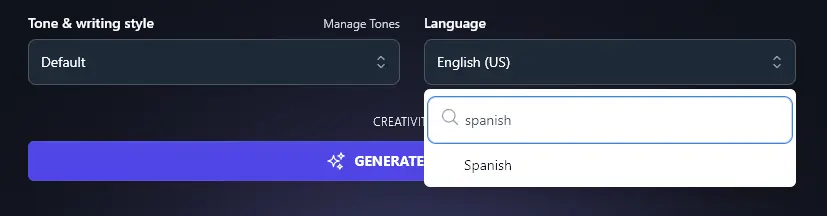
Tip: Want to add some colour instead of color to your captions? The language picker also lets you choose from 4 varieties of English: US, UK, Canada, or Australia.
AI Image Caption Generator FAQs (Frequently Asked Questions)
Got questions about using the image caption generator or about using image captions? Here’s what you need to know.
Can AI Generate a Caption for an Image?
Yes! A number of AI models can understand images and write engaging captions that fit both the image and the context in which it’s being used.
Most AI image caption generators have a user-friendly interface where you simply upload an image file. The AI then uses natural language processing to write a caption based on its analysis of the image.
How Does Image to Text AI Work?
You’re probably used to giving AI a text prompt and getting good results … but image to text AI might feel a bit like magic.
To explain a little of what’s going on under the hood, this free tool incorporates an image captioning model that draws on technologies like deep learning models (a type of machine learning), LSTM (long short term memory), neural networks, and computer vision models.
In essence, the AI has been trained on a huge number of images and captions, so it can understand how different captions relate to images.
What Other AI Tools Can I Use to Boost My Social Media Presence?
There are many other AI tools you can use to grow your online presence, whether through social media posts, YouTube, or your blog. We have more than 90 tools in RightBlogger for you to check out, and some of the most relevant for you are:
- Instagram Caption Generator: create captions that are specifically tailored to your Instagram videos or images (type in a brief description)
- TikTok Content Ideas: come up with all the ideas you need for fast, fun TikTok content creation
- YouTube Video to Tweets: automatically turn YouTube content into a list of tweets (X posts)
- YouTube Video to Blog Post Generator: convert a YouTube video into a well-written blog post, in just seconds
- LinkedIn Post Generator: come up with engaging posts for your LinkedIn account
- Facebook Post Generator: create Facebook posts from a topic or keyword
These are just a few of our tools! We have many more, covering all kinds of use cases from blogging to SEO to sales.
Who is the AI Image Caption Generator For?
The AI image caption generator is for anyone who wants to create captions for social media or blog posts. When we created it, we had in mind bloggers, influencers, content creators, content marketers, SEO professionals, small business owners, and anyone else with an online presence who needs to write image captions.
How Do I Sign Up for RightBlogger and How Much Does it Cost?
RightBlogger is $49/mo (Solo), $69/mo (Pro), or $199/mo (Agency) billed annually, and the image caption generator is free to try above before you pick a plan.
Every plan includes unlimited access, plus advanced features like Autoblogging, Integrations, MyTone, Projects, and Knowledge Library. Plans start at $49/mo with a 30-day money-back guarantee.