Set Up a Custom Domain for Your White Label SEO Reports
One CNAME setup covers every client report, with automatic HTTPS and branded slugs.
Connecting a custom domain to your white label SEO reports lets you serve every client report from a subdomain you control (for example reports.youragency.com) instead of a rightblogger.com URL. Clients never see a RightBlogger URL anywhere on the report or in the address bar, HTTPS is set up automatically, and you only do this DNS setup once per account.
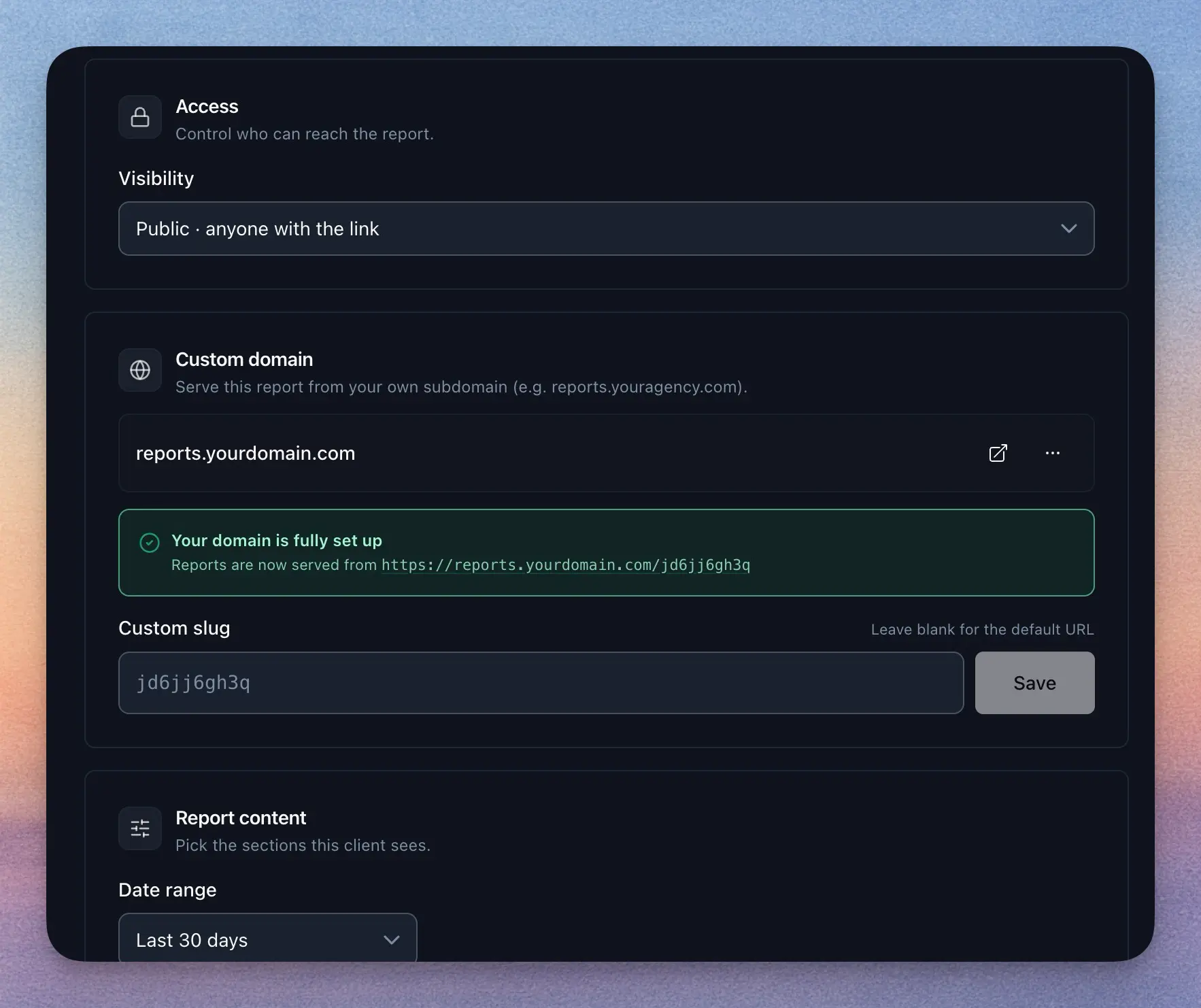
This guide walks through the full setup: picking a subdomain, adding the CNAME record at your registrar, verifying ownership, and customizing the URL slug each client sees.
Before You Start
You’ll need:
- A RightBlogger plan that includes white label reports (Agency).
- A project in RightBlogger with Google Search Console connected.
- A report set up for that project from the Reporting tool.
- Access to your domain registrar’s DNS settings (Cloudflare, GoDaddy, Namecheap, Squarespace Domains, Route 53, and so on). If your domain is parked at one registrar but managed elsewhere, the DNS record goes wherever DNS is managed.
Pick a Subdomain to Use
Use a subdomain on a domain you already own. A few examples that work well:
reports.youragency.comseo.youragency.comdashboard.youragency.comclient.youragency.com
A few things to know:
- The subdomain you pick is shared across every report on your account. You only set this up once, even if you have ten clients.
- We do not support apex domains (like
youragency.comwith no prefix). Always use a subdomain. - Lowercase only. The field auto-lowercases your input.
Connect Your Domain in RightBlogger
1. Open your report’s settings
Go to the Reporting tool, pick the client project, click Settings above the report, and scroll to the Custom domain section.
2. Enter your subdomain
Type the full subdomain into the field, for example reports.youragency.com. Don’t include https:// or a trailing slash.
3. Click Connect
The Custom domain card will update to show the DNS record you need to add at your registrar and a status label that starts at Pending DNS (or Action required if something needs fixing). Leave this tab open. Once your DNS record propagates, the pending label clears and an Open live report button appears next to your domain (the page checks in the background, no refresh needed).
Add the CNAME Record at Your Registrar
This is the only DNS record most users need. Log in to your domain registrar, open the DNS or Zone settings for your domain, and add a new record with these exact values:
- Type:
CNAME - Host / Name: the part of the subdomain that comes before your root domain. For
reports.youragency.com, the Host isreports. - Value / Target / Points to:
host.clientseoreporting.com - TTL: Auto (or
300/ 1 hour if you have to pick a number)
Save the record. That’s it. Don’t add an A record or AAAA record for the same subdomain. CNAME only.
Cloudflare users: use the gray cloud
If your DNS is on Cloudflare, make sure the Proxy status on the CNAME is set to DNS only (the gray cloud icon), not Proxied (the orange cloud). The orange cloud blocks our SSL setup and is the single most common reason verification fails on Cloudflare.
If we ask for a TXT record
If the domain you’re connecting was previously used on a different hosting account, the Custom domain card may show one or more verification records like _vercel.yourdomain.com TXT vc-domain-verify=... alongside the CNAME. Copy the Type, Host, and Value exactly as shown and add them as TXT records at your registrar. Once they propagate, click Refresh status in the three-dot menu and we’ll finish verifying.
Verification and SSL
After you save the CNAME, the Custom domain card will drop the Pending DNS label on its own once the domain is live. Typical timing:
- Cloudflare or Route 53: usually under a minute.
- Namecheap, GoDaddy: usually 5 to 30 minutes.
- Older or slower registrars: can take up to 24 hours. This is normal.
HTTPS is automatic. We provision a free SSL certificate as soon as the domain verifies, and we renew it for you indefinitely. You don’t need to upload a certificate, add an AAAA record, or do anything else for SSL.
Once verified, the share URL shown in the report settings switches automatically from rightblogger.com/reports/... to your domain. Copy the share URL from the Custom domain section in Settings. The Copy link and Open buttons above the report still use the rightblogger.com link. The original rightblogger.com link continues to work too, so any links you’ve already sent to clients are not broken.
Customize the URL Slug for Each Report
Once a domain is connected, each report shows a Custom slug field. By default the URL ends with an auto-generated string (something like /k3df9q2a1). You can replace that with a friendly slug like acme-co so the URL becomes https://reports.youragency.com/acme-co.
Slug rules:
- Lowercase letters, numbers, and hyphens only, starting and ending with a letter or number.
- 3 to 60 characters.
- Must be unique on the domain. If a slug is taken, the field shows an inline “not available” message as you type.
- Both the friendly slug and the original auto-generated slug resolve, so old links keep working even after you change the slug.
Using One Domain for Every Client
This is the standard setup. Connect reports.youragency.com once, then every client report on your account lives at reports.youragency.com/{client-slug}. You only add the CNAME at your registrar one time. For each new report you create after that, open Settings and click Use reports.youragency.com. No new DNS record is needed.
Switching or Disconnecting Your Domain
To disconnect a domain, open the Custom domain section in the report’s Settings, click the three-dot menu, and choose Disconnect. This removes the domain from your account and reverts the share URL back to rightblogger.com/reports/.... It does not delete the CNAME at your registrar, so you’ll want to remove that on your end too if you no longer want the subdomain in use.
To switch to a different domain, disconnect the current one first, then add the new one in the field and update your registrar to point the new subdomain at host.clientseoreporting.com.
Troubleshooting
Status has been “Pending DNS” for more than an hour
Most of the time this is one of these:
- The Target is wrong. It must be exactly
host.clientseoreporting.comwith nohttps://and no extra characters. - On Cloudflare, the proxy is enabled (orange cloud). Set it to DNS only (gray cloud).
- There’s a conflicting A or AAAA record on the same subdomain. Delete it. CNAME only.
- There’s an existing CNAME on the same subdomain pointing somewhere else.
You can confirm what your DNS is actually serving with dnschecker.org (search your subdomain, choose CNAME).
“This domain is linked to another Vercel account”
Add the TXT records shown in the Custom domain card (covered in the section above), then click Refresh status in the three-dot menu.
“Your account is already using another domain”
We enforce one custom domain per RightBlogger account, shared across all your reports. Disconnect the existing domain first, then add the new one.
“Enter a valid domain”
The value must be a real subdomain (lowercase letters, numbers, hyphens, and periods). No paths, no protocols, and no .vercel.app domains.
Domain is live but my custom slug returns a 404
Use the exact slug shown in the settings panel (slugs are case sensitive). Slugs are also limited to a single path segment, so /acme works but /acme/2024 does not.
FAQs
Do I have to do this for every client?
No. One domain covers every report on your account. For each new client report, open Settings and click the Use button for your domain. No new DNS record is needed.
Can I use my apex domain like youragency.com?
No, use a subdomain. CNAME records aren’t supported on apex (root) domains by most registrars, so reports.youragency.com works but youragency.com doesn’t.
What if I host my marketing site on the same root domain?
Fine. The subdomain you use for reports is independent of whatever lives at the root domain or other subdomains. Your main site at youragency.com and your reports at reports.youragency.com don’t interact.
How long does SSL take?
Usually under a minute after DNS verification completes. You don’t need to do anything for SSL to work.
Can clients see this is RightBlogger underneath?
No. The page, the URL, and the SSL certificate are all on your domain. There’s no RightBlogger branding visible to the client.
Can I export the report as a PDF from my custom domain?
Yes. In the Reporting tool, click Export, choose Report PDF, and click Download PDF. The PDF is the same with or without a custom domain.
Automated SEO Blog Posts That Work
Try RightBlogger for free, we know you'll love it.
7-day free trial. Cancel anytime.