How to Use SEO Reports in RightBlogger
Compare 5–6 ranking sources, uncover missing keywords, and target an 80–95% score.
SEO Reports in RightBlogger help you understand how thoroughly your content covers a topic compared with pages that already rank in Google.
Instead of guessing which keywords or topics to include, your report highlights what top ranking articles are doing and gives you a clear path to improve your draft.
This guide covers how SEO Reports work, how to attach one to your content, and how to use Auto Optimize to strengthen your article.
Here’s a full video walkthrough of using RightBlogger’s SEO Reports to find coverage gaps and improve a draft:

Here’s a closer look at how our SEO Reports work.
What an SEO Report Shows You
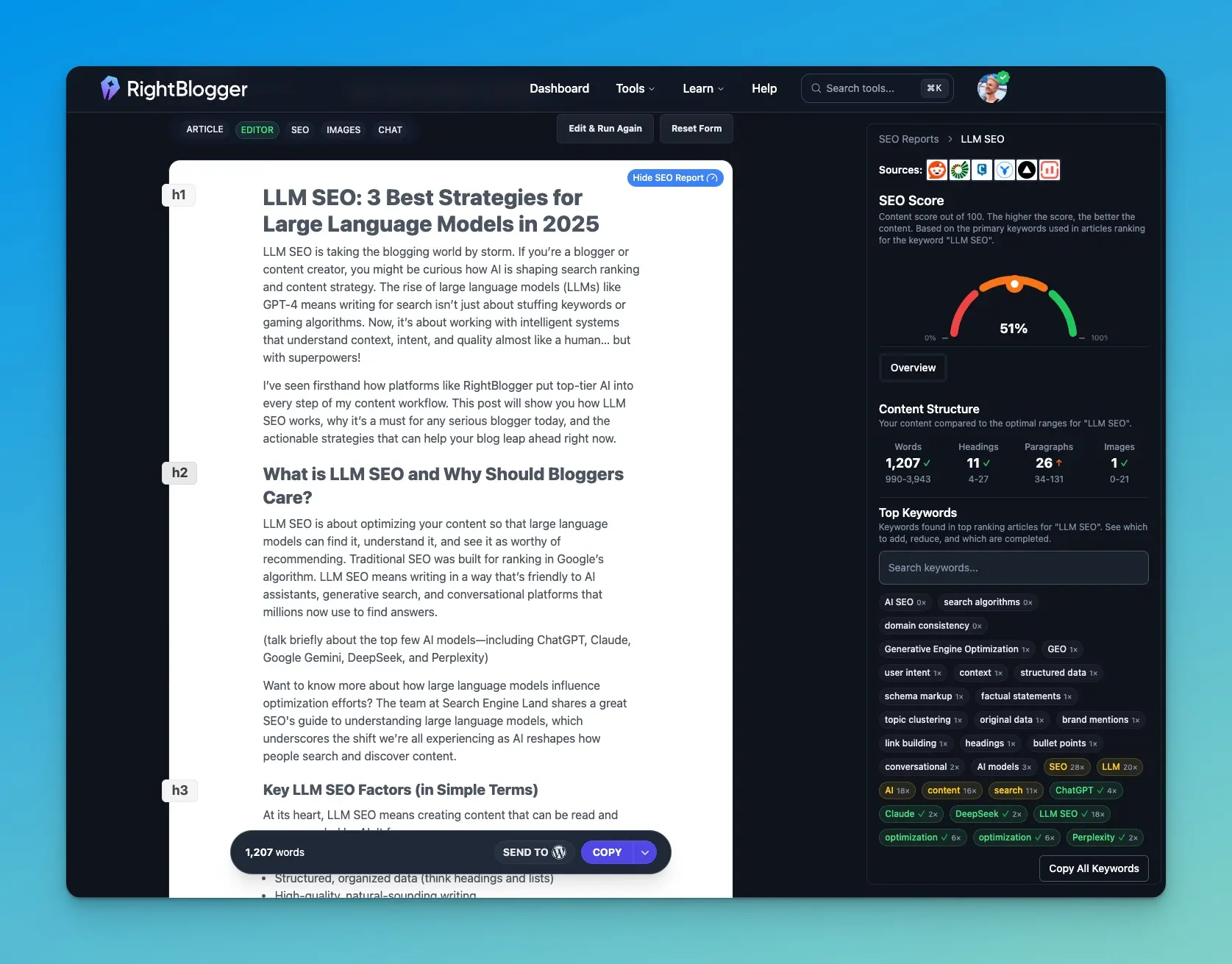
Once attached, your report analyzes the keyword you picked and compares your draft to articles that already rank.
It gives you:
- A primary keyword recommendation
- A word count target for your topic
- Headings and topic areas that top articles tend to include
- Keyword coverage that shows which phrases you are missing
- An overall score so you know where your draft stands
You can scan the report in a few seconds and immediately see where improvements are needed.
SEO Reports also include a keyword analysis mode that researches search results for your target keyword, showing what competitors rank for and how your content compares. You can set a target country to get location-specific SEO data.
Adding an SEO Report to Your Content
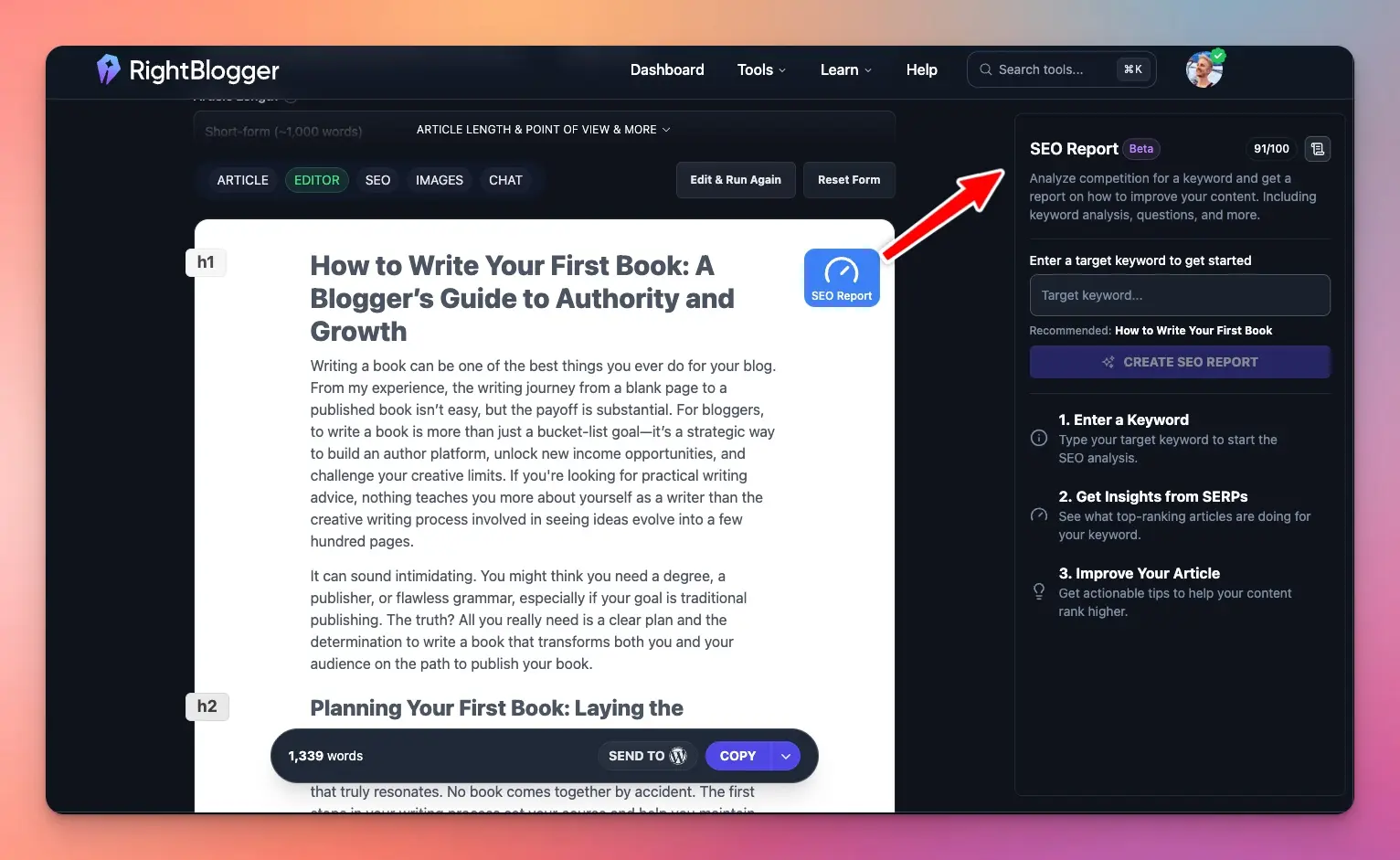
You can attach a report to any article created with an editor inside RightBlogger.
- Open the article in the Editor.
- Click SEO Report.
- Click Create SEO Report.
- Enter your Target Keyword (or click the Recommended one), then pick a Target Country and Target Language.
- Click Generate Report.
- Wait a moment while RightBlogger analyzes your topic.
Your score and recommendations appear instantly. You can open and close the report at any time as you edit.
Understanding Your Score
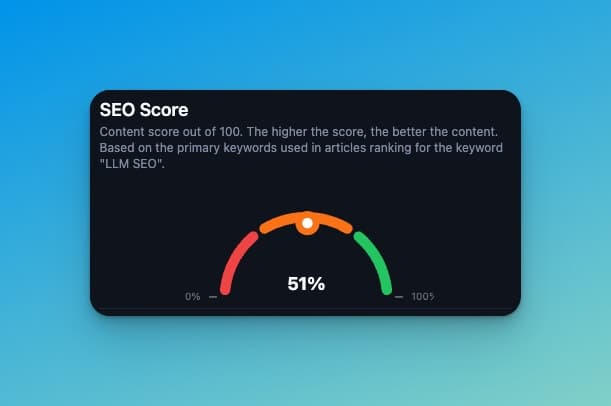
Your score is based on keyword usage: how often each suggested keyword appears in your draft compared with top-ranking pages, with more important keywords weighted higher. Using a keyword too often lowers it.
- Red (0 to 30) means the draft needs significant improvement.
- Orange (31 to 70) means you are getting closer but still missing important keywords.
- Green (above 70) means your keyword usage is in the report’s recommended range.
You do not need to aim for a perfect score. Staying in the green range is ideal and avoids over-optimization.
Improving Your Draft with Auto Optimize
Auto Optimize is the fastest way to raise your score. After attaching a report, click Auto Optimize and RightBlogger will:
- Add missing keywords naturally
- Expand your content where needed
- Strengthen paragraph flow
- Adjust headings and structure
- Bring your draft closer to what top ranking content includes
Auto Optimize can improve the score in one pass, but the result depends on the draft and keyword. Review every change for accuracy, relevance, and your own voice.
Your draft may grow in length, cover more subtopics, and feel more complete, but you still maintain full control. You can keep editing after optimization.
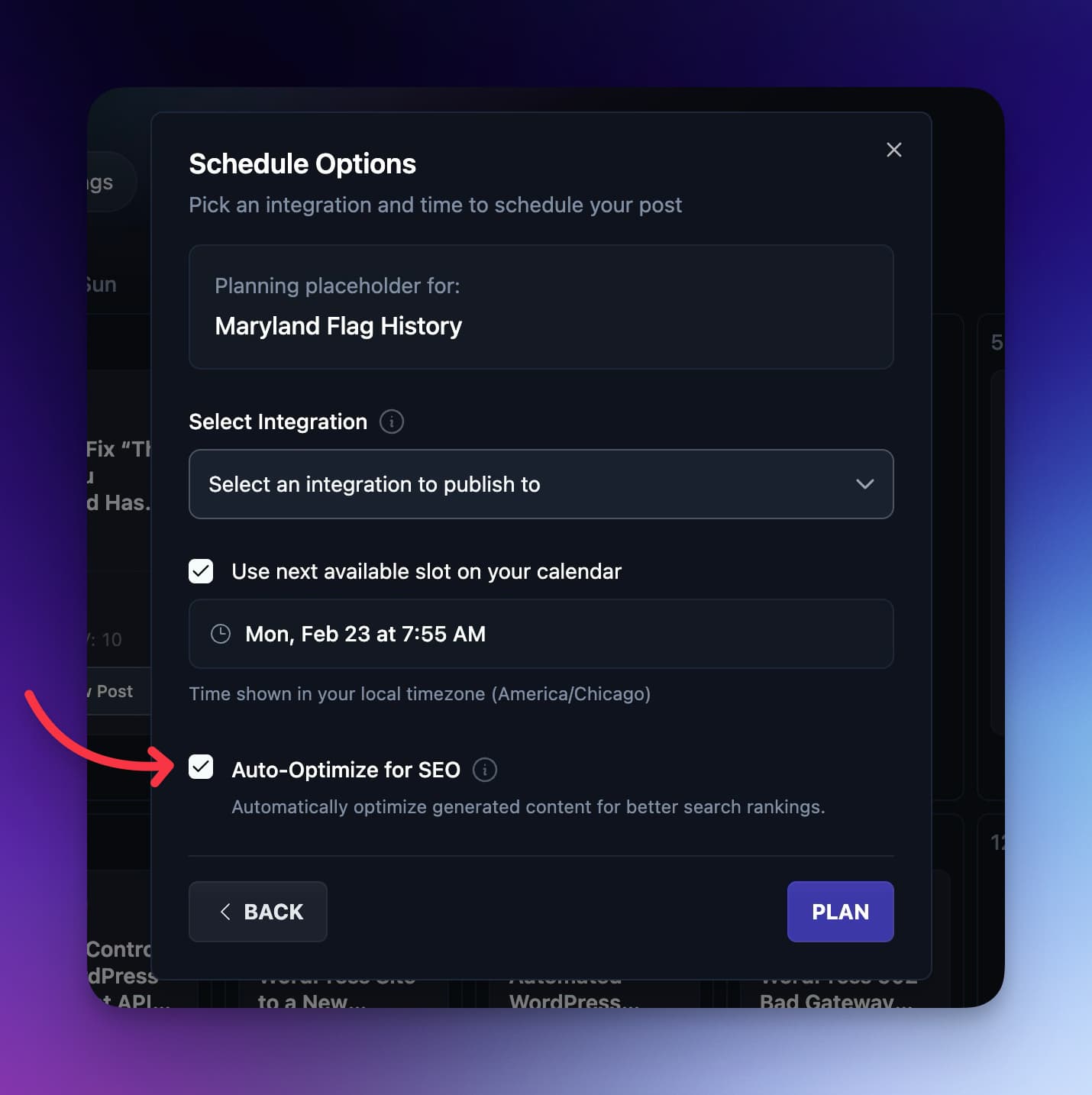
You can also turn on auto-optimize when using the autoblogging feature. It will create a post for you, run an SEO report, and improve the post before it goes live on your site. The whole process runs on its own, so you save time and effort. Want a faster way to publish content without extra work?
Editing After Optimization
Once the draft is improved, add your own stories, examples, and perspective. This can make the article more useful and distinctive for readers, search engines, and AI answer tools.
If you want to compare versions, you can switch between:
- Original for your first draft (read-only, with a Restore in editor button if you want it back)
- Editor for your optimized version
Publishing Your Optimized Article
When your content is ready, you can:
- Send it to any connected CMS
- Schedule it with the Schedule to Content Planner button (the calendar icon next to Send To)
- Copy or download it if you prefer manual publishing
SEO Reports fit naturally into your workflow no matter how you publish.
Summary
SEO Reports help you understand what your article needs to perform well. Attach a report, review the guidance, use Auto Optimize for quick improvements, then add your personal touch before publishing. It is one of the easiest ways to raise the quality and competitiveness of every post you create in RightBlogger.
Automated SEO Blog Posts That Work
Try RightBlogger for free, we know you'll love it.
7-day free trial. Cancel anytime.