
YouTube Description Generator: AI Video Descriptions Fast
Create SEO-friendly YouTube video descriptions with AI from a topic, title, URL, or transcript, including options for timestamps, hashtags, and a video title.
Give RightBlogger’s YouTube Description Generator your video’s topic and a few key points above, and it writes a full description for you. It is free, and you can run it before creating any account.
A strong video description does two jobs: it tells YouTube (and other platforms) what your video is about so you rank, and it sells viewers on actually clicking play. Skip it or stuff a few words in, and you leave both opportunities on the table.
This free AI YouTube Description Generator writes SEO-optimized descriptions from a topic, video title, YouTube URL, or full transcript in seconds, with optional timestamps, hashtags, and keywords. Works for YouTube, YouTube Shorts, TikTok, Instagram, and LinkedIn videos too, just pick the platform from the dropdown.
The page below walks through how to use it, plus a YouTube SEO checklist, a feature-by-feature breakdown, and FAQs covering channel descriptions, copyright disclaimers, and description-specific YouTube SEO.
How to Use the AI YouTube Video Description Generator
Four quick steps:
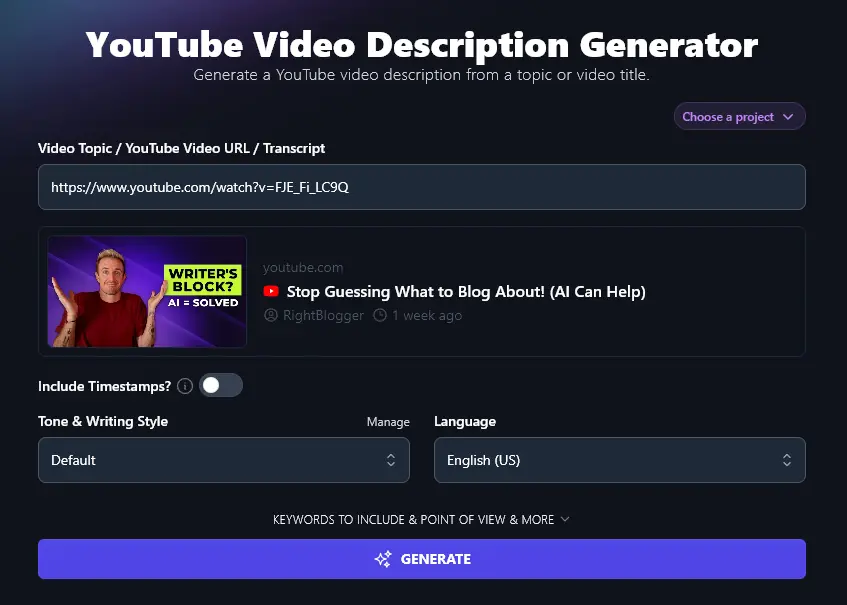
Step 1. Enter Your Video Topic, URL, or Transcript
First, you’ll need to give the title or topic of your video (if you haven’t yet created it) or the URL or transcript (if you want to create a description for an existing video).
Tip: The box may look small … but you can copy and paste a whole transcript into it.
Here, we’re using the URL for our video Stop Guessing What to Blog About! (AI Can Help).
Step 2. Select Whether to Include Timestamps
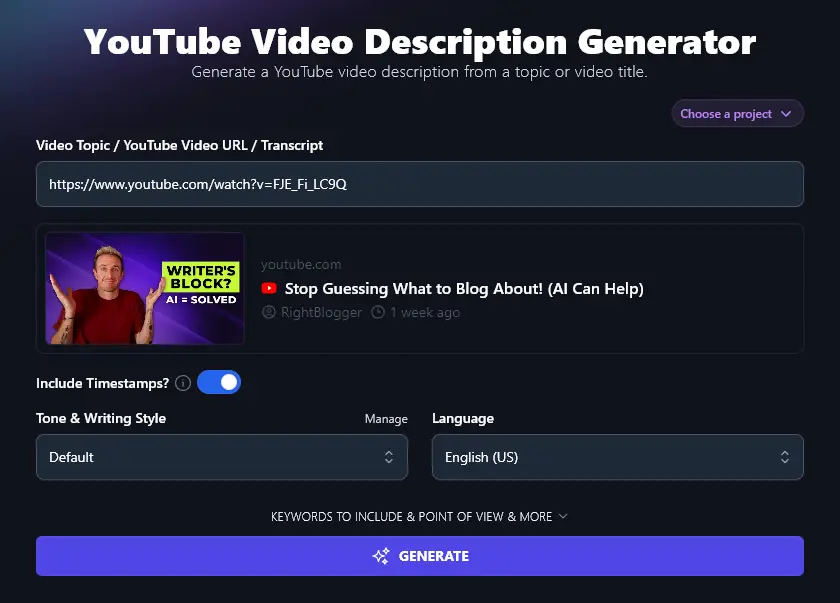
If you’re creating a description based on a title or topic, you won’t yet have timestamps. But if your description is for an existing YouTube video, or you have a transcript with timestamps, then RightBlogger’s AI can include timestamps within the description.
Just click to toggle this option on.
Step 3. Choose a Tone & Writing Style for the Description
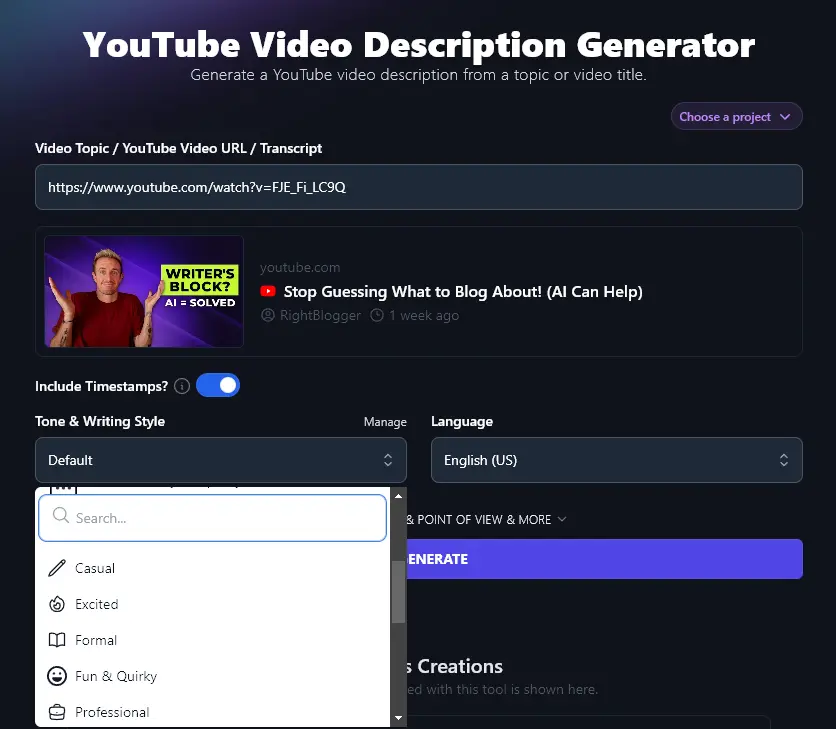
RightBlogger’s AI can create content in multiple different styles. You can pick from 16 preset styles using the dropdown list, helping you to craft a video description that fits with your brand.
For instance, you might choose “Casual” for a laid-back vibe or “Professional” for a B2B audience.
Step 4. (Optional) Pick a Language for Your YouTube Video Description
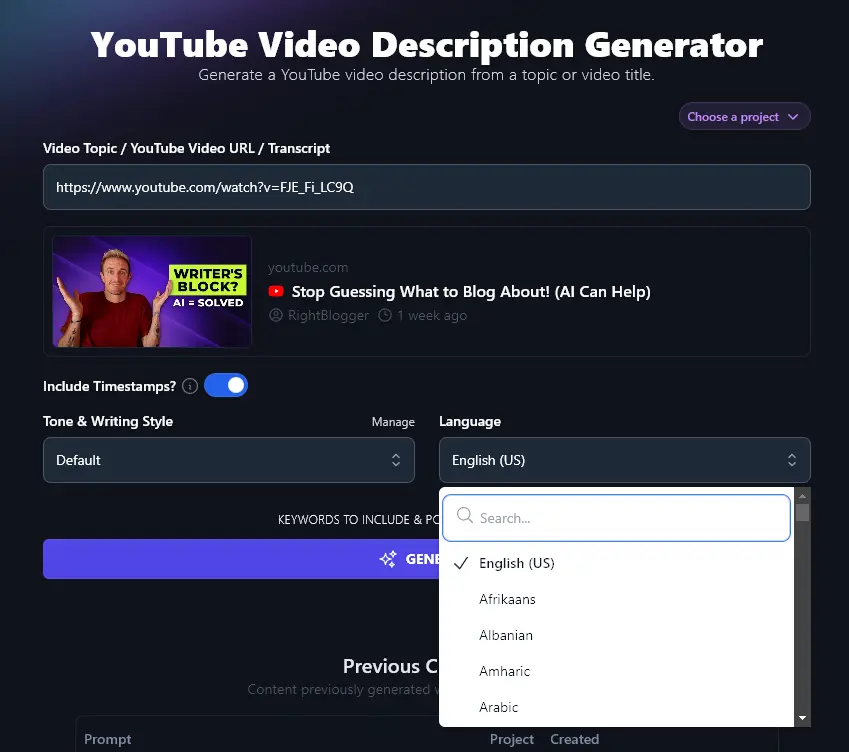
If you’re creating video content for a non-English speaking audience, or if you have a multilingual YouTube channel, go ahead and select from the 100+ language options here.
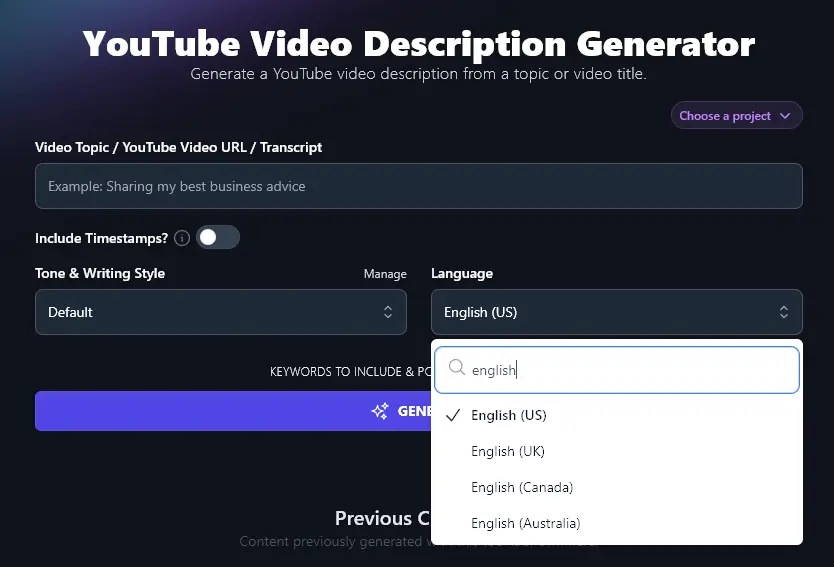
Tip:You can use the search bar within the dropdown to avoid scrolling!
Once you’ve selected the options you want, go ahead and generate your YouTube video description:
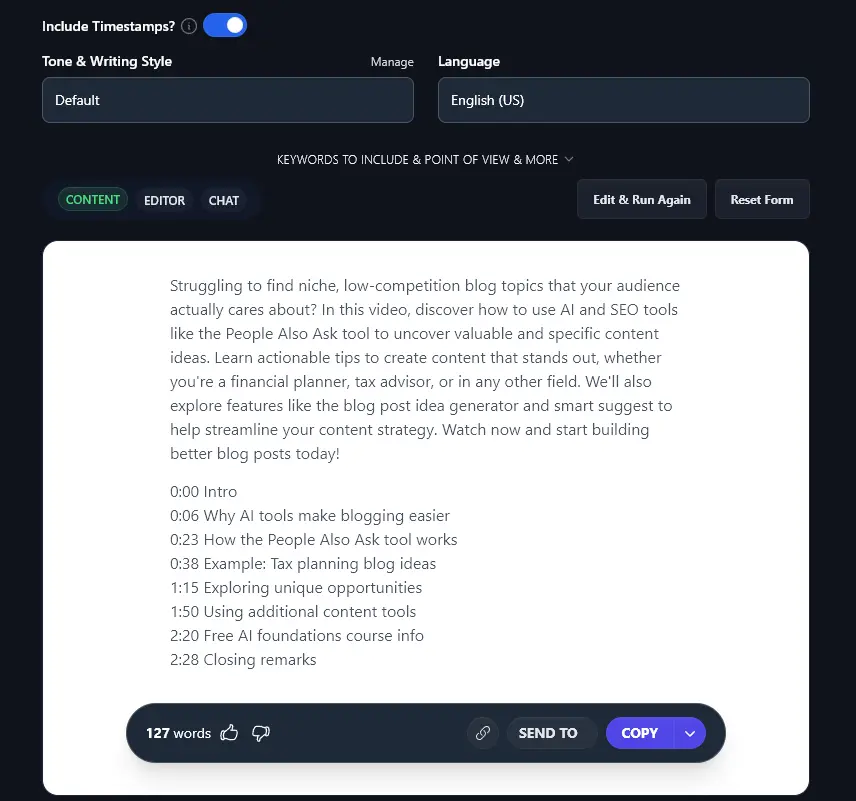
You can then copy your description and paste it into YouTube studio.
Bonus: My Free YouTube SEO Checklist
Nailing your description is just one part of good video SEO. There are several other factors that help your content do well in YouTube’s search ranking.
This is my personal YouTube SEO checklist:
- Use the keyword research tool or the “search suggest” in YouTube to find out what topics people are searching for in your niche
- Pick a suitable YouTube keyword to use in your video’s title (important!)
- Also include that keyword within your video’s description
- Take a look at trending videos in your niche and try using the same tags and hashtags
- Use your most important tags first (the tag box limits you to 500 characters)
- Always encourage viewers to like, subscribe, and/or share: these actions signal to YouTube that your video is popular
- Make sure your thumbnail and title stand out so they’ll get clicks: YouTube’s search algorithms take into account your clickthrough rate (see our guide on the best YouTube thumbnail size for the exact specs)
- While recording, say your keyword at least once (so it appears in your transcript)
Each Feature, Explained (Plus Advanced Options)
The basics get you a description in seconds. The advanced fields let you fine-tune keywords, point of view, audience, and more:
1. Video Topic / YouTube Video URL / Transcript (Suitable for Non-YouTube Videos Too!)
The video description tool is as versatile as possible, making it suitable for a range of use cases.
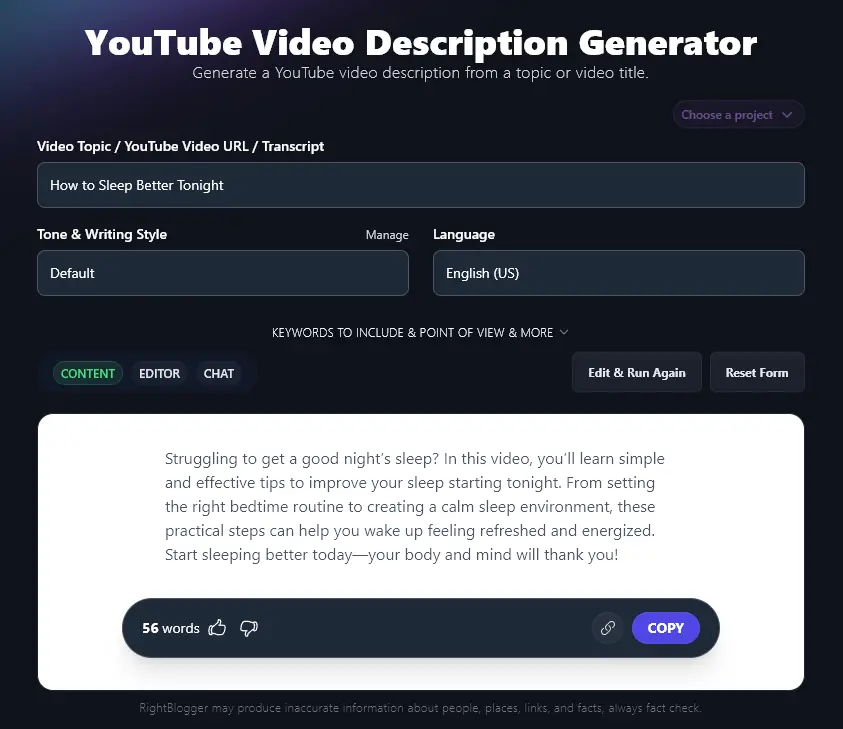
While it usually makes the most sense to generate a description for an existing video, you can also use it to craft a description for a video idea. This could be a great way to start thinking about what to include in your video (you could also use the YouTube Video Outline tool).
Let’s say you wanted to create a video on “How to Sleep Better Tonight”. You could enter that topic, generate a description, then use that to inspire the content of your video.
2. Include Timestamps? (Add a List of Key Points With Timestamps)
If your video is more than a few minutes long, it’s a good idea to include timestamps within your description.
This lets potential viewers see exactly what they’ll be learning from your video, and if you add timestamp links, viewers will be able to jump to the exact part of your video that they’re most interested in.
Tip:The YouTube video generator needs either a YouTube URL or a transcript with timestamps in order to include timestamps accurately in your description.
3. Tone & Writing Style (Craft a Description That Matches Your Brand)
Truly compelling descriptions will fit with your brand’s tone and style, so that viewers already have a good sense of what to expect before they start watching.
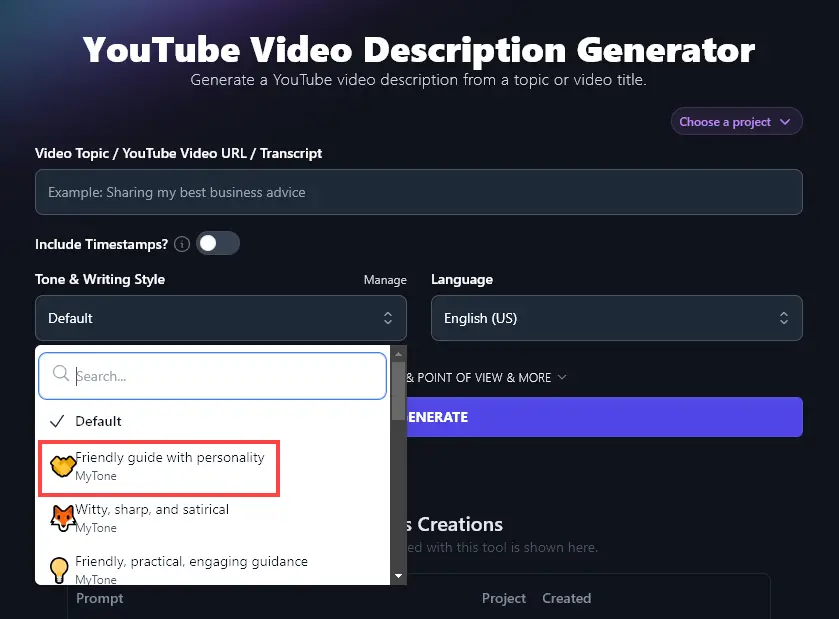
On any RightBlogger plan, you can create custom MyTones to use in the video description generator (and with all our other generative AI tools). This lets you tailor your content creation precisely to your own style.
You can create a MyTone based on written content or on a video. So if you’ve already got a video up on YouTube, just use that as the basis for your description’s style.
We created a MyTone based on this RightBlogger video:

This MyTone was instantly available to select from the Tone & Writing Style dropdown:
4. Language (Choose From 100+ Languages)
RightBlogger defaults to English (US). The AI can also write fluently in over 100 other languages, which is useful for multilingual channels or non-English-speaking audiences.
As well as having different languages to choose from, you can select other varieties of English: UK, Canada, and Australia. That way, the spellings and terms used in your description will be a great fit for a local audience.
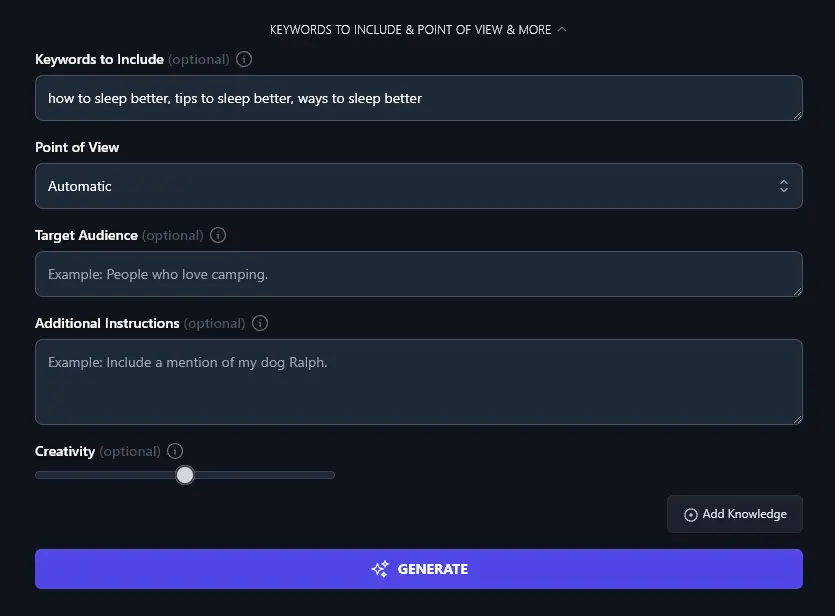
5. Keywords to Include (SEO-Optimize Your Description)
The video description maker includes a number of advanced features to help you craft a great description.
To open up the advanced features, click on the “Keywords to Include & Point of View & More” link.
Then, type in any keyword(s) you want your description to include. For the best optimized video descriptions, we recommend including at least your primary keyword, and ideally 2-3 secondary keywords as well. Just separate your keywords with commas.
6. Point of View (You, I, We, or They?)
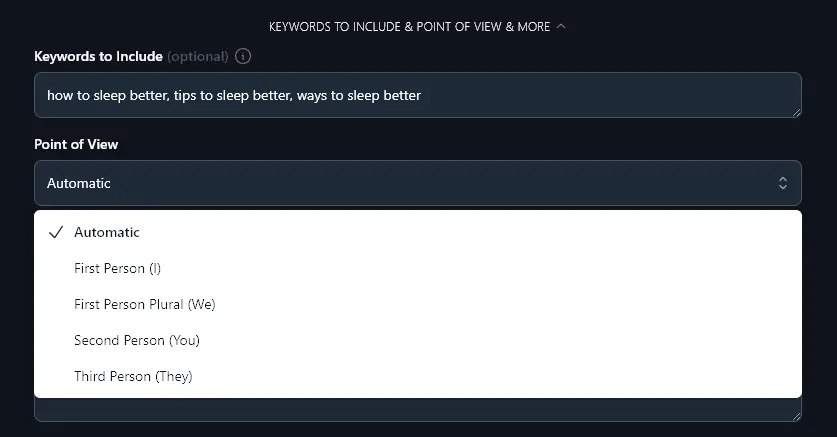
Do you want your description written to “you”, the potential viewer, or with more of an “I” focus, based on your own experience? The AI can automatically select a point of view based on your title, topic, or full video … but if you want something specific, just choose it from the dropdown.
7. Target Audience (Who’s Your Video Aimed At?)
Who is your target audience? Your video description will resonate better with them if it’s written with them in mind.
Go ahead and give the AI any details about your audience, whether that’s demographics (e.g. “men in their 50s”) or something more descriptive (e.g. “people who have anxiety and who find it hard to drop off to sleep”).
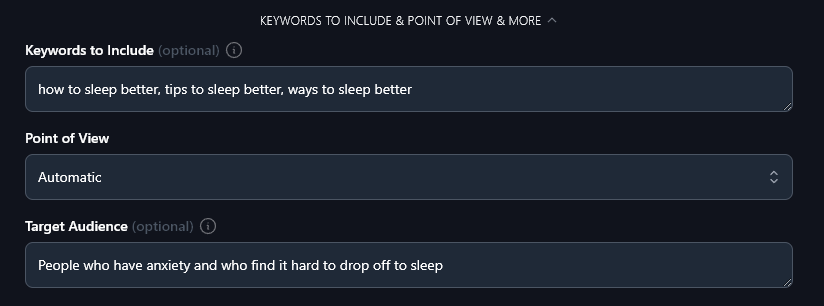
Your generated description will address the specific needs or concerns of your audience:
Struggling to fall asleep? This video breaks down simple, effective tips to help you sleep better tonight. Whether stress, anxiety, or restless nights are keeping you up, these practical ways to sleep better can make a big difference. Learn how small changes to your bedtime routine and environment can improve your sleep quality starting now. Watch to discover actionable advice tailored to help you relax and get the rest you deserve.
8. Additional Instructions (Any Special Requests?)
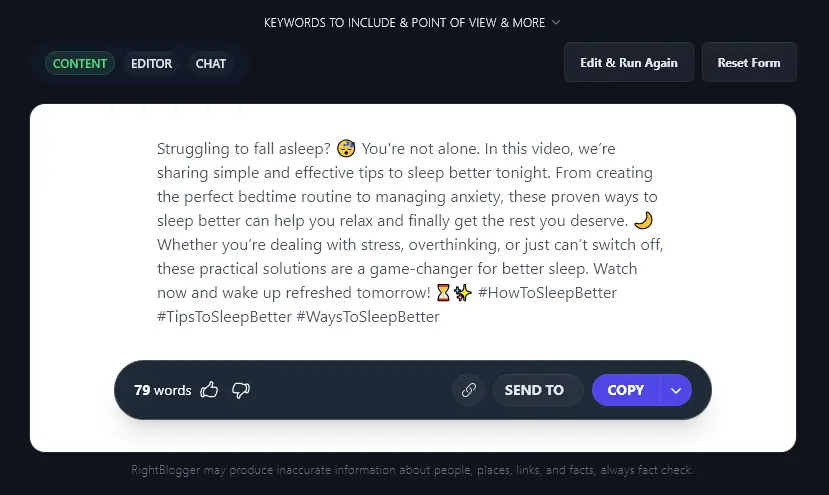
If you want your description written in a particular way, just add instructions in the Additional Instructions box. For instance, you might want to use a specific call-to-action, structure your description to match others you’ve created, or include emojis.
Tip:You could also include additional information about your video here (such as the outline), if you’re just giving a topic/title.
We asked the AI to “include emojis in the description” and it did so:
9. Creativity
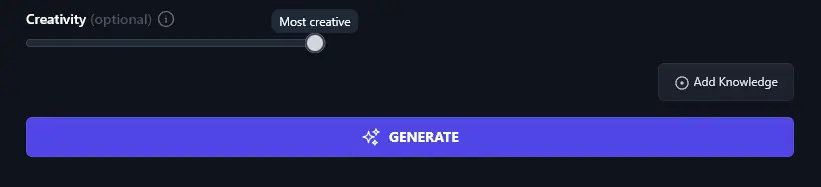
The RightBlogger AI is automatically set to a “just right” level of creativity, so that your descriptions aren’t too blandly predictable or wildly outlandish! But if you want to experiment with the level of creativity, go ahead and move the Creativity slider.
YouTube Video Description Generator FAQs
Can I Use AI YouTube Description Generator for a Channel Description?
This YouTube video description tool is designed for individual videos, not your whole channel. For Shorts specifically, see our guide on how to promote YouTube Shorts for the algorithm-specific play.
How Should I Structure a YouTube Video Description?
It’s up to you how to structure your video description, but it’s a good idea to keep in mind the beginning, middle, and endprinciple of creating content. An easy way to do this is with:
- A short paragraph to introduce your video
- A main body of your description going through timestamps and key points
- A conclusion with a clear call to action (e.g. to watch or like the video)
You might also want to include links to related videos and/or to your other social media accounts.
What Can’t I Write in My YouTube Video Description?
Avoid keyword-stuffing in your YouTube video description. Use hashtags (a hashtag generator can help you come up with them) … but don’t include irrelevant or spammy-looking hashtags.
Don’t include any content that might get your video removed by YouTube. For instance, it’s generally best to avoid swear words unless there’s a good reason to use them.
What Should I Put in the Description About Copyright or Fair Use?
Some YouTubers include a copyright disclaimer in their description, if their video draws on copyrighted material.
For instance, if you’ve created an educational video that uses a short excerpt from a novel that’s protected by copyright, that might be considered “fair use”.
You don’t need to put a copyright notice on your own material, though some people prefer to do so.
You can find more information about fair use here and some examples of copyright disclaimers here.
How Does the Video Description Affect YouTube SEO?
Your video description isn’t as important as your video title for SEO, but it’s still important. Including keywords in your description helps YouTube to know what your video is about.
What Other AI Tools Can I Use to Improve My YouTube Channel?
RightBlogger includes 100+ tools to help you create better content. For the deeper playbook on using AI to grow a YouTube channel, see our guide on AI YouTube creation tips. To improve your channel and speed up your workflows, check out these tools:
- YouTube Video Ideas: if you’re stuck for an idea, this tool will come up with lots of relevant options for you in seconds
- YouTube Video Title: craft an engaging, keyword-rich title to draw in viewers
- YouTube Video Tag Generator: come up with tags for your video, instantly
- YouTube Video Outline: plan out your video content fast
- YouTube Video Script: get ahead with a full script for your next video
- YouTube Video to Blog Post: turn any YouTube video into a blog post
Who is the YouTube Video Description Generator Tool For?
If you’ve got a YouTube channel or vlog, then this description generator tool is for you! We designed it with a range of people in mind, including YouTubers, influencers, bloggers, content creators, content marketers, SEO professionals, and small business owners.
How Do I Sign Up for RightBlogger and How Much Does it Cost?
Plans run $49/mo (Solo), $69/mo (Pro), and $199/mo (Agency) billed annually, and every one includes the YouTube Description Generator with unlimited AI words; the version above is free with no account. See RightBlogger pricing.
If you want unlimited access to the full power of all our tools (plus additional advanced features like MyTone, Automations, Projects, and Knowledge Library), then Monthly plans start at Solo $59 (annual billing, charged monthly, is $49) with unlimited access and a 7-day free trial and a 30-day money-back guarantee.