Improve Writing Tool
Enhance and polish your writing with AI assistance.
Looking for an AI tool that can help you improve your writing? Our AI Improve Writing Tool is just what you need. It doesn’t do the writing for you—instead, it takes whatever you’ve written and makes it even stronger.
Whatever your writing task—an email, blog post, ad, or even an essay—the Improve Writing Tool is designed to make it read more smoothly and fluently, fixing any grammatical, spelling, and stylistic issues along the way.
Think of it as an AI writing assistant or editor, always on hand to quickly rewrite anything for you—making sure your work is as high-quality as possible. You can even use it on AI-generated text, to enhance it and improve the flow and style. If you’re struggling with writer’s block or you just can’t quite find the right words, the Improve Writing tool is here to help.
How to Use the Improve Writing Tool
Ready to try the AI-powered Improve Writing Tool to enhance your writing and speed up your workflow? It’s really straightforward. Here’s what to do, step by step.
Step 1. Paste in Your Original Text
Copy and paste your original text into the first input box.
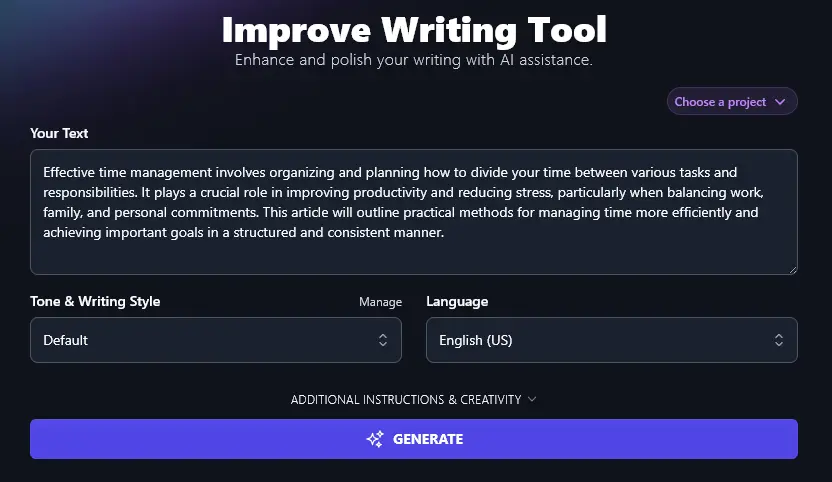
Tip: Got a long piece to rewrite? No problem! You can paste in up to 20,000 characters—that’s around 3,000–4,000 words (a long blog post or an average-length essay).
Step 2. Choose a Tone and Writing Style
RightBlogger’s “Default” tone works well for most general purposes, like blog posts and emails. But if you have a strong brand voice (or you want something more formal) we recommend choosing a Tone & Writing Style from the dropdown list.
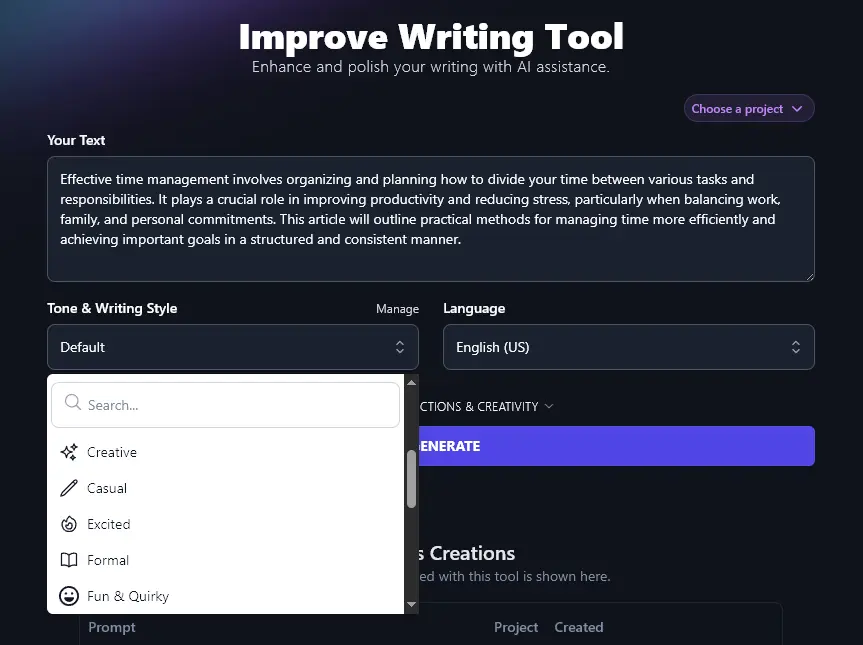
Step 3. Select Your Preferred Language
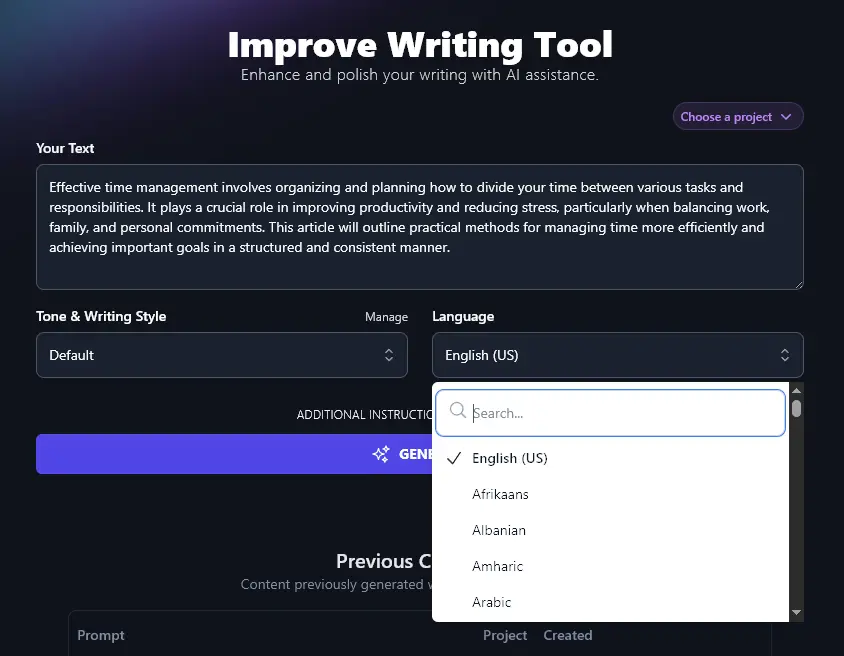
Whatever the language of your original text, you can select any language here for the output. Want to improve and translate a passage of writing all in one go? The Improve Writing tool makes it easy!
Tip: RightBlogger’s output defaults to English (US), so even if your input text is in a different language, make sure you select the language you want from this dropdown.
Just click the “Generate” button when you’re ready to produce the improved version of your text. The AI will automatically rewrite it sentence by sentence, preserving all the information and meaning while making it a more engaging piece of writing:
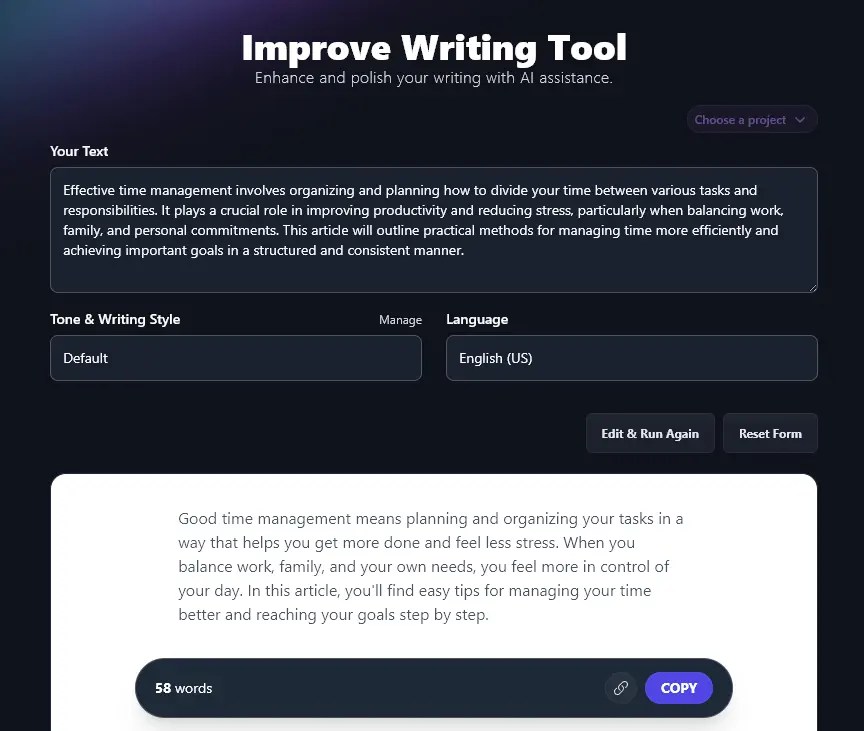
Use the “Copy” button to copy the text to your clipboard: you can then paste it into Google Docs, Word, WordPress, Gmail, or any app of your choice.
Bonus: Use My Editing Checklist Alongside This Tool
Whether you’re enhancing a full piece of text or just a few key paragraphs, it’s important to edit your finished piece carefully. Here’s my personal editing checklist to help you:
- Read through the whole of your piece and make sure that everything flows smoothly (especially if you have a mixture of AI-written and human-written paragraphs)
- Make sure your introduction instantly engages readers, drawing them into your piece—the Hook Generator can help
- Right from the start, make it clear what your article (or essay, chapter, etc) is all about
- Use subheadings, if appropriate, so that you can “signpost” your reader through the piece
- Add in facts, statistics, and/or quotes to back up key points—making sure you reference the original source of these accurately
- Watch out for words or phrases that you use a little too often, and switch some of these for alternatives
- Check that the tone and style of your piece is fully consistent, editing as needed
- Use a readability checker to make sure your text is at about the right level for your intended audience
- Take advantage of an AI Grammar and Spelling Checker to quickly fix any mistakes you might have made in your writing
- Before you send or publish your piece, do one last proofread of the whole thing
How Does the Free AI Improve Writing Tool Work?
The Improve Writing tool is quick to get started with—but if you want to get the best possible results, it’s helpful to know how to use each of its features to the full (including the advanced ones).
Let’s take a closer look at all the options.
1. Your Text (Copy and Paste Any Piece of Text)
The Improve Writing Tool can’t currently be used with a URL or file upload: you need to copy and paste your text into the box.
You can paste up to 20,000 characters (3,000–4,000 words), but if you want to improve a longer piece, just break it into sections. Pasting a longish text will automatically make the input box larger:
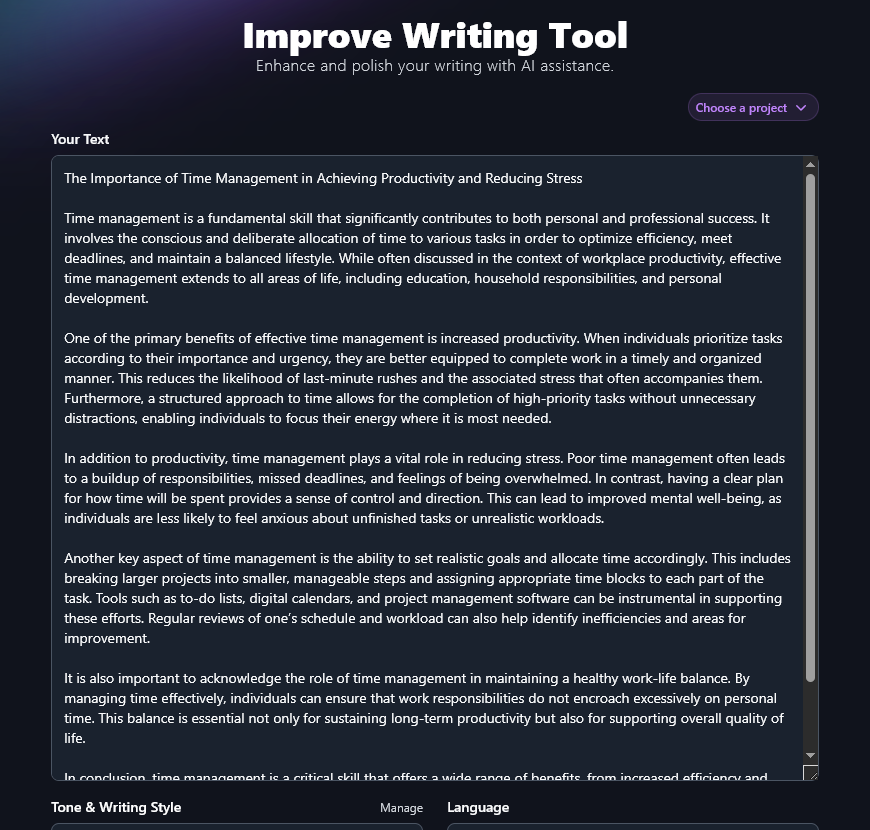
If you’re on any RightBlogger plan, keep in mind that the tool’s output will count towards your monthly word limit.
Note: The AI will understand what type of text you’ve entered (e.g. blog post vs research paper) and improve it accordingly. If you do want to give the AI more guidance, you can use the “Additional Instructions” feature that we’ll come to shortly.
2. Tone & Writing Style (Choose One … or Create Your Own)
You don’t have to pick a Tone & Writing Style, but if you’ve got a strong brand voice or want your text to be written in a particular way, we recommend choosing one.
RightBlogger has 20 built-in styles, ranging from options like “Excited” and “Fun & Quirky” to “Academic” and “Formal”. Here’s a quick look at the difference the Tone & Writing Style can make to your improved text.
“Fun & Quirky” Style:
Time management is the secret sauce behind getting things done and still having room for fun. It’s all about picking what matters, setting aside time for each task, and not letting your day run wild. While lots of people talk about time management at work, it sneaks into every nook of life—school, chores, hobbies, even those wild Saturday plans.
“Academic” Style:
Time management is a key skill that supports success both at work and in daily life. It means planning and using time on purpose to finish tasks, meet goals, and make room for rest. People often talk about time management at work, but it also helps in school, at home, and with personal growth.
To get even better results, we recommend creating a MyTone. (This feature is available on the RightBlogger Pro plan.) You can create up to 10 custom tones & styles, based on samples of your writing—or even videos. That way, the AI can perfectly match your style when improving your text.
Once you’ve created a MyTone, you can select it from the Tone & Writing Style dropdown, just like the preset options.
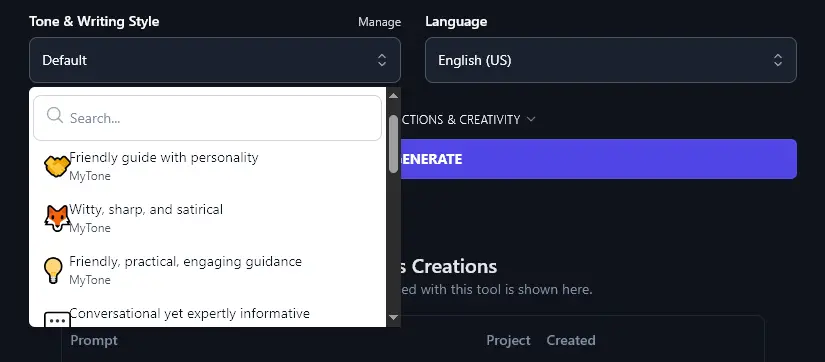
Tip: Using a custom tone can help your content pass an AI detector, if that’s important to you.
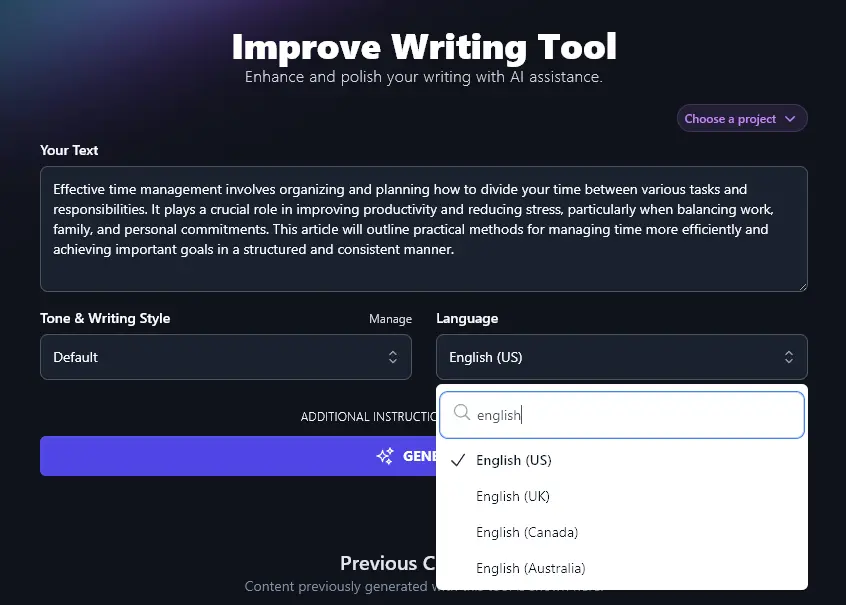
3. Language (Select Your Preferred Language—Including 4 Varieties of English)
RightBlogger can create content in over 100 different languages, either to match your original text or to translate it and improve it at the same time.
Here’s RightBlogger turning our original text into Spanish:
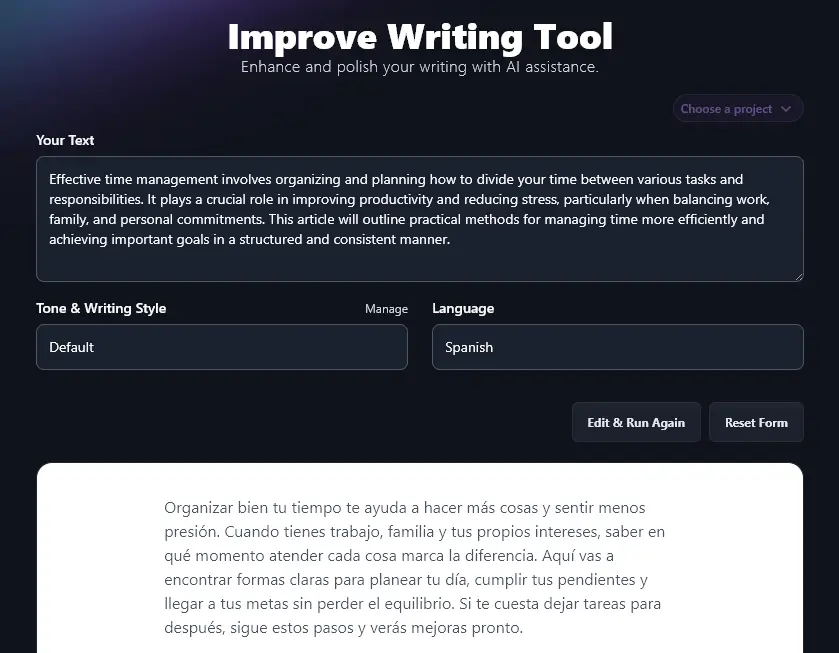
Along with the different languages, RightBlogger also supports 4 different varieties of English: for the US (the default), the UK, Canada, and Australia. This means your improved text will always use the correct spellings and terms for your location.
4. Additional Instructions (Give the AI Any Special Requests)
To open up the advanced options for the Improve Writing Tool, simply click on the “Additional Instructions & Creativity” link.
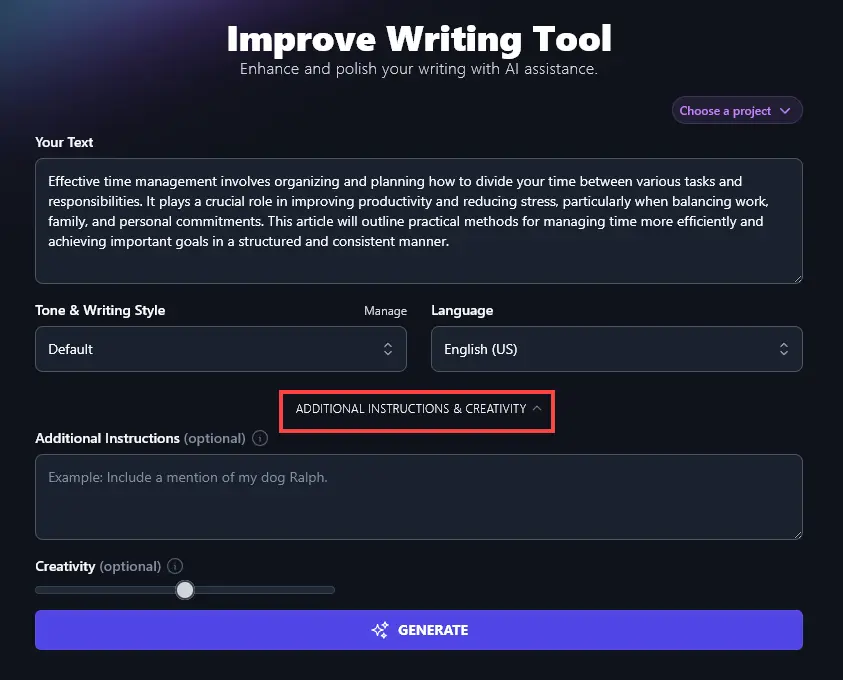
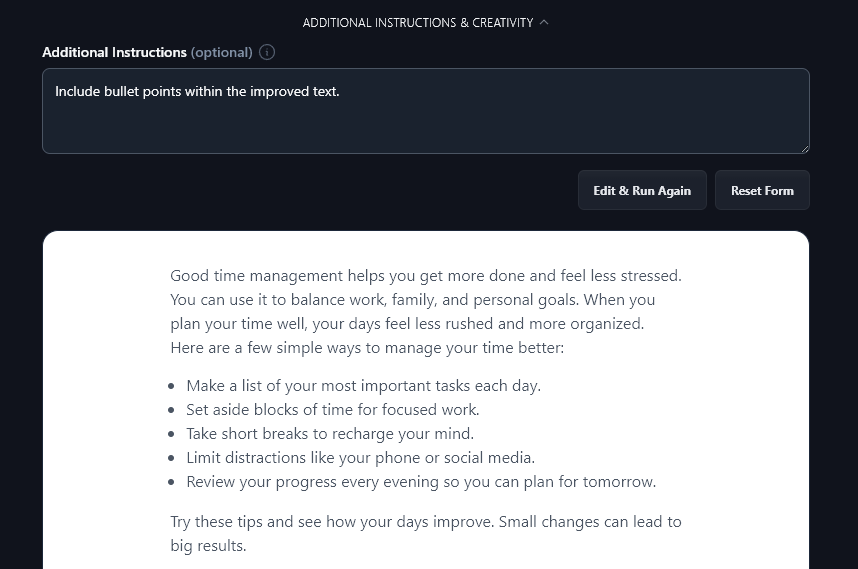
The first option you’ll see is the Additional Instructions box. This lets you ask the AI to do whatever you want when improving your text. For instance, you might want it to give you 3 versions of the improved text, so you can choose the one you prefer. Or, you might instruct it to use bullet points within the piece.
Here, the AI has followed our instructions when rewriting the original text:
5. Creativity (Make Your Improved Text More Unusual or More Predictable)
By default, the AI is set to a balanced midpoint of creativity. You can adjust this algorithm, however, by moving the slider left (less creative) or right (more creative).

For most purposes, the midpoint works best, but feel free to experiment with the creativity level if you want.
Improve Writing Tool FAQs (Frequently Asked Questions)
If you’ve got any questions about using the Improve Writing tool, or about strengthening your writing in general (whether on your own or with the help of AI), here are all the answers you need.
Will the Improve Writing Tool Summarize a Long Piece of Text?
The Improve Writing Tool isn’t designed for summarizing or paraphrasing text. Instead, it’ll seek to improve and rephrase the whole of the text you already have. It may shorten or lengthen the text as needed, in order to make it as strong as possible.
You may want to try our Summarizer Tool for a summary of a piece of text or the Paraphrase Tool for a shorter, simpler version of a text as alternatives.
Does the Improve Writing Tool Help Me Avoid Plagiarism?
When you use AI tools like the Improve Writing tool, they come up with their output from scratch (they’re not copying from any specific source). In this way, the AI doesn’t plagiarize and your improved text should pass a plagiarism checker fine.
However, the ideas in your content could be plagiarized if you didn’t cite your sources during the writing process. It’s important to make sure you have appropriate citations in place, especially for academic writing, but also for online content that deals with issues like health and finances.
How Does the AI Writer Work to Improve My Writing?
Our Improve Writing Tool is powered by artificial intelligence (similar to ChatGPT and other large language models). It’s able to understand your original text, and uses the power of generative AI to rework that text, giving you AI-generated content that incorporates all your original ideas but phrases them more strongly and engagingly.
You can use the AI writing tool for all kinds of use cases: content marketing, academic writing, personal emails, and more.
What Other AI Writing Tools Can I Use to Grow My Business Faster?
RightBlogger is packed with 85+ different tools to help you with all stages of the writing process, so you can create better content and grow your business faster than ever. All tools are included in every plan. Get started today.
Some of our best AI content creation tools to get started with, whatever your level of writing skill, are:
- Article Writer: our flagship content writer tool comes up with full-length articles based on a single topic or keyword
- Blog Post Idea Generator: brainstorm dozens of ideas in seconds using our idea generator tool—or try Smart Suggest to come up with ideas based on your own blog
- Grammar Fixer: this spelling and grammar checker tool corrects typos, fixes punctuation, and more—giving you a fresh, error-free version of your text that’s ready to go (similar to Grammarly)
- Product Description Generator: quickly come up with high-converting product descriptions for anything you sell
- Keyword Research Tool: find the perfect keywords to base your content around (essential for SEO—search engine optimization)
- Expand Tool: use this tool for additional text generation when your content isn’t quite long enough—it adds value without fluff
We also have social media tools (covering TikTok, YouTube, LinkedIn, Facebook, and more), SEO tools, copywriting tools, productivity tools, and more!
How Do I Sign Up for RightBlogger and How Much Does it Cost?
It’s free to use our tools (up to a monthly word limit)—sign up for RightBlogger.
To get unlimited access to the Improve Writing Tool, along with advanced RightBlogger functionality like MyTone, Knowledge, Projects, Chat, and more, upgrade to a RightBlogger Pro account. We’ve kept the pricing as affordable as possible, at $49/mo (Solo), $69/mo (Pro), or $199/mo (Agency).