Are you looking for an AI paragraph expander to lengthen your text? It can be tricky to write enough to meet the required word count for your project, so let AI give you a helping hand!
Our Expand Text tool works for phrases, keywords, sentences, and paragraphs. It uses the power of AI (artificial intelligence) to expand what you’ve written into a much longer passage of writing … in the style of your choice.
Whether you’re writing an essay, report, blog post, product description, newsletter email, or even a book, the AI Paragraph Expander (aka Expand Text Generator) is here to help. It’s an online tool that you can use to make any piece of writing longer, while preserving your original meaning.
How to Use the AI Paragraph Expander (Sentence Expander Tool)
The Expand tool is easy and quick to get started with. Here’s what to do, step by step.
Step 1. Paste in Your Too-Short Piece of Text
First, type or paste your existing piece of text into the “Text” box. This might be a single phrase or sentence, a paragraph, or even several pages of text (the tool can handle up to 10,000 characters, which is around 1,500-2,500 words).
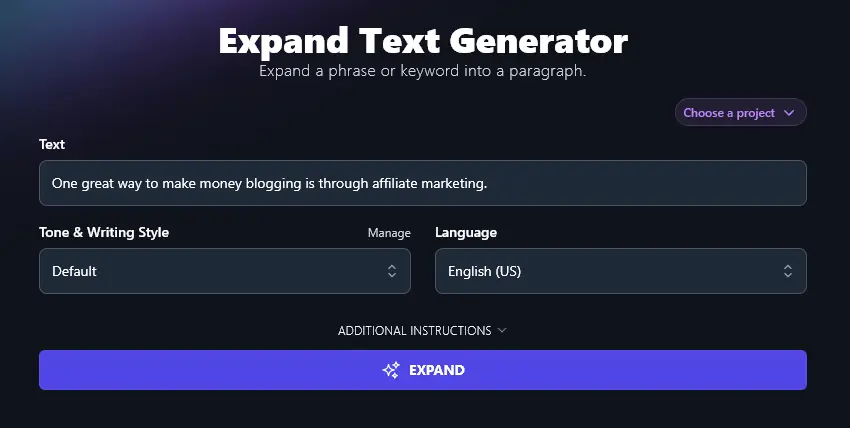
Step 2. Select an Appropriate Tone/Style for Your Expanded Text
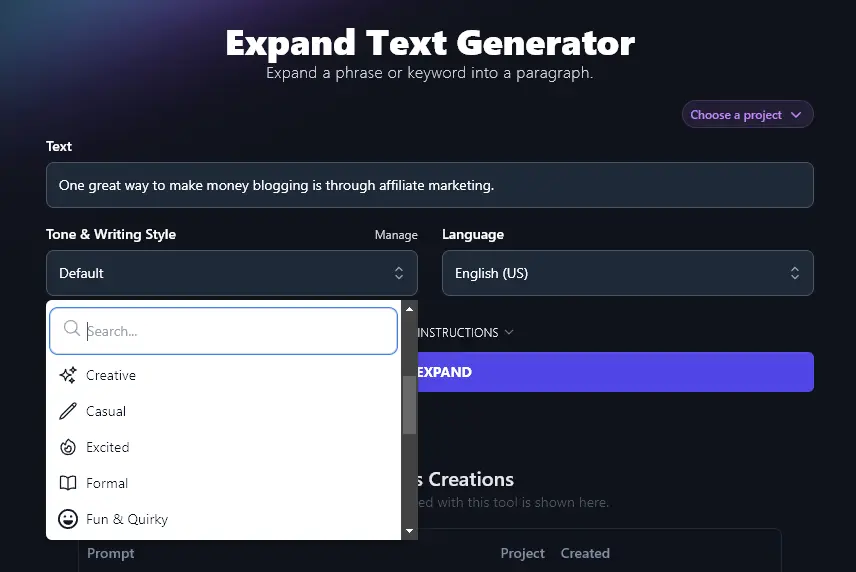
Is your piece “Casual” or “Professional”? “Fun & Quirky” or “Academic?” The RightBlogger AI can write in a whole range of styles, with 20 pre-set options to pick from. Just click on the Tone & Writing Style dropdown and select the one that fits your voice and purpose best.
Step 3. (Optional) Choose a Language for Your Expanded Paragraph
Want to not only expand text but change it into a different language? RightBlogger lets you pick from more than 100 languages, using the Language dropdown. (There’s a search bar at the top so you can quickly find the language you want, too.)
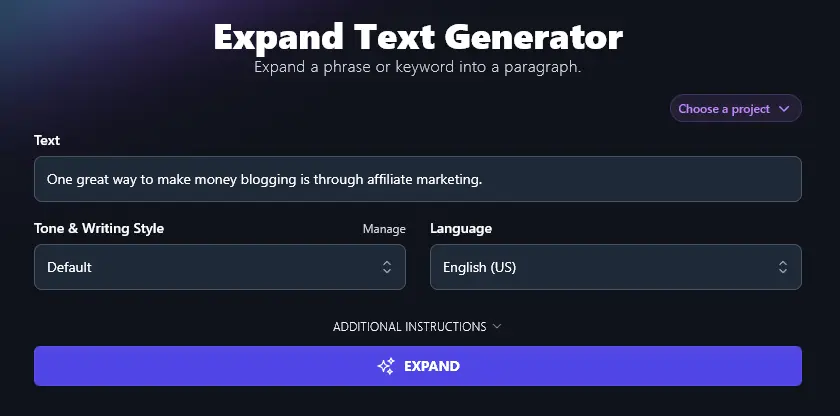
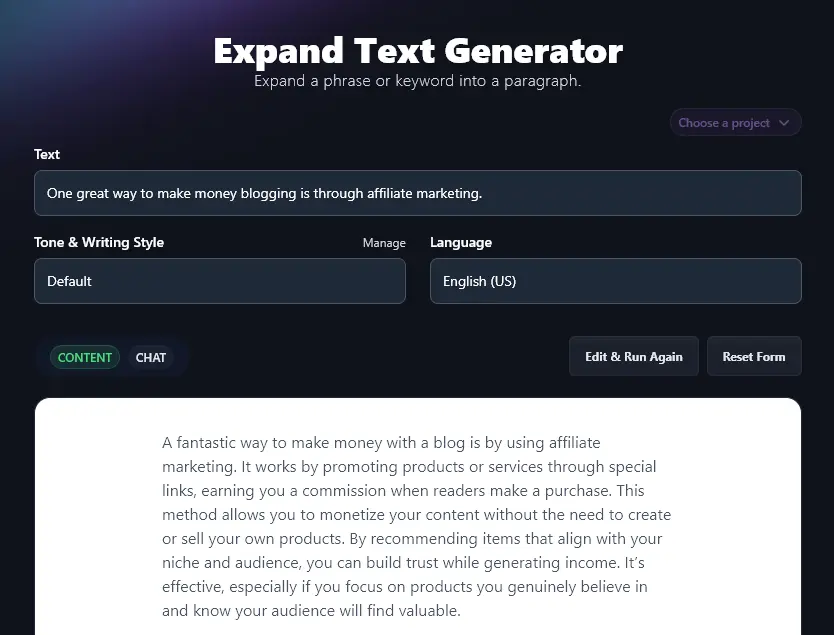
Once you’re happy with the options you’ve picked, just click the “Expand” button and you’ll see your expanded text appear instantly:
Bonus: Use My Free Editing Checklist Alongside This Tool
When you’re expanding sections of text to include in your full piece, it’s important to go through and edit your content before publishing it. Otherwise, you might find you’ve repeated yourself or made a mistake when copying and pasting text.
Here’s my personal editing checklist for you to use:
- Read through your whole piece. Is anything missing or repetitive? Make changes as needed.
- Check that your introduction has a clear hook to draw readers in (use the Hook Generator to help).
- Make it clear to readers what your piece is offering, during the introduction.
- Use subheadings (if appropriate) as “signposts” in your text to guide the reader.
- Back up what you’re saying with facts, statistics, and quotes, if relevant.
- Avoid repeating the same word or phrase unintentionally.
- Think about the tone and style: is it consistent throughout your whole piece?
- Consider the readability of your text: this needs to be appropriate for your audience.
- Use an AI grammar fixer or spelling checker to double-check for anything you missed.
- Do one final proofread, fixing any remaining issues before you send/publish the piece.
How Does the AI Expander Tool Work? (Key Features of the Paragraph Extender)
Like all RightBlogger’s AI tools, this AI-powered expander tool is simple to use, but you might be curious about how to get the most from it.
Let’s take a look at all its advanced features and how to use them to the full.
1. Text (Enter the Text You Want to Expand)
You can enter just a few words or multiple paragraphs in the “Text” box.
If your starting text is very short and you find the Expand tool doesn’t expand your text as much as you needed, simply copy the output and paste it in again.
Let’s say you’re writing a blog post on “What is a CTA?” You can type that into the Text box and generate a paragraph.
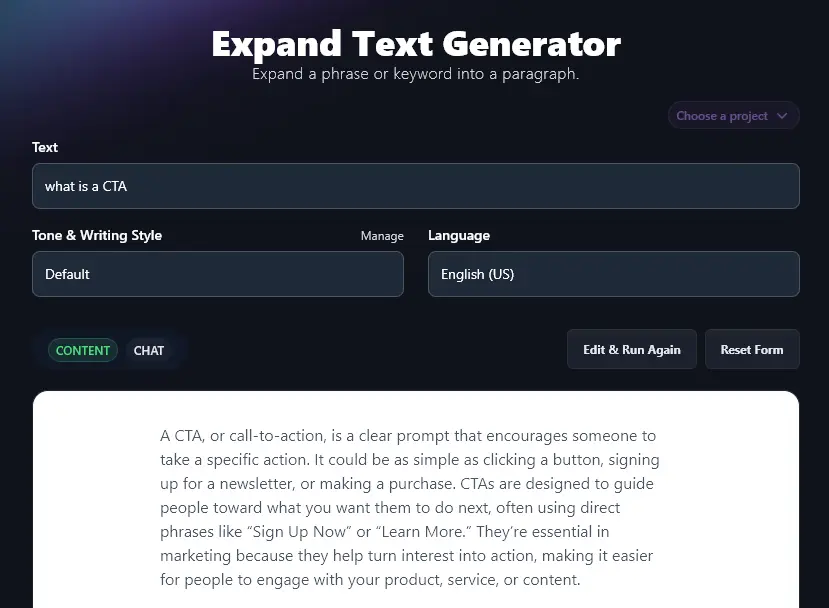
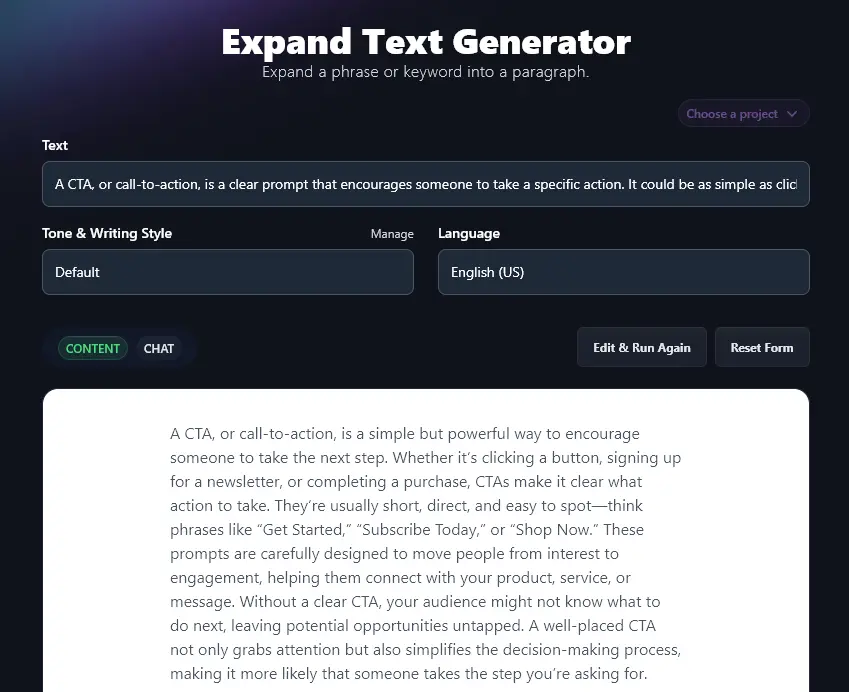
If you want a longer paragraph, though, simply copy the output paragraph back into the tool and expand it again.
2. Tone & Writing Style (Choose One … or Create Your Own)
You want your expanded paragraph to fit with the tone and style of the rest of your piece. The “default” style is a neutral, semi-casual style that works well for blogging. But if it’s not quite the right fit for you, try some of the other styles instead.
Here’s the difference tone & writing style can make. We used the starting text “Newborn babies can only see around 8 to 10 inches away.”
Here’s what the AI generated using a “Fun & Quirky” style.
Newborn babies can only see things clearly when they’re about 8 to 10 inches away. That’s roughly the distance from their tiny faces to yours when you’re holding them. It’s like nature’s way of making eye contact and bonding up close super easy. Anything farther away? It’s just a blurry mystery to them for now!
And here’s what it generated using an “Academic” style:
Newborn babies have limited vision and can only focus on objects about 8 to 10 inches away. This short distance allows them to see a caregiver’s face clearly during feeding or close interactions, helping them build early connections and recognize familiar faces. Beyond this range, their vision is blurry as their eyes are still developing.
The basic facts are the same … but the tone is very different.
Tip: To go even further with tone and style, create a custom MyTone (available on RightBlogger’s Pro plan). This lets you craft tones based on samples of your own writing, or even videos you’ve created.
3. Language (Select Any Language for Your Output Text)
RightBlogger’s AI can write in over 100 different languages, so if you’re writing for a non-English speaking or multilingual audience, you can simply select your preferred language from the dropdown. The AI will translate your text and expand it in your chosen language.
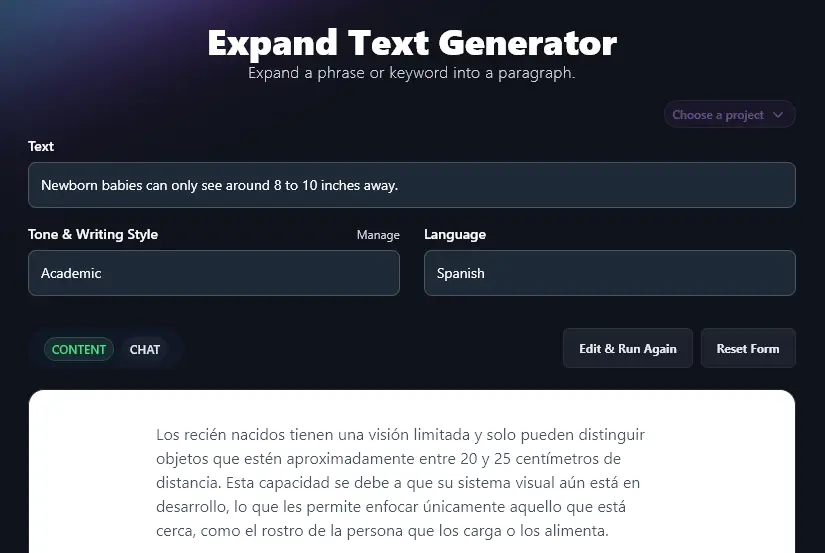
Tip: You can enter text in any of these languages too. However, you still need to set the output language, or your expanded text will come out in English (US).
4. Additional Instructions (Add Any Extra Instructions or Constraints for the AI)
Do you want your text to be expanded in a specific way? Just add details in the Additional Instructions box. You can access this by clicking the “Additional Instructions” link.
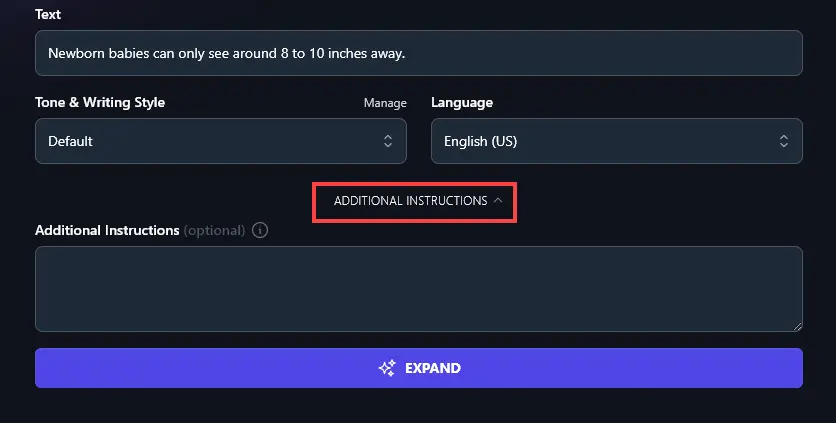
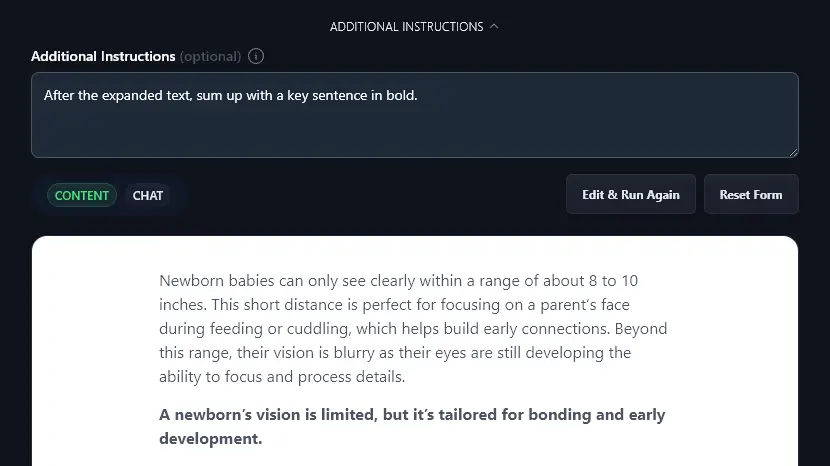
Here’s the output we got when we instructed the tool: “After the expanded text, sum up with a key sentence in bold.”
AI Paragraph Expander FAQs (Frequently Asked Questions)
If you’ve got some questions about using the paragraph expander or about expanding too-short text in general, here’s what you need to know.
Can I Use This Expand Tool as an AI Sentence Expander?
Yes! The Expand tool works for a variety of use cases. You could use it to expand on a short phrase (even a keyword), or you could use it to extend a short sentence.
What Types of Writing is This Tool Suitable For?
The Expand Tool can automatically detect the type of writing you’re producing. As well as being a great tool for producing blog posts and social media content, it’s suitable for:
- Creative writing, like a short story
- Personal essay writing, from a first-person perspective
- Academic writing, like research papers
How Can I Make My Sentences Longer Without Adding Fluff?
The AI Expand Tool’s underlying algorithms don’t simply add more words to your sentence. The advanced AI instead produces a high-quality piece of writing, adding key points to your expanded content as appropriate.
If you want to expand a sentence or paragraph without using AI, you can aim to:
- Give examples of what you’re writing about
- Add statistics or quotes
- Include more facts or ideas
What Other Free AI Tools Can I Use to Help With My Writing?
Here in RightBlogger, we have a huge library of tools for you to try out. If you’re ever struggling with writer’s block, there’s sure to be a tool to help!
A few of our content creation tools you’ll definitely want to check out are:
- Article Writer: create full-length SEO-friendly blog posts and articles from a single keyword or topic
- Paragraph Generator: create a whole paragraph from a keyword or phrase
- Paragraph Rewriter Tool: rework text to put it into your own words (helpful for avoiding plagiarism)
- Paraphrase Tool: use this for paraphrasing (simplifying/clarifying ideas in a text)
- Outline Generator: get a helping hand with the planning stage of the writing process
- Improve Writing: polish and enhance any piece of writing, with the help of AI
Along with these writing tools, we’ve also got tools for faster research (like the Summarizer), for social media, for SEO, for sales, and more.
Who is the AI Paragraph Expander Tool Designed For?
We created the AI Paragraph Expander with all kinds of writers and content creators in mind.
It’s suitable for bloggers, copywriters, academic writers, content marketers, SEO professionals, small businesses, students, authors, and anyone else who wants to expand their original sentence or short paragraph into a longer piece of text.
How Do I Sign Up for RightBlogger and How Much Does it Cost?
Getting started with RightBlogger is simple. Just sign up here and explore the full suite of tools.
Need just one site? Solo at $49/mo has you covered. Managing multiple? Pro ($69/mo) supports three sites with team access. Every plan includes unlimited AI words and a 30-day money-back guarantee. See all plans.