
AI Article Writer & SEO Article Generator (Free Tool)
Generate a full SEO-optimized article from any topic, keyword, or title with AI-driven outlines, stronger structure, and search-friendly formatting.
RightBlogger’s free AI Article Writer takes any keyword, topic, or title and writes a full SEO-optimized article (with outline, images, internal/external links, and up-to-date facts) in minutes, not hours. It works as both an article writer and a long-form article generator, and you can run it without an account.
This is the tool I wish I’d had 10 years ago! RightBlogger’s AI Article Writer is built specifically for content marketers, bloggers, copywriters, and small businesses. It lets you go from a keyword to a compelling, polished article faster than ever.
How Can an AI Article Writer Help You?
RightBlogger has plenty of tools for short-form content like ad copy, product descriptions, and social media updates. The AI Article Generator is the one built for long-form work.
It’s built to draft long-form content that ranks well on Google AND reads like something a real person would write. The AI handles research, outline, structure, sourcing, and SEO formatting in one flow.

Darren A.
Engraving Expert, Engravd.com
"I've been using the RightBlogger Article Writer for about six months, and it's easily one of my top three favorite tools. It streamlines my entire workflow by bringing research, image generation, content creation, as well as formatting into a single interface. I can either copy and paste the output directly into a blog post or use the built-in scheduler to publish it automatically. It's been the single biggest time-saver in my process. It's simple enough to run on autopilot when I want speed, but flexible enough to let me step in and control every part when I want precision. It hits the balance most tools miss: real automation without sacrificing creative control."
Our article writer uses powerful behind-the-scenes AI algorithm prompts to give you an article that’s well-structured and highly relevant for your keyword. It’ll tackle all the key points, while incorporating SEO best practices.
The full walkthrough:
How to Use RightBlogger’s AI Article Writer (Article Generator Tool)
Creating a high-quality blog post can take hours, especially if you want it to rank well in Google.
You’ll need to go through steps like:
- Researching the keyword to figure out user intent and what you should cover
- Analyzing the top competing articles for that keyword
- Digging further into the topic to uncover key facts and insights
- Coming up with your angle or perspective on the topic
- Writing an outline that incorporates all key points
- Drafting the content itself (even if you’re an experienced writer, this stage alone can take hours) for a long post
- Editing your post for structure, content, and tone
With RightBlogger’s AI article generator, most of this work is done for you!
If you’re really short on time and inspiration, you can just give it a keyword (or topic) and the article writer will do the rest.
For the best quality results, you’ll want to specify a tone and writing style, edit the outline to make sure it includes all the points you want to make, and give the AI some instructions about your target audience.
The 7 steps:
1. Enter Your Keyword (or Phrase) into the Topic/Keyword Box
RightBlogger’s AI article writer is good, but it isn’t psychic. You’ll need to give it the keyword (usually a short phrase) you want to optimize your post around.
This is the bare minimum you need for an article. If you’re stuck, our Keyword Research Tool will help you pinpoint keywords in that “sweet spot” of plenty of traffic but not too difficult to rank for.
You can also use the Smart Suggest tool to come up with ideas perfectly tailored to your blog, or try the Blog Post Ideas generator if you already have a topic or keyword in mind.
Let’s say we want to write a post for a blog on “time management”. The keyword research tool suggests “time management strategies” has a good search volume (8,100 monthly searches) but low competition.
Just enter that keyword phrase into the AI article writer:
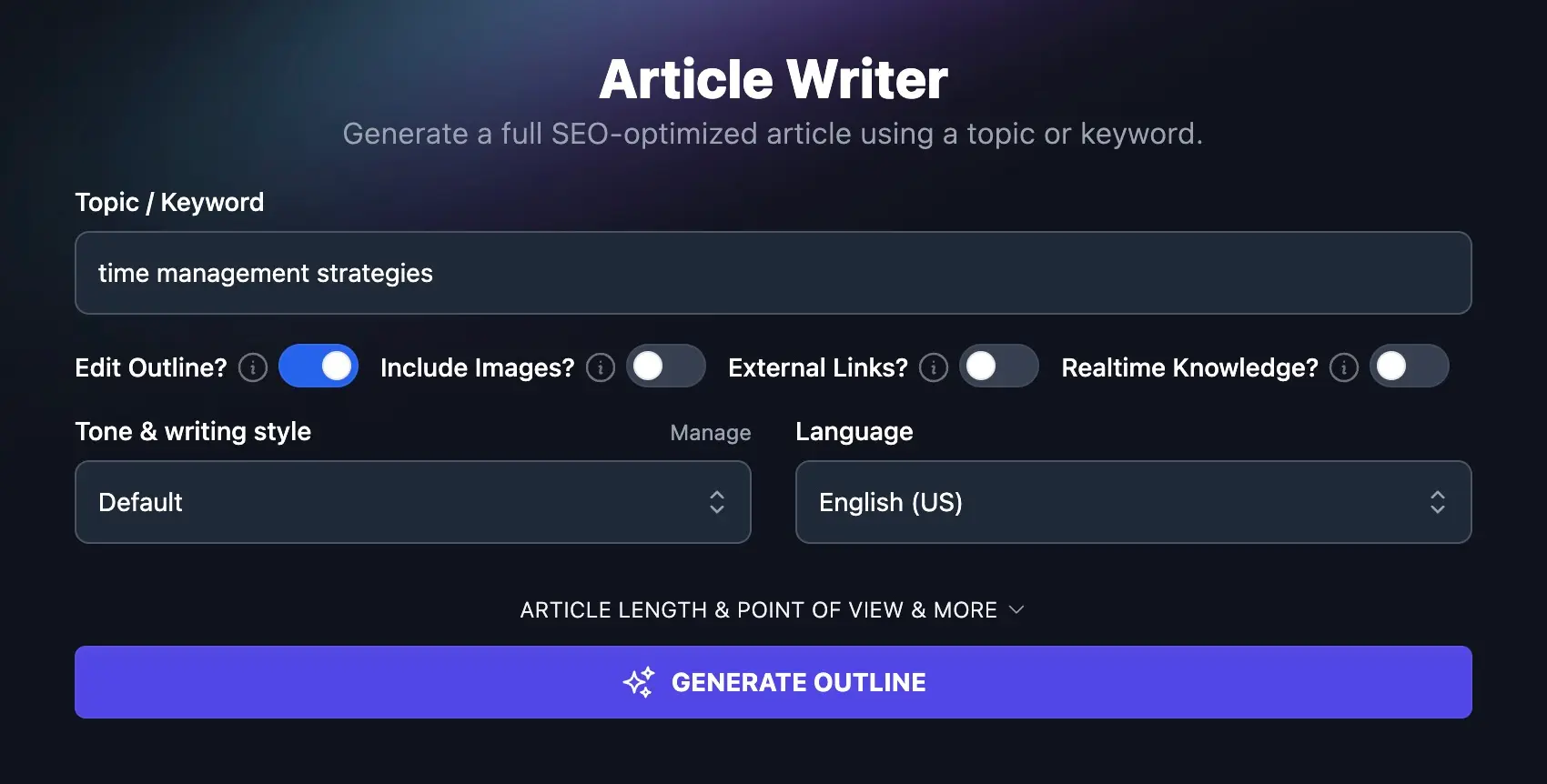
You could go ahead and create your outline (or even your full article) straight away. But it’s a good idea to spend a few extra seconds adding some extra details.
2. Opt to Edit Your Outline for the AI Writer to Use
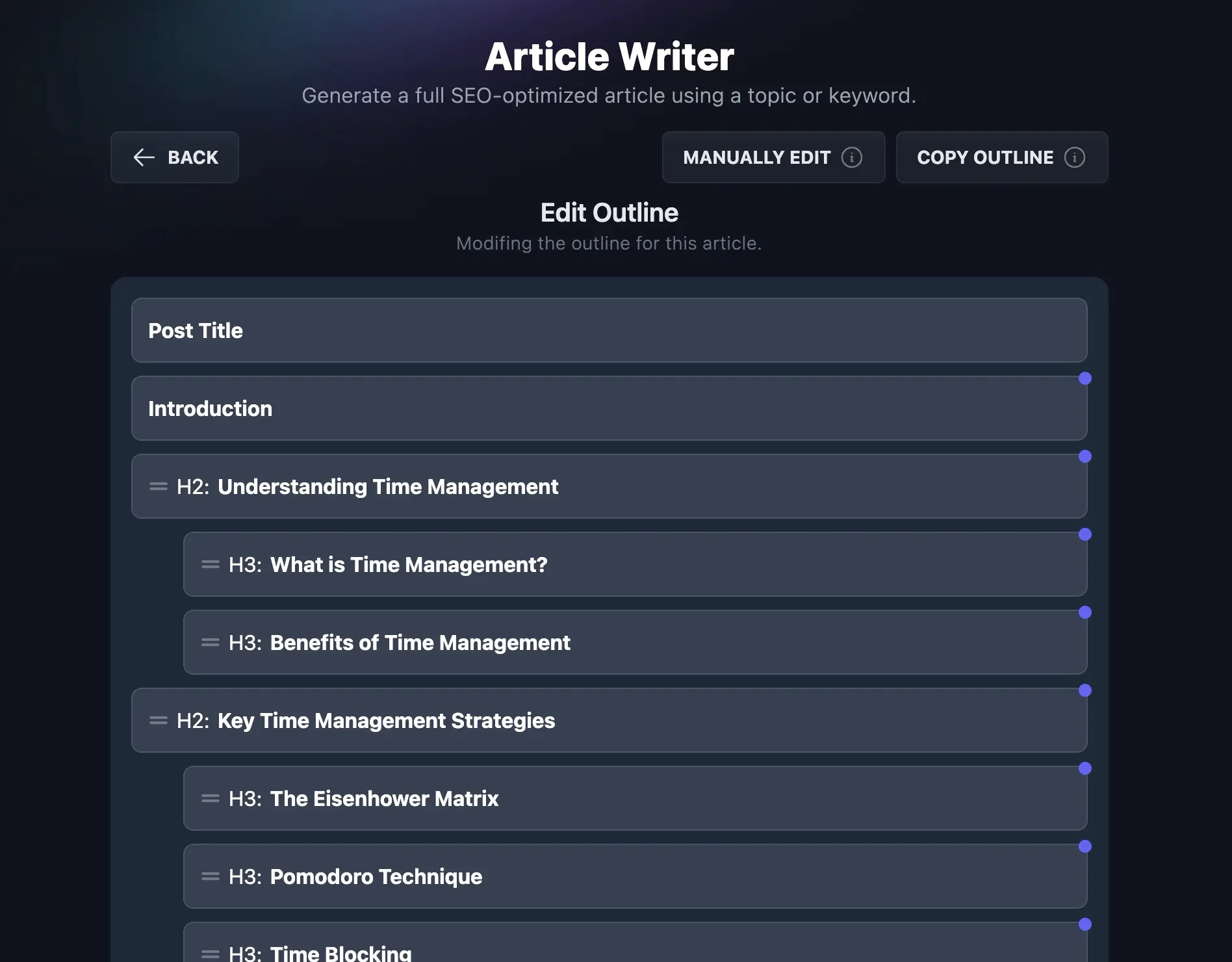
By default, the “Edit Outline?” option is toggled on for you. That’s because we think it’s always best to at least quickly review the outline before generating a full draft.
If you want to go straight from keyword to finished piece, you can toggle this off. But with the outline editing option on, you’ll get the chance to tweak and refine your post before it’s created.
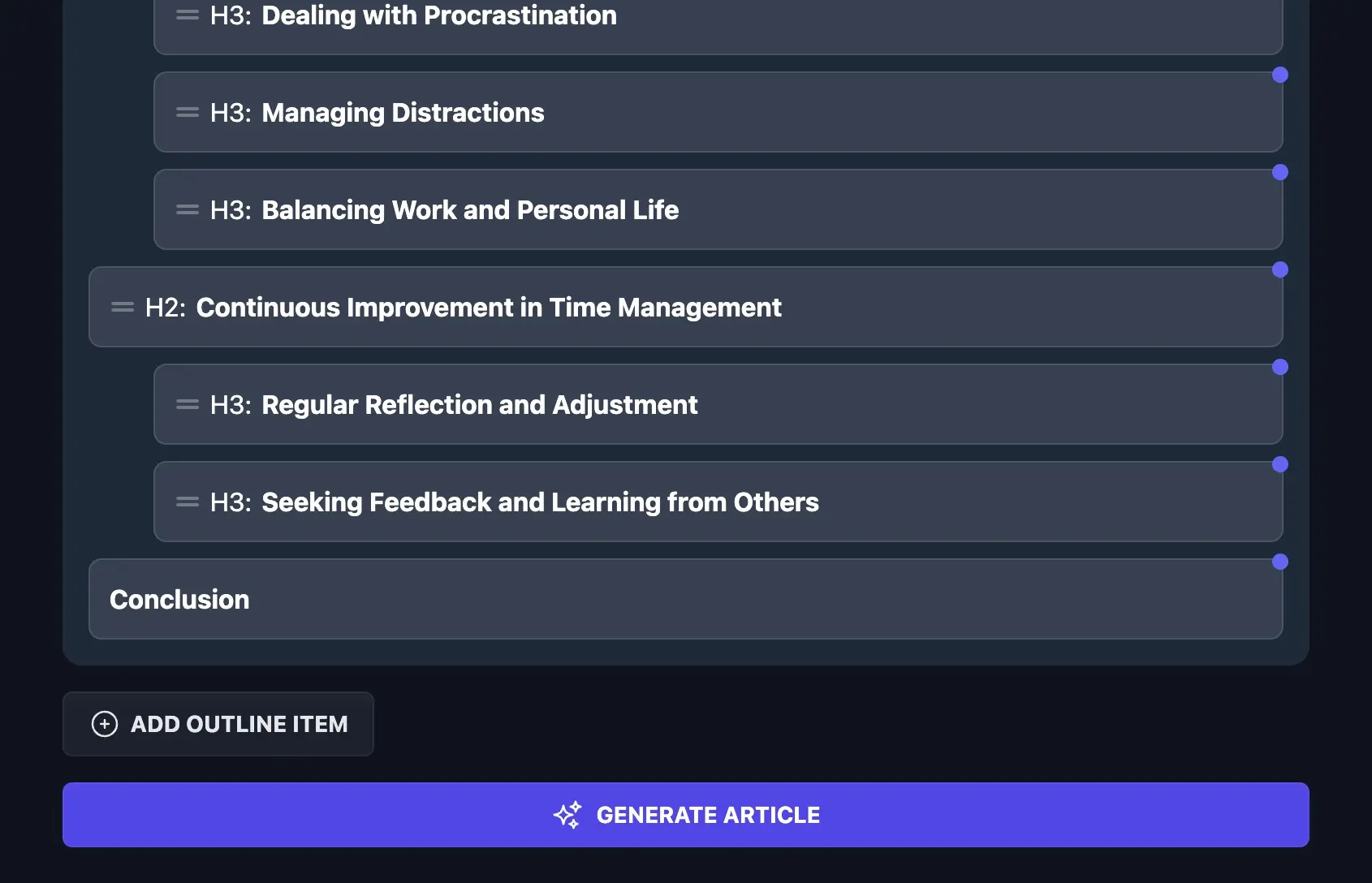
With this option toggled on, you can rearrange, remove, or rewrite subheadings in your outline before the AI generates your post.
3. Select Other Options That You Want for Your Blog Post
As well as the “Edit Outline?” toggle, you can opt to:
- Include Images: This adds relevant copyright-free images to your article (along with citations and links to the sources of the images).
- External Links: It can boost your own site’s SEO if you link to authoritative and relevant external sources. This option automatically scans the web to find useful external links for your post.
- Realtime Knowledge: Always switch this option on if you’re writing a post where you want up-to-date facts and statistics. It lets the AI search the web for the most recent information.
4. Choose Your Language, Tone, and Writing Style
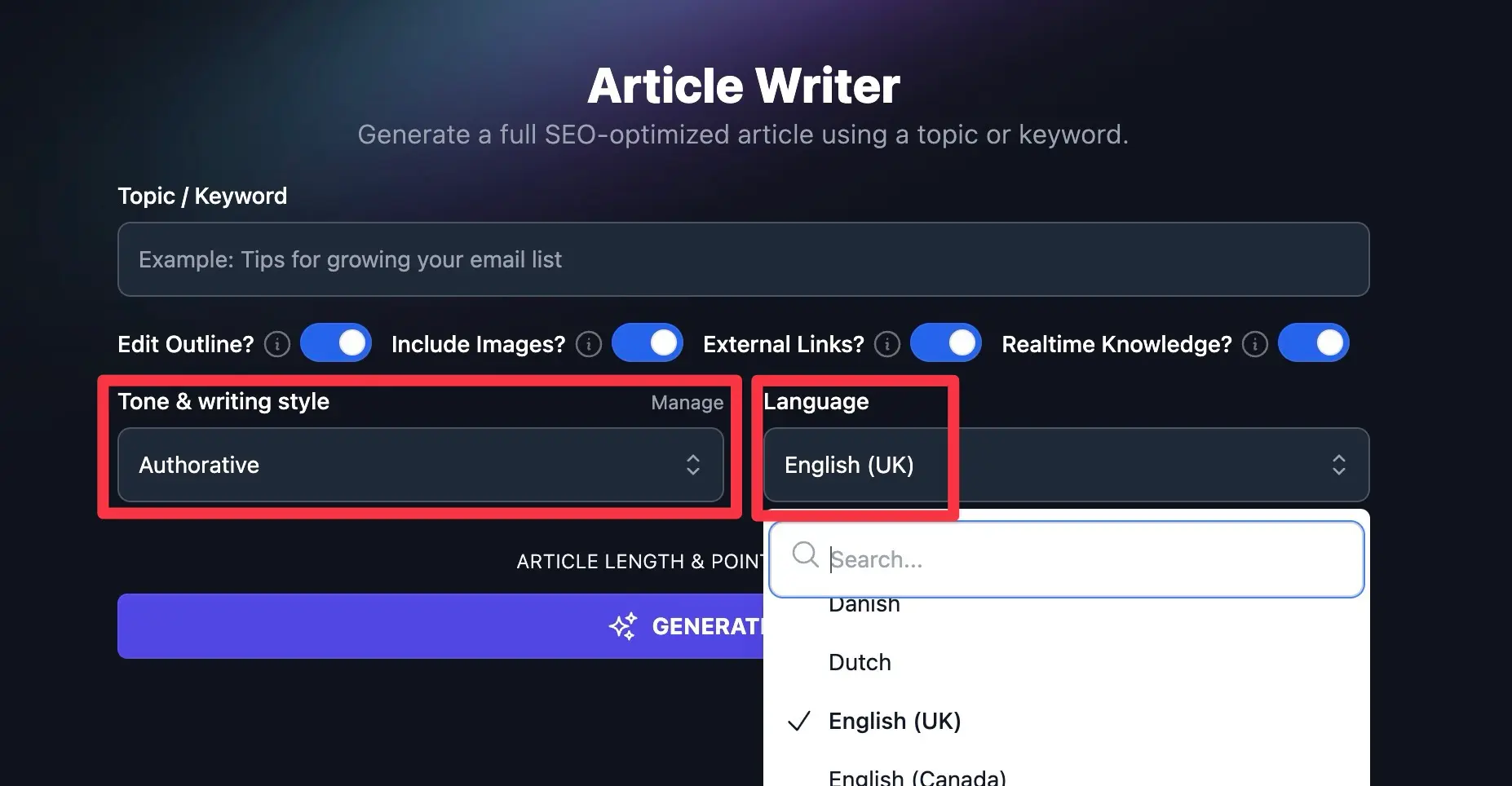
The Article Writer can draft your post in any tone or writing style you want. You can either set up your own brand tone using the MyTone feature, or you can pick from the dropdown of preset tones like “creative” vs “formal” vs “authoritative”.
RightBlogger also supports 100+ different languages, making it a great option for multilingual sites. Want to write an article in Spanish, Italian, Japanese, Chinese, or even Esperanto? The dropdown handles all of them.
If you’re writing in English, you can also pick from 4 different varieties: English (US), English (UK), English (Canada), and English (Australia).
5. (Optional) Select Your AI Article’s Length, Point of View, and More
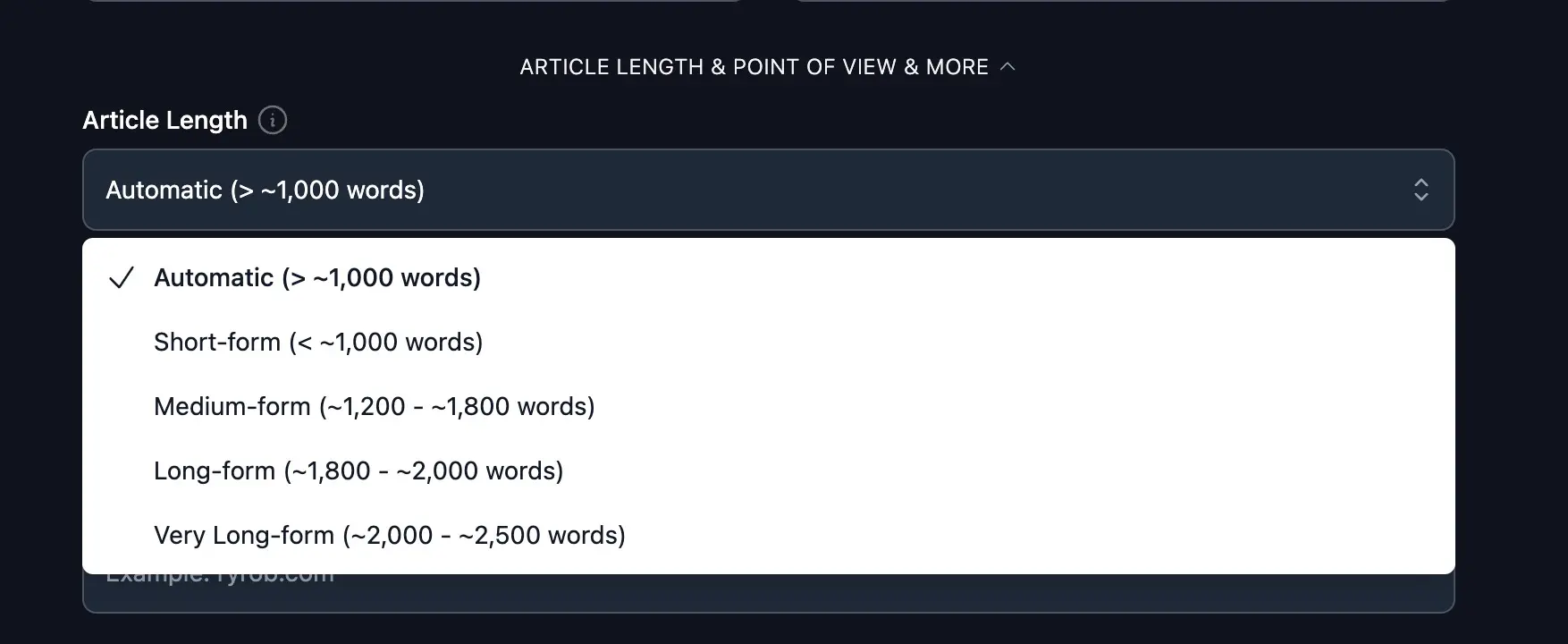
The AI article writer will aim to pick a good length for your article based on the keyword, but if you want your blog post to be a specific length, you can select this under the advanced options. Just click the “Article Length & Point of View & More” dropdown to open these up:
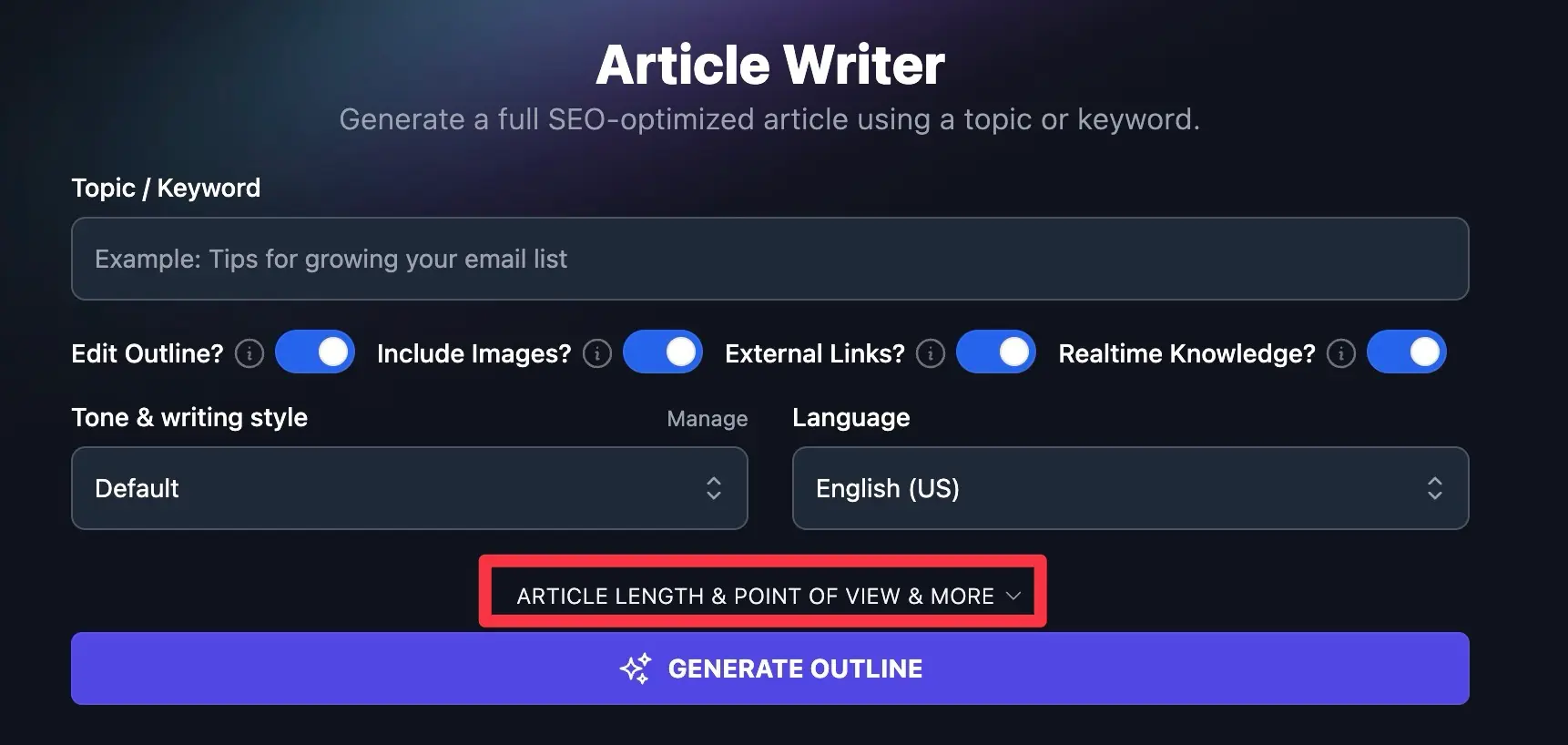
You can then choose a length to suit you and decide what point of view you want to write from (e.g. first person is good for posts incorporating lots of personal anecdotes; second person is a great way to build a connection with your reader; third person can be more neutral and formal).
6. (Optional) Tweak the Advanced Settings for the Article Writer
The AI article writer also gives you a bunch of additional options. You don’t have to use these, but the more specific you can be in your instructions to the AI, the more impressive your finished post will be.
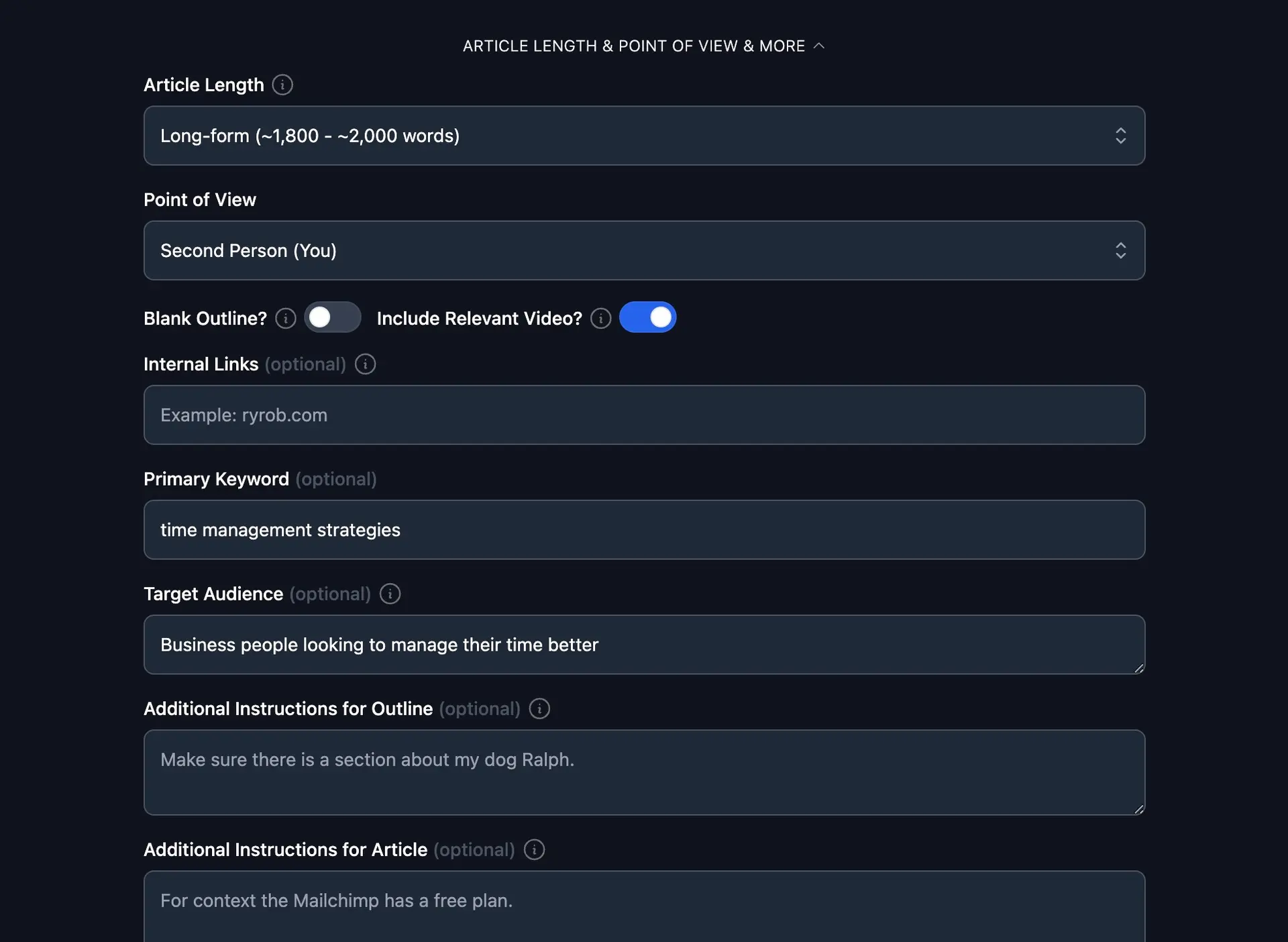
A quick tour of these additional options:
- Blank Outline: Lets you use an outline you’ve already written.
- Include Relevant Video: The AI will find a YouTube video to use in your article.
- Internal Links: Enter your blog’s URL and the AI will link to relevant posts there throughout the piece.
- Primary Keyword: Enter the primary keyword to optimize for (especially if you didn’t enter it as the initial keyword/topic).
- Target Audience: Specify the target audience for this post (e.g. demographic details, level of experience).
- Additional Instructions for Outline: tell the AI about any specific sections you want covered in the outline.
- Additional Instructions for Article: include any information you want incorporated into the article itself.
- Creativity: Adjust how creative (predictable vs unpredictable) the AI is when creating the post.
- Add Knowledge: Include a link to a source you want to use for the article, add text, or use information you’ve already uploaded to RightBlogger.
7. Generate Your Outline and Article
It’s time to put the AI to work! Go ahead and generate your outline, and tweak it as you see fit. Once you’re ready, just click the “Generate Article” button below your outline:
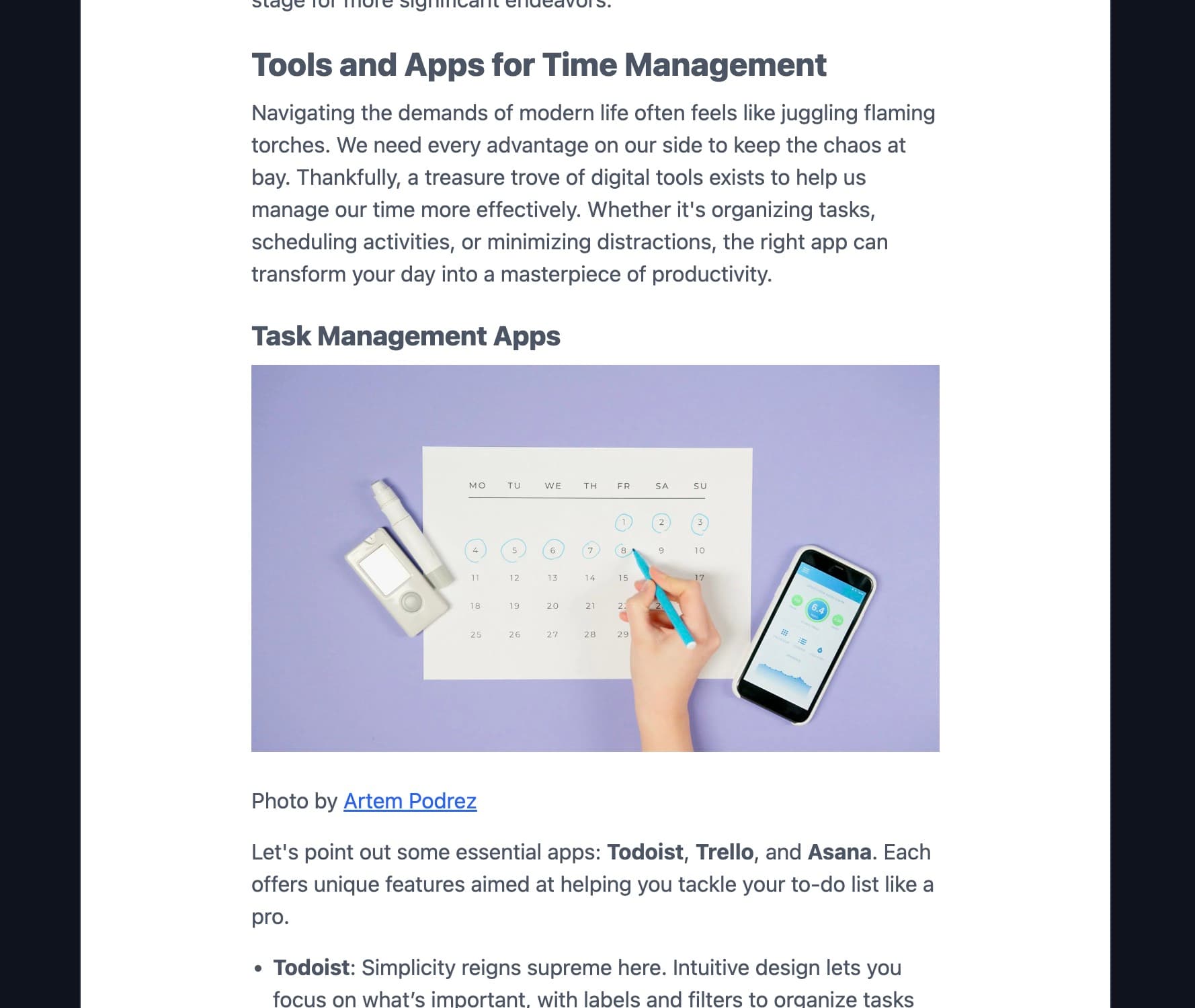
The AI will get to work, and within seconds, the article will start appearing on your screen. After a couple of minutes, the full article draft will be complete, along with links, images, up-to-date facts, and everything else you’ve requested.
You might find that you want to make changes to the draft. Perhaps you didn’t pick quite the right tone, or you forgot to include a piece of information for the AI. That’s no problem: you can use the “Chat” tab above your finished piece. This opens up a chatbot-style interface where you can ask the AI to refine the post for you.
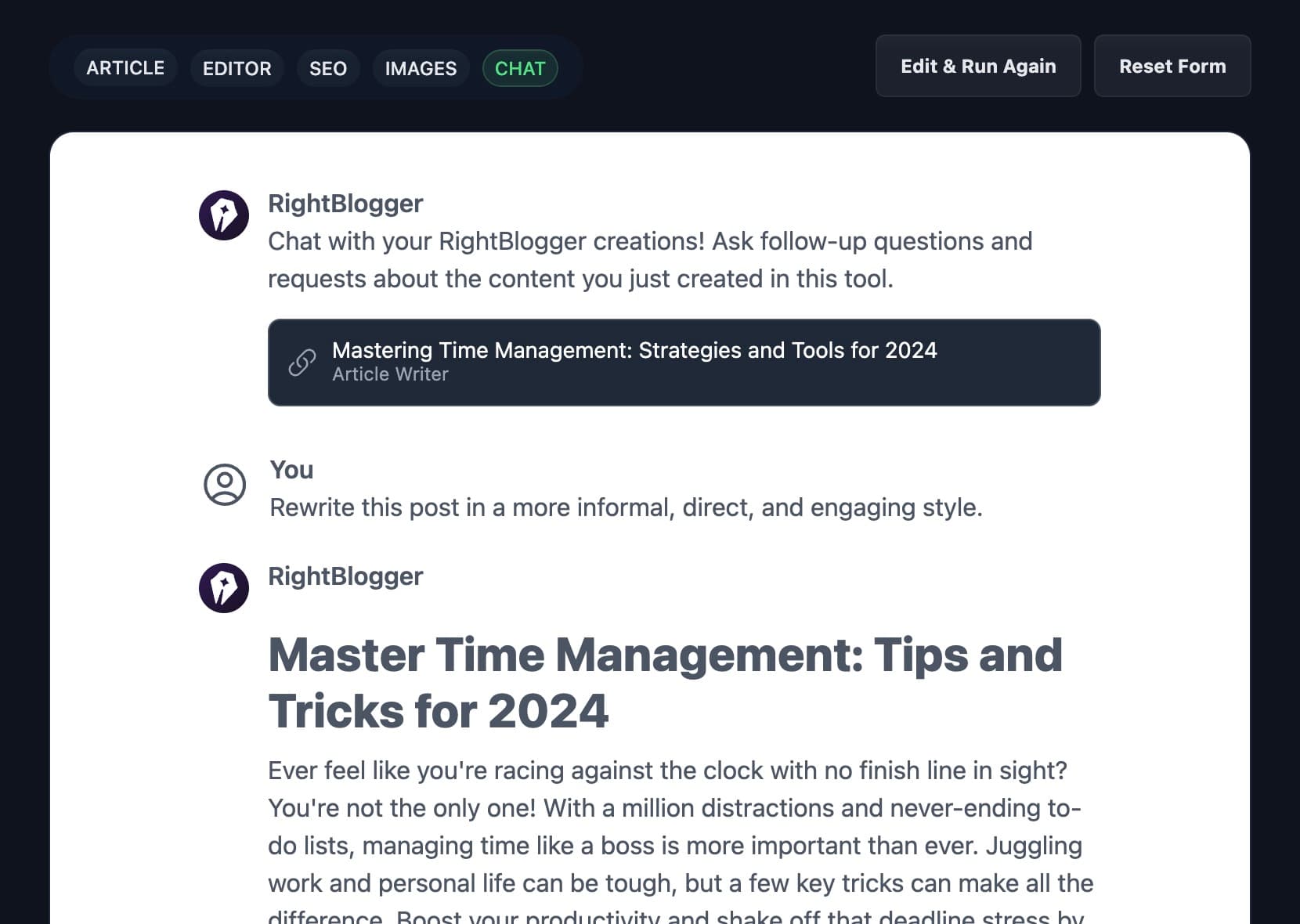
There’s also an “Editor” tab that lets you edit your article within RightBlogger, making any manual changes you want.
While in the editor, we also suggest trying the new SEO reports option. This feature lists the exact keywords your article needs to rank well on Google and answer engines like ChatGPT and Perplexity.
After you create an SEO report for your new article, you can use our auto optimize feature to add relevant keywords from the report automatically with a click a button (our users love this one.)
Important: AI is getting better and better all the time … but it’s not perfect. Occasionally, AI might act like a “confident liar”, boldly asserting a fact that simply isn’t true. We always recommend double-checking facts and statistics within your content, and reading the whole piece to be sure you stand by everything the AI has written.
Mastering AI Writing Tools (Using an AI Writer or AI Content Generator for Copywriting, Blogging, Content Marketing & More)
To produce truly high-quality content, you need to know how best to work with an AI article writing tool. Whether you’ve turned to AI to help you get past writer’s block, to speed up the content creation process, or to improve your team’s workflow, you want to get the best possible output.
Here are a few key tips to keep in mind:
An AI Content Writer is No Replacement for You
Whatever AI writing tool you’re using, and whatever AI model it’s based on (ChatGPT, Claude, etc), it still isn’t a replacement for you, the human.
Your creativity and insights are what set your post apart. Use them when you come up with the blog idea, feed them into the outline, and add them when you edit the article.
Content Creators Will Pivot to Editing AI Drafts
As a writer or content creator, you’re probably used to spending a lot of your time drafting content.
With AI, you’re still a writer! But your role is likely to shift so you’re mainly drafting using AI and then spending the bulk of your time on editing and refining content. Think of the AI as your writing assistant within the content writing process.
AI is a great way to automate your blog. It can figure out what to post, generate drafts automatically, and let you add the finishing touches.
Try AI for Brainstorming, Paraphrasing, and More
AI writing tools aren’t just for drafting. You can also use tools to help with brainstorming (like the blog post ideas tool we mentioned earlier)
There are also great tools like our paraphrase tool and rewrite tool to rework content that’s been previously written by you or an AI. We even have a Summarizer to quickly summarize whole articles: useful if you want to give an overview of a piece you’re linking to.
Train AI on Your Tone of Voice, and Specify Your Preferences
Using more AI features like RightBlogger’s MyTone, you can train AI on how to write in your brand’s tone of voice.
With our article writer, you can also specify your preferences for the finished piece. Perhaps you have particular formats for blog posts on your site, for instance, and you want to feed in the templates for those before asking for your outline. The more instructions you give the AI, the more likely it is that the post will meet your requirements!
AI Article Writer FAQs
What Is an AI Article Writer?
An AI article writer is a tool that generates long-form blog posts, articles, and web content from a keyword or topic. Unlike general-purpose chatbots, a dedicated AI article writer (like RightBlogger’s) handles SEO optimization, outline creation, image sourcing, and internal linking automatically. You get a structured draft ready for editing, not just raw text.
Is AI-Written Content Good for SEO?
Yes, when combined with human editing. Google’s official position is that AI-generated content is fine as long as it’s helpful to readers. RightBlogger’s article writer builds in SEO best practices (keyword placement, heading structure, internal/external links) and the Realtime Knowledge feature pulls in current data. The key is reviewing and adding your own expertise before publishing.
Is the AI Article Writer Free?
Yes. You can generate an article with the tool above without paying and without creating an account. A free RightBlogger account covers 2,000 AI words per month, enough to run the full flow on a real topic. Paid plans remove the word cap and add publishing, autoblogging, and the SEO report.
How Much Does the AI Article Writer Cost?
The Article Writer is included in every RightBlogger plan with unlimited AI words. Solo starts at $49/mo (billed annually) for one site, Pro is $69/mo for three sites and three seats, and Agency is $199/mo for 10+ sites and five seats. Every paid plan starts with a 7-day free trial and a 30-day money-back guarantee.
Can I Publish AI Articles Directly to WordPress?
Yes. RightBlogger connects directly to WordPress (and other platforms like Shopify, Ghost, and Webflow). After the article writer generates your draft, you can publish or schedule it straight from the editor. You can also use the Content Planner to automate your publishing schedule with AI drafts set to “Draft” status for your review.