How to Schedule Posts in RightBlogger
Set publish times or let Auto Schedule fill the next available planner slot.
RightBlogger helps you plan your content ahead of time. You can build a steady posting schedule, keep several sites organized, or use auto blogging to save time. With our scheduling tools, you can send content straight to your Content Planner, pick the exact day a post goes live, or let RightBlogger choose the next open spot for you.
This guide will show you every way to schedule posts inside RightBlogger.
Why Scheduling Matters
Scheduling lets you control when your content goes live, giving you more consistency and better results across your blog or business. With a steady publishing rhythm, you’ll see improvements in:
- SEO performance
- Traffic from Google and AI platforms
- Content organization across multiple projects
- Your ability to plan content weeks or months ahead
Whether you’re manually scheduling content or using Auto Blogging, your planner handles everything for you.
Scheduling from the Content Planner
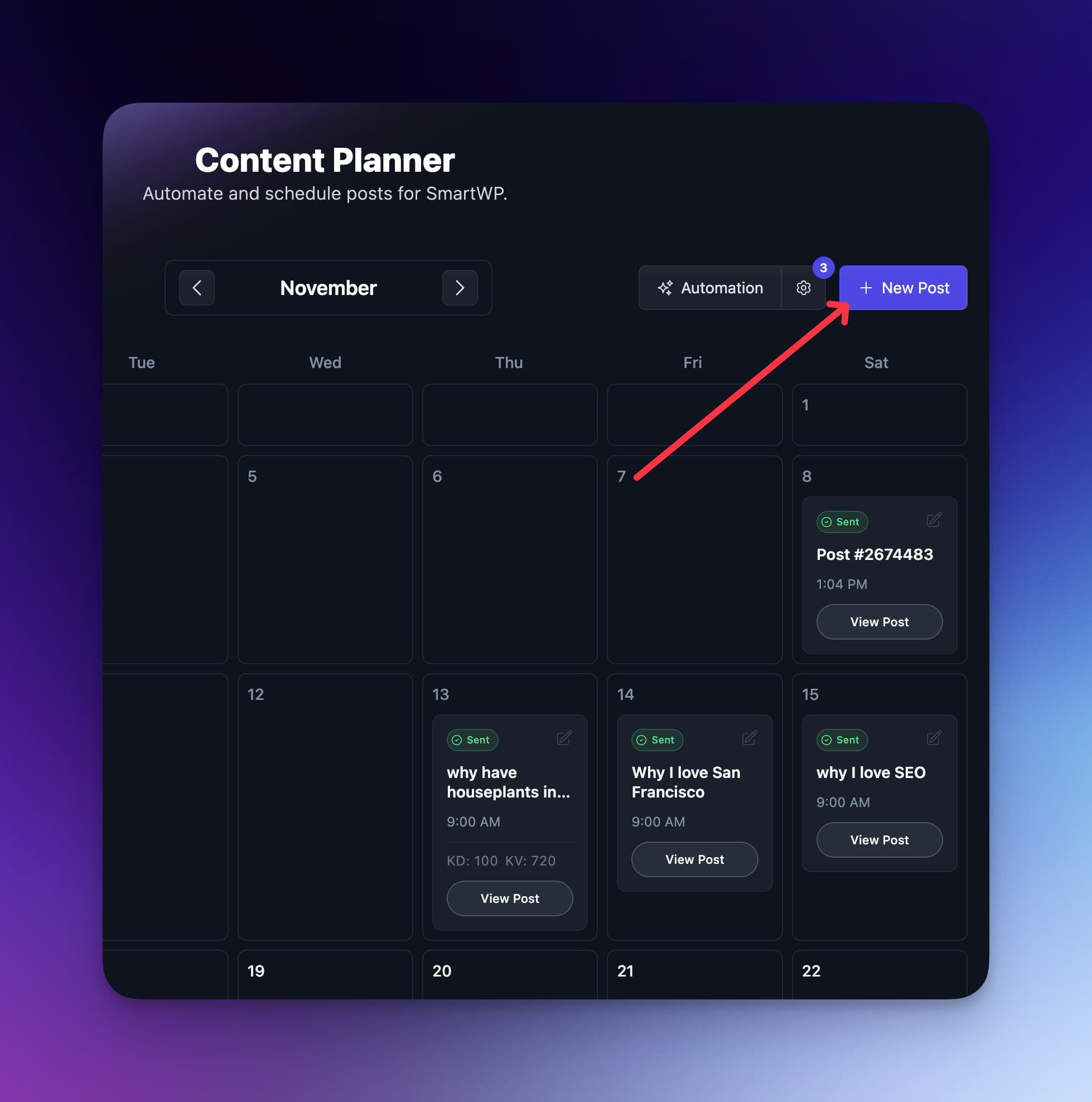
The Content Planner is your central hub for controlling when posts get published.
Inside your planner, you can:
- Automatically populate posts through automations
- Add new posts directly to the calendar
- Click any scheduled post to edit, optimize, or update its publish time
Adding a New Post From the Planner
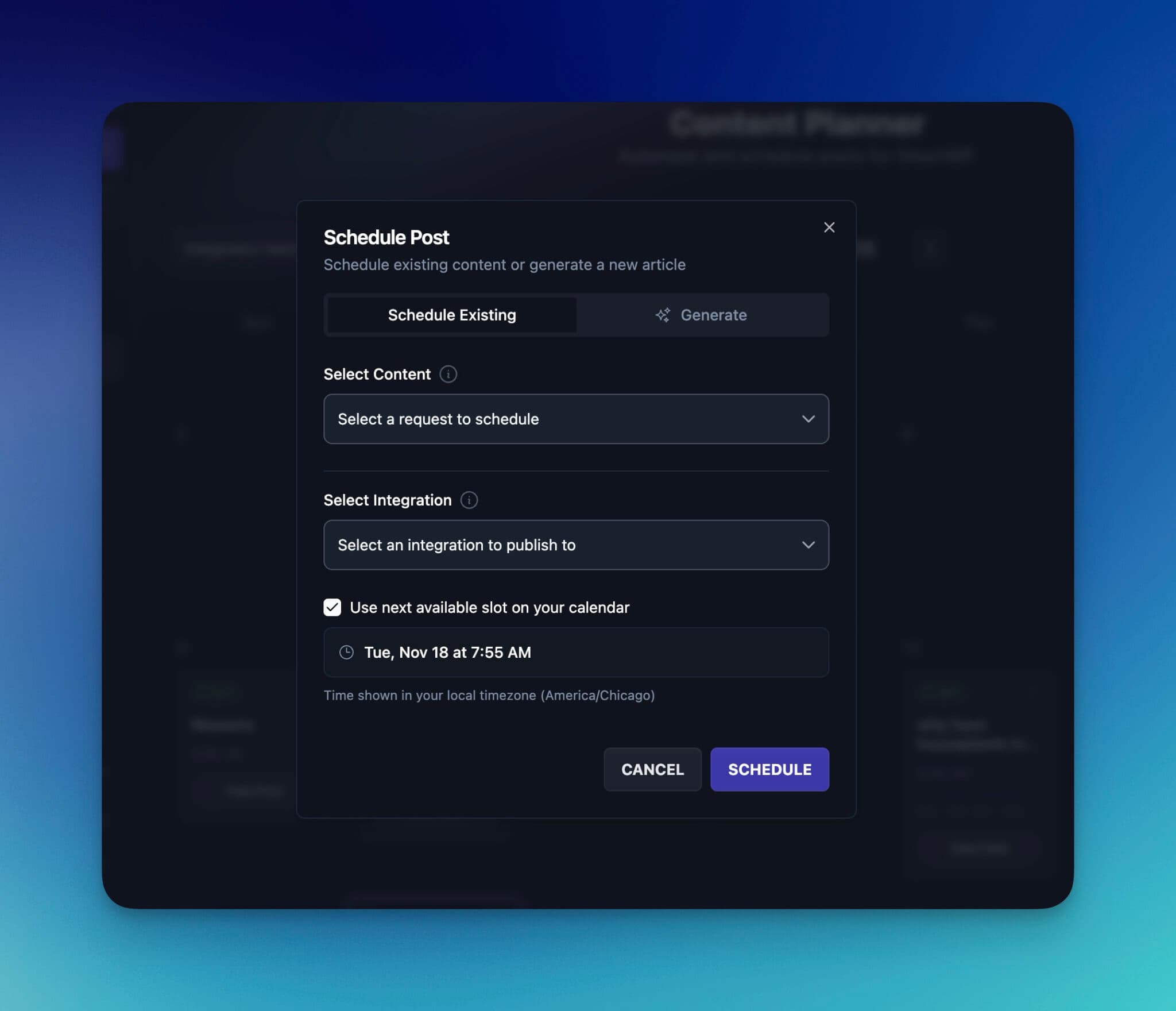
To manually add content to your schedule:
- Open the Content Planner from the left sidebar.
- Click New Post in the top-right corner.
- Choose Create a post (write from a topic or an AI suggestion), Add multiple topics (paste topics, keywords, or YouTube URLs), or Use an existing article.
- Pick a Destination: one of your connected integrations, or Draft in RightBlogger to keep the post inside RightBlogger.
- Keep Next available slot checked, or uncheck it to choose a date and time.
- Click Schedule post.
Your post will now appear on the calendar.
Scheduling From the Article Writer
You can also schedule an article right after you generate it with the Article Writer or Video to Blog Post:
- Click the calendar icon (Schedule to Content Planner) next to Send To.
- Pick a Destination.
- Keep Next available slot checked, or uncheck it to choose a date and time.
- Click Schedule post.
Send To works differently: it sends the article to your connected CMS right away instead of adding it to the calendar.
Rescheduling a Post
To change when a post publishes:
- Open your Content Planner.
- Click the post you want to adjust.
- Change the date or time, or click Open in editor to change the content. You can also drag a post to another day on the calendar.
Easy.
Using Scheduling with Auto Blogging
If you’re using Auto Blogging, RightBlogger automatically generates content and adds it to your planner on the days you choose, such as:
- Every day
- Weekdays only
- Specific days of the week, like every Monday
Your scheduled content will appear on your calendar with an icon showing which automation it belongs to.
You can still edit, move, or optimize these posts at any time. For a full walkthrough on setting up automated publishing, see our guide on how to automate blog posts.
Scheduled times use your browser’s time zone, which is shown under the calendar. If posts publish at unexpected times, check the time zone on the device you scheduled from, and set your default posting time in the project’s Planner settings.
Scheduling is included on paid plans, with up to 30 queued posts and 5 posts per day for each site.
Best Practices for Scheduling
To get the most out of your planner:
- Review posts before they go live (especially AI-generated content)
- Use SEO Reports + Auto-Optimize for better rankings
- Maintain a consistent publishing rhythm
- Keep each project organized with its own content schedule
- Use the Schedule to Content Planner button to queue articles as you write them
Conclusion
Scheduling posts in RightBlogger gives you full control over your publishing calendar, whether you’re posting manually, creating content in bulk, or using Auto Blogging to automate everything. With the Content Planner, the Schedule to Content Planner button, and automations, you can keep your blog active, optimized, and organized with just a few clicks.
Start scheduling your content today and stay consistent without the stress.
Automated SEO Blog Posts That Work
Try RightBlogger for free, we know you'll love it.
7-day free trial. Cancel anytime.