Search Google or Type a URL: What It Means and When to Use Each
Search for comparisons and troubleshooting; use verified bookmarks for logins, payments, and downloads to avoid misleading ads and lookalike sites.

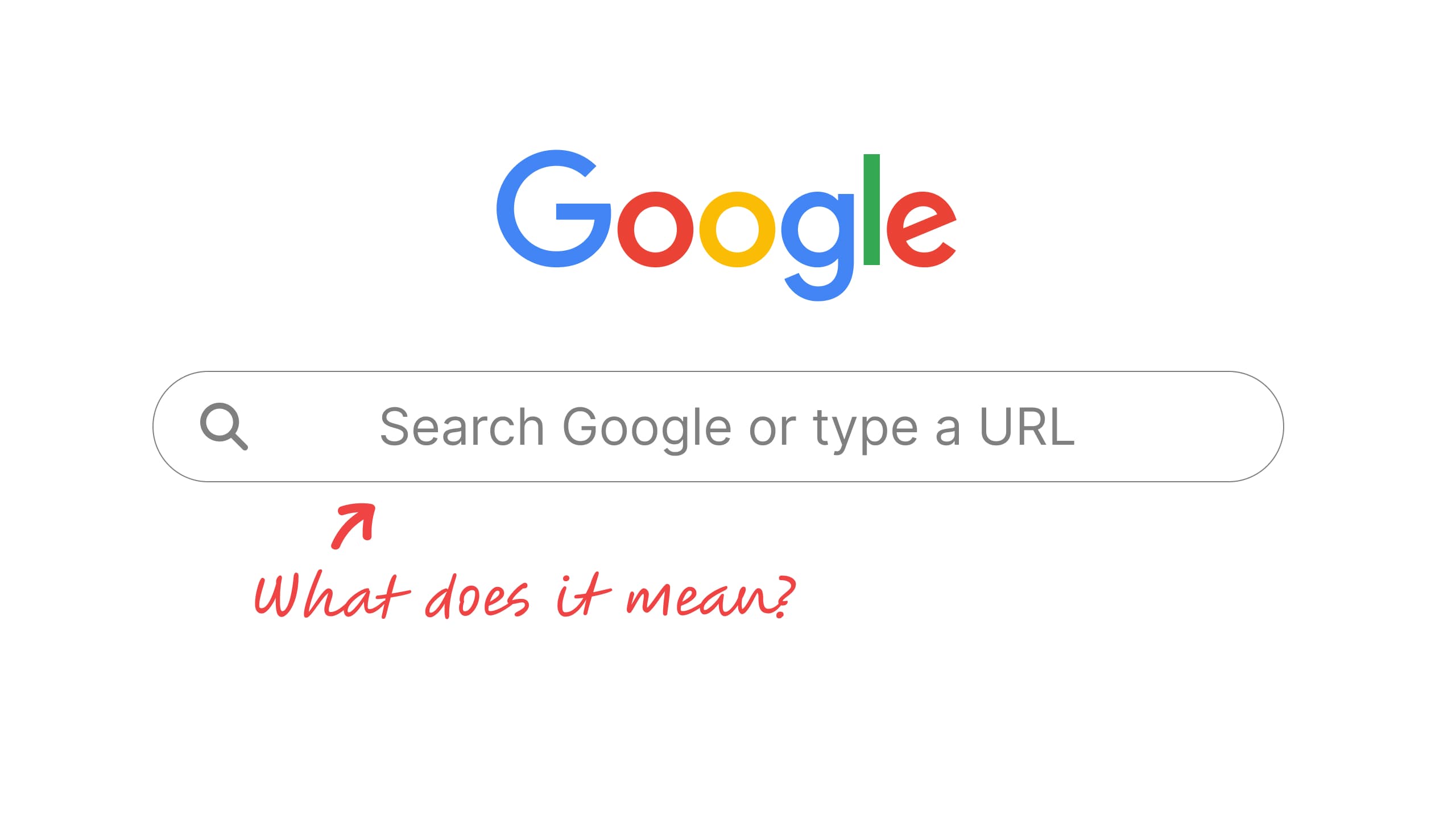
“Search Google or type a URL” is the placeholder text in Chrome’s address bar when Google is your default search engine. Type words and Chrome sends them to your default search engine; type a web address and Chrome opens that site. The wording follows your default search engine: switch to Bing and it reads “Search Bing or type a URL.” Chrome on Android and iPhone uses a shorter version, such as “Search or type URL.” You’ve seen this prompt a thousand times, but your choice changes two things fast: how quickly you get where you’re going, and how often you bump into scams, fake downloads, or lookalike login pages.
In 2026, that tiny decision matters more because results pages can be crowded with ads, “sponsored” listings, and AI-style answers. Sometimes they help, sometimes they distract, and sometimes they push you toward the wrong click.
What Does “Search Google or Type a URL” Mean?
It’s the placeholder text in Chrome’s omnibox, the combined search bar and address bar at the top of the browser. The text tells you that one box can do two jobs: type words and Chrome runs a Google search, or type a web address and Chrome opens that site directly. The browser decides which one you meant based on what you typed.
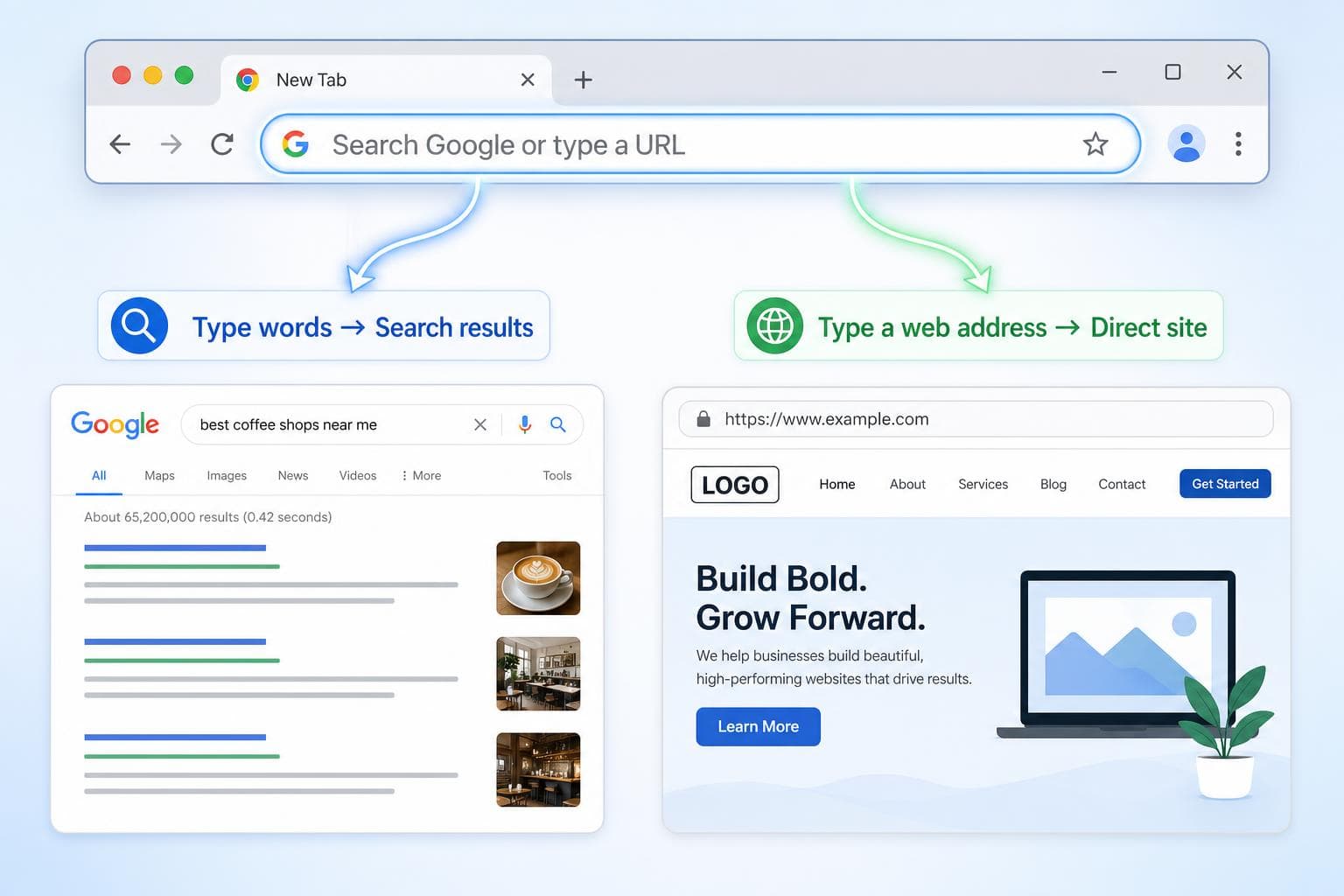
Key Takeaway: You might be asking yourself, Search Google or type a URL, which should I do? Search sends you to a results page where you choose a link, while typing a URL (or using a bookmark) takes you straight to a site. Use search for discovery like comparisons and troubleshooting. Use direct URLs or bookmarks for logins, payments, and downloads to avoid ads and lookalike pages. Watch for “Sponsored,” verify the domain, and bookmark important sites to reduce typo-squatting risk.
Whether you search or type a URL, this guide covers what the omnibox does, when searching is the smart move, when typing a URL is safer, and the quick habits that lower your risk.
How to change “Search Google or type a URL”
The text names your default search engine, so you change it by changing the engine. In Chrome on a computer:
- Select More (the three dots, top right), then Settings.
- Select Search engine.
- Next to “Search engine,” select Change and pick a new default.
Pick Bing and the box reads “Search Bing or type a URL.” On a work or school computer, your admin may set the search engine for you. If it changes on its own, Google says that can be a sign of malware. Official steps: Set default search engine in Chrome.
You may also see “Ask Google or type a URL” on the New Tab page. It’s the same search box, worded for questions as Chrome adds AI Mode.
How Chrome’s omnibox decides what you typed
Most modern browsers don’t have a separate “address bar” and “search bar” anymore. They use one box (often called the omnibox) that tries to guess your intent.
If what you type looks like a web address, the browser tries to go there. If it looks like regular words, it sends them to your default search engine. It also doubles as a quick tool for tiny tasks, which is why it can feel like a do-everything command line, even if you never asked for that.
This is also why the address bar is a productivity hotspot. You don’t need to visit a search engine homepage first, and you don’t need a special extension to do basic lookups. If you do like adding tools to your browser, the RightBlogger Chrome extension is a good example of how browsing and writing workflows now blend together in one place.
Before you go further, keep this mental model handy:
| What you type | What the browser does | What you see next | Main risk |
|---|---|---|---|
chase.com | Tries to open the site directly | The website loads (if correct) | Typos, lookalike domains |
chase login | Runs a search query | Results page | Ads, fake “login” results |
best budget laptop | Runs a search query | Results page | SEO spam, misleading titles |
The takeaway is simple: searching adds a decision step (choosing a result). Typing a URL skips that step, but only if you typed the right thing.
Here’s how the two options compare across the factors that matter most:
| Factor | Search Google | Type a URL |
|---|---|---|
| Speed | Adds a step (scan results, pick one) | Faster when you know the address |
| Safety | Risk of ads, fake results, lookalike pages | Risk of typos leading to scam sites |
| Best for | Discovery, comparisons, research | Logins, payments, downloads |
| Skill needed | Low (just type words) | Low (but must spell the domain correctly) |
| When it fails | You click an ad or fake result without checking | You mistype and land on a scam domain |
Search vs URL in plain English, what your browser does with what you type
Searching means you’re sending words to a search engine, then picking from a list of results. For example, typing “best budget laptop” brings up reviews, comparison lists, and retailer pages.
Typing a URL means you’re going straight to a destination. For example, typing “dell.com” asks your browser to open Dell’s website directly.
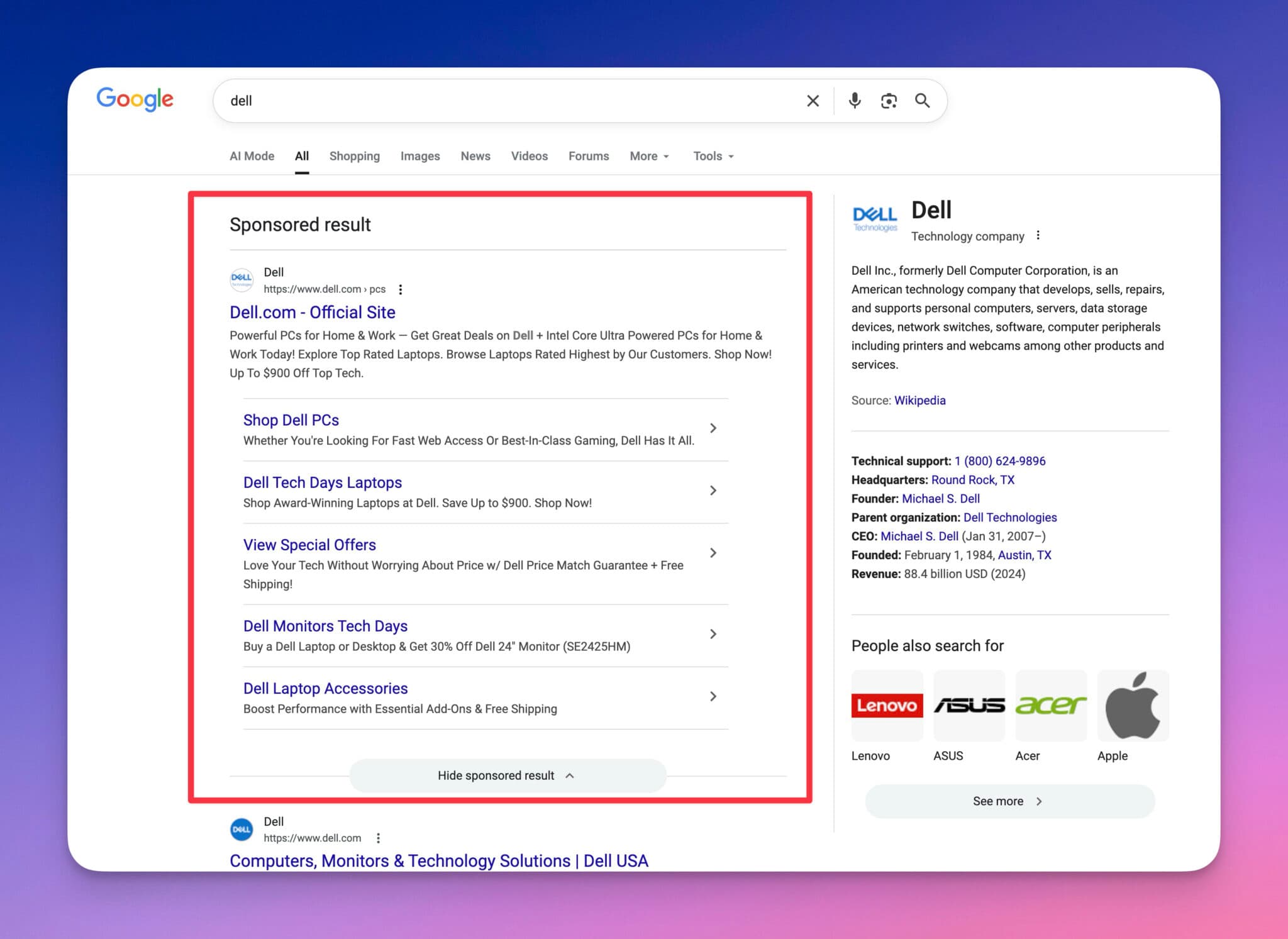
That extra “pick a result” step is where a lot of trouble starts. It’s easy to click the top thing without noticing it’s an ad. It’s also easy to miss a tiny spelling change in a domain name when you’re moving fast.
If you’re logging in, paying, or downloading, treat search results like a busy intersection. You can cross safely, but you should look twice.
Keep in mind that almost anyone can create an ad for any keyword. This makes ads a common attack vector that sends people to misleading websites. It happens often with software downloads, where fake ads can lead to harmful files.
Quick omnibox tricks you can use right away (math, site search, and simple commands)
You don’t need to be a power user to get value from the omnibox. A few small tricks save time without adding complexity.
- Do quick math: Type
19.99*1.08to estimate tax, then press Enter. - Search within a site: Type
site:cdc.gov norovirus symptomsto search one website. - Find images faster: Try “images of golden retriever puppies” if you want pictures, not articles.
- Check some flight status: Many browsers and search engines recognize common flight formats, although results vary.
Keep these in your back pocket. They’re helpful because they reduce scrolling, and less scrolling means fewer bad clicks.
When searching is the smartest move, and how to do it without wasting time
Search is best when you’re in “discovery mode.” You’re comparing options, learning a topic, or trying to find a page you don’t know how to reach directly. In those cases, typing a URL is like guessing a street address in a new city. You might get there, but you’ll waste time.
The trick is to search with a little structure, so you don’t get pulled into the worst parts of the results page. In 2026, that means being intentional about ads, reading the URL line, and slowing down for high-stakes clicks.
Chrome Safe Browsing can warn you about dangerous sites and downloads. You can choose Enhanced protection, Standard protection (default), or No protection (not recommended). Official levels: Choose your Safe Browsing protection level in Chrome. For warnings and “Did you mean” prompts, see Manage warnings about unsafe sites.
Use Google search for discovery, comparisons, and “I do not know the website” questions
Search is the right tool when you’re doing any of the following:
You’re comparing products (laptops, standing desks, air purifiers). You’re troubleshooting a problem (“printer not connecting to Wi-Fi”). You’re looking for local information (hours, menus, parking rules). Or you’re answering a general question and you don’t care which site provides the best explanation.
The catch is that search results can mix many things together: ads, organic listings, shopping widgets, and AI-style summaries. That variety is useful, but it also means you should pause before you click, especially when the page is asking for a password or payment info.
A simple habit that saves you time is opening uncertain results in a new tab. That way, if it’s junk, you close it and your original results stay put.
Search smarter with simple filters like site: and exact phrases in quotes
You don’t need advanced search training.
Two or three operators handle most real-life needs.
Use site: to stay on one website.
Example: site:nytimes.com student loan update finds pages on that site, even if navigation is hard.
Use quotes for exact matches.
Example: "Search Google or type a URL" helps when you want that exact phrase, not similar wording.
Use a minus sign to remove noise.
Example: apple charger -iphone removes results focused on iPhone chargers.
These tiny filters help you get to the right page faster, and they cut down the chance you’ll click a shady lookalike result because you’re tired of scanning.
If you work in marketing, this is a great tip for checking your own site, a client’s site, or simply seeing whether a page is indexed.
When typing a URL is faster, and when it is safer
Typing a URL (or using a bookmark) is “precision mode.” It’s best when you already know where you want to go, and you want to skip the results page completely.
It’s often faster because it removes the whole scanning step. It’s also often safer because it avoids ads and fake pages competing for your attention.
Still, typing isn’t automatically safe. A single missing letter can send you somewhere else. That’s why bookmarks matter. They don’t just save time, they reduce human error.
If you like optimizing your online workflow, browser add-ons can help, but you should keep your extension list small and reputable. For ideas, this roundup of best SEO Chrome extensions for bloggers shows how people use extensions to spot issues quickly while they browse. Even if you’re not doing SEO, the bigger lesson is about picking tools that add clarity, not clutter.
Go direct for high stakes logins like banking, investments, email, and healthcare
Some categories are “don’t gamble” territory. When you’re signing in or moving money, you want the shortest path with the fewest opportunities to land on the wrong page.
Go direct (bookmark or type the known address) for:
Banking and credit cards, crypto exchanges and wallets, email providers, payroll portals, healthcare and patient portals, tax filing, and any payment account where one mistake could cost you.
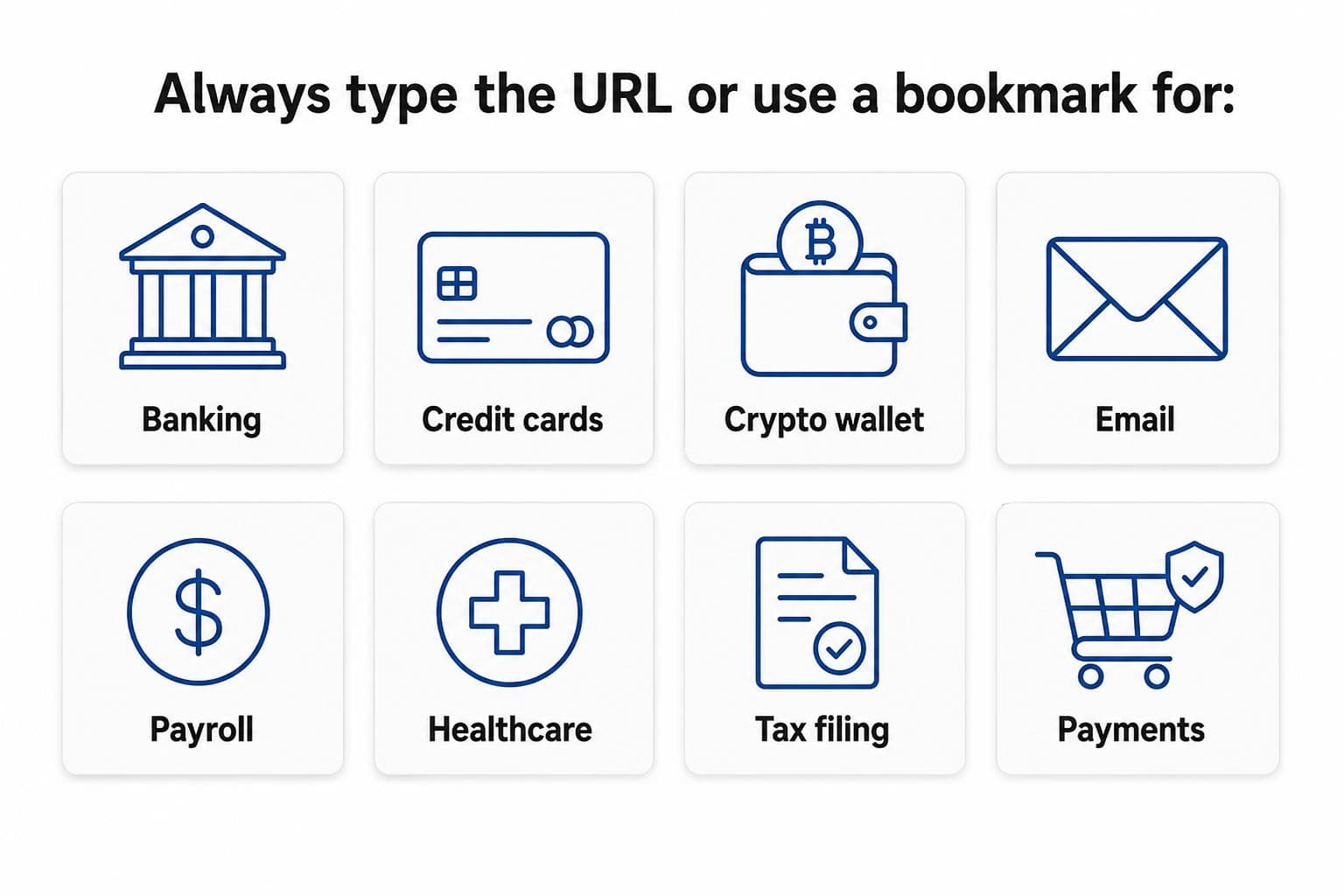
The best habit is boring and effective: visit the real site once, confirm it, then bookmark it. After that, use the bookmark every time. You’ll stop feeding the search results page with your most sensitive clicks.
The same applies to file downloads. More often than not, software downloads are filled with ads.
Avoid typosquatting, the hidden risk of typing the wrong address
Typosquatting is when scammers register domains that look like the real thing, then wait for you to mistype. It’s the internet version of a fake storefront with one letter swapped on the sign.
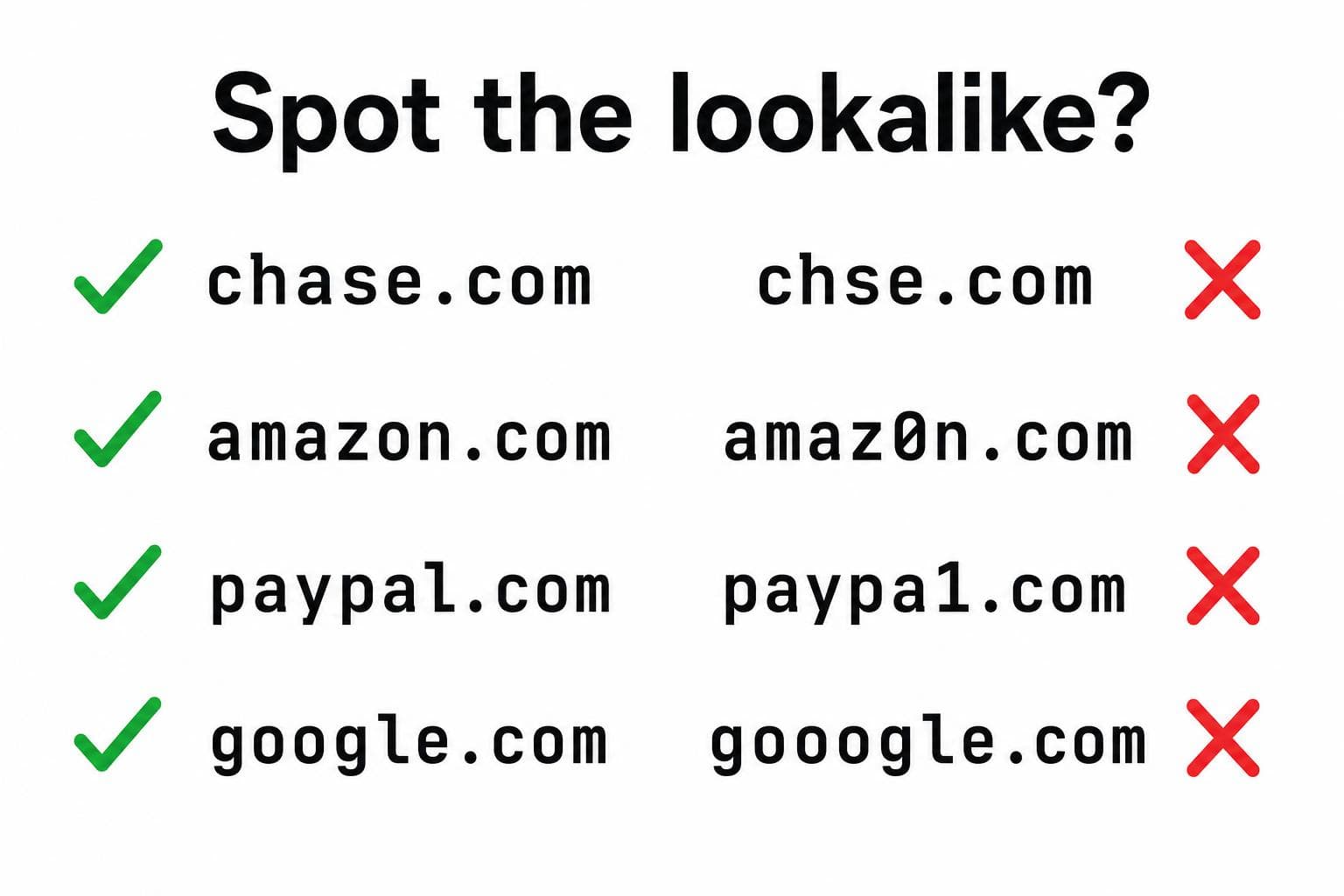
Common typo patterns include:
A missing letter, letters swapped (teh instead of the), an extra dash, or a different domain ending (like a different TLD than you expected).
Defend yourself with three checks:
First, use bookmarks for anything important. Next, glance at the domain before you press Enter. Finally, watch the ending (.com, .org, .net) because a different ending can mean a different owner.
Chrome can warn you about lookalike addresses with messages like “Did you mean…?”, “Is this the right site?”, or “Fake site ahead.” For how to manage those alerts, see Manage warnings about unsafe sites. These lookalike prompts are separate from the red “Dangerous site” Safe Browsing screen.
Your safer browsing playbook for 2026 (ads, AI answers, and quick trust checks)
In 2026, browsing safety is less about one magic setting and more about repeatable habits. Ads can look like normal results. AI summaries can sound confident while pointing you to sources you did not choose. Meanwhile, fake download pages still exist because they work on rushed people.
Chrome’s address bar and New Tab search box can open AI Mode for AI-powered answers and follow-ups. On desktop, select AI Mode to the right of the box, or press Tab + Enter. Google says AI Mode in Chrome isn’t available to everyone or on every device yet, and it’s still reaching people outside the US and in other languages. Don’t want the button? Right-click the address bar and unselect Always show AI Mode. Treat AI Mode answers like a summary with links, not a place to log in or download software. Official steps: Use AI Mode in Chrome.
One more perspective helps: if you create content, this “search vs direct” choice shapes what you see in analytics. Searches bring discovery, while direct visits (typed URLs, bookmarks, and many private shares) signal trust and repeat behavior. As a reader, you can use that same idea to guide your clicks: search to explore, direct to return.
A simple checklist before you click any search result or sponsored ad
Before you click, take two seconds and run this quick filter:
Read the domain name first, not just the title. Notice whether the result is labeled Sponsored, especially for logins. Be cautious with weird subdomains that try to look official. Avoid downloading anything from a page you did not intend to visit.
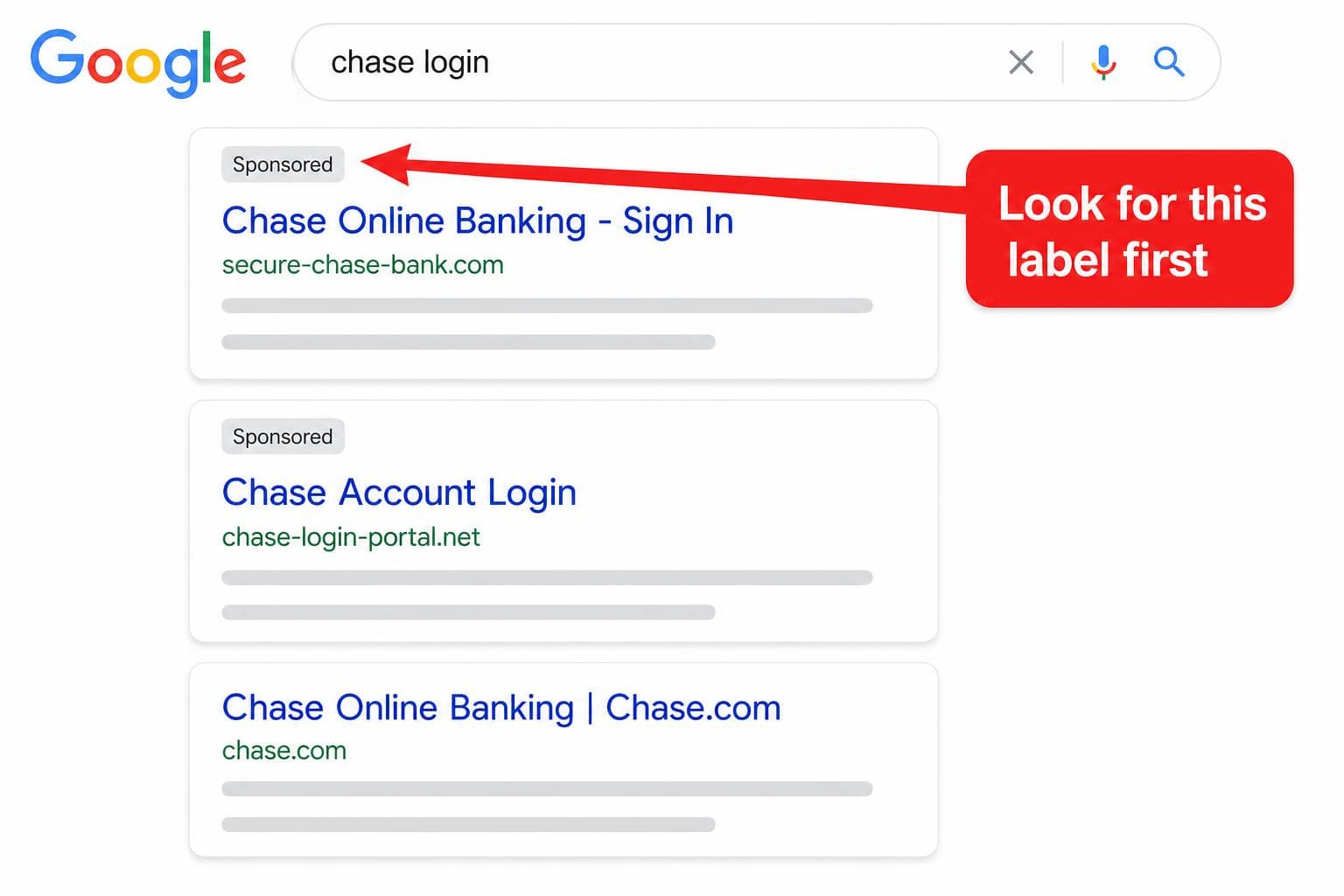
If something feels off, don’t “investigate.” Close the tab. Then go direct using a bookmark or a typed address you already trust.
Why your typed URL sometimes becomes a search, and how to force the right behavior
It’s frustrating when you type what feels like a website, and your browser turns it into a search. Usually, it happens for simple reasons.
You left off the domain ending (like forgetting .com). You added a space by accident. Or you typed a brand name that isn’t formatted like a web address, so the browser treats it as a query.
Fixes are simple:
Add the full domain, remove spaces, and try adding https:// if the browser seems confused. Once it loads correctly, bookmark it so you never have to think about it again.
Common myths about searching vs typing a URL
A few misconceptions keep coming up. Here’s what’s actually true.
Myth: “Typing a URL is always safer than searching.”
Not if you mistype it. Typosquatting (registering domains like chse.com instead of chase.com) is specifically designed to catch people who type URLs. Bookmarks are safer than both options.
Myth: “The first Google result is always the most trustworthy.”
The first result is often an ad, and ads can be bought by anyone. Even organic results can be SEO’d by low-quality sites. Always check the domain name before clicking.
Myth: “If Chrome shows a suggestion, it must be safe.”
Chrome autocomplete is based on your history and popular searches, not a safety check. A suggested URL isn’t verified. It’s just frequently visited.
Myth: “I don’t need bookmarks because I can just search.”
For everyday browsing, sure. But for banking, email, or healthcare portals, searching every time means you’re one bad click away from a phishing page. Bookmarks eliminate that risk entirely.
Frequently asked questions about “Search Google or type a URL”
What does “Search Google or type a URL” mean?
It means your browser uses one box (the omnibox) for both search and web addresses. If what you type looks like a web address, the browser tries to open it. If it looks like normal words, it sends them to your default search engine.
What is the difference between searching Google and typing a URL?
Searching sends your words to a results page, then you choose a link. Typing a URL tries to open a specific site right away.
When should I search instead of typing a URL?
Search works best when you are researching, comparing options, troubleshooting, or you do not know the exact site you need. In those cases, search helps you discover the right page faster than guessing a web address.
Is it safer to type a website address directly?
It’s often safer for logins, payments, and downloads because you skip ads and lookalike results. It’s only safer if you type the address correctly or use a bookmark.
Why does Chrome treat my typed URL like a search?
This usually happens when the entry does not look like a full web address (for example, you forgot “.com” or typed a space). Add the full domain, remove spaces, or type https:// to force the right behavior.
What is typosquatting, and how do I avoid it?
Typosquatting is when scammers register domains that look like the real one, hoping you mistype the address. Avoid it by bookmarking important sites and double-checking the domain and domain ending before you press Enter.
How do you clear omnibox search history?
In Chrome, you can remove one suggestion from the drop-down, or go to More → Delete browsing data and clear Browsing history to drop address-bar predictions. Official steps: Delete browsing data in Chrome. If you share a computer, this also reduces sensitive suggestions appearing later.
Can you turn off Google search suggestions in the address bar?
Yes. In Chrome, open Settings → You and Google → Google services and turn off Improve search suggestions. Chrome may still suggest from your local history. Official details: How Chrome keeps your URL & search data private. Turning suggestions off can reduce accidental clicks, but it may slow you down if you rely on autofill.
Is Google a URL?
Yes. google.com is a URL (Uniform Resource Locator) that points to Google’s homepage. When people say “search Google,” they mean use the search engine. When they “type a URL,” they could type google.com or any other web address directly.
What is the Omnibox in Chrome?
The Omnibox is Chrome’s combined address bar and search bar. Instead of having two separate boxes (one for web addresses, one for searches), Chrome merged them into one. That’s why you see “Search Google or type a URL” as the placeholder text. You can search, type a web address, do math, or even search within a specific site, all from the same box.
Does it matter if I search or type a web address?
For casual browsing, not much. But for anything involving passwords, payments, or personal data, typing the URL directly (or using a bookmark) is safer because you skip the results page entirely. The results page is where most phishing attacks and misleading ads live.
The Simple Rule to Remember
You don’t need a complicated system to browse well in 2026. Use search when you’re researching and comparing. Use direct URLs or bookmarks when you’re logging in, paying, or downloading.
Pick one action today: bookmark your most important sites, then slow down any time you see “Sponsored” near something that asks for a password. That small habit shift keeps you faster, and it keeps you safer.
And yes, “Search Google or type a URL” has become something of a meme online. We get it. But the actual decision behind those words matters more than people think.

RightBlogger Co-Founder Andy Feliciotti focuses on website development and shares his photography and travel adventures on YouTube.



Automated SEO Blog Posts for Your Site
Research, write, publish, and share from one account.
7-day free trial. Cancel anytime.





Leave a comment
Khrystal7171
RightBlogger Co-Founder, Andy Feliciotti builds websites and shares travel photos on YouTube and his blog.