Enter your title and meta description above to see exactly how your page will look in Google’s search results. It is free and needs no sign-up.
Do you want to check out what your meta title and meta description will look like in Google’s search results? The Google SERP Preview Tool shows you exactly how your page will appear for Google users, letting you make any tweaks to your SEO title and description before you publish it.
Google’s SERP (Search Engine Results Page) shows the title and meta description for each result … and these can make a massive difference to your click-through rate (CTR).
Here’s how the meta title and description look in Google’s results. We’ve indicated the meta title with a green box and the meta description with yellow highlighter.
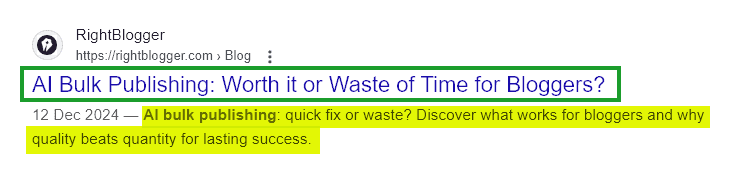
Whether you’re writing a brand-new piece of content or optimizing an existing one, the Google Preview Tool helps you make a great first impression on potential readers.
How to Use the Google SERP Preview Tool to See Your Google SERP Snippet
Ready to give the Google SERP preview tool a try? Here’s how to use it, step by step.
Step 1. Enter Your Meta Title (SEO Title / Title Tag)
First, you need to type or paste in your meta title. You’ll sometimes hear this called an “SEO title” or a “title tag”.
This is the title of your page that appears in Google’s search results (and in the browser tab). It’s often the same as the H1 heading at the top of the page/post … but it doesn’t have to be.
The tool will automatically show the preview of your title as soon as you start typing.
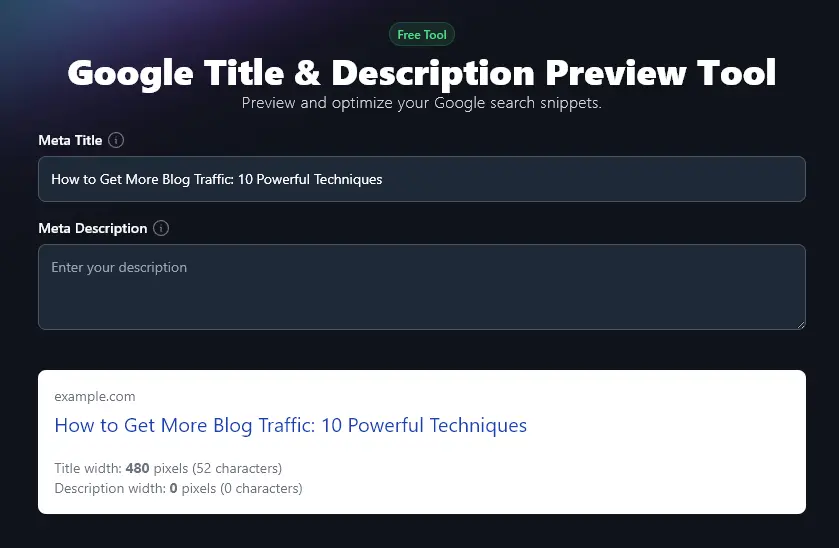
Tip: Use the Meta Title Generator to come up with a great meta title that incorporates the primary keyword you’re trying to optimize for.
Step 2. Enter Your Meta Description (Meta Description Tag)
Next, you’ll need to paste or type your meta description. Sometimes this is called the “meta description tag” or just the “description tag”.
Your meta description appears just below your title in Google’s search results, giving readers more information about your content, and enticing them to click through. It should use your primary keyword and, ideally, any secondary keywords too.
Again, the SERP simulator tool will automatically display the preview of your meta description as you type.
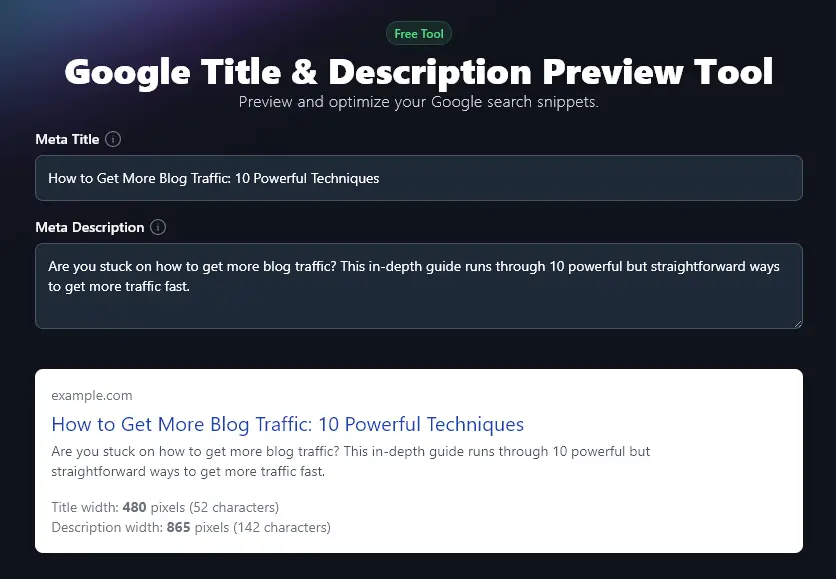
Tip: Use the Meta Description Generator to help craft a keyword-rich, engaging meta description.
If you’re happy with your meta title and description, go ahead and use them for your post/page. But if you want to make changes, you can tweak them as much as you like, the SERP snippet preview tool will automatically update your preview with each change.
Bonus: Use This Free SEO Checklist Along With This Tool
Getting your meta title and meta description right is a big help for SEO (search engine optimization). But there’s plenty more you should do too, in order to give your content the best possible chance of ranking well in Google, and in other search engines.
Here’s my personal on-page SEO checklist that you can use for every post you create.
- Use a high-quality WordPress SEO plugin like Yoast SEO or RankMath
- Do your keyword research to make sure you’ve chosen a keyword that’s relevant and achievable
- Where possible, use keywords in your subheadings (this encourages rich snippets and faster indexing)
- Just have one H1 header on your page: that’s your title/headline at the top
- Use H2 subheadings and H3 sub-subheadings for correct header hierarchy
- Make sure your primary keyword appears a few times in the text, but don’t go over the top
- Aim for a good mix of internal and external links (you should have at least 3-5 external links)
- Use descriptive alt text for all the images in your post/page, incorporating keywords where appropriate
- Check that your article is long enough to rank well in Google (aim for 1,500+ words)
- Use your keyword within your post’s permalink, you can leave out little words like “to” and “a”
How to Optimize Your Meta Title and Meta Description Using the Google SERP Preview Tool
You’ve seen the basics of the SERP preview tool … now let’s dig into how to get the most from it.
Google’s search engine results pages only have a limited space for your meta title and meta description. If you write too much, your text will get cut off, and while this isn’t usually a disaster for SEO, it might mean you lose important information that would have encouraged the user to click through.
Because of this, the preview tool measures the length of your title and description. We’re going to take a closer look at how this works.
Meta Title Length: Max 600 Pixels (Around 65 Characters)
In the past, SEO experts used to recommend sticking to a character limit for titles. But Google actually truncates titles based on their length in pixels.
If you think about it, this makes sense. Some characters take up more space than others, and when it comes to displaying titles well on both desktop and mobile, what really matters is the length visually (measured in pixels).
Here’s a quick example. We put two different titles through the tool. They came out at the exact same length in characters … but different lengths in pixels.
- 11 Irresistible Ideas for Your Email Newsletter (47 characters, 402 pixels)
- 10 Fabulous Ideas for Your New Email Newsletter (47 characters, 441 pixels)
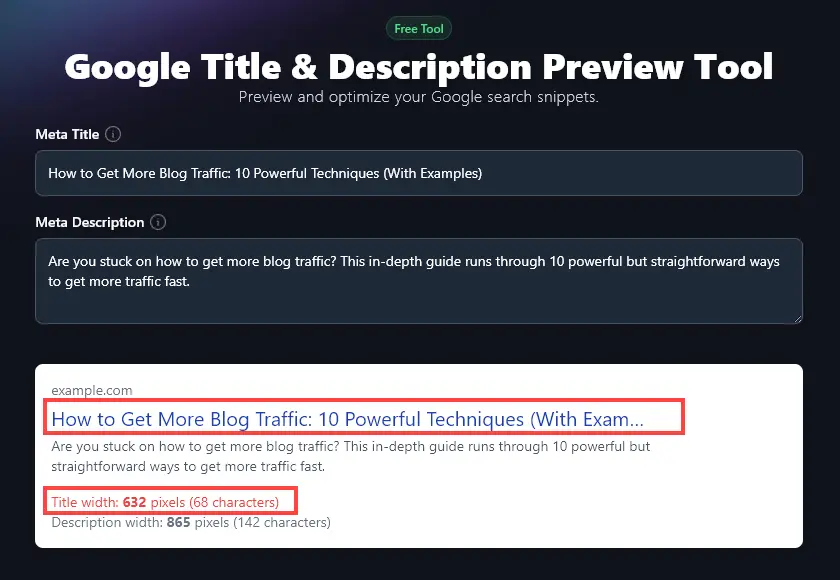
The recommended limit for meta titles is 600 pixels. Keep in mind that Google may still truncate titles that are under this limit, or display in full titles that are over the limit. But, in general, sticking to 600 pixels should see your titles display in full.
Once you’re over 600 pixels, your title will be truncated in the preview (with an ellipsis at the end) and your pixel and character count will show up in red:
Meta Description Length: Max 960 pixels (Around 160 characters)
Note: The font that Google uses for meta descriptions is quite a bit smaller than the font for titles, which is why you get more characters to your pixels when writing a meta description.
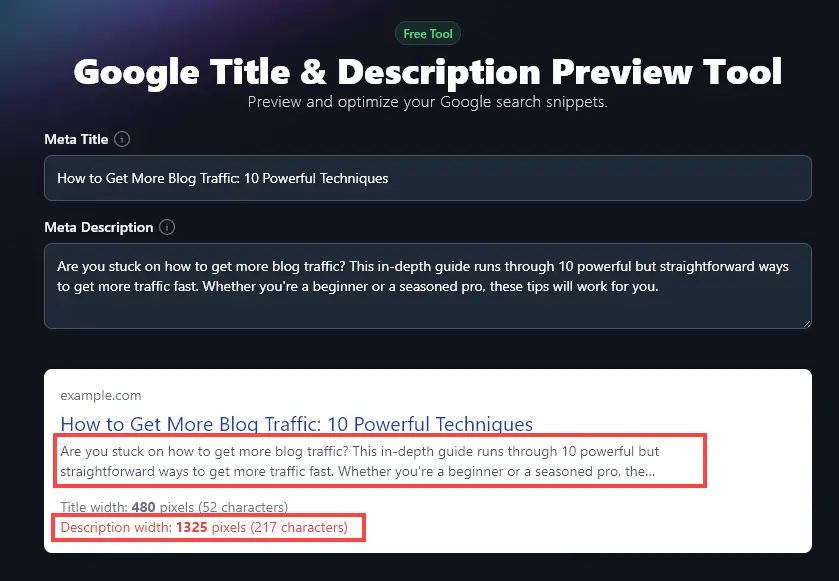
Just like with titles, Google cuts off meta descriptions based on pixels … not characters. This is so that the meta description fits onto two lines on the screen. The recommended limit for meta descriptions is 960px.
As with the meta title, if you go over the 960 pixel limit, the description length checker will show the pixel and character count in red. If it’s considerably over the limit, you’ll also see that the text gets truncated with an ellipsis at the end:
Google SERP Preview Tool FAQs (Frequently Asked Questions)
Got questions about writing meta titles and meta descriptions, or about using this tool? Here’s everything you need to know.
Where Do I Put My Meta Title and Meta Description?
If you’re using WordPress, we recommend installing a plugin like RankMath or Yoast SEO. This gives you options on every post and page to include a meta title and meta description. (Scroll down to below your content to see these options.)
In HTML code, your meta title and meta description are both “meta tags” that go within the <head> and </head> tags at the top of your page.
Do I Need to Use Keywords in My Meta Title?
Yes! Your meta title is critically important for SEO and it’s strongly recommended that you include your primary keyword within it.
Your meta title is a key ranking factor, telling Google exactly what your content is about. So don’t miss out on the opportunity to include the keyword you’re trying to optimize for.
Do I Need to Use Keywords in My Meta Description?
Yes! You should put your keyword in your meta description. The meta description isn’t a direct ranking factor, but it can improve click-through rates (CTR) … which can, in turn, boost your rank.
Google will bold keywords and keyword variants in your meta description when they are a good match for the search query, like this:
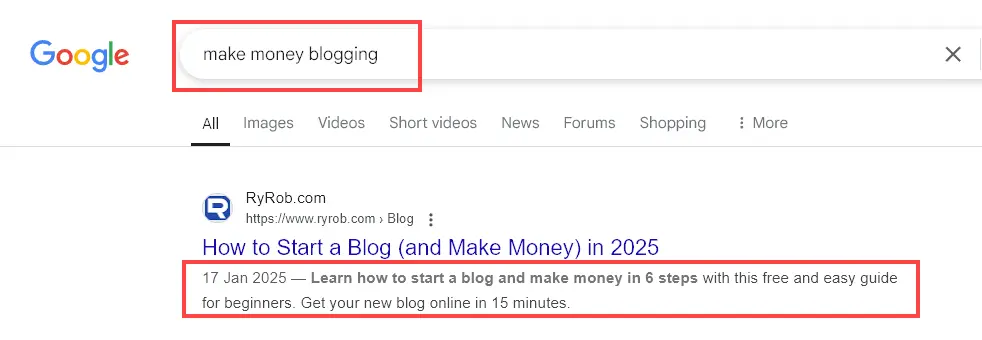
This can help your result stand out to users as particularly relevant.
Should My Meta Title Match My Page Title (H1 Heading)?
Your meta title doesn’t have to match your page title. They should be close in meaning (so readers don’t feel like you’ve pulled a bait-and-switch) but you can vary them.
For instance, you might want a longer H1 heading than your meta title, you have as much space as you want on your page, and you don’t need to worry about the pixel width!
What Happens if I Don’t Write a Meta Title and Meta Description?
If you don’t write a meta title, Google will use your page/post title (the H1 heading at the top) instead.
If you don’t write a meta description, Google will use a snippet of text from your post or page content that it considers relevant to the search query. Sometimes Google will do this even if you have written a meta description, if it considers the snippet to be more relevant.
Can I Include Emojis in My Meta Title and Meta Description?
Yes, you can use emojis in both your meta title and meta description. This won’t have a direct effect on your ranking, but could help your page stand out.
Keep in mind, though, that your meta title and meta description need to fit with your overall brand: they may well be the first impression you make on your target audience. Only use emojis if this fits with your brand as a whole.
Google may not display emojis in your meta title and description if these are seen as misleading.
Why Does “Example.com” Appear in My Preview?
In your preview, the placeholder URL “example.com” appears where your page’s permalink would show up in the real search results page.
What Other AI Tools Can I Use to Improve My SEO?
RightBlogger has 85+ different AI tools, lots of which can help you with your SEO (search engine optimization).
Hopefully, you’ve already tried out the Meta Title Generator and Meta Description Generator. Here are a few other key tools to check out:
- Keyword Research Tool: find out exactly what keywords you should target, with search volume and difficulty ratings provided
- Keyword Cluster Generator: create SEO-friendly clusters of keyword that you can build content around
- Article Writer: draft a full-length blog post from just a keyword or topic
- Backlink Checker: find out exactly where your competitors are getting their backlinks from … so you can do the same
- Content Gap Audit Report: compare your webpage or post with a top-ranking piece of content and figure out what you need to do to improve
- Image Caption Generator: instantly create captions (e.g. alt text) for any image, just by uploading it
As well as our SEO tools, we have social media tools, blogging tools, sales tools, and more.
How Do I Sign Up for RightBlogger and How Much Does it Cost?
The Google SERP Preview Tool is included with every RightBlogger plan, starting at $49/mo for Solo.
Pro ($69/mo) is the most popular pick and includes 3 connected sites plus 3 team seats. All plans come with unlimited AI words and a 30-day money-back guarantee.