LinkedIn can be a fantastic source of new leads and connections, and many business owners, thought leaders, and entrepreneurs see great traction from posting regularly. But keeping up a steady stream of content can be tough.
Whether you’re struggling with writer’s block or you just want to create high-quality LinkedIn content fast, the LinkedIn Post Generator is the tool you need. You can generate posts based on a topic or based on a URL (e.g. to a blog post or product). This AI-powered tool will write a punchy, engaging LinkedIn post, including emojis and hashtags as appropriate.
Ready to give it a try?
How to Use Our Free AI LinkedIn Post Generator
Like all our AI tools, the LinkedIn Post Generator is designed to be as easy to use as possible. We’ll run through it step by step.
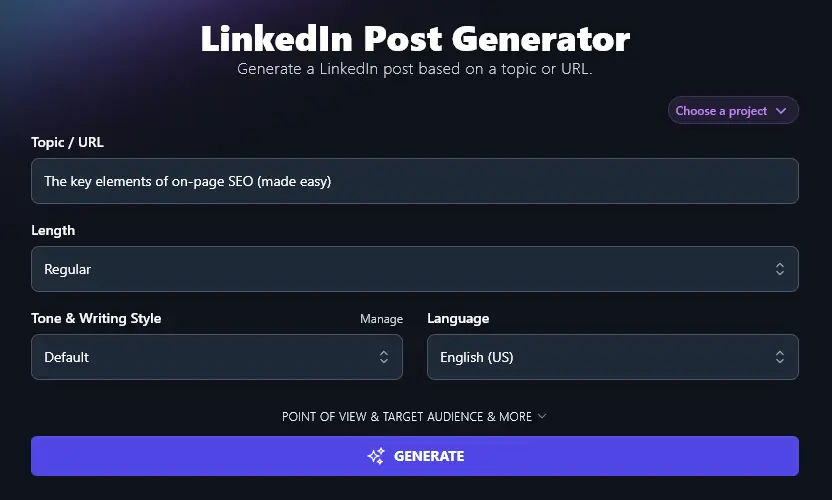
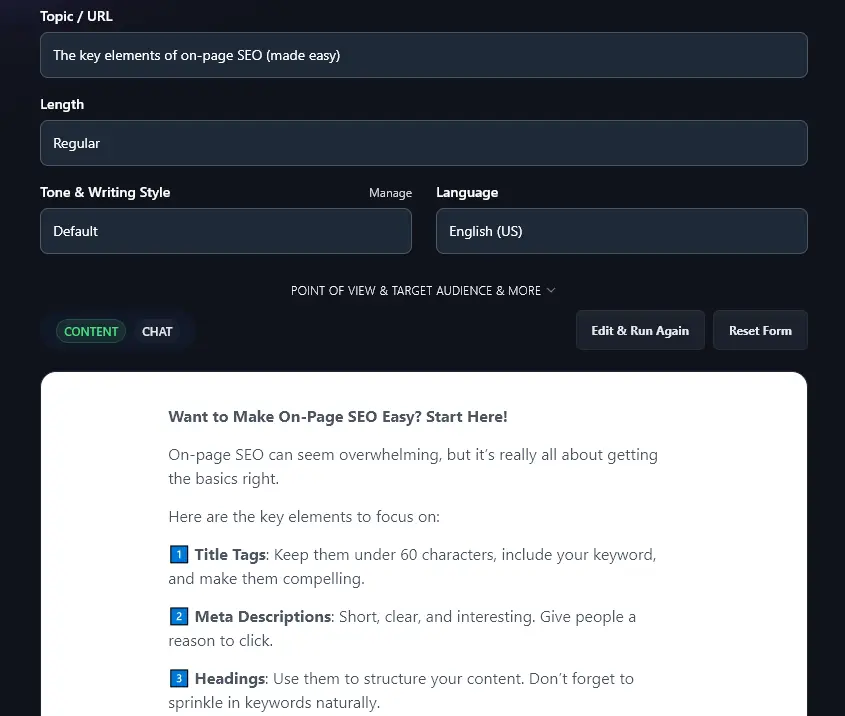
Step 1. Enter a Topic for Your LinkedIn Post (or a URL)
First, you’ll need to pop in a topic for your LinkedIn post, or if you prefer, you can enter a URL so that the AI can base the post around your existing content.
Ideally, get specific about your topic. Instead of “SEO”, try something like, “The key elements of on-page SEO (made easy)”.
Step 2. Decide On Your LinkedIn Post’s Length (Different Templates)
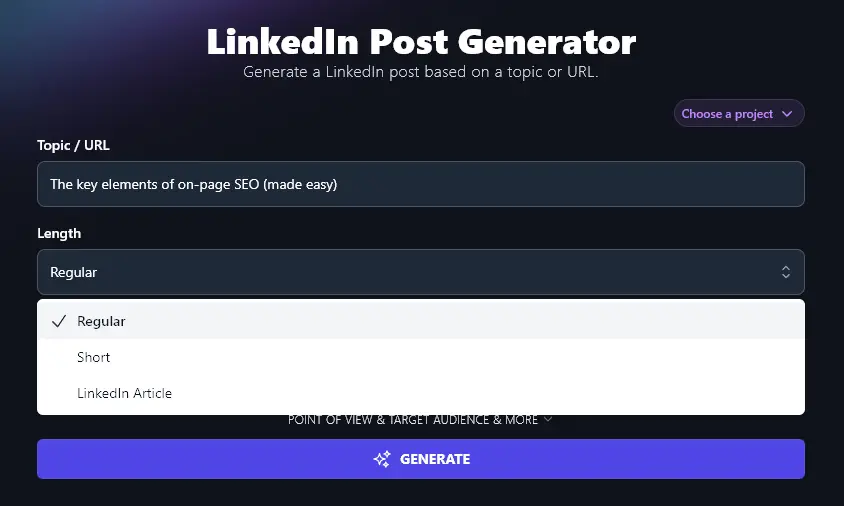
Do you want a short pithy post or an in-depth article? The “Length” dropdown lets you choose between:
- Regular (standard length LinkedIn post, around 150-200 words)
- Short (tweet-length LinkedIn post, around 20 words)
- LinkedIn Article (blog-style piece to post as a LinkedIn Article, around 600-700 words)
The AI algorithms for these use different templates so your content will always be a great fit for the format you’ve selected.
Step 3. Choose Your Tone & Writing Style for Your LinkedIn Post
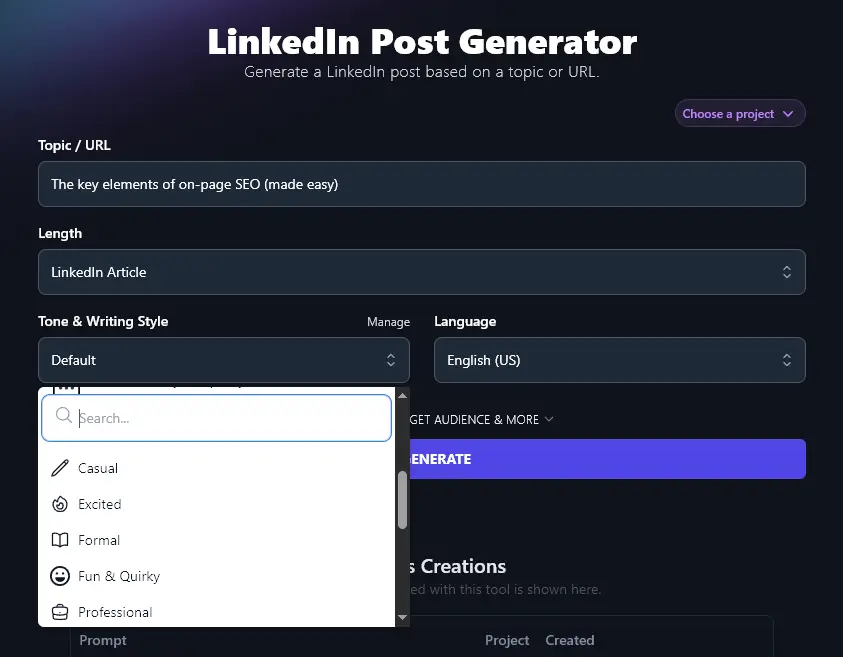
The AI will automatically write in an engaging style, well-suited to LinkedIn. But if your company voice or personal brand is a little different, go ahead and pick from the 16 different preset styles here.
Whether you want a “Fun & Quirky” vibe or a more “Professional” angle, there’s an option to suit you.
Step 4. Select Your Preferred Language for Your LinkedIn Post
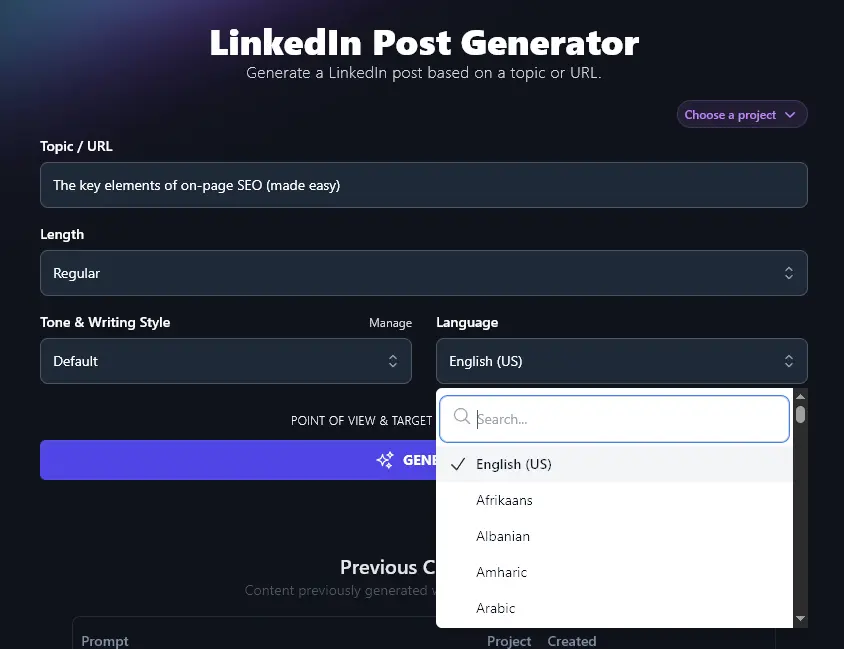
If you have a non-English-speaking or multinational audience for your LinkedIn posts, we’ve got you covered. RightBlogger supports over 100 different languages, from Africaans to Zulu. Go ahead and pick whatever option you want from the list (you can scroll through or use the search bar at the top).
When you’re ready, go ahead and generate your LinkedIn post:
Bonus: Use My LinkedIn Profile Checklist Alongside This Tool
Getting attention with your LinkedIn posts is great, but you want to make sure your profile is set up to impress your target audience (whether that means employers or clients).
Here’s my checklist you can use to make sure you’ve nailed your LinkedIn profile:
- Take a look at your profile pic: is it reasonably current and professional-looking photo? If not, change it!
- Make the most of the cover image area of your profile by adding an image that helps show people more about who you are
- Include a strong LinkedIn headline that clearly tells people at a glance who you are and what you’re all about
- Use a custom URL for your LinkedIn profile, it’s more polished and professional, plus you can easily add it to business cards etc
- Fill out your About section, making sure that you tailor this to your target audience
- Use the Featured section to showcase your best content, e.g. a powerful blog post, video, etc. If you’re including links, check the thumbnails look good.
- Complete the section for your Experience (past roles) and avoid leaving gaps in your job history.
- Add your Education: this can be a great way to connect with fellow alumni or former classmates
- Feel free to list your skills, but don’t go to any great lengths to get Endorsements, most people ignore these!
- Do ask for recommendations: you could use these as testimonials on your website
How Does the AI LinkedIn Post Generator Work?
There are lots of ways you can tweak the LinkedIn Post Generator to give you the perfect results, every time. Let’s dig deep into every feature (including the advanced options).
1. Topic / URL (Enter a Detailed Topic … or a Link)
The LinkedIn Post Generator can create content from scratch, or it can create a post based on an article, blog post, landing page, or even a video.
Let’s say we wanted to craft a LinkedIn post to promote RightBlogger’s Tool Studio. We already have a blog post announcing this feature, so we can simply enter the blog post URL here.
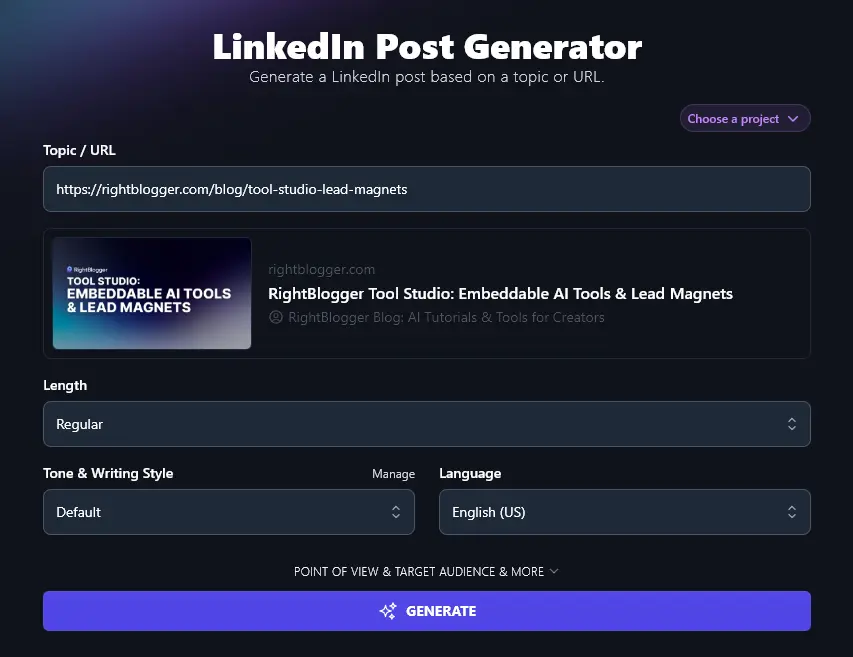
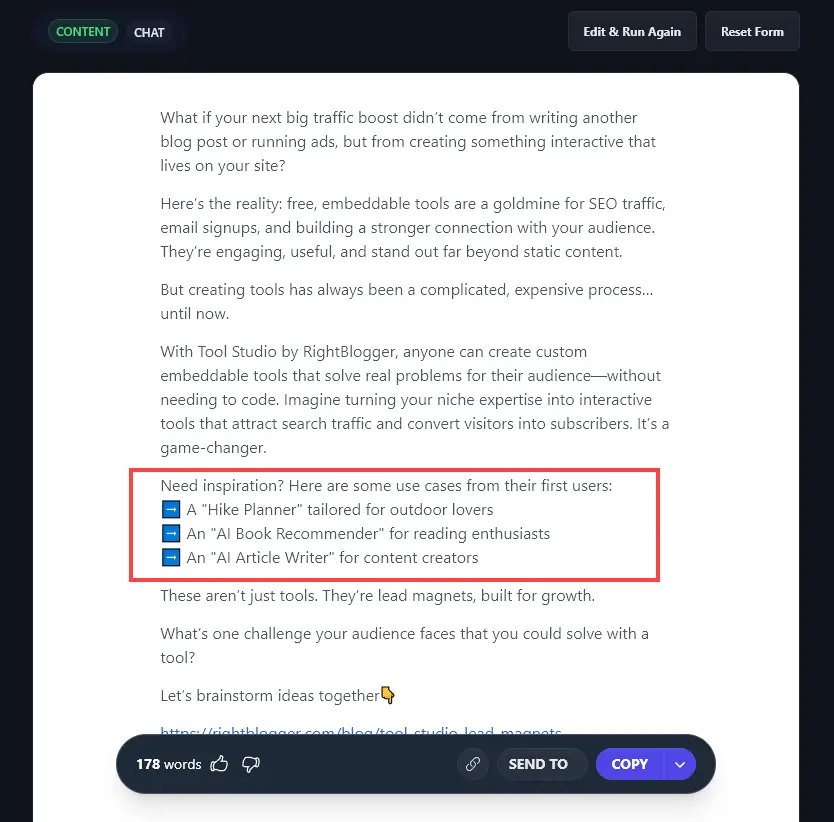
The AI automatically shows a preview of the blog post (with the featured image, blog URL & title, and post title). When you run the post generator, it’ll automatically draw from your blog post to create the content. For instance, all the use cases listed here are straight from the Examples section of our blog post.
2. Length (Get One Regular or Long Post … or 5 Short Ones)
The Length dropdown defaults to “Regular” which will match the type of length of typical posts you’ll see on LinkedIn.
But if you want something different, just select “Short” or “LinkedIn Article” instead.
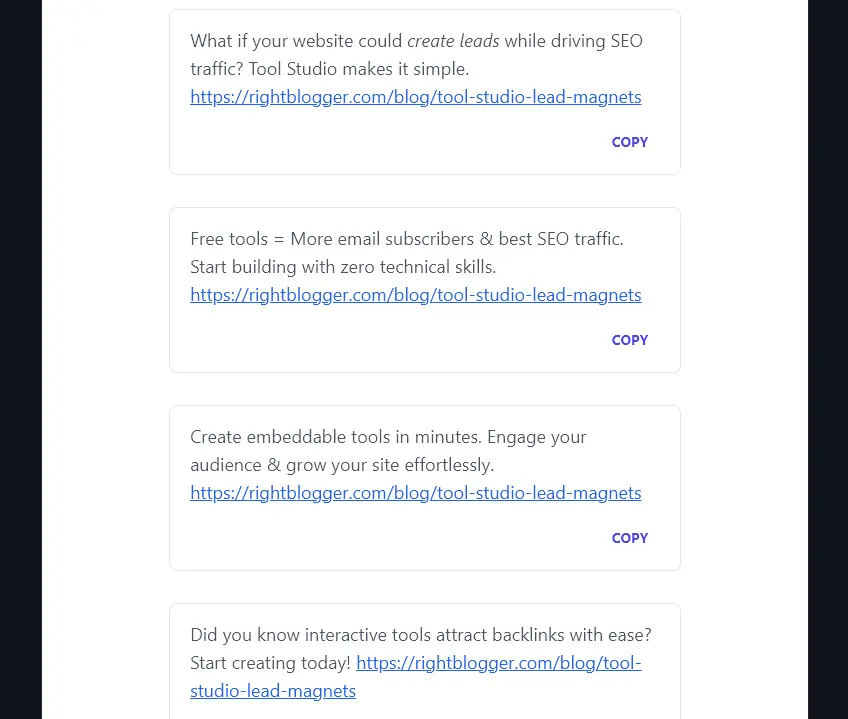
If you opt for the Short option, the LinkedIn Post Generator will come up with 5 different options for you. These are all short and sweet and could work well across other social media platforms like X or Instagram too.
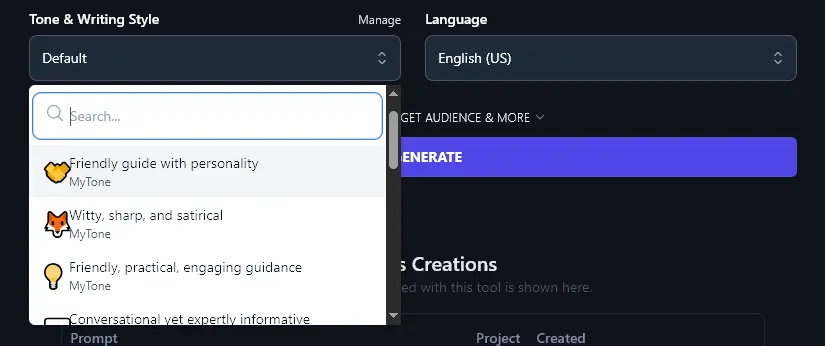
3. Tone & Writing Style (Choose From the List … or Create a Custom MyTone)
Like all of RightBlogger’s content creation tools, the LinkedIn Post Generator lets you adjust your tone & style so you can perfectly match your brand.
Here’s a quick look at the difference your tone & writing style can make, for the topic “Common SEO mistakes bloggers make”.
Fun & Quirky Style:
Common SEO Mistakes Bloggers Keep Making (And How to Avoid Them)
Let’s talk about something that can either make or break your blog: SEO.
There’s no sugarcoating it, SEO can feel like a confusing puzzle. But here’s the twist: a lot of bloggers are making the same mistakes over and over.
Are you guilty of any of these?
1️⃣ Ignoring Keywords
No, I’m not saying stuff your content with random words, but not doing keyword research at all? That’s like throwing darts with your eyes closed.
2️⃣ Skipping Meta Descriptions
Think no one reads them? Think again. They’re like the first impression for your blog post. Don’t miss out on this simple opportunity to hook readers.
3️⃣ Overloading with Jargon
Writing for search engines instead of humans? Big mistake. No one wants to feel like they’re decoding a science textbook.
4️⃣ Forgetting Internal and External Links
Links aren’t just for fun, they help Google and your readers navigate your content better. Are you using them wisely?
5️⃣ No Focus on Mobile Optimization
Your blog might look fab on desktop, but what about phones? A clunky mobile experience can tank your rankings fast.
Here’s where the community comes in:
Which of these mistakes have you been guilty of? Or, what’s the biggest SEO lesson you’ve learned so far?
Let’s share tips and insights in the comments, it’s a judgment-free zone!
#SEO #BloggingTips #ContentMarketing
Formal Style:
Common SEO Mistakes Bloggers Make (and How to Avoid Them)
Everyone loves to talk about SEO wins, but let’s flip the script for a moment.
Have you ever wondered if your blog posts are falling into common SEO traps? The kind that keeps them buried on page 10 of search results?
Here are a few mistakes many bloggers overlook:
- Skipping Keyword Research: Writing without researching what your audience is searching for? It’s like shouting into the void.
- Overloading Keywords: Stuffing too many keywords into your content hurts readability, and Google notices.
- Ignoring Internal Links: Linking to your own posts can keep readers engaged longer and boost SEO. Don’t miss this easy opportunity!
- Forgetting Alt Text for Images: Search engines can’t “see” images. Missing alt text leaves potential traffic on the table.
- Weak Headlines: If your title doesn’t grab attention, even the best content might be ignored.
- Not Updating Old Posts: Your older content can still rank higher if you refresh it with updated information or better keywords.
Which of these SEO missteps have you caught yourself making?
Let’s discuss! I’d love to hear which mistake connects with you, or any other tips you’ve learned along the way.
#SEO #BloggingTips #ContentMarketing
Struggling to find a style that sounds perfectly like you? Go ahead and make your own! RightBlogger’s MyTone feature lets you create custom MyTones based on your own writing (or even on a video). Every plan includes it, and paid plans save 5 (Solo), 15 (Pro), or 50 (Agency) of them.
Once you’ve set up a MyTone, you can simply select it from the dropdown list, just like the preset tones.
4. Language (Select from 100 Options, Including 4 Varieties of English)
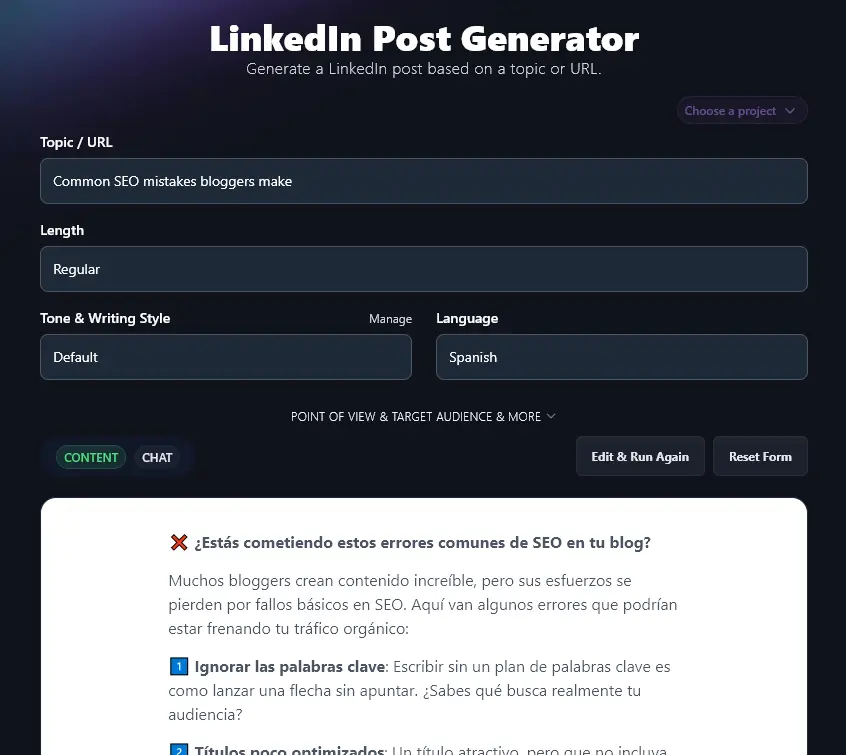
By default, RightBlogger uses US English for content generation … but you can pick from more than 100 different languages.
You can also choose from 4 varieties of English, so if you’re in the UK, Australia, or Canada, you can set the AI to automatically use the right spellings and terms for your country.
Here’s the AI coming up with LinkedIn posts for a Spanish-speaking audience:
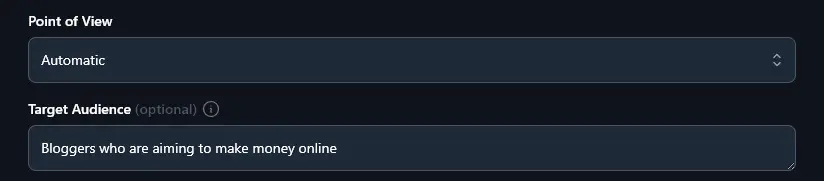
5. Point of View (Focusing On You, the Reader, or a Third Party?)
The LinkedIn Post Generator has a number of advanced options, which you can access by clicking the “Point of View & Target Audience & More” link.
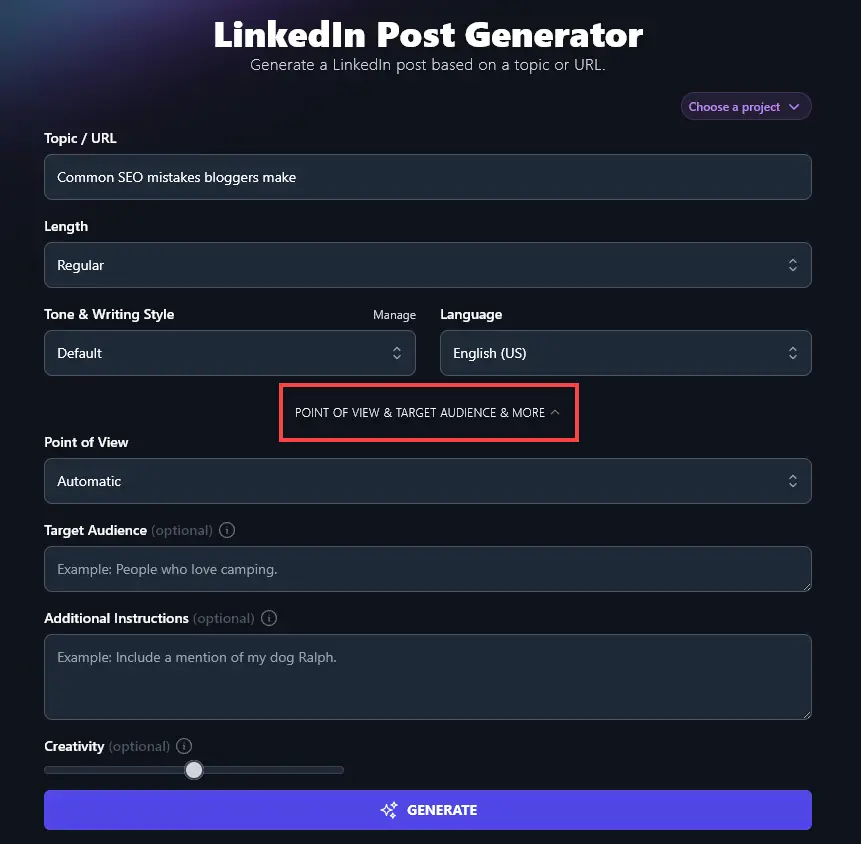
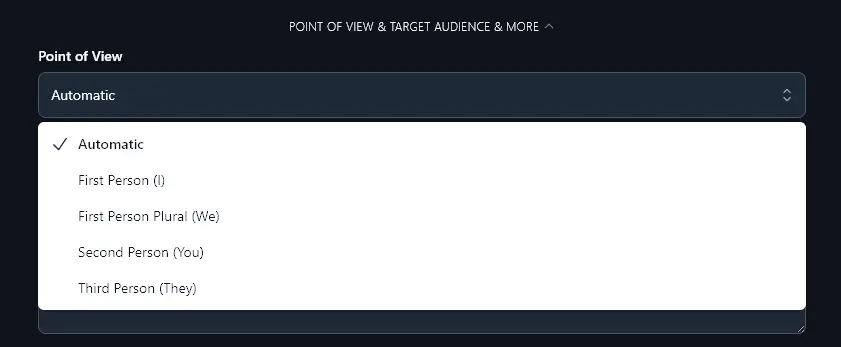
The first of these advanced options is the Point of View dropdown. The AI will automatically write in a suitable point of view for LinkedIn, sharing first-person tips using “I” and addressing the reader directly as “you”. But if you want to adjust the focus, go ahead and select from the dropdown list.
6. Target Audience (Who is Your Post Aimed At?)
What type of people are you trying to reach on LinkedIn? Let the AI know about the audience for your post, and it’ll tailor your content accordingly.
7. Additional Instructions (Extra Requests for the AI)
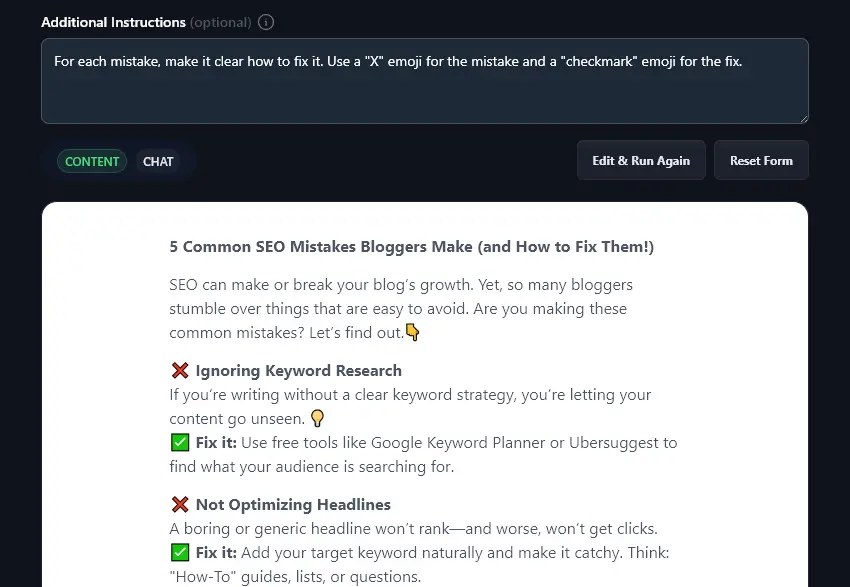
Hate emojis? Tell the AI not to use them! Want your LinkedIn post to end with a specific call to action? Pop it in the Additional Instructions.
The Additional Instructions box lets you guide the AI further about what you’re looking for in the generated content.
Let’s say you want to use emojis in a specific way. Just tell the AI and it’ll do what you want!
8. Creativity (Make the AI More Random or More Predictable)
The RightBlogger AI is automatically set to a midpoint for Creativity … but what if you want more (or less!) creativity in your content creation process?
Just move the Creativity slider left (less creative) or right (more creative) to adjust your content. Less creative content will be more predictable and conventional. More creative content will be more unexpected.

AI LinkedIn Post Generator FAQs (Frequently Asked Questions)
Got questions about using the LinkedIn post generator … or about coming up with LinkedIn posts in general? Here are all the answers you need.
How Do I Come Up With LinkedIn Post Ideas?
It can be tricky to brainstorm topics for your LinkedIn posts. If you’re not sure where to start, here are some good ways to create content ideas:
- Look at common questions you get from people in your field, or common struggles people talk about.
- Use ideas from a blog post or video you’ve created recently.
- Think about your broader content strategy: how might your LinkedIn content fit into this?
- Ask RightBlogger Chat (or another AI tool like ChatGPT) for LinkedIn post ideas that relate to your business or industry.
Of course, the LinkedIn Post Generator can help speed up the process. If you’re stuck for a topic, enter something very broad into the generator and generate 5 Short ideas. You can then pick one of those to use as the basis for a Regular length post.
How Often Should I Post On LinkedIn?
There’s no one perfect posting schedule … but to keep up an active, visible LinkedIn presence, you’ll probably want to post around 2-5 times each week.
Don’t go over the top. It’s much better to post quality content twice a week than to pump out lots of generic posts that bore your audience.
Should I Use Hashtags in My LinkedIn Posts?
It’s usually a good idea to include hashtags at the end of your LinkedIn posts, for greater visibility. Make sure you’re using relevant hashtags that make sense for your audience, and don’t put in so many that it starts to look spammy.
What Other Free AI Tools Can I Use to Grow My Online Presence?
The LinkedIn Post Generator is just one of RightBlogger’s free tools … we have over 85 more with a whole range of functionality. Some great ones to check out are:
- Article Writer: a complete big advantage for blog post writing, this all-in-one tool can outline, draft, and optimize a high-quality blog post from just a keyword
- Keyword Research: take all the hassle out of keyword research with our powerful AI tool (includes volume, difficulty, and cost per click metrics)
- Image Caption Generator: instantly come up with social media captions for LinkedIn, plus captions and alt text for images on your blog
- Instagram Caption Generator: this specialized caption generator creates perfect captions for your Instagram posts
- LinkedIn Headline: use this tool to quickly create a compelling headline for your LinkedIn profile
- YouTube to Blog Post Generator: turn a YouTube video into a well-structured, optimized blog post, just paste in the URL and run the generator!
We also have a whole range of blogging tools, social media tools, SEO tools, and copywriting (sales) tools … plus more! Every single one of our tools is designed to be as user-friendly as possible.
How Do I Sign Up For RightBlogger and How Much Does it Cost?
The LinkedIn Post Generator is available on every RightBlogger plan. Monthly Solo $59 (annual $49) covers a single site, while monthly Pro $89 (annual $69) adds team seats so your whole content team can create posts.
Every paid plan includes unlimited words, brand voices, and AI images. Need to manage clients? monthly Agency $299 (annual $199) gives you 10+ connected sites and dedicated onboarding support.