How to Use MyTone
Are you looking to include your unique writing style into every piece you create on RightBlogger? MyTone is your go-to feature, designed exclusively for subscribers.
This powerful feature in RightBlogger allows your personality and tone to shine through in your writing, making your content as unique as you are.
Whether you’re new to RightBlogger or want to get more from your subscription, this guide will show you how to use MyTone to customize your writing style with AI.
Getting Started with MyTone
MyTone is located within your RightBlogger account settings, easily accessible all RightBlogger users. If you’re using a free account, consider upgrading to a pro account to unlock more MyTone styles, among many other features.
How to Add Your Tone

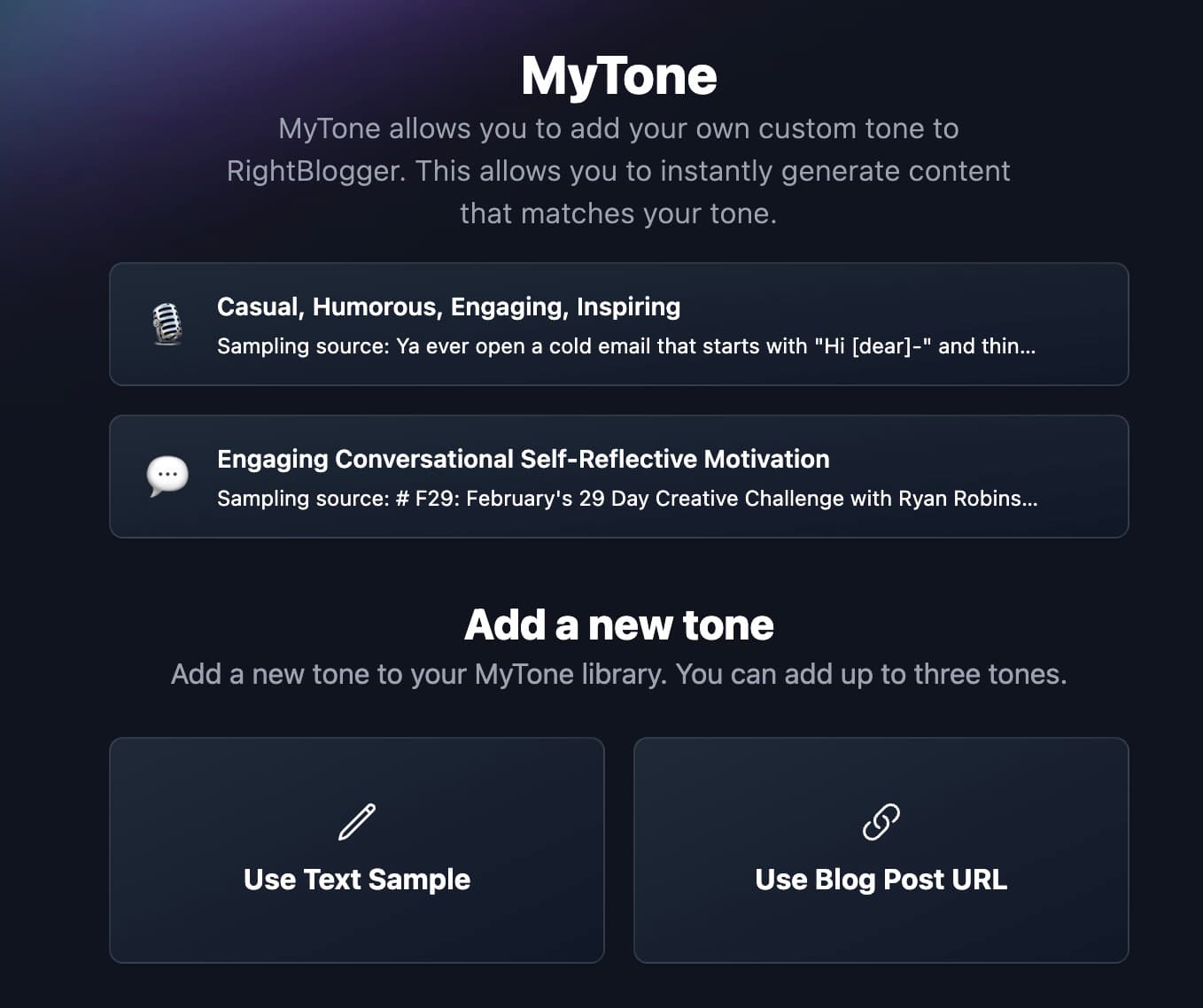
- Navigate to MyTone: Head over to the account bar at the top of your screen, click on “Account,” and select “MyTone” from the drop-down menu. You’ll land on the MyTone page, your first step towards personalized writing.
- Input Your Writing Sample: MyTone needs to understand your unique style. You have two options here:
- Use Text Sample: Ideal for when you want to train MyTone with a specific piece of text. Simply click on “Use Text Sample” and paste your text into the provided field.
- Use an Existing Blog Post or YouTube video: Want to use your previous work as a base? Paste the URL of one of your blog posts, articles, or YouTube videos, and MyTone will fetch the content from multiple sources for you. It’s a quick and easy way to let MyTone analyze your writing style.
- Manually describe a tone: Have a writing style you manually want to write out? this will let you manually create a writing style in your own words. This is great if you have a writing style prompt you use in ChatGPT or just want to manually write one out.
Once you’ve input your writing sample or blog post, hit the “Analyze and Add” button. MyTone will then scrutinize your writing, identifying nuances of your style and tone.
This process takes a few seconds. After that, MyTone categorizes your writing style: educational, engaging, respectful, or storytelling. You’ll see a snapshot of your style with a sample source and a visual representation, making it easier to find when selecting your writing style in tools.
Additionally, if you are an advanced user, you can edit your MyTone prompt or enable/disable the “Improve Readability and Humanize?” option, which optimizes your prompt with techniques designed to enhance outputs from RightBlogger tools.
Using Your Custom MyTone
With your tone now added to MyTone, you can start applying it across various RightBlogger tools.
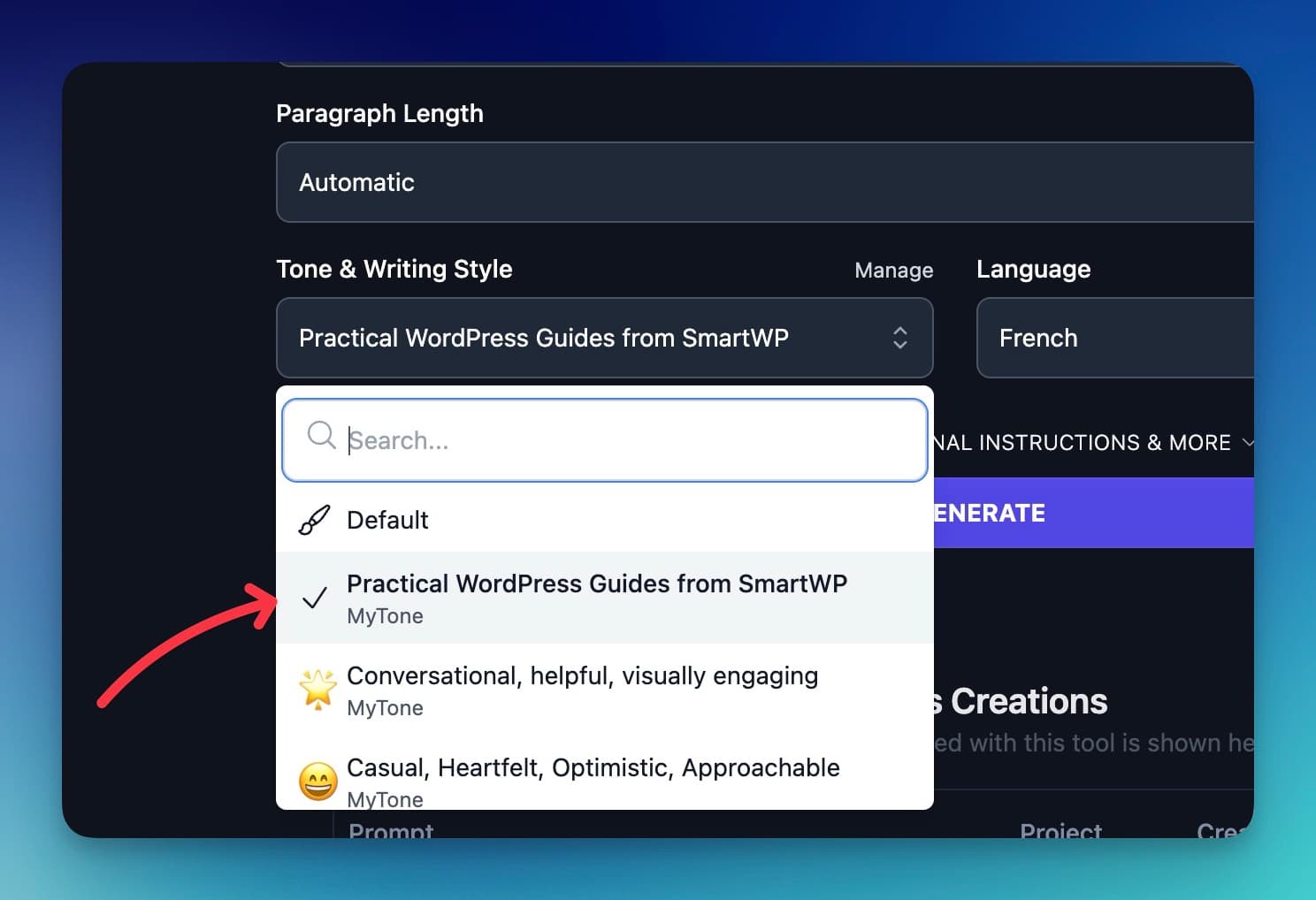
- Try It Out with the Paragraph Generator: Head to the tools section and select the paragraph generator. Input a sentence or idea, choose your newly created MyTone, and hit generate. You’ll see content crafted in your style, a testament to how MyTone adapts to your writing.
Don’t hesitate to experiment with different tones, articles, videos, or text samples. And if you don’t have existing content to use, just type out what you want—keeping in mind there’s a minimum text amount required for optimal training.
Remember, you can manage up to ten different tones at any given time. Feel free to delete and add tones as needed, ensuring your writing stays fresh and aligned with your evolving style.
Conclusion
MyTone in RightBlogger makes your voice clear and consistent across tools. Think of it as a way of training your AI to sound liek you.
This is done by adding a text sample or URL, clicking analyze, and then using your tone in different tools. Like we just showed you can edit the prompt or toggle Improve Readability and Humanize if you want be super detailed for specific results.
Upgrade to a pro account to unlock more styles and options.
Try it today, then share which tone gave you the best lift.
How does MyTone actually learn and use my writing style?
MyTone learns your style by analyzing a writing sample you give it. You can paste in your own text, share a blog post URL, or use a YouTube video link so it can pull the transcript.
It looks at word choice, sentence length, and how you explain ideas. Then it turns that into a reusable tone you can pick in RightBlogger tools, so new content sounds more like you.
After it analyzes your sample, MyTone labels your tone (for example, educational or storytelling) and saves it in your account. You can then select that tone from the dropdown inside tools like the paragraph generator to keep your voice consistent in every piece.
If you are more advanced, you can also edit the underlying prompt and choose whether to enable "Improve Readability and Humanize" to fine tune how close the results feel to your natural voice.
What is the best kind of writing sample to use with MyTone?
The best writing sample is something that already sounds like how you want to publish online. A clear, well edited blog post, newsletter, or article usually works better than a quick social media post.
Try to use a sample that is long enough for MyTone to understand your voice. A detailed blog post or article with your normal tone, pacing, and explanations will give better results than a few short lines.
If you do not have many posts yet, you can write out a longer paragraph or short article that shows your ideal style. You can also manually describe your tone in your own words if you already have a prompt you like to use with AI tools.
Once your tone is saved, you can reuse it across tools, so taking a few extra minutes to choose a strong sample will save you a lot of editing time later.
How can I use MyTone with other RightBlogger tools to speed up my blogging workflow?
You can use MyTone as the base layer for almost every writing task in RightBlogger. For example, choose your custom tone inside the AI Article Writer to draft full posts that already sound like you.
Then you can refine sections using tools like the paragraph generator or the Improve Writing tool, still with your tone selected, to keep your style steady from intro to conclusion.
If you use features like autoblogging and scheduling, MyTone helps keep all those auto generated drafts in the same voice. That means less time rewriting and more time focusing on ideas, research, and SEO.
You can also combine MyTone with tools like the Grammar Checker or Content Rewriter to clean up or repurpose old posts without losing your unique style.
Can I create more than one MyTone, and when would I need multiple tones?
Yes, you can manage up to ten different tones in your account at one time. This is helpful if you write for different audiences, brands, or topics.
For example, you might have one tone for friendly how to posts, another for more serious educational guides, and a third for storytelling style email content. Each tone can be trained with its own sample so they stay clearly different.
When writing, just pick the tone that matches the content you are creating. This keeps your brand voice steady within each project while still letting you switch styles quickly as your blogging needs change.
If a tone no longer fits your style, you can delete it and train a new one so your MyTone list always matches how you write today.
Do I need a pro account to get the most out of MyTone?
All users can access MyTone, but a pro account gives you more MyTone styles and flexibility. This is useful if you manage several sites or write for clients and need different voices.
With more tone slots, you can test different styles and see which one works best for clicks, time on page, or SEO performance. You can also align tones with specific content strategies, such as product reviews, tutorials, or storytelling posts.
If you pair MyTone with other RightBlogger features like SEO Reports and Auto Optimize, you can keep both your voice and your search performance strong. This gives you a simple system to publish more, without your posts sounding like generic AI.
Even if you start on a free plan, you can upgrade later to unlock extra tones once you know which styles you want to scale.
New:Autoblogging + Scheduling
Automated SEO Blog Posts That Work
Try RightBlogger for free, we know you'll love it.
- No Card Required
- Blog Posts in One Click
- Unlimited Usage


Leave a comment
You must be logged in to comment.
Loading comments...