Need to write a review or testimonial for a business you’ve worked with, or a review of a product you’ve used? RightBlogger’s free AI Review Generator puts together your key points in a positive and fluent way, in just seconds.
Testimonials make a massive difference to businesses, with Spiegel Research Center finding that products with 5+ reviews are 270% more likely to be purchased than those with no reviews.
Need testimonials or reviews for your own sales pages? You can use the AI Testimonial Generator to write testimonials on behalf of your clients (always run these past your clients first for approval).
How to Use the Review Generator Tool (Testimonial Generator)
Ready to create a testimonial or review? Here’s how to use our AI-powered Testimonial Generator, step by step.
Step 1. Select the Review Platform
Where is your review going to appear? You can choose from a range of different popular platforms, or pick the “Testimonial” option if you’re looking for a testimonial about a service you provide (e.g. coaching, consulting, freelance web development).
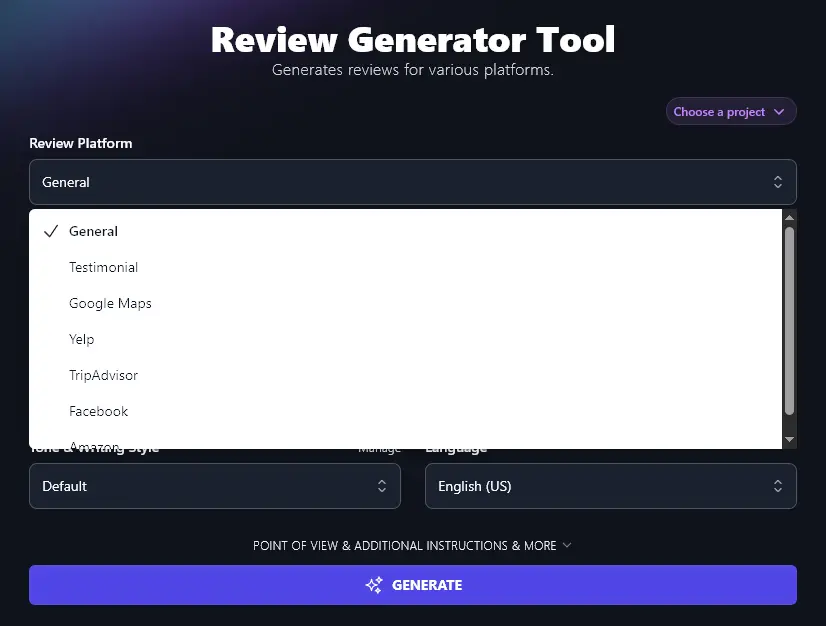
Tip:Not sure or got a different platform in mind? Just pick “General” here.
Step 2. Enter the Name of the Product, Service, or Business for the Review or Testimonial
What exactly is it that you’re reviewing? Enter the product name (or the name of the service, business, etc) here. You can also put a link to an Amazon product for it to grab product information.
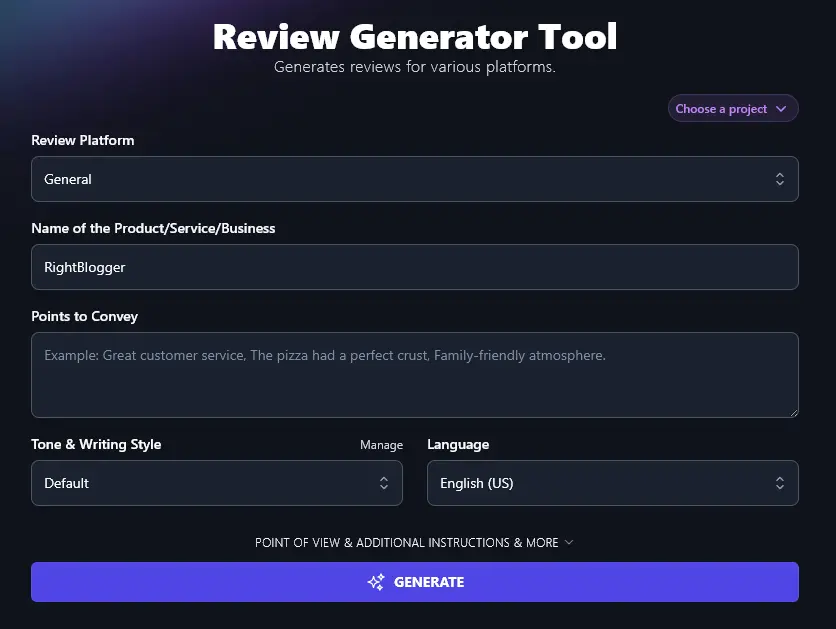
Step 3. Type in the Main Points You Want to Convey in Your Review
The AI needs to know what you thought of the product (service, etc). Give a quick summary here. You don’t need to write in full sentences: you can put your points on separate lines, or use commas or periods between them.
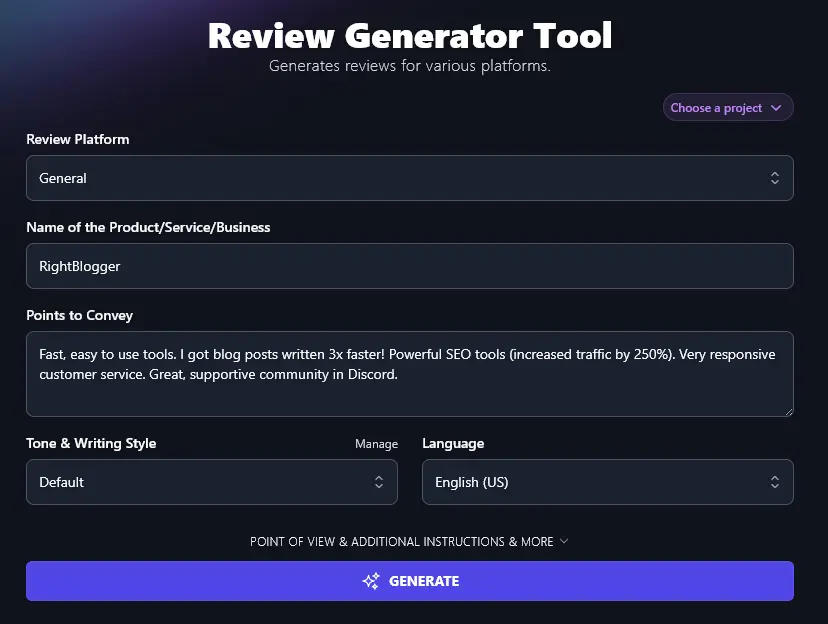
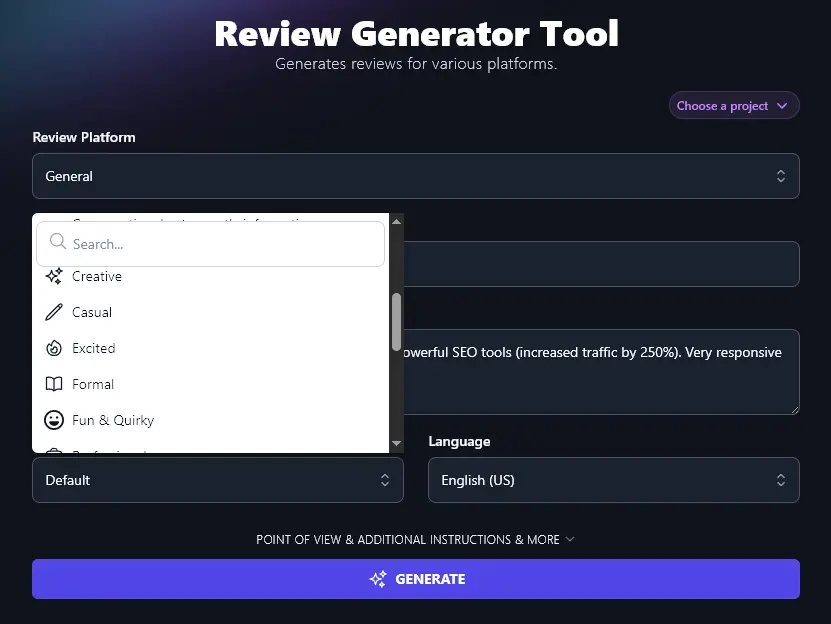
Step 4. Choose a Tone & Writing Style for Your Review or Testimonial
You want your review (or testimonial) to sound like you. While the Default style is designed to be a good, conversational fit, it may be that a different style suits you (or the review platform) even better. Go ahead and experiment with the preset tones, we have everything from “Academic” and “Formal” to “Excited” and “Fun & Quirky”.
Step 5. Select Your Language (Defaults to US English)
If you want a different language from US English, we have 100+ to choose from. The AI can write your review/testimonial in any of these. So if you’re writing for an audience that doesn’t have English as a first language, go ahead and choose whatever language makes most sense for you.
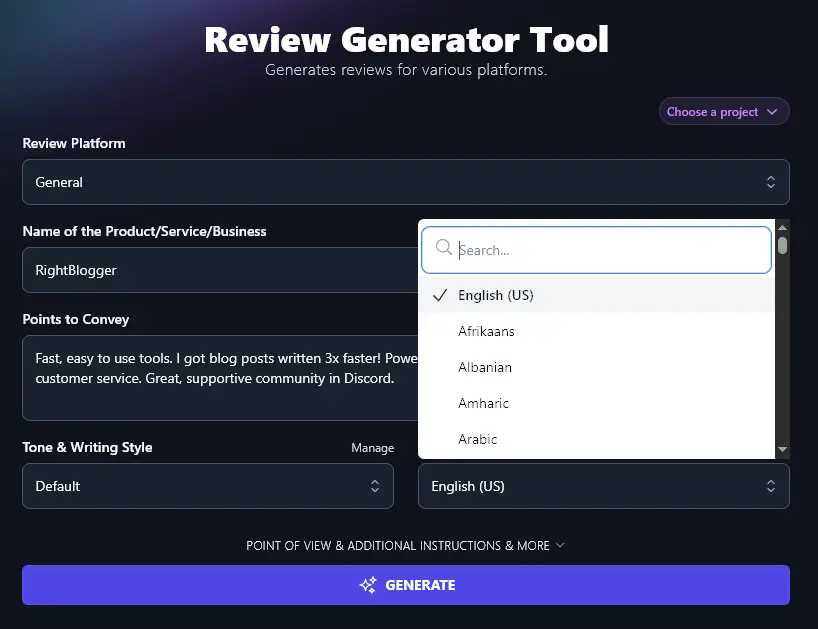
Once you’ve filled in the details, just click “Generate” and the AI will write your review or testimonial for you.
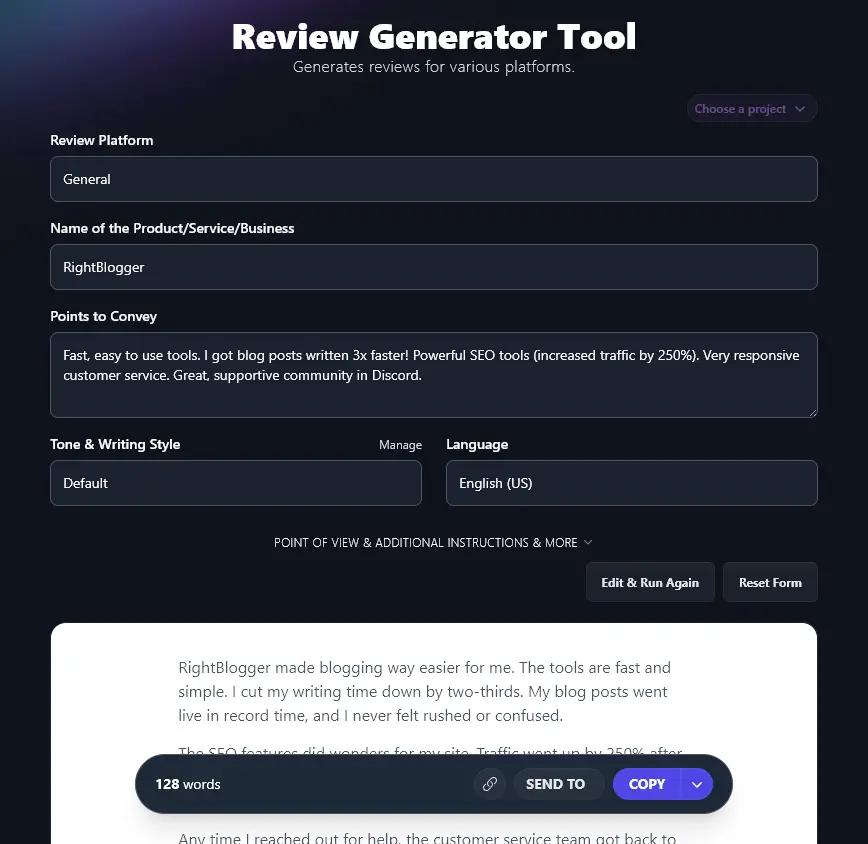
You can use the “Copy” button to copy the text of the review to your clipboard, or click the downward arrow to the right of the button to get more options, e.g. you can download your review as a .docx (Microsoft Word) file.
Bonus: Use My Testimonial Checklist to Write Stronger Testimonials
Whether you’re using AI technology to write your testimonials or you’re producing them from scratch yourself, here’s how to make sure you’ve got a strong testimonial every single time.
- Mention some key features of the product that helped you
- If appropriate, give background information on your situation/problem
- Explain exactly how the product helped solve your problem or improve your situation, giving specific examples and stats if you can
- Be honest. If you’re reviewing a product that had some major shortcomings, mention those
- Write in a conversational way, using everyday language (though it may be appropriate to use technical terms in some contexts, e.g. B2B reviews)
- Mention how you felt: emotions help people connect with your experience
- Close by summing up with a call to action, like encouraging others to check out the product
- Proofread your review for any typos, spelling mistakes, or inaccuracies (if it’s generated content, make sure that anything the AI has added is accurate)
How Does the Testimonial Generator Work? (Getting the Most from the Review Generator)
It’s quick and easy to create compelling testimonials and authentic reviews using this AI tool, but how do you get the best possible results? You want your testimonials to drive conversions, which means having them as spot-on as possible for your target audience.
Let’s walk through each feature of the Testimonial Generator tool, including the advanced options.
1. Review Platform (Select from a Range of Popular Options)
The Review Platform picker includes the following options:
- General. Suitable for most reviews, particularly on your own site, in your marketing materials, and for quoting in social media posts.
- Testimonial. A positive review of working with you (or using your product). Designed for use on a landing page, but also suitable to quote in emails or any marketing copy.
- Google Maps. A review designed for posting on Google Maps, tailored to a business with a physical location, such as a restaurant, store, or in-person experience.
- Yelp. A review designed for the Yelp platform, covering local businesses, not necessarily those with a physical location you can visit (e.g. handymen, auto-mechanics, plumbers, electricians, etc are all covered).
- TripAdvisor. A review designed for the TripAdvisor platform, which covers things like hotels, restaurants, cafes, and attractions.
- Facebook. A review designed for posting on a business or organization’s Facebook page.
- Amazon. A review of any product that’s for sale on Amazon (book, homeware, clothing, electronics, etc).
- Blog Post Section. A concise review for adding as a section in a blog post. See our guide on writing strong comparison and alternatives posts for how reviews fit into longer-form content.
If your chosen platform doesn’t appear on the list, select “General” and then enter details about the platform in the “Additional Instructions” field, which we’ll come onto shortly.
2. Name of the Product/Service/Business (Give the Name of Whatever You’re Reviewing)
In this field, simply enter the name of the product, service, or business that you’re reviewing, exactly as you want it to appear in the review.
Don’t worry about specifying whether it’s a product, service, or business. The AI should be able to detect this from your key points. If you want to provide more context, you can do so in the “Additional Instructions” field later on.
3. Points to Convey (Key Information for Your Testimonial or Review)
You can include both positive and negative points: in this case, the Review Generator will write a balanced but broadly positive review.
For instance, we entered these key points for a fictitious service called “Growing Gardens”:
Friendly service that kept my lawn looking fantastic all year round. But they sometimes came over an hour late without calling or texting to let me know, which was annoying.
The AI came up with:
Growing Gardens made my yard look its best every season. The team was friendly and always took time to chat or answer my questions. I could count on the grass looking healthy and neat after each visit.
The only downside was their timing. They often showed up over an hour late without a call or text. That got on my nerves, especially when I planned my day around them. Still, I stuck with them because the service was great and my lawn always looked sharp. I hope they work on their timing, but I can’t fault the quality of their work.
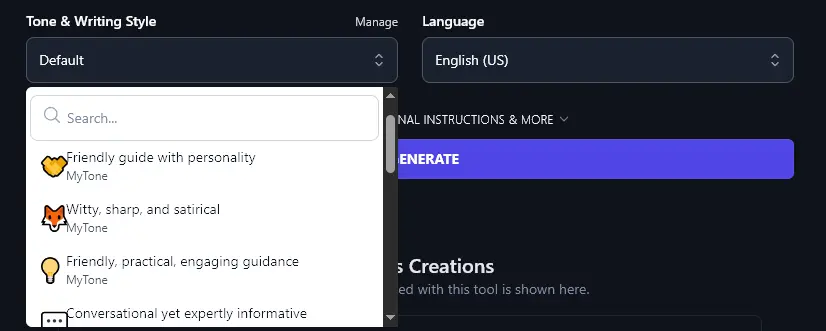
4. Tone & Writing Style (Choose from the List, or Create a Custom MyTone)
The Tone & Writing Style dropdown lets you choose from 16 different preset tones. If you’re writing a B2B review, for instance, the “Professional” tone might suit you best. For other products/services, you might want to tailor the tone to your personal tone of voice.
Tip:Writing testimonials for your own service or business, based on customer feedback? Using different tones can make for more authentic testimonials.
The Tone & Writing style can make a big difference to how your review feels. We wrote 2 reviews, each for “Julie’s Cafe” on Google Maps, with the following points to convey:
Lovely little cafe with a great view of the high street. Fantastic coffee, brilliant range of cookies. Always a warm and friendly welcome from Julie. Second-hand books to browse (or take home) too. Can get busy mid-morning but much quieter in the afternoon.
With the “Fun & Quirky” style selected, the AI wrote:
Julie’s Cafe is a little burst of joy on the high street. The view (prime people-watching territory) keeps every visit interesting. The coffee comes out hot and strong, a proper wake-up call without fuss. Cookies here aren’t just cookies; they’re a whole lineup, fresh and stacked with flavor. Julie always greets you like a regular, even if it’s your first time. There’s a shelf of second-hand books, and yes, you can actually take one home. Mornings can get a bit crowded, but the afternoons slow down and feel like your own living room. For simple happiness and a snack, this spot nails it.
When we opted for a “Formal” tone, the AI wrote:
Julie’s Cafe offers a cozy spot with a clear view of the high street. The coffee is excellent, and the cookies come in a wide range of flavors. Julie greets every guest with kindness, making each visit warm and pleasant. The shelves hold second-hand books, which customers are welcome to browse or take home. The cafe fills up mid-morning but slows down in the afternoon, making it a nice place to relax later in the day. This spot blends comfort, great food, and a personal touch that sets it apart.
If none of the preset tones are quite right for you, why not create a custom MyTone? (Available on the Pro plan.) You can make up to 10 different MyTones, based on samples of your writing or even a video.
Once you’ve created a MyTone, you can simply select it like any other tone, from the dropdown list:
5. Language (Over 100 Options, Plus Different Varieties of English)
RightBlogger creates content in US English by default, but the AI can write your reviews and testimonials in over 100 different languages. If you run a multilingual business or you’re based in a non-English speaking country, go ahead and select your preferred language from the list.
Tip:Use the search bar at the top of the dropdown to find a language quickly, instead of having to scroll.
We generated our cafe review in Spanish:
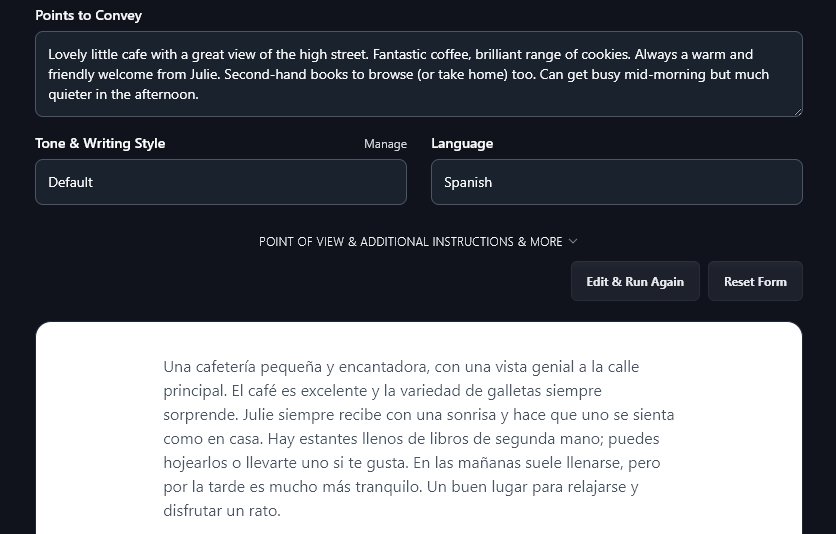
As well as a range of languages, the Testimonial Generator can write in 4 different versions of English (for the US, UK, Canada, and Australia). This means you can tailor the text to your local spellings and terms.
6. Point of View (Choose a Perspective for Your Generated Testimonial or Review)
The Testimonial and Review Generator includes several advanced options. Just click the “Point of View & Additional Instructions & More” link to open these up.
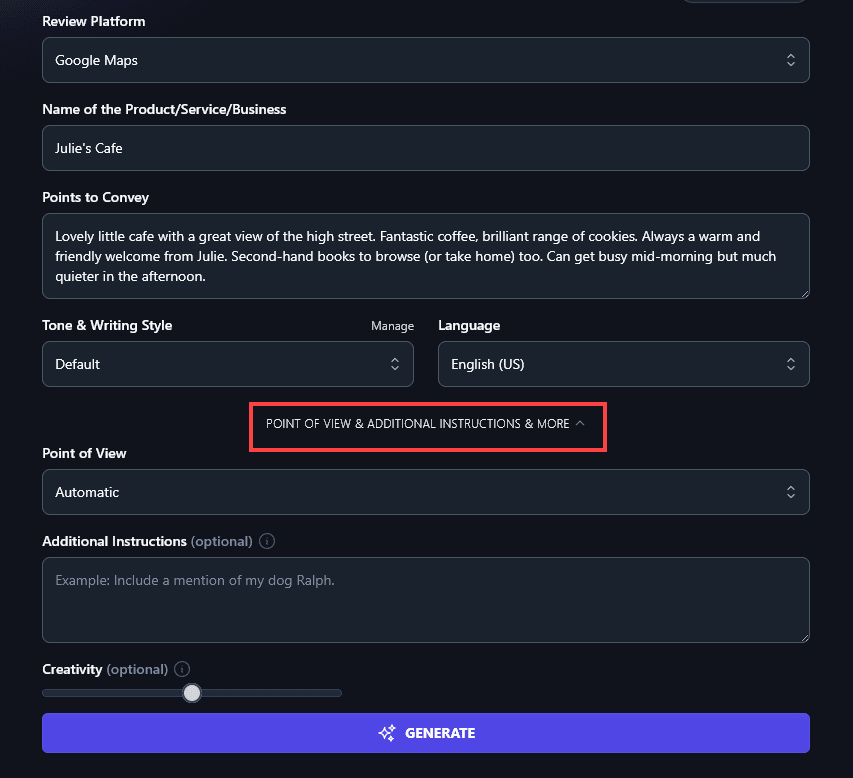
The first of these options is the Point of View dropdown. For most reviews and testimonials, the “Automatic” perspective works fine. But if you want, you can specify a viewpoint for the AI to use. The options are:
- First Person uses the “I” perspective, focusing on your own experience with the product/service.
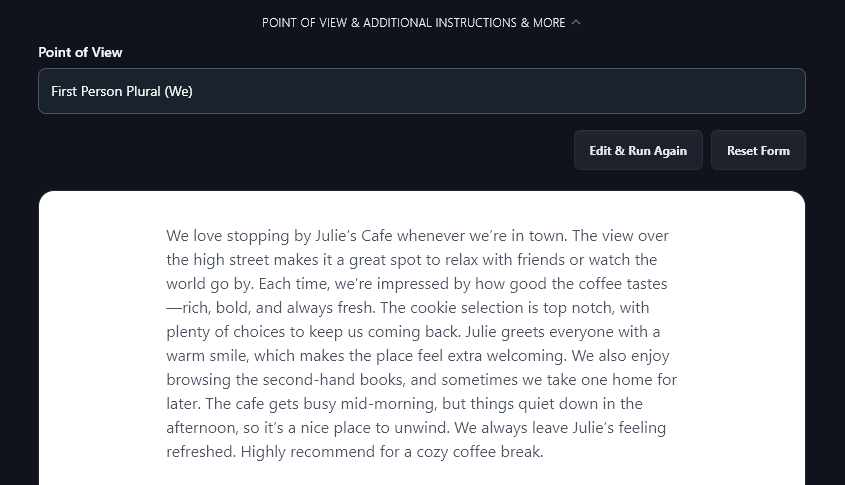
- First Person Plural uses the “we” perspective, useful if you’re reviewing a product on behalf of a team (or family, couple, etc) rather than an individual.
- Second Person uses the “you” perspective, with the focus on the reader and what they’ll get out of the product.
- Third Person uses the “they” perspective, making your review sound more neutral and objective.
We reworked our review of Julie’s Cafe using First Person Plural, and the AI wrote it from the perspective of a couple or group:
7. Additional Instructions (Give the AI Any Extra Details or Requests)
For some reviews or testimonials, you might want to prompt the AI with some additional context. You can either put this in your key points or include it within the Additional Instructions box. For instance, you might want to specify that you’re reviewing a subscription product (not a one-off purchase), or that your review is of a local attraction that’s only open seasonally.
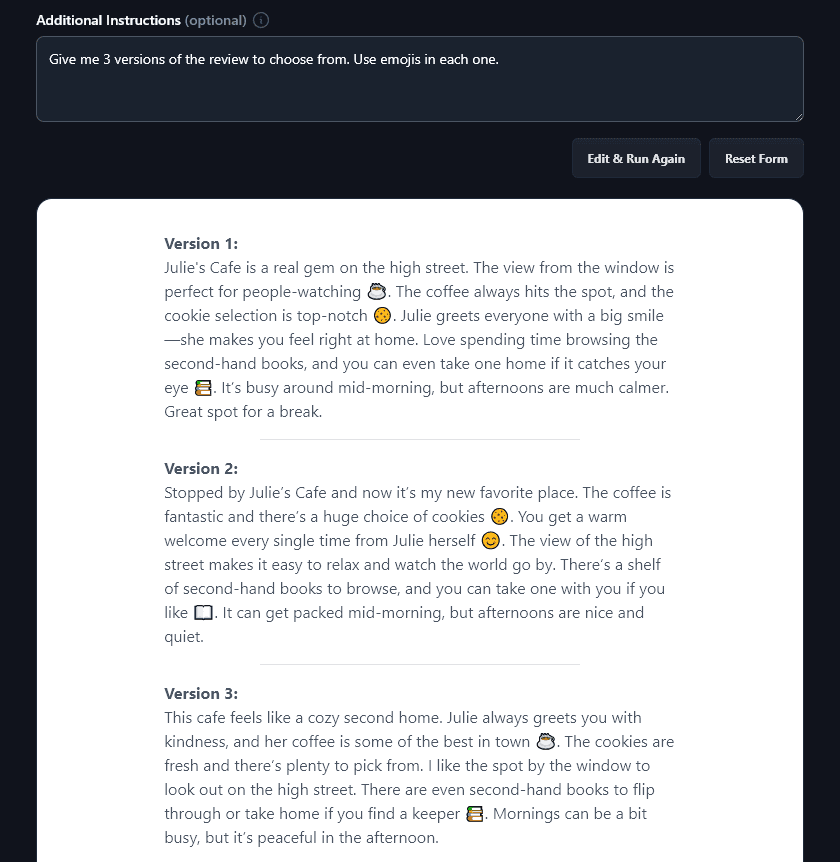
The Additional Information section also lets you make any special requests for your review. Perhaps you want 3 different options to choose from, or you’d like the AI to use bullet points, emojis, or even subheadings within the review. Maybe you’re reviewing a business as a whole but want to mention a couple of specific products. Just ask the AI for whatever you want.
Here, we asked the AI for 3 versions of our review, with each to include emojis:
8. Creativity (Adjust How Predictable or Unusual Your Review Is)
The RightBlogger AI algorithm is automatically set to a balanced midpoint of creativity. If you want to adjust this, move the creativity slider. Shift it less for a less creative (more predictable) review, or right for a more creative (more unusual) review.

Testimonial and Review Generator FAQs (Frequently Asked Questions)
Got questions about using the Testimonial Generator, or about testimonials and reviews in general? Here’s what you need to know.
What’s the Difference Between a Review and a Testimonial?
The words “review” and “testimonial” can be used interchangeably, but they’re slightly different.
Reviewsare generally considered to be more spontaneous feedback (positive, negative, or mixed), and are often posted on third-party platforms like Yelp, TripAdvisor, Google Maps, and Amazon. Positive reviews on Google in particular can improve your local SEO, helping you rank higher in local search (which pairs well with a broader SEO content strategy for the surrounding pages).
Testimonialsare used as a marketing tool, generally on an organization’s own website and in their marketing materials. They’re always positive overall, though may mention concerns or worries that the customer/client had initially. They can improve your SEO by incorporating relevant keywords for your product or service.
Why Are Reviews and Testimonials Important for My Business?
Any (positive!) online review or testimonial will help you build trust with potential customers. Reviews and testimonials are one of the strongest forms of social proof: they not only show that someone has used your product/service (and that therefore it exists and isn’t a scam), they also give an account of real customer experiences.
How Can I Get More Reviews and Testimonials for My Business?
It can be tricky and time-consuming to get customer reviews and testimonials for your business or organization if you’re just starting out. Even if you’ve been in business a while, it might take time to gather reviews and testimonials for new products.
To collect high-quality reviews and testimonials, you can:
- Specifically ask customers, personally, for a review/testimonial. Many people will be happy to oblige, especially if they enjoyed working with you.
- Encourage video testimonials. These can be more engaging than just text, and they let customers show their product, result, etc. Some people would rather record a video than write something, too.
- Rework any positive feedback or case studies from customers/clients into persuasive testimonials or reviews, e.g. using our Review Generator Tool.
- Use simple templates to encourage impactful testimonials, e.g. asking your customers to tell you any concerns they had before working together, what the best thing about working together was, and what results they got.
Note: You shouldn’t simply invent reviews and testimonials from fictitious happy customers. It’s a violation of FTC guidelines and most platform policies (Yelp, Google, Amazon all explicitly prohibit fake reviews), and even when nobody catches it, manufactured testimonials rarely sound convincing. Our guide on AI blogging mistakes to avoid covers this and other common pitfalls when using AI for marketing content.
Can I Edit or Delete Negative Reviews?
Customer testimonials and product reviews appear in all kinds of places on the web. Broadly, these are divided into 2 categories:
- Reviews you have control over (you can edit/delete them).
- Reviews you don’t have control over (you can ask a platform to remove them, but they might not do so). This applies to Google reviews, Yelp reviews, etc.
The testimonials and reviews you have control over appear in places you own, like on your website’s landing pages, in your ads, and in your emails. You might gather these testimonials directly from clients or write them on your clients’ behalf, getting their approval before publishing them.
Reviews you don’t have control over appear on third-party platforms, like Amazon, Facebook, and Yelp.
It’s a good idea to respond politely and professionally to negative reviews.
If a review is clearly incorrect (e.g. refers to a completely different business), illegal, or written by a disgruntled ex-employee, etc, you may be able to get the platform to remove it.
If you’re getting more than a very few negative reviews, that suggests customer satisfaction isn’t quite where you want it to be. Are you over-promising? Are you attracting the wrong customers? Is there an issue with your pricing or positioning, or is it more a problem of delivery? Negative reviews can feel upsetting, but they can also give you important insights on how to improve your business.
What Other AI Tools Can I Use to Improve My Online Presence?
The Testimonial Generator is just one of the many AI tools included in every RightBlogger plan. Sign up today with monthly plans start at Solo $59 (annual billing, charged monthly, is $49). See RightBlogger pricing.
Beyond our AI Review Generator, some great free tools to get started with are:
- Article Writer: craft high-quality full-length articles in your brand voice, from just a keyword or topic, a big advantage!
- Keyword Research Tool: lay the foundation for great SEO-optimized content and better search engine rankings by choosing the right keywords (tool includes volumes & difficulty ratings)
- Expand Tool: if you have a short review from a satisfied customer that you want to expand, this is the tool for you
- Blog Post Outline Generator: speed up your content creation process by getting RightBlogger’s AI to outline posts for you
- LinkedIn Post Generator: create compelling posts for LinkedIn. You could even use testimonials within these by adding them in the Additional Instructions
- Product Description Generator: perfect for e-commerce stores, startups, and business owners in general, this tool can write short or detailed descriptions for any product/service
We’ve also got lots more writing tools, blogging tools, SEO tools, sales tools, and social media tools for you to use, and we’re adding new ones all the time. If you are new to SEO subscribers also have access to our SEO Mastery course.
How Do I Sign Up for RightBlogger and How Much Does it Cost?
All our tools are included in every RightBlogger plan, with unlimited words on every paid plan.
For advanced features like MyTone, Projects, Knowledge, and Chat, the monthly Pro plan at $89 (annual $69) is the most popular choice (3 sites, 3 team seats, 90 SEO reports/mo). Monthly Solo starts at $59 (annual $49), and monthly Agency is $299 (annual $199) for larger teams. All plans include a 7-day free trial and a 30-day money-back guarantee.