AI Image Generator
Generate an image using AI.
Do you need an AI image generator to create visuals for your blog posts, social media posts, landing pages, emails, or even products?
Our AI image generator creates high-quality images in seconds. You can choose from a range of styles and select your preferred aspect ratio so that you get exactly the type of image you want.
How to Use the AI Image Generator (Text-to-Image Tool)
The AI image generator is designed to be really easy to use, even if you’ve not had any experience creating AI images. Here’s what to do, step by step.
Step 1. Enter a Detailed Description of the Image You Want
First, you’ll need to type in a detailed description (prompt) for the AI. The more information you give, the better.
Tip: You don’t need to specify the image style here (e.g. “photorealistic” or “illustration”), as the tool has a dropdown for that.
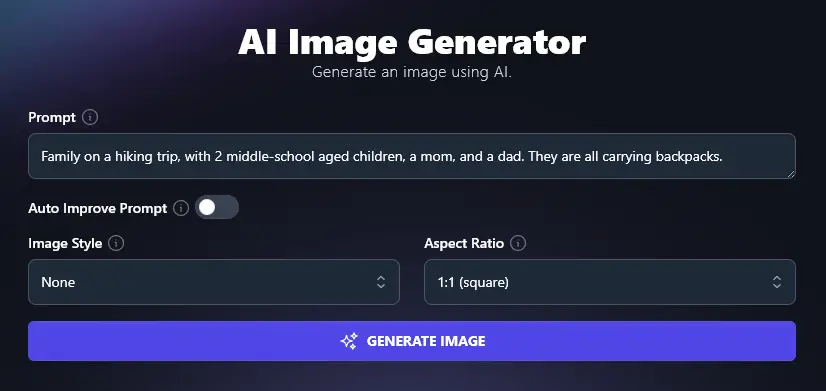
Step 2. Choose Whether or Not to Auto Improve Your Prompt
RightBlogger’s AI can automatically improve your prompt before creating your image. If you have a fairly general prompt, it’s a good idea to toggle this option on.
If you’ve already got a detailed prompt and you want very specific things included in your image, it usually works best to leave auto-improve switched off.
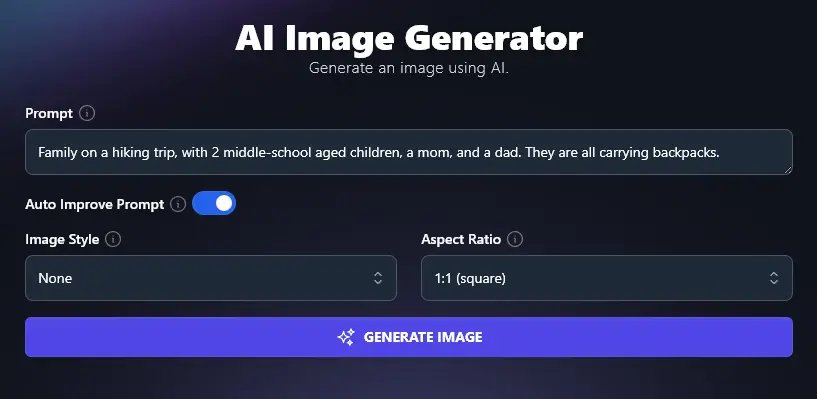
Step 3. Pick an Image Style from the Dropdown List
The image generator tool can create images in a range of different styles: photorealistic, illustration, anime-style, pixel, sketch, isometric, 3D rendering, and more. Just select the style that suits you best from the dropdown list.
Step 4. Select an Appropriate Aspect Ratio
With RightBlogger, you can create images in a range of common aspect ratios. Whether you’re posting on your blog, Instagram, creating a product image, or something else, there’ll be a size to suit you here.
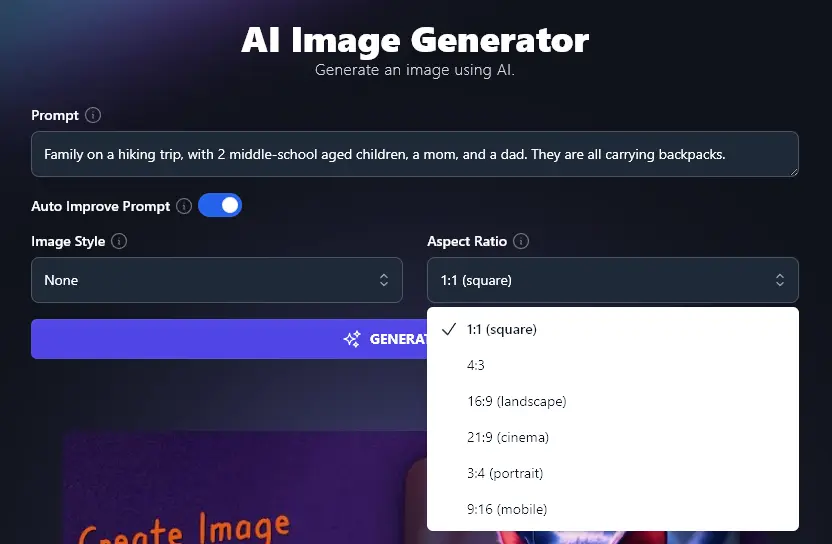
Once you’re happy with the options you’ve selected, go ahead and generate your image.
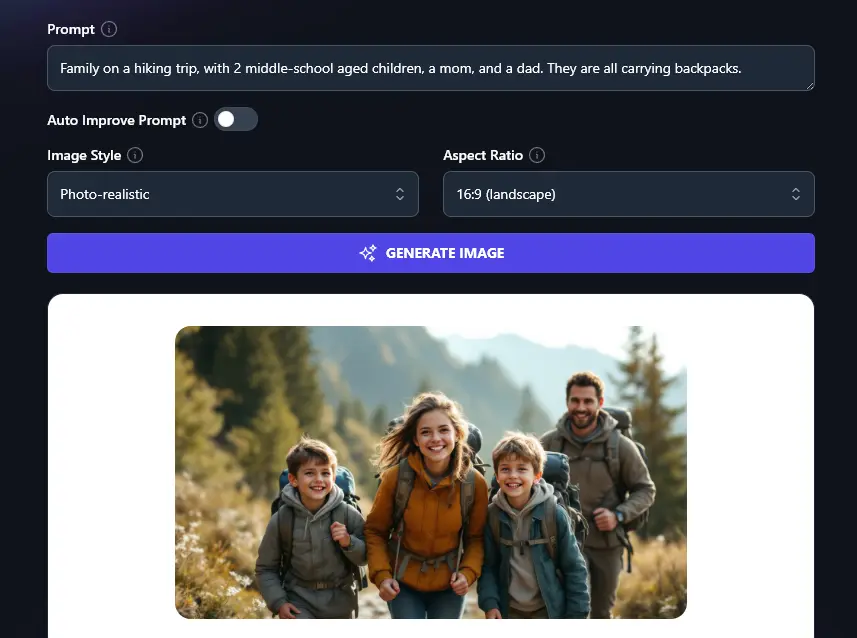
To download your image, simply hover your mouse over it and click the “Download” button. This lets you save the image as a .jpg to your computer.
Bonus: Use My AI Image Generation Prompt to Build the Perfect Prompt
Struggling with your image prompts? Here’s my personal image prompt checklist that you can use with this tool (or any picture generator) to get better results.
- Start off by writing a basic description of the image you want
- Then, add more details about what you’d like the image to include: e.g. how many people, what exact items
- As well as describing the main subject of your image, add a phrase or sentence about the background you want
- If something doesn’t matter to you, leave it out! You don’t want to confuse the AI with lots of unnecessary instructions
- Always specify the style for the image, otherwise, the AI won’t know if you want a photo-realistic image, a cartoon, or something else entirely
- Think about where you’ll be using this image and what aspect ratio to use (if you’re using the image in multiple places, select the highest/widest aspect ratio, then crop the image)
How Does this AI Tool Work to Create AI-Generated Images?
Let’s dig a little deeper into each feature of the AI image creator, so you can get the best possible results from it.
1. Prompt (Give Plenty of Details)
When writing your prompt, give the AI as much information as necessary for the image you want. If you don’t have any particular preferences, you don’t need to include information.
Here’s an example of the different output that you can get with a general vs detailed prompt.
General Prompt:
“People in a meeting.”
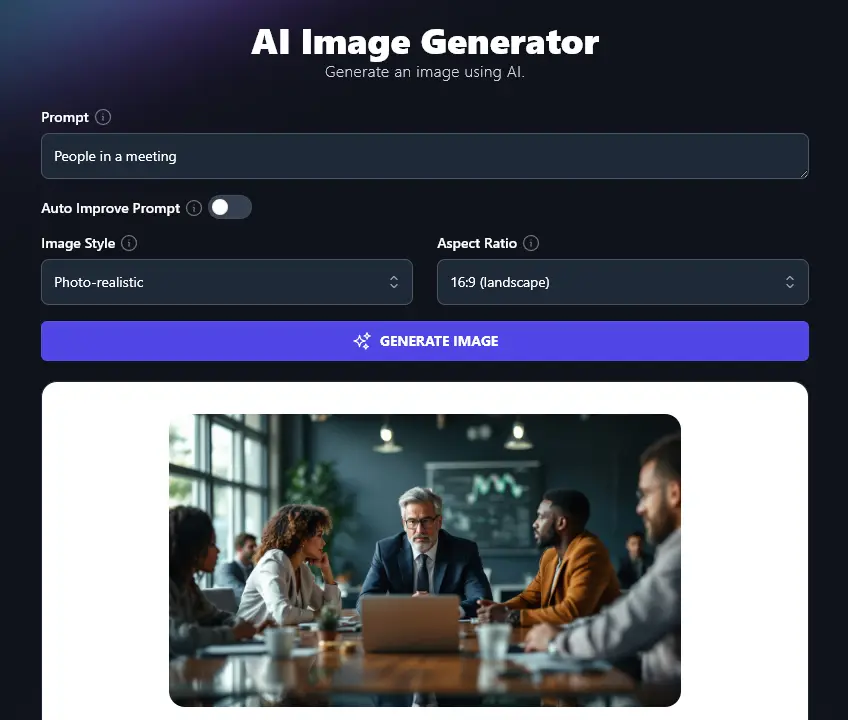
Specific Prompt:
“Five people gathered around a circular meeting table, in a large square room with white walls and some pot plants. Each person has a laptop. The photo angle is from above. The group is diverse in terms of both gender and ethnicity. All the people are wearing casual office clothing.”
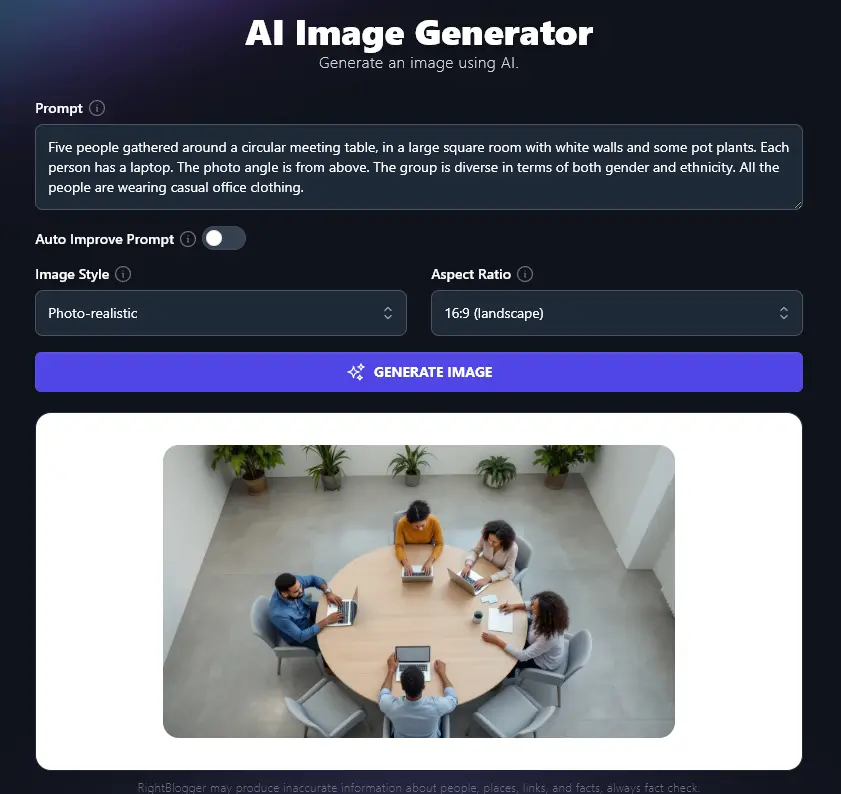
2. Auto Improve Prompt? (Use This for General Prompts)
If you have a fairly general prompt and no specific preferences on how the AI picture tool interprets it, we recommend turning on the “Auto Improve” feature.
If you’ve already given lots of details in your prompt, it’s best not to use Auto Improve, or the AI may end up missing things that you’ve asked for.
3. Image Style (Select Your Preferred Style)
The Image Style dropdown lets you create images in a whole range of styles. The options available are:
- Photo-realistic: an image that looks like a photograph
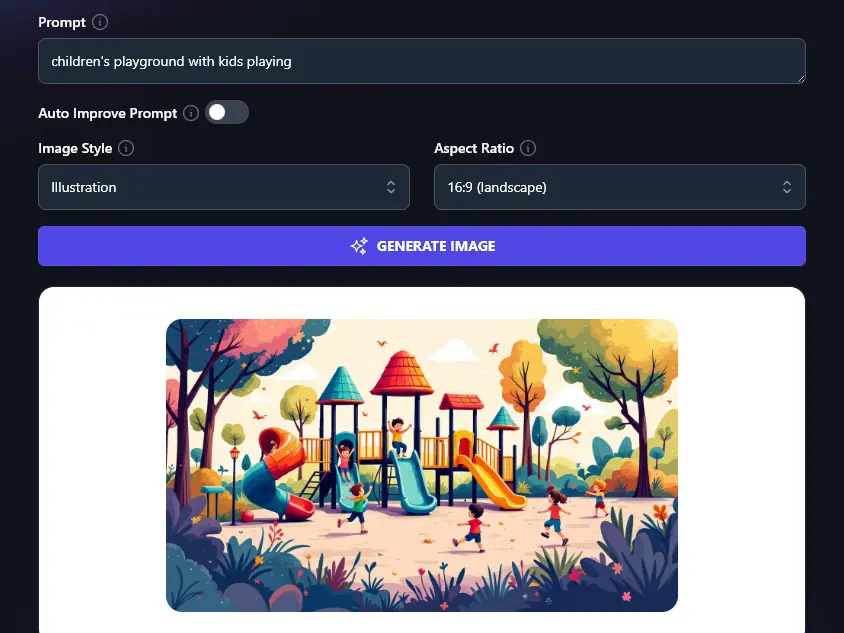
- Illustration: a detailed illustration (not a cartoon)
- Anime: an anime/manga style image
- Pixel: a pixel art image (cartoonish)
- Sketch: a soft images, as if created with colored pencils
- Black and White Sketch: as above, but in black and white / greyscale
- 3D Rendering: a 3D-style image (computer-animated TV/movie-style)
- Dreamy: images that have a dream-like feel, with golden light
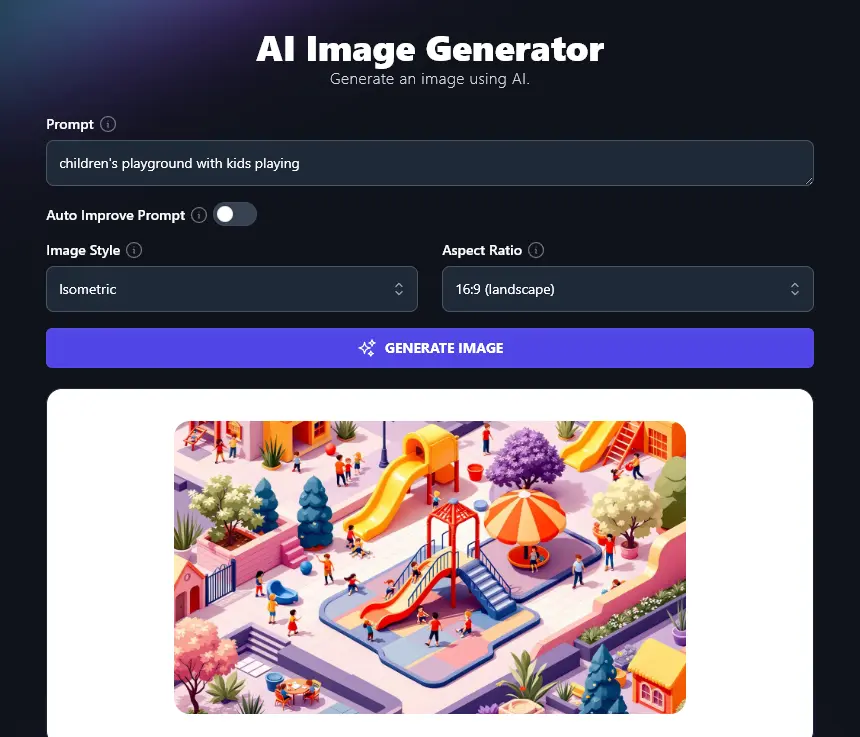
- Isometric: an isometric view (overhead perspective, with a 30-degree angle from vertical)
- Watercolor: soft watercolor-style blending between colors
Here’s an Illustration image that uses the prompt “children’s playground with kids playing”.
And here’s an Isometric image for the same prompt:
4. Aspect Ratio
The image generator can create AI images in a range of different aspect ratios. These are:
- 1:1 (square image, e.g. for social media bio profile pic)
- 4:3 (traditional TV/movie aspect ratio)
- 16:9 (landscape image, e.g. for a YouTube video)
- 21:9 (cinema-aspect image, very widescreen)
- 3:4 (portrait image, shorter than typical phone screen)
- 9:16 (mobile image, e.g. for TikTok, Shorts, Reels, Instagram)
It’s a good idea to think through where you want to use your image, then create it in the widest or highest format you’ll need.
For instance, if you’re going to use the image within a YouTube video and as your social media bio, you could create a 16:9 image then crop it in image editing software to get a square 1:1 image for your bio.
AI Image Generator FAQs (Frequently Asked Questions)
Got questions about the AI image creation tool or questions about AI-generated images in general? Here’s everything you need to know.
What’s the Best AI Image Generator to Use?
There are lots of different AI image generators and AI art generators out there, using different AI models. Some popular ones are DALL-E (from OpenAI), Midjourney, and Leonardo AI. All of these use advanced machine learning algorithms to interpret your text prompt and turn it into an image.
Regardless of what tool you use, they generally work in the same way: you enter a text prompt, including information like your preferred art style and desired aspect ratio, and the tool generates one or more unique images for you.
The big advantages of the RightBlogger AI image generator are:
- It’s included with every RightBlogger plan (starting at $49/mo for Solo)
- You can easily pick from different artistic styles and aspect ratios, so you don’t have to manually include these in your prompt
How Can I Edit My AI Generated Images?
After downloading your AI generated images, you can edit them in any photo editing tool, like Photoshop.
You could also upload your generated art to an online graphic design tool such as Canva, where you can add text, carry out customization, use them within a template, etc.
Is it Legal to Use Images Produced by Generative AI?
While laws differ from country to country, it’s generally considered legal to use images produced by AI (artificial intelligence) on your blog and social media.
If you want to use images commercially (e.g. printing them on a t-shirt to sell), then you need to check the terms and conditions of the text to image generator or contact their support team to see if commercial use is permitted.
You should avoid creating images that infringe on IP (Intellectual Property), e.g. images of Disney characters.
Keep in mind that AI images aren’t in themselves copyright, currently. That means someone else could put your AI image on their own blog or social media account without legal consequences.
If you’re in any doubt about whether you can use AI generated images, we recommend you contact a lawyer for advice.
What Other AI Tools Can I Use to Grow My Online Presence?
In RightBlogger, we have a growing library of tools for bloggers and content creators.
Some of the tools you’ll definitely want to check out are:
- Image Caption Generator: instantly write an accurate text description for your image
- Article Writer: write a full blog post from just a keyword or topic
- Instagram Caption: generate a set of potential captions for your Instagram post
- TikTok Content Ideas: come up with great ideas for TikTok, Reels, or Shorts
- Post Ideas: generate a list of ideas for your blog
- YouTube Video Outline: instantly outline a full-length YouTube video
This tool is part of every plan. You also get blog automation, brand voices, and AI images included. Monthly plans start at Solo $59 (annual billing, charged monthly, is $49) (Solo), with monthly Pro at $89 (annual $69) and monthly Agency at $299 (annual $199). Compare plans.
Who is the AI Image Generator For?
The text-to-image AI tool is for anyone carrying out visual content creation or looking to create an AI photo, cartoon, illustration, or anything similar. It’s designed to be easy to use for beginners.
That includes bloggers, YouTubers, content writers, content marketers, SEO professionals, small business owners, and anyone who wants to create new images to use online.